
Want to watch your laptop screen on a bigger display? Connecting your laptop to your TV opens up a world of possibilities. Stream Netflix on your living room TV. Give presentations without squinting at a small screen. Play games on a display that does justice to the graphics.
This guide covers every method to connect your laptop to your TV, both wired and wireless. Whether you have a TCL, Hisense, Samsung, LG, or any other smart TV in the UAE, you will find step-by-step instructions here.
Why Connect Your Laptop to Your TV?
Your TV offers a larger screen than any laptop. A 55-inch display beats a 15-inch screen for movie nights, photo slideshows, video calls with family abroad, or working from home with more screen space.
Common reasons people connect laptops to TVs include:
- Streaming content is not available on TV apps
- Watching downloaded movies and videos
- Sharing photos with family gatherings
- Giving presentations at home or the office
- Using the TV as a second monitor for work
- Playing PC games on a bigger screen
Let us explore both HDMI and wireless methods so you can choose what works best for your setup.
For better sound while streaming, you can also connect AirPods to a laptop.
How to Connect a Laptop to a TV With HDMI
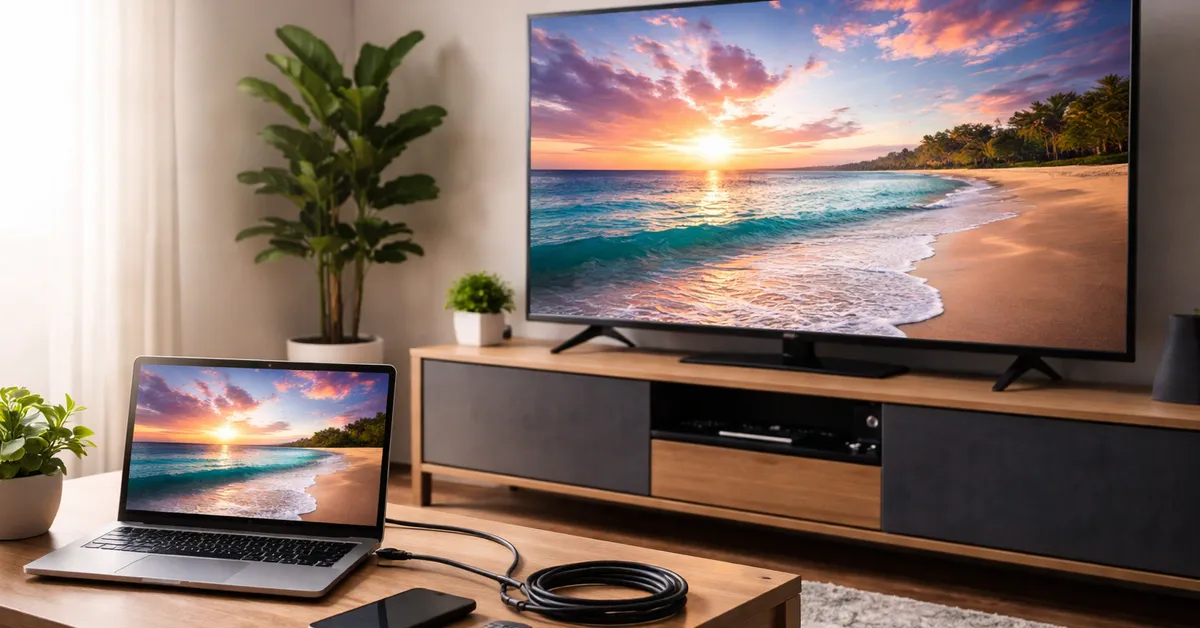
HDMI remains the simplest and most reliable connection method. One cable carries both video and audio. No apps needed. No WiFi required. Just plug and play.
What You Need
- HDMI cable (any length works, but shorter cables perform better)
- Laptop with an HDMI port
- TV with HDMI input
Step-by-Step Instructions
- Step 1: Locate the HDMI port on your laptop. Most laptops have the port on the left or right side. It looks like a thin trapezoid shape.
- Step 2: Find an available HDMI port on your TV. TVs typically have 2-4 HDMI ports on the back or side. Note which port number you use (HDMI 1, HDMI 2, etc.).
- Step 3: Connect one end of the HDMI cable to your laptop and the other end to your TV.
- Step 4: Turn on your TV and use the remote to select the correct HDMI input. Press the Source or Input button and choose the matching HDMI port.
- Step 5: Your laptop screen should appear on the TV. If it does not appear automatically, press Windows key + P on your laptop and select Duplicate or Extend.
Display Mode Options
When you press Windows key + P, you see four options:
- PC screen only: TV shows nothing, laptop works normally
- Duplicate: Both screens show the same content.
- Extend: TV becomes a second monitor, and you can drag windows between screens.
- Second screen only: Laptop screen turns off, only the TV displays
Choose Duplicate for movies and presentations. Choose Extend for productivity and multitasking.
Also read: How to Know My Laptop Screen Size
Which HDMI Cable Should You Buy?
Not all HDMI cables perform equally. For best results:
- Standard HDMI: Supports 1080p, fine for most uses
- High-Speed HDMI: Supports 4K at 30Hz, good for 4K TVs
- Premium High-Speed HDMI: Supports 4K at 60Hz with HDR
- Ultra High-Speed HDMI: Supports 8K, future-proof option
For most users in the UAE, a High-Speed HDMI cable costing AED 30-50 works perfectly. Tech Point Zone stocks quality HDMI cables alongside our laptop range.
What If My Laptop Doesn’t Have an HDMI Port?
Many modern ultrabooks skip the full-size HDMI port to stay slim. If your laptop lacks an HDMI port, you have several options.
USB-C to HDMI Adapter
Most laptops with USB-C ports support video output. A simple USB-C-to-HDMI adapter solves the problem. Plug the adapter into your laptop, then connect an HDMI cable from the adapter to your TV.
This works with Dell XPS, HP Spectre, ASUS ZenBook, MacBook, and most other modern laptops.
Mini HDMI or Micro HDMI
Some laptops have smaller HDMI variants. Check your laptop’s ports carefully. You may need a Mini HDMI-to-HDMI or Micro HDMI-to-HDMI cable.
DisplayPort to HDMI
Older business laptops often have DisplayPort instead of HDMI. A DisplayPort-to-HDMI adapter or cable lets these laptops connect to TVs easily.
VGA to HDMI (Older Laptops)
Very old laptops may only have VGA ports. VGA-to-HDMI adapters exist but require external power and do not carry audio. You would need separate speakers or an audio cable.
How to Connect a Laptop to a TV Wirelessly
Wireless connections eliminate cable clutter. Walk around with your laptop while content plays on the TV—no tripping over wires.
Several wireless technologies exist. The right choice depends on your laptop and TV brands.
How to Connect a Laptop to a TV Wirelessly in Windows 11
Windows 11 includes built-in Miracast wireless display support. Most smart TVs manufactured after 2015 support Miracast.
- Step 1: Ensure your TV supports wireless display. Look in TV settings for Screen Mirroring, Miracast, or Wireless Display options. Enable this feature.
- Step 2: Connect both your laptop and TV to the same WiFi network.
- Step 3: On your laptop, press Windows key + K to open the Cast panel.
- Step 4: Your TV should appear in the list of available devices. Click on your TV name.
- Step 5: Your TV may display a PIN code. Enter this PIN on your laptop if prompted.
- Step 6: Once connected, your laptop screen appears on the TV. A toolbar appears at the top of your laptop screen with connection options.
- Step 7: To change display mode, press Windows key + P and select Duplicate or Extend.
How to Connect a Laptop to a TV Wirelessly in Windows 10
The Windows 10 process closely mirrors Windows 11.
- Step 1: Turn on your TV and enable Screen Mirroring in TV settings.
- Step 2: On your laptop, click the Action Centre icon (speech bubble) in the bottom-right corner of the taskbar.
- Step 3: Click Connect. Windows searches for wireless displays.
- Step 4: Select your TV from the list.
- Step 5: Accept the connection on your TV if prompted.
- Step 6: Your laptop screen now displays on the TV.
Alternatively, go to Settings > System > Display > Connect to a wireless display.
How to Connect a Laptop to a TCL TV Wirelessly
TCL TVs come in different operating systems, including Roku TV, Android TV, and Google TV. Each works slightly differently.
TCL Roku TV
- Step 1: Press the Home button on your TCL Roku remote.
- Step 2: Navigate to Settings > System > Screen Mirroring.
- Step 3: Set Screen Mirroring Mode to Always Allow or Prompt.
- Step 4: On your Windows laptop, press Windows key + K.
- Step 5: Select your TCL Roku TV from the available devices.
- Step 6: If set to Prompt, accept the connection on your TV.
TCL Android TV or Google TV
- Step 1: Ensure your laptop and TV are connected to the same Wi-Fi network.
- Step 2: On your TCL TV, the Chromecast feature activates automatically when connected to WiFi.
- Step 3: Open the Google Chrome browser on your laptop.
- Step 4: Click the three-dot menu in the top-right corner.
- Step 5: Select Cast from the dropdown menu.
- Step 6: Choose your TCL TV from the list.
- Step 7: Select the Cast tab, Cast desktop, or Cast file depending on what you want to share.
Also read: How to Check Laptop Specifications
How to Connect My Laptop to My Hisense TV Wirelessly
Hisense TVs feature Anyview Cast for wireless screen mirroring from Windows laptops.
- Step 1: Connect your laptop and Hisense TV to the same WiFi network.
- Step 2: On your Hisense TV remote, press the Input button.
- Step 3: Select Anyview Cast from the input options.
- Step 4: Your TV displays a waiting screen for device connection.
- Step 5: On your Windows laptop, press Windows key + P.
- Step 6: Click Connect to a wireless display at the bottom.
- Step 7: Select your Hisense TV from the available devices.
- Step 8: Your laptop screen immediately mirrors to the TV.
If Anyview Cast does not appear, check Settings on your Hisense TV and look for Screen Mirroring or Wireless Display options.
Using Chromecast to Connect Laptop to TV
If your TV does not support built-in wireless display, a Chromecast device adds this capability. Chromecast plugs into your TV’s HDMI port and connects to your WiFi.
- Step 1: Plug Chromecast into an HDMI port on your TV.
- Step 2: Power the Chromecast using the included USB cable.
- Step 3: Set up Chromecast using the Google Home app on your phone.
- Step 4: On your laptop, open Google Chrome.
- Step 5: Click the three-dot menu and select Cast.
- Step 6: Choose your Chromecast device.
- Step 7: Select what to cast: a browser tab, your entire desktop, or a specific file.
This method works with any laptop running the Chrome browser, including Windows, Mac, and Chromebooks.
Microsoft Wireless Display Adapter
If your TV lacks Miracast support, Microsoft’s Wireless Display Adapter adds this feature. The adapter plugs into your TV’s HDMI and USB ports.
- Step 1: Connect the adapter’s HDMI plug to your TV’s HDMI port.
- Step 2: Connect the adapter’s USB plug to your TV’s USB port for power.
- Step 3: Switch your TV to the correct HDMI input.
- Step 4: On your Windows laptop, press Windows key + K.
- Step 5: Select Microsoft Wireless Display Adapter from the device list.
- Step 6: Your laptop screen appears on the TV.
This adapter works reliably with Windows 10 and Windows 11 laptops.
HDMI vs Wireless: Which is Better?
Both methods have advantages. Choose based on your priorities.
When to Use HDMI
- You want the most reliable connection
- You need zero lag for gaming
- Your WiFi network runs slowly
- You plan to watch DRM-protected content (Netflix, Prime Video)
- You do not mind cables
When to Use Wireless
- You want a clean, cable-free setup
- You need to move around with your laptop
- You present frequently and want convenience
- Your laptop lacks an HDMI port
- You connect occasionally rather than permanently
For gaming and DRM-protected streaming services, HDMI performs better. Some streaming apps block wireless mirroring due to copyright protection. Netflix and Amazon Prime Video may show black screens when cast wirelessly.
For presentations, photo slideshows, YouTube, and general browsing, wireless works perfectly.
Troubleshooting Common Problems
TV Not Detecting Laptop (HDMI)
- Try a different HDMI port on the TV
- Test with a different HDMI cable
- Press Windows key + P and select Duplicate
- Restart both the laptop and the TV
- Update graphics drivers on your laptop
TV Not Appearing in Wireless Device List
- Confirm both devices connect to the same WiFi network
- Enable Screen Mirroring in TV settings
- Restart both devices
- Disable VPN on your laptop
- Check if your laptop supports Miracast (press Windows key + K to verify)
Wireless Connection Keeps Dropping
- Move the laptop closer to the TV
- Reduce interference from other devices
- Switch to the 5GHz WiFi band if available
- Update TV firmware and laptop drivers
- Use HDMI for a stable connection
No Sound on TV
- Check TV volume and mute settings
- Right-click the speaker icon on your laptop taskbar
- Select Sound Settings > Output
- Choose your TV as the audio output device
Picture Quality Looks Poor
- Check display resolution settings
- Right-click desktop > Display Settings
- Select the correct resolution for your TV (usually 1920×1080 or 3840×2160)
Best Laptops for TV Connectivity
Looking for a laptop that connects seamlessly to your TV? At Tech Point Zone, we stock laptops with full HDMI ports, USB-C video output, and Miracast support.
Popular choices include HP Pavilion, Dell Inspiron, ASUS Vivobook, and Lenovo IdeaPad series. All support both wired and wireless TV connections out of the box.
Browse our laptop collection to find the perfect device for your needs. We deliver across Dubai, Abu Dhabi, Sharjah, and all Emirates with free shipping on qualifying orders.
Want to show phone photos on the big screen? First transfer photos from iPhone to laptop.
Frequently Asked Questions
How to mirror a laptop to a TV wirelessly over an HDMI?
HDMI requires a physical cable. It cannot work wirelessly on its own. However, wireless HDMI transmitters exist. These devices wirelessly transmit HDMI signals from your laptop to a receiver connected to your TV. They cost more than regular cables but eliminate wire clutter while maintaining HDMI quality.
Can I connect my laptop to my TV with an HDMI cable?
Yes, absolutely. HDMI remains the most common and reliable method. Connect an HDMI cable between your laptop and TV, select the correct input on your TV, and your laptop screen appears. If your laptop lacks a full HDMI port, use a USB-C to HDMI adapter.
Is it better to use HDMI or wireless?
HDMI offers better reliability, zero lag, and full compatibility with streaming services. Wireless provides convenience and cleaner aesthetics. For gaming, watching Netflix, or permanent setups, use HDMI. For presentations, occasional use, or when your laptop lacks an HDMI port, go wireless.
How to connect a laptop to a TV without HDMI?
You have several options. Use wireless screen mirroring through Miracast (Windows key + K). Cast through Chrome browser to Chromecast. Use a USB-C-to-HDMI adapter if your laptop has a USB-C port. Connect a Microsoft Wireless Display Adapter to add wireless capability to any TV.
What if my laptop doesn’t have an HDMI port?
Most modern laptops without HDMI have USB-C ports that support video output. Buy a USB-C to HDMI adapter (around AED 50-100) and use a regular HDMI cable. Alternatively, use wireless methods such as Miracast or Chromecast via the Chrome browser.
Why won’t my laptop connect to the TV wirelessly?
Several factors cause wireless connection failures. Both devices must connect to the same WiFi network. Your TV must have Screen Mirroring enabled in settings. Your laptop must support Miracast (most Windows 8.1 and newer laptops do). VPNs can block the connection. Try restarting both devices and checking these settings.
Conclusion
Connecting your laptop to your TV transforms your viewing experience. Whether you choose HDMI for reliability or wireless for convenience, both methods work well with modern laptops and smart TVs available in the UAE.
HDMI remains the simplest option; one cable handles everything. For wireless connections, Windows 10 and 11 make it easy with built-in Miracast support. Just press Windows key + K and select your TV.
TCL, Hisense, Samsung, LG, and other smart TV brands all support screen mirroring. Enable the feature in your TV settings, connect both devices to the same WiFi network, and start casting within seconds.
Having trouble with your current laptop’s connectivity? Tech Point Zone stocks laptops from HP, Dell, ASUS, and Lenovo with full HDMI ports and wireless display support. Browse our collection online and enjoy free delivery across Dubai, Abu Dhabi, Sharjah, and all Emirates.