
HP vs Lenovo Laptops (2026): Which Brand Should You Buy in the UAE?
HP vs Lenovo laptops compared for UAE buyers: keyboards, value, 2-in-1s, business and gaming ranges, warranty and real AED prices from our stock.
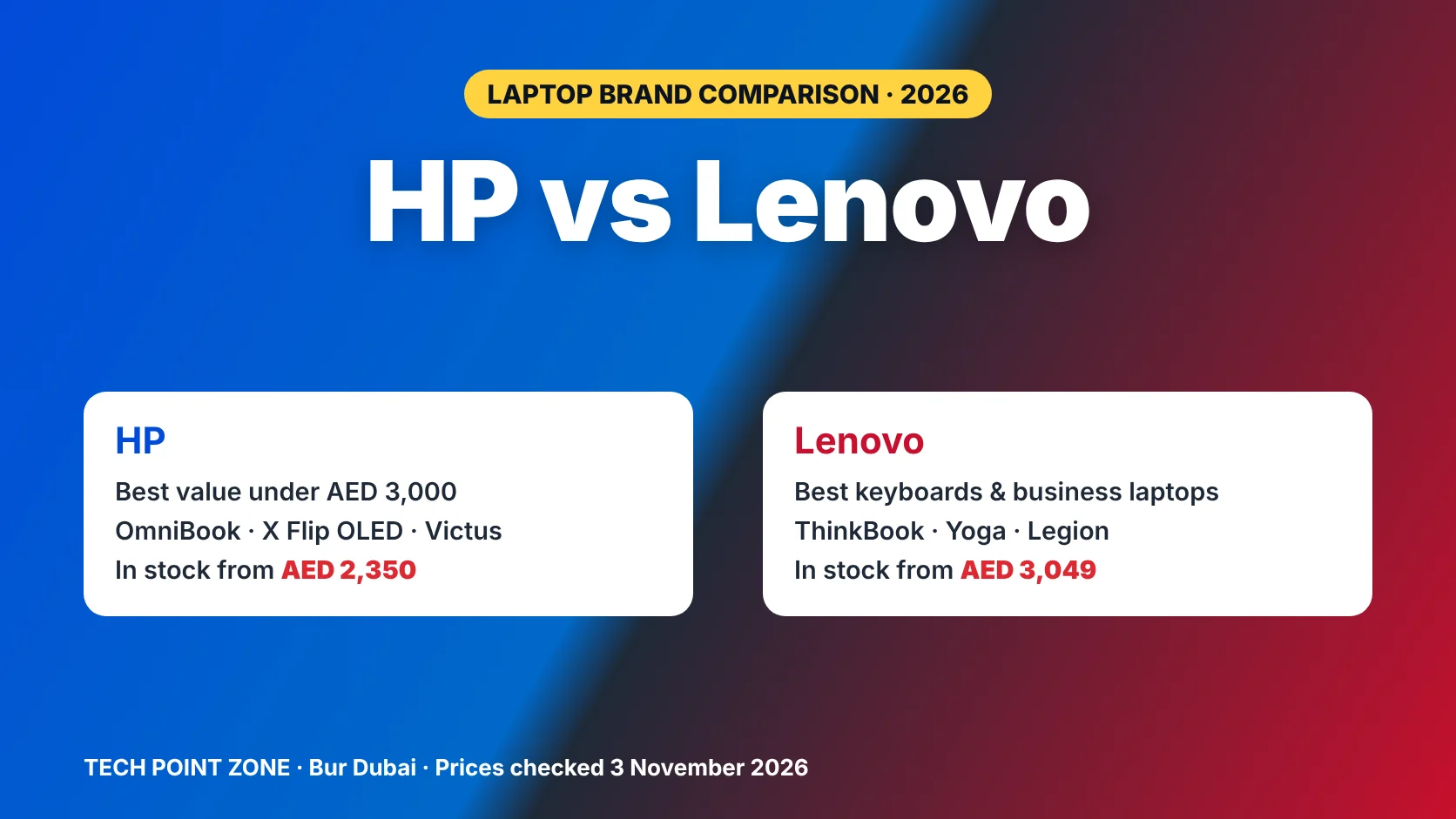
HP vs Lenovo laptops compared for UAE buyers: keyboards, value, 2-in-1s, business and gaming ranges, warranty and real AED prices from our stock.
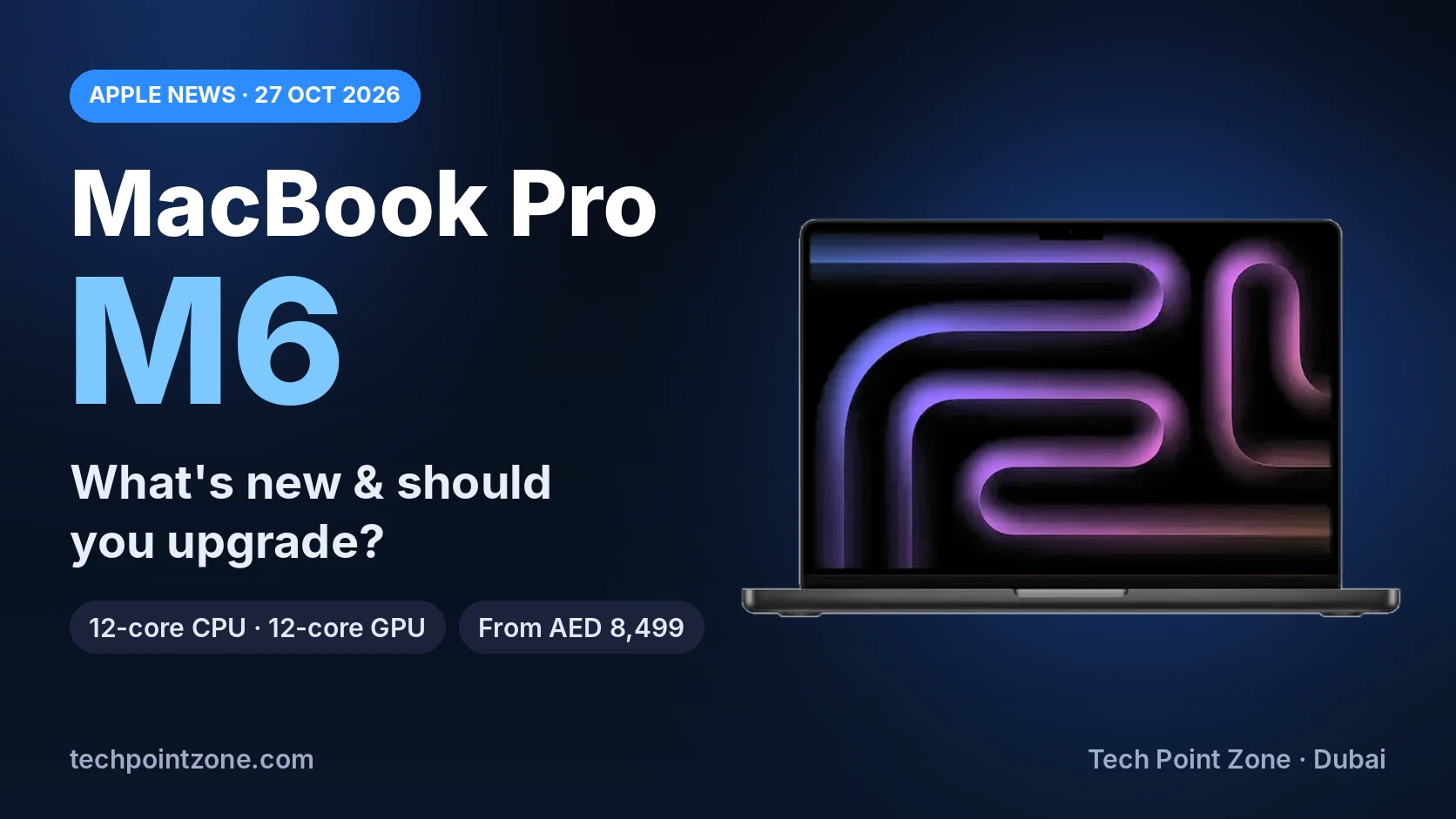
The MacBook Pro M6 brings a 12-core CPU and GPU, Wi-Fi 7 and up to 24 hours of battery from AED 8,499 in the UAE. Here’s what changed from M5, how it compares with the touchscreen MacBook Pro, and whether you should upgrade.
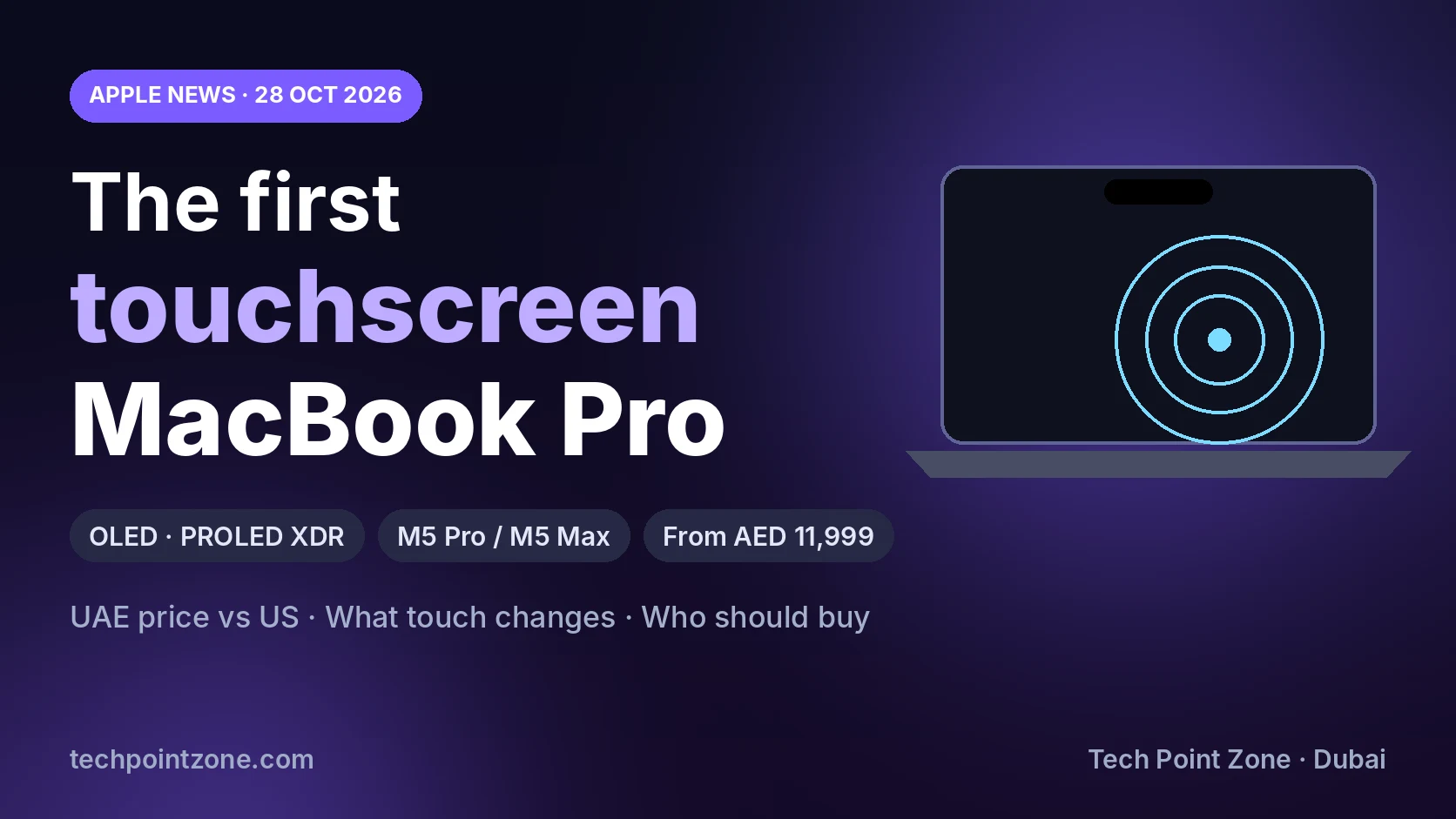
Apple’s first touchscreen MacBook Pro uses an OLED PROLED XDR display and M5 Pro or M5 Max chips, from AED 11,999 in the UAE. We compare UAE and US prices, explain what touch changes on a Mac and who should buy it.
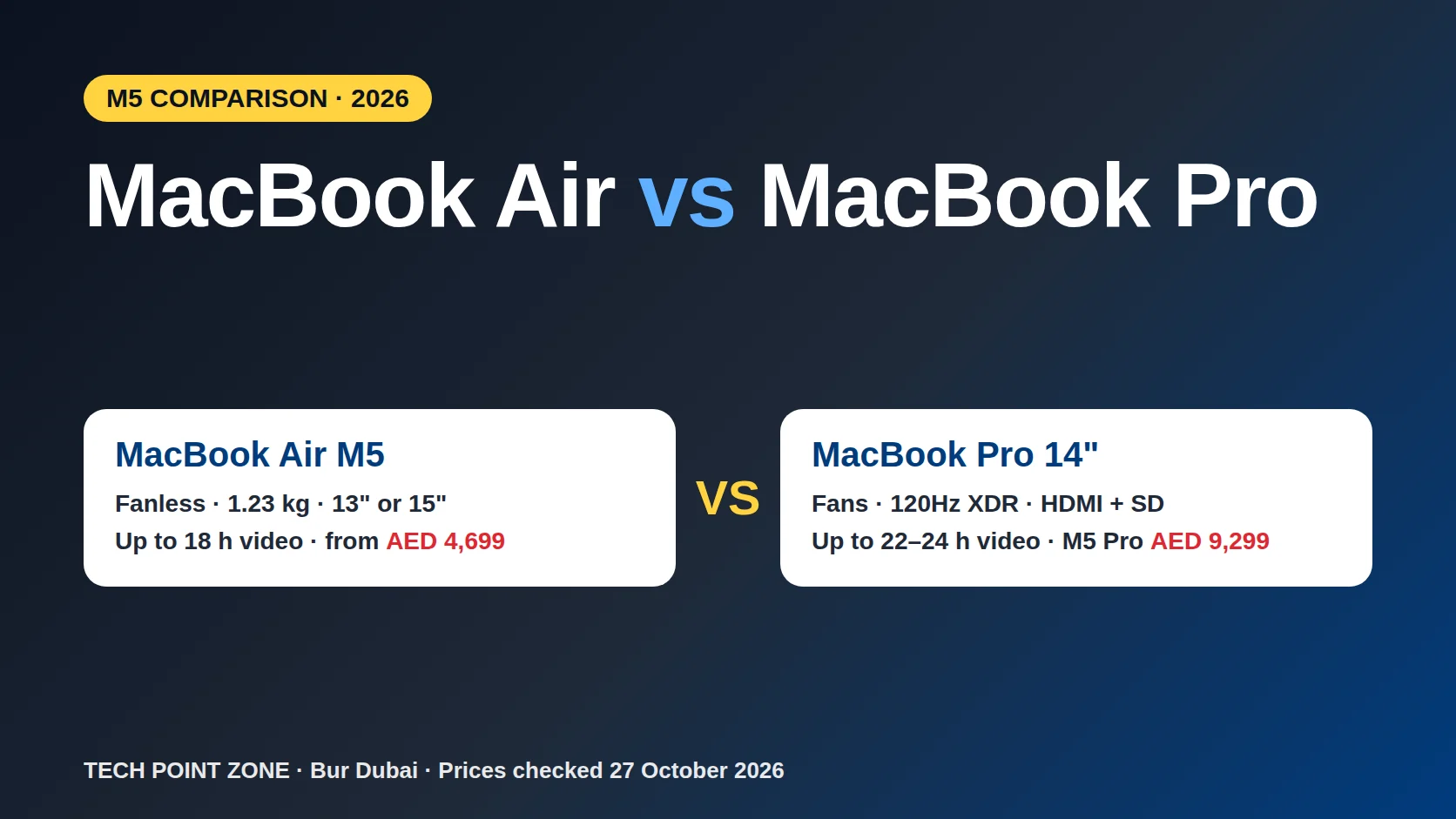
MacBook Air M5 vs MacBook Pro 14″ (M5 and M5 Pro): performance, cooling, screen, battery, ports and UAE prices compared, so you can pick the right Mac.
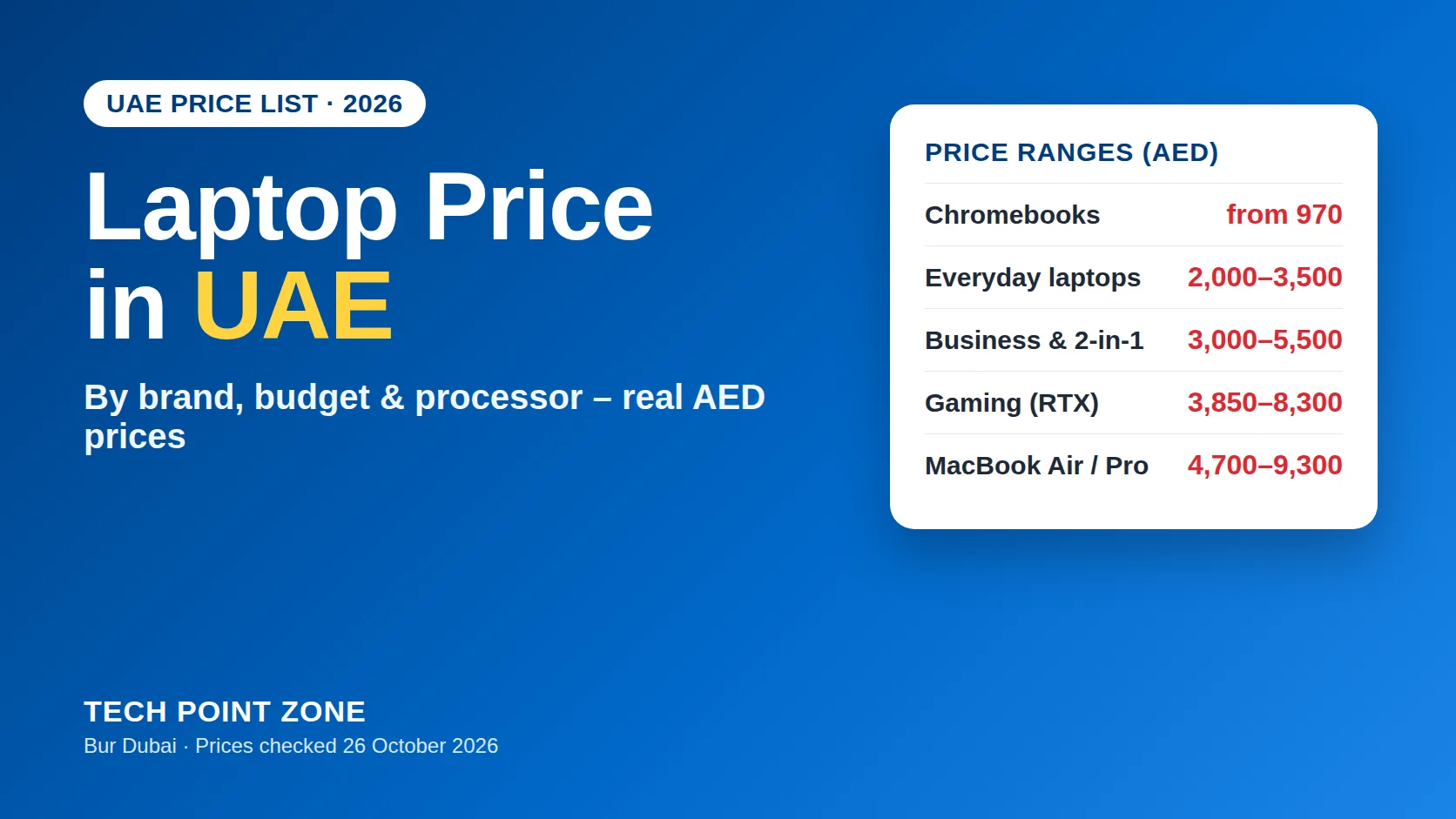
Real laptop prices in the UAE for October 2026: by budget, brand (HP, Dell, Lenovo, Apple, ASUS, MSI), processor and gaming GPU, with in-stock examples in AED.
Prices checked in our Bur Dubai store on 6 October 2026 and may change.
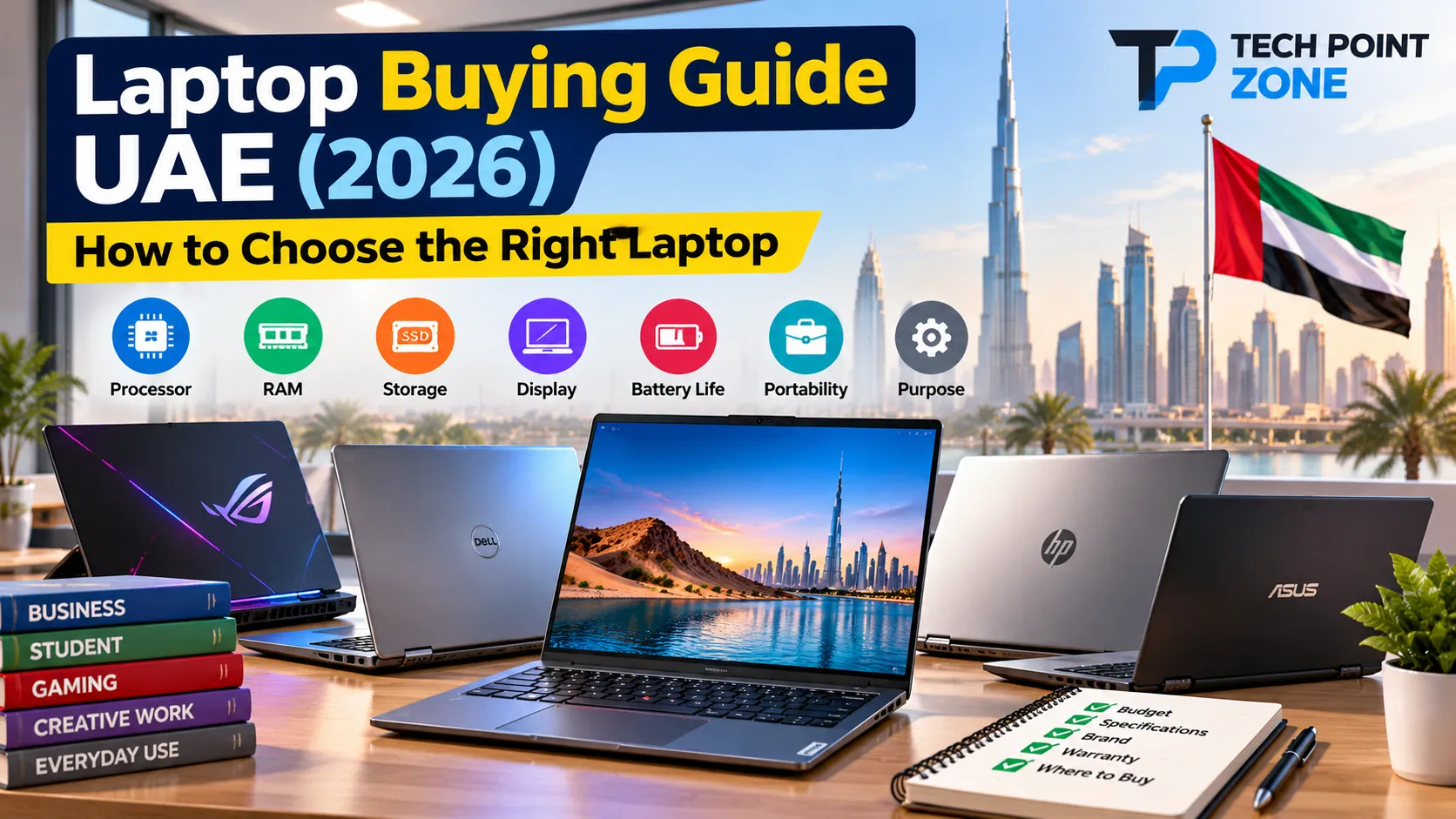
Short answer: for most people in the UAE, the sweet spot is a laptop with a current Intel Core Ultra, AMD Ryzen AI or Snapdragon X processor, 16GB RAM, a 512GB SSD and a Full HD or sharper screen. In Dubai that costs about AED 2,300–3,500. Spend more only if you game, edit video or want a premium build.
Key takeaways
| Best for | Our pick | Budget | From |
|---|---|---|---|
| Study & office | Acer Aspire 14 AI – Core Ultra 5, 16GB, 512GB | Under AED 2,500 | AED 2,399 |
| Big screen, low price | HP OmniBook 3 16″ – touchscreen, Core Ultra 5 | Under AED 2,500 | AED 2,350 |
| All-day battery | Acer Aspire 14 AI – Core Ultra 7 256V, 16GB, 1TB | AED 2,500–3,500 | AED 2,599 |
| Business | Lenovo ThinkBook 16 G8 – Core Ultra 7 | AED 2,500–3,500 | AED 3,590 |
| 2-in-1 & pen | Lenovo Yoga 7 2-in-1 – Ryzen AI 7, 24GB, OLED | AED 3,500–5,000 | AED 4,269 |
| Entry gaming | Lenovo LOQ Essential – RTX 5050, 144Hz | AED 3,800–5,000 | AED 4,249 |
| Serious gaming | MSI Katana 15 HX – RTX 5060, QHD 165Hz | AED 4,800–6,600 | AED 5,599 |
| Creators & macOS | MacBook Pro 14 – M5 Pro, 24GB, 1TB | AED 9,000+ | AED 9,299 |
Stock moves quickly. If a model has sold out, browse all laptops in stock or check today’s laptop deals.
The most common mistake we see in our Dubai shop is buying on price or looks first. Start with the job the laptop has to do:
Battery life, low weight and 16GB RAM. Engineering and design courses need more power. If your school runs on Google tools, a Chromebook may be enough.
Best laptops for students →
Student laptops under AED 2,000 →
Chromebook vs laptop →
A good keyboard, a 14–16-inch screen, a decent webcam and ports for a monitor. ThinkBook, Dell Pro and HP OmniBook are built for this.
Best laptops for office work →
Business laptops in the UAE →
16GB for web and Python; 24–32GB for Docker, virtual machines and Android Studio. iOS development needs a Mac.
The graphics card matters most: RTX 5050/4050 for 1080p, RTX 5060 for more headroom, RTX 5070 Ti-class for high settings. Expect 3–5 hours of battery.
A 2-in-1 with touch and pen folds into a tablet. Touch adds weight and cost, so only pay for it if you’ll use it.
A strong processor, 24–32GB RAM, 1TB storage and an accurate screen. Usually a MacBook Pro or a laptop with a dedicated GPU.
Not sure what’s inside the laptop you already own? Here’s how to check laptop specifications on Windows and Mac.
| Part | Basic use | Recommended | Gaming / creative |
|---|---|---|---|
| Processor | Core Ultra 5 / Ryzen AI 5 | Core Ultra 7 / Ryzen AI 7 / Snapdragon X | H/HX-series Intel or Ryzen, or Apple M-series Pro |
| RAM | 8GB (minimum) | 16GB | 24–32GB |
| Storage | 256–512GB SSD | 512GB SSD | 1TB SSD |
| Screen | Full HD, 60Hz | Full HD/WUXGA IPS or OLED | QHD 144–165Hz, or accurate OLED |
| Graphics | Integrated | Integrated (Intel Arc / Radeon) | NVIDIA RTX 5050 or higher |
Watch out: RAM you can’t upgrade. Many thin laptops, including most Copilot+ PCs with LPDDR5X memory, have RAM soldered to the board. Buy at least 16GB on day one. On laptops with memory slots, we can upgrade the RAM or SSD without voiding your warranty.
Snapdragon laptops: most everyday apps run well, but check that any specialist software, older games or anti-cheat systems you rely on support Windows on Arm.
Do you need a Copilot+ PC? They include an AI chip (NPU) for on-device Windows AI features such as live captions with translation. Useful, but not a reason on its own to spend more – the processor, RAM and screen matter more day to day.
| Budget (AED) | What you get | Read next |
|---|---|---|
| Under 500 | Used or older refurbished laptops only | Laptops under 500 AED · Refurbished laptops in Dubai |
| 1,500–2,500 | Reliable everyday laptops with modern processors and SSDs | Affordable laptops in the UAE |
| 2,500–4,000 | Thinner and lighter, better (often OLED) screens, 16–24GB RAM, longer battery | Business laptops |
| 3,800–5,500 | Entry and mid-range gaming with RTX 5050/5060 | Gaming under AED 5,000 |
| 5,500+ | High-end gaming, creator laptops and MacBook Pro | Gaming laptops · MacBooks |
Wondering whether you’ll save money buying here? We compare prices in are laptops cheaper in Dubai. For today’s prices by brand and budget, see our laptop price in UAE list. Not sure whether you need a “laptop” or a “notebook”? We explain the difference between a laptop and a notebook.
Every major brand makes good and bad laptops – the model line matters more than the logo.
Go deeper with our ranking of the best laptop brands, or our comparisons of Dell vs HP laptops, Samsung vs Dell laptops and Dell XPS 13 vs MacBook Air.
This is where UAE buyers most often get caught out. Many laptops sold in Dubai – including ours – are U.S.-version models.
What a U.S.-version laptop means for you
Read laptop warranty types for a full explanation, and our warranty policy for exactly what we cover.
For most people, AED 2,300–3,500 buys a laptop that stays fast for four to five years. Gaming and creative work usually need AED 4,000 or more.
For light browsing and documents, yes – but it leaves little headroom, and on laptops with soldered memory you can’t add more later. We recommend 16GB for most buyers.
Yes, if you buy from a seller that handles warranty claims for you. Check who processes repairs and how long they take before you pay.
Only if the rest of the specs suit you. The AI features are a bonus; battery life, RAM and the screen make a bigger day-to-day difference.
Prices usually drop during White Friday (November), 11.11, Dubai Shopping Festival and back-to-school season. Keep an eye on our laptop deals page.
Still not sure which laptop is right for you?
Visit our shop on Al Nahdha Street, Bur Dubai (Mon–Sat, 10:00–19:30) or message us on WhatsApp with what you need and your budget – we’ll recommend two or three options.
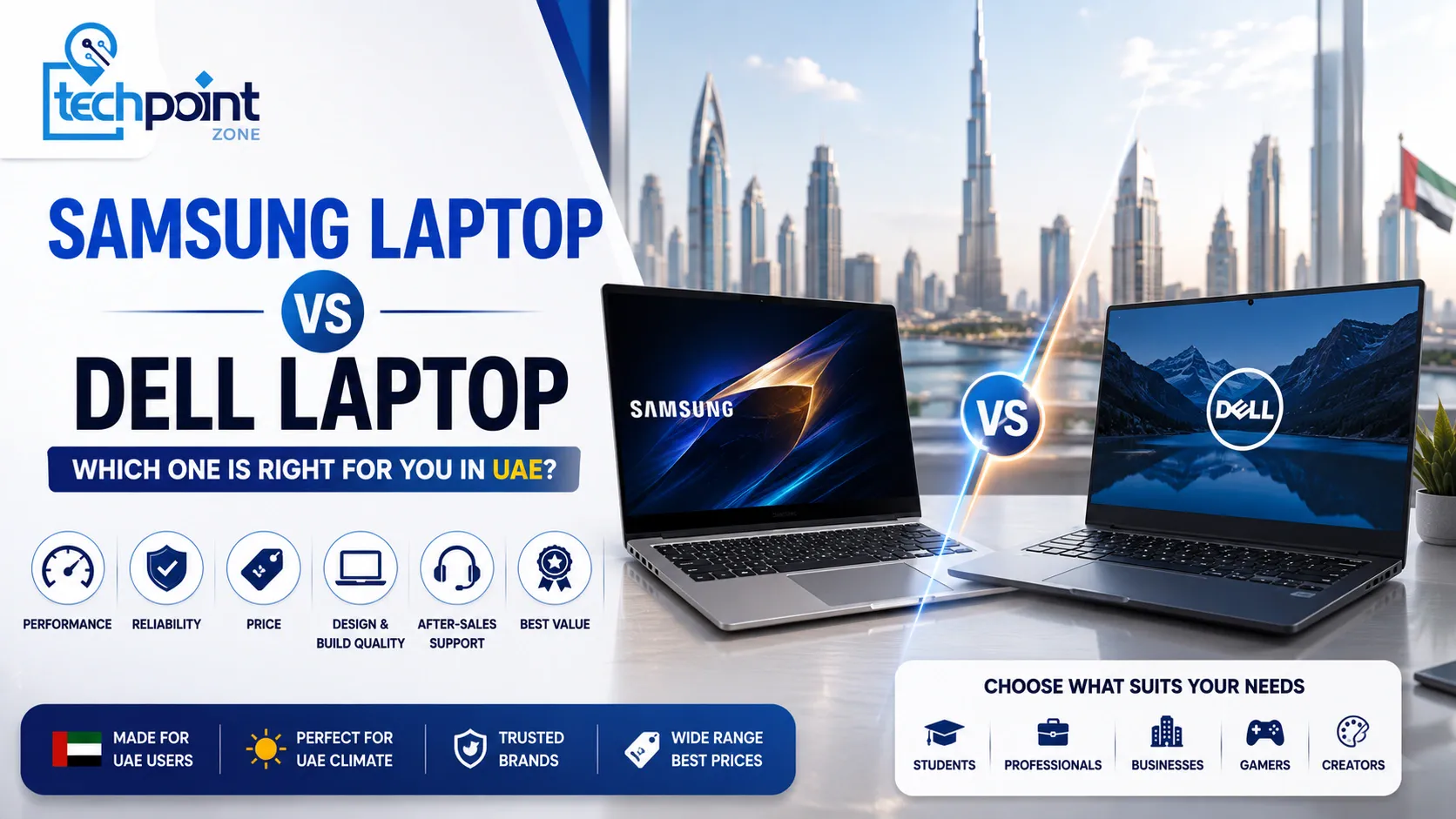
Samsung Galaxy Book6 vs Dell (incl. the new XPS and Dell Pro): battery, screen, performance, AED prices and UAE support compared.
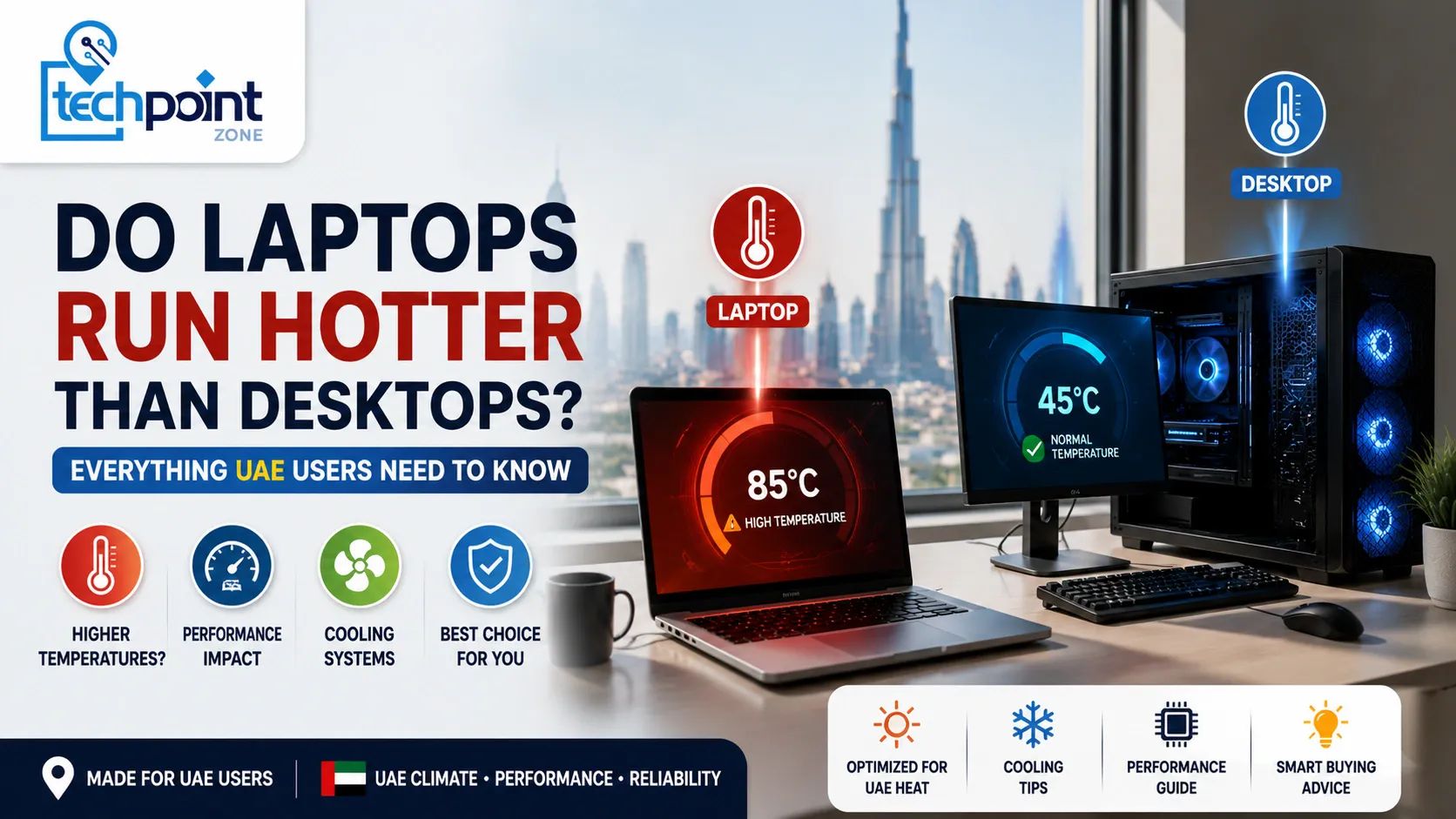
Your laptop feels hot to the touch. The fans are spinning loudly. You wonder if something is wrong, or if this is just how laptops work.
This is one of the most common concerns we hear from customers at Tech Point Zone in Dubai. The short answer is yes, laptops do run hotter than desktops. But the real question is: how hot is too hot, why does it happen, and what can you actually do about it, especially in the UAE’s warm climate?
This guide gives you clear, honest answers to all of it.
Yes, laptops run hotter than desktops. A laptop packs a CPU, GPU, RAM, storage, and battery into a slim chassis that is often less than 20mm thick, with very little room for airflow. Desktops have large cases, multiple fans, and big heatsinks that keep components much cooler under the same workload.
Under heavy use, a laptop CPU typically reaches 70°C to 95°C. A desktop CPU doing the same task usually sits between 50°C and 75°C. That is a meaningful difference, and it affects performance, longevity, and how the device feels in your hands.
Laptops generate the same amount of heat as desktops but have a fraction of the space to deal with it. Here is exactly what causes high laptop temperatures:
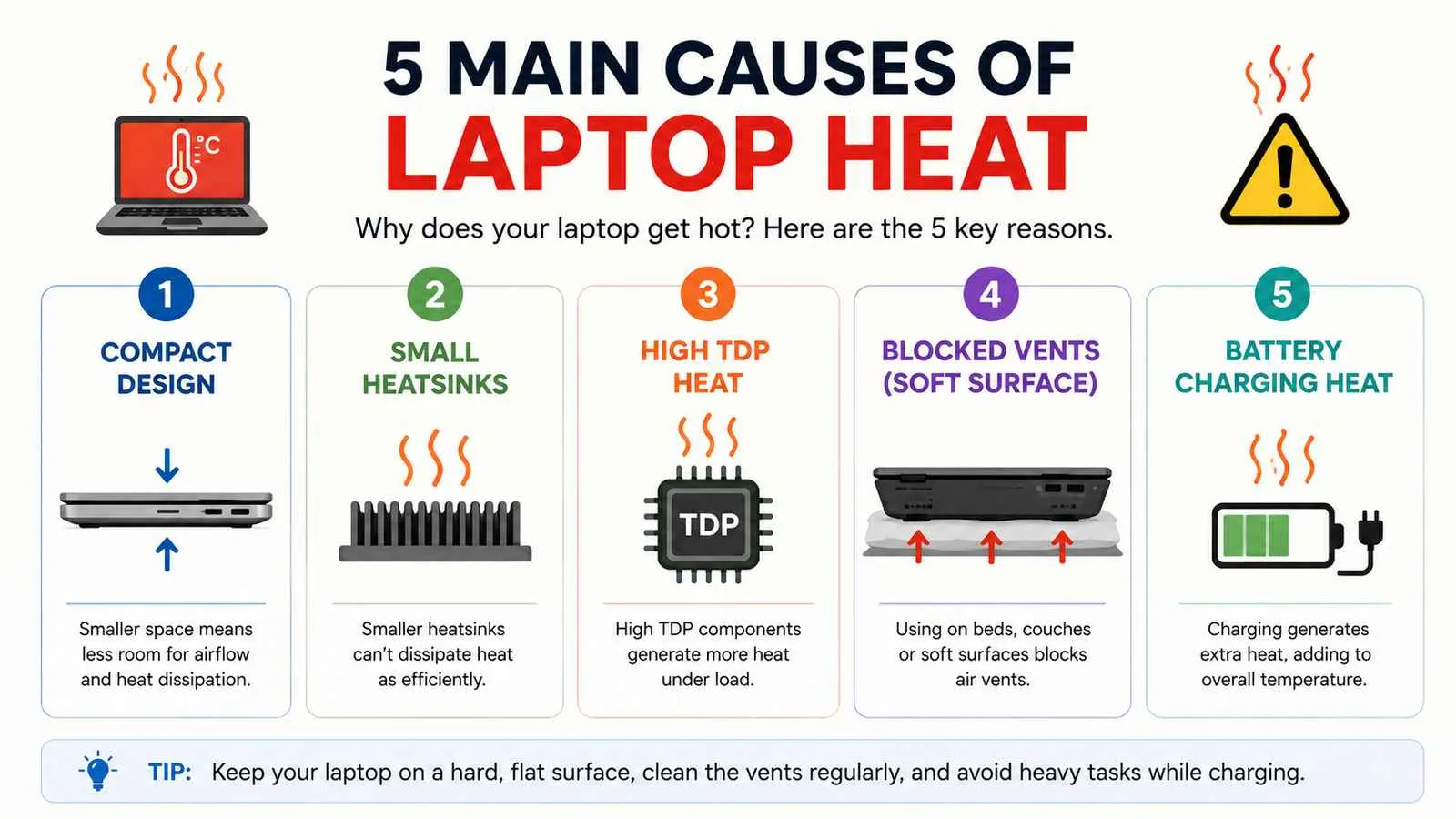
Everything is crammed together. The CPU and GPU sit centimetres apart. Hot air has very limited escape routes, usually two thin vents on the sides or back. Desktop cases have front intake fans, rear exhaust fans, and side panels that give components room to breathe.
This thermal challenge is even more noticeable in thinner notebooks compared to thicker, higher-performance laptops. If you’re still deciding between the two form factors, our guide on the difference between a laptop and a notebook explains how size and cooling design affect everyday performance.
Laptops use thin copper heat pipes and small vapour chambers to move heat away from the processor. Desktops use large tower heatsinks or 240mm to 360mm liquid coolers that dissipate heat far more effectively.
Laptop processors are designed with lower TDP (Thermal Design Power) than desktop CPUs. But modern high-performance laptop chips from Intel and AMD still push 28W to 55W under sustained load, and all that power converts to heat inside a thin chassis.
Using a laptop on a bed, sofa, or carpet blocks the bottom intake vents completely. This alone can push temperatures up by 10°C to 15°C within minutes. In the UAE where ambient temperatures in summer can exceed 40°C, this makes laptop heat even more pronounced than in cooler climates.
When your laptop charges and runs demanding software at the same time, the battery adds its own heat to the equation. Desktop computers do not have this issue.
Yes, laptop CPUs run significantly hotter than desktop CPUs under the same workload. Desktop processors like the Intel Core i7 or AMD Ryzen 7 have higher TDP ratings but much more efficient cooling, large air towers, or liquid coolers that keep them well under control.
A laptop version of the same chip class runs at lower clock speeds but in a far more thermally constrained environment, which pushes temperatures higher as a percentage of its thermal limit.
| Scenario | Laptop CPU Temp | Desktop CPU Temp |
|---|---|---|
| Idle (browsing, light tasks) | 40°C – 55°C | 30°C – 45°C |
| Medium load (Office, video calls) | 60°C – 75°C | 45°C – 60°C |
| Heavy load (gaming, video editing) | 75°C – 95°C | 55°C – 75°C |
| Throttling point (sustained load) | 90°C – 100°C | Less common |
Laptop CPUs hit their thermal limits much faster under sustained heavy workloads. When the CPU reaches its maximum safe temperature, usually around 100°C for most Intel and AMD chips. It automatically reduces its clock speed to bring temperatures down. This is called thermal throttling, and it directly reduces performance.
Yes, gaming laptops run significantly hotter than gaming desktops, and hotter than standard laptops too. A gaming laptop packs a high-performance CPU alongside a dedicated GPU like the NVIDIA RTX series inside a chassis that is only slightly larger than a standard notebook. Both components generate serious heat at the same time during gaming sessions.
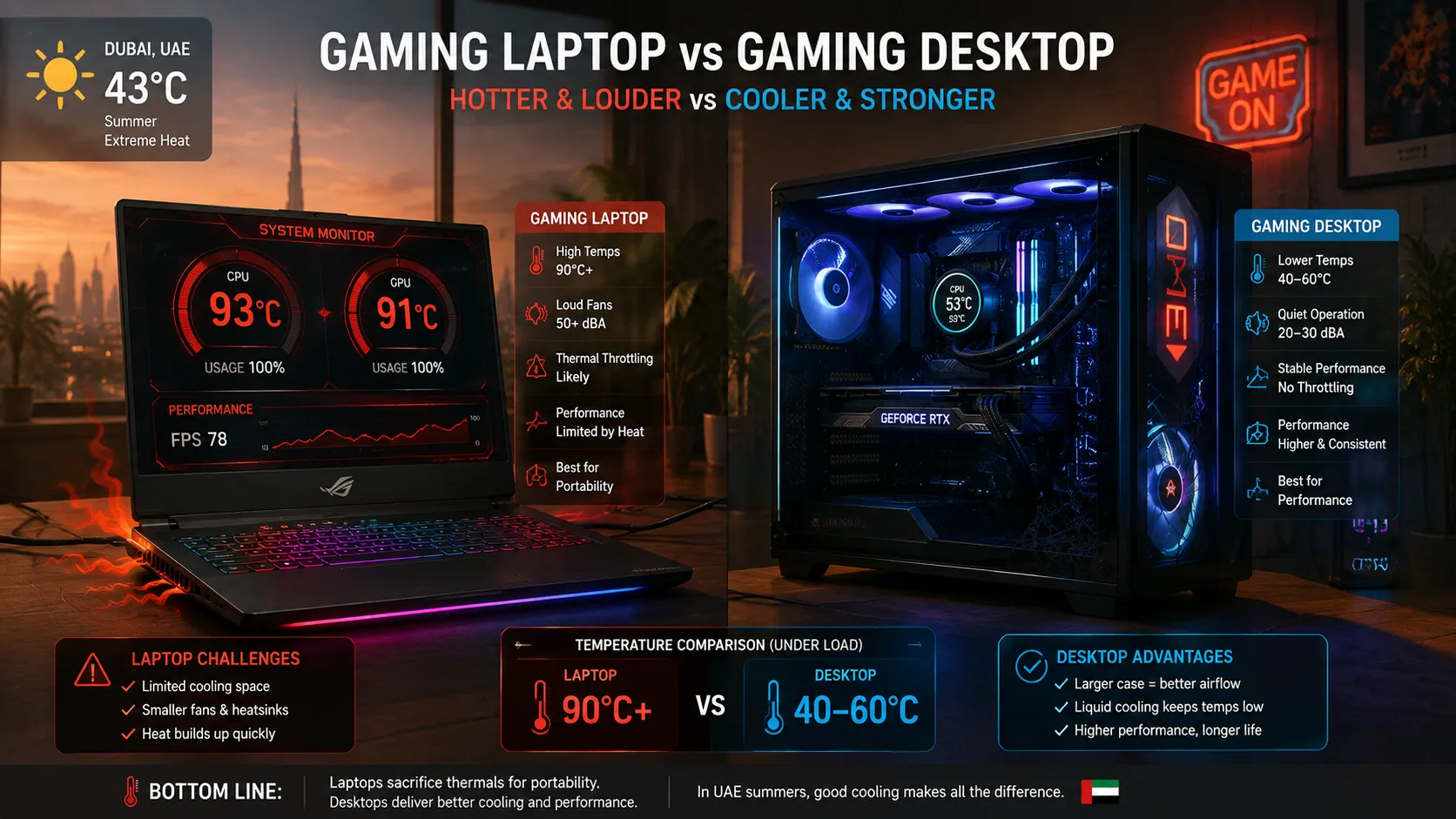
During intense gaming, a gaming laptop CPU and GPU can both reach 85°C to 100°C simultaneously. A gaming desktop with proper airflow typically keeps both components between 60°C and 80°C under the same game load.
Gaming laptops from ASUS ROG, Lenovo Legion, HP OMEN, and MSI all use advanced cooling systems, dual fans, multiple heat pipes, and vapour chambers, specifically to manage this challenge. But physics still wins: the desktop chassis simply has more room to dissipate heat.
If you game on a laptop in the UAE during summer, the combination of a high-ambient-temperature room and a gaming laptop at full load can push internal temperatures very close to throttling thresholds. Use a cooling pad, game in an air-conditioned room, and keep your laptop elevated to allow airflow underneath.
If you want to understand which gaming laptop brands handle heat the best, our guide on the best laptop brands in the world covers thermal management across HP, ASUS, Lenovo, and Dell with honest pros and cons.
Yes, laptops are more energy efficient than desktops. A typical laptop uses between 15W and 65W of power during normal use. A mid-range desktop PC uses 150W to 300W, and a gaming desktop with a high-end GPU can draw 400W to 600W or more under load.
This lower power consumption is directly linked to heat. Less power in means less heat generated. It is why laptop CPUs are designed with power efficiency in mind, lower wattage processors produce less heat, which is easier to manage in a small chassis.
However, energy efficiency does not mean laptops run cooler in practice. Because the cooling system in a laptop is so much smaller, even 45W of heat is harder to manage than 150W inside a spacious desktop case with dedicated airflow.
| Device Type | Idle Power | Heavy Load Power |
|---|---|---|
| Standard laptop | 8W – 20W | 30W – 65W |
| Gaming laptop | 20W – 40W | 80W – 150W |
| Standard desktop | 40W – 80W | 150W – 250W |
| Gaming desktop | 80W – 150W | 300W – 600W+ |
For UAE users paying electricity bills in AED, a laptop costs significantly less to run than a desktop, which is one reason laptops remain popular for everyday use and remote work in the region.
Safe operating temperatures for most laptops fall within these ranges:
Most laptop manufacturers, including HP, Dell, Lenovo, and ASUS, design their laptops to handle up to 100°C on the CPU before throttling kicks in. The components themselves will not be permanently damaged until temperatures exceed safe limits consistently, but sustained high temperatures do shorten the lifespan of thermal paste, battery cells, and in some cases the motherboard over time.
A cooling pad with active fans sits under your laptop and pulls cool air upward through the bottom vents. A quality cooling pad can drop internal temperatures by 5°C to 15°C. For gaming laptop users in the UAE, this is not optional — it is essential.
Never use it on a bed, pillow, or carpet. These materials block the bottom vents entirely. If you need to use it on your lap, use a hardback book or a lap desk underneath.
Use a can of compressed air to blow dust out of the vents. Hold the fans in place with a toothpick while blowing so they do not spin and create back-pressure. Even a thin layer of dust on the heatsink fins significantly reduces cooling efficiency.
Go to Settings > Power & Battery > Power Mode and switch from Best Performance to Balanced. This reduces CPU voltage slightly without affecting most everyday tasks, and it drops temperatures noticeably.
If your laptop is 2 to 3 years old and suddenly runs much hotter than it used to, dried thermal paste is likely the cause. This is a service job. If you are in the UAE, Tech Point Zone can advise on where to get this done properly for your brand and model.
In the UAE, this matters more than anywhere else. A room at 38°C versus a room at 22°C can mean a difference of 10°C or more in your laptop’s operating temperature. If you work from home in summer, keeping the AC running while using a demanding laptop is not a luxury, it directly protects your hardware.
Each open browser tab and background application uses CPU cycles and generates heat. Close what you do not need. Check Task Manager regularly to identify anything running at high CPU usage without a good reason.
Even a small stand or a folded cloth that tilts the laptop a few centimetres raises the bottom off the surface and dramatically improves airflow. Many laptop stands are available in the UAE for under AED 50 and make a noticeable difference.
If your laptop’s battery is draining unusually fast alongside overheating, the two issues are often related. Read our guide on how to fix laptop battery draining fast for step-by-step fixes that work on all major brands.
Yes, directly. When a laptop CPU reaches its thermal limit, typically around 90°C to 100°C, it reduces its clock speed automatically to bring temperatures down. This is called thermal throttling, and it means your laptop runs noticeably slower during the exact moments when you need it most: gaming sessions, video exports, and large file transfers.
You can check if your laptop is throttling by using free tools like HWiNFO64 or ThrottleStop on Windows. If your CPU clock speed drops below its base frequency during heavy load, thermal throttling is happening.
Desktops almost never throttle under normal use because their cooling systems have enough headroom to manage sustained loads without hitting thermal limits.
For tasks like screen recording and live streaming, which push both CPU and GPU hard simultaneously, thermal management becomes especially important. If you want to record your screen while keeping temperatures reasonable, check out how to screen record on HP laptop for tips on doing this efficiently without overloading your system.
Heat also affects battery health – see how long a laptop battery should last. For a real-world example of how a thin gaming laptop handles heat, read our ASUS ROG Zephyrus G16 review.
Do laptops normally run hot?
Yes, it is completely normal for a laptop to feel warm during use. Under light tasks like browsing or video calls, temperatures between 50°C and 70°C are expected. During gaming or video editing, 75°C to 90°C is normal. What is not normal is sustained temperatures above 95°C, constant maximum fan speed during light tasks, or unexpected shutdowns.
Do laptops run slower when hot?
Yes. When a laptop CPU exceeds its safe temperature threshold, usually around 90°C to 100°C, it automatically reduces its clock speed to bring temperatures down. This is called thermal throttling. You will notice it as sudden slowdowns, lag during gaming, or slower video exports. Keeping your laptop cool prevents throttling and maintains full performance.
Is 80°C too hot for a CPU laptop?
No, 80°C is not too hot for a laptop CPU. Most laptop processors are designed to operate safely up to 95°C to 100°C. Hitting 80°C during gaming or video editing is normal and within safe limits. If your laptop reaches 80°C during idle or very light tasks like web browsing, that is worth investigating, clean the vents and check for background processes using high CPU.
Laptops run hotter than desktops. That is simply a result of fitting powerful hardware into a thin, compact body with limited airflow. In the UAE, where ambient temperatures are already high, laptop heat is something every laptop owner should understand and manage actively. For most everyday tasks, your laptop handles heat just fine. For gaming, video editing, or sustained heavy workloads, a cooling pad, clean vents, and an air-conditioned room make a real difference. At Tech Point Zone, we see overheating as one of the most preventable laptop problems, and now you have everything you need to stay ahead of it.
You are shopping for a new portable computer in the UAE and you keep seeing two words. Laptop and notebook. The shop assistant uses them interchangeably. The websites do too. So is there even a real difference?
There is, and knowing it before you buy can save you money and frustration. In this guide, Tech Point Zone breaks it down simply so you can make the right decision for your needs and budget.
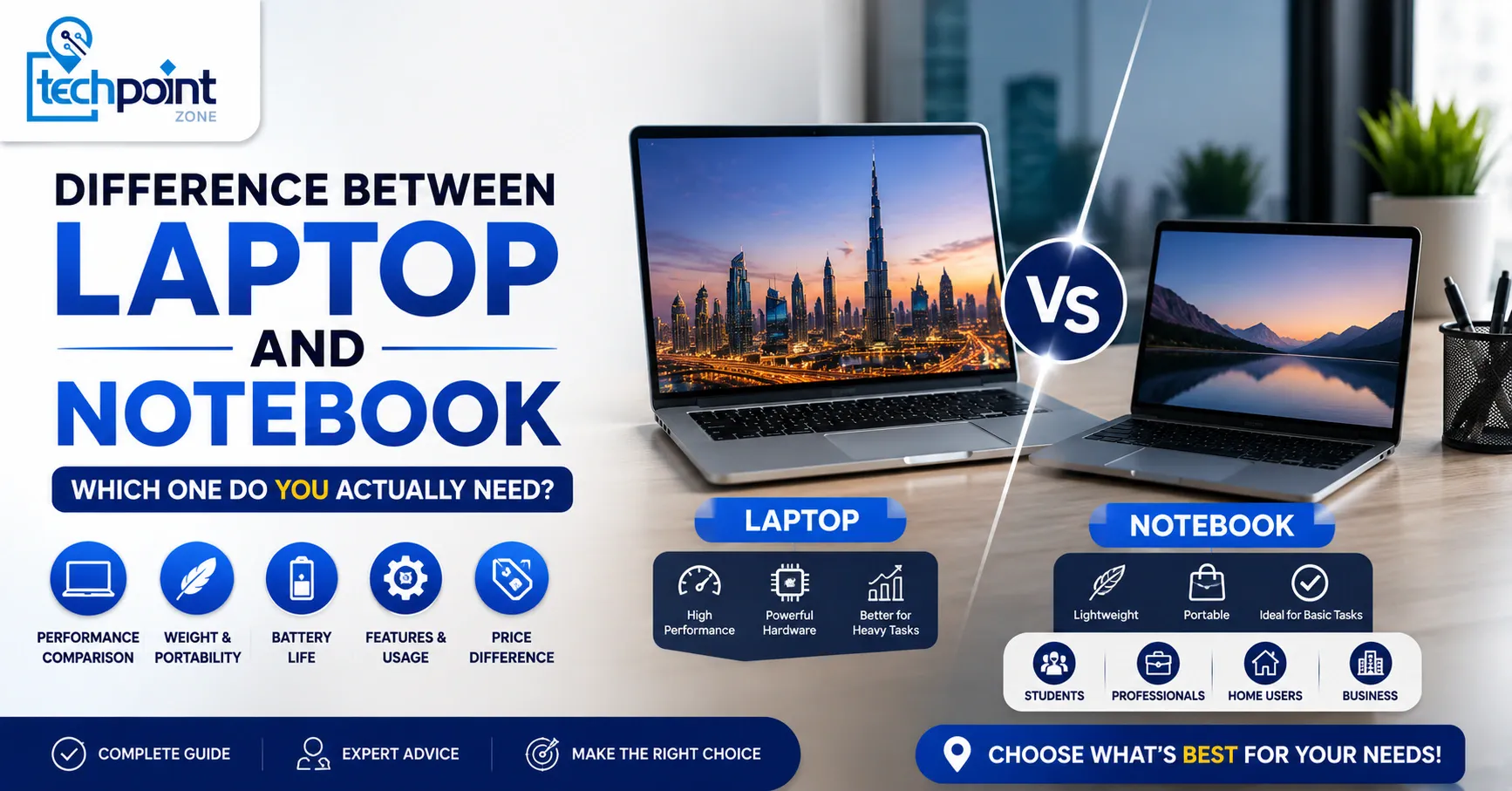
A laptop is a full-sized portable computer built for higher performance, while a notebook is a lighter, slimmer, and more compact version designed for portability and basic computing. The key differences are in screen size, processing power, RAM capacity, storage, battery life, and price.
In practice, the line between the two has blurred. Most manufacturers, including HP, Dell, Lenovo, and ASUS, now use both terms to describe the same category of computing devices. But technically, there are still meaningful differences worth knowing before you spend your dirhams.
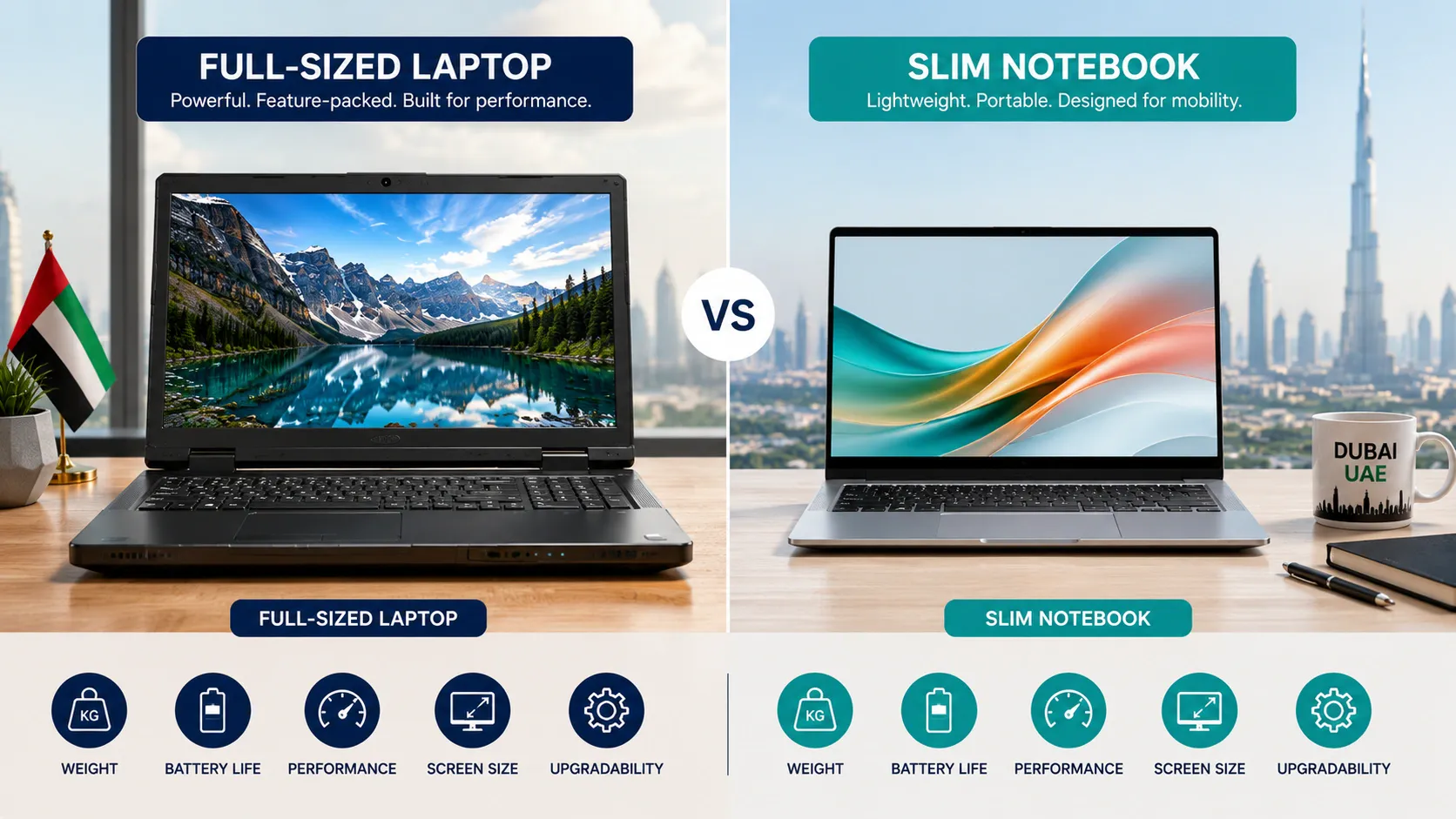
Here is a quick list of the differences between a laptop and notebook across the most important specs:
| Feature | Laptop | Notebook |
|---|---|---|
| Screen Size | 14 inch – 17 inch | 11 inch – 14 inch |
| Weight | 2 kg – 3.5 kg | 1 kg – 2 kg |
| Performance | High — Intel Core i5/i7/i9, AMD Ryzen | Moderate — Intel Core i3/i5, Intel Evo |
| RAM Capacity | 8 GB – 64 GB | 4 GB – 16 GB |
| Storage | HDD or SSD storage (512 GB – 2 TB) | SSD storage (128 GB – 512 GB) |
| Graphics | Dedicated graphics cards available | Usually integrated graphics |
| Battery Life | 4 – 8 hours | 8 – 15 hours |
| DVD Drive | Sometimes included | Rarely included |
| Price (AED) | AED 2,500 – 10,000+ | AED 1,400 – 4,000 |
| Best For | Power users, gaming, editing | Students, travel, basic tasks |
Technically, yes, but practically, the difference notebook laptop buyers notice has become very small. In the early 2000s, the distinction was clear. Notebooks were noticeably smaller, lighter, and less powerful than laptops. Today, most notebook computers sold in the UAE, including the HP EliteBook notebook, Dell XPS 13, and Lenovo ThinkPad, match or exceed what older laptops could do.
Microsoft Surface, Apple MacBook, and many Intel Evo laptops sit firmly in notebook territory by size but deliver laptop-level performance. So when someone asks “is there a difference between laptop and notebook?” the honest answer is: the labels have largely merged, but the hardware categories they originally described still exist.
The practical difference comes down to what you need the machine to do. A notebook ultrabook is the right pick for portability. A full-sized laptop wins on performance power.
Pros:
Cons:
Pros:
A notebook’s biggest strength is portability. Smaller size, lighter build, and longer battery life make it the go-to portable computer for commuters, students, and frequent travellers. Notebooks are purpose-built for web browsing, document editing, video calls, and everyday computing tasks.
They are quieter, run cooler, and are easier to carry in a bag all day. Many modern notebooks with SSD storage boot up in seconds and handle multitasking smoothly for everyday use.
Cons:
Notebooks struggle with demanding tasks. They typically use integrated graphics rather than dedicated graphics cards, which means gaming, video editing, and heavy multitasking are limited.
GB RAM is usually capped at 8 GB or 16 GB on most models, and you get less SSD storage. Screen sizes between 11 and 13 inches can feel cramped during long work sessions. If your computing needs grow, a notebook may feel limiting within a year or two.
For most everyday tasks, yes. A notebook can do the same as a laptop. Web browsing, Microsoft Office, emails, video calls, online learning, and light photo editing all run perfectly fine on a notebook computer. For these computing tasks, a notebook is not just enough; it is often the smarter choice because of its longer battery life and smaller size.
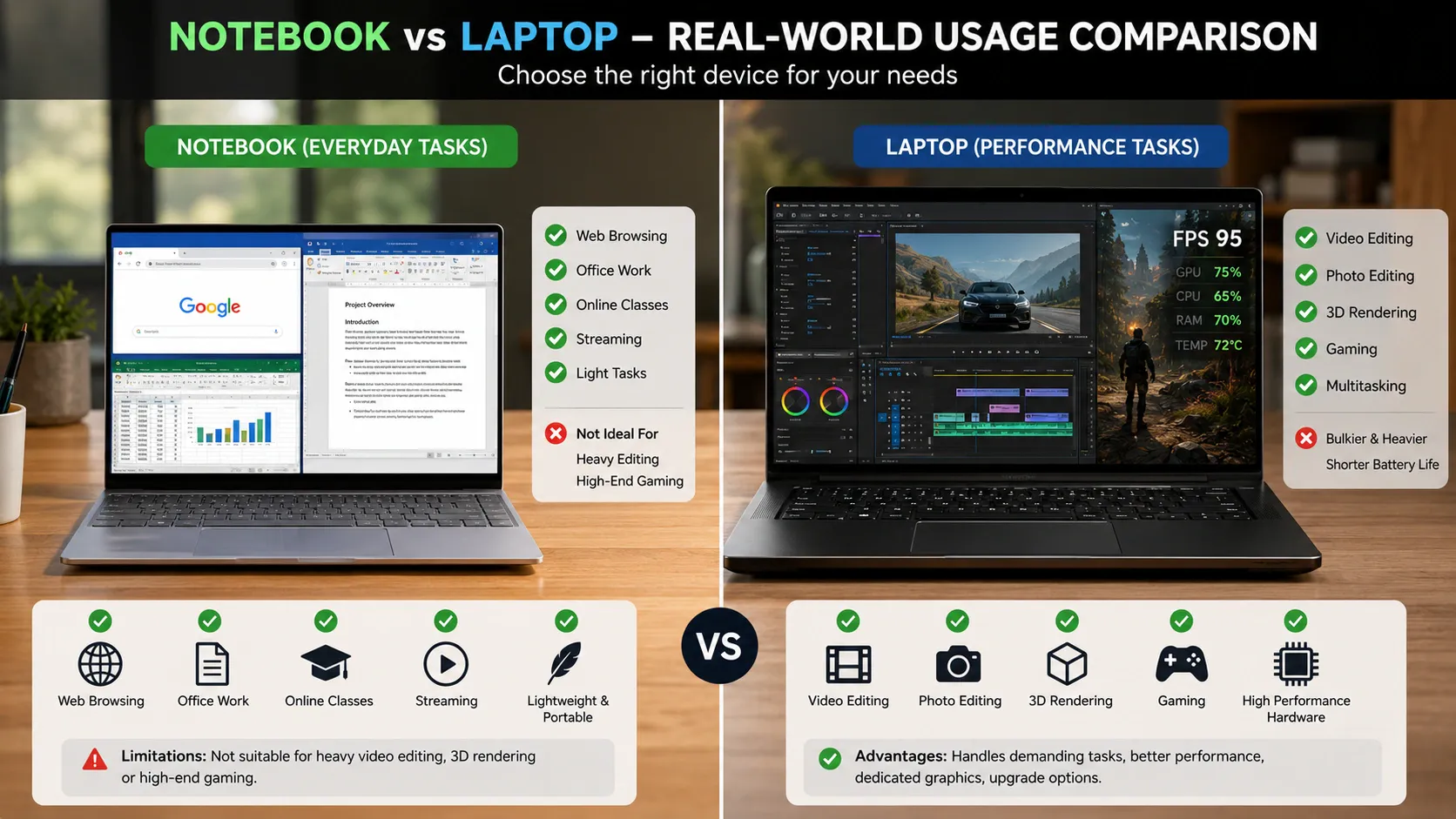
Where a notebook falls short is in performance-heavy workloads. If you need to run editing or gaming software, work with large video files, use GPU-intensive applications, or run multiple heavy programs at the same time, a full laptop with a dedicated GPU and higher processing power will serve you better. A notebook is not built for that level of performance power.
The simple rule: if your work lives in a browser or Microsoft Office, a notebook does everything you need. If you push your machine with demanding tasks, a laptop is a better investment.
An ultrabook is a premium laptop or notebook that combines the best of both worlds, laptop-level performance in a notebook-style slim, lightweight body. Intel introduced the Ultrabook standard, and today the Intel Evo label certifies laptops that meet strict performance, battery life, and responsiveness benchmarks.
Intel Evo laptops and Intel Evo laptops-certified notebooks like the Dell XPS 13, HP Spectre, and Lenovo ThinkPad X1 Carbon are technically notebook-sized but perform like full laptops. They feature Intel Core processors, fast SSD storage, 8 GB to 16 GB RAM, and long battery life, all in a package under 1.5 kg.
In the UAE market, ultrabooks are increasingly popular among professionals who need performance power without carrying a heavy machine. They sit in the AED 4,000 to 8,000+ range and represent the clearest example of why the difference between laptop and notebook PC has become blurred in modern computing.
Not sure which fits your situation? Here is how to decide:
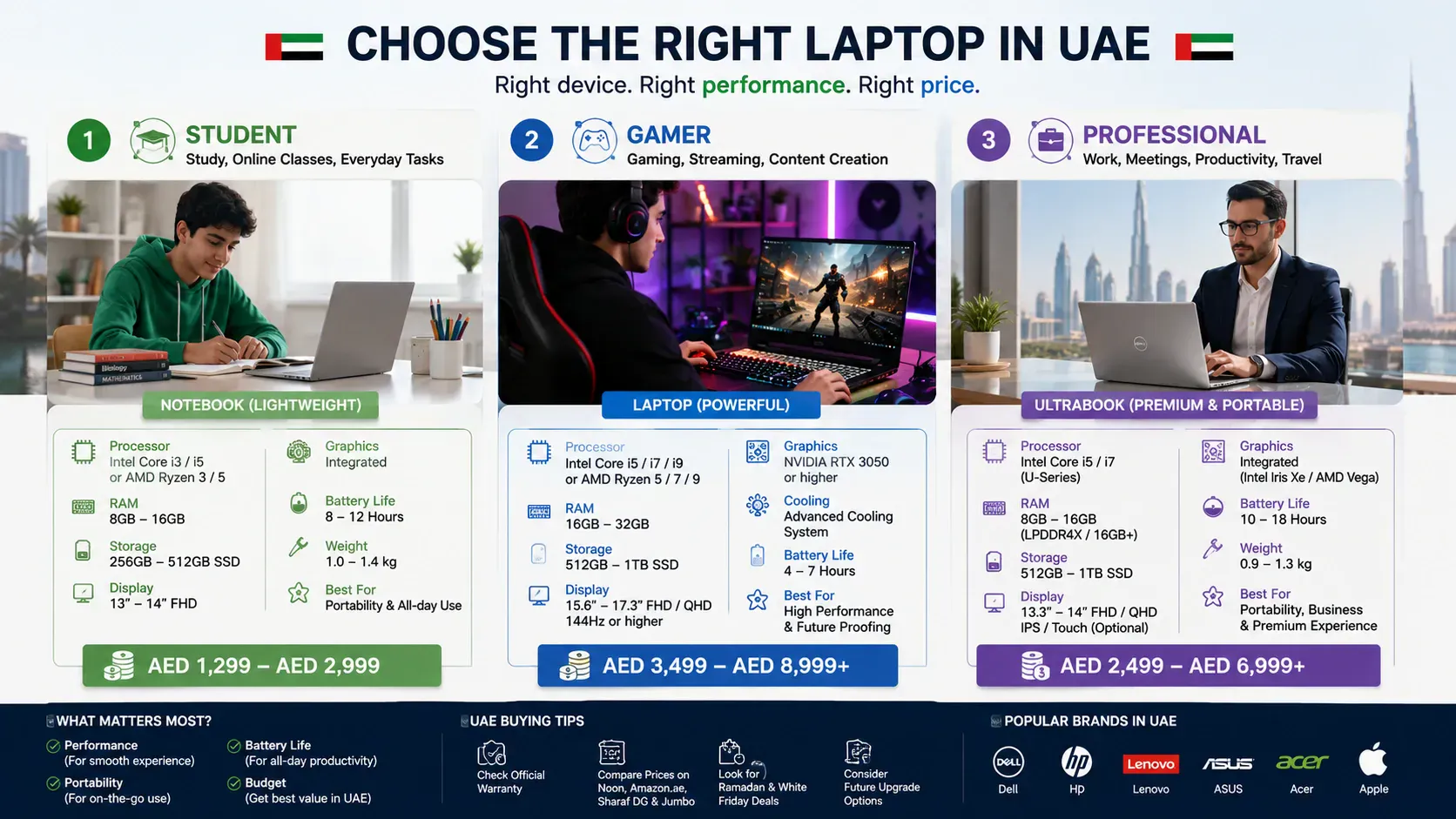
If you are still comparing brands before you decide, our full breakdown of the best laptop brands in the world covers HP, Dell, Lenovo, ASUS, and Apple, with UAE pricing and after-sales support details.
If you mostly work in a browser, also read Chromebook vs laptop. Choosing between brands? Our Samsung vs Dell laptops comparison may help.
It helps to know what leading brands actually offer in each category when shopping in the UAE:
HP sells both. The HP EliteBook notebook series targets business users needing portability, while the HP Victus and Omen lines are the full-performance laptops aimed at gaming and editing. HP is one of the most widely available brands in the UAE retail.
Lenovo covers the full range, like IdeaPad for budget notebooks, ThinkPad for business-grade notebook computers, and Legion for gaming laptops. Lenovo is the most popular laptop brand globally by market share and a very well supported across the UAE.
Dell offers the XPS lineup as premium ultrabooks (notebook size, laptop power) and Inspiron and Alienware for higher-performance laptops. Dell has strong UAE service coverage.
ASUS positions its ZenBook as its notebook line and ROG and TUF as gaming laptops. The ZenBook is one of the best notebook options available in the UAE for professionals.
Apple MacBooks sit in notebook territory by size but deliver higher performance than most Windows laptops at the same price, a unique case in the laptop notebook category.
Whether you choose a laptop or notebook, these are the specs that matter most for UAE buyers:
A 2-in-1 is a laptop or notebook with a touchscreen that can fold flat or detach to work as a tablet. Microsoft Surface is the most well-known example. These devices add versatility, you can use them as a notebook for work and flip them into tablet mode for reading or drawing.
2-in-1s are popular in the UAE among students and creative professionals.
They sit in the notebook size range but offer different types of use that a regular laptop or notebook cannot match. The trade-off is usually a higher price and slightly lower performance compared to a dedicated laptop at the same AED price point.
Once you have chosen between a laptop and notebook, keeping it in good condition matters, especially in the UAE, where heat and dust can accelerate wear.
Keep the vents clear and the surface clean. If you run into issues, our guides cover the most common problems: how to fix a laptop touchpad not working is one of the most searched fixes for both laptops and notebooks, and if you ever need to start fresh, how to reformat a laptop walks you through the whole process safely without losing your files.
What is better, a laptop or notebook?
It depends on what you need. A laptop is better for performance-heavy tasks like gaming, video editing, and demanding software. A notebook is better for portability, battery life, and everyday use like web browsing, documents, and study. For most UAE buyers, a notebook covers 90% of daily computing needs at a lower price.
Are notebooks and laptops the same?
Today, the terms are used interchangeably by most manufacturers. Technically, a notebook is a smaller and lighter version of a laptop, but the line has blurred significantly. Most modern notebook computers deliver laptop-level performance in a compact form factor.
What is the disadvantage of a notebook?
The main disadvantages are limited processing power, no dedicated graphics cards on most models, smaller screen sizes, and less RAM capacity compared to full laptops. Notebooks are not ideal for gaming, heavy video editing, or demanding tasks that require higher performance.
What is a notebook used for?
A notebook is used for web browsing, emails, Microsoft Office tasks, video calls, online learning, light photo editing, and everyday computing. It is ideal for students, commuters, remote workers, and anyone who prioritises portability over raw power.
Can a laptop be called a notebook?
Yes. In modern usage, laptop and notebook are often used interchangeably by manufacturers, retailers, and consumers. Technically, a notebook refers to a lighter and more compact portable computer, but the distinction has largely disappeared in everyday language and product listings.
The difference between a laptop and notebook comes down to size, power, and purpose. Laptops handle heavier workloads, come with larger screen sizes, and offer more connectivity options and dedicated graphics cards, at the cost of weight and battery life.
Notebooks are slimmer, lighter portable computers built for longer battery life and everyday computing tasks, at a lower price. For most UAE buyers doing web browsing, study, or office work, a notebook is more than enough.
If you game, edit video, or need maximum processing power, a full laptop is the better call. At Tech Point Zone, we stock both, and our team helps you find the right one for your exact needs and budget.
For a full walkthrough of specs, budgets and brands, read our laptop buying guide for the UAE, or check today’s laptop deals.
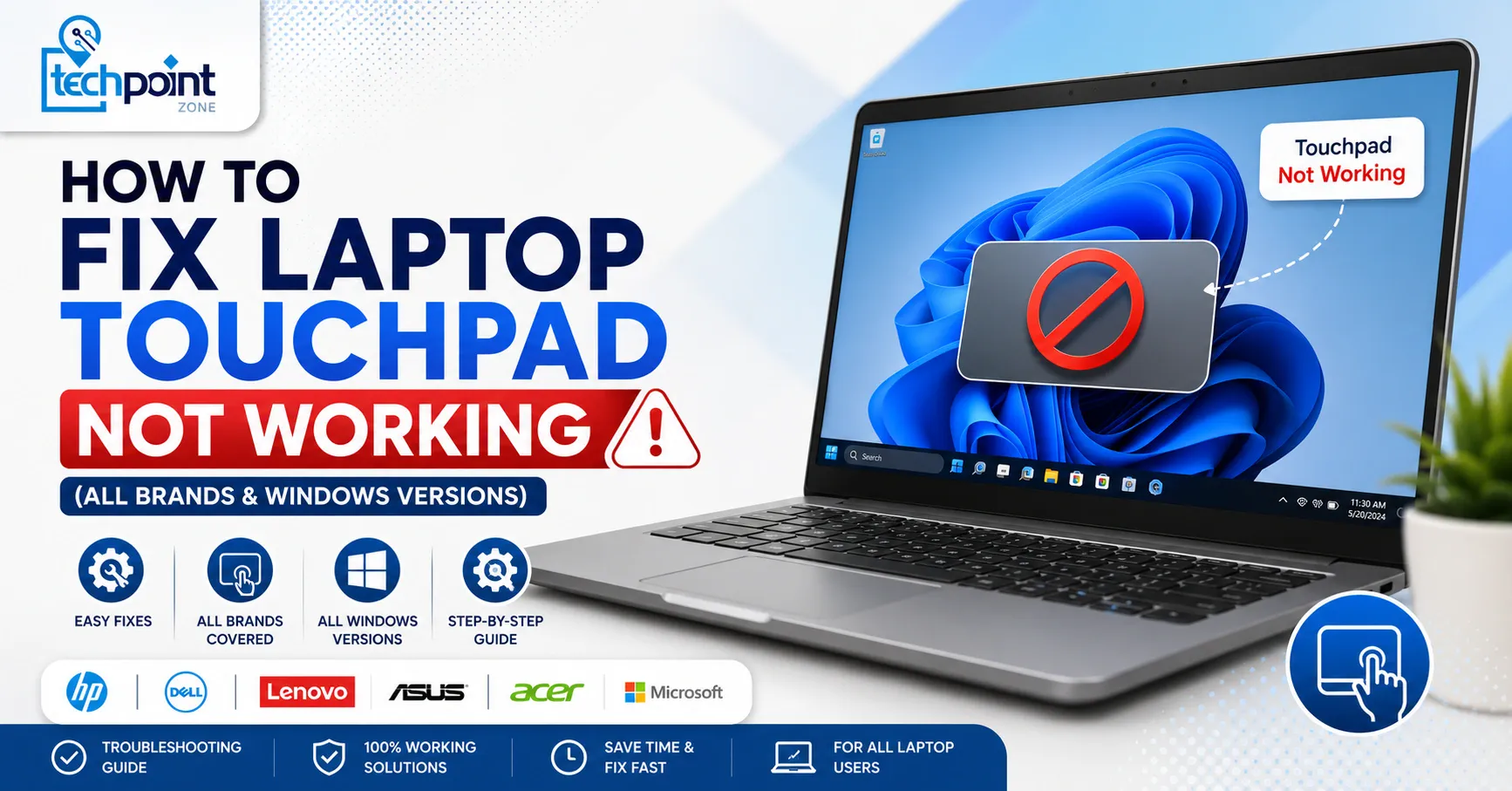
Your laptop touchpad suddenly stopped working and you have no idea why. You are not alone, as this is one of the most common laptop issues people face, and the good news is that most of the time, the fix takes less than two minutes.
In this guide, Tech Point Zone walks you through every working fix, from a simple keyboard shortcut to driver updates and brand-specific solutions for Dell, Lenovo, HP, and ASUS. No technical background needed.
The fastest fix is to press the touchpad shortcut key on your keyboard, usually Fn + F6, Fn + F7, or Fn + F8 depending on your laptop brand. Look for a key with a small touchpad icon and press it while holding Fn. This re-enables the touchpad in seconds if it was accidentally turned off.
If that does not work, try these steps in order. Most people find the fix within the first three.
Here are the most common reasons:
Press Fn + F6, Fn + F7, or Fn + F8 to toggle the touchpad on. Look for the function key that has a touchpad icon printed on it. It varies by brand.
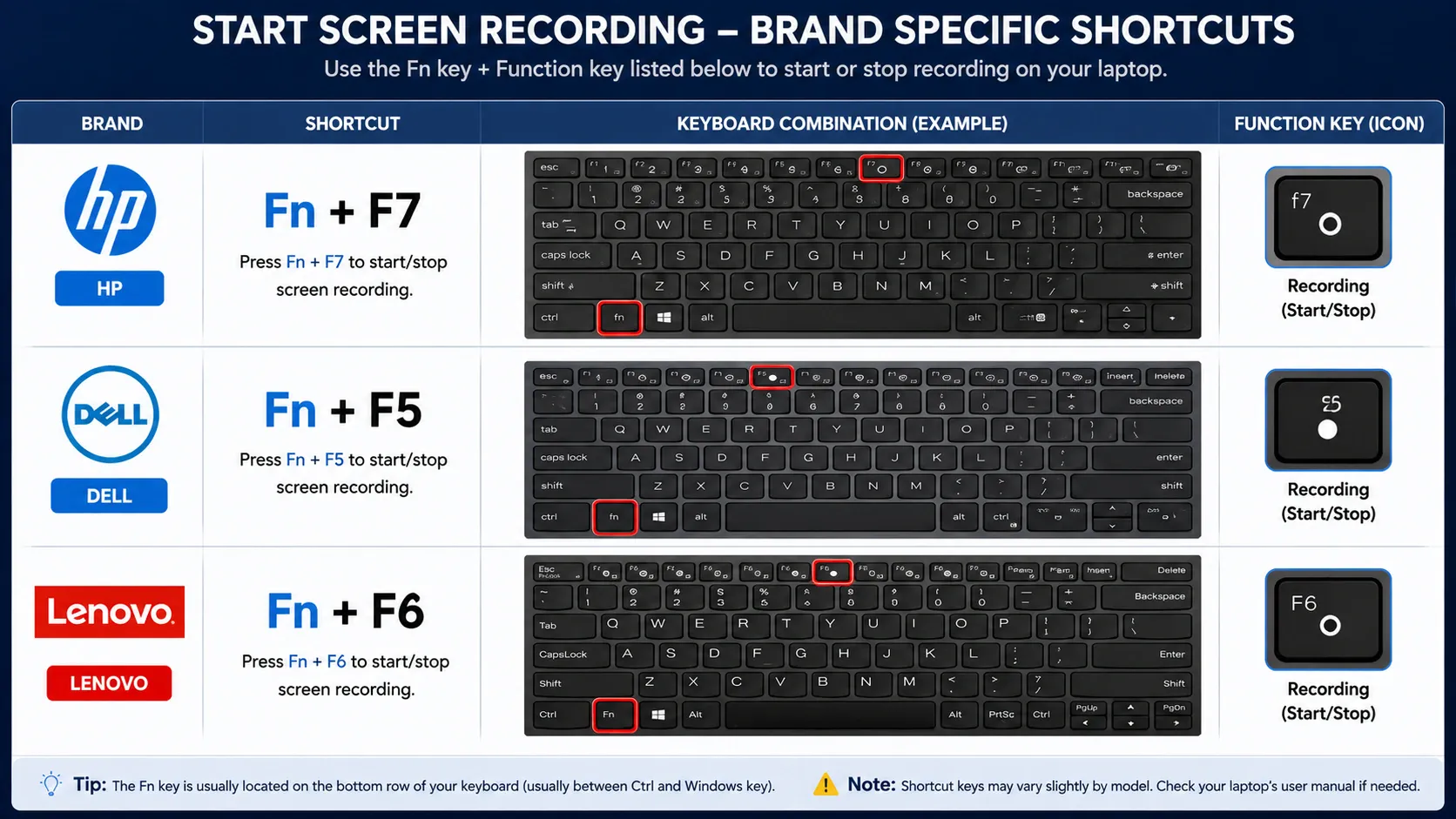
| Brand | Touchpad Shortcut |
|---|---|
| HP | Fn + F7 |
| Dell | Fn + F5 |
| Lenovo | Fn + F6 or Fn + F8 |
| ASUS | Fn + F9 |
| Acer | Fn + F7 |
Press the key combination once and test your touchpad. If the touchpad still does not respond, move to the next fix.
Go to Settings > Bluetooth & Devices > Touchpad (Windows 11) or Settings > Devices > Touchpad (Windows 10) and make sure the touchpad toggle is switched On.
This is the second most common reason for laptop touchpad issues, the toggle gets switched off after a Windows update or by another user.
If you see the toggle is already on and the touchpad is still not responding, disconnect any external mouse or USB device connected to the laptop and test again. Many laptops disable the touchpad automatically when a mouse is connected.
If the touchpad lags rather than failing completely, the cause may be general slowness – see why your laptop is slow.
On Windows 11, the touchpad settings moved to a new location. Here is exactly where to find them and what to check:
Press Windows + I to open Settings. Go to Bluetooth & Devices then click Touchpad. Make sure the toggle at the top is turned On.
Scroll down inside Touchpad settings and look for “Leave touchpad on when a mouse is connected.” Turn this on if you want the touchpad to stay active even when an external mouse is plugged in. This single setting fixes the issue for a lot of Windows 11 users.
Go to Settings > System > Troubleshoot > Other Troubleshooters. Find Hardware and Devices and click Run. Windows will scan for issues and attempt to fix them automatically. Restart after it completes.
Go to Settings > Windows Update and install any pending updates. Microsoft regularly pushes touchpad driver patches through Windows Update, especially after major feature updates.
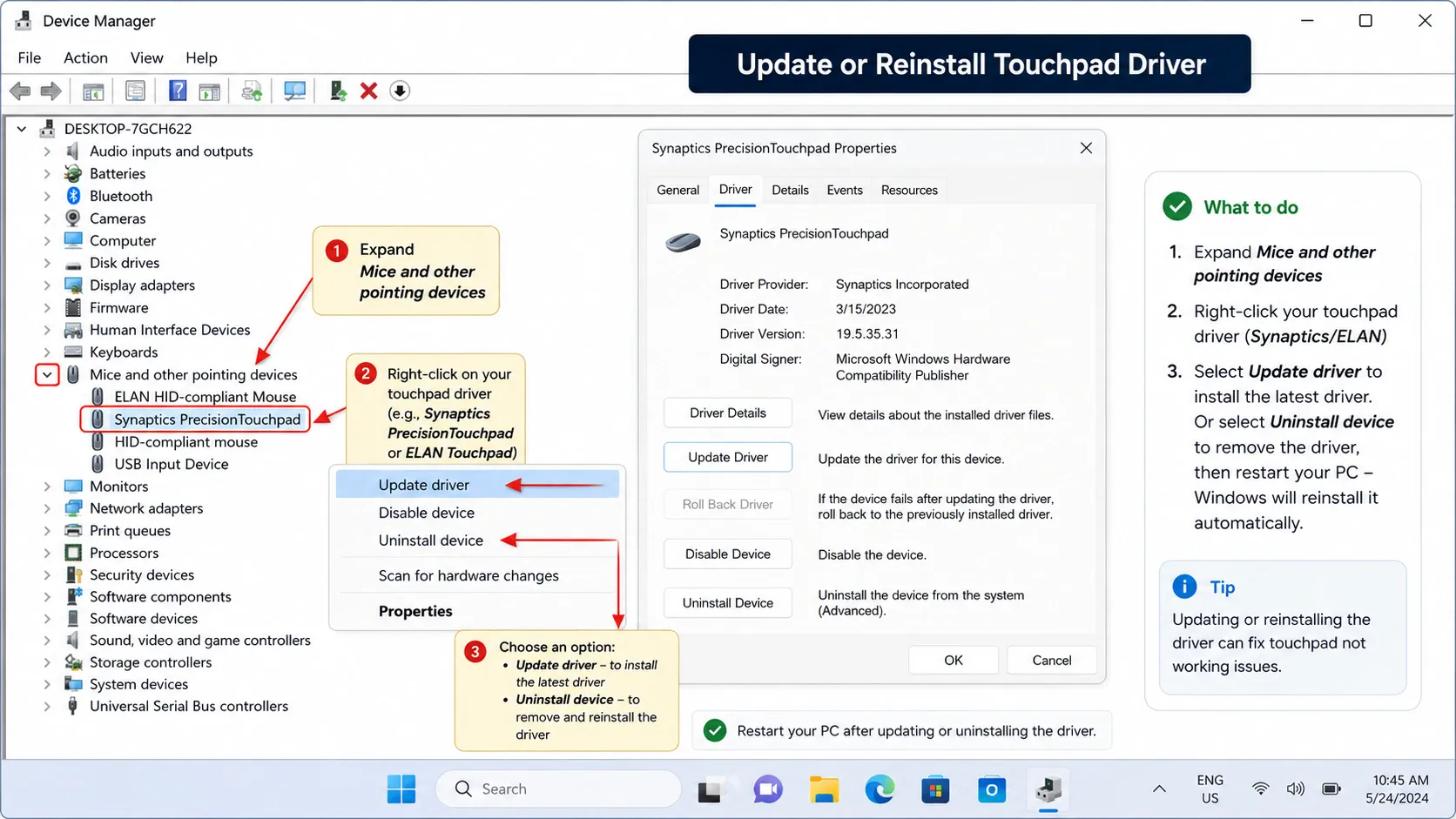
An outdated or broken driver is a very common reason the touchpad suddenly stopped working after a Windows update. Here is how to fix it.
If updating does not work, right-click the touchpad driver and select Uninstall device. Restart your laptop. Windows will automatically reinstall the driver on startup. This clears out any corrupted driver files causing the laptop mouse touchpad not working issue.
If nothing above has worked, the touchpad may be disabled at the BIOS level. This is more common on business laptops managed by a company IT team.
On Lenovo laptops, the touchpad is called the TrackPad or ClickPad. Press Fn + F6 to toggle it on, this is the most common fix for Lenovo touchpad issues.
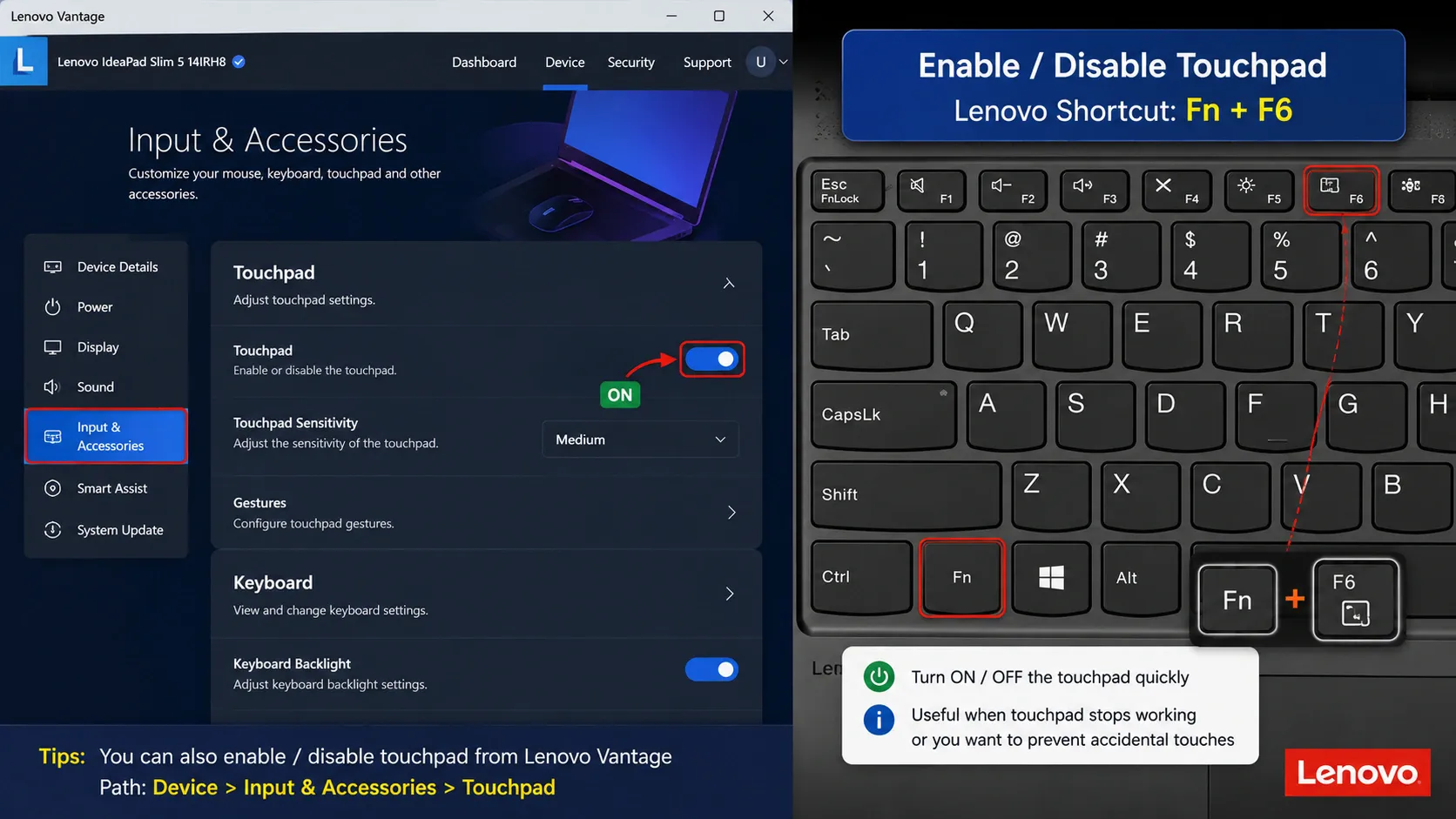
If the shortcut does not work, try this:
Open Lenovo Vantage (pre-installed on most Lenovo laptops). Go to Hardware Settings > Input & Accessories. Make sure the touchpad is not disabled here. Lenovo Vantage has its own separate toggle that overrides Windows settings.
Visit support.lenovo.com, enter your laptop model, and download the latest touchpad driver for your version of Windows. Lenovo uses Synaptics or ELAN touchpad drivers depending on the model. Install the downloaded driver and restart.
Some Lenovo models had a known bug where a BIOS update disabled the touchpad. Go to Lenovo Vantage > System Update and install any available BIOS or firmware updates.
Lenovo ThinkPad users, if your touchpad works but the laptop touchpad not clicking issue persists, go to Mouse Settings > Additional Mouse Settings > ThinkPad tab and check the ClickPad settings there.
On Dell laptops, press Fn + F3 or look for the touchpad icon key to re-enable it. Dell XPS, Inspiron, and Latitude models each handle touchpad settings slightly differently.
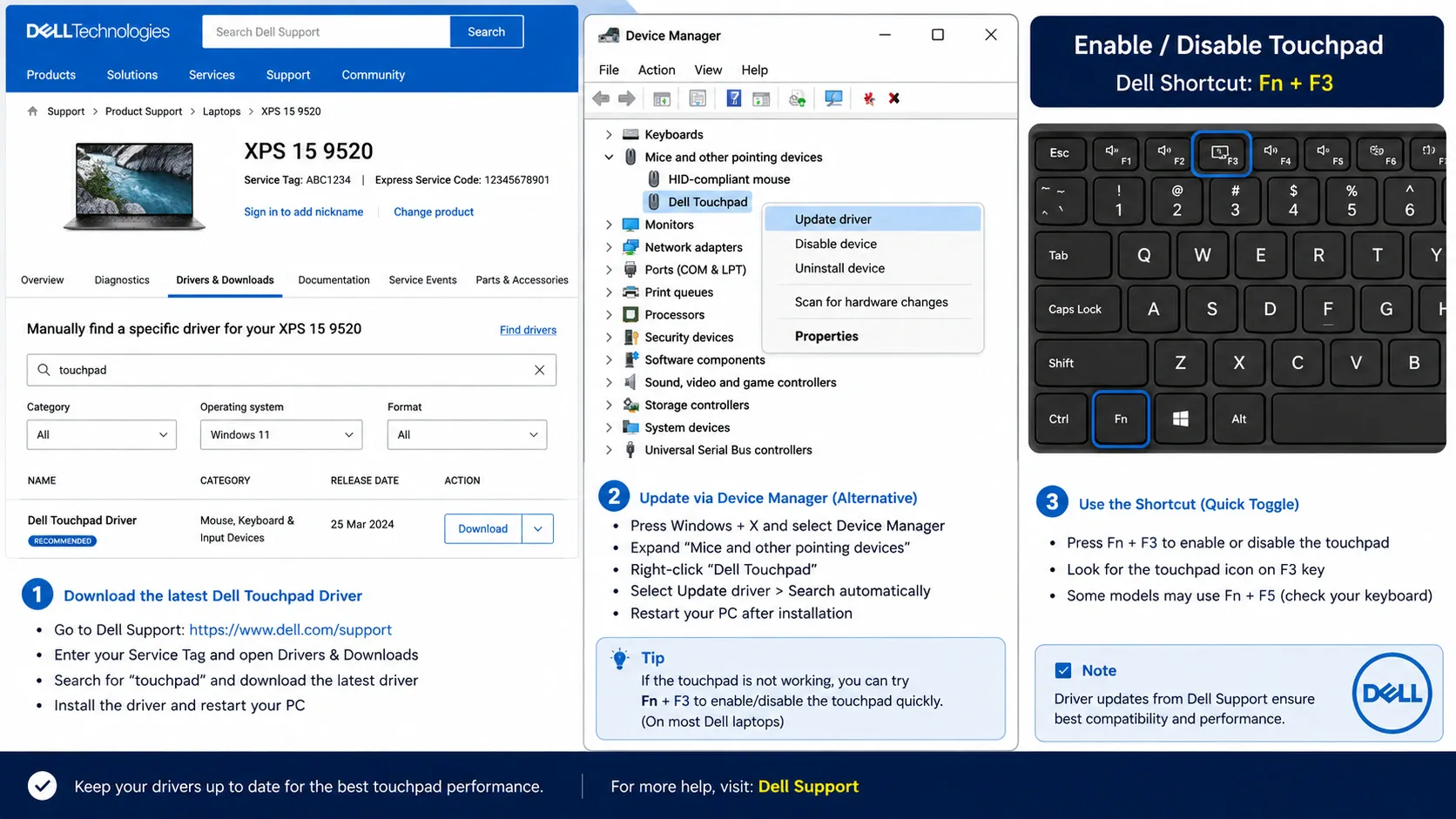
Go to dell.com/support, enter your Service Tag (found on the bottom of your laptop), and download the latest touchpad driver. Dell uses Alps, Synaptics, or ELAN touchpad drivers. Install the correct one for your model and restart.
Dell Inspiron and XPS users frequently report that the touchpad stops working after a Windows feature update. The fix is to uninstall the current driver from Device Manager, then install the driver downloaded directly from Dell’s support page, not the one Windows installs automatically.
If your Dell touchpad is still non-responsive after all of the above, boot into Dell SupportAssist (press F12 at startup and select Diagnostics) to run a hardware test on the touchpad.
Windows sometimes turns off the touchpad to save battery, this can make it seem like a hardware fault when it is just a power setting.
This fix is especially useful if your touchpad works fine after a full restart but stops responding after the laptop wakes from sleep.
Some apps, particularly touchpad gesture tools, driver utilities, or antivirus software, conflict with the touchpad driver and cause it to stop working.
Restart your laptop in Safe Mode to test this:
If the touchpad works in Safe Mode, a third-party app is causing the conflict. Go to Settings > Apps and uninstall any recently added touchpad utilities, gesture apps, or driver tools.
A dirty touchpad surface can cause it to become unresponsive or erratic. This is a physical fix many people overlook.
Turn off your laptop. Wipe the touchpad surface with a slightly damp microfibre cloth. No liquid cleaners. Pay attention to the edges where dust and oil build up. Dry it fully before turning the laptop back on.
If your hands are dry or cold when using the touchpad, that can also reduce sensitivity. The touchpad reads body heat. Warm your hands and try again.
If your touchpad suddenly stopped working after a Windows update or system change, rolling back to a previous restore point can fix it immediately.
This does not delete your personal files. It only reverses system and driver changes made after that restore point.
If you have tried every fix above and the touchpad still does not work, the issue is most likely hardware, a loose internal cable, a damaged touchpad unit, or a motherboard fault. At that point, the laptop needs a physical inspection.
At Tech Point Zone in Dubai, we see this most often in laptops that have been dropped or had liquid spill near the keyboard. The touchpad cable runs underneath the keyboard on most models and is one of the first things to loosen after impact.
Before taking your laptop in for repair, check if your laptop is still under warranty, Dell, Lenovo, HP, and ASUS all have UAE service centres that cover hardware defects.
If your laptop has other performance issues alongside the touchpad problem, it may be worth reading our guide on how to fix laptop battery draining fast. Sometimes the same Windows update that breaks the touchpad also affects power management.
| Brand | First Thing to Try | Driver Source |
|---|---|---|
| HP | Fn + F7, then check Settings | support.hp.com |
| Dell | Fn + F3, then Dell Support page | dell.com/support |
| Lenovo | Fn + F6, then Lenovo Vantage | support.lenovo.com |
| ASUS | Fn + F9, then MyASUS app | asus.com/support |
| Acer | Fn + F7, then Device Manager | acer.com/support |
If you are not sure which laptop brand is most reliable for hardware longevity, take a look at our breakdown of the best laptop brands in the world, it covers build quality and after-sales support for every major brand available in the UAE.
Keep your drivers updated: Check Device Manager or your brand’s support page every few months. Touchpad drivers are updated frequently, and outdated ones cause most of the issues covered in this guide.
Do not eat or drink near your laptop: Oil from food and liquid are the two biggest causes of physical touchpad failure.
Disable the touchpad when using a mouse: If you always use an external mouse, go to Settings > Touchpad and disable it. This prevents accidental cursor movements and reduces wear on the touchpad.
Clean the surface regularly: A quick wipe once a week keeps the touchpad responsive and avoids sensitivity issues.
Avoid heavy pressure: Pressing hard on the laptop touchpad not clicking issue is often made worse by users pressing harder. Firm but light taps are all it needs.
If you ever need to do a full system reset and want to know what that involves, our guide on how to reformat a laptop walks you through the entire process safely.
And if you use your laptop for recording tutorials or work sessions, check out how to screen record on HP laptop for a simple step-by-step guide.
How do I turn my touchpad back on?
Press Fn + F6, Fn + F7, or Fn + F8, depending on your laptop brand. Look for the key with a touchpad icon. You can also go to Settings > Bluetooth & Devices > Touchpad and switch the toggle on from there.
How do I unfreeze my touchpad?
First try pressing the touchpad shortcut key (Fn + touchpad icon key). If that does not work, restart your laptop. If it still does not respond, go to Device Manager, uninstall the touchpad driver, and restart. Windows will reinstall it automatically.
How to fix an unresponsive touchpad?
Start with the shortcut key, then check Settings to confirm it is enabled. Next, update or reinstall the driver from Device Manager. If none of that works, check BIOS settings to make sure the touchpad is not disabled at the firmware level.
How can I reset my touchpad?
Go to Settings > Bluetooth & Devices > Touchpad and scroll down to find the Reset button under your touchpad gestures settings. This resets all touchpad preferences back to default without affecting your drivers.
Why is the touchpad disabled?
The most common reasons are: the Fn shortcut key was pressed accidentally, an external mouse was connected and triggered auto-disable, a Windows update changed driver settings, or the touchpad was disabled in BIOS. Start with the shortcut key fix and work through the steps above.
A laptop touchpad not working is rarely a serious problem. In most cases, pressing the shortcut key, checking Windows settings, or updating the driver gets it working again within minutes. Dell, Lenovo, HP, and ASUS users each have brand-specific steps worth trying if the basic fixes don’t help.
If your touchpad still doesn’t respond after trying everything in this guide, it’s likely a hardware issue that needs a professional look. At Tech Point Zone, we help UAE customers diagnose and fix laptop hardware problems every day, so if your touchpad still won’t cooperate, our team is ready to help.