

Nothing frustrates laptop users more than watching their battery percentage drop rapidly. You charge your laptop fully, unplug it, and within an hour or two, you’re hunting for a power outlet again. This problem affects laptops across all brands and price ranges.
The good news? Most battery drain issues have straightforward fixes. Whether your laptop suddenly started draining faster or the decline has been gradual, this guide walks you through every proven solution. We’ll cover Windows 10 and Windows 11, as well as brand-specific fixes for Dell and Lenovo laptops.
How to Fix a Laptop Battery Draining Fast
Fix a laptop battery that drains fast by adjusting power settings, reducing screen brightness, closing background apps, and updating your drivers. These four steps solve most battery drain problems within minutes.
Here’s the quick-fix checklist:
- Switch power mode to “Balanced” or “Best power efficiency.”
- Lower screen brightness to 50-70%
- Close unnecessary browser tabs and applications
- Disable Bluetooth and WiFi when not needed
- Update Windows and device drivers
- Check battery health status
If your battery drains quickly despite being relatively new, software issues are usually the cause. Older batteries naturally lose capacity over time. Understanding how long a laptop battery should last helps you determine whether your battery performs normally or needs attention.
Let’s get into detailed fixes for each situation.
Why Is My Laptop Battery Draining So Fast All of a Sudden?
Sudden battery drain usually results from a recent Windows update, new software installation, or changed settings that increased power consumption without your knowledge.
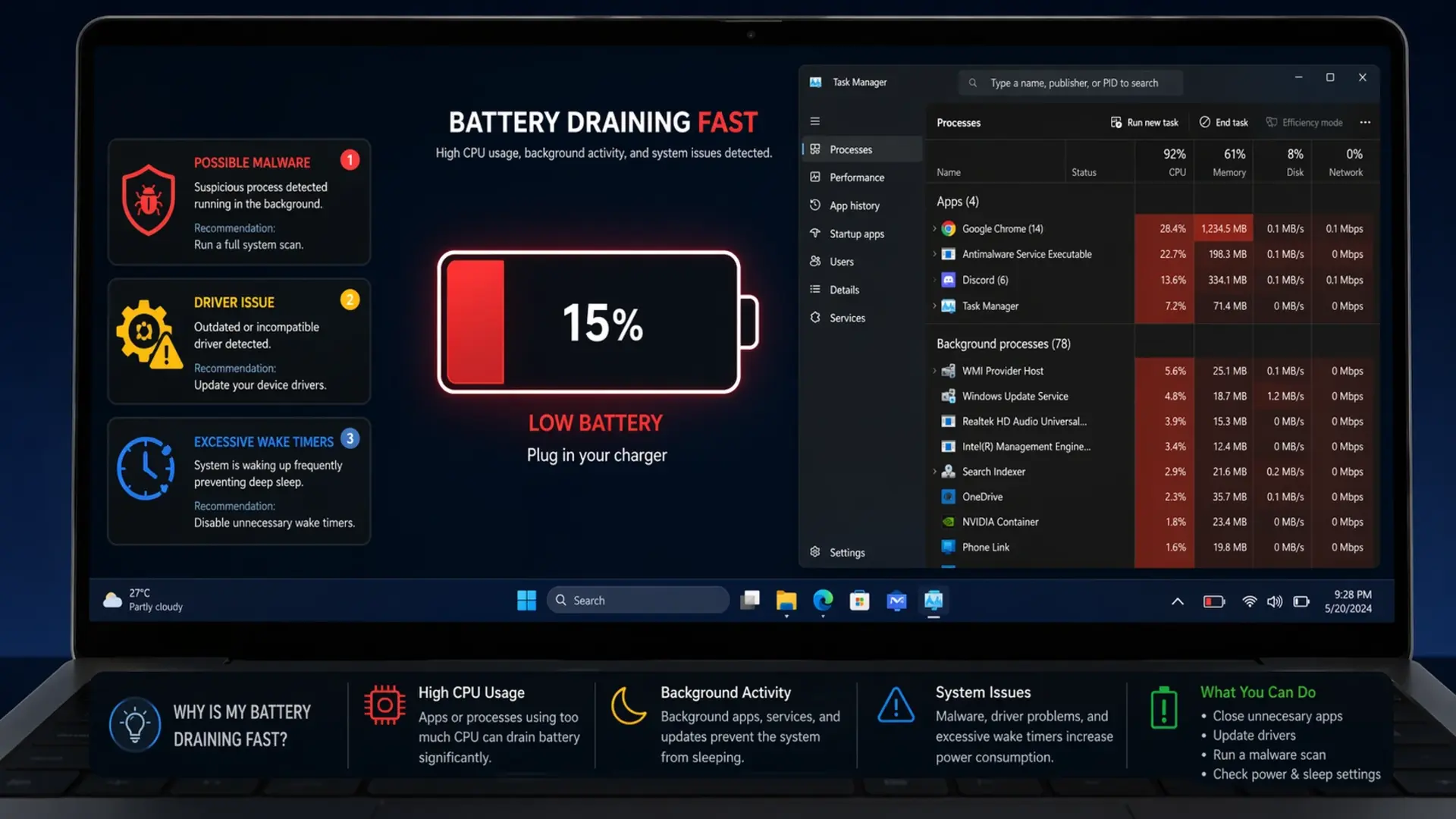
Common triggers for sudden battery drain:
- A recent Windows update changed power settings or installed buggy drivers
- New application running constantly in the background
- Malware or unwanted software is consuming resources
- Driver corruption after system changes
- Wake timers are preventing proper sleep mode
- Stuck process using high CPU continuously
To identify the culprit, open Task Manager (Ctrl + Shift + Esc) and check which processes use the most CPU and power. Sort by the “Power usage” column to spot the drain source immediately.
If problems started after a Windows update, the update may have reset your power settings to defaults or installed incompatible drivers. Rolling back recent updates or drivers often resolves sudden drain issues.
The same background apps that drain the battery also slow your laptop down – see why your laptop is slow.
How to Fix Laptop Battery Draining Fast in Windows 11
Windows 11 includes improved power management, but incorrect settings still cause rapid drain. Follow these steps to optimize your Windows 11 laptop:
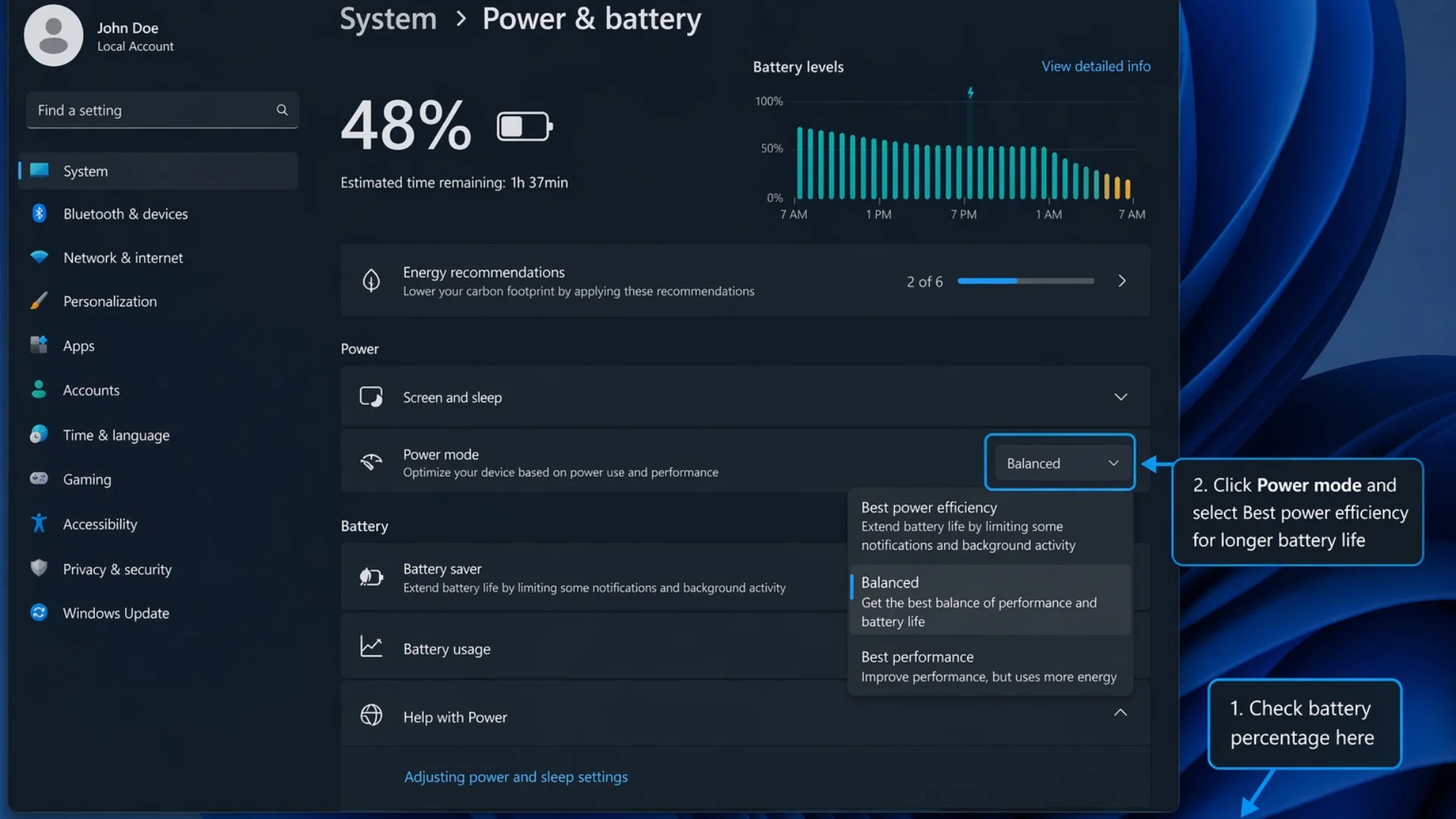
Adjust Power Mode Settings
- Click the battery icon in your taskbar
- Move the slider toward “Best power efficiency.”
- Alternatively, right-click the battery icon and select “Power and sleep settings.”
- Under “Power mode,” choose “Best power efficiency” or “Balanced.”
Configure Display and Sleep Settings
- Open Settings > System > Power & battery
- Set “Screen” to turn off after 3-5 minutes
- Set “Sleep” to activate after 5-10 minutes
- Enable “Turn off my screen when I’m not looking at it” if available
Limit Background App Activity
- Go to Settings > Apps > Installed apps
- Click the three dots next to each app
- Select “Advanced options.”
- Under “Background app permissions,” choose “Never” for non-essential apps
Reduce Processor Power State
- Open Control Panel > Power Options
- Click “Change plan settings” next to your active plan
- Select “Change advanced power settings.”
- Expand “Processor power management.”
- Set “Maximum processor state” to 80% on battery
- Click Apply
Disable Unnecessary Features
- Turn off keyboard backlight (Fn + relevant key)
- Disable location services when not needed
- Turn off transparency effects in Settings > Personalization> Colors
- Disable animations in Settings > Accessibility > Visual effects
How to Fix Laptop Battery Draining Fast in Windows 10
Windows 10 power settings work slightly differently. Here’s how to optimize them:
Access Battery Settings
- Click Start > Settings > System > Battery
- Turn on “Battery saver” automatically at 20%
- Check “Lower screen brightness while in battery saver.”
- Click “See which apps are affecting your battery life.”
Adjust Power Plan
- Open Control Panel > Hardware and Sound > Power Options
- Select “Balanced” plan (not High Performance)
- Click “Change plan settings.”
- Set display off: 3-5 minutes on battery
- Set sleep: 5-10 minutes on battery
- Click “Change advanced power settings” for more control
Stop Background Apps
- Go to Settings > Privacy > Background apps
- Turn off “Let apps run in the background” entirely
- Or disable individual apps you don’t need running
Disable Startup Programs
- Press Ctrl + Shift + Esc to open Task Manager
- Click the “Startup” tab
- Right-click unnecessary programs and select “Disable.”
- Focus on browser extensions, cloud sync, and update checkers
Check for Problematic Updates
- Open Settings > Update & Security > Windows Update
- Click “View update history.”
- Note recent updates
- If the drain started after a specific update, consider uninstalling it
How to Fix a Laptop Battery Draining Fast: Lenovo
Lenovo laptops include Vantage software with battery-specific features that help manage power consumption effectively.
Use Lenovo Vantage
- Open Lenovo Vantage (pre-installed on most Lenovo laptops)
- Go to “Device” > “Power.”
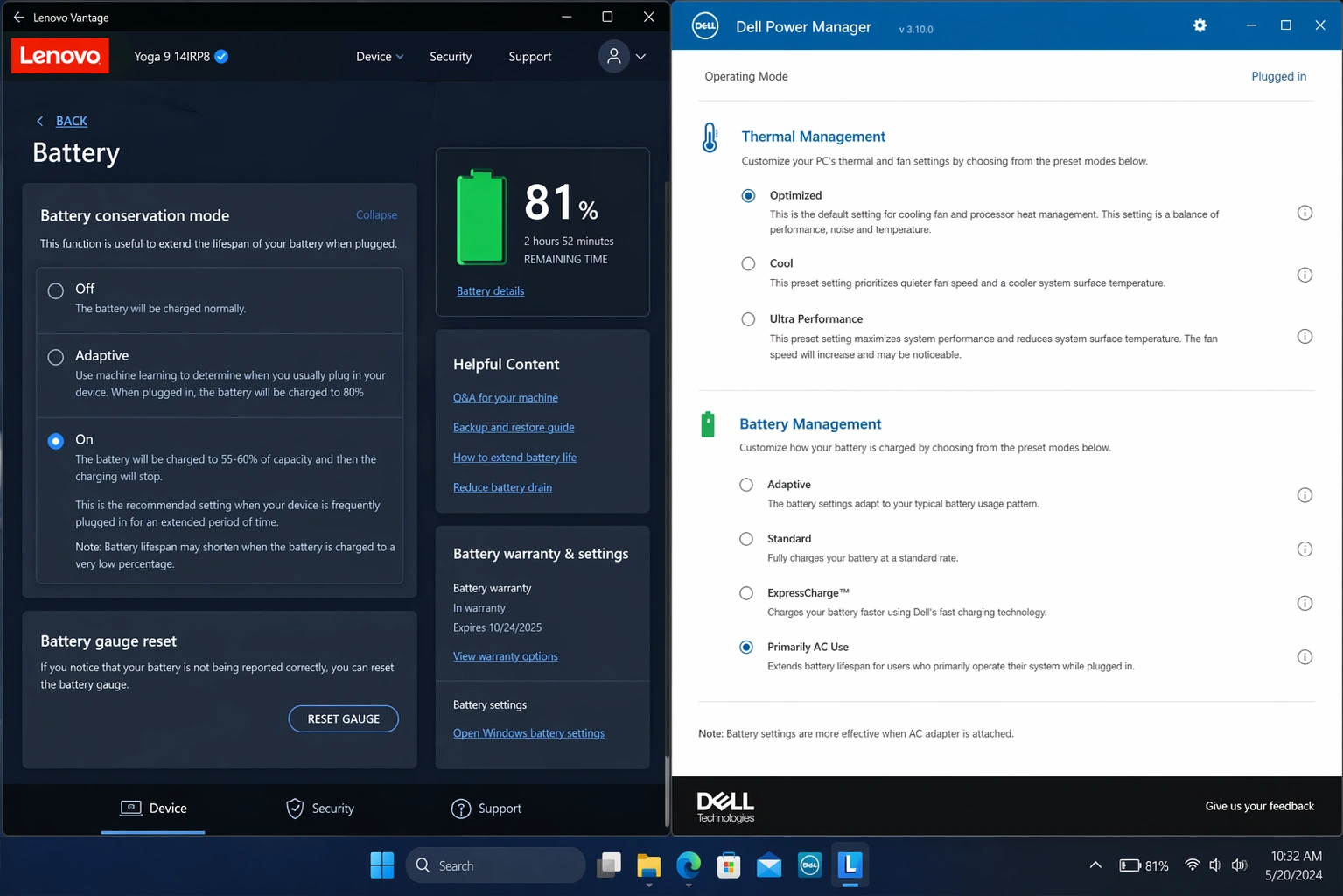
- Enable “Battery Conservation Mode” to cap charging at 80%
- Select “Intelligent Cooling” and choose “Battery Saving” mode
- Run “Battery Gauge Reset” if the battery reports inaccurate percentages
Adjust Lenovo Power Settings
- In Vantage, select “Power Smart Settings.”
- Enable “Flip to Boot” only if you use it
- Disable “Always On USB” to prevent drain when the laptop is off
- Turn off “Rapid Charge” if you don’t need fast charging
Update Lenovo Drivers
- Open Lenovo Vantage
- Go to “System Update”
- Install all available updates, especially:
- Power management drivers
- BIOS updates
- Chipset drivers
ThinkPad-Specific Fixes
- Access “Power Manager” in Lenovo Vantage
- Enable “Adaptive Thermal Management”
- Set threshold start/stop charging to optimize battery longevity
- Disable “Wake on LAN” in BIOS if not needed
If your Lenovo laptop drains the battery even when turned off, check the “Always On USB” setting”. This feature keeps USB ports powered continuously and drains the battery overnight. Disabling it in BIOS or Vantage stops this drain immediately.
How to Fix a Laptop Battery Draining Fast on a Dell
Dell laptops use Dell Power Manager and BIOS settings for battery optimization. Here’s how to configure them properly:
Configure Dell Power Manager
- Open Dell Power Manager (download from Dell if not installed)
- Go to “Battery Information” to check current health
- Select “Battery Settings”
- Choose “Primarily AC Use” if the laptop stays plugged in mostly
- Or select “Adaptive” for mixed usage patterns
Adjust Thermal Management
- In Dell Power Manager, go to “Thermal Management.”
- Select “Optimized” or “Cool” instead of “Ultra Performance.”
- This reduces the processor speed slightly but extends the battery significantly
Update Dell Drivers
- Open Dell SupportAssist (pre-installed on Dell laptops)
- Click “Check for updates.”
- Install all driver updates, particularly:
- Intel Management Engine
- BIOS updates
- Chipset drivers
- Dell Power Manager updates
BIOS Power Settings
- Restart the laptop and press F2 repeatedly to enter BIOS
- Navigate to “Power Management”
- Enable the “Block Sleep” feature if the laptop wakes randomly
- Disable “Wake on LAN” and “Wake on Dell USB-C Dock”
- Set “Lid Switch” to sleep when closed
Fix Dell Battery Calibration
- In Dell Power Manager, find “Battery Health.”
- If showing “Calibration needed,” run the calibration process
- This takes several hours but fixes inaccurate percentage readings
Dell laptops sometimes drain the battery faster after BIOS updates. If the drain started after a BIOS update, check Dell’s support site for newer versions that may fix the issue.
Why My Laptop Battery Is Draining So Fast Even When Off
A laptop draining battery while completely shut down indicates hardware settings keeping components active or a failing battery that can’t hold a charge.
Common causes of a drain when powered off:
- Fast Startup enabled: Laptop enters hibernation instead of full shutdown
- Wake timers active: Scheduled tasks wake the system periodically
- USB charging enabled: Ports supply power even when the laptop is off
- Connected devices: USB devices draw power continuously
- Network wake features: WiFi or LAN card stays partially powered
- Battery degradation: Old batteries self-discharge faster
Fixes for Drain When Off
Disable Fast Startup:
- Open Control Panel > Power Options
- Click “Choose what the power buttons do.”
- Click “Change settings that are currently unavailable.”
- Uncheck “Turn on fast startup.”
- Click Save changes
Disable Wake Timers:
- Open Control Panel > Power Options
- Click “Change plan settings” > “Change advanced power settings.”
- Expand “Sleep” > “Allow wake timers.”
- Set to “Disable” for both battery and plugged in
Turn Off USB Charging When Off:
- Enter BIOS (restart and press F2 or Del)
- Find “USB PowerShare” or “Always On USB”
- Disable this feature
- Save and exit BIOS
Disconnect All USB Devices:
- Remove external drives, mice, and other USB accessories before shutdown
- Some devices continue drawing power even when the laptop is off
If the battery still drains when off after these fixes, the battery itself may be failing and need replacement.
My Laptop Battery Is Draining Fast Even After a Full Charge
A battery draining rapidly after reaching 100% suggests either incorrect battery calibration, degraded battery health, or power-hungry processes starting immediately.
Check Actual Battery Health
On Windows 10/11, generate a battery report:
- Open Command Prompt as Administrator
- Type: powercfg /batteryreport
- Press Enter
- Open the generated HTML file from C:\Users[YourName]\battery-report.html
- Compare “Design Capacity” vs “Full Charge Capacity”
If Full Charge Capacity shows significantly less than Design Capacity (below 70%), your battery has degraded and may need replacement.
Calibrate Your Battery
Calibration fixes inaccurate percentage readings:
- Charge the laptop to 100%
- Keep it plugged in for 2 hours after reaching 100%
- Unplug and use normally until the laptop shuts down from low battery
- Leave it off for 5 hours
- Charge back to 100% without interruption
This process resets the battery sensor and often fixes “drain after full charge” issues.
Identify Immediate Power Draw
Some applications start automatically and consume power instantly:
- Check the Task Manager immediately after unplugging
- Look for high CPU usage processes
- Disable unnecessary startup programs
- Update or uninstall recently added software
When comparing laptops for better battery management, options like Chromebooks vs traditional laptops offer different approaches. Chromebooks typically provide longer battery life due to lighter operating systems.
Quick Fixes for Common Battery Drain Issues
Screen Brightness Draining Battery
Your display consumes more power than any other component.
- Lower brightness to 50-70% for indoor use
- Enable auto-brightness if available
- Use dark mode in apps and Windows
- Reduce screen timeout to 2-3 minutes
Browser Tabs Killing Battery
Each open tab consumes memory and CPU resources.
- Close tabs you’re not actively using
- Use tab suspension extensions
- Avoid sites with heavy animations or auto-playing videos
- Switch to a more efficient browser (Edge often beats Chrome for battery)
Background Apps Eating Power
Many apps run invisibly and drain battery.
- Open Settings > Apps > Installed apps
- Check “Background apps” permissions
- Disable background access for non-essential apps
- Uninstall apps you don’t use
Peripheral Devices Causing Drain
Connected accessories draw power continuously.
- Disconnect USB drives when not needed
- Use Bluetooth devices sparingly on battery
- Remove SD cards when not in use
- Unplug external monitors and docking stations
WiFi and Bluetooth Draining Battery
Wireless radios consume power constantly while searching for connections.
- Enable Airplane Mode when working offline
- Turn off Bluetooth if not using wireless accessories
- Disable WiFi when not needed
- Use wired connections when possible
Advanced Battery Drain Fixes
Update All Drivers
Outdated drivers cause inefficient power management.
- Open Device Manager
- Right-click each device category
- Select “Update driver.”
- Focus on:
- Display adapters
- Network adapters
- Batteries
- System devices
Reset Power Plans to Default
Corrupted power settings cause unusual drain.
- Open Command Prompt as Administrator
- Type: powercfg -restoredefaultschemes
- Press Enter
- Restart your laptop
- Reconfigure your preferred settings
Scan for Malware
Malicious software runs hidden processes that drain the battery.
- Open Windows Security
- Run a full system scan
- Remove any detected threats
- Consider running Malwarebytes for additional protection
Check for Firmware Updates
BIOS and firmware updates often include power management improvements.
- Visit your laptop manufacturer’s support website
- Download and install the latest BIOS
- Follow the manufacturer’s instructions carefully
- Restart after installation
Disable Search Indexing
Windows Search constantly indexes files, consuming power.
- Open Services (search “services” in Start menu)
- Find “Windows Search”
- Right-click and select “Properties.”
- Change Startup type to “Disabled.”
- Click Stop, then OK
When Battery Replacement Becomes Necessary
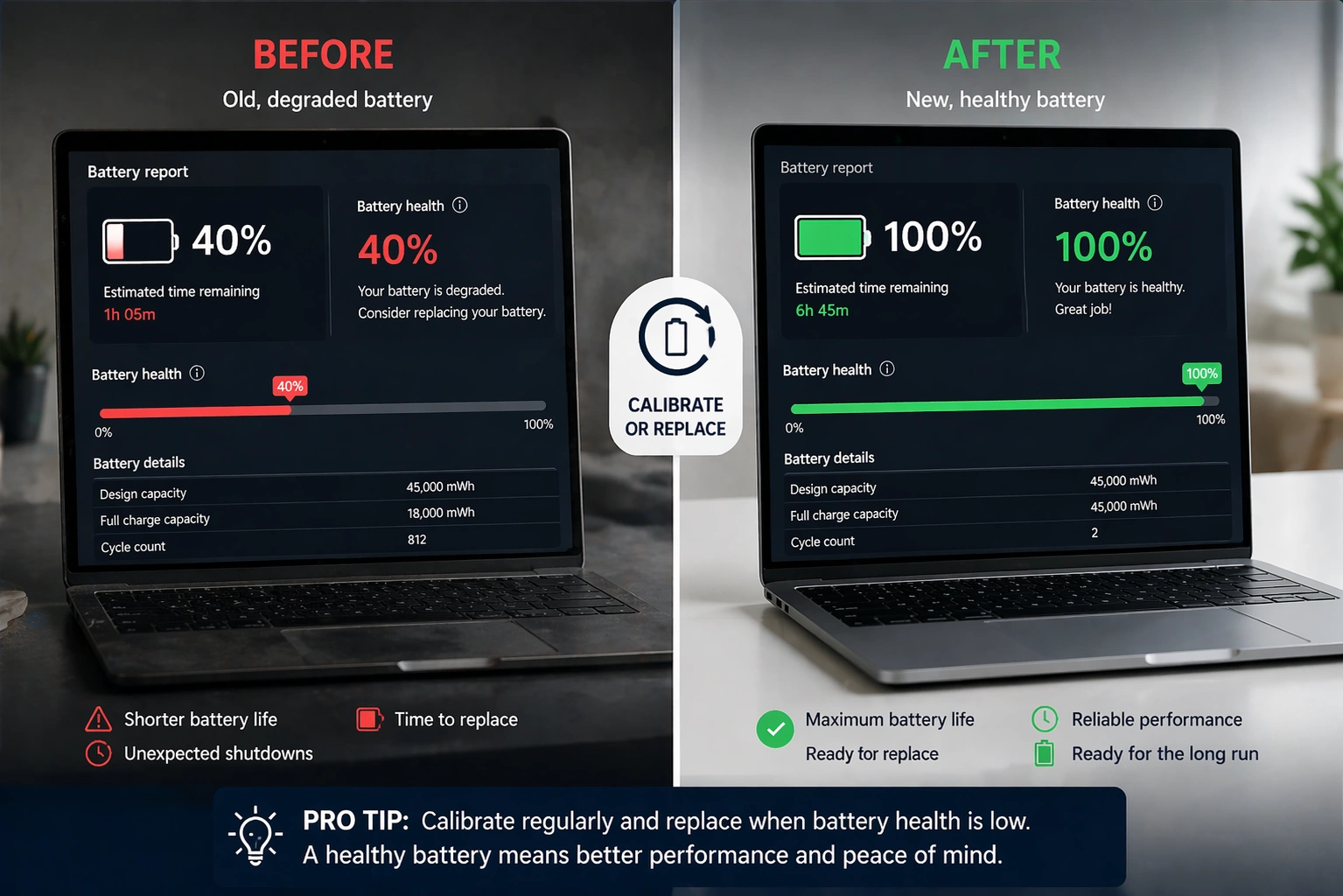
Consider replacement when:
- Battery health shows below 60% of design capacity
- Runtime drops below 50% of the original duration
- The battery swells or shows physical damage
- Laptop shuts down randomly despite showing a charge
- The battery won’t charge past a certain percentage
If your laptop is several years old, you might also consider whether upgrading makes more sense than replacing just the battery. Understanding the differences between used and refurbished laptops helps you evaluate whether a refurbished model might better suit your needs.
Preventing Future Battery Drain Problems
Maintain good battery habits to prevent drain issues:
- Keep charge between 20-80% when possible
- Avoid extreme temperatures – UAE heat accelerates battery degradation
- Update Windows regularly – patches often fix power bugs
- Clean vents – overheating forces fans to work harder
- Unplug at 100% – constant full charge stresses battery cells
- Use sleep mode – shutdown and startup consume more power than waking from sleep
Choosing the right laptop also matters. Some brands from the best laptop brands in the world prioritize battery efficiency more than others. Business-class laptops typically offer better power management than budget consumer models.
If your fan runs constantly while the battery drops, also read how to stop laptop fan noise.
Frequently Asked Questions
How do I restore my laptop’s battery health to 100%?
You cannot restore a degraded lithium-ion battery to 100% health; lithium-ion batteries permanently lose capacity through chemical aging. Once Full Charge Capacity drops below Design Capacity, that loss is permanent. However, you can slow future degradation by keeping the charge between 20% and 80%, avoiding heat exposure, using battery-saver modes, and not leaving your laptop plugged in constantly at 100%.
What kills a laptop battery the fastest?
Heat damages laptop batteries faster than anything else. Using your laptop in the UAE’s summer heat without air conditioning or blocking ventilation accelerates degradation dramatically. Other battery killers include keeping the laptop plugged in at 100% constantly, regularly draining to 0%, running demanding applications that generate heat, leaving the laptop in hot cars, and using incompatible chargers.
How to make 10% battery last 2 hours?
Making 10% last for 2 hours requires aggressive power-saving. Immediately enable Battery Saver mode, reduce screen brightness to the minimum comfortable level, close all unnecessary applications and browser tabs, enable Airplane Mode to disable all wireless connections, pause cloud syncing and automatic updates, and avoid video playback or heavy tasks.
How can I reset my laptop battery?
Resetting a laptop battery involves calibrating it to fix inaccurate percentage readings. Charge your laptop to 100% and keep it plugged in for 2 additional hours. Then unplug and use normally until the laptop shuts down completely from low battery. Leave it powered off for 5 hours, then charge to 100% without interruption.
Fix Your Battery Drain Today
Still struggling with battery drain after trying these fixes? Tech Point Zone offers free battery diagnostics at our Bur Dubai showroom. Our technicians determine whether software adjustments can resolve your problem or if a battery replacement makes more sense.
Contact us at +971 525696022 via WhatsApp or visit techpointzone.com for assistance.