
Screen recording on your HP laptop is something you might need more often than you think. Whether you are making a tutorial for a colleague, saving an online video call, recording a lesson, or capturing gameplay, knowing how to screen record on your HP laptop saves you a lot of time.
The good news? You do not need to install expensive software. HP laptops running Windows 10 or Windows 11 come with built-in tools that work great. And if you need more control, free third-party tools like OBS Studio are just a few clicks away.
In this guide from Tech Point Zone, we cover every method clearly, including how to screen record with sound, with your webcam, and even without the Game Bar. Whether you use an HP Pavilion, HP Spectre, HP Envy, HP 15, or an HP EliteBook, this guide works for all of them.
By the way, if you also want to take a quick screenshot instead of recording, check out this guide on how to take a screenshot on a laptop.
How to Screen Record on HP Laptop
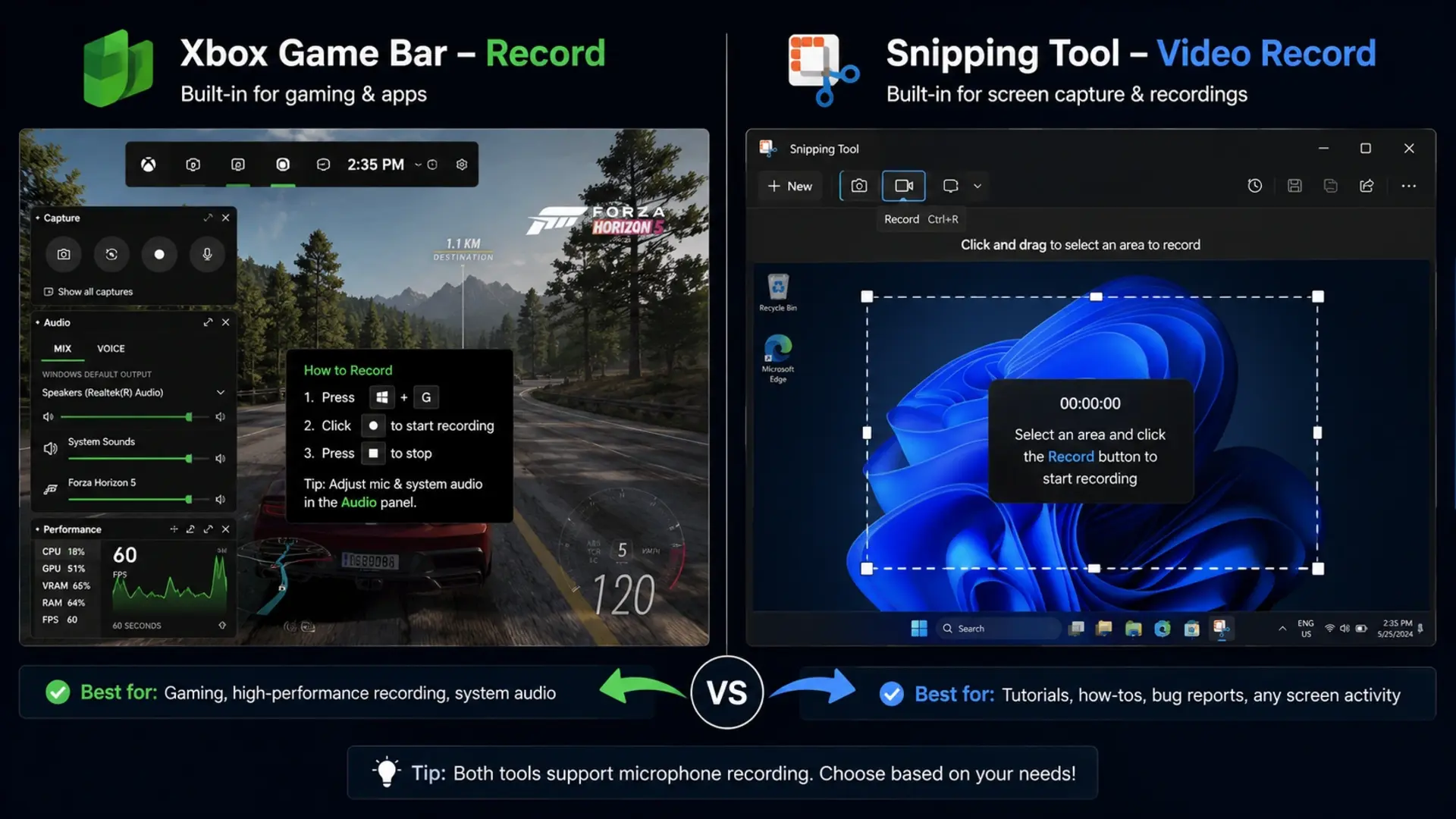
Press Windows + G to open the Xbox Game Bar, then click the record button (the circle icon) or press Windows + Alt + R to start recording. Press the same shortcut again to stop. Your video saves automatically in the Videos > Captures folder. That is the fastest way to screen record on any HP laptop without installing anything.
How to Screen Record on HP Laptop Windows 11
Windows 11 gives you two solid built-in options: Xbox Game Bar and the Snipping Tool. Both work on all HP models running Windows 11, including the HP Pavilion, HP Spectre, and HP Envy series.
Method 1: Using Xbox Game Bar (Recommended)
The Xbox Game Bar is the easiest and most used method for screen recording in HP laptops on Windows 11.
Steps:
- Press Windows + G to open the Game Bar overlay.
- Click the Capture widget (camera icon) if it does not open automatically.
- Click the Start Recording button (circle icon) or press Windows + Alt + R.
- A small timer bar appears at the top, your recording has started.
- Press Windows + Alt + R again to stop.
- Your video saves in C:\Users\YourName\Videos\Captures.
Important note: The Xbox Game Bar does not record the full desktop or File Explorer. It works best when a specific app or browser window is active on screen.
Method 2: Using the Snipping Tool (Windows 11 Only)
Windows 11 updated the Snipping Tool to support video recording, a feature not available in Windows 10.
Steps:
- Open the Snipping Tool from the Start menu or press Windows + Shift + S (then switch to video mode manually by opening the app).
- Click the video camera icon (Record tab) at the top.
- Click New and select the area of the screen you want to record.
- Click Start to begin recording.
- Click Stop when done.
- Save the file to your preferred location.
This method is great when you want to record a specific portion of the screen, not the full display.
How to Screen Record on HP Laptop with Sound
By default, Xbox Game Bar records system audio. But to record your microphone as well, you need to enable it first.
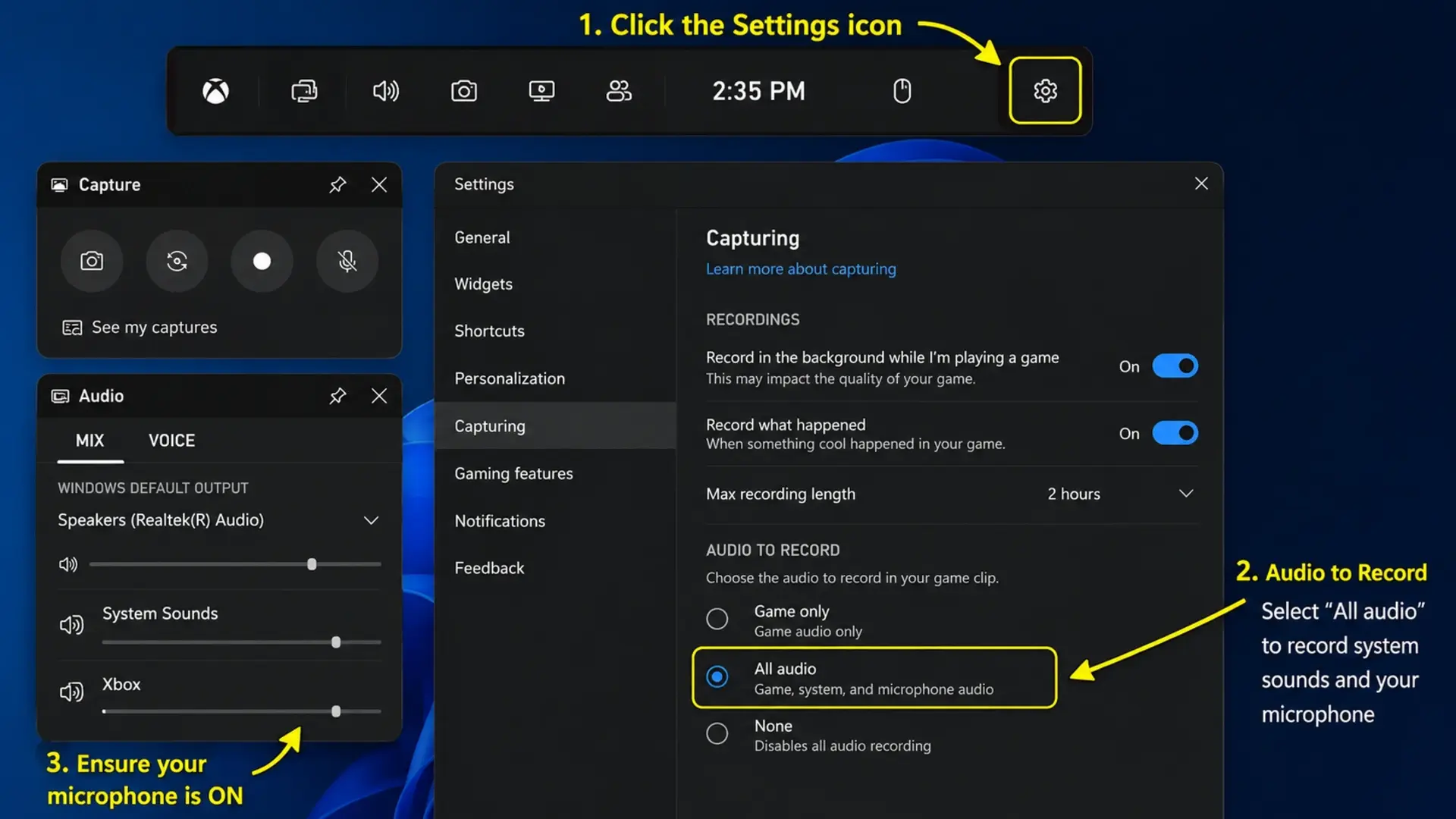
Steps to enable microphone + system audio:
- Open Game Bar with Windows + G.
- Click the Settings gear icon inside the Capture widget.
- Under “Audio to record,” select All audio (this captures both your system sounds and microphone).
- Start your recording with Windows + Alt + R.
If you want only microphone audio (for example, while narrating a tutorial), select Microphone only in the same settings.
For OBS Studio users (covered below), you can separately control microphone and desktop audio channels, which gives you much more flexibility when recording with sound on your HP laptop.
How to Screen Record on HP Laptop 15
The HP 15 series (HP 15-dy, HP 15s, HP 15-fc) runs Windows 10 or Windows 11 and fully supports all the methods in this guide. There is no special setting needed for the HP 15 specifically.
If your HP 15 is running Windows 10, follow the Xbox Game Bar method above. It works exactly the same way.
If your HP 15 runs Windows 11, you also get the Snipping Tool video recording option as an extra choice.
One thing to keep in mind: older HP 15 models with Intel HD or UHD 620 graphics may occasionally show a “Game Bar not supported” error. In that case, use the Snipping Tool or OBS Studio method instead.
How to Screen Record on HP Laptop with Webcam
Recording your screen and your face at the same time is useful for video tutorials, online presentations, and content creation. The built-in Game Bar does not support webcam overlay natively, but OBS Studio does this perfectly for free.
Using OBS Studio to Record Screen + Webcam
Steps:
- Download OBS Studio from obsproject.com and install it.
- Open OBS and click the + button under the Sources panel.
- Add Display Capture to capture your full screen.
- Click + again and add Video Capture Device. Select your HP laptop’s built-in webcam.
- Resize the webcam preview and drag it to a corner of the screen.
- Click Start Recording in the bottom right.
- Click Stop Recording when done.
- Your file saves in the Videos folder by default.
OBS is free and works on all HP laptop models, including HP Pavilion, HP Envy, HP Victus, and HP EliteBook.
If you prefer a paid option, Camtasia offers a clean webcam + screen recording experience with built-in editing tools.
How to Screen Record on HP EliteBook
The HP EliteBook series (EliteBook 840, 850, 1040, and newer models) is built for business use. These laptops run Windows 11 Pro or Windows 10 Pro and support all standard screen recording methods.
For HP EliteBook users in professional environments, here are the best options:
For quick recordings: Use Xbox Game Bar (Windows + Alt + R). It is fast, does not require installation, and saves files locally.
For presentations and training videos: Use PowerPoint Screen Recording. Go to Insert > Screen Recording, select your capture area, and record directly into a slide. This is a popular method among business professionals.
For high-quality output: Use OBS Studio or Camtasia for full control over resolution, frame rate, and audio.
HP EliteBook models with Intel Iris Xe or dedicated AMD Radeon graphics run OBS Studio smoothly without performance issues.
If you work in a corporate environment and your IT team has disabled the Game Bar, see the next section for alternatives.
How to Screen Record on HP Laptop Without Game Bar
Some HP laptops have the Xbox Game Bar disabled, either by IT policy, older hardware, or user settings. Here are three ways to screen record without using the Game Bar at all.
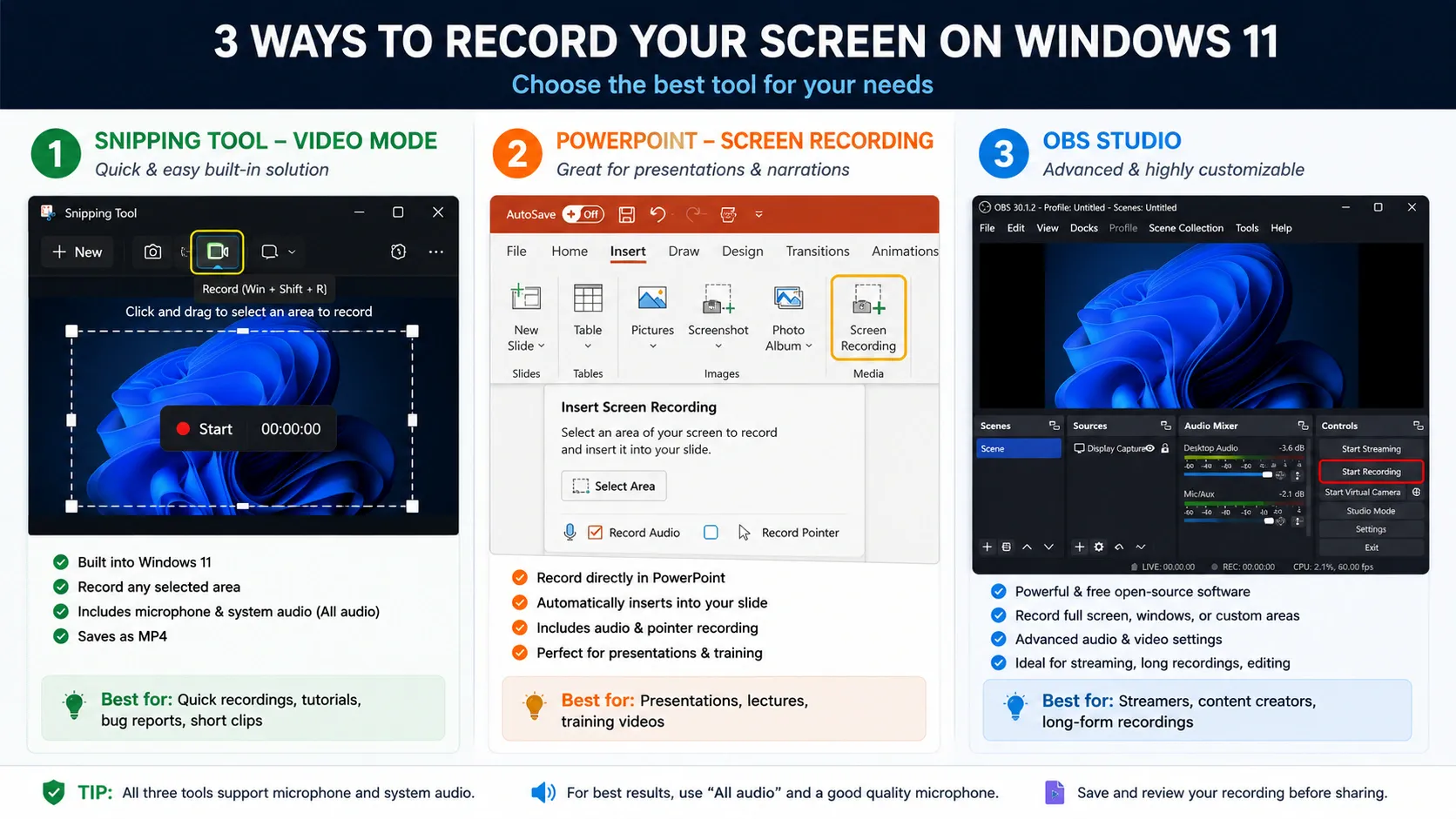
Option 1: Snipping Tool (Windows 11)
As mentioned earlier, the Snipping Tool in Windows 11 records your screen without needing the Game Bar. Open it from the Start menu, switch to the video tab, select your area, and start recording.
Option 2: PowerPoint Screen Recording
If you have Microsoft Office installed, PowerPoint includes a built-in screen recorder.
Steps:
- Open any PowerPoint file or create a blank one.
- Go to Insert > Screen Recording.
- Drag to select the area you want to record.
- Click Record.
- Press Windows + Shift + Q to stop.
- Right-click the video in the slide and choose Save Media As to export it as a video file.
This method works on both Windows 10 and Windows 11 HP laptops.
Option 3: OBS Studio
OBS Studio is a completely free and open-source screen recorder that works independently of the Game Bar. It records the full screen, specific windows, or custom regions, with full audio control. It is one of the best options for screen recording on HP laptops without Game Bar, and it works even on older HP 15 models.
Option 4: VLC Media Player (Hidden Feature)
Most people do not know that VLC can record your screen too.
Steps:
- Open VLC and go to Media > Open Capture Device.
- Under Capture Mode, select Desktop.
- Set the frame rate (15–30 fps works well).
- Click Play, then click the arrow next to Play and choose Convert.
- Select your output format and click Start.
This is a handy option if you already have VLC installed on your HP laptop and want to avoid installing new software.
Screen Recording in HP Laptop Using OBS Studio (Full Setup)
OBS Studio deserves its own section because it is the most powerful free screen recorder available for HP laptops. It supports 4K recording, custom frame rates, multiple audio tracks, and scene switching.
How to set it up:
- Download OBS from obsproject.com.
- Run the Auto-Configuration Wizard when you first open it. OBS will detect your hardware and suggest the best settings.
- Under Sources, add Display Capture for full-screen recording.
- Under Settings > Output, choose your video format (MP4 is the most compatible).
- Set your recording path under Settings > Output > Recording Path.
- Click Start Recording when ready.
OBS works on all HP laptop models, from the budget HP 15 to the powerful HP OMEN gaming laptop.
How to Screen Record HP Laptop on Windows 10
Windows 10 does not include the Snipping Tool video feature, but the Xbox Game Bar works perfectly.
Steps for Windows 10:
- Make sure Game Bar is enabled: Go to Settings > Gaming > Xbox Game Bar and toggle it ON.
- Open any app you want to record.
- Press Windows + G to open the Game Bar.
- Click the Capture panel and hit the record button, or press Windows + Alt + R.
- Press Windows + Alt + R to stop.
If the Game Bar does not work on your Windows 10 HP laptop, use OBS Studio or PowerPoint as described above.
How to Choose the Right Screen Recording Method
Not every method works best for every situation. Here is a quick breakdown:
- For casual recordings (tutorials, quick demos): Xbox Game Bar is enough. It is built-in, fast, and saves files automatically.
- For recording with your voice: Enable a microphone in Game Bar settings, or use OBS Studio for better audio control.
- For recording your webcam + screen: Use OBS Studio. It is the only free tool that supports webcam overlay cleanly.
- For business presentations: Use PowerPoint Screen Recording. It saves directly into your slides, which is useful for creating training materials.
- For professional-quality videos: Use Camtasia (paid) or OBS Studio (free) for higher resolution, editing features, and multiple output formats.
- For HP EliteBook users in restricted environments: Use Snipping Tool (Windows 11) or PowerPoint. Both work without needing Game Bar or admin rights.
Tips to Get Better Screen Recordings on HP Laptops
These small steps make a real difference in your recording quality:
- Close background apps before recording to avoid lag, especially on HP 15 models with entry-level processors.
- Plug in your charger: Recording video uses more power, and battery-saving modes can reduce frame rate.
- Use a headset or external mic for cleaner audio when recording your voice.
- Set your display scaling to 100% if text appears blurry in recordings.
- Record in MP4 format: It is the most compatible format for sharing and uploading.
- If your HP laptop’s storage is low, free up space before recording long sessions. You may also want to check out this guide on how to reformat your laptop to start fresh if needed.
Where Do Screen Recordings Save on HP Laptops?
By default, recordings made through Xbox Game Bar save here:
C:\Users\YourName\Videos\Captures
You can change this location in the Game Bar settings. For OBS Studio, you set the save location yourself under Settings > Output > Recording Path. PowerPoint saves the video inside the slide. You need to right-click and export it separately.
If you regularly move files between devices, you might find this guide on how to transfer photos from iPhone to laptop useful for managing your media.
FAQs
What is the shortcut key for screen recording on HP laptop?
Press Windows + Alt + R to start and stop screen recording using the Xbox Game Bar. This shortcut works on all HP laptops running Windows 10 and Windows 11 without needing to open the Game Bar overlay first.
How to screen record on HP laptop without Windows key?
If your Windows key is broken or disabled, use the Snipping Tool (search for it in the Start menu on Windows 11) or OBS Studio, which lets you set your own custom keyboard shortcuts. You can also use PowerPoint’s screen recording feature from the Insert menu. No Windows key needed.
What is the Ctrl key for screen recording?
There is no default Ctrl-based shortcut for screen recording in Windows. The built-in shortcut uses the Windows key (Win + Alt + R). However, in OBS Studio, you can set any custom shortcut you want, including Ctrl combinations, by going to Settings > Hotkeys.
Conclusion
Screen recording on an HP laptop does not have to be complicated. Windows gives you solid built-in tools like Xbox Game Bar and Snipping Tool that work right away, with no downloads needed. For more advanced needs like webcam overlay or full desktop recording, free tools like OBS Studio get the job done.
Whether you own an HP Pavilion, EliteBook, or HP 15, the methods in this guide work across all models. Pick the one that fits your workflow and start recording. At Tech Point Zone, we keep things simple so you can get things done faster.