
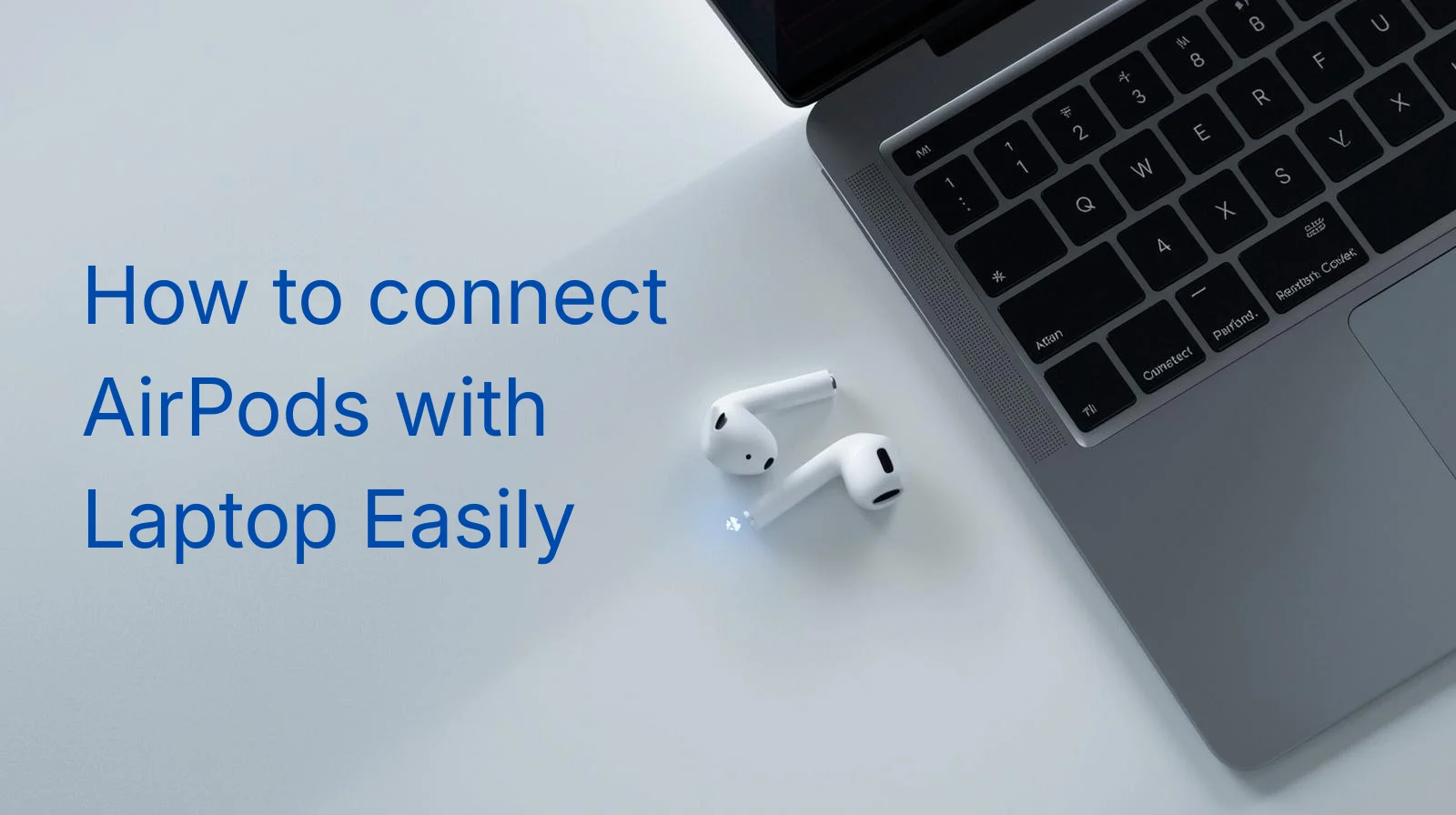
AirPods work brilliantly with iPhones, but did you know they also connect to laptops? Whether you own an HP, Dell, Lenovo, or MacBook, you can pair your AirPods in just a few minutes. This guide shows you exactly how to connect AirPods to a laptop using Bluetooth, fix common problems, and switch between devices smoothly.
Before You Start
Make sure your AirPods have at least 20% battery. Place them inside the charging case and check the LED light. A green light means fully charged. An amber light means they need more charge.
Your laptop must have Bluetooth. Most modern laptops come with built-in Bluetooth. If your laptop lacks this feature, you can buy a USB Bluetooth adapter for around AED 50-100 from any electronics store in the UAE.
How to Connect AirPods to Laptop Windows 10
Windows 10 makes it simple to pair AirPods through the Bluetooth settings. Follow these steps:
- Click the Start menu and open Settings
- Select Devices, then choose Bluetooth & other devices
- Turn on Bluetooth if it shows as off
- Click Add Bluetooth or other device at the top
- Select Bluetooth from the pop-up window
- Put your AirPods in the case and open the lid
- Press and hold the setup button on the back of the case until the LED flashes white
- Select your AirPods from the device list
- Click Done when the connection completes
Your AirPods now work with your Windows 10 laptop. You can listen to music, watch videos, and join online meetings.
How to Connect AirPods to a Laptop Windows 11
Windows 11 uses a slightly different menu layout. Here’s how to pair:
- Press Windows + I to open Settings
- Click Bluetooth & devices on the left side
- Make sure the Bluetooth toggle shows On
- Click Add device at the top of the screen
- Choose Bluetooth from the options
- Open your AirPods case with the earbuds inside
- Hold the setup button until the white light flashes
- Pick your AirPods from the available devices
- Wait for the “Your device is ready” message
The pairing takes about 30 seconds. After this, your AirPods connect automatically whenever you open the case near your laptop.
How to Connect AirPods to a MacBook
MacBooks and AirPods are part of the Apple ecosystem, so the connection happens almost instantly. If you already use your AirPods with an iPhone that’s signed in with the same Apple ID, your Mac detects them automatically.
For automatic connection:
- Put your AirPods in your ears
- Click the Control Centre icon in the menu bar
- Click Bluetooth
- Select your AirPods from the list
For manual pairing:
- Open System Settings from the Apple menu
- Click Bluetooth and make sure it shows On
- Place both AirPods in the case and open the lid
- Press and hold the setup button until the light flashes white
- Click Connect next to your AirPods in the Nearby Devices list
Your Mac remembers the pairing, so you only do this once.
How to Connect AirPods to HP Laptop
HP laptops run Windows, so the process follows the standard Windows steps. However, some HP models need extra attention to Bluetooth drivers.
Steps for HP laptops:
- Open Settings and go to Bluetooth & devices
- Enable Bluetooth
- Click Add device and select Bluetooth
- Open your AirPods case
- Press the setup button until the LED blinks white
- Choose your AirPods from the list
If your AirPods fail to appear, update your Bluetooth drivers through HP Support Assistant or the HP website. Outdated drivers are the main cause of connection failures on HP laptops.
How to Connect AirPods to Laptop Dell
Dell laptops follow the same Windows pairing process. The main difference lies in troubleshooting, as Dell uses specific Bluetooth chipsets.
Quick steps for Dell:
- Go to Settings > Bluetooth & devices
- Turn Bluetooth on
- Press Add device > Bluetooth
- Open your AirPods case near the laptop
- Hold the setup button until the white light flashes
- Select your AirPods and click Connect
Sometimes, Dell laptops require you to disable Swift Pair for a successful connection. Go to Bluetooth settings, scroll down, and turn off “Show notifications to connect using Swift Pair”.
How to Connect AirPods to Laptop If There Is No Button
The newer AirPods 4 and AirPods Pro 3 models no longer have a physical setup button. Apple replaced it with a touch-sensitive area on the front of the case.
To put AirPods 4 or AirPods Pro 3 in pairing mode, open the case with the earbuds inside and double-tap the front of the case just below the LED light. Keep tapping until the status light flashes white. This shows your AirPods entered pairing mode and appear on your laptop’s Bluetooth list.
For older models like AirPods 1, 2, 3, and AirPods Pro 1 or 2, the setup button sits on the back of the case. Press and hold it for about 5 seconds until the white light flashes.
How to Connect AirPods to Laptop When Connected to Phone
AirPods can remember multiple devices, but they connect to only one at a time. When your AirPods stay connected to your phone, they might not show up on your laptop’s Bluetooth list.
The solution involves disconnecting from your phone first. Go to your phone’s Bluetooth settings and tap Disconnect next to your AirPods. Do not remove or forget the device. Just disconnect it temporarily.
Now your laptop can find the AirPods. After connecting to the laptop, your phone still remembers the pairing. You can switch back anytime by going to your phone’s Bluetooth settings and tapping Connect.
Windows laptops do not support automatic device switching like Apple devices do. You must manually select which device to use each time.
Why Are My AirPods Not Showing Up on Bluetooth on My Laptop?
Several factors can cause AirPods to remain hidden from your laptop’s Bluetooth search. The most common issues include:
Your AirPods connect to another device. Bluetooth on nearby phones, tablets, or other laptops might grab the connection before your laptop does. Turn off Bluetooth on other devices before pairing.
The case lid stays closed. AirPods only enter discovery mode with the case open. Keep the lid open throughout the pairing process.
A low battery blocks the connection. AirPods with very low charge struggle to broadcast their signal. Charge them for at least 15 minutes before trying again.
Your laptop’s Bluetooth is turned off or has problems. Check if Bluetooth actually shows as enabled. Some laptops have a physical switch or function key that controls Bluetooth.
How Do You Put AirPods in Pairing Mode?
Putting AirPods in pairing mode differs based on your model:
For AirPods 1, 2, or 3 and AirPods Pro 1 or 2, place the earbuds in the case, open the lid, and press the small round button on the back of the case. Hold it for about 5 seconds until the LED inside the case flashes white.
For AirPods 4 and AirPods Pro 3, open the case with earbuds inside, then double-tap the front of the case below the light. The LED flashes white when pairing mode activates.
For AirPods Max, press and hold the noise control button on the right earcup for about 5 seconds until the status light flashes white.
The flashing white light indicates that your AirPods are waiting to connect to a new device.
Why Is My AirPod Not Being Detected?
When your laptop cannot find your AirPods at all, try these fixes:
Reset your AirPods by holding the setup button for 15 seconds until the light turns amber, then flashes white. This clears previous connections and gives you a fresh start.
Restart your laptop’s Bluetooth. Turn it off, wait 30 seconds, then turn it back on. This clears temporary glitches in the Bluetooth system.
Move closer to your laptop. Bluetooth works best within 1-2 metres. Walls, metal objects, and other wireless devices can block the signal.
Update your Bluetooth drivers. Open Device Manager, find Bluetooth, right-click your adapter, and select Update driver. Windows automatically searches for the latest version.
Check for Windows updates. Sometimes Bluetooth fixes come through system updates. Go to Settings > Windows Update and install any pending updates.
Why Are My AirPods Not Connecting to My Laptop HP?
HP laptop users often face specific connection problems due to Bluetooth driver issues and power management settings.
First, update your Bluetooth drivers. Visit the HP Support website, enter your laptop model, and download the latest Bluetooth driver. Install it and restart your computer.
Second, turn off Bluetooth power management. Open Device Manager, expand Bluetooth, right-click your Bluetooth adapter, select Properties, go to Power Management, and uncheck “Allow the computer to turn off this device to save power”.
Third, remove and re-pair your AirPods. Go to Bluetooth settings, find your AirPods, click Remove device, then pair them again from scratch.
Fourth, run the Bluetooth troubleshooter. Go to Settings > System > Troubleshoot > Other troubleshooters and run the Bluetooth troubleshooter. Windows attempts to automatically fix common problems.
If problems persist, check whether another nearby device is already connected to your AirPods. Your iPhone or iPad might grab the connection before your HP laptop.
How to Connect AirPods to Laptop If They Are Not Working
When standard pairing fails, try these advanced fixes:
Forget the device and pair again. In Bluetooth settings, click Remove device next to your AirPods. Then pair them as a new device.
Try one AirPod at a time. Leave one AirPod in the case and attempt to connect just one. This helps identify if a single AirPod has problems.
Update AirPods firmware. Connect your AirPods to an iPhone, then go to Settings > General > About > AirPods to check for updates. Firmware updates happen automatically when AirPods stay connected to an iPhone.
Restart the Bluetooth Support Service. Press Windows + R, type services.msc, find Bluetooth Support Service, right-click it, and select Restart.
Check your sound output settings. Sometimes AirPods connect, but sound plays through laptop speakers. Right-click the speaker icon in your taskbar, select Sound settings, and choose your AirPods as the output device.
Features You Lose on Windows
AirPods work well on Windows laptops, but some Apple-specific features do not transfer:
Automatic device switching only works between Apple devices. You must manually connect to each device.
Spatial Audio and Adaptive EQ require iOS or macOS. Windows uses standard Bluetooth audio codecs.
Battery status is not displayed by default in Windows. Third-party apps can add this feature.
Siri commands do not work on Windows. You can use Cortana or other voice assistants instead.
Automatic ear detection may not pause your music when you remove an AirPod.
Despite these limitations, AirPods deliver excellent sound quality for music, videos, and calls on Windows laptops.
Tips for Better Connection
Keep your laptop’s Bluetooth drivers up to date. Check for updates monthly.
Charge your AirPods regularly. A low battery weakens the Bluetooth signal.
Reduce wireless interference. Move away from routers, microwaves, and other Bluetooth devices during pairing.
Close the AirPods case when not in use. This saves battery and prevents accidental connections.
Restart your laptop if connections become unstable. A fresh boot clears many Bluetooth issues.
Best Laptops for AirPods in UAE
Looking for a laptop that pairs smoothly with your AirPods? Tech Point Zone offers a wide range of laptops from HP, Dell, Lenovo, and ASUS with reliable Bluetooth connectivity.
If you need a budget laptop under 500 AED, Tech Point Zone stocks affordable options perfect for basic tasks and wireless audio.
For those considering pre-owned devices, understanding the difference between used and refurbished laptops helps you make a smart choice. You can also explore refurbished laptops in Dubai for quality devices at lower prices.
Once you get your new laptop, you might want to change your Etisalat WiFi password for better security.
Tech Point Zone delivers across the UAE with free shipping on orders above AED 1,000. Every laptop comes with an official warranty and a 14-day return policy.
More setup guides: connect a laptop to an external monitor and connect your laptop to a TV.
Frequently Asked Questions
Can I use AirPods with any laptop?
Yes, any laptop with Bluetooth 4.0 or later supports AirPods. If your laptop lacks built-in Bluetooth, buy a USB Bluetooth adapter.
Do AirPods work with Windows 11?
Yes. Windows 11 fully supports AirPods through standard Bluetooth pairing. The connection process takes less than a minute.
Why do my AirPods keep disconnecting from my laptop?
This usually happens due to a low battery, outdated drivers, or power management settings. Turn off the option that lets your computer turn off Bluetooth to save power.
Can I use AirPods microphone on my laptop?
Yes, but the microphone quality drops compared to using them with Apple devices. Windows uses the Hands-Free audio profile for calls, which reduces overall sound quality.
How do I switch AirPods between my phone and laptop?
Disconnect from one device first, then connect to the other through Bluetooth settings. Unlike Apple devices, Windows laptops do not support automatic switching.
Do I need to reset AirPods every time I switch devices?
No. AirPods remember multiple devices. Just disconnect from one and connect to another without resetting.
Conclusion
Connecting AirPods to your laptop takes just a few steps once you know the process. Whether you use Windows 10, Windows 11, or a MacBook, the pairing works through standard Bluetooth. If problems arise, the troubleshooting tips above solve most issues quickly. Enjoy wireless audio on your laptop today.