
Are Laptops cheaper in Dubai

Are Laptops Cheaper in Dubai? Average Laptop Price in Dubai (2026)

If you’ve heard that laptops are cheaper in Dubai, you’re not alone. The idea makes sense at first glance because the UAE has 5% VAT, and big retailers run frequent promotions. In many cases, Dubai can beat the UK and EU on final price, where VAT often sits around 20% (or close to it).

Still, “cheaper” depends on what you compare, and how you buy. In early 2026, laptop prices rose globally by about 10% to 30%, pushed up by parts constraints, shipping costs, and strong demand for newer “AI-ready” hardware. That price pressure shows up in Dubai too.

This guide breaks down average laptop prices in Dubai in 2026 (in AED with rough USD ranges), what specs you can expect at each budget, real model price examples across countries, and how to shop in Dubai without getting stuck with a bad warranty or a gray-market unit.

Average laptop price in Dubai (2026) and what you get at each budget
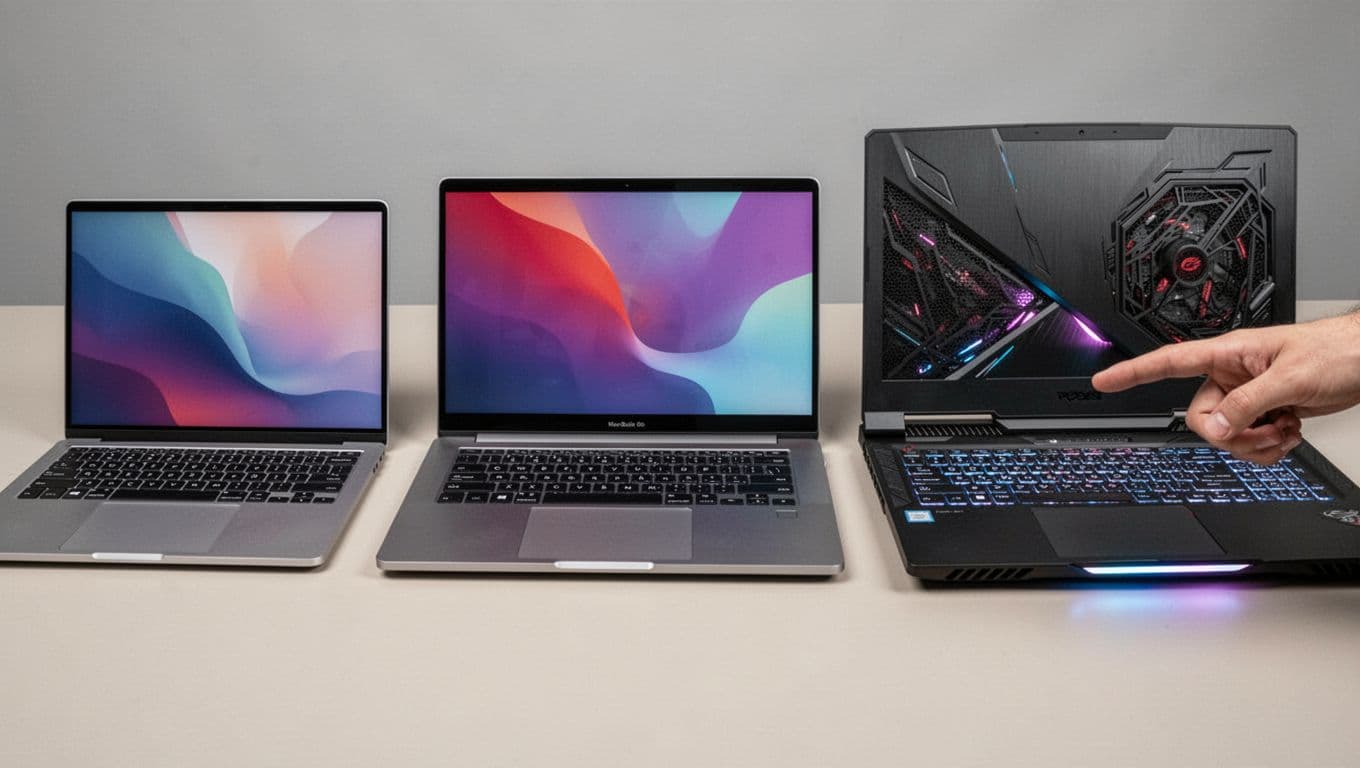
Close-up of four laptops side by side on a neutral table: slim budget, mid-range office, premium thin-bezel, and gaming model with vents and lights, screens off or abstract, hand pointing to gaming laptop. Photorealistic product photography with sharp focus on details and soft shadows. Four common laptop “tiers” side by side, from budget to gaming, created with AI.

In February 2026, Dubai’s laptop market looks wide on the surface, but the “sweet spot” is easy to spot. Mid-range laptops often land around AED 3,000 to 5,000, which is where you start getting 16GB RAM and a comfortable daily experience.

Currency conversion changes daily, so it’s better to think in ranges. Using the common peg (about 1 USD ≈ 3.67 AED), these are the bands most shoppers actually see across major stores and Dubai’s electronics hubs.

Here’s a quick way to frame the market before you start comparing models online:

Price band (Dubai, AED)Rough USD rangeBest forWhat you should expect
1,500 to 2,500410 to 680School, basic work8GB RAM, 256 to 512GB SSD, integrated graphics
3,000 to 5,000820 to 1,360Office, study, light creative16GB RAM common, 512GB to 1TB SSD, better screens
5,500 to 8,5001,500 to 2,320Coding, editing, premium builds16 to 32GB RAM, OLED or high-quality panels, strong battery
5,000 to 9,000+1,360 to 2,450+Gaming, heavy GPU workRTX-class GPU, 144Hz+ screen, thicker cooling

The takeaway is simple: Dubai has plenty of cheap laptops, but the models people want most (fast CPU, 16GB RAM, good screen) tend to cluster in that AED 3,000 to 5,000 range. If you’re shopping under AED 2,500, focus more on specs than brand names, because a fancy logo won’t fix a slow setup.

If you’re hunting for local budget picks, this guide on top affordable laptops in UAE 2025 is a useful starting point, especially for the AED 1,500 to 3,000 range.

Typical price bands in AED: budget, mid-range, premium, and gaming

Think of laptop pricing like apartment sizes. You can live in any of them, but comfort changes fast once you add roommates (apps), storage (files), and “views” (screen quality).

  • Budget (AED 1,500 to 2,500): Expect Intel Core i3 or entry Core i5, or Ryzen 3 to Ryzen 5, 8GB RAM, 256 to 512GB SSD, and a 14 to 15.6-inch HD or FHD screen with integrated graphics.
  • Mid-range (AED 3,000 to 5,000): Look for Core i5 to i7 (or Ryzen 5 to 7), 16GB RAM, 512GB to 1TB SSD, and a Full HD screen. Some units include entry GPUs like NVIDIA MX-series.
  • Premium (AED 5,500 to 8,500): You’re paying for build quality and screens. Expect Core i7/Ultra (or Apple M-series), 16 to 32GB RAM, 1TB SSD, and a 14 to 16-inch OLED or Retina-class panel.
  • Gaming (AED 5,000 to 9,000+): Aim for Ryzen 7 or Intel i7 plus 16 to 32GB RAM, 1TB SSD, a 15.6 to 17.3-inch 144Hz+ screen, and an NVIDIA RTX 3050 and up (often 4060-class in this bracket).

Why prices jumped in 2026, and which laptops got hit the most

Dubai didn’t escape the 2026 price wave. Across many markets, laptops moved up 10% to 30% compared to prior-year norms. Several forces stacked together.

First, parts availability stayed uneven, especially for memory and certain mid-range components. When RAM and SSD prices rise, mid-range laptops feel it fast because brands compete tightly there. Next, shipping and logistics costs stayed higher than many buyers expected, and retailers priced that risk in.

Demand also shifted. More buyers now want machines that handle heavier multitasking and newer “AI” features. As a result, buyers are skipping 8GB systems more often, which pushes demand toward pricier configs.

In practice, big mainstream lines from Dell, HP, Lenovo, and ASUS saw sharper bumps in some categories. Gaming laptops often climbed more than basic models because GPUs and cooling designs carry higher costs, and demand stays strong.

If you want a stable price, watch mainstream mid-range models. If you want the steepest discount, target last-year gaming stock right before new GPU releases.

Are laptops actually cheaper in Dubai than the USA, UK, Europe, and India?
A bustling electronics market in Dubai features various laptops on foreground display tables, including budget slim laptops, mid-range models with open screens, premium ultrabooks, and gaming laptops with RGB lights. One salesperson stands behind the counter with two hands visible on the table, two shoppers browse in the background, under vibrant indoor lighting and modern shelves stocked with accessories. Dubai’s electronics shopping scene, from budget to gaming counters, created with AI.

Here’s the rule that fits most real purchases: Dubai often beats the UK and EU on “out-the-door” price, it can be competitive with India on certain premium models (especially during sales), but the USA often wins on base price, especially if you buy direct from major brands.

Why? The US market gets aggressive pricing from manufacturers and giant retail chains. Dubai has lower VAT, but the sticker price can still be higher on the same model. Meanwhile, India can have higher import costs on electronics, which can push premium models up.

The important part is your final cost, not the tag you saw in a photo. Add VAT, possible import duty pass-through, payment fees, and the value of a local warranty. A “cheaper” laptop stops being cheap if it’s hard to service in your home country.

Real-world price comparisons for popular models (Dubai vs other countries)

Prices change weekly and depend on exact specs (RAM, storage, screen, GPU). Still, these early 2026 ranges show the pattern clearly when you compare like-for-like configurations.

Model (typical config)Dubai (USD)USA (USD)UK (USD)Europe (USD)India (USD)
MacBook Air M4 (13-inch, 16GB, 512GB)1,400 to 1,6001,200 to 1,3001,350 to 1,5001,400 to 1,5501,500 to 1,700
Dell XPS mid-range (14-inch, i7, 16GB, 1TB)1,500 to 1,8001,300 to 1,5001,450 to 1,6501,500 to 1,7001,700 to 2,000
ASUS ROG gaming (RTX 4060-class and up)1,800 to 2,500+1,600 to 2,2001,700 to 2,3001,800 to 2,4002,000 to 2,700
Acer Swift Go (i5-class, 8GB, 512GB)550 to 700450 to 600500 to 650550 to 700650 to 800

What this usually means in real life:

  • If you’re comparing Dubai to the USA, Dubai often looks higher, unless you hit a strong local promotion.
  • Against the UK and parts of Europe, Dubai can look similar or better once you consider VAT.
  • Compared with India, Dubai can look competitive on certain premium units, but it’s not a guaranteed win.

For gamers shopping a strict budget, it helps to study what you can get under a hard ceiling. This roundup of best gaming laptops under 5000 AED UAE can help you sanity-check deals, especially on RTX 4050 and 4060-class listings.

The hidden math: VAT, import duties, currency, and warranty value

Dubai’s VAT is simple: 5%. That’s one reason people expect lower prices. However, the total can creep up because of import costs in the supply chain. On many electronics imports, customs duty can be 0% to 5%, and retailers may price in extra logistics and tariff pressure. As a result, the “all-in” burden can feel closer to about 10% in some cases (even when VAT itself is only 5%).

Now compare that with the UK and much of Europe, where VAT commonly sits near 20%. That gap can be huge on a premium laptop. A $1,500 laptop can carry hundreds in VAT, depending on the country.

Currency also matters. The UAE dirham is pegged to the USD, so Dubai pricing can feel more predictable than markets where the currency swings hard month to month. That stability helps shoppers compare deals without chasing exchange-rate noise.

Finally, don’t ignore warranty value. If you buy a laptop meant for another region, service can be painful. On an expensive laptop, paying a bit more for an official local unit can be the smarter “cheap” choice.

How to get the best laptop deal in Dubai without getting burned
A middle-aged shopper in casual clothes holds and examines a laptop on display in a modern Dubai mall electronics store, with branded shelves of Dell, HP, and ASUS laptops and a Burj Khalifa silhouette visible through glass windows. Checking a laptop in a Dubai retail store, the kind of place where warranty terms are usually clearer, created with AI.

Dubai is a great place to shop if you treat it like a checklist, not a treasure hunt. The best deal isn’t always the lowest number. It’s the best mix of price, warranty, and “exactly what’s inside.”

Start by comparing the same model across at least two channels, usually one online and one in-store. Online listings can be cheaper, but stores sometimes bundle extras (bag, mouse, or extended warranty) that beat the online total.

Next, decide what matters more: lowest price, or lowest risk. If you’re buying a premium laptop for work, risk costs more than VAT. If you’re buying a student laptop, you can be more price-driven, as long as it’s a new unit with clear return terms.

Touch models are another common trap. They’re great for notes and creative work, but they can cost more and reflect more glare. If you’re unsure, read this guide on touch screen laptops UAE pros cons before you pay extra for a feature you might not use.

Best places to buy in Dubai in 2026, and what each is best for
Airport duty-free shop counter in Dubai showcasing MacBook, Dell XPS, and gaming laptops under bright lights, with one relaxed traveler pointing at a laptop in a luxury lounge background, clean photorealistic composition. Airport duty-free laptop shopping, which can work well for travelers if warranty terms match your needs, created with AI.

Dubai has three main buying routes, and each fits a different type of shopper.

Computer Plaza (Deira) is popular for competitive Windows pricing and a wide spread of gaming stock. Bargaining is more normal there than in malls, and you might squeeze out 5% to 10%. Still, you must check warranty terms and seller status carefully.

Major malls (such as stores inside Dubai Mall or Mall of the Emirates) usually give you a safer experience for official units. Brand stores and big retailers tend to be clearer on returns, and you’re less likely to get a region-mismatch surprise.

Online platforms like Amazon.ae, Noon, and Sharaf DG make price comparisons easy. Delivery is convenient, and return policies can be better than small shops, but always confirm the exact model number and seller type (official vs marketplace).

Finally, airport duty-free can be a solid option for travelers, especially for Apple devices. Just confirm the model variant, and don’t assume global warranty coverage without checking.

A quick checklist before you pay: region, keyboard, charger, and returns

Before you hand over your card, slow down for two minutes. Most “bad deals” happen because buyers skip small details.

  • Confirm the exact CPU and GPU model, not just “Core i7” or “RTX.” The suffix matters.
  • Verify RAM and SSD size, and whether RAM is upgradeable on that model.
  • Check the screen type and refresh rate (IPS vs OLED, 60Hz vs 144Hz+), because listings can be vague.
  • Look at the keyboard layout (US vs UK, and whether Arabic legends are included).
  • Make sure the charger wattage and plug type match your needs, especially for gaming laptops.
  • Ask about warranty coverage in your home country (local-only warranty can change the math).
  • Read the return window and restocking rules, and keep the invoice.
  • Prefer an authorized seller for premium laptops, even if it costs slightly more.

If a price looks too good, assume there’s a reason. It could be refurbished stock, a gray-market import, or a different spec than the headline suggests.

Conclusion

Dubai laptop shopping in 2026 can save you money, but only in the right comparison. In most cases, Dubai is a better deal than the UK and EU because VAT is lower. It can also be competitive with India on some models, especially during promotions. However, the USA often wins on base price, so Dubai doesn’t automatically come out cheaper.

The smart move is to compare the total cost: VAT, any import-cost markup, travel costs, and the real value of a local warranty and returns. If you share the laptop you want (CPU, RAM, storage, and screen), it’s easy to build a quick side-by-side price plan before you buy.
Etisalat wifi password

How to Change Etisalat WiFi Password in Laptop: Complete Guide for UAE Users

Your Etisalat WiFi password keeps your home network safe from unwanted users. Changing it regularly protects your internet connection and personal data. This guide shows you exactly how to change Etisalat WiFi password using your laptop in just a few minutes.

Whether you just got a new router or suspect someone knows your password, changing it takes less than 5 minutes once you know the steps.

Why You Should Change Your Etisalat WiFi Password

Several signs tell you it’s time to update your password:

Your internet runs slower than usual even when few devices connect. You notice unknown devices on your network. You shared the password with guests who no longer need access. You’ve had the same password for over 6 months. Someone might have seen you type the password.

A strong password stops others from using your internet without permission. It also protects your personal information from hackers who target unsecured networks.

What You Need Before Starting

Before you change WiFi password Etisalat, make sure you have:

A laptop or computer connected to your Etisalat WiFi network. Your router’s IP address (usually 192.168.1.1). The admin username and password for your router. A new password ready (at least 8 characters with letters, numbers, and symbols).

You must stay connected to the network throughout this process. If you disconnect, you cannot access the router settings.

How Do I Change My Etisalat WiFi Password?

Follow these simple steps to change your password through any web browser on your laptop:

Step 1: Open Your Web Browser

Launch Chrome, Firefox, Safari, or any browser you prefer. Make sure your laptop connects to the Etisalat WiFi network you want to change.

Step 2: Enter the Router IP Address

Type 192.168.1.1 in the address bar and press Enter. This opens the router login page.

If this address doesn’t work, try 192.168.0.1 instead. Some D-Link routers from Etisalat use this alternate address.

Step 3: Log In to the Router

The login page asks for a username and password. Enter your admin credentials and click Login.

Step 4: Find WiFi Settings

After logging in, look for the WiFi or Wireless section. Different router models use different menu layouts, but you’ll usually find it under WiFi, Wireless Settings, or WLAN.

Step 5: Change the Password

Find the Wireless Password or Pre-Shared Key field. Delete the old password and type your new one. Make sure it contains at least 8 characters.

Step 6: Save Your Changes

Click Apply or Save to confirm the new password. Your router may restart automatically.

Step 7: Reconnect Your Devices

All your devices will disconnect from the network. Connect each device again using the new password.

What Is the Admin Password for Etisalat Router?

The admin password lets you access router settings. Etisalat uses routers from several manufacturers, so the default login details vary by model.

For most Etisalat routers, the default username and password are both “admin” in lowercase. Some routers have different defaults based on the manufacturer.

Here are common default credentials for Etisalat routers:

Huawei routers typically use admin/admin or user/user. D-Link routers use admin/admin. TP-Link routers also use admin/admin. Some newer routers have unique passwords printed on a sticker on the back of the device.

If “admin” doesn’t work, check the sticker on your router. Etisalat prints the default login details there. The password often contains 10 characters with capital letters and numbers.

What Is Etisalat’s Username and Password?

Etisalat routers come with factory-set login credentials. You need these to access the router settings page and change your WiFi password.

The standard Etisalat username is “admin” and the standard password is also “admin”. However, this varies depending on your router brand and model.

If you changed these details before and forgot them, you have two options. You can call Etisalat customer service at 101 for help. Alternatively, you can reset your router to factory settings, which restores the default credentials.

To reset your router, find the small reset button on the back. Press and hold it with a pin or paperclip for 10-15 seconds. The router lights will flash, indicating the reset completed. You can then log in with the default username and password.

How to Change Etisalat WiFi Password for Different Router Models

Huawei Router

  1. Open a browser and go to 192.168.1.1
  2. Enter admin for both username and password
  3. Click on WiFi in the main menu
  4. Select General and then Wi-Fi Name (SSID)
  5. Find the Wireless Password field
  6. Enter your new password
  7. Click Apply to save

D-Link Router (Including DIR-850L)

  1. Open a browser and type 192.168.0.1
  2. Enter admin as username and password
  3. Click Setup on the main page
  4. Select Wireless Settings
  5. Choose Manual Wireless Connection Setup
  6. Enter your new password in the security key field
  7. Click Save Settings

TP-Link Router

  1. Go to 192.168.1.1 in your browser
  2. Log in with admin/admin
  3. Click on Wireless from the left menu
  4. Select Wireless Security
  5. Find the PSK Password field
  6. Type your new password
  7. Click Save

How to Change Etisalat WiFi Password Using Mobile

The same process works on mobile phones. Open your phone’s browser while connected to the Etisalat network. Type 192.168.1.1 in the address bar. Log in with the admin credentials and follow the same steps as on a laptop.

You can also call Etisalat customer service at 101. A representative will verify your identity and guide you through the password change process over the phone.

Troubleshooting Common Problems

Cannot Access 192.168.1.1

Make sure your laptop connects to the Etisalat WiFi network, not mobile data. Check if the Ethernet cable connects properly if you use a wired connection. Try a different browser or clear your browser cache.

Wrong Username or Password

Double-check that you type “admin” in lowercase. Look at the sticker on your router for custom credentials. Reset the router if you previously changed the login details and forgot them.

Page Keeps Redirecting After Login

Try using Mozilla Firefox instead of Chrome. Clear your browser cookies. Restart your router and try again.

Devices Won’t Connect After Password Change

Forget the old network on each device before connecting. Make sure you enter the new password exactly as you set it. Restart your devices if they still won’t connect.

Tips for Creating a Strong WiFi Password

Use at least 12 characters for better security. Mix uppercase letters, lowercase letters, numbers, and symbols. Avoid personal information like names, birthdays, or addresses. Don’t use common words or easy sequences like “12345678”. Write down your password and keep it somewhere safe.

Example of a strong password: Etis@lat2025Wifi!

When to Change Your WiFi Password

Change your Etisalat WiFi password in these situations:

After sharing it with visitors or repair technicians. Every 3-6 months as a security habit. When you notice slower internet speeds. After removing any device from your network. If you see unknown devices connected to your network.

Best Laptops for Home and Office Use in UAE

Looking for a reliable laptop for your home or office? Tech Point Zone offers a wide range of laptops from top brands like HP, Dell, Lenovo, and ASUS.

If you want to save money, check out the difference between used and refurbished laptops before making your purchase. You might find great deals on refurbished laptops in Dubai that work perfectly for everyday tasks.

Once you set up your new laptop, you’ll want to connect your wireless accessories. Learn how to connect AirPods to laptop for a complete wireless experience.

Tech Point Zone delivers across the UAE with free shipping on orders above AED 1,000. Every laptop comes with official warranty and 14-day returns.

Frequently Asked Questions

Can I change my Etisalat WiFi password from my phone?

Yes, open any browser on your phone, go to 192.168.1.1, and follow the same steps as you would on a laptop.

What happens if I forget my new WiFi password?

You’ll need to reset your router to factory settings by pressing the reset button for 10-15 seconds. This restores the default password printed on the router sticker.

Do I need to change the password on all devices after updating it?

Yes, every device that connects to your WiFi must use the new password. You’ll need to update the saved network settings on each phone, tablet, and laptop.

How often should I change my Etisalat WiFi password?

Change it every 3-6 months for good security. Also change it whenever you share it with someone who no longer needs access.

Can I use the same password for 2.4 GHz and 5 GHz networks?

Yes, you can set the same password for both frequency bands, or use different passwords for each.

What should I do if I cannot access router settings at all?

Call Etisalat customer service at 101. They can help troubleshoot the issue or reset your router settings remotely.

Why does my internet slow down after changing the password?

This usually happens if too many devices try to reconnect at once. Restart your router and reconnect devices one at a time.

Conclusion

Changing your Etisalat WiFi password keeps your network safe and gives you control over who uses your internet. The process takes just a few minutes from any laptop or mobile device. Remember to save your new password somewhere safe and update all your connected devices.

Difference between used and refurbished laptops

Difference Between Used and Refurbished Laptops: Which One Should You Buy?

Buying a laptop on a budget? You’ve probably seen both “used” and “refurbished” options. Many people think these terms mean the same thing. They don’t. The difference between refurbished and second hand laptops matters a lot when spending your hard-earned money.

A refurbished laptop goes through professional testing, repairs, and cleaning before resale. A used laptop sells exactly as the previous owner left it. This simple distinction affects everything from performance to how long your laptop will last.

What Is a Used Laptop?

A used laptop is any previously owned device sold without professional restoration. The seller might be an individual, an online marketplace, or a second-hand electronics shop. The laptop arrives in whatever condition the previous owner left it.

Pros of Buying a Used Laptop

  • Lowest Price Available. Used laptops cost less than refurbished or new options. You might find a high-spec laptop for a fraction of its original price.
  • Wider Selection. Individual sellers list all kinds of models, including rare configurations you might not find elsewhere.
  • Negotiable Pricing. Private sellers often accept lower offers, especially if they need quick cash.
  • Good for Basic Tasks. If you only need a laptop for web browsing and documents, a used device might work fine.

Cons of Buying a Used Laptop

  • No Quality Guarantee. The laptop might have hidden problems like overheating, failing hard drives, or degraded batteries.
  • No Warranty. Most used laptops come with zero protection. If it breaks tomorrow, you pay for repairs.
  • Unknown History. You don’t know if the laptop was dropped, exposed to water, or poorly maintained.
  • Outdated Software. Used laptops often come with pirated software or outdated operating systems that create security risks.
  • Worn Components. Battery life suffers with age. Keys might stick. The screen could have dead pixels.
  • No Customer Support. If problems arise, you have nobody to call for help.

What Is a Refurbished Laptop?

A refurbished laptop is a pre-owned device that professionals have inspected, repaired, and restored to proper working condition. These laptops come from various sources including customer returns, corporate leases, and display units.

The refurbishment process includes hardware testing, component replacement when needed, deep cleaning, software installation, and quality certification. Only laptops that pass all tests get approved for resale.

Pros of Buying a Refurbished Laptop

  • Tested and Certified. Every component gets checked to ensure proper function before sale.
  • Warranty Protection. Most refurbished laptops include 90 days to 12 months of warranty coverage.
  • Replaced Parts. Faulty components get swapped with working parts, sometimes brand new ones.
  • Fresh Software. Refurbished laptops come with genuine operating systems and clean hard drives.
  • Significant Savings. You save 30-70% compared to buying the same model new.
  • Better Environmental Choice. Buying refurbished extends laptop lifespans and reduces electronic waste.
  • Professional Support. Reputable sellers offer customer service if you encounter issues.

Cons of Buying a Refurbished Laptop

  • Shorter Warranty Than New. Refurbished warranties typically last 90-365 days, while new laptops often have one-year coverage.
  • Possible Cosmetic Imperfections. Minor scratches or scuffs might exist on the exterior.
  • Limited Model Availability. You might not find the exact configuration you want.
  • Older Hardware. Refurbished stock often includes previous-generation models.
  • Battery May Not Be New. While tested for functionality, the battery might not hold charge as long as a brand-new unit.

Is It Good to Buy Refurbished Laptop?

Yes, buying a refurbished laptop makes good financial sense for most people. Refurbished laptops offer excellent value because you get a tested, repaired device at 30-50% less than the new price.

These laptops come from returns, cancelled orders, or corporate lease trade-ins. Trained technicians inspect every component, fix any problems, and clean the device thoroughly. Most come with a warranty ranging from 90 days to one year, giving you protection if something goes wrong.

Are refurbished laptops okay to buy? Yes. When you purchase from a trusted seller, you get a device that works like new without the new price tag. Many buyers report their refurbished laptops lasting 3-5 years with proper care.

The key is buying from reputable sources. Manufacturer-certified refurbished programs from Dell, HP, Lenovo, and Apple offer the highest quality. These companies use genuine parts and follow strict testing procedures before reselling.

Difference Between Refurbished and Second Hand Laptop

The core difference lies in what happens to the laptop before you buy it.

A second hand or used laptop passes directly from one owner to another. Nobody checks if the keyboard works properly, if the battery holds charge, or if the hard drive might fail next week. You rely entirely on the seller’s honesty about the laptop’s condition.

A refurbished laptop undergoes a complete restoration process. Technicians run diagnostic tests on every component. They replace faulty parts with working ones. They install fresh software and wipe all previous data. The laptop gets cleaned inside and out before receiving a quality certification.

This refurbished and used difference creates a major gap in reliability. Used laptops carry more risk because you don’t know what problems hide beneath the surface. Refurbished laptops come with quality assurance that used devices simply cannot match.

Used vs Refurbished Laptops Gaming

For gaming, refurbished laptops win hands down. Gaming demands reliable performance from graphics cards, processors, and cooling systems. A used gaming laptop might have thermal paste that dried out, fans clogged with dust, or a GPU pushed to its limits by the previous owner.

Refurbished gaming laptops receive special attention during restoration. Technicians check thermal performance, clean cooling systems, and verify that high-demand components work correctly under load. You get gaming-ready hardware at 30-60% off retail prices.

Many refurbished gaming laptops come with powerful specs like dedicated Nvidia GPUs, high-refresh displays, and fast processors. These same features would cost significantly more in a brand-new laptop. For gamers on a budget, refurbished offers the best balance of performance and price.

Key Differences Between Used and Refurbished Laptops

Quality and Condition

Refurbished laptops meet specific quality standards before sale. Technicians grade them based on cosmetic condition: Grade A looks nearly new, while Grade C shows more visible wear. Regardless of grade, all refurbished laptops function properly.

Used laptops vary wildly in quality. Some work perfectly. Others have serious issues the seller didn’t mention or didn’t know about. You take a gamble with every used purchase.

Warranty and Support

Refurbished laptops typically include 90-365 days of warranty protection. Some sellers offer extended warranty options for additional peace of mind.

Used laptops rarely come with any warranty. The seller might allow returns within a few days, but this doesn’t compare to real warranty coverage.

Price Comparison

Used laptops cost the least. Refurbished laptops cost more than used but less than new. The price difference reflects the value you receive.

A used laptop might save you AED 200-500 compared to refurbished. But if it needs AED 800 in repairs after a month, you actually lost money.

Reliability and Performance

Which is better, a refurbished or used laptop? Refurbished wins on reliability because every component gets tested and verified. You know the laptop works before you buy it.

Is refurbished better than used? Yes, for most buyers. The professional testing and repair process means fewer surprises after purchase. Used laptops might work great or might fail quickly. You won’t know until you use them.

Longevity and Lifespan

A well-maintained refurbished laptop can last 3-5 years or more. The restoration process addresses issues that could shorten lifespan.

Used laptop lifespan depends entirely on previous care. A well-maintained used laptop might last years. A poorly treated one might fail within months.

Software and Security

Refurbished laptops come with genuine, licensed software. Technicians wipe all previous data and install fresh operating systems.

Used laptops often have outdated or pirated software. Previous owner data might still exist on the hard drive. This creates both legal and security concerns.

Environmental Impact

Both options reduce electronic waste by giving laptops a second life. However, refurbished laptops typically remain functional longer, keeping them out of landfills for more years.

How to Choose Between Used and Refurbished

Consider Your Budget

If money is extremely tight, a used laptop might be your only option. Just understand the risks involved and inspect the device carefully before buying.

If you can spend a bit more, refurbished offers much better value. The warranty and quality assurance easily justify the extra cost.

Think About Your Needs

For basic tasks like web browsing and document editing, a used laptop might work fine. You don’t need peak performance for everyday activities.

For work, school, gaming, or creative tasks, choose refurbished. You need reliable performance, and used laptops can’t guarantee that.

Assess Your Risk Tolerance

Comfortable with uncertainty and able to fix problems yourself? Used laptops become more viable.

Prefer peace of mind and protected purchases? Refurbished is the clear choice.

Check Availability

Sometimes the exact model you want only exists as a used option. In those cases, inspect carefully and negotiate price to account for risk.

Where to Buy in the UAE

For refurbished laptops, buy from manufacturer-certified programmes or trusted retailers. Tech Point Zone offers quality laptops with warranty protection and UAE-wide delivery.

For used laptops, exercise caution. Meet sellers in person when possible. Test the laptop thoroughly before paying. Check for return policies.

If you want great value without the risks of used devices, explore refurbished laptops in Dubai from trusted sellers. You can also find excellent budget laptops under 500 AED for basic needs.

Once you get your laptop, you might want to set up wireless accessories. Check our guide on how to connect AirPods to laptop for seamless audio.

Tips for Buying Either Option

For Refurbished Laptops:

Buy from certified sellers or manufacturer programmes. Check the warranty length and what it covers. Understand the cosmetic grade before purchasing. Verify the specifications match your needs. Read customer reviews about the seller.

For Used Laptops:

Inspect the laptop in person if possible. Test all ports, keyboard, trackpad, and screen. Check battery health and expected runtime. Run diagnostic software to check for problems. Verify the operating system is genuine. Negotiate price based on any issues found.

Frequently Asked Questions

Can refurbished laptops perform like new?

Yes, properly refurbished laptops perform identically to new units with the same specifications. The restoration process ensures all components work correctly.

How long do refurbished laptops last?

With proper care, refurbished laptops typically last 3-5 years. Lifespan depends more on the original hardware quality and how you maintain it than on it being refurbished.

Are used laptops safe to buy?

Used laptops can be safe if you inspect carefully and buy from trustworthy sellers. However, they carry more risk than refurbished options.

Should students buy refurbished or used laptops?

Students benefit most from refurbished laptops. The warranty protection and reliable performance matter when you depend on your laptop for coursework and deadlines.

Can I upgrade a refurbished laptop later?

Many refurbished laptops allow RAM and storage upgrades. Check the specific model’s upgrade options before buying.

What happens if my refurbished laptop breaks during warranty?

Contact the seller for repair or replacement. Warranty terms vary, so read the coverage details before purchasing.

Conclusion

The difference between used and refurbished laptops comes down to testing, repairs, and guarantees. Used laptops offer the lowest price but highest risk. Refurbished laptops cost more but deliver tested performance with warranty protection.

For most buyers in the UAE, refurbished laptops provide the best value. You save significant money compared to new while avoiding the gamble that comes with used devices. Choose refurbished when reliability matters, and only consider used if budget constraints leave no other option.

How to connect AirPods with Laptop Easily

How to Connect AirPods to a Laptop: Complete Guide for Windows and Mac

AirPods work brilliantly with iPhones, but did you know they also connect to laptops? Whether you own an HP, Dell, Lenovo, or MacBook, you can pair your AirPods in just a few minutes. This guide shows you exactly how to connect AirPods to a laptop using Bluetooth, fix common problems, and switch between devices smoothly.

Before You Start

Make sure your AirPods have at least 20% battery. Place them inside the charging case and check the LED light. A green light means fully charged. An amber light means they need more charge.

Your laptop must have Bluetooth. Most modern laptops come with built-in Bluetooth. If your laptop lacks this feature, you can buy a USB Bluetooth adapter for around AED 50-100 from any electronics store in the UAE.

How to Connect AirPods to Laptop Windows 10

Windows 10 makes it simple to pair AirPods through the Bluetooth settings. Follow these steps:

  1. Click the Start menu and open Settings
  2. Select Devices, then choose Bluetooth & other devices
  3. Turn on Bluetooth if it shows as off
  4. Click Add Bluetooth or other device at the top
  5. Select Bluetooth from the pop-up window
  6. Put your AirPods in the case and open the lid
  7. Press and hold the setup button on the back of the case until the LED flashes white
  8. Select your AirPods from the device list
  9. Click Done when the connection completes

Your AirPods now work with your Windows 10 laptop. You can listen to music, watch videos, and join online meetings.

How to Connect AirPods to a Laptop Windows 11

Windows 11 uses a slightly different menu layout. Here’s how to pair:

  1. Press Windows + I to open Settings
  2. Click Bluetooth & devices on the left side
  3. Make sure the Bluetooth toggle shows On
  4. Click Add device at the top of the screen
  5. Choose Bluetooth from the options
  6. Open your AirPods case with the earbuds inside
  7. Hold the setup button until the white light flashes
  8. Pick your AirPods from the available devices
  9. Wait for the “Your device is ready” message

The pairing takes about 30 seconds. After this, your AirPods connect automatically whenever you open the case near your laptop.

How to Connect AirPods to a MacBook

MacBooks and AirPods are part of the Apple ecosystem, so the connection happens almost instantly. If you already use your AirPods with an iPhone that’s signed in with the same Apple ID, your Mac detects them automatically.

For automatic connection:

  1. Put your AirPods in your ears
  2. Click the Control Centre icon in the menu bar
  3. Click Bluetooth
  4. Select your AirPods from the list

For manual pairing:

  1. Open System Settings from the Apple menu
  2. Click Bluetooth and make sure it shows On
  3. Place both AirPods in the case and open the lid
  4. Press and hold the setup button until the light flashes white
  5. Click Connect next to your AirPods in the Nearby Devices list

Your Mac remembers the pairing, so you only do this once.

How to Connect AirPods to HP Laptop

HP laptops run Windows, so the process follows the standard Windows steps. However, some HP models need extra attention to Bluetooth drivers.

Steps for HP laptops:

  1. Open Settings and go to Bluetooth & devices
  2. Enable Bluetooth
  3. Click Add device and select Bluetooth
  4. Open your AirPods case
  5. Press the setup button until the LED blinks white
  6. Choose your AirPods from the list

If your AirPods fail to appear, update your Bluetooth drivers through HP Support Assistant or the HP website. Outdated drivers are the main cause of connection failures on HP laptops.

How to Connect AirPods to Laptop Dell

Dell laptops follow the same Windows pairing process. The main difference lies in troubleshooting, as Dell uses specific Bluetooth chipsets.

Quick steps for Dell:

  1. Go to Settings > Bluetooth & devices
  2. Turn Bluetooth on
  3. Press Add device > Bluetooth
  4. Open your AirPods case near the laptop
  5. Hold the setup button until the white light flashes
  6. Select your AirPods and click Connect

Sometimes, Dell laptops require you to disable Swift Pair for a successful connection. Go to Bluetooth settings, scroll down, and turn off “Show notifications to connect using Swift Pair”.

How to Connect AirPods to Laptop If There Is No Button

The newer AirPods 4 and AirPods Pro 3 models no longer have a physical setup button. Apple replaced it with a touch-sensitive area on the front of the case.

To put AirPods 4 or AirPods Pro 3 in pairing mode, open the case with the earbuds inside and double-tap the front of the case just below the LED light. Keep tapping until the status light flashes white. This shows your AirPods entered pairing mode and appear on your laptop’s Bluetooth list.

For older models like AirPods 1, 2, 3, and AirPods Pro 1 or 2, the setup button sits on the back of the case. Press and hold it for about 5 seconds until the white light flashes.

How to Connect AirPods to Laptop When Connected to Phone

AirPods can remember multiple devices, but they connect to only one at a time. When your AirPods stay connected to your phone, they might not show up on your laptop’s Bluetooth list.

The solution involves disconnecting from your phone first. Go to your phone’s Bluetooth settings and tap Disconnect next to your AirPods. Do not remove or forget the device. Just disconnect it temporarily.

Now your laptop can find the AirPods. After connecting to the laptop, your phone still remembers the pairing. You can switch back anytime by going to your phone’s Bluetooth settings and tapping Connect.

Windows laptops do not support automatic device switching like Apple devices do. You must manually select which device to use each time.

Why Are My AirPods Not Showing Up on Bluetooth on My Laptop?

Several factors can cause AirPods to remain hidden from your laptop’s Bluetooth search. The most common issues include:

Your AirPods connect to another device. Bluetooth on nearby phones, tablets, or other laptops might grab the connection before your laptop does. Turn off Bluetooth on other devices before pairing.

The case lid stays closed. AirPods only enter discovery mode with the case open. Keep the lid open throughout the pairing process.

A low battery blocks the connection. AirPods with very low charge struggle to broadcast their signal. Charge them for at least 15 minutes before trying again.

Your laptop’s Bluetooth is turned off or has problems. Check if Bluetooth actually shows as enabled. Some laptops have a physical switch or function key that controls Bluetooth.

How Do You Put AirPods in Pairing Mode?

Putting AirPods in pairing mode differs based on your model:

For AirPods 1, 2, or 3 and AirPods Pro 1 or 2, place the earbuds in the case, open the lid, and press the small round button on the back of the case. Hold it for about 5 seconds until the LED inside the case flashes white.

For AirPods 4 and AirPods Pro 3, open the case with earbuds inside, then double-tap the front of the case below the light. The LED flashes white when pairing mode activates.

For AirPods Max, press and hold the noise control button on the right earcup for about 5 seconds until the status light flashes white.

The flashing white light indicates that your AirPods are waiting to connect to a new device.

Why Is My AirPod Not Being Detected?

When your laptop cannot find your AirPods at all, try these fixes:

Reset your AirPods by holding the setup button for 15 seconds until the light turns amber, then flashes white. This clears previous connections and gives you a fresh start.

Restart your laptop’s Bluetooth. Turn it off, wait 30 seconds, then turn it back on. This clears temporary glitches in the Bluetooth system.

Move closer to your laptop. Bluetooth works best within 1-2 metres. Walls, metal objects, and other wireless devices can block the signal.

Update your Bluetooth drivers. Open Device Manager, find Bluetooth, right-click your adapter, and select Update driver. Windows automatically searches for the latest version.

Check for Windows updates. Sometimes Bluetooth fixes come through system updates. Go to Settings > Windows Update and install any pending updates.

Why Are My AirPods Not Connecting to My Laptop HP?

HP laptop users often face specific connection problems due to Bluetooth driver issues and power management settings.

First, update your Bluetooth drivers. Visit the HP Support website, enter your laptop model, and download the latest Bluetooth driver. Install it and restart your computer.

Second, turn off Bluetooth power management. Open Device Manager, expand Bluetooth, right-click your Bluetooth adapter, select Properties, go to Power Management, and uncheck “Allow the computer to turn off this device to save power”.

Third, remove and re-pair your AirPods. Go to Bluetooth settings, find your AirPods, click Remove device, then pair them again from scratch.

Fourth, run the Bluetooth troubleshooter. Go to Settings > System > Troubleshoot > Other troubleshooters and run the Bluetooth troubleshooter. Windows attempts to automatically fix common problems.

If problems persist, check whether another nearby device is already connected to your AirPods. Your iPhone or iPad might grab the connection before your HP laptop.

How to Connect AirPods to Laptop If They Are Not Working

When standard pairing fails, try these advanced fixes:

Forget the device and pair again. In Bluetooth settings, click Remove device next to your AirPods. Then pair them as a new device.

Try one AirPod at a time. Leave one AirPod in the case and attempt to connect just one. This helps identify if a single AirPod has problems.

Update AirPods firmware. Connect your AirPods to an iPhone, then go to Settings > General > About > AirPods to check for updates. Firmware updates happen automatically when AirPods stay connected to an iPhone.

Restart the Bluetooth Support Service. Press Windows + R, type services.msc, find Bluetooth Support Service, right-click it, and select Restart.

Check your sound output settings. Sometimes AirPods connect, but sound plays through laptop speakers. Right-click the speaker icon in your taskbar, select Sound settings, and choose your AirPods as the output device.

Features You Lose on Windows

AirPods work well on Windows laptops, but some Apple-specific features do not transfer:

Automatic device switching only works between Apple devices. You must manually connect to each device.

Spatial Audio and Adaptive EQ require iOS or macOS. Windows uses standard Bluetooth audio codecs.

Battery status is not displayed by default in Windows. Third-party apps can add this feature.

Siri commands do not work on Windows. You can use Cortana or other voice assistants instead.

Automatic ear detection may not pause your music when you remove an AirPod.

Despite these limitations, AirPods deliver excellent sound quality for music, videos, and calls on Windows laptops.

Tips for Better Connection

Keep your laptop’s Bluetooth drivers up to date. Check for updates monthly.

Charge your AirPods regularly. A low battery weakens the Bluetooth signal.

Reduce wireless interference. Move away from routers, microwaves, and other Bluetooth devices during pairing.

Close the AirPods case when not in use. This saves battery and prevents accidental connections.

Restart your laptop if connections become unstable. A fresh boot clears many Bluetooth issues.

Best Laptops for AirPods in UAE

Looking for a laptop that pairs smoothly with your AirPods? Tech Point Zone offers a wide range of laptops from HP, Dell, Lenovo, and ASUS with reliable Bluetooth connectivity.

If you need a budget laptop under 500 AED, Tech Point Zone stocks affordable options perfect for basic tasks and wireless audio.

For those considering pre-owned devices, understanding the difference between used and refurbished laptops helps you make a smart choice. You can also explore refurbished laptops in Dubai for quality devices at lower prices.

Once you get your new laptop, you might want to change your Etisalat WiFi password for better security.

Tech Point Zone delivers across the UAE with free shipping on orders above AED 1,000. Every laptop comes with an official warranty and a 14-day return policy.

Frequently Asked Questions

Can I use AirPods with any laptop?

Yes, any laptop with Bluetooth 4.0 or later supports AirPods. If your laptop lacks built-in Bluetooth, buy a USB Bluetooth adapter.

Do AirPods work with Windows 11?

Yes. Windows 11 fully supports AirPods through standard Bluetooth pairing. The connection process takes less than a minute.

Why do my AirPods keep disconnecting from my laptop?

This usually happens due to a low battery, outdated drivers, or power management settings. Turn off the option that lets your computer turn off Bluetooth to save power.

Can I use AirPods microphone on my laptop?

Yes, but the microphone quality drops compared to using them with Apple devices. Windows uses the Hands-Free audio profile for calls, which reduces overall sound quality.

How do I switch AirPods between my phone and laptop?

Disconnect from one device first, then connect to the other through Bluetooth settings. Unlike Apple devices, Windows laptops do not support automatic switching.

Do I need to reset AirPods every time I switch devices?

No. AirPods remember multiple devices. Just disconnect from one and connect to another without resetting.

Conclusion

Connecting AirPods to your laptop takes just a few steps once you know the process. Whether you use Windows 10, Windows 11, or a MacBook, the pairing works through standard Bluetooth. If problems arise, the troubleshooting tips above solve most issues quickly. Enjoy wireless audio on your laptop today.

Refurbished laptops in dubai

Refurbished Laptops in Dubai: Your Complete Buying Guide for 2026

Thinking about buying a refurbished laptop in Dubai? You’re not alone. Thousands of people across the UAE are switching to refurbished devices over brand-new ones. These laptops cost less, perform reliably, and help reduce electronic waste.

This guide covers everything you need to know before you buy refurbished laptops in Dubai. We’ll explain what refurbished really means, where to find the best deals, and how to avoid common mistakes.

What Are Refurbished Laptops?

A refurbished laptop is a device that was returned to the seller or manufacturer. The company then repairs, cleans, and tests it before selling it again at a lower price.

Factory-refurbished laptops in the UAE go through a strict quality control process. Technicians check every component, replace faulty parts, install new software, and ensure the device functions like new. Most reputable sellers also wipe all previous data and install a fresh operating system.

Refurbished vs. Used Laptops: What’s the Difference?

Many buyers confuse these two terms, but the difference is significant:

  • Used laptops come directly from previous owners. The seller usually does not repair or test them. You buy them “as is” with no guarantee that they work properly.
  • Refurbished laptops go through professional testing and repairs. Certified technicians fix any problems, clean the device inside and out, and verify its performance. Crucially, most refurbished laptops come with a warranty.

If you want peace of mind, refurbished laptops offer a much safer choice than used ones.

Why Buy Refurbished Laptops in Dubai?

Dubai’s tech market offers excellent options for refurbished devices. Here is why many buyers prefer them:

Save Up to 70% on Your Purchase

The biggest reason people buy refurbished is the price. You can save 30% to 70% compared to new models. A laptop that costs AED 4,000 brand new might sell for just AED 1,500 as a refurbished unit.

Get Better Specs for Your Budget

With the money you save, you can afford a premium device. Instead of buying a basic entry-level laptop, you might get a high-end refurbished model with more RAM, a faster processor, or a better graphics card.

Warranty Protection Included

Top-rated refurbished sellers in Dubai provide warranty coverage. Most offer protection ranging from 3 to 12 months, with some even providing extended warranty options for extra security.

Help the Environment

Buying refurbished reduces electronic waste. Instead of throwing away working devices, refurbishment gives them a second life. The UAE’s refurbished laptop market helps keep thousands of devices out of landfills every year.

Refurbished Laptops in Dubai Under 500 AED

Budget buyers often search for affordable laptops. The good news is that you can find working laptops under 500 AED if you know where to look.

What Can You Get for Under 500 AED?

At this price point, expect older business-class laptops from brands like Dell, HP, and Lenovo. These models originally cost AED 3,000 to AED 5,000 when they were new. Typical specs include:

  • Intel Core i3 or i5 processor (3rd to 6th generation)
  • 4GB to 8GB RAM
  • 128GB to 256GB SSD or 500GB HDD
  • 14-inch to 15.6-inch display
  • Windows 10 installed

Best Models Under 500 AED

Some popular choices in this price range include:

  • Dell Latitude E5440: Approx. AED 250-350
  • HP EliteBook 840 G3: Approx. AED 400-500
  • Lenovo ThinkPad T430: Approx. AED 150-250
  • HP ProBook 640 G1: Approx. AED 275-350

These laptops handle basic tasks such as web browsing, email, document editing, and video calls without issues. However, if you need something for gaming or video editing, check our guide on budget laptops under 500 AED for more options.

Best Refurbished Laptops in Dubai by Brand

Different brands offer different strengths. Here is what to expect from the major players:

Dell Refurbished Laptops

Dell Latitude and Precision series rank among the best refurbished laptops available. These business-grade machines are built to last and are easy to upgrade.

Popular models: Dell Latitude 5490, Latitude 7470, Precision 5530
Price range: AED 400 to AED 2,500

HP Refurbished Laptops

The HP EliteBook and ProBook series deliver solid performance and build quality. Since many UAE businesses use these models, there is plenty of refurbished stock available.

Popular models: HP EliteBook 840 G5, ProBook 650 G4, EliteBook Folio 9480m
Price range: AED 350 to AED 2,000

Lenovo Refurbished Laptops

Lenovo ThinkPads are the gold standard for business use. Their keyboards are exceptional, and they are famous for surviving rough handling.

Popular models: Lenovo ThinkPad T480, ThinkPad X1 Carbon, ThinkPad E470
Price range: AED 400 to AED 2,500

Apple Refurbished MacBooks

MacBooks hold their value better than Windows laptops. A refurbished MacBook Air or Pro costs significantly less than new but delivers the premium Apple experience.

Popular models: MacBook Air 2020 M1, MacBook Pro 2019, MacBook Air 2017
Price range: AED 1,500 to AED 5,000

How to Check a Refurbished Laptop Before Buying

Never buy a refurbished laptop without inspecting it first. Follow these steps to avoid bad deals:

1. Check the Physical Condition

Look for scratches, dents, and cracks. Minor cosmetic wear is normal, but avoid laptops with damaged hinges or broken ports. Open and close the lid several times to ensure the hinges are tight.

2. Test the Screen

Display problems can be expensive to fix. Check for dead pixels by opening a white image. Test for backlight bleeding by viewing a black image in a dark room. Adjust brightness from 0% to 100% to ensure there is no flickering.

3. Examine Keyboard and Trackpad

Press every key to ensure it registers. Type a paragraph to feel the key response. Test the trackpad with gestures like scrolling and multi-finger taps.

4. Verify Battery Health

Ask the seller about the battery health percentage. On Windows, run the command powercfg /batteryreport to see detailed info. On a MacBook, hold Option and click the battery icon. Aim for devices with at least 80% health.

5. Run Performance Tests

Open several programs at once to test multitasking. Listen for loud fans or excessive heat. Don’t forget to test the WiFi connection and all USB ports.

6. Confirm the Warranty

Always get warranty details in writing. Know exactly what is covered and the process for claiming it if something goes wrong.

Red Flags to Avoid

Watch out for these warning signs when shopping:

  • No warranty offered: Reliable sellers always stand behind their products.
  • Price too good to be true: Extremely cheap laptops often have hidden internal problems.
  • Seller avoids questions: Good sellers happily answer queries about specs and history.
  • No return policy: Avoid sellers who refuse returns or exchange.
  • Generic images: Always ask for real photos of the actual device you are buying.

Tips for Getting the Best Deal

Compare Prices

Don’t buy from the first shop. Check prices at 3 to 5 different sellers. Online price comparison takes just minutes and can save hundreds of dirhams.

Ask About Upgrades

Some sellers can upgrade RAM or storage for a small fee. A laptop with an SSD performs significantly better than one with an old HDD.

Time Your Purchase

Look for deals during the Dubai Shopping Festival, White Friday, or back-to-school season. Sellers also offer discounts at the end of the month to clear old stock.

Negotiate

Physical shops in Dubai often expect negotiation. Start by offering 20% less than the asking price. Even online sellers may match competitor prices if you ask.

Caring for Your Refurbished Laptop

Make your device last longer with proper care:

  • Keep it clean: Dust clogs vents and causes overheating. Clean the screen and keyboard weekly.
  • Protect the battery: Don’t leave it plugged in 24/7. Avoid extreme heat.
  • Update software: Keep Windows and drivers updated for security and speed.
  • Use Antivirus: Run regular scans using Windows Defender or third-party software.

When to Choose New Instead of Refurbished

Refurbished laptops are great for most, but sometimes a new device is better:

  • You need the absolute latest features (like WiFi 7 or AI processors).
  • Your work requires specific software that demands cutting-edge hardware.
  • You want a long-term manufacturer warranty (3+ years).
  • You plan to keep the laptop for 5+ years without upgrades.

At Tech Point Zone, we sell brand new laptops from top brands like ASUS, Dell, HP, and Lenovo. Our prices compete with the best in Dubai, and every laptop comes with an official UAE warranty. If a new laptop fits your needs better, check our shop page for current deals.

Setting Up Your New Refurbished Laptop

Connect to WiFi

Get online first. If you face connectivity issues, our guide on how to change Etisalat WiFi password on laptop can help you troubleshoot your home network.

Create Your User Account

Set up a secure Microsoft or local account. Use a strong password and enable Windows Hello for fingerprint or face login if available.

Connect Accessories

Pair your mouse, keyboard, or headphones. Need help? Check our guide on connecting AirPods to a laptop for easy steps.

Back Up Data

Immediately set up automatic backups via cloud storage or an external drive to protect your files.

Frequently Asked Questions

Are refurbished laptops reliable?
Yes, provided you buy from trusted sellers. Factory-refurbished units undergo strict testing.

How long do they last?
A well-maintained refurbished laptop can last 3 to 5 years. Business models like ThinkPads often last even longer.

Can I return a refurbished laptop?
Most reputable sellers offer a 7 to 14-day return policy. Always check this before buying.

Is it safe to buy online in the UAE?
Yes, if you choose established sellers with verified reviews. Use secure payment methods.

Should I buy refurbished for gaming?
For serious gaming, new laptops are better as they have the latest graphics cards. Refurbished is fine for casual or older games.

Final Thoughts

Refurbished laptops in Dubai offer excellent value for budget-conscious buyers. You get reliable devices at prices that won’t empty your wallet. The key lies in buying from trusted sellers, carefully checking the device, and understanding what you are getting.

For those who prefer new laptops with a full manufacturer’s warranty, Tech Point Zone offers competitive prices on the latest models. We provide free delivery across the UAE on orders above AED 1,000, 14-day returns, and expert support.

Whatever you choose, take your time, do your research, and buy with confidence.

Best Laptop for Office Work

3 Best Laptops for Office Work in Dubai – Affordable and reliable

You need a laptop that is speedy, reliable, and convenient to carry in Dubai, where there is a lot of work to do. This guide will help you find the best laptop for office work if you mostly use spreadsheets, make presentations, make video calls, and use web apps. It will show you affordable models that won’t slow you down.

Here are three laptops that provide the best mix of performance, battery life, and price. I tell you who each model is suited for and provide you short recommendations on how to buy the proper one for your everyday work.

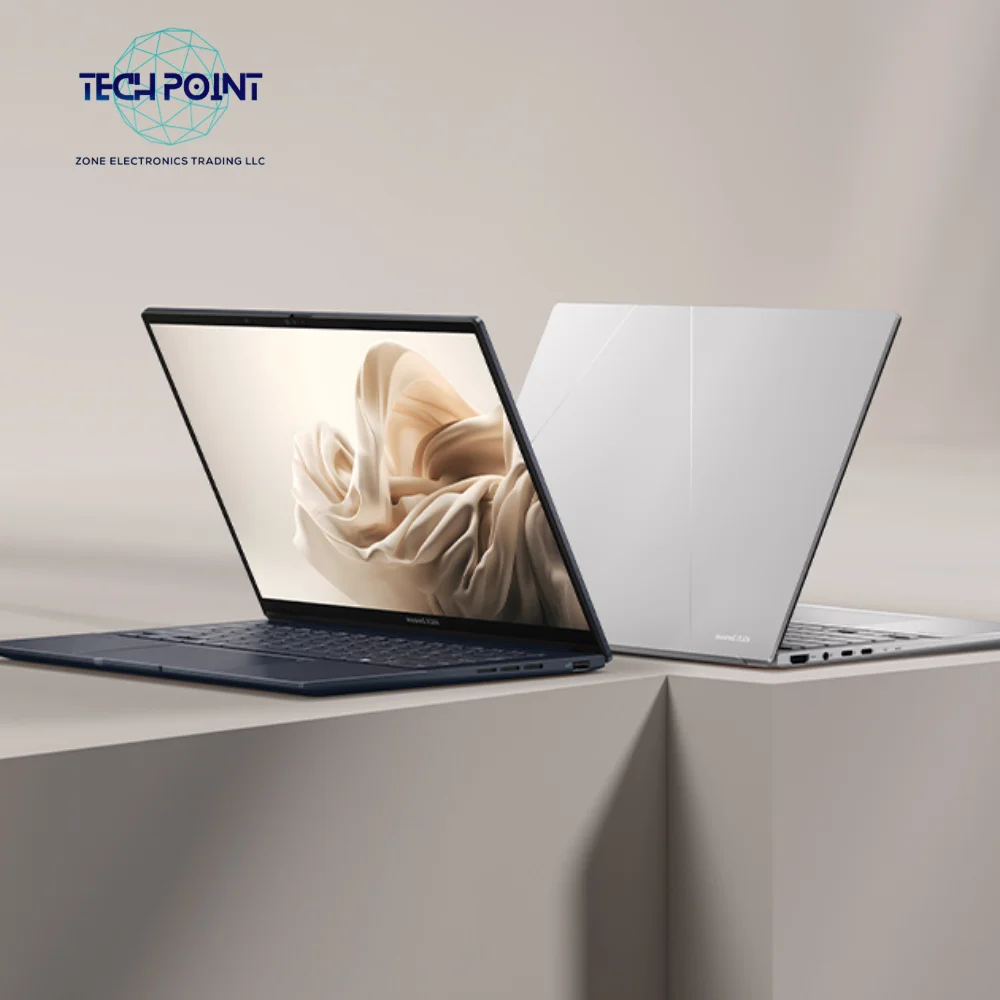
1. ASUS Zenbook 14 UX3405CA — The all-rounder for performance

a laptop with a logo on the screen

If you’re looking for a laptop that blends speed, portability, and premium design, the ASUS Zenbook 14 UX3405CA is hard to beat. It’s built with busy professionals in mind who need a reliable machine that doesn’t weigh them down.

Key Features & Benefits

  • Powerful Processor: Equipped with the Intel Core Ultra 7 255H and an integrated AI Boost NPU, this laptop handles demanding tasks like online meetings with background blur, AI-enhanced image editing, or multitasking across dozens of tabs. In real use, it means fewer slowdowns during presentations or data crunching.

  • Stunning OLED Touch Display: The 14-inch WQXGA+ OLED screen (2880 × 1800) delivers sharp text and vivid visuals. For professionals who stare at spreadsheets and documents all day, OLED’s deep blacks and reduced blue light can make a big difference for eye comfort. The touch feature adds extra convenience for quick navigation.

  • High-Speed Storage & Memory: With 16GB LPDDR5x RAM and a 1TB PCIe 4.0 SSD, you’ll never feel cramped. You can keep multiple projects, files, and large presentations accessible without worrying about storage or lag.

  • Ultra-Portable Design: Weighing just 1.3 kg and with a slim aluminum build, the Zenbook 14 slips easily into a work bag. Professionals who move between the office, meetings, and home will find it effortless to carry.

  • Battery Life & Efficiency: Thanks to modern architecture, it balances high performance with power efficiency, so you don’t need to stay near an outlet during long meetings.

Best For: Professionals who need a lightweight laptop that looks premium, runs fast, and offers one of the best displays in its category.

Asus ZenBook 14 Availabale at Discount

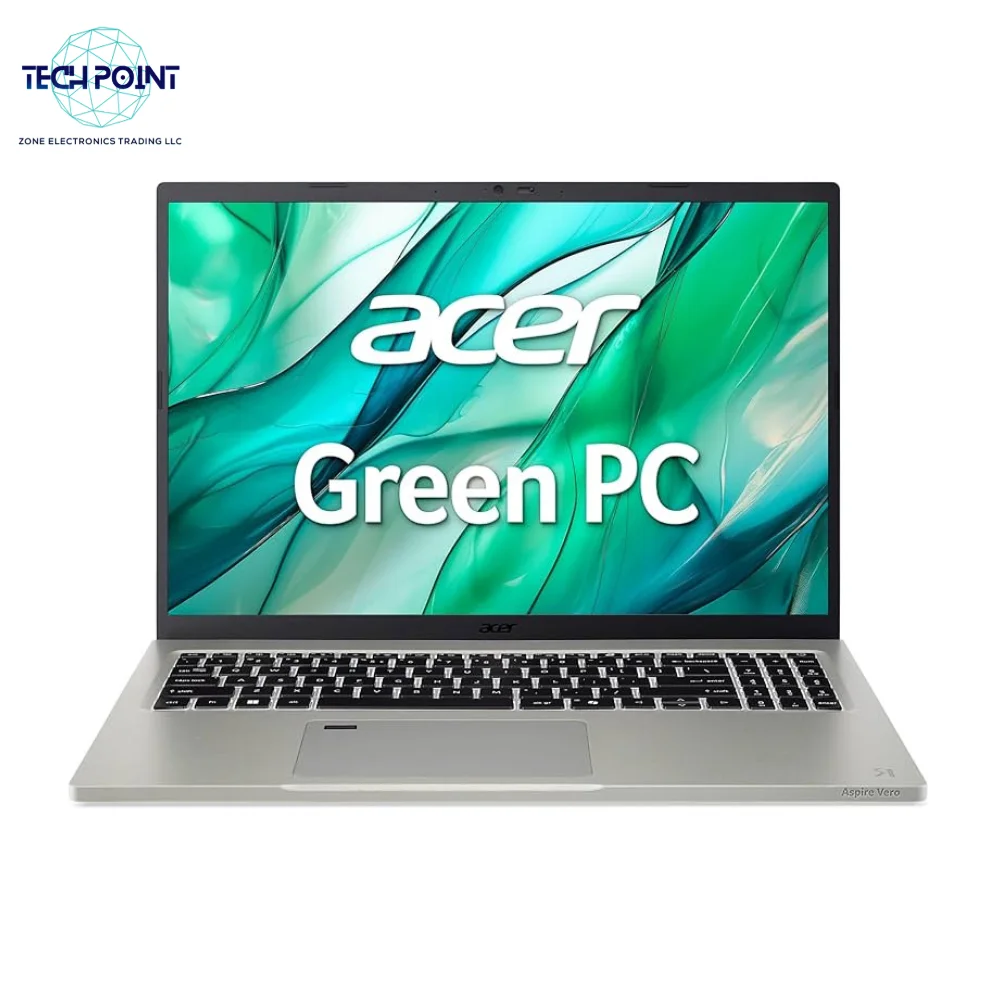
2. Acer Aspire Vero 16 — The sustainable powerhouse

Acer Aspire Vero 16

The Acer Aspire Vero 16 is more than just another office laptop. It’s a combination of performance, big-screen productivity, and eco-friendly design — perfect for professionals or companies that value sustainability.

Key Features & Benefits

  • Eco-Friendly Design: Made from post-consumer recycled plastic, the Vero 16 sets itself apart with sustainability at its core. Even the packaging is 100% recyclable. If your business prioritizes eco-conscious purchasing, this is a laptop that aligns with your values.

  • Large & Sharp Display: The 16-inch WQXGA (2560 × 1600) IPS screen is a dream for multitaskers. Whether you’re reviewing long spreadsheets, running two documents side by side, or editing presentations, the extra screen space makes it easier and more comfortable to work.

  • Long Battery Life: With up to 18.5 hours of battery, you can work for almost two full days on a single charge. That’s a huge advantage for traveling professionals or those who move between co-working spaces.

  • Strong Performance: Powered by an Intel Core Ultra 7 155U and 16GB LPDDR5x RAM, this laptop is built to handle office suites, cloud apps, and light creative workloads smoothly.

  • Storage: Comes with a 512GB PCIe Gen4 SSD, offering quick boot times and fast access to files. While not as large as the Zenbook’s 1TB, it’s plenty for most office users relying on cloud storage.

Best For: Office professionals who want a reliable work machine with a large screen and long battery — plus the bonus of an eco-friendly build.

Acer Aspire Vero 16 Availabale at Discount

3. HP OmniBook X Flip 14 — The versatile innovator

Best Laptop for Office work in Dubai

The HP OmniBook X Flip 14 is designed for professionals who value flexibility and adaptability in their workflow. Whether you’re pitching to clients, collaborating with teammates, or working solo, its convertible design lets it switch roles instantly.

Key Features & Benefits

  • 2-in-1 Flip Design: The 360° hinge allows you to use it as a traditional laptop, tablet, or in tent mode for presentations. This flexibility is especially useful for consultants, sales professionals, and creatives.

  • Next-Gen AI (NGAI) Ready: Optimized for AI-powered applications, the OmniBook X Flip is prepared for future office tools that rely on real-time AI performance — making it a future-proof investment.

  • Strong Everyday Performance: With an Intel Core Ultra 7 256V, 16GB RAM, and a 512GB SSD, it runs productivity apps, presentations, and multitasking without hiccups.

  • Multi-Touch 2.2K Display: The high-resolution touch display offers vibrant visuals and smooth responsiveness, perfect for note-taking, sketching ideas, or delivering polished presentations.

  • Lightweight & Professional Build: Despite being a convertible laptop, it remains sleek and portable, easy to carry between offices or client meetings.

Best For: Dynamic professionals who want a laptop that adapts to multiple roles — office work, client presentations, and light creative use.

HP OmniBook X Flip 14 Availabale at Discount

At-a-glance comparison

FeatureASUS Zenbook 14Acer Aspire Vero 16HP OmniBook X Flip 14
ProcessorIntel Core Ultra 7 255HIntel Core Ultra 7 155UIntel Core Ultra 7 256V
RAM16GB LPDDR5x16GB LPDDR5x16GB LPDDR5x
Storage1TB PCIe 4.0 SSD512GB PCIe Gen4 NVMe SSD512GB SSD
Display14″ WQXGA+ OLED16″ WQXGA IPS14″ 2.2K Multi-touch
Unique featureOLED touch, ultra-lightSustainable PCR build, long battery2-in-1 flip, NGAI-ready
Ideal forMobile pros who value screen qualityHeavy multitaskers who want battery & screen spacePresenters & flexible workflows

How to choose the best laptop for office work (quick buyer’s checklist)

Use this checklist before buying:

  1. Battery life — Aim for 8+ hours for a full workday without frequent charging.

  2. Display size & quality — 14″ is great for portability; 15–16″ for multitasking. OLED helps reduce eye strain.

  3. CPU & RAM — For smooth multitasking choose a modern Core Ultra with 16GB RAM.

  4. Storage — SSD (NVMe) for fast boot and file transfers; 512GB is minimum for many, 1TB if you handle large files.

  5. Keyboard & webcam — Comfortable keys and a decent webcam (720p+) matter for remote meetings.

  6. Ports — At least 1 USB-A, 1 USB-C, HDMI or DisplayPort for external monitors.

  7. Weight — If you commute, keep weight under ~1.6–1.7 kg for daily comfort.

Quick FAQs (answers users search for)

Q — Which is the single best laptop for office work?
A — There’s no one-size-fits-all. For portability and display quality pick the ASUS Zenbook 14. For long battery life and large screen choose the Acer Aspire Vero 16. For versatility go with the HP OmniBook X Flip 14.

Q — Do I need 16GB RAM for office tasks?
A — Yes. 16GB is recommended if you keep many browser tabs and apps open. 8GB can be limiting.

Q — Is OLED necessary?
A — Not necessary, but OLED gives better contrast and can reduce eye fatigue for long hours.

Q — Where to buy in Dubai / UAE?
A — You can compare prices and buy through Tech Point Zone product pages linked above for UAE availability and local warranties.

Q — Should I choose 512GB or 1TB storage?
A — If you work mostly with documents and cloud files, 512GB is fine. If you handle large local files (design, videos) go for 1TB.

Final verdict

Choose the ASUS Zenbook 14 if you want a light, high-quality display and good performance all around. The Acer Aspire Vero 16 is the best choice if you want a big screen and a long battery life. Pick the HP OmniBook X Flip 14 if you need to be able to switch between tablet and presentation mode.

All three are good, cheap options for the best laptop for work in Dubai. Click on the model links to see the costs and warranty options on Tech Point Zone. Then choose the one that works best for your daily routine.

Want to buy something or see a direct pricing comparison for Dubai? Look at each product page above or tell me what characteristics are most important to you, and I’ll suggest the best setup for you.

Lenovo Flex 5 Sim Card Guide 2025

Lenovo Flex 5 SIM Card Guide 2025: Which Models Support It?

The Lenovo Flex 5 series is the most versatile laptop on the market today. It can easily switch from a regular laptop to a dynamic tablet. This freedom makes people want to be really mobile, which means being able to connect to the internet from anyplace without being tied to Wi-Fi networks. This makes many owners ask a basic question: how can I put in a SIM card to unlock this “always-on” cellular service?
The goal is clear, but the answer is complicated and depends on the exact model of Lenovo Flex 5 in question. A lot of people think that all Flex 5 laptops can connect to cellular networks, which is a big source of confusion. This is mostly because a few specialized models are heavily advertised. This whole guide will clear up any doubt. It gives a thorough, expert-level look at which Flex 5 models can use a SIM card, how to put it in and set it up on compatible devices, and a thorough look at strong, useful alternatives for most models that don’t have this feature built in. This study will be the best resource for all Lenovo IdeaPad Flex 5 owners who want to be able to connect to the internet on the road.

The Critical Question: Does Your Lenovo Flex 5 Have a SIM Card Slot?

The most direct answer to this common query is that most standard Lenovo IdeaPad Flex 5 models do not have a SIM card slot or the necessary internal hardware for cellular data. A review of the official product specification sheets for numerous IdeaPad Flex 5 generations and configurations consistently shows the entries for “WWAN” (Wireless Wide Area Network) and “SIM Card” as “None” or “No support”.

This fact is the primary source of user frustration. An owner may see information online about a “Flex 5” with cellular capabilities and search their own device for a SIM slot, only to find none. The discrepancy arises from a crucial distinction in Lenovo’s product branding.

Introducing the Exception: The "Lenovo Flex 5G"

https://www.qualcomm.com/snapdragon/laptops-and-tabletsThe Lenovo Flex 5G (for example, model 14Q8CX05) is a special model that was designed from the ground up to connect to cellular networks. Cell phone companies like Verizon commonly show off this model in ads, although it is very different from the standard “IdeaPad Flex 5” laptops that you can buy at most stores. The Qualcomm Snapdragon CPU is at the heart of the Flex 5G. It also contains a built-in 5G WWAN module and a Nano-SIM card slot on the back of the chassis. The widespread misconception is caused by the fact that this particular model exists. Users sensibly but wrongly think that its features apply to all Flex 5 products.

Why Most Flex 5 Models Lack a SIM Slot: Understanding WWAN

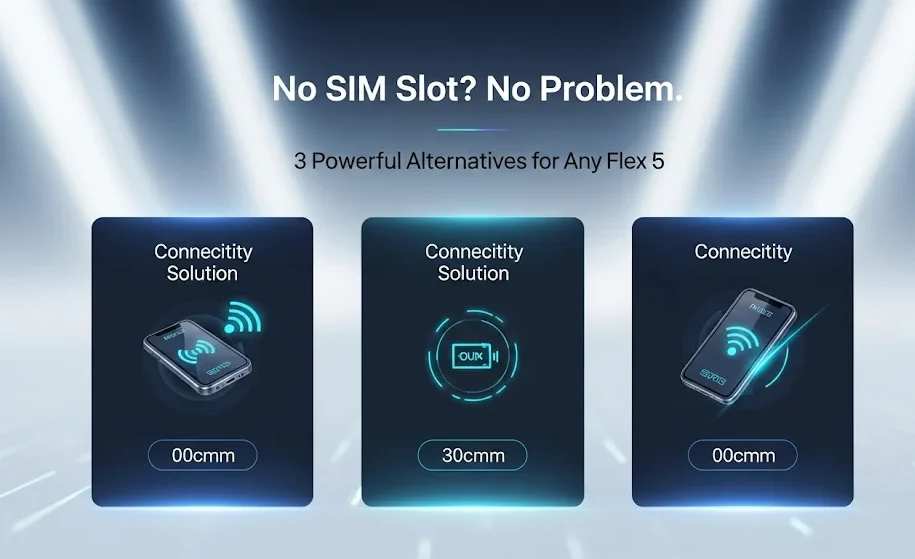
Lenovo Flex 5 Sim Card issue

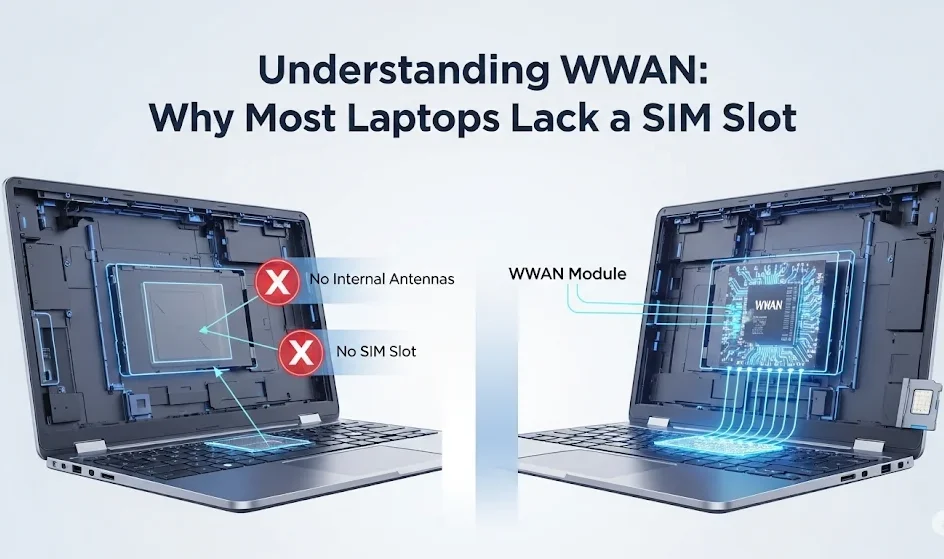
WWAN, or Wireless Wide Area Network, is the term for a laptop’s capacity to connect to a cellular network. Most consumer laptops, including the IdeaPad Flex 5 series, don’t have this functionality. Most of the time, it’s an optional improvement that you have to choose and set up when you buy it.

When you order a laptop with the WWAN option, the maker sends you a number of important parts:

1. A WWAN modem card is a little piece of hardware that goes into the laptop and handles the cellular signal.

2. Internal antennae that are built into the laptop’s case to send and receive signals.

3. A SIM card slot that connects to the motherboard and can be either a tray or a push-pull mechanism.

A laptop can’t connect to a cellular network without these parts being installed at the factory, even if a SIM card could somehow be put in.

Can You Add a SIM Card Slot Later?

A obvious next inquiry for someone who is more tech-savvy is if they can install a WWAN card after they buy it. The answer is a clear negative for most laptops that don’t come with WWAN support from the manufacturer. This is because of how the hardware is designed.

This isn’t as easy as installing more RAM or a new SSD. Manufacturers put a lot of work into designing and building the laptop chassis such that WWAN upgrades after the purchase are either not possible or very difficult. 11 The metal parts of a normal laptop’s palmrest and bottom shell work like a Faraday cage, preventing the cellular signals that are needed for a solid connection.

To fix this, laptops with the WWAN option have a separate physical chassis. They have specific plastic or composite “windows” in the metal case that let radio frequencies through. This lets the internal antennas talk to cell towers. The interior layout also has specific mounting places for the WWAN card, and most importantly, the antenna cables are already routed through the chassis and display assembly during production.

A regular IdeaPad Flex 5 doesn’t have these antenna cables, the signal windows in the case, or the connectors on the motherboard that you need. Because of this missing physical infrastructure, trying to install a WWAN card in such a device would fail, wasting time and money.

How to Identify Your Flex 5 Model and Its Cellular Capabilities

To move forward, it is essential to determine with certainty whether a specific Lenovo Flex 5 has cellular capabilities. This can be accomplished through a physical inspection and by cross-referencing the exact model number with official specifications.

Flex 5 Lenovo sim card

Method 1: The Physical Inspection

A close look at the laptop’s ports can immediately show you what it can do.

• Standard Ports: Most IdeaPad Flex 5 come with a number of ports, such as USB Type-A, USB Type-C, an HDMI output, and a 3.5mm headphone/microphone combo connector.

• The Card Reader: Most Flex 5 versions come with a 4-in-1 card reader that can read full-sized SD cards (SD, SDHC, SDXC, MMC) or microSD cards. It’s important to remember that this is not a SIM card slot. A SIM card is much smaller and won’t fit right in an SD card slot.

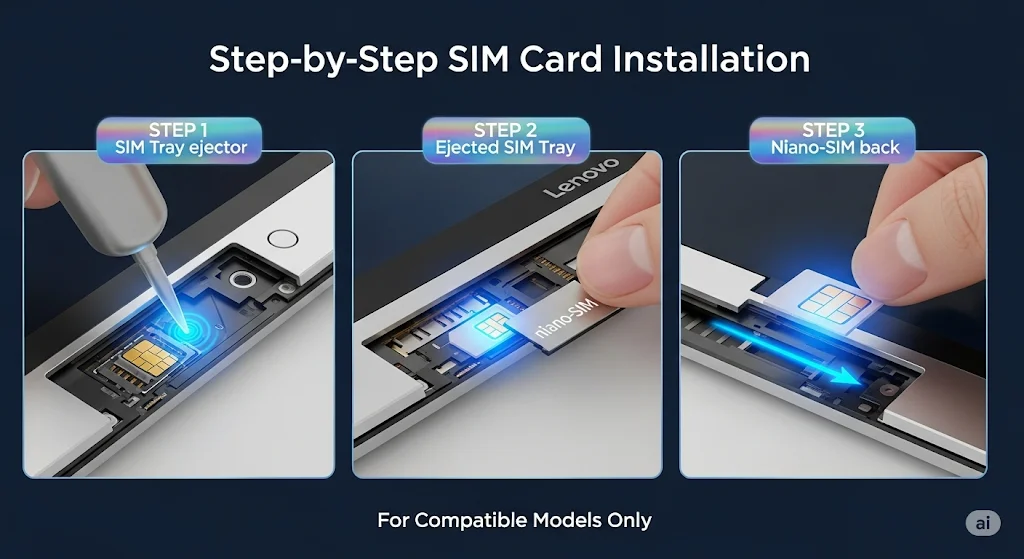
• The SIM Slot: On the few models that support it, the SIM card slot will look like a little tray with a hole next to it for ejection. The tray on the Lenovo Flex 5G is on the back of the tablet. It may be on the side of some other Lenovo laptops that support WWAN, often between other ports. The laptop doesn’t have a physical SIM slot if you can’t see a tray like this.

Method 2: Finding Your Exact Model Number

The best way to be sure is to look at the laptop’s full model number. You can find this on a sticker on the bottom of the device, in the original box, or by going to Start > Settings > System > About in Windows. Under “Device specifications,” you’ll find the model name (for example, “IdeaPad Flex 5 14IAU7”).

Key Table: Lenovo Flex 5 Series SIM Card Compatibility Reference

The following table consolidates data from numerous official Lenovo Product Specifications Reference (PSREF) documents to provide a clear, at-a-glance compatibility guide. This resource performs the complex task of research and data interpretation, offering a definitive answer for most models in the Flex 5 family.

Model Series / Name

Example Model Numbers

WWAN / SIM Card Support

Notes

Lenovo Flex 5G

14Q8CX05, 82AK

Yes (Nano-SIM / eSIM)

This model has built-in 5G WWAN. The physical Nano-SIM slot is located on the rear side of the device.

IdeaPad Flex 5i (Gen 8)

14IRU8, 82Y0

Optional

WWAN is an optional feature that must be configured at the time of purchase. The vast majority of retail units will not have this feature.

IdeaPad Flex 5 (Gen 7)

14IAU7, 82R7

No Support

Official specification sheets explicitly state “WWAN: No support” for this model series.

IdeaPad Flex 5 (AMD)

15ALC05

No Support

Specification sheets for AMD-based models confirm that no WWAN option is available.

IdeaPad Flex 5 (Intel)

14ITL05, 15IIL05, 82HS

No Support

Multiple Intel-based generations explicitly list “WWAN: None” and “SIM Card: None” in their technical specifications.

IdeaPad Flex 5 Chromebook

14IAU7, 13IML05

No Support

There is no mention of WWAN or SIM card support in the official specifications for Chromebook versions of the Flex 5.

Step-by-Step SIM Card Installation (For Compatible Models Only)

For the small percentage of users whose device is confirmed to have WWAN capabilities, the process of inserting a SIM card and establishing a connection is straightforward.

Lenovo Flex 5 SIM Card Guide 2025: Which Models Support It?

Essential Pre-Installation Checklist

• A suitable Nano-SIM card: This is the smallest physical SIM card size and must be bought from a cellular operator that has an active data plan.
• The SIM ejector tool is a little metal tool that usually comes with the laptop. You can use a straightened paper clip instead if you lose it. 
• Important: Before putting in or taking out the SIM card, the laptop must be turned off entirely. If you try this while the gadget is on, you could permanently harm the SIM card or the laptop’s reader mechanism.
• Expert Tip: You should definitely not use multi-fit or “punch-out” style SIM cards, which break off a smaller SIM from a larger card. These can have sharp edges that can make it hard to attach sometimes or get stuck in the SIM tray. Also, don’t use SIM card adapters because they can hurt the fragile pins within the reader.

Step-by-Step Insertion Process

1. Turn off: Completely turn off the Lenovo Flex 5G. Don’t put your computer to sleep or hibernate.
2. Find the Tray: Look for the Nano-SIM card tray. This is on the back of the Flex 5G.
3. Eject the tray: Put the tip of the ejector tool into the little hole next to the outline of the tray. Push firmly and straight in until the tray pops out.
4. Put the SIM in the right place: Carefully put the Nano-SIM card into the tray’s notch. A notched corner is often there to make sure the right way up. Some generic Lenovo manuals say to put the SIM in with the contacts facing up 23 times, however the model-specific guidance from Verizon for the Flex 5G says to put the SIM in with the gold contacts facing down. The instructions that are particular to the model should be seen as the most dependable source.
 Put the tray back in: Line it up with the slot and carefully put it back into the laptop until it is totally flush with the chassis.

Step-by-Step Insertion Process

1. Turn off: Completely turn off the Lenovo Flex 5G. Don’t put your computer to sleep or hibernate.
2. Find the Tray: Look for the Nano-SIM card tray. This is on the back of the Flex 5G.
3. Eject the tray: Put the tip of the ejector tool into the little hole next to the outline of the tray. Push firmly and straight in until the tray pops out.
4. Put the SIM in the right place: Carefully put the Nano-SIM card into the tray’s notch. A notched corner is often there to make sure the right way up. Some generic Lenovo manuals say to put the SIM in with the contacts facing up 23 times, however the model-specific guidance from Verizon for the Flex 5G says to put the SIM in with the gold contacts facing down. The instructions that are particular to the model should be seen as the most dependable source.
 Put the tray back in: Line it up with the slot and carefully put it back into the laptop until it is totally flush with the chassis.

First-Time Cellular Setup in Windows 11

After the hardware is set up, the operating system needs to be set up to connect.

1. Turn on the laptop: If you put in a new SIM card, Windows should instantly find it.
2. To go to Network Settings, click the Network icon in the system tray, which is the space by the clock in the bottom-right corner of the taskbar. A panel will pop up with quick settings for Bluetooth, Wi-Fi, and other things.
3. Manage Cellular Connection: There should be a “Cellular” quick setting. To manage cellular connections, click the arrow (>) next to it. 
4. Connect: If the “Let Windows keep me connected” option is turned on, the device should automatically connect to the cellular network when Wi-Fi isn’t available. If not, click “Connect” after choosing the carrier’s network name. 
5. APN Settings (If Necessary): The Access Point Name (APN) is the address that the device uses to get on the carrier’s network. Most of the time, this is set up automatically. If the device says it’s connected but can’t get online, you might need to set the APN by hand. Go to Settings > Network & Internet > Cellular > Mobile operator settings > Add APN. You may get the necessary APN information (such the profile name and APN address) from the support website of your cellular provider.

No SIM Slot? No Problem. 3 Powerful Alternatives for Any Flex 5

Flex 5 sim solutions

For the vast majority of IdeaPad Flex 5 owners, the absence of a SIM slot is not a dead end. Several powerful, reliable, and readily available alternatives can provide the desired mobile connectivity.

Option 1: USB Tethering - Turn Your Phone into a Lightning-Fast Modem

USB tethering is an excellent method that uses a USB cable to share a smartphone’s cellular data connection with the laptop. It is often faster and more stable than a Wi-Fi hotspot and consumes less of the phone’s battery.

Step-by-Step for Android

  1. Connect the Android phone to the Lenovo Flex 5 using a compatible USB cable.
  2. On the phone, open the Settings app.
  3. Navigate to Network & internet > Hotspot & tethering. The exact path may vary slightly by manufacturer.
  4. Toggle the switch for USB tethering to the “On” position.

The Flex 5 will automatically detect the connection and treat it as a wired network, often displaying an “Ethernet” icon in the taskbar.

Step-by-Step for iPhone

  1. On the iPhone, open the Settings app.
  2. Navigate to Personal Hotspot (or Cellular > Personal Hotspot).
  3. Toggle the switch for Allow Others to Join to the “On” position.
  4. Connect the iPhone to the Flex 5 using a USB-to-Lightning or USB-C cable.
  5. Essential Driver Information: If the connection does not establish automatically, it is almost certainly because the necessary network drivers are missing from Windows. To resolve this, the user must install the latest version of iTunes from the Microsoft Store or Apple’s website. The iTunes application contains the required drivers that allow Windows to recognize and use an iPhone’s tethered network connection. This is a critical and often-overlooked step.

Option 2: USB 4G/5G Modems - Dedicated Cellular Connectivity

A USB cellular modem, also known as a dongle, is a self-contained device that plugs into a USB port on the laptop. It houses its own SIM card slot and cellular radio, effectively adding WWAN capability externally.

  • Advantages: This method does not drain the smartphone’s battery. Some advanced models feature ports for external antennas, which can significantly improve signal reception in fringe areas. Setup is typically plug-and-play.
  • Disadvantages: It is an additional piece of hardware to purchase and carry.
  • How to Choose: When shopping for a USB modem, it is more important to understand features than to focus on a single model, as availability changes rapidly. Key considerations include:
  • Carrier Compatibility: Ensure the modem is “unlocked” or specifically designed for the intended cellular provider.
  • Technology: Choose between 4G LTE and 5G models based on budget and the availability of 5G service in the areas of use.
  • Form Factor: Options range from simple USB sticks to portable hotspots that include a built-in battery and can create their own Wi-Fi network to connect multiple devices.
  • General Setup Process:
    1. Insert an activated SIM card into the USB modem.
    2. Plug the modem into an available USB port on the Flex 5.
    3. Windows will typically detect the new hardware and install the necessary drivers automatically. If it fails, the drivers can be downloaded from the modem manufacturer’s website.
    4. The connection can then be managed through the “Cellular” or “Wi-Fi” settings in Windows, depending on the modem’s design.

Option 3: Mobile Wi-Fi Hotspot - The Quick Wireless Solution

This is the most widely known method. It involves turning a smartphone into a portable Wi-Fi router that the Lenovo Flex 5 can connect to.

  • How to Use: The feature is enabled within the smartphone’s settings, usually under a name like “Mobile Hotspot,” “Personal Hotspot,” or “Tethering”. Once activated, the phone will broadcast a new Wi-Fi network. The Flex 5 can then connect to this network by selecting its name from the list of available Wi-Fi networks and entering the provided password.
  • Primary Downside: This method is convenient but consumes the smartphone’s battery much more rapidly than USB tethering, as it requires both the cellular and Wi-Fi radios to be active simultaneously.

Expert Troubleshooting: Solving Common Cellular Connection Issues

Even with the correct hardware and setup, connection problems can arise. The following steps address the most common issues.

Problem: The "Cellular" option is missing or greyed out in Windows Settings.

• Solution 1 (Most Likely for IdeaPad Flex 5): The laptop does not have a built-in WWAN modem. This is how most Flex 5 models should work. One of the options in Part 4 is the best way to solve the problem.
• Solution 2 (for models with WWAN): You can turn off the WWAN adapter in Device Manager. To check, right-click the Start button, choose Device Manager, and then click the plus sign next to the Network adapters category. Find a device with a name that sounds like “Fibocom,” “Quectel,” or “Mobile Broadband.” It is turned off if it has a little down arrow. Click on it with the right mouse button and choose “Enable device.”
• Solution 3 (for models with WWAN): The driver could be broken or missing. In Device Manager, right-click the WWAN adapter and choose “Update driver.” If it doesn’t work, go to the Lenovo Support website, type in the laptop’s serial number, and download and install the most recent WWAN driver for that model.

Problem: A SIM card is inserted correctly, but Windows shows "No Service" or "Insert SIM."

• Solution 1: The SIM card might not be turned on. Call the cell phone company to make sure that the SIM’s data plan is still active.
• Solution 2: You may have turned on Airplane Mode. To switch off “Airplane mode,” click the Network icon in the taskbar.
• Solution 3: The SIM card might not be in the right place. Turn off the device completely, take out the SIM tray, and carefully put the SIM card and tray back in.
• Solution 4: A thorough Network Reset can fix software problems that won’t go away. Go to options > Network & Internet > Advanced network options > Network reset. Please be aware that this will uninstall and reinstall all network adapters, and you will need to input your saved Wi-Fi passwords again.

Problem: The laptop shows it is connected to the cellular network, but there is no internet access.

Lenovo flex 5 sim card problem solved

• Solution 1: The most common reason is wrong APN settings. As explained in Part 3, go to the APN settings in Windows and type in the correct information that your cellular provider gives you.
• Solution 2: Reset the TCP/IP stack on the PC. To run the command $netsh int ip reset, right-click the Start button and choose Terminal (Admin) or Command Prompt (Admin). After that, restart the computer.
• Solution 3: Let go of the IP address and get a new one. In the same command terminal for administrators, type $ipconfig /release and then $ipconfig /renew.
• Solution 4: The problem could be with DNS resolution. Set up the DNS servers for the cellular adapter by hand. Go to Network & Internet settings, select the adapter properties, and change the DNS servers to a public provider like Google’s (8.8.8.8 and 8.8.4.4) or Cloudflare’s (1.1.1.1).

Conclusion: Achieve True Portability with Your Lenovo Flex 5

To get cellular connectivity on a Lenovo Flex 5, you need to know that this feature is not available on all models. Most IdeaPad Flex 5 devices sold in regular stores do not have the internal WWAN hardware or SIM card port needed for a direct cellular connection. Only the specific Lenovo Flex 5G model and some configurations that were selected with the WWAN option at the time of purchase have this feature.
But this hardware reality doesn’t stop us from becoming truly mobile. There are a lot of effective and easy-to-use solutions for every Flex 5 owner. You may turn any Flex 5 laptop into a “always-on” computer by using USB tethering or a mobile Wi-Fi hotspot on a current smartphone, or by using a separate USB cellular modem. Users may break free from the limits of Wi-Fi and unlock the full, flexible potential of their Lenovo Flex 5 by understanding the difference between models and using these useful alternatives. They can then enjoy the freedom of a secure internet connection, anywhere, anytime.

Laptop slow Solution in UAE

Why Your Laptop is Slow in UAE & How to Speed It Up: A Comprehensive Guide

The Frustration of a Slow Laptop in the UAE

A slow laptop is something that everyone hates since it makes it hard to get things done and makes free time less fun. There are many things that might cause performance problems all around the world, but the UAE’s particular environment and digital ecosystem make these problems more worse. The UAE has a very hot environment and a very well-connected digital infrastructure, which puts different kinds of stress on laptops. This tutorial gives people of the Emirates a complete, concrete plan for diagnosing, fixing, and avoiding slow laptops. People may make their computers to work faster and more responsively again by figuring out what’s causing the problems and putting in place specific solutions.

Understanding Why Your Laptop is Slow – The Core Culprits

A laptop’s performance depends on how well its internal parts work together with the software it runs and the surroundings it is used in. If this balance is upset, there is a noticeable slowing. This part goes into detail about the main reasons why a laptop is running slowly, dividing them into hardware, software, and user/environmental factors, with a focus on how things are different in the UAE.

Hardware-Related Bottlenecks:

RAM Shortage: When Your Laptop Gasps for Memory

Random Access Memory (RAM) is the short-term memory of a laptop. It is a key factor in how rapidly the system can access and process data. If a laptop doesn’t have enough RAM, it has to use the slower hard drive as interim storage. This is called paging or swapping. This heavy use of the hard drive makes things run much slower, with apps taking longer to load and the computer as a whole becoming unresponsive.
Modern apps, demanding video games, and even webpages with plenty of photos, videos, and ads all use a lot of RAM. Because of this change in software and web content, even things that are “normal” for most people, such having twenty or more browser tabs open, can use up terabytes of RAM. This trend shows that even computers that are only a few years old and have 4GB or 8GB of RAM may suddenly seem old because they need more memory. So, boosting RAM is a very effective and often required way to make your PC more responsive and make it easier to multitask. Most people only need 8GB of RAM, but for applications that require a lot of processing power, such video editing, intense gaming, or heavy multitasking, 16GB or more is becoming more common.

HDD vs SSD Performance Gap

Laptop slow Solution in UAE

The type and condition of a laptop’s storage disk have a big effect on how fast and well it works. Hard Disk Drives (HDDs) are mechanical devices that store data on platters that spin. Files on hard drives can get fragmented over time, which means that parts of a file are spread out across different parts of the disk. This fragmentation makes it take longer for the processor to get all the pieces, which slows down reading and writing. Also, an HDD that is almost full, with only 10–20% of its capacity free, has a big drop in performance since the system has a hard time managing and allocating storage.
Solid State Drives (SSDs), on the other hand, use flash memory to store data, thus they don’t need any moving parts. Because of this basic difference, SSDs can boot up more faster, open applications right away, and move files quickly. SSDs are also more durable, use less power, and make less heat than HDDs. Switching to SSDs is a big step forward in how data is accessible, and it immediately fixes the problems with HDDs that cause delays. For any laptop that still has an HDD, upgrading to an SSD is usually the best way to boost performance. It can change the whole computing experience and make the device feel like a completely new system.

Overheating Crisis: UAE's Climate as Performance Enemy

When laptops are in use, they naturally get hot. If this heat isn’t properly released, the parts within can overheat. The device automatically lowers its performance, a process called “throttling,” when temperatures climb over safe levels to avoid harm. This thermal throttling might cause your computer to slow down a lot, crash a lot, or even destroy the hardware permanently.
The climate in the United Arab Emirates makes it very hard for laptops to work. The location gets very hot, with internal regions reaching almost 50°C and significant humidity. This very hot weather, along with the fact that dust and sand storms happen a lot, makes overheating problems much worse. Dust builds up within the laptop, blocking vents and accumulating on heat sinks. This stops air from flowing and makes cooling fans work less well. Also, thermal paste, which is important for moving heat from the CPU and GPU to the cooler, dries up faster in warmer weather, making it less efficient.
The harsh climate in the UAE speeds up the building of dust and the breakdown of thermal paste, which makes cooling less effective, which leads to overheating, which in turn leads to performance throttling or hardware damage. People who live in the UAE should not only clean their vents regularly and replace their thermal paste on time, but they should also use external cooling solutions like cooling pads. These are not just good ideas, they are necessary steps to keep the laptop running well and make it last longer.

Hardware Aging: When Components Can't Keep Up

While the widespread belief that computer hardware simply “wears out” and becomes slower over time is largely incorrect (with the exception of hard drives, whose failure typically results in crashes rather than just slowdowns), the ability of older hardware to run modern software efficiently does deteriorate. Laptops, particularly those older than five years, may struggle to keep up with the rising demands of modern apps due to obsolete processors, graphics cards, or other components.
The physical characteristics of laptops, which are regularly jostled, along with continuous thermal stress, can cause component degradation over time. In the UAE, persistently high temperatures and environmental conditions can hasten the point at which hardware becomes insufficient or encounters modest, non-crashing degradations that add to overall slow performance. This means that in the UAE, the actual lifespan of a laptop in terms of ideal performance may be lower, making the decision to update (rather than relying exclusively on maintenance) more urgent than in warmer climates.

Software Related Drag:

Malware and Viruses: Hidden Performance Killers

Viruses, spyware, adware, and ransomware are all types of malicious software that can seriously affect the performance and security of a laptop. These bad programs usually run in the background without you knowing, using a lot of CPU and memory. This hidden use of resources makes things noticeably slower, crashes the system often, and causes pop-ups that you don’t want.
Some types of malware, including botnets, can turn a laptop into a “zombie” computer that a remote attacker controls. This is more than just interfering with local processing. These hacked computers send out network traffic that isn’t allowed, which might slow down the user’s internet speed and bandwidth a lot. This shows that malware is a double threat: it not only uses up local computing resources, but it also slows down the network, making it seem like the internet is slow even when the Internet Service Provider is providing excellent speeds. This makes it even more important to have strong antivirus and anti-malware software that is updated regularly and to follow safe browsing practices. It also means that any operation to fix network problems should include a full malware scan.

Too Many Startup and Background Programs

Laptop slow Solution in UAE

One reason laptops operate slowly is that they have too many programs set to start up automatically when the computer starts up or run in the background without the user knowing. When you turn on a laptop, a lot of programs and services start up on their own, using up important system resources like CPU and RAM. These can be things like system tray apps, different services, and third-party processes that you don’t need right away to use your computer.
A single background process might not seem to have much of an effect on its own. But when you have “too many” of these apps, the effect is cumulative, meaning that several tiny resource drains add up to a big drop in performance. People routinely install apps and then forget about what they are doing in the background. This shows how important it is to keep up with “digital hygiene,” which means regularly controlling startup items and background operations. It’s not a one-time repair; it’s a continuing effort. This is an important step to take to keep things running well and avoid having to take more serious steps.

Outdated Operating System, Drivers, and Software

Using an old operating system (OS), device drivers, or programs on your laptop can make it run slowly. Older versions of software may not have important optimizations, have security holes that haven’t been fixed, or have bugs or compatibility issues that can all slow down the system.
Many people think of updates as just new features or security fixes, but they are really important for performance. They often repair bugs, make the system more stable, and make important performance improvements that make software less likely to crash and make the whole system more stable. Many users forget to install these updates, which directly causes speed to drop. This discovery shows that there is a direct cause-and-effect relationship between staying up-to-date and performing at your best. This makes regular updates a crucial yet often simple area for improvement. Using automatic update features, when they are available, makes sure that the system always gets the advantages of these continuing improvements.

Browser Overload: Tabs, Extensions, and Cache

Web browsers are commonly the most utilized programs on a laptop, and they can take a lot of system resources. Having too many open browser tabs can use up a lot of memory and CPU resources, which can make things slow down. Browser extensions and add-ons can bring extra features, but having too many of them installed can potentially slow down your computer by using up resources. Additionally, a full browser cache and cookies can make your computer run slowly and have trouble loading pages.
For many people, the browser is like a “mini-operating system,” and the resources it uses affect how well the laptop works as a whole. This problem gets worse because modern websites have so much rich material, like big pictures, movies, and ads. This is true even when the internet connection is fast. The fact that most people keep a lot of tabs open uses a lot of RAM. Fixing problems that are specific to a browser makes it feel much faster, especially since the UAE has a lot of internet users and relies on online services. So, it’s very important to manage browser use with the same amount of discipline that you use for system-level tasks.

Bloatware and Unnecessary Visual Effects

Many laptops come with programs already installed that are not needed and take up important hard drive space and system resources, even if they are never used. These programs are typically called “bloatware.” These programs can run in the background and have an effect on performance without you knowing it.
Also, operating systems’ aesthetic elements, such fancy visual effects, animations, and transparency (like Windows Aero or several macOS visual effects), use up CPU and GPU resources. These elements make the user interface better, but they can also make things seem slow, especially on older or less powerful computers. These things are a “hidden” waste on resources because consumers may not intentionally install bloatware or realize how much efficiency they lose by adding visual flare. So, to improve performance, you need to do more than just add useful features. You also need to deliberately remove or disable superfluous ones, which lets people speed up their computers without spending more money.

User Habits and Environmental Factors:

Power Settings: Performance vs. Battery Life

Laptops typically offer various power modes designed to balance performance with battery life. Power-saving modes, while effective at conserving battery, intentionally reduce the laptop’s processing power and overall performance. This deliberate throttling can make the laptop feel significantly slower.  

Setting the power mode to “High Performance” or “Balanced” ensures that the laptop maximizes its available system resources, especially when connected to a power source. This represents a direct trade-off controlled by the user. Many users may not realize that their chosen power setting is a significant factor in their laptop’s speed. Educating users about these settings allows them to consciously prioritize their needs – whether it’s extended battery life or maximum performance – providing an immediate and free performance adjustment.  

Laptop slow Solution in UAE

Lack of Regular Reboots and Maintenance

When you don’t restart your computer often, temporary files, memory caches, and processes that aren’t responding can stay on the system and grow. Over time, this buildup makes the system less responsive and slower overall. A true restart, as opposed to just closing the lid or using the “shut down” option (which in newer operating systems might not entirely clear memory), clears these temporary states, freeing up RAM and renewing system resources.
Not doing normal maintenance tasks like cleaning the disk, upgrading drivers, and cleaning the computer itself can also make small problems worse over time. People often think that a computer “wears out” and slows down over time because of this lack of care. This shows that basic, consistent behaviors, like doing a good restart, are important for keeping performance up and stopping small problems from becoming big ones.

Internet Connection (Perceived Slowness): High Speeds vs. Latency in the UAE

The United Arab Emirates has among of the fastest internet connections in the world. In 2024, the average broadband speed was 235.72 Mbps and the average mobile internet speed was 269.41 Mbps. Even if these bandwidth numbers are excellent, people may still think their laptops are slow when they are doing things online. Network latency is often to blame for this seeming inconsistency.
Latency is the time it takes for data to be sent, measured in milliseconds (ms). When latency is high (usually above 100ms), there is a noticeable lag, which shows up as slow browser loading, choppy video streaming, and actions in online games that take longer than they should. Latency is affected by a number of things, such as the distance data has to travel to servers (especially when using Virtual Private Networks (VPNs) to connect to servers in other countries), the type of transmission medium (for example, fiber optic cables have lower latency than older copper cables or wireless connections), the speed of network routers, and delays in storage on the server side.
High bandwidth gives data a “larger pipe” to go through, but high latency means that it takes longer for data to start moving or get a response. This difference is especially important for interactive jobs like video conferencing, online gaming, and screen sharing, where low latency is necessary for a smooth experience. For people in the UAE, fixing “slow internet” on their laptop should involve more than just checking the bandwidth. They also need to know about latency, especially if they use VPNs often or connect to servers that are far away. This makes it harder to figure out why the laptop seems slow, even though it’s not because of its internal processing capacity. However, it has a big effect on the user’s online experience.

Table 1: Common Laptop Slowness Symptoms & Their Likely Causes

Symptom

Likely Cause(s)

Relevant Solution Area

Long boot times

Too many startup programs, Hard drive issues (HDD), Insufficient RAM, Bloatware

Managing Startup/Background Programs, SSD Upgrade, RAM Upgrade, Freeing Disk Space

Applications opening slowly

Insufficient RAM, Hard drive issues (HDD), Too many background programs, Malware, Aging hardware

RAM Upgrade, SSD Upgrade, Managing Background Programs, Combating Malware, Considering Professional Help

Frequent crashes/freezes

Malware, Overheating, Insufficient RAM, Hardware failure

Combating Malware, Physical Cleaning, RAM Upgrade, Considering Professional Help

Web pages loading slowly

Browser overload (tabs, extensions, cache), Malware, Internet latency

Optimizing Web Browser, Combating Malware, Internet Connection Optimization

Fan constantly loud/hot

Overheating (dust, degraded thermal paste), Heavy usage

Physical Cleaning, Using Cooling Pad, Adjusting Power Settings, Limiting Multitasking

Low disk space warnings

Full hard drive, Temporary files, Unnecessary programs, Bloatware

Freeing Up Disk Space, Uninstalling Programs, SSD Upgrade

General unresponsiveness

Insufficient RAM, Too many background programs, Malware, Outdated OS/drivers, Power settings

RAM Upgrade, Managing Background Programs, Combating Malware, Keeping Everything Updated, Adjusting Power Settings

Actionable Solutions to Speed Up Your Laptop – A Step-by-Step Guide

Once you know what might be causing your laptop to run slowly, you can utilize specific remedies to make it run much better. This part gives you useful, step-by-step instructions on how to make changes to your software or update your hardware, taking into account the resources available in the UAE.

Laptop slow Solution in UAE

Immediate Software Fixes:

The Power of a Proper Restart

A thorough restart is a simple but frequently ignored way to greatly improve the performance of a laptop. This action clears off temporary files, frees up RAM, stops background programs that aren’t responding, and refreshes system resources. A “proper restart” is different from just closing the laptop lid or clicking the power button to turn it off because modern operating systems may not entirely clear memory or processes in these situations. A proper restart makes the system’s volatile memory and background states reset completely. This simple, free step frequently leads to quick, significant improvements and should be the first thing you do if you think your computer is slowing down.

Steps:

• For Windows, click the Start Menu, then “Power,” and then “Restart.”
• For macOS, click the Apple logo in the top left corner and then “Restart.”

  Let the laptop restart completely before you start using it again.

Managing Startup Programs and Background Processes

When unnecessary apps start up automatically or operate quietly in the background, they use up CPU and RAM, which slows down the system. Disabling or controlling these apps properly can make boot times and overall responsiveness much better. This method gives users fine-grained control over how resources are used, so they may customize their system to meet their immediate needs instead of letting all installed software use resources without regard. This gives customers the power to greatly increase performance without having to uninstall apps they might use from time to time.

 Steps (for Windows):

Task Manager: To open Task Manager, press Ctrl + Shift + Esc. Go to the “Startup” page and turn off any programs that have a “High startup impact” that you don’t need. Also, check the “Processes” tab for apps that are using a lot of CPU or memory and click “End Task” for any programs that don’t need to be running.

• Settings App: Open “Settings,” go to “Apps,” and then choose “Startup.” Turn off any apps on this list that you don’t require.

System Configuration (msconfig): For advanced users, press Win + R, input msconfig, then hit Enter. Click on the “Services” tab, check the box next to “Hide all Microsoft services,” and then click on “Disable all” for third-party services. Make the modifications and then restart the computer.

Permissions for Background Apps (Windows 11):
Go to “Settings,” then “Apps,” and finally “Apps & features.” Find the app you want, click the “three dots” button next to its name, and then choose “Advanced options.” Choose “Never” from the selection box under “Background app permissions.” You can use the Group Policy Editor (gpedit.msc) to turn off the “Let Windows apps run in the background” policy for all users on the system by going to Computer Configuration\Administrative Templates\Windows Components\App Privacy.

Steps (for macOS):

Activity Monitor: Press Command + Spacebar and type “Activity Monitor.” To find apps or processes that use a lot of resources, look at the “CPU” and “Memory” tabs and click the “X” button to close them.
Login Items & Extensions: Click on “System Settings,” then “General,” and finally “Login Items & Extensions.” Look over the list of programs that start up when you log in and turn off any that you don’t need.

Optimizing Your Web Browser

Web browsers, being a primary interface for many users, can significantly impact overall laptop performance if not optimized. Addressing browser-specific issues provides a quick win for perceived speed, especially given the UAE’s high internet penetration and reliance on online services.  

Steps:

  • Close Unnecessary Tabs: An excessive number of open tabs consumes significant memory and CPU resources. Close tabs that are not actively being used.  
  • Clear Browser Cache and Cookies: Regularly clearing the browser’s cache and cookies frees up space and can resolve various loading issues.  
  • Remove Unused Extensions/Add-ons: Browser extensions and add-ons consume resources. Review installed extensions and disable or remove any that are no longer needed or used.  
  • Keep Your Browser Updated: Regularly updating the web browser ensures access to the latest performance improvements, security patches, and bug fixes.  
  • Enable Hardware Acceleration (Chrome/Edge): In browsers like Chrome or Edge, enabling hardware acceleration (found in Settings → System) can offload some processing tasks to the GPU, potentially improving performance.  

Adjusting Power Settings and Visual Effects

These settings represent a deliberate trade-off by the operating system, balancing battery life and aesthetics against raw performance. By adjusting them, users can effectively unlock performance that was intentionally suppressed, providing a quick, free, and often overlooked way to get more out of existing hardware.

Steps:

  • Power Settings (Windows): Open “Control Panel,” select “Power Options,” and choose “High Performance” or “Balanced” instead of “Power Saver”. In Windows 11, navigate to “Settings” -> “System” -> “Power & battery,” and under “Power Mode,” select “Best Performance” for both “Plugged in” and “On battery” settings. This is particularly important when the laptop is plugged in.  
  • Visual Effects (Windows): Go to “System Properties,” then “Advanced,” and click “Performance Settings.” Choose “Adjust for best performance” to disable unnecessary visual effects and animations.  
  • Visual Effects (macOS): Open “System Settings,” then “Desktop & Dock.” Disable options such as “Animate opening applications” and “Automatically hide and show the Dock.” For the “Minimize windows using” option, change the effect from “Genie effect” to “Scale effect”.  

Deep Software Cleaning & Security:

Laptop slow Solution in UAE

Freeing Up Disk Space: Disk Cleanup and Uninstalling Programs

A hard drive that is almost full, especially for HDDs, might slow down performance a lot. So, it’s important to regularly free up disk space to keep the system running quickly. You might think of this procedure as “digital decluttering” because using a computer for a long time leads to the buildup of files and programs that aren’t needed.

Steps:

Disk Cleanup (Windows):  look for “Disk Cleanup” in the taskbar. Choose the drive (typically C:), then pick the kinds of things you want to get rid of, like temporary files, downloaded application files, files in the Recycle Bin, and Windows update files.

Storage Sense (Windows): Windows 10 and 11 come with “Storage Sense,” which can automatically free up space on your drive by getting rid of things you don’t need, like temporary files and objects in the Recycle Bin.
Uninstall Unnecessary Programs: Get rid of software that you don’t use anymore, including bloatware or obsolete apps. You can do this by going to “Settings” and then “Apps” (Windows) or “Control Panel” and then “Programs and Features.”
Clear Downloads/Temp Folders: Go to the “Downloads” folder and delete old files that you don’t require. Press Windows + R on Windows, type %tmp%, and delete all the files in this temporary folder. Always remember to empty the Trash (macOS) or Recycle Bin (Windows) after you’re done to permanently free up space.
Clean up junk on macOS: Use Apple’s built-in “Storage Management” (available under Apple Menu > About This Mac > Storage Settings) to get tips on how to make the most of your storage space. You might also look into third-party tools like CleanMyMac to get rid of all the garbage on your computer, including cache and system logs.

Combating Malware: Scanning and Removal Strategies

Malware slows down laptops a lot by taking up resources, making them unstable, and sometimes putting data at risk. For a system to be healthy and run quickly, it needs to be scanned and cleaned regularly. The fact that there are free programs that work well makes it hard to believe that antivirus software is always needed or that it always slows down a PC. This makes security a key part of performance.

Steps:

  • Disconnect from Internet: Before attempting removal, disconnect the laptop from the internet to prevent the malware from communicating with its source or spreading further.  
  • Enter Safe Mode: Booting the computer in Safe Mode loads only a minimal set of drivers and services, which can prevent most types of malware from running and interfering with the removal process.  
  • Run Antivirus/Anti-Malware Scan: Use reliable and up-to-date antivirus or anti-malware software to perform a thorough system scan.  
    • Free Tool Recommendations (as of 2025): Microsoft Defender Antivirus (built-in for Windows), Avast One Basic , AVG AntiVirus Free , Bitdefender Antivirus Free , and Avira Free Security. Malwarebytes is highly recommended for its protection and removal capabilities.  
  • Manually Uninstall Suspicious Programs: Review the list of installed programs in Control Panel or Settings and uninstall any with unfamiliar names or publishers.  
  • Clear Browser Homepage/Cache: Malware can hijack browser settings. Reset browser settings to default and clear the cache to remove any potentially infected files.  

System Restore (Windows): As a last resort, if malware persists, use the System Restore feature to revert the operating system to a previous, uninfected state.

Keeping Everything Updated: OS, Drivers, and Applications

One of the most important things you can do to keep your laptop running well is to keep the operating system, device drivers, and installed apps up to date. These upgrades solve important bugs, make the system more secure, make it more stable, and speed it up. It’s not a good idea to think of software upgrades as something you can “set it and forget it.” Updates aren’t only about adding new features; they’re also a way to repair bugs and improve speed all the time.

Steps:

  • Operating System (Windows/macOS):
  • Windows: Navigate to “Settings” -> “Windows Update” and click “Check for updates.” Install all available updates, including any optional ones.
  • macOS: Click the Apple menu -> “System Settings” -> “General” -> “Software Update”.
  • Device Drivers: On Windows, open “Device Manager” to check for any devices with warning symbols. Right-click on such devices and select “Update driver,” choosing to search automatically for updated drivers. Alternatively, visit the hardware manufacturer’s website to download the latest drivers for specific devices.  
    •  

Disk Defragmentation (for HDDs) and SSD TRIM Optimization

Depending on the type of storage drive in a laptop, the way to optimize the disk is very different. Using the wrong strategy can not work or perhaps make things worse.
Disk Defragmentation (for HDDs only): Defragmentation is good for traditional hard disk drives (HDDs). This technique puts together file fragments that are spread out on the disk into blocks that are next to each other. This speeds up access to data and makes the drive work better overall. You should defragment your hard drive every now and then, especially if you use it a lot. The best time to do this is while the computer is not in use.

Steps (Windows): Type “Defragment and Optimize Drives” into the Windows search box. Choose the HDD and then click “Optimize.”
SSD TRIM Optimization (only for SSDs): Because SSDs use flash memory instead of hard drives, they don’t get fragmented in the same manner that HDDs do. So, defragmentation is not needed and could even shorten the life of an SSD. The TRIM command, on the other hand, helps SSDs. The TRIM command tells the SSD which data blocks are no longer valid and can be deleted. This technique keeps the drive’s writing speed up and makes it last longer. Most of the time, modern versions of Windows execute TRIM in the background once a week.
o Checking TRIM (Windows): To check if TRIM is on, right-click on the SSD in File Explorer, choose “Properties,” go to the “Tools” tab, and then click “Optimize.” If “Scheduled optimization” is set to “On,” it means that TRIM is on.
This difference in maintenance based on storage technology is very important. Using HDD defragmentation logic on an SSD is not only pointless, it could also be dangerous. To use the right optimization approach, users need to know what kind of drive they have (HDD or SSD). This will save time and protect SSDs from damage.

Hardware Enhancements & Maintenance:

Laptop slow Solution in UAE

RAM Upgrade: Boosting Multitasking and Responsiveness

Adding more RAM to a laptop is one of the best ways to make it work better, especially for multitasking and running demanding programs. More RAM lets the laptop run more programs at once, which makes switching between tasks easier, launching programs faster, and browsing the web faster. This improvement makes the system depend less on slower virtual memory, which is when the hard drive is utilized as a temporary overflow for RAM.

Check Compatibility: Before you buy new RAM, you need to know the laptop’s current RAM specs (such as total capacity, speed, and type) and the maximum amount of RAM it can support. You may usually find this information in the laptop’s handbook, on the manufacturer’s website, or by using system tools. You can see how much RAM you have right now by going to the Performance tab in Task Manager on Windows. You can also see how much RAM you can get by typing wmic memphysical get Max Capacity, Memory Devices in Command Prompt. “About This Mac” shows RAM information for macOS. When you buy new RAM, make sure it has the right form factor (SO-DIMM for laptops), type (DDR3, DDR4, DDR5), and speed (measured in MHz or MT/s). It is possible to install RAM with a greater speed than the laptop can take, but it will only work at the highest speed that the motherboard can handle.
How to Install: To install the RAM physically, you need to find and open the RAM compartment (which is usually covered by a removable hatch), carefully release the clips that hold the old modules, insert the new modules at a 45° angle, make sure they are properly seated, and then gently push them down until the clips lock into place. Finally, the laptop is put back together.
The quantity of “active” data a laptop can handle is directly related to the amount of RAM it has. A direct solution to make the system better at multitasking and running demanding apps without using slower storage is to upgrade it. If your laptop slows down mostly when you’re multitasking or using certain demanding programs, upgrading the RAM is a great way to fix the problem. It’s typically cheaper than buying a new laptop if the other parts are still good.

SSD Upgrade: The Ultimate Speed Boost

Most people think that switching from a regular hard disk drive (HDD) to a solid state drive (SSD) is the best way to improve the performance of a whole system. This upgrade makes boot times, application launches, and file transfers all happen in a flash. SSDs are faster than traditional hard drives, but they also let you do more things at once, use less power and generate less heat, and last longer because they don’t have any moving components. Compared to the minutes it can take for HDDs to boot up or load apps, SSDs are immediate, which is a big change in how quickly they respond.
Check for compatibility: Finding out what type of drive and connection protocol the laptop has right now is very important. SATA (for 2.5-inch SSDs), mSATA, and PCIe/NVMe (for M.2 form factors) are all common protocols. Most older laptops have 2.5-inch disks, while more and more contemporary laptops include M.2 NVMe SSDs. SSD makers offer online tools that can help make sure everything works together.
Installation: The upgrade process usually means copying the data from the old hard drive to the new SSD. Using data transfer software and an external USB enclosure to connect the new SSD to the laptop is a common way to do this. The old drive is taken out of the laptop and the new SSD is put in its place after the data has been cloned. This upgrade changes the way the laptop works in a big way, making it feel “like a brand new system.”

Physical Cleaning: Fans, Vents, and Thermal Paste (Emphasize UAE Climate)

Dust accumulation and the degradation of thermal paste are primary contributors to laptop overheating, a problem significantly exacerbated by the UAE’s dusty and hot climate. Regular physical maintenance is crucial to prevent performance throttling and extend the lifespan of hardware components. The intense UAE climate elevates physical cleaning from a “best practice” to a “critical necessity”. The accelerated degradation of thermal paste and faster dust accumulation mean these maintenance tasks require more frequent and diligent attention than in milder climates.

Steps:

  • Clean Vents and Fans: Regularly use compressed air to dislodge and blow out dust from the laptop’s vents and fan blades. This can often be done without opening the laptop.  
  • Replace Thermal Paste: Over time, the thermal paste, which facilitates heat transfer from the CPU and GPU to the cooler, dries out and loses its effectiveness, leading to higher component temperatures. Replacing thermal paste, typically every 2-3 years or when temperatures consistently rise, significantly improves cooling efficiency. This is a delicate procedure often best performed by professionals to avoid damaging internal components.  
  • Use a Cooling Pad: A laptop cooling pad provides additional airflow to the device’s underside, helping to reduce heat buildup, particularly during long usage sessions or in hot environments. Several models are readily available in the UAE.  

Ensure Proper Ventilation: Always use the laptop on a hard, flat surface to ensure unobstructed airflow through its vents. Avoid placing it on soft surfaces like beds or couches, which can block ventilation. Maintaining a clean and uncluttered workspace also promotes better airflow around the device.  

Considering Professional Help: When to Call the Experts (List Local Services in UAE)

Users can fix a lot of problems with their laptops, but some hardware changes that are more complicated, like replacing thermal paste or fixing the motherboard, or software problems that keep happening may need the help of a professional. If you’re still having performance problems after trying basic repairs, if upgrading your hardware seems too hard, or if you think a component might be broken, you should think about getting professional help. Because the UAE has a strong and competitive market for IT assistance, expert aid is easy to find and typically comes with extra services.

When to Seek Professional Help:

  • Persistent performance issues despite user-level troubleshooting.
  • Suspected hardware component failure (e.g., hard drive, motherboard, RAM).
  • Complex hardware upgrades (e.g., thermal paste replacement, internal fan replacement).
  • Severe malware infections that cannot be removed by standard antivirus software.
  • Physical damage to the laptop.
Laptop repair services in Dubai

Local Services in UAE:

The UAE boasts a comprehensive network of professional laptop repair and IT support services across its major cities:

  • Dubai:
    • Tech Point Zone offers a wide range of laptop repair services in Dubai, including screen replacement, battery replacement, motherboard repair, thermal paste application, and RAM/SSD upgrades.

    • On-site repair service available

    • Genuine parts with warranty

    • Fast turnaround and expert diagnostics

      Perfect for resolving performance issues, hardware faults, or system upgrades — all handled with care and precision.

    • Laptop Repair Dubai: Offers a wide range of services including screen, battery, motherboard, and thermal paste replacement, as well as RAM/SSD upgrades. Provides on-site support and guaranteed genuine parts.  
    • F2 Technology: Specializes in laptop thermal paste replacement, addressing overheating and performance issues. Offers free pickup and diagnosis, quick repairs, and a 90-day warranty.  
    • Urban Clap: Known for laptop fan replacement services, addressing noisy, unresponsive, or slow fans. Provides thorough diagnosis, authentic components, and a warranty.  
    • Prabhat Mac Care: Offers expert and affordable repair services for Apple devices and general laptops, including fan repair.  
    • 800 IT GUYS: Provides quick, reliable on-site IT technical support services for laptops, MacBooks, and various other devices.  
    • DG Help: The tech arm of Sharaf DG, offering comprehensive after-sales support including mobile and IT repairs, data recovery, and quick repairs at select centers.  
  • Abu Dhabi:
    • ScorpionFix: Provides comprehensive laptop repair services for major manufacturers, including screen and battery replacement, hardware repair, system service, and data recovery. Emphasizes certified technicians, premium components, and short turnaround times.  
    • GVC (Green Valley Computers): Offers professional computer, MacBook, and laptop repair services, specializing in screen, battery, keyboard, and motherboard repairs, as well as water damage and fan issues.  
    • DG Help: Also has service centers in Abu Dhabi Mall and Al Ain Mall, providing similar comprehensive tech support.  
  • Sharjah:
    • F2 Technology: Extends its thermal paste replacement and general repair services to Sharjah.  
    • DG Help: Operates drop-off points and service centers in Sharjah, including Mega Mall and City Center Al Zahia.  
    • Easycare: Provides laptop repair services for all major brands, emphasizing modern technology, genuine spare parts, and certified technicians. Offers fair repair estimates and warranty services.  
  • Other Emirates (Ajman, Fujairah, Ras Al Khaimah, Umm Al Quwain):
    • F2 Technology: Offers its services across these Emirates, often with free pickup and drop-off.  
    • Easycare: Has service locations in Ras al Khaimah and Fujairah.  

The extensive availability of local professional support options in the UAE significantly reduces the barrier to seeking expert assistance for complex issues. This means individuals do not necessarily have to resort to purchasing a new laptop if a repair or upgrade is feasible and cost-effective.

  • Abu Dhabi:
    • ScorpionFix: Provides comprehensive laptop repair services for major manufacturers, including screen and battery replacement, hardware repair, system service, and data recovery. Emphasizes certified technicians, premium components, and short turnaround times.  
    • GVC (Green Valley Computers): Offers professional computer, MacBook, and laptop repair services, specializing in screen, battery, keyboard, and motherboard repairs, as well as water damage and fan issues.  

DG Help: Also has service centers in Abu Dhabi Mall and Al Ain Mall, providing similar comprehensive tech support.

  • Sharjah:
    • F2 Technology: Extends its thermal paste replacement and general repair services to Sharjah.  
    • DG Help: Operates drop-off points and service centers in Sharjah, including Mega Mall and City Center Al Zahia.  
    • Easycare: Provides laptop repair services for all major brands, emphasizing modern technology, genuine spare parts, and certified technicians. Offers fair repair estimates and warranty services.  
  • Other Emirates (Ajman, Fujairah, Ras Al Khaimah, Umm Al Quwain):
      • F2 Technology: Offers its services across these Emirates, often with free pickup and drop-off.  
      • Easycare: Has service locations in Ras al Khaimah and Fujairah.  

Table 2: Recommended RAM for Different Usage Scenarios

Usage Scenario

Recommended RAM (Minimum)

Impact on Performance

Basic computing/web browsing

8GB

Sufficient for light tasks and general web use.

Multitasking/Productivity

16GB

Enables smooth transitions between multiple applications and efficient work.

Gaming/Content Creation

16GB – 32GB

Optimal for demanding games, video editing, graphic design, and CAD software, reducing lag and enhancing visuals.

Heavy Professional Work/Virtualization

32GB+

Provides high-end performance for resource-intensive applications and virtual machines.

Table 3: Comparison: HDD vs. SSD Benefits

Feature/Benefit

HDD Performance

SSD Performance

Boot Time

Slow, often minutes

Lightning-fast, seconds

Application Launch

Laggy, noticeable delay

Instantaneous, rapid

File Transfer Speed

Slower, susceptible to fragmentation

Rapid, seamless

Multitasking

Struggles, decreased performance

Enhanced, seamless transitions

Durability

Fragile, susceptible to physical damage

Robust, no moving parts, resistant to drops/vibrations

Power Consumption

Higher, due to mechanical components

Lower, more energy-efficient

Heat Generation

More, due to mechanical operation

Less, runs cooler


Table 4: Laptop Maintenance Checklist & Frequency

Maintenance Task

Recommended Frequency

Proper Restart

Daily

Close Unnecessary Tabs/Apps

Daily

Empty Recycle Bin/Trash

Weekly

Run Disk Cleanup (Windows) / Clear System Junk (macOS)

Weekly / Monthly

Update OS, Drivers, & Applications

Weekly / Monthly

Manage Startup/Background Programs

Weekly / Monthly

Scan for Malware

Weekly / Monthly

Clean Vents with Compressed Air

Monthly / Quarterly (more often in dusty environments)

Check Power Settings

Monthly / As Needed

Physical Cleaning (Keyboard, Screen, Ports)

Monthly

Defragment HDD (if applicable)

Monthly (for HDDs only)

Replace Thermal Paste

Annually / Bi-annually / As Needed (professionally)

Calibrate Battery

Every few months

Preventing Future Slowdowns – Best Practices for Longevity in the UAE

Maintaining laptop performance and extending its lifespan requires a proactive approach that integrates regular maintenance, smart user habits, and specific considerations for the unique environmental challenges of the UAE.

Regular Maintenance Checklist

Keeping up with a regular maintenance routine is the best way to stop performance problems and hardware issues. This includes taking care of both hardware and software. A regular maintenance schedule immediately addresses the cumulative effect of negligence, where many tiny problems pile up to big performance issues. A laptop that is well cared for is naturally quick and dependable.


Important Things to Do:
• Every day or week, do the following: restart your computer properly, remove any applications and browser tabs that you don’t need, empty the Recycle Bin/Trash, check your antivirus status for alerts, and erase temporary files.
• Once a month, clean up your drive thoroughly, run a full malware scan, check your disk space to make sure you have at least 10–20% free space, and look over the apps you have installed to delete any that you don’t use.
• Every three to six months: Use compressed air to deep clean the inside parts and get rid of dust. Check for bloatware that is already loaded and update the BIOS and firmware settings.
• Once a year or as needed, think about hiring a professional to clean, especially the parts that are hard to reach inside. If the temperature keeps going up, or every two to three years, replace the thermal paste. When the battery’s capacity drops a lot, it’s time to replace it.

Smart User Habits for Optimal Performance

Aside from regular maintenance, how you use your laptop every day has a big impact on how fast it is and how long it lasts. When used consistently, these behaviors operate as a constant lever for performance, allowing users to keep their pace without having to constantly fix technical issues.

Key Habits:

  • Mindful Multitasking: Limit the number of resource-heavy programs running simultaneously to prevent system overload.  
  • Browser Discipline: Cultivate habits of closing unneeded browser tabs, regularly clearing the browser cache and cookies, and managing extensions by disabling or removing those not actively used.  
  • Software Hygiene: Regularly uninstall programs that are no longer used and actively manage startup applications to prevent them from consuming resources unnecessarily.  
  • Timely Updates: Do not defer critical operating system, driver, and application updates. These updates often contain crucial bug fixes and performance optimizations.  
  • Conscious Downloading: Be aware of the bandwidth consumption of large downloads, especially when using slower internet connections or public hotspots, as they can significantly impact overall browsing speed.  
  • Data Backup: Regularly back up critical data to external drives or cloud storage services. This practice not only safeguards important files but also reduces anxiety in case of unexpected system issues or hardware failures.  

Protecting Your Laptop from the UAE Environment

The UAE’s harsh climate, which is marked by intense heat, high humidity, dust, and sandstorms, presents special and expedited risks to laptop electronics. Therefore, proactive environmental protection is essential for preserving functionality and increasing the lifespan of devices. One of the main tactics for lifespan is this adaptation to environmental constraints.

Specific Measures:

  • Optimal Placement: Operate the laptop in cool, well-ventilated spaces. Avoid direct sunlight, proximity to heaters, or placing it in hot areas of a room.  
  • Surface Awareness: Always use the laptop on a hard, flat surface to ensure proper airflow through its vents. Avoid placing it on soft surfaces like beds or couches, which can block ventilation and trap heat.  
  • Cooling Accessories: Invest in a laptop cooling pad, especially for demanding use (e.g., gaming, video editing) or during the summer months when ambient temperatures are highest.  
  • Dust Management: Due to frequent dust storms, regular cleaning of vents and internal components with compressed air is even more critical than in milder climates.  
  • Temperature Extremes: Avoid leaving the laptop in vehicles, where internal temperatures can soar or plummet to damaging levels. If moving the laptop from an extremely cold to a warm environment, allow it to adapt to room temperature before powering it on to prevent condensation and component stress.  

Battery Care in Heat: High heat negatively impacts battery life and can shorten its overall lifespan. Follow smart charging habits, aiming to keep the charge between 20% and 80%, using original chargers, and avoiding charging in extreme temperatures.  

Conclusion: A Faster Laptop, A Better Experience

A laptop’s performance is affected by a lot of things, including its hardware, software, and the way the user uses it. The UAE’s unique environmental circumstances add a lot of extra stress. Insufficient RAM, old or fragmented storage (particularly HDDs), and the constant fear of overheating, which is made worse by the UAE’s extreme heat and dust, are some of the main hardware problems. Malware, too many startup and background programs, old operating systems and drivers, and overloaded browsers all make performance worse on the software side. User habits, including not restarting and maintaining their computers often and using the wrong power settings, make the experience even slower. Network latency can make the UAE’s fast internet speeds seem slow, which can make online interactions seem slow.
This analysis, on the other hand, shows that people may apply a full set of actionable remedies provided they understand these precise causes. There are several ways to make big changes, from quick fixes like restarting your computer and carefully managing background activities and browser tabs to more thorough cleaning methods like clearing up disk space and strong virus protection. Also, smart hardware upgrades, especially RAM and SSD upgrades, can make a big difference in speed. In the UAE, proactive physical cleaning, replacing thermal paste, and using cooling accessories are not just optional maintenance; they are necessary steps to deal with the harsh climate. The skilled repair services that are easy to find and compete with each other in the Emirates are also a great resource for fixing complicated problems. Often, it’s better to repair or improve than to replace right away.
In the end, you can have a laptop that is speedier and more responsive. Users may greatly improve their device’s performance and make it last longer by following a regular maintenance schedule, developing smart user habits, and changing their care routines to meet the unique needs of the UAE’s environment. This all-encompassing strategy gives people back their time for work and play, turning a frustratingly slow computer experience into one that is smooth, effective, and fun.

Back to Top
Compare (0)