
Need to buy a laptop bag, screen protector, or download the right wallpaper? You first need to know your laptop screen size. The good news? You don’t always need a measuring tape to figure this out.
This guide shows you multiple ways to check your laptop screen size, whether you use Windows 10, Windows 11, or any brand like Dell, Lenovo, or HP. We cover everything from quick settings checks to finding your screen size in pixels for perfect wallpapers.
How Laptop Screen Size Is Measured
Laptop screens are always measured diagonally, from one corner to the opposite corner. The measurement only includes the actual display area, not the plastic frame (bezel) around it.
Screen sizes are expressed in inches. Standard laptop screen sizes include 11.6 inch, 13.3 inch, 14 inch, 15.6 inch, and 17.3 inch. The 15.6-inch size remains the most popular globally, offering a good balance between viewing comfort and portability.
When someone asks how many inches their laptop is, they want this diagonal measurement. A 15.6-inch laptop doesn’t mean the width is 15.6 inches. It means the diagonal distance across the screen measures 15.6 inches.
How to Know My Laptop Screen Size Without Measuring
The easiest way to find your screen size doesn’t require any measuring. Here are several methods that work for any laptop brand.
1. Check Your Laptop Model Name
Many laptops include the screen size right in their name. If your laptop is called “HP Pavilion 15″ or “Dell Inspiron 14”, those numbers (15 and 14) usually indicate the screen size in inches. Look at the sticker on your laptop, the original box, or your purchase receipt.
2. Use System Information (Windows)
This method works on both Windows 10 and Windows 11:
- Press Windows key + R on your keyboard
- Type msinfo32 and press Enter
- Look for “System Model” in the list
- Search this model name on Google with “screen size”
For example, if your system model shows “Dell XPS 13 9310”, search for “Dell XPS 13 9310 screen size” and you’ll get the exact specifications.
3. Check the Bottom of Your Laptop
Turn your laptop upside down. Most manufacturers place a sticker with the model number, serial number, and sometimes the screen size directly on the bottom panel. This information helps when you need to look up specifications later.
How to Check Laptop Screen Size in Windows 11
Windows 11 doesn’t directly show your physical screen size in inches through settings. However, you can find your display resolution and model information, which help identify your screen.
- Right-click on your desktop
- Select “Display settings.”
- Scroll down to “Scale and layout.”
- Note your “Display resolution” (like 1920 x 1080)
- Click on “Advanced display” for more details
The Advanced display section shows your monitor model name. Search this model online to find the exact screen size. You can also see whether you have an internal laptop display or an external monitor connected.
For the fastest method, use the search bar on your taskbar. Type “About your PC” and open the result. Your device specifications page shows your system model, which you can search online for complete screen specifications.
Settings also shows your processor and RAM – see how to check laptop specifications.
How to Know My Laptop Screen Size Windows 10
Windows 10 offers similar options to Windows 11:
- Click Start and open Settings
- Go to System > Display
- Click “Advanced display settings.”
- View your display resolution and connected display name
The display name often includes model information. Copy this and search online with “specifications” or “screen size” to find your exact measurements.
Another Windows 10 method uses the DirectX Diagnostic Tool:
- Press Windows key + R
- Type dxdiag and press Enter
- Click the “Display” tab
- Look for monitor information
This tool shows your current display mode (resolution) and sometimes the monitor model, helping you identify your screen specifications.
How to Know My Laptop Screen Size in Pixels
Screen size in inches and screen size in pixels are two different things. Physical size tells you how big the display is. Pixel resolution tells you how many dots make up the image, affecting sharpness and clarity.
To check your screen resolution in pixels:
Windows 11:
- Right-click desktop > Display settings
- Look under “Display resolution.”
- Your resolution appears as width x height (e.g., 1920 x 1080)
Windows 10:
- Settings > System > Display
- Find “Display resolution.”
- Note the pixel dimensions
Standard laptop screen resolutions include:
- HD: 1366 x 768 pixels
- Full HD (FHD): 1920 x 1080 pixels
- QHD: 2560 x 1440 pixels
- 4K UHD: 3840 x 2160 pixels
The most common laptop resolution today is 1920 x 1080 (Full HD), which works well on screens between 13 and 17 inches.
How to Know My Laptop Screen Size for Wallpaper
Finding the right wallpaper for your laptop requires knowing your screen resolution, not the physical size of your laptop. A wallpaper that matches your resolution will display perfectly without stretching or cropping.
Here’s how to choose the correct wallpaper:
- Check your screen resolution using the methods above
- Download wallpapers that match your exact resolution
- If your screen is 1920 x 1080, download wallpapers at 1920 x 1080 or higher
For best results:
- 1366 x 768 screens: Download HD wallpapers
- 1920 x 1080 screens: Download Full HD or 1080p wallpapers
- 2560 x 1440 screens: Download QHD or 2K wallpapers
- 3840 x 2160 screens: Download 4K wallpapers
If you download a wallpaper larger than your resolution, Windows will scale it down without losing quality. Downloading smaller wallpapers causes stretching and blurriness. Always go equal or higher, never lower.
To set your wallpaper correctly in Windows: Right-click the desktop > Personalize > Background > Browse and select your image. Under “Choose a fit”, select “Fill” for best results.
How to Know My Laptop Screen Size – Dell
Dell makes finding your screen size straightforward through several methods.
Method 1: Check the Model Name: Dell laptop names often include screen size. The Dell XPS 13 has a 13-inch screen, the Dell Inspiron 15 has a 15-inch screen, and so on.
Method 2: Use Dell SupportAssist: If you have Dell SupportAssist installed:
- Open the application
- Your laptop model appears on the main screen
- The specifications include screen size
Method 3: Dell Support Website
- Go to dell.com/support
- Enter your Service Tag (found on the bottom of your laptop)
- Click on “Specifications”
- Find “Display” in the list
Method 4: System Settings
- Press the Windows key and type “Settings”
- Open Settings > System > About
- Note your device name/model
- Search this model on Dell’s website
Dell clearly lists screen diagonal size, resolution, panel type, and other display specifications on their support pages. This method gives you the most accurate information.
How to Know My Laptop Screen Size – Lenovo
Lenovo laptops follow a similar pattern for determining screen size.
Method 1: Model Number Lenovo often includes screen hints in model names. The ThinkPad T14 typically has a 14-inch screen. The IdeaPad 3 15 has a 15-inch screen.
Method 2: Lenovo Vantage. If Lenovo Vantage is installed on your laptop:
- Open Lenovo Vantage
- Go to Device > Device Settings
- View your system specifications, including display size
Method 3: Lenovo Support Website
- Visit support.lenovo.com
- Enter your serial number or model name
- Click “Documentation” then “Specifications.”
- Find display information
Method 4: Windows System Information
- Press Windows + R
- Type msinfo32
- Find “System Model”
- Search this on Lenovo’s website
Lenovo’s specifications pages list screen size, resolution, brightness (nits), panel type (IPS, OLED, TN), and refresh rate. This helps when comparing different laptop options.
How to Check Display Size From Settings
Both Windows 10 and Windows 11 let you access display information through Settings, though neither directly shows the physical screen size in inches.
Quick method for any Windows laptop:
- Press Windows + I to open Settings
- Click System
- Click Display
- Click Advanced display (Windows 11) or Advanced display settings (Windows 10)
This screen shows:
- Display resolution in pixels
- Refresh rate (60Hz, 120Hz, etc.)
- Active signal resolution
- Connected display name or model
The display name or model information can be searched online to find your exact screen size. Many displays include the size in their model code. For example, a display model containing “156” likely means 15.6 inches.
Standard Laptop Screen Sizes Explained
Understanding common screen sizes helps you quickly identify what you have:
| Screen Size | Best For | Weight Impact |
| 11.6″ | Basic browsing, students on the go | Very light (under 1.5kg) |
| 13.3″ | Portability, frequent travelers | Light (1.2-1.5kg) |
| 14″ | Balance of size and portability | Medium (1.5-2kg) |
| 15.6″ | Home/office use, everyday tasks | Heavier (2-2.5kg) |
| 17.3″ | Gaming, video editing, desktop replacement | Heavy (2.5-3.5kg) |
The 14-inch and 15.6-inch sizes account for most laptop sales. They work well for general tasks while remaining reasonably portable. Gaming laptops typically use 15.6-inch to 17.3-inch screens to provide immersive experiences.
Physical Measurement Method
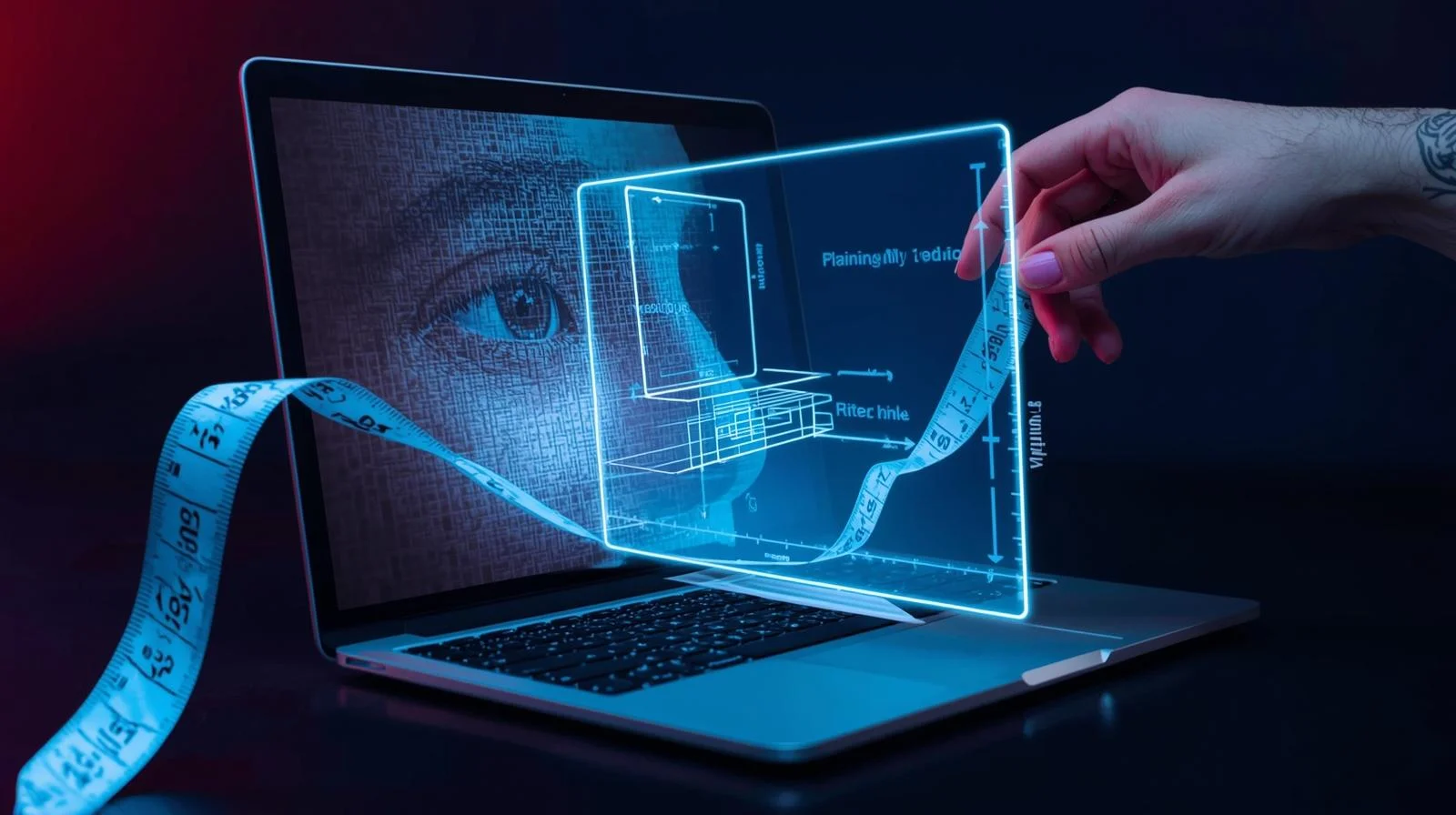
If other methods don’t work, you can always measure your screen directly.
What you need:
- Measuring tape or ruler
- Straight edge (optional)
Steps:
- Close your laptop and open it back to viewing position
- Place your measuring tape at the bottom-left corner of the screen (not the bezel)
- Extend diagonally to the top-right corner
- Read the measurement
If your tape measures in centimetres, convert to inches by dividing by 2.54. For example, 39.6 cm ÷ 2.54 = 15.6 inches.
Common measurements:
- 29.5 cm = 11.6 inches
- 33.8 cm = 13.3 inches
- 35.6 cm = 14 inches
- 39.6 cm = 15.6 inches
- 43.9 cm = 17.3 inches
Remember: measure only the visible screen area, not the plastic frame surrounding it.
Why Screen Size Matters
Knowing your laptop screen size helps in several situations:
Buying accessories: Laptop bags, sleeves, and cases list compatible screen sizes. A bag designed for 15-inch laptops won’t fit a 17-inch machine properly. Screen protectors and privacy filters also require exact size matching.
Replacing your screen: If your display cracks or fails, you need the exact screen size and resolution to order the correct replacement panel.
Choosing wallpapers: As discussed earlier, matching your screen resolution ensures sharp, clear backgrounds.
Comparing laptops: When shopping for a new laptop, understanding screen sizes helps you compare options at Tech Point Zone and find the one that suits your needs.
Ergonomics: Larger screens can reduce eye strain during long work sessions, while smaller screens offer better portability for commuting.
Want a bigger screen at your desk? Browse our monitors, or learn how to connect your laptop to a TV.
Frequently Asked Questions
What is the standard laptop screen size?
The most common laptop screen size is 15.6 inches, followed by 14 inches. These sizes offer a good balance between comfortable viewing and reasonable portability. Budget laptops often come in 15.6-inch variants, while ultrabooks typically use 13.3-inch to 14-inch displays.
How do I know my screen size without a ruler?
You can find your laptop screen size without any measuring tools. Press Windows + R, type msinfo32, and check your system model. Search this model online to find specifications. Alternatively, check the sticker on the bottom of your laptop or look at your purchase receipt.
Does screen resolution tell me my screen size?
No, screen resolution and screen size are different measurements. Resolution (e.g., 1920 x 1080 pixels) tells you how many dots make up the image, which affects sharpness. Screen size (e.g., 15.6 inches) refers to the physical diagonal measurement. Two laptops can have identical resolution but different screen sizes.
Can I change the size of my laptop screen?
No, you cannot change the physical screen size of your laptop. The screen is built into the laptop chassis, and replacing it with a different size would require major modifications. However, you can adjust your display resolution, scaling, and text size in Windows Settings > Display. If you need a larger viewing area, consider connecting an external monitor.
What screen size is best for everyday use?
For most people in the UAE, a 14-inch to 15.6-inch screen works best for everyday tasks. The 14-inch size balances portability with comfortable viewing for documents, browsing, and videos. The 15.6-inch size provides more screen space for multitasking and split-screen work. Students often prefer 13.3-inch to 14-inch laptops for carrying between classes, while home users typically choose 15.6-inch models.
Find Your Perfect Laptop at Tech Point Zone
Now that you know how to check your laptop screen size, you might realise it’s time for an upgrade. Whether you need a portable 13-inch student laptop or a powerful 17-inch gaming machine, Tech Point Zone has options for every need and budget.
Browse our collection of Dell laptops, Lenovo laptops, and ASUS laptops with free delivery across the UAE. Which screen size suits you? Contact our team for personalised recommendations based on how you plan to use your laptop.