
Sometimes your laptop needs a fresh start. Viruses, software conflicts, slow performance, or preparing to sell your device; these situations call for reformatting. The process wipes your laptop clean and reinstalls Windows, giving you that new laptop feeling again.
This guide walks you through how to reformat laptop for Windows. Whether you can access your desktop normally, have forgotten your password, or need to format from the boot menu, we cover all scenarios with clear, step-by-step instructions.
How to Reformat a Laptop
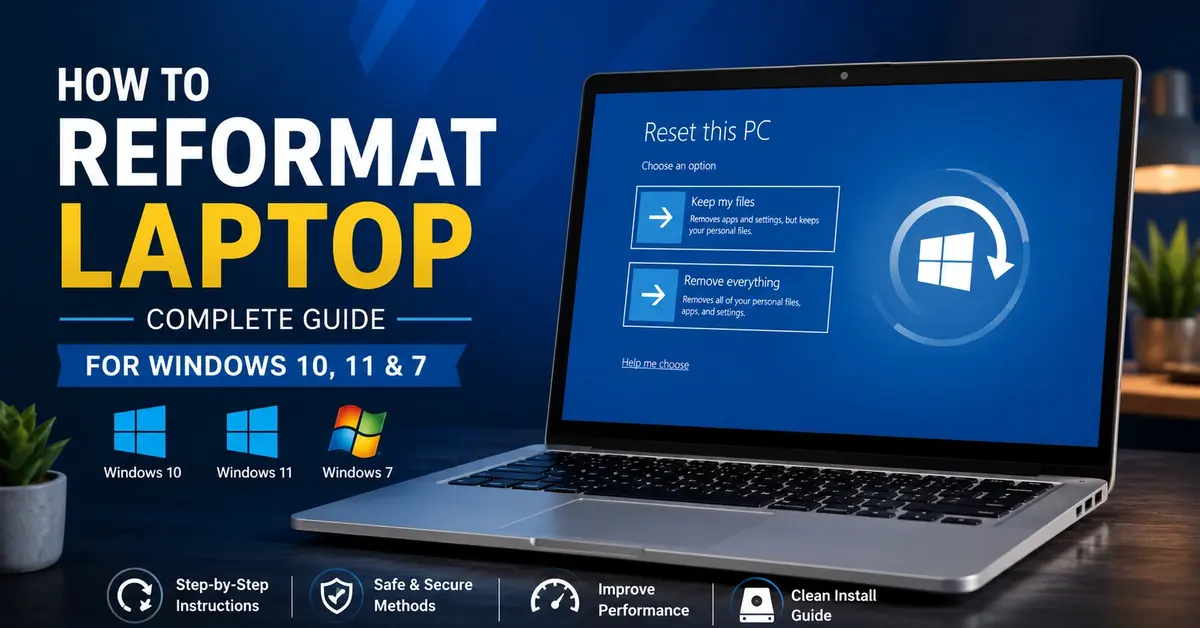
Open Settings > System > Recovery > Reset this PC and choose either “Keep my files” or “Remove everything” to reformat your laptop. Windows handles the entire process automatically, reinstalling the operating system while you wait.
Here’s the quick method for most laptops:
- Press Windows + I to open Settings
- Click System > Recovery
- Find “Reset this PC” and click Reset PC
- Choose “Keep my files” or “Remove everything.”
- Select “Cloud download” or “Local reinstall.”
- Click Reset and wait for completion
The process takes 30 minutes to 2 hours, depending on your laptop’s speed and the options you choose. Your laptop restarts several times during reformatting; this is normal.
Before reformatting, back up important files to an external drive or cloud storage. Even the “Keep my files” option removes installed applications, so note which programs you’ll need to reinstall.
How to Reformat a Laptop Windows 11
Windows 11 offers streamlined reset options through its modern Settings interface.
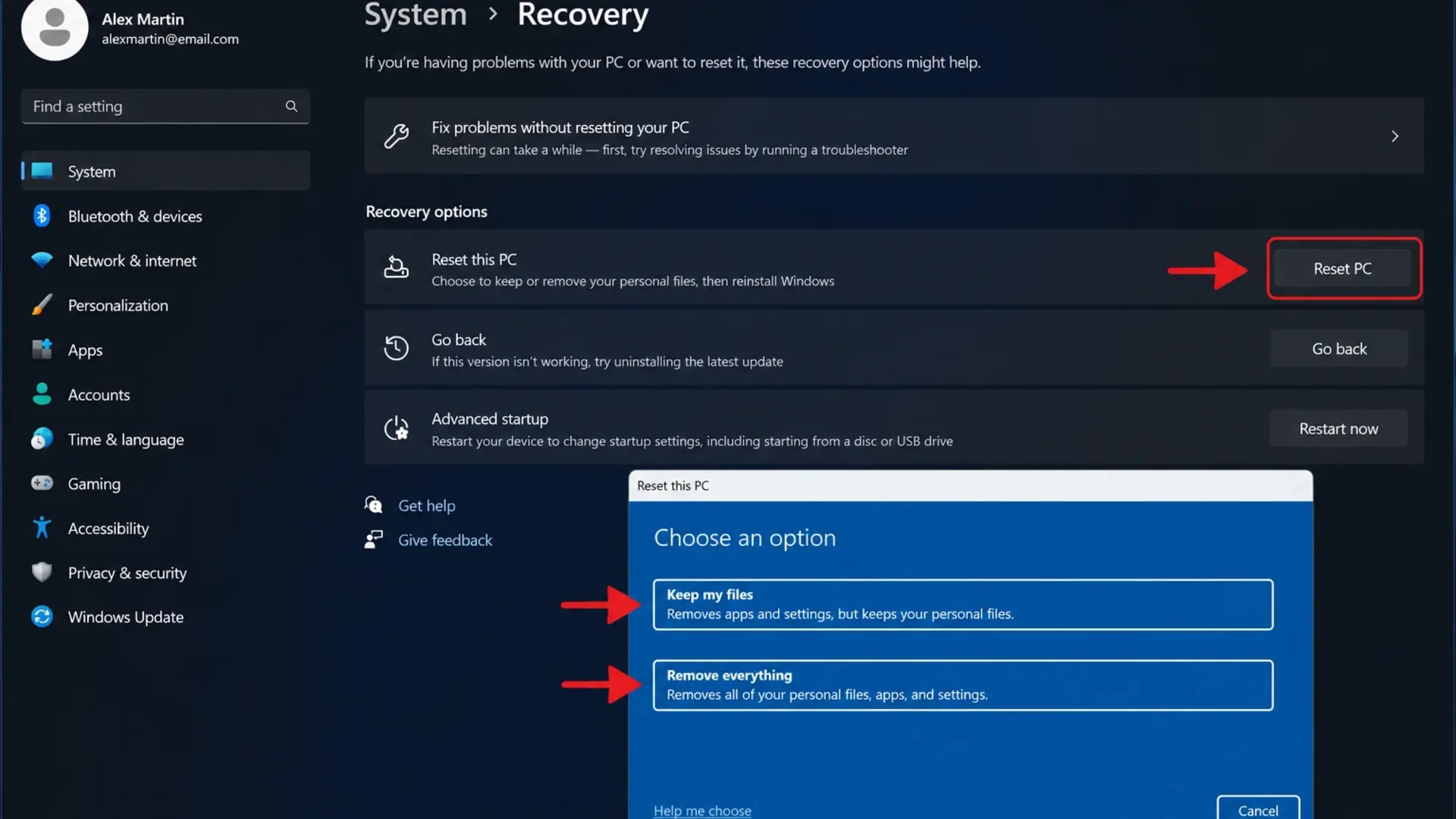
Reset from Settings
- Click Start menu
- Open Settings (gear icon)
- Select System from the left sidebar
- Click Recovery
- Under “Recovery options,” find Reset this PC
- Click the Reset PC button
Choose your reset type:
- Keep my files: Removes apps and settings, keeps personal files
- Remove everything: Complete wipe for selling or major issues
Choosing Reinstall Method
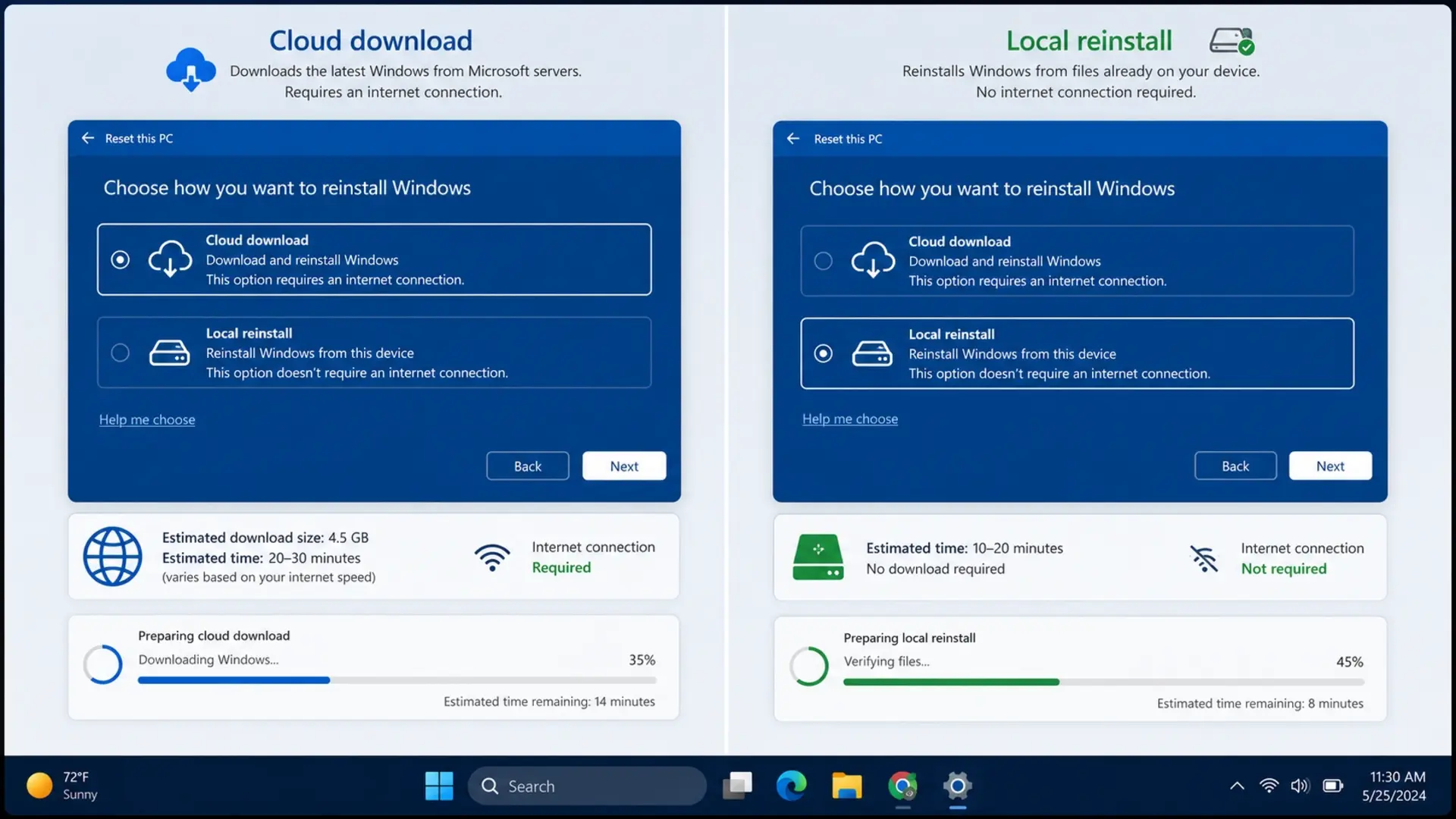
After selecting the reset type, Windows 11 asks how to reinstall:
- Cloud download: Downloads fresh Windows from Microsoft (requires Internet, gets the latest version)
- Local reinstall: Uses existing Windows files (faster, works offline)
Cloud downloads take longer, but ensure you get the cleanest, most up-to-date installation. A local reinstall is faster but uses files already on your laptop.
Additional Options
Click “Change settings” before confirming to access:
- Clean data – Overwrites the drive, making file recovery difficult (use when selling)
- Delete files from all drives – Wipes secondary drives too
Click Next, then Reset. Your laptop handles everything automatically.
If the touchpad stops responding after a reinstall, here’s how to fix a touchpad that isn’t working.
How to Reformat a Laptop Windows 10
Windows 10 reformatting works similarly to Windows 11, with slight interface differences.
Reset via Settings
- Press Windows + I to open Settings
- Click Update & Security
- Select Recovery from the left menu
- Under “Reset this PC,” click Get started
- Choose “Keep my files” or “Remove everything.”
- Follow on-screen prompts
- Click Reset to begin
Using Fresh Start Option
Windows 10 includes an additional “Fresh Start” feature:
- Open Windows Security
- Click Device performance & health
- Find the “Fresh start” section
- Click “Additional info.”
- Select Get started
- Follow prompts to reinstall Windows
Fresh start removes manufacturer bloatware while keeping personal files. This works well for new laptops loaded with unnecessary software.
Understanding how long it takes to reformat a laptop helps set expectations. Windows 10 reset typically takes 20 minutes to 1 hour for “Keep my files” and 1-2 hours for “Remove everything.”
How to Format Laptop Windows 7
Windows 7 lacks the modern reset options found in newer versions. You’ll need installation media or access to a recovery partition.
Using Recovery Partition
Most laptops with Windows 7 include a hidden recovery partition:
- Restart your laptop
Press the recovery key during boot:
- HP: F11
- Dell: F8
- Lenovo: F11
- ASUS: F9
- Acer: Alt + F10
- Select the recovery or factory restore option
- Follow on-screen instructions
- Confirm when prompted
Using Windows 7 Installation Disc
If the recovery partition doesn’t work:
- Insert Windows 7 DVD or USB
- Restart and boot from the disc
- Select language preferences
- Click “Install now.”
- Accept license terms
- Choose “Custom (advanced)” installation
- Select your main drive partition
- Click “Drive options” then Format
- Continue with installation
Windows 7 formatting takes 30-60 minutes, depending on your hardware. The laptop restarts multiple times during this process.
How to Reformat a Laptop Without Losing Data
Use Windows “Keep my files” option to reformat while preserving documents, photos, and other personal files stored in your user folders.
What Gets Kept
- Documents folder contents
- Pictures, Videos, Music folders
- Desktop files
- Downloads folder
- Browser bookmarks (in most cases)
What Gets Removed
- All installed applications
- Custom settings and preferences
- Desktop applications
- Drivers (Windows reinstalls basic versions)
Step-by-Step Process
- Open Settings > System > Recovery
- Click Reset PC
- Select “Keep my files.”
- Choose the reinstall method
- Review what will be removed
- Click Reset
Before reformatting, transfer important photos to an external storage device. Learn how to transfer photos from an iPhone to a laptop if you need to back up mobile photos alongside laptop files.
Even with “Keep my files,” create backups of critical documents. The process usually preserves data successfully, but hardware issues during reset could cause unexpected problems.
How to Format a Laptop That Is Locked
Forgotten your password? You can still reformat a locked laptop using recovery mode or installation media.
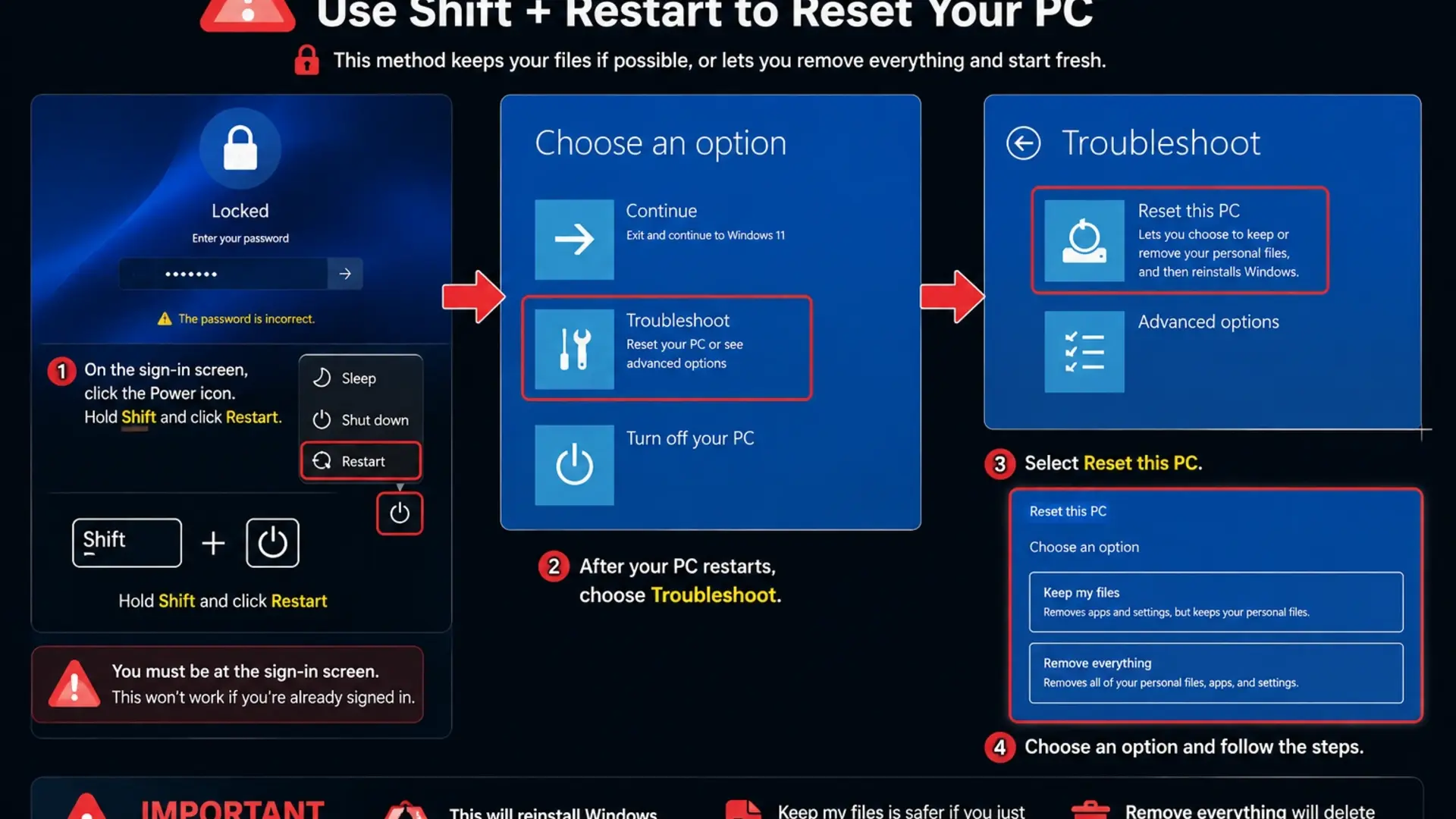
Windows 10/11 Lock Screen Reset
- On the login screen, click the Power icon
- Hold the Shift key and click Restart
- Windows boots to the recovery environment
- Select Troubleshoot
- Click Reset this PC
- Choose “Remove everything.”
- Follow prompts to complete the reset
Using the Installation USB
- Create a Windows installation USB on another computer
- Insert the USB into the locked laptop
- Restart and press the boot menu key (F12, F2, or Esc)
- Select USB drive
- Choose a language, then click “Install now.”
- Select “Custom installation.”
- Delete existing partitions
- Create a new partition and install Windows
Recovery Key Method
If BitLocker encryption is enabled, you’ll need your recovery key:
- Find the key at account.microsoft.com/devices/recoverykey
- Enter the 48-digit recovery key when prompted
- Proceed with reset
If your goal is simply a faster laptop, try the fixes in why your laptop is slow before wiping everything.
Windows 10 Factory Reset from Boot
When Windows won’t start normally, access recovery options through the boot menu.
Automatic Recovery
If Windows fails to boot three times consecutively, it automatically enters recovery mode:
- Power on the laptop
- When the Windows logo appears, hold the power button to force a shutdown
- Repeat this three times
- Windows boots to the “Preparing Automatic Repair” screen
- Click Advanced options
- Select Troubleshoot > Reset this PC
Manual Boot Recovery
- Restart laptop
- Press F11 repeatedly during startup (timing varies by brand)
- Enter Windows Recovery Environment
- Select Troubleshoot
- Click Reset this PC
- Choose reset options
- Complete the process
Brand-Specific Boot Keys
Different laptop brands from the best laptop brands in the world use different recovery keys:
| Brand | Recovery Key |
| HP | F11 |
| Dell | F8 or Ctrl + F11 |
| Lenovo | F11 or Novo button |
| ASUS | F9 |
| Acer | Alt + F10 |
| MSI | F3 |
| Toshiba | 0 (zero) key |
How to Reformat a Laptop Using a Bootable USB
Bootable USB installation offers the cleanest reformat option, especially when Windows is corrupted or you want a completely fresh start.
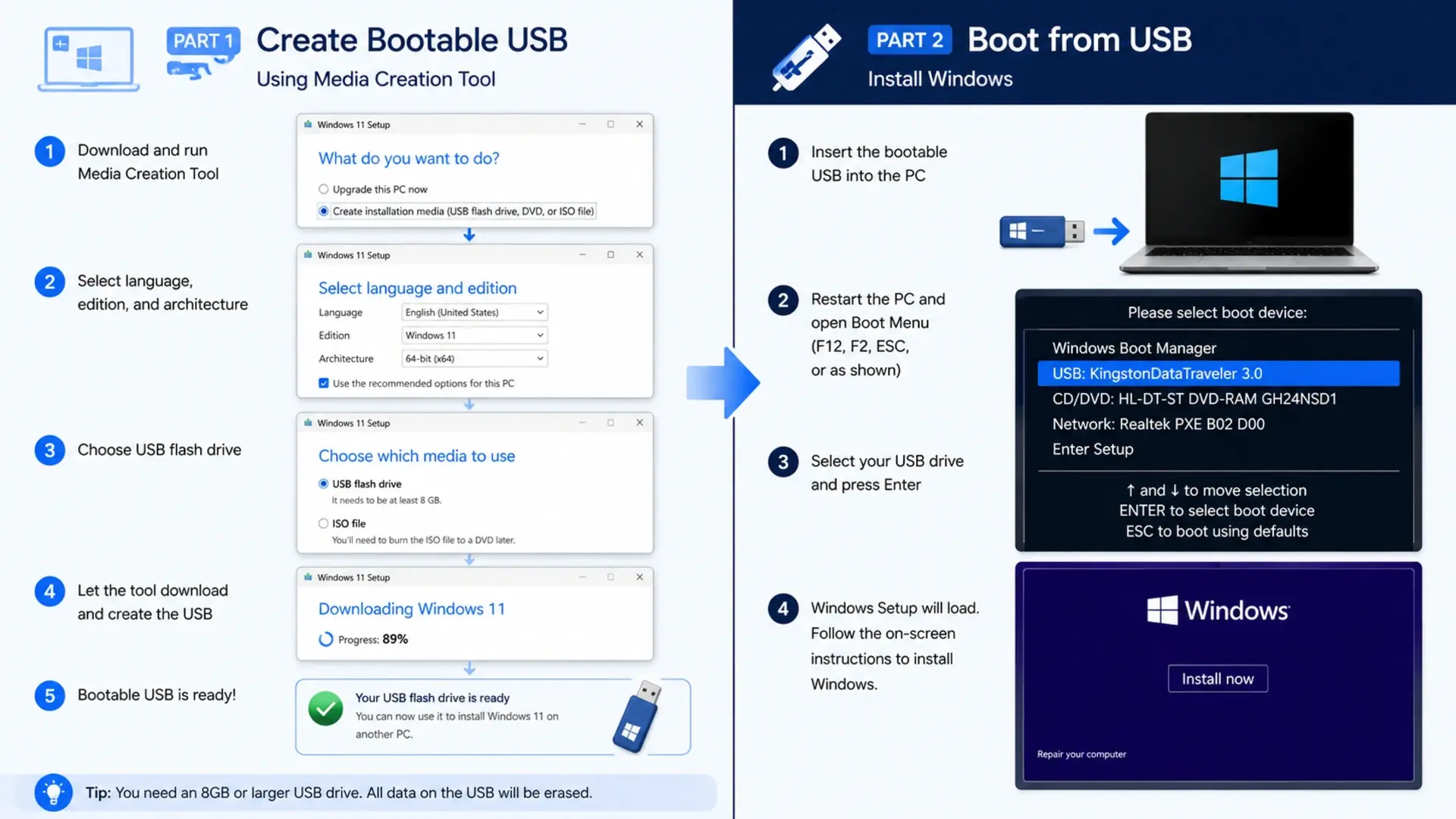
Creating Bootable USB
On a working computer:
- Download the Windows Media Creation Tool from Microsoft
- Insert USB drive (8GB minimum)
- Run the tool
- Select “Create installation media.”
- Choose language, edition, and architecture
- Select the USB flash drive option
- Wait for the download and creation to complete
Installing from USB
- Insert the bootable USB into the target laptop
- Restart laptop
- Press boot menu key during startup (F12, F2, Esc, or F10)
- Select the USB drive from the boot menu
- Choose language preferences
- Click “Install now.”
- Enter product key or click “I don’t have a product key.”
- Select Windows edition
- Accept license terms
- Choose “Custom: Install Windows only.”
- Select the drive to install on
- Delete all partitions for a clean install (optional)
- Click New to create a partition
- Select the partition and click Next
- Wait for the installation to complete
This method takes 30-60 minutes and provides the freshest possible Windows installation.
How to Reformat a Laptop Without a CD
Modern laptops rarely include CD drives. These methods work without physical discs.
Built-in Reset Option
Windows 10 and 11 include recovery options requiring no external media:
- Open Settings > System > Recovery
- Use the Reset this PC feature
- Choose Cloud download for fresh Windows files
USB Installation
Create a bootable USB as described above. USB drives are faster than CDs and can be reused for future installations.
Network Boot (Advanced)
Some enterprise laptops support network-based Windows installation:
- Access BIOS settings (F2 or Del during boot)
- Enable Network Boot or PXE Boot
- Configure network installation server (requires IT infrastructure)
For most users, USB installation or built-in reset provides the easiest disc-free reformatting.
How to Reformat a Laptop Without Logging In
Can’t access your account? Several methods let you reformat without signing in.
Shift + Restart Method
- On the login screen, click the Power button
- Hold Shift and click Restart
- Select Troubleshoot > Reset this PC
- Choose reset options
- Complete the process
Recovery Environment via Boot
- Restart laptop
- Press F11 (or brand-specific key) repeatedly
- Enter Windows Recovery Environment
- Select Troubleshoot
- Click Reset this PC
- Proceed without signing in
Installation Media
Using a bootable USB or DVD bypasses login requirements entirely:
- Boot from installation media
- Perform a clean installation
- Create a new user account during setup
After reformatting, you’ll need to reconfigure your laptop from scratch. Take screenshots of your current settings before reformatting if you want to remember specific configurations.
How to Reformat an MSI Laptop
MSI laptops include a dedicated recovery system called MSI Recovery.
Using MSI Recovery (F3 Key)
- Power off the laptop completely
- Press the power button, then immediately press F3 repeatedly
- The MSI Recovery menu appears
- Select “System Recovery”
- Choose recovery options:
- Keep my files
- Remove everything
- Confirm to start recovery
- Wait for the process to complete
MSI Burn Recovery
Some MSI laptops allow creating a recovery USB:
- Open MSI Burn Recovery software (pre-installed)
- Insert USB drive
- Create a recovery drive
- Use this drive for future reformatting
Standard Windows Reset
MSI laptops also support standard Windows reset methods:
- Settings > System > Recovery > Reset this PC
MSI gaming laptops sometimes take longer to reformat due to larger pre-installed software packages. Expect 1-2 hours for a complete reset.
How to Reformat an HP Laptop
HP provides multiple recovery options through HP Recovery Manager.
HP Recovery Manager
- Press F11 repeatedly during boot
- Select Troubleshoot
- Click Recovery Manager
- Select System Recovery
- Follow prompts to restore factory settings
Windows Reset on HP
- Open Settings
- Navigate to System > Recovery
- Click Reset PC
- Choose your options
- Complete the reset
HP Cloud Recovery
For newer HP laptops:
- Download HP Cloud Recovery Tool
- Create recovery USB
- Boot from USB
- Follow recovery prompts
HP laptops typically include a recovery partition. How long it takes to reformat an HP model laptop depends on the installed software, but expect 45 minutes to 2 hours.
How Long to Reformat a Laptop
Reformatting time varies based on several factors, but most laptops complete the process within 30 minutes to 2 hours.
Factors Affecting Duration
- Reset type: “Keep my files” finishes faster than “Remove everything.”
- Reinstall method: Local reinstall beats cloud download speed
- Drive type: SSD reformats much faster than HDD
- Drive size: Larger drives take longer to wipe
- Internet speed: Affects the cloud download option
Typical Timeframes
| Reset Type | SSD | HDD |
| Keep my files | 20-40 min | 40-60 min |
| Remove everything | 30-60 min | 1-2 hours |
| Clean data option | 1-2 hours | 2-4 hours |
| USB clean install | 20-45 min | 45-90 min |
Speed Tips
- Choose local reinstall when possible
- Close unnecessary recovery options
- Ensure laptop stays powered (plug in charger)
- Select “Just remove my files” if you are not selling the laptop
Frequently Asked Questions
How do I completely format my laptop?
To completely format your laptop, open Settings > System > Recovery > Reset this PC, then select “Remove everything.” Choose “Cloud download” for the freshest Windows installation. Click “Change settings” and enable “Clean data” to overwrite files, making recovery impossible.
Is F11 or F12 a factory reset?
F11 typically opens factory reset or recovery options on most laptops, including HP, Lenovo, and some Dell models. F12 usually opens the boot menu for selecting startup devices, not for factory resetting. However, keys vary by manufacturer – ASUS uses F9, Acer uses Alt + F10, and some Dell models use F8.
How do I factory reset my laptop using the buttons?
Power off your laptop completely. Press the power button, then immediately start pressing F11 (or your brand’s recovery key) repeatedly. Continue until recovery options appear. Select Troubleshoot > Reset this PC or System Recovery, depending on your interface. Choose “Remove everything” for a complete factory reset.
How to hard factory reset?
Boot into recovery by pressing F11 during startup or holding Shift while clicking Restart from the login screen. Select Troubleshoot > Reset this PC > Remove everything. Enable the “Clean data” option to overwrite all files thoroughly. Alternatively, boot from Windows installation USB, choose Custom installation, delete all existing partitions, create new ones, and install Windows fresh.
Need Help with Your Laptop?
Reformatting issues or considering a new laptop? Tech Point Zone offers expert advice and competitive prices on laptops from all major brands. Visit our Bur Dubai showroom for hands-on support.
Tech Point Zone Electronics Trading L.L.C Hana & Maryam Obaid Al Helo Building – Shop no: 8 Al Nahdha St – Bur Dubai – Al Souq Al Kabeer – Dubai
WhatsApp: +971 525696022