Free Shipping Above 1000 AED
how to transfer photos from iphone to laptop

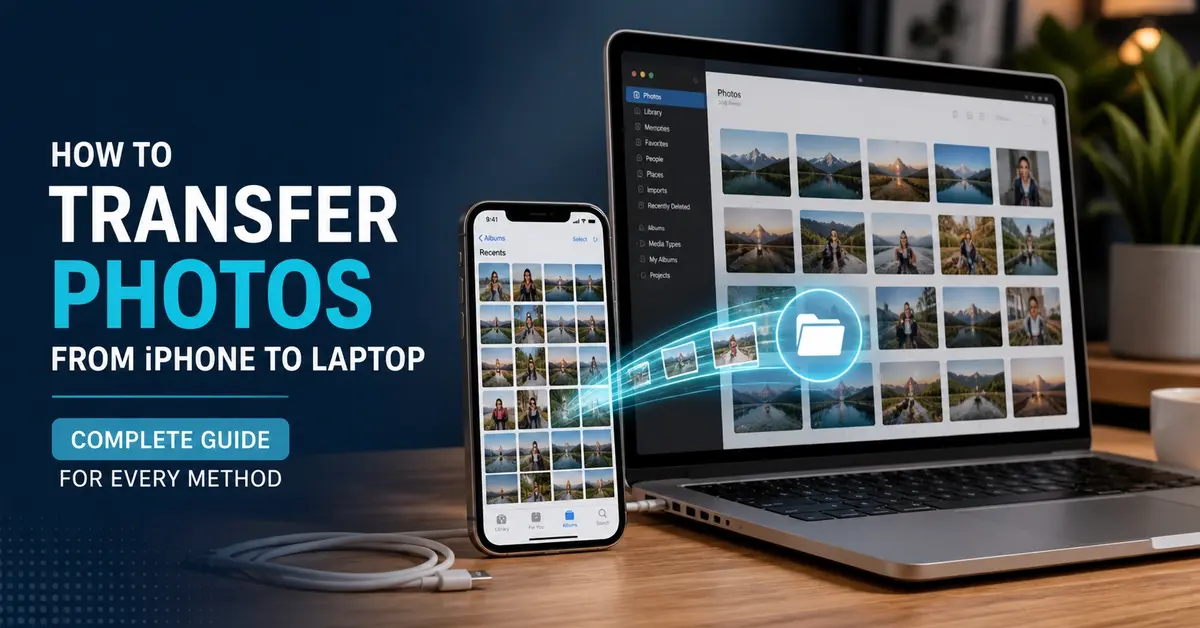
How to Transfer Photos from iPhone to Laptop – Complete Guide for Every Method

Your iPhone stores thousands of precious memories, but keeping them only on your phone risks losing them forever. Transferring photos to your laptop creates a secure backup, frees up iPhone storage, and lets you edit images on a bigger screen.

This guide covers every method to move photos from your iPhone to any laptop. Whether you use Windows or Mac, prefer cables or wireless transfers, and want to use iTunes or skip it entirely, we’ve got you covered with simple step-by-step instructions.

How to Transfer Photos from iPhone to Laptop

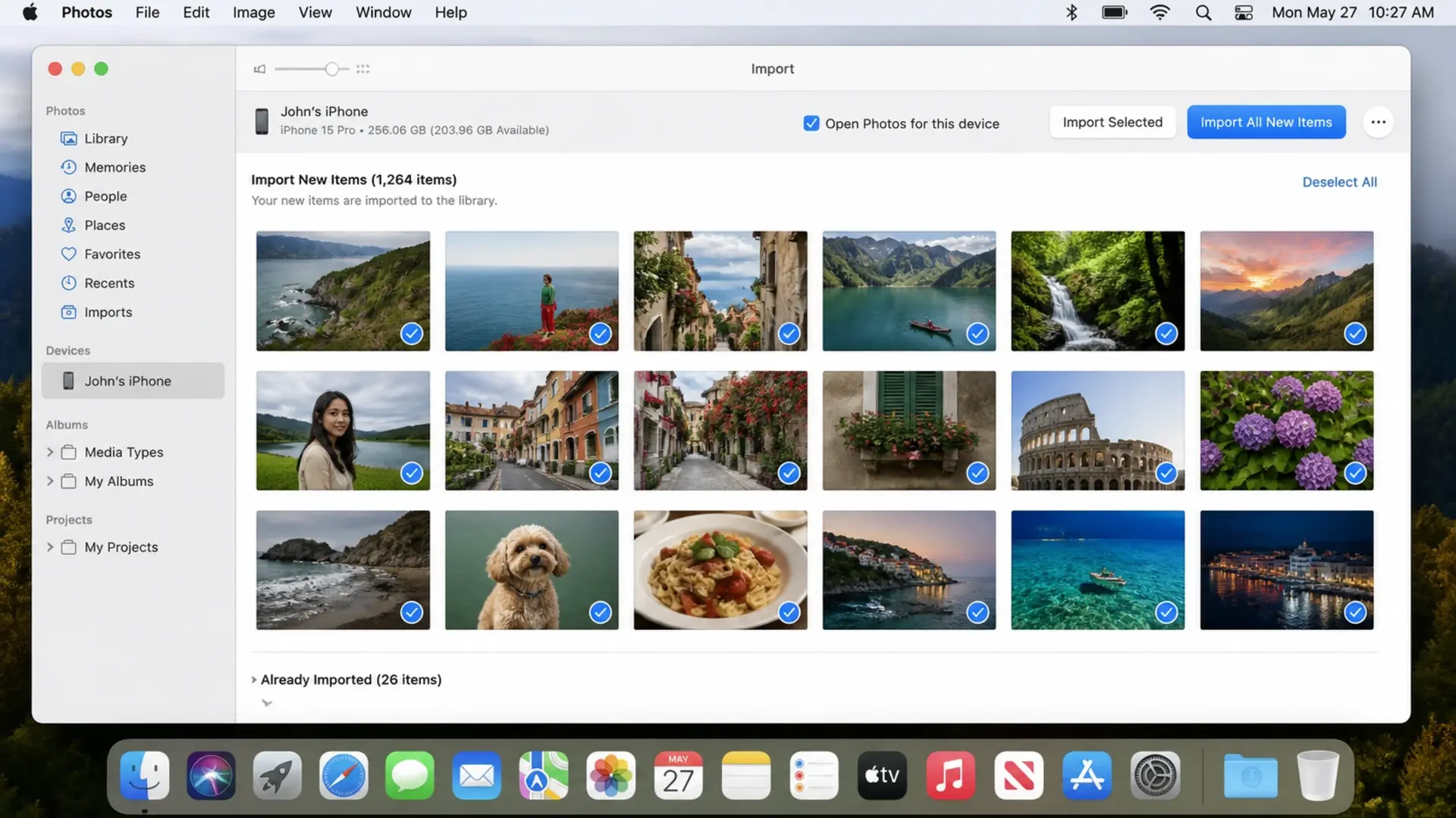
Connect your iPhone to your laptop using a USB cable, then open the Photos app (Windows) or Image Capture (Mac) to import your pictures directly. This method works fastest and requires no Internet connection.

Here’s the Quick Process for Windows:

  • Connect the iPhone to the laptop with a Lightning or USB-C cable
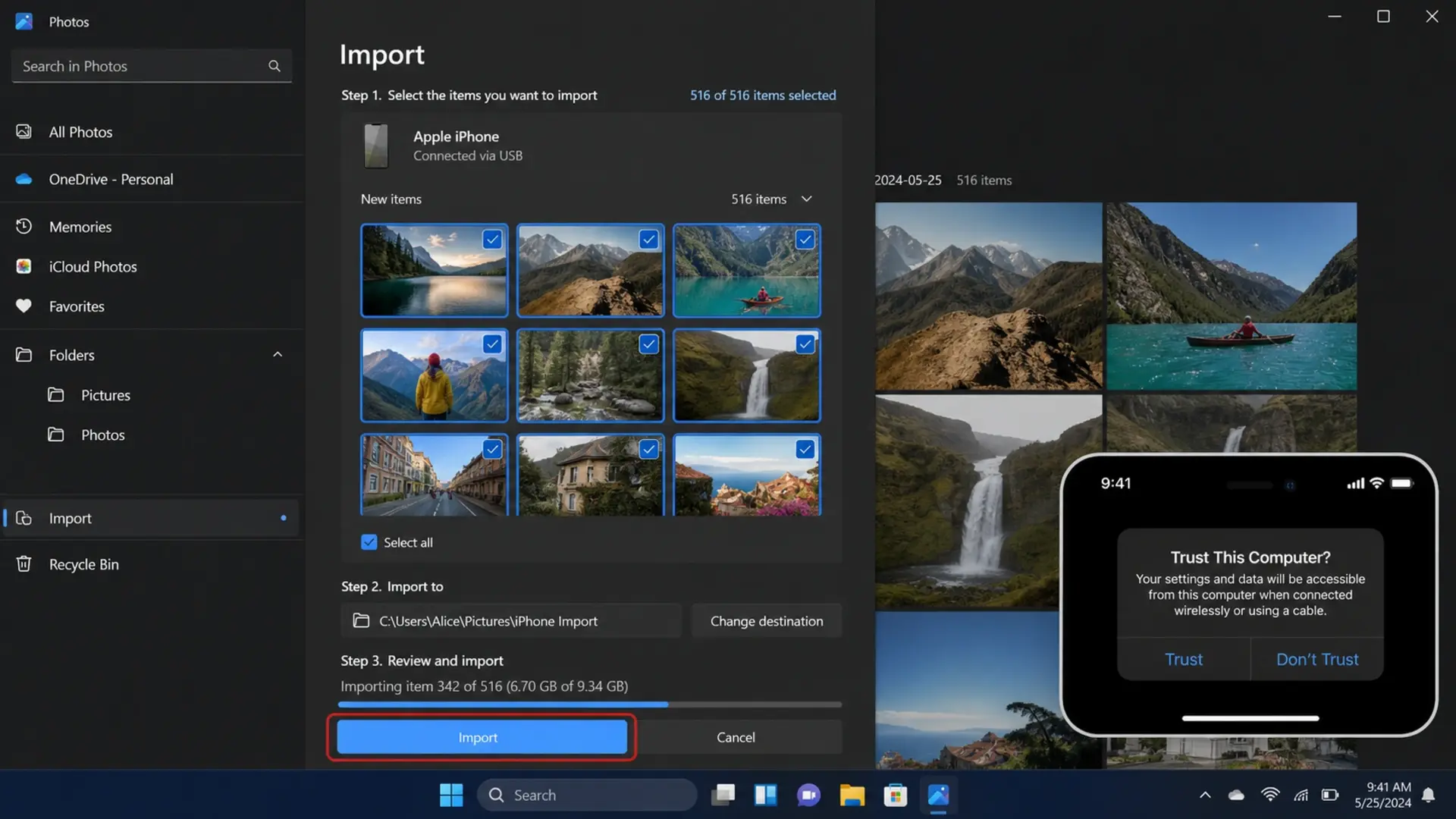
  • Unlock your iPhone and tap “Trust This Computer” when prompted
  • Open the Photos app on Windows
  • Click Import > From a connected device
  • Select the photos you want to transfer
  • Choose where to save them and click Import

For Mac Users:

  • Connect the iPhone using the cable
  • Open Photos app (or Image Capture for more control)
  • Your iPhone appears in the sidebar
  • Select photos and click Import

This direct cable method transfers photos at full resolution without compression. It works even when WiFi is unavailable and handles thousands of photos efficiently.

How to Transfer Photos from iPhone to Laptop via USB

USB transfer remains the most reliable method for quickly moving large photo libraries. Connect your iPhone to your laptop with a cable, then follow these detailed steps.

how to transfer photos from iphone to laptop

Windows USB Transfer

  • Plug your Lightning or USB-C cable into both devices
  • Unlock your iPhone
  • Tap “Trust” on the pop-up asking to trust this computer
  • Enter your iPhone passcode to confirm
  • Open File Explorer on Windows
  • Find “Apple iPhone” under This PC
  • Navigate to Internal Storage > DCIM
  • Open folders to find your photos (named with dates)
  • Copy photos and paste them into your desired folder

Mac USB Transfer

  • Connect the cable between the iPhone and the Mac
  • Open Finder (macOS Catalina or later) or iTunes (older macOS)
  • Select your iPhone from the sidebar
  • Click the Photos tab
  • Check “Sync photos to your device.”
  • Choose which albums to transfer
  • Click Apply
How to Transfer Photos from iPhone to Laptop – Complete Guide for Every Method

USB transfers work without an Internet connection and transfer files at maximum speed. Your laptop’s USB port type affects transfer speed: USB 3.0 ports transfer faster than USB 2.0 ports.

How to Transfer Photos from iPhone to Laptop Wirelessly

Use iCloud Photos to sync images automatically between your iPhone and laptop without any cables. This method keeps your library updated continuously.

Setting Up iCloud Photos on iPhone

  • Open Settings > tap your name at the top
  • Select iCloud > Photos
  • Turn on “Sync this iPhone.”
  • Choose “Download and Keep Originals” for full quality

Accessing iCloud on a Windows Laptop

  • Download iCloud for Windows from the Microsoft Store
  • Sign in with your Apple ID
  • Check the “Photos” option
  • Click “Options” next to Photos
  • Enable “iCloud Photos.”
  • Apply changes

Your photos now sync automatically to the iCloud Photos folder on your laptop. New photos appear without manual transfers.

Using iCloud.com

Don’t want to install software? Access your photos through any browser:

  • Go to iCloud.com
  • Sign in with Apple ID
  • Click Photos
  • Select the images you want
  • Click the download icon

This wireless approach works great when you’re away from your usual laptop or using someone else’s computer temporarily.

How to Transfer Photos from iPhone to Windows 10 Laptop

Windows 10 includes built-in tools that make transferring iPhone photos straightforward.

Using Windows Photos App

  • Connect the iPhone via USB cable
  • Open the Photos app from the Start menu
  • Click the Import button (top right)
  • Select “From a connected device.”
  • Wait for Windows to scan your iPhone
  • Check the photos you want to import
  • Click “Import selected” or “Import all.”

Using the File Explorer Method

  • Connect the iPhone to the Windows 10 laptop
  • Open File Explorer
  • Click “This PC” in the sidebar
  • Double-click “Apple iPhone.”
  • Open “Internal Storage”
  • Open the “DCIM” folder
  • Browse dated folders containing your photos
  • Select, copy, and paste to your preferred location

Windows 10 sometimes fails to properly detect iPhones. If this happens, try a different USB port, restart both devices, or update iTunes drivers.

If your laptop runs slowly during transfers, background processes may be causing the issue. Check our guide on how to fix a laptop battery that drains fast; the same fixes also improve overall system performance.

How to Transfer Photos from iPhone to Laptop Without iCloud

Not everyone wants their photos on Apple’s cloud servers. Several methods let you transfer photos from an iPhone to a laptop without iCloud storage.

Direct USB Cable Transfer

The File Explorer method described above bypasses iCloud completely. Your photos move directly from iPhone to laptop storage without touching any cloud service.

Using Third-Party Apps

Apps like iMazing, AnyTrans, and Dr.Fone offer more control than Apple’s built-in options:

 Transfer Photos from iPhone to Laptop Without iCloud Using Third Party Apps
  • Download and install your chosen app
  • Connect the iPhone via USB
  • Select Photos section
  • Browse and select images
  • Export to your laptop

Email or Messaging Apps

For small batches of photos:

  • Open Photos on iPhone
  • Select images (up to 20-30 at once)
  • Tap the Share button
  • Choose Mail or WhatsApp
  • Send to yourself
  • Download from email or WhatsApp Web on a laptop

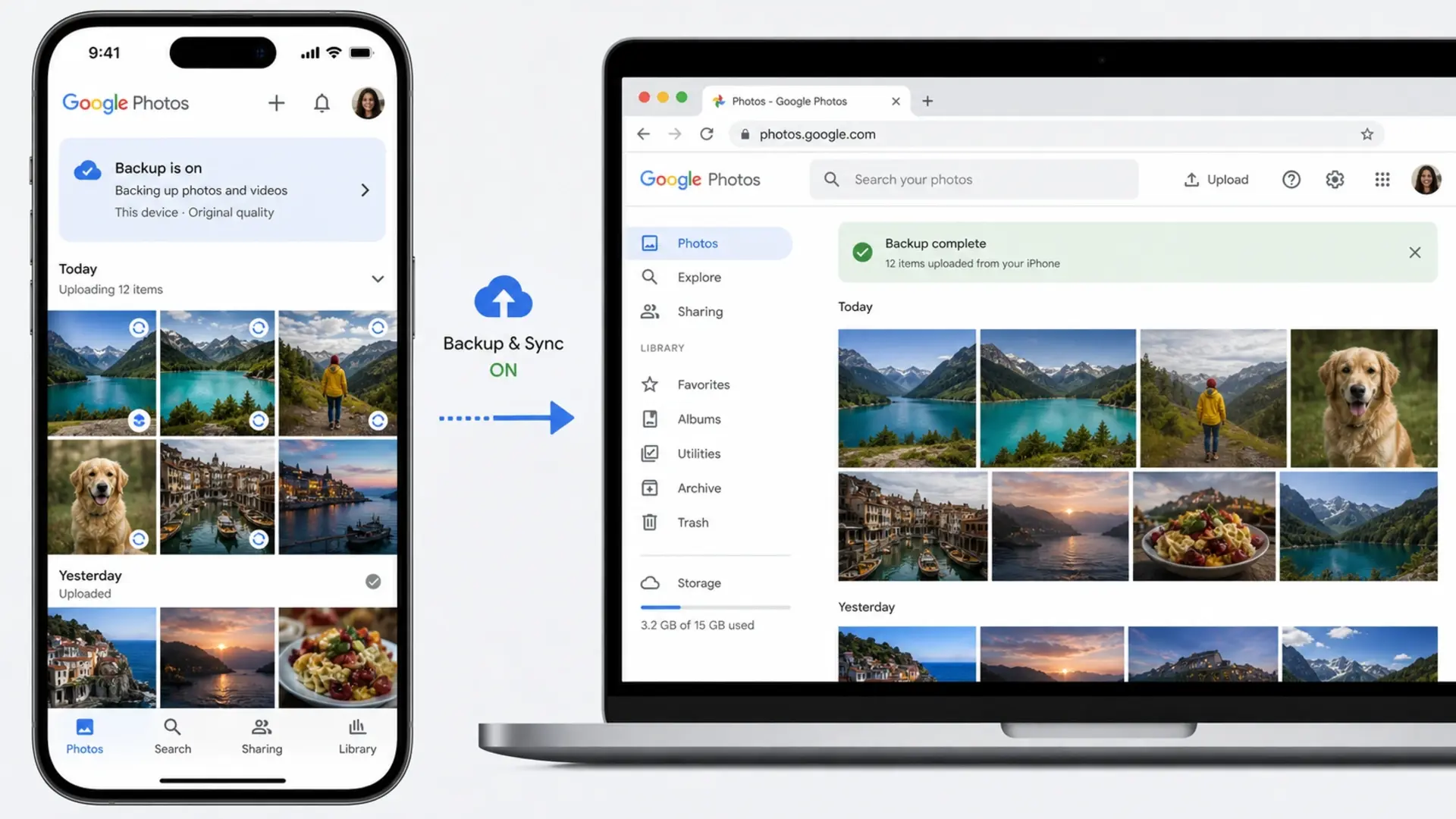
Using Google Photos

How to Transfer Photos from iPhone to Laptop Without iCloud Using Google Photos
  • Install the Google Photos app on iPhone
  • Sign in with a Google account
  • Enable backup
  • On a laptop, visit photos.google.com
  • Download photos from your library

How to Transfer Photos from iPhone to Laptop Using iTunes

iTunes provides another transfer method, though Apple has shifted away from it in recent years.

Transfer Photos via iTunes Sync.

  • Install the latest iTunes on Windows
  • Connect the iPhone with the USB cable
  • Click the device icon when it appears
  • Select Photos in sidebar
  • Check “Sync Photos”
  • Choose a folder to sync from
  • Click Apply

Note that iTunes sync primarily transfers photos TO your iPhone from your laptop. For transferring FROM iPhone to laptop, the Photos app or File Explorer methods work better.

iTunes Backup Method

  • Connect the iPhone to iTunes
  • Click “Back Up Now”
  • Your photos are saved as part of the backup
  • Use third-party tools to extract photos from backup if needed

iTunes backups store photos in an encrypted format, making direct access difficult. This method is better suited to full device backups than to quick photo transfers.

How to Transfer Photos from iPhone to Laptop with Cable

Cable transfers offer the fastest and most reliable way to move large photo libraries.

What Cable Do You Need?

  • iPhone 14 and earlier: Lightning to USB-A or Lightning to USB-C cable
  • iPhone 15 and later: USB-C to USB-C or USB-C to USB-A cable

Use Apple-certified cables for reliable connections. Cheap third-party cables sometimes fail to transfer data, only charging your device instead.

Maximizing Transfer Speed

Transfer speed depends on your cable quality and your laptop’s USB ports. USB 3.0 ports (usually blue inside) transfer much faster than USB 2.0 (black or white inside). USB-C ports generally offer the best speeds.

For transferring thousands of photos, connect to your laptop’s fastest USB port and Close unnecessary applications to ensure smooth transfers.

How to Transfer Photos from iPhone to Mac Laptop

Mac users enjoy seamless integration between iPhone and MacBook thanks to Apple’s ecosystem.

Using AirDrop (Wireless)

  • Enable WiFi and Bluetooth on both devices
  • Open Photos on iPhone
  • Select images to transfer
  • Tap Share > AirDrop
  • Select your Mac from the available devices
  • Accept transfer on Mac
  • Photos save to the Downloads folder

AirDrop works brilliantly for quick transfers of smaller batches. For thousands of photos, cable methods remain faster.

Using Photos App on Mac

  • Connect the iPhone via cable
  • Open the Photos app
  • iPhone appears in the sidebar under Devices
  • Click Import All or select specific photos
  • Import photos to your Mac library

Using Image Capture

Want more control over where photos save?

  • Connect iPhone to Mac
  • Open Image Capture (search in Spotlight)
  • Select your iPhone from Devices
  • Choose the destination folder at the bottom
  • Select photos and click Download

View your transferred photos on a larger display by learning how to connect an external monitor to a laptop for a better editing and viewing experience.

Transfer Photos from iPhone to HP Laptop.

HP laptops run Windows, so standard Windows methods apply. Here’s the specific process for HP users.

HP Photos App Method

  • Connect the iPhone using the USB cable
  • Tap “Trust This Computer” on iPhone
  • Open the Windows Photos app
  • Click Import > From a connected device
  • Select your photos
  • Choose the HP laptop folder as the destination
  • Click Import

HP File Explorer Method

  • Connect the iPhone to the HP laptop
  • Open File Explorer
  • Navigate to This PC > Apple iPhone > Internal Storage > DCIM
  • Copy desired photos
  • Paste to your HP laptop’s Pictures folder or chosen location

HP laptops sometimes need updated Apple drivers for proper iPhone detection. If your HP doesn’t recognize your iPhone, install iTunes, which includes the necessary drivers.

Transfer Photos and Videos from iPhone to Laptop

Video transfer using the same methods as photos, but requires more attention due to larger file sizes.

Tips for Video Transfers

  • Use cable transfers for large video files
  • Ensure sufficient storage space on the laptop
  • Close other applications during transfer
  • Videos in DCIM folders have .MOV or .MP4 extensions

Handling HEVC Videos

iPhones record video in HEVC format by default. Windows might not play these without additional codecs. Either:

  • Install HEVC Video Extensions from the Microsoft Store
  • Change iPhone settings to record in a compatible format (Settings > Camera > Formats > Most Compatible)

Videos consume significant storage. Check how long your laptop battery should last to ensure you have enough power for lengthy transfer sessions.

How to Transfer Photos from iPhone X to Laptop

iPhone X uses the same transfer methods as other iPhones. The only consideration is the Lightning port, which requires Lightning-to-USB cables.

iPhone X Specific Steps

  • Use a Lightning to USB-A or Lightning to USB-C cable
  • Connect to the laptop
  • Trust the computer when prompted
  • Use Photos app, File Explorer, or iCloud

The iPhone X supports wireless transfers via AirDrop (on Mac) or iCloud. All methods described in this guide work identically for iPhone X.

Troubleshooting Common Transfer Problems

iPhone Not Detected

  • Try a different USB cable.
  • Use another USB port.
  • Restart both devices
  • Install or update iTunes on Windows.
  • Check that the iPhone is unlocked during connection.

Transfer Stuck or Slow

  • Close unnecessary applications
  • Disconnect other USB devices.
  • Transfer in smaller batches
  • Check laptop storage space.

Photos Missing After Transfer

  • Check DCIM subfolders: photos spread across multiple dated folders.
  • Ensure you selected all photos during import.
  • Look in the Downloads, Pictures, or iCloud Photos folders.

Trust Popup Not Appearing

  • Disconnect and reconnect the iPhone.
  • Reset Location & Privacy settings on iPhone (Settings > General > Transfer or Reset iPhone > Reset > Reset Location & Privacy)
  • Try a different cable

If your laptop’s fan runs loudly during transfers or heavy processing, it might be overheating. Learn how to stop laptop fan noise for quieter operation.

Frequently Asked Questions

What is the easiest way to transfer photos from an iPhone to a laptop?

The easiest way to transfer photos from an iPhone to a laptop is to connect via USB cable and use the Windows Photos app’s import feature. Plug in your iPhone, open Photos, click Import, and select your images. 

Why can’t I transfer photos from my iPhone to my laptop?

Common reasons include: an untrusted computer connection (tap “Trust” on iPhone when prompted), a faulty USB cable (try Apple-certified cables), outdated drivers (install iTunes on Windows to get Apple drivers), a locked iPhone screen (unlock during transfer), or insufficient laptop storage space. 

Can you AirDrop to a PC?

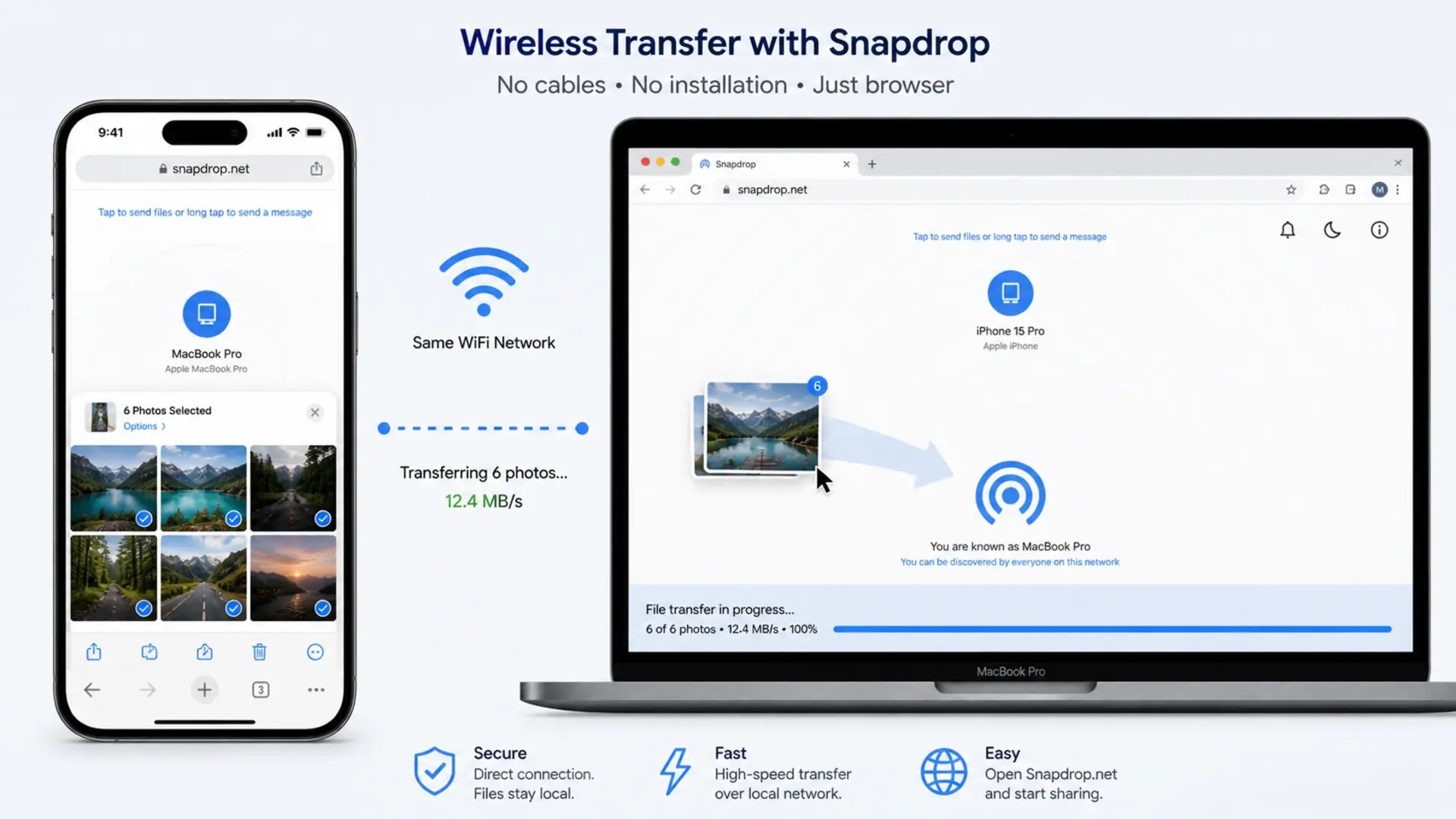
No, AirDrop only works between Apple devices, like iPhones, iPads, and Macs. Windows PCs cannot receive AirDrop transfers. For wireless transfers to Windows laptops, use iCloud Photos, email, cloud services like Google Photos or Dropbox, or apps like Snapdrop that mimic AirDrop functionality through your web browser.

How do I transfer 1000 photos from my phone to my laptop?

For transferring 1000+ photos, use a USB cable connection rather than wireless methods. Connect your iPhone, open File Explorer, navigate to the DCIM folder, select all photos with Ctrl+A, and copy them to your laptop. 

Need Help with Your Laptop?

Tech Point Zone stocks laptops from all major brands with fast USB ports and ample storage for your photo library. Visit our Bur Dubai showroom for expert advice on choosing the right laptop for your needs.

WhatsApp us at +971 525696022 or browse our collection at techpointzone.com.

how to take screenshot in laptop

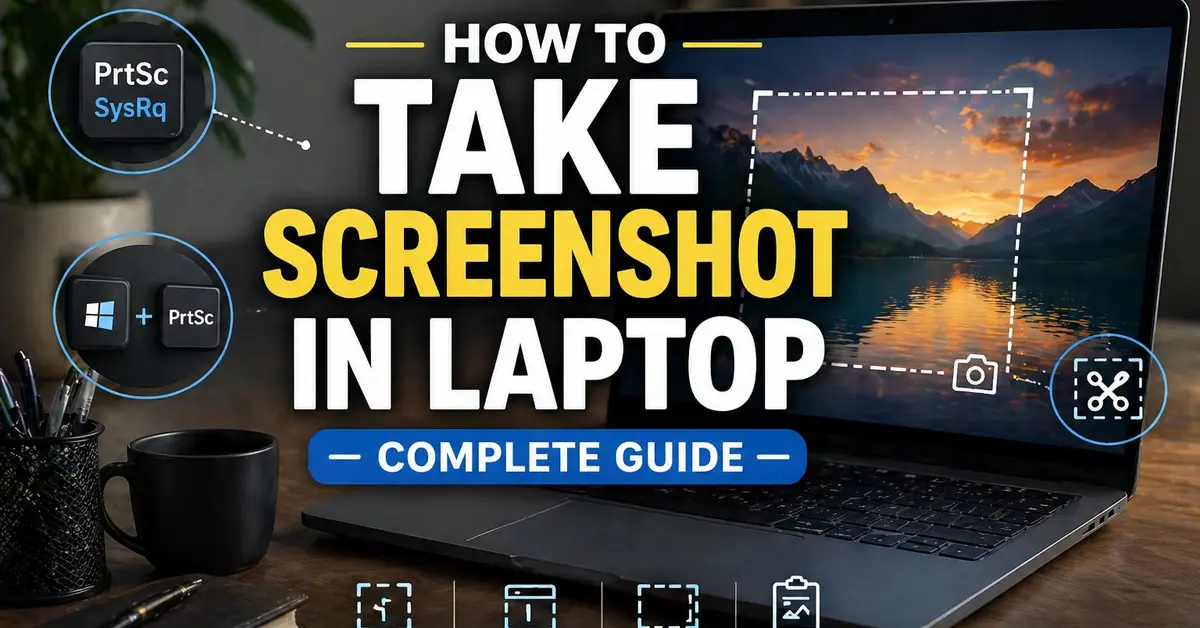
How to Take Screenshot in Laptop – Complete Guide for All Brands

Taking screenshots saves time when you need to capture information quickly. Whether you’re saving a receipt, sharing an error message with tech support, or keeping a record of important details, knowing how to screenshot on your laptop makes life easier.

This guide covers every screenshot method across Windows and Mac laptops. We’ll walk through brand-specific shortcuts for HP, Dell, Lenovo, and other popular laptop brands sold in the UAE. By the end, you’ll know multiple ways to capture your entire screen, specific windows, or just a selected area.

How to Take Screenshot in Laptop

Press the Print Screen (PrtScn) key on your keyboard to take a screenshot of your entire screen instantly. This copies the image to your clipboard, and you can paste it into any application using Ctrl + V.

For a quicker method that saves automatically, press Windows + Print Screen. Your screen dims briefly, and Windows saves the screenshot directly to your Pictures > Screenshots folder. No pasting required.

Here’s a quick reference for the most common screenshot shortcuts:

  • PrtScn – Copies entire screen to clipboard
  • Windows + PrtScn – Saves screenshot automatically
  • Alt + PrtScn – Captures active window only
  • Windows + Shift + S – Opens selection tool for custom area

The Print Screen key location varies between laptops. On most keyboards, you’ll find it in the top row, often abbreviated as PrtScn, PrtSc, or Print. Some compact laptops require pressing the Fn key along with Print Screen to activate the function.

How to Take Screenshot in Laptop Windows 11

Windows 11 uses the Snipping Tool as its default screenshot application, offering more control than basic keyboard shortcuts.

How to Take Screenshot in Laptop – Complete Guide for All Brands

Using Keyboard Shortcuts

  • Windows + Shift + S – Opens Snipping Tool overlay immediately
  • Windows + PrtScn – Captures and saves full screen
  • PrtScn – Copies full screen to clipboard
  • Alt + PrtScn – Captures current window only

Using Snipping Tool

  • Press the Windows key and type “Snipping Tool.”
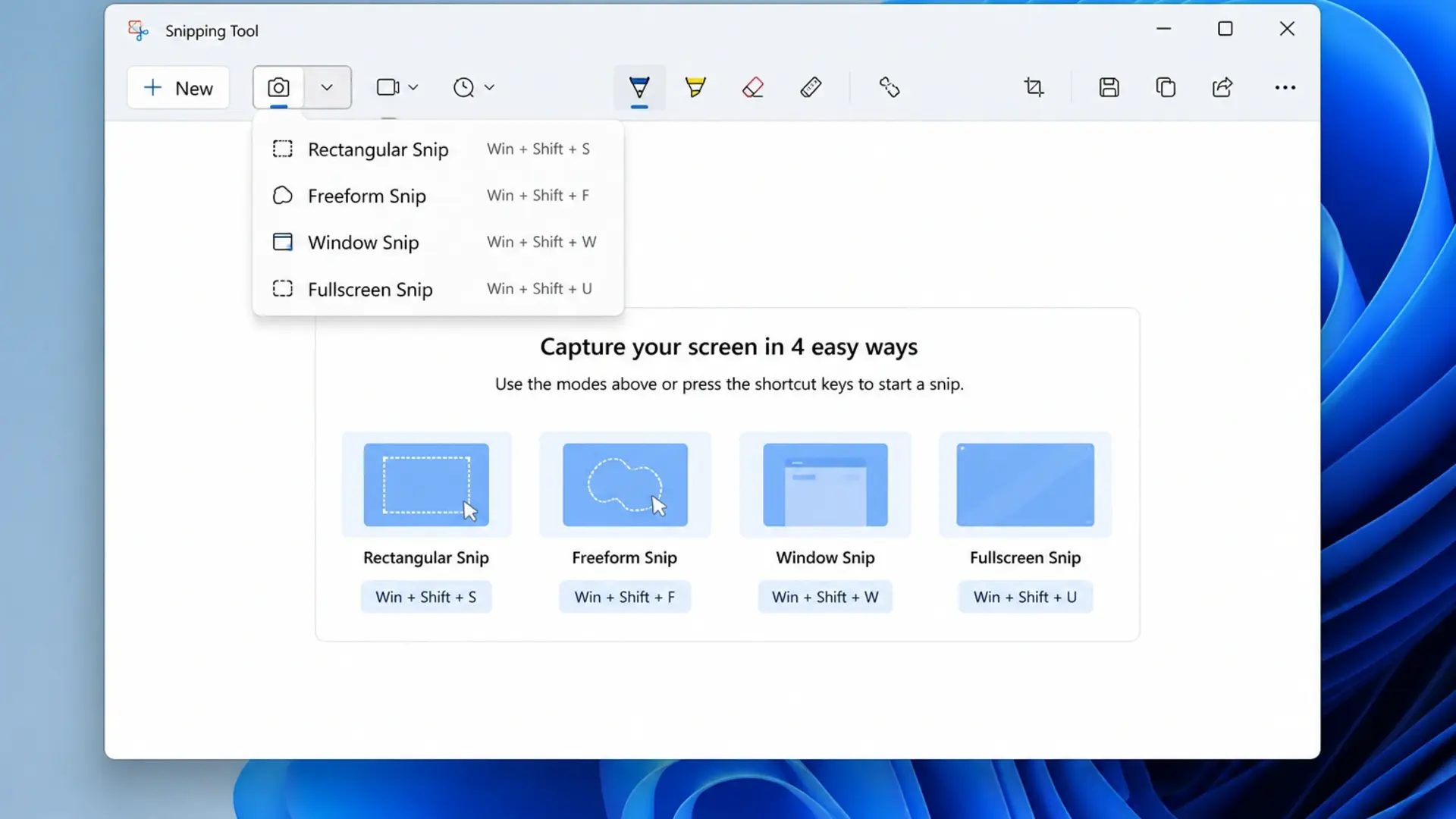
  • Click New to start a capture
  • Choose from Rectangle, Window, Full Screen, or Free-form modes
  • Click and drag to select your area
  • Edit with pen, highlighter, or crop tools
  • Save using Ctrl + S
take screenshot using snipping tool

Windows 11 also lets you set Print Screen to open the Snipping Tool directly. Go to Settings > Accessibility > Keyboard and enable “Use the Print Screen key to open screen capture.”

The snipping tool shortcut Windows + Shift + S works fastest for most users. After capturing, a notification appears in the corner . Click it to edit and save your screenshot.

How to Take Screenshot in Laptop Windows 10

Windows 10 offers similar methods with slight interface differences.

Quick Keyboard Methods

  • Windows + Shift + S – Opens Snip & Sketch overlay
  • Windows + PrtScn – Saves a full screenshot automatically
  • PrtScn – Copies screen to clipboard
  • Alt + PrtScn – Captures active window

Using Snip & Sketch

  • Press Windows + Shift + S
    Select capture mode from the toolbar:
  • Rectangular Snip
  • Freeform Snip
  • Window Snip
  • Fullscreen Snip
  • Click and drag to capture
  • Click the notification to open in the editor
  • Save with Ctrl + S

The screenshot shortcut key that Windows 10 users rely on most is Windows + Shift + S because it combines speed with selection flexibility. Your captures are saved to the clipboard first, then you can paste or save them anywhere.

If your laptop runs slowly when taking screenshots, background processes may be causing the issue. Check our guide on how to fix a laptop battery draining fast – the same fixes that improve battery life also boost overall performance.

How to Take Screenshot in Laptop Windows 7

Windows 7 lacks the modern snipping shortcuts but still offers reliable screenshot methods.

Basic Screenshot Methods

  • PrtScn – Captures entire screen to clipboard
  • Alt + PrtScn – Captures active window only
  • Paste into Paint or Word using Ctrl + V
  • Save the file manually

Using Snipping Tool (Windows 7)

  • Click Start menu
  • Type “Snipping Tool” in the search
  • Open the application
  • Click New
  • Select an area to capture
  • Save using File > Save As

Windows 7’s Snipping Tool works well, but requires more steps than newer versions. After capturing, you must manually save each screenshot before taking another.

How to Take Screenshot in Laptop Mac

Screenshot in Mac works differently from Windows, using the Command key instead of the Windows key.

How to Take Screenshot in Laptop Mac

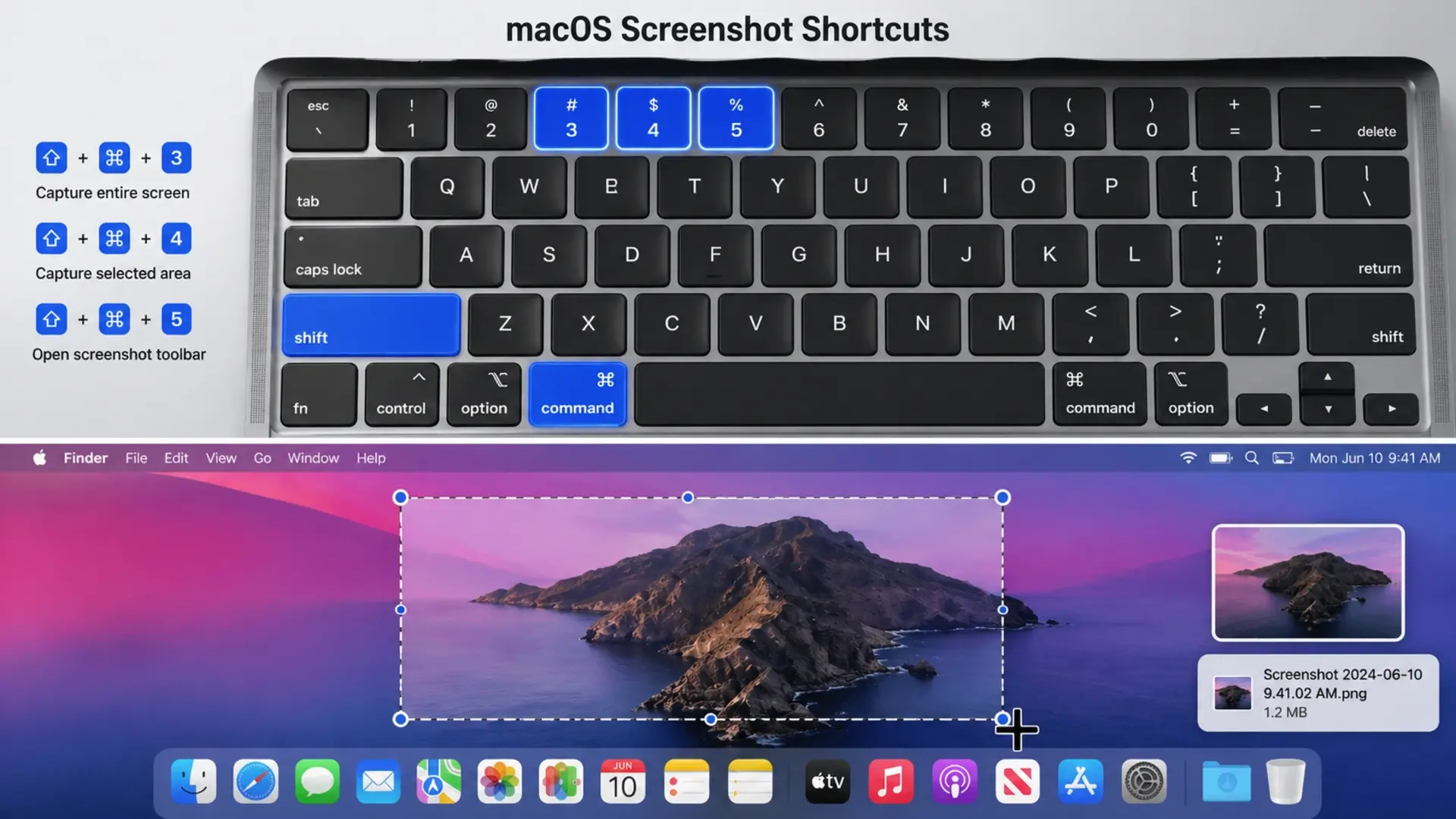
Mac Screenshot Shortcuts

  • Command + Shift + 3 – Captures entire screen
  • Command + Shift + 4 – Lets you select an area
  • Command + Shift + 4 + Spacebar – Captures specific window
  • Command + Shift + 5 – Opens screenshot toolbar with all options

Taking Selected Area Screenshots

  • Press Command + Shift + 4
  • Your cursor changes to crosshairs
  • Click and drag to select the area you want
  • Release to capture
  • Screenshot saves to the desktop automatically

Mac screenshots save to your desktop by default. You can change this location by pressing Command + Shift + 5, then clicking Options.

The Windows screenshot shortcut differs significantly from the Mac shortcut. If you switch between the two systems, remember that Command on Mac replaces the Windows key, and that shortcuts use Shift more frequently.

How to Take Screenshot in Laptop HP

HP laptops use standard Windows shortcuts plus some model-specific options.

Standard HP Screenshot Methods

  • PrtScn – Copies full screen (paste with Ctrl + V)
  • Windows + PrtScn – Saves screenshot automatically
  • Windows + Shift + S – Opens snipping tool
  • Fn + PrtScn – Required on some HP models

HP-Specific Tips

Some HP laptops place Print Screen on a shared key. Look for “PrtSc” printed in a different color (usually blue or grey). If so, press Fn + PrtSc together.

On HP Specter and Envy models, the Print Screen key may be located differently due to compact keyboard layouts. Check the top row near the Delete or Insert keys.

HP laptops from the best laptop brands in the world work with all standard Windows screenshot methods, making them easy to use for capturing screen content.

How to Take Screenshot in Laptop Dell

Dell laptops follow Windows conventions with reliable screenshot functionality.

Dell Screenshot Shortcuts

  • PrtScn – Captures entire screen to clipboard
  • Windows + PrtScn – Auto-saves to Screenshots folder
  • Alt + PrtScn – Captures active window only
  • Windows + Shift + S – Opens the selection snipping tool

Dell Function Key Combinations

On Dell Inspiron, XPS, and Latitude models, Print Screen usually works without the Fn key. However, if your screenshot doesn’t capture, try:

  • Fn + PrtScn on compact keyboards
  • Fn + Windows + PrtScn for auto-save

Dell XPS laptops sometimes map Print Screen to a secondary function. Check if “PrtScn” appears below another key label. This indicates you need the Fn key.

How to Take Screenshot in Laptop Lenovo

Lenovo laptops, especially ThinkPads, include additional screenshot options through their Vantage software.

Standard Lenovo Shortcuts

  • PrtScn – Full screen to clipboard
  • Windows + PrtScn – Saves screenshot automatically
  • Fn + PrtScn – Required on many Lenovo models
  • Windows + Shift + S – Opens snipping overlay
  • Fn + Spacebar – ThinkPad specific (some models)

ThinkPad Screenshot Key

Many ThinkPad keyboards include a dedicated screenshot key near the arrow keys. This key has a scissors icon and opens the snipping tool directly when pressed.

Lenovo Vantage software also provides screenshot options. Open Vantage, go to Device Settings, and explore keyboard shortcut customization.

How to Take Screenshot in Laptop with Keyboard

Every laptop keyboard includes screenshot capabilities via the laptop’s screenshot shortcut key.

Universal Keyboard Shortcuts (Windows)

ShortcutFunction
PrtScnCopy full screen to clipboard
Windows + PrtScnSave full screen automatically
Alt + PrtScnCopy active window to clipboard
Windows + Shift + SOpen selection tool
Windows + Alt + PrtScnCapture active window (Game Bar)

Finding Your Print Screen Key

The Print Screen key appears in different locations:

  • Full-size keyboards: Top row, after F12
  • Compact laptops: Shared with another key (use Fn)
  • Some HP/Dell: Near Delete or Insert
  • Gaming laptops: Often in a standard position

If you can’t find Print Screen, press Fn + Windows + Spacebar on some laptops, or use Windows + Shift + S, which works on all laptops.

How to Take Screenshot in Laptop Selected Area

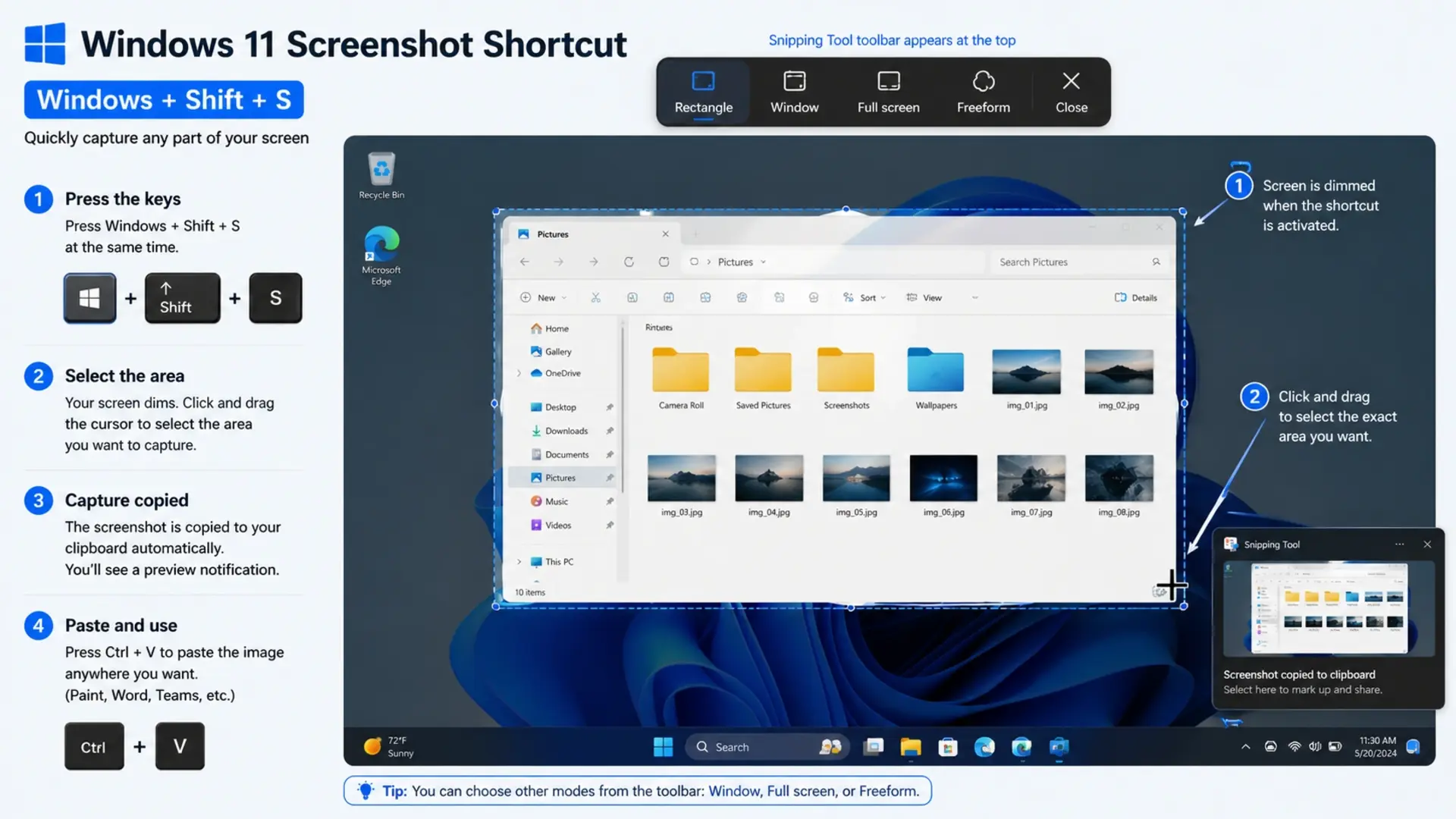
Press Windows + Shift + S to capture only a selected area of your screen. This snipping tool shortcut lets you draw a rectangle around exactly what you want to capture.

How to Take Screenshot in Laptop Selected Area

Step-by-Step Selected Area Capture

  • Press Windows + Shift + S
  • The screen dims, and the toolbar appears at the top
  • Choose Rectangular Snip (first icon)
  • Click and drag to draw a selection box
  • Release the mouse button to capture
  • Click notification to edit or save

Other Selection Options

The toolbar offers four capture modes:

  • Rectangular Snip – Draw a rectangle
  • Freeform Snip – Draw any shape
  • Window Snip – Click a window to capture it
  • Full-screen Snip – Capture everything

Your selected area is automatically copied to the clipboard. Paste it directly into documents, emails, or image editors using Ctrl + V.

Understanding your laptop screen size helps when planning screenshots, especially if you need specific dimensions for presentations or websites.

Where Screenshots Save on Your Laptop

Screenshots save to different locations depending on which method you use:

Windows Save Locations

  • Windows + PrtScn: Pictures > Screenshots folder
  • Snipping Tool/Snip & Sketch: You choose the location when saving
  • PrtScn alone: Clipboard only (paste somewhere first)
  • Windows + Shift + S: Clipboard, then save from the notification

Mac Save Locations

  • All shortcuts: Desktop by default
  • Command + Shift + 5: Choose a custom location in Options

Changing Default Save Location (Windows 11)

  • Open Snipping Tool
  • Click the three-dot menu
  • Select Settings
  • Under “Screenshots,” change the folder path

Frequently Asked Questions

What is the Ctrl key for screenshot on a laptop?

The Ctrl key alone doesn’t take screenshots on Windows laptops. You need the Print Screen (PrtScn) key to capture screenshots. However, Ctrl + V pastes screenshots after you capture them, and Ctrl + S saves screenshots in editing applications. 

What are three ways to take a screenshot on a PC?

The three main ways to take a screenshot on PC are: First, press Print Screen to capture your entire screen to the clipboard. Second, press Windows + Shift + S to open the snipping tool and select a specific area. Third, use the Snipping Tool application for more control over your captures with editing options.

Where is the screenshot key on a laptop?

The screenshot key (Print Screen) sits in the top row of your keyboard, typically after F12 and before Delete or Insert. Look for labels like PrtScn, PrtSc, Print, or a camera icon. On compact laptops, 

Where do Ctrl+Shift+S screenshots go?

Windows + Shift + S screenshots copy to your clipboard first, not a folder. After capturing, a notification appears in the bottom-right corner. Click this notification to open the screenshot in Snipping Tool, then save it wherever you choose using Ctrl + S. 

Need Help with Your Laptop?

Tech Point Zone stocks laptops from HP, Dell, Lenovo, ASUS, and all major brands with reliable keyboard functionality. Visit our Bur Dubai showroom for expert advice on choosing the right laptop for your needs.WhatsApp us at +971 525696022 or browse our collection at techpointzone.com.

How to Fix Laptop Battery Draining Fast

How to Fix Laptop Battery Draining Fast – Complete Solutions for UAE Users

Nothing frustrates laptop users more than watching their battery percentage drop rapidly. You charge your laptop fully, unplug it, and within an hour or two, you’re hunting for a power outlet again. This problem affects laptops across all brands and price ranges.

The good news? Most battery drain issues have straightforward fixes. Whether your laptop suddenly started draining faster or the decline has been gradual, this guide walks you through every proven solution. We’ll cover Windows 10 and Windows 11, as well as brand-specific fixes for Dell and Lenovo laptops.

How to Fix a Laptop Battery Draining Fast

Fix a laptop battery that drains fast by adjusting power settings, reducing screen brightness, closing background apps, and updating your drivers. These four steps solve most battery drain problems within minutes.

Here’s the quick-fix checklist:

  • Switch power mode to “Balanced” or “Best power efficiency.”
  • Lower screen brightness to 50-70%
  • Close unnecessary browser tabs and applications
  • Disable Bluetooth and WiFi when not needed
  • Update Windows and device drivers
  • Check battery health status

If your battery drains quickly despite being relatively new, software issues are usually the cause. Older batteries naturally lose capacity over time. Understanding how long a laptop battery should last helps you determine whether your battery performs normally or needs attention.

Let’s get into detailed fixes for each situation.

Why Is My Laptop Battery Draining So Fast All of a Sudden?

Sudden battery drain usually results from a recent Windows update, new software installation, or changed settings that increased power consumption without your knowledge.

How to Fix Laptop Battery Draining Fast

Common triggers for sudden battery drain:

  • A recent Windows update changed power settings or installed buggy drivers
  • New application running constantly in the background
  • Malware or unwanted software is consuming resources
  • Driver corruption after system changes
  • Wake timers are preventing proper sleep mode
  • Stuck process using high CPU continuously

To identify the culprit, open Task Manager (Ctrl + Shift + Esc) and check which processes use the most CPU and power. Sort by the “Power usage” column to spot the drain source immediately.

If problems started after a Windows update, the update may have reset your power settings to defaults or installed incompatible drivers. Rolling back recent updates or drivers often resolves sudden drain issues.

How to Fix Laptop Battery Draining Fast in Windows 11

Windows 11 includes improved power management, but incorrect settings still cause rapid drain. Follow these steps to optimize your Windows 11 laptop:

Fix Laptop Battery Draining Fast in Windows 11

Adjust Power Mode Settings

  • Click the battery icon in your taskbar
  • Move the slider toward “Best power efficiency.”
  • Alternatively, right-click the battery icon and select “Power and sleep settings.”
  • Under “Power mode,” choose “Best power efficiency” or “Balanced.”

Configure Display and Sleep Settings

  • Open Settings > System > Power & battery
  • Set “Screen” to turn off after 3-5 minutes
  • Set “Sleep” to activate after 5-10 minutes
  • Enable “Turn off my screen when I’m not looking at it” if available

Limit Background App Activity

  • Go to Settings > Apps > Installed apps
  • Click the three dots next to each app
  • Select “Advanced options.”
  • Under “Background app permissions,” choose “Never” for non-essential apps

Reduce Processor Power State

  • Open Control Panel > Power Options
  • Click “Change plan settings” next to your active plan
  • Select “Change advanced power settings.”
  • Expand “Processor power management.”
  • Set “Maximum processor state” to 80% on battery
  • Click Apply

Disable Unnecessary Features

  • Turn off keyboard backlight (Fn + relevant key)
  • Disable location services when not needed
  • Turn off transparency effects in Settings > Personalization> Colors
  • Disable animations in Settings > Accessibility > Visual effects

How to Fix Laptop Battery Draining Fast in Windows 10

Windows 10 power settings work slightly differently. Here’s how to optimize them:

Access Battery Settings

  • Click Start > Settings > System > Battery
  • Turn on “Battery saver” automatically at 20%
  • Check “Lower screen brightness while in battery saver.”
  • Click “See which apps are affecting your battery life.”

Adjust Power Plan

  • Open Control Panel > Hardware and Sound > Power Options
  • Select “Balanced” plan (not High Performance)
  • Click “Change plan settings.”
  • Set display off: 3-5 minutes on battery
  • Set sleep: 5-10 minutes on battery
  • Click “Change advanced power settings” for more control

Stop Background Apps

  • Go to Settings > Privacy > Background apps
  • Turn off “Let apps run in the background” entirely
  • Or disable individual apps you don’t need running

Disable Startup Programs

  • Press Ctrl + Shift + Esc to open Task Manager
  • Click the “Startup” tab
  • Right-click unnecessary programs and select “Disable.”
  • Focus on browser extensions, cloud sync, and update checkers

Check for Problematic Updates

  • Open Settings > Update & Security > Windows Update
  • Click “View update history.”
  • Note recent updates
  • If the drain started after a specific update, consider uninstalling it

How to Fix a Laptop Battery Draining Fast: Lenovo

Lenovo laptops include Vantage software with battery-specific features that help manage power consumption effectively.

Use Lenovo Vantage

  • Open Lenovo Vantage (pre-installed on most Lenovo laptops)
  • Go to “Device” > “Power.”
  • Enable “Battery Conservation Mode” to cap charging at 80%
  • Select “Intelligent Cooling” and choose “Battery Saving” mode
  • Run “Battery Gauge Reset” if the battery reports inaccurate percentages

Adjust Lenovo Power Settings

  • In Vantage, select “Power Smart Settings.”
  • Enable “Flip to Boot” only if you use it
  • Disable “Always On USB” to prevent drain when the laptop is off
  • Turn off “Rapid Charge” if you don’t need fast charging

Update Lenovo Drivers

  • Open Lenovo Vantage
  • Go to “System Update”
  • Install all available updates, especially:
    • Power management drivers
    • BIOS updates
    • Chipset drivers

ThinkPad-Specific Fixes

  • Access “Power Manager” in Lenovo Vantage
  • Enable “Adaptive Thermal Management”
  • Set threshold start/stop charging to optimize battery longevity
  • Disable “Wake on LAN” in BIOS if not needed

If your Lenovo laptop drains the battery even when turned off, check the “Always On USB” setting”. This feature keeps USB ports powered continuously and drains the battery overnight. Disabling it in BIOS or Vantage stops this drain immediately.

Fix a Laptop Battery Draining Fast Lenovo & Dell

How to Fix a Laptop Battery Draining Fast on a Dell

Dell laptops use Dell Power Manager and BIOS settings for battery optimization. Here’s how to configure them properly:

Configure Dell Power Manager

  • Open Dell Power Manager (download from Dell if not installed)
  • Go to “Battery Information” to check current health
  • Select “Battery Settings”
  • Choose “Primarily AC Use” if the laptop stays plugged in mostly
  • Or select “Adaptive” for mixed usage patterns

Adjust Thermal Management

  • In Dell Power Manager, go to “Thermal Management.”
  • Select “Optimized” or “Cool” instead of “Ultra Performance.”
  • This reduces the processor speed slightly but extends the battery significantly

Update Dell Drivers

  • Open Dell SupportAssist (pre-installed on Dell laptops)
  • Click “Check for updates.”
  • Install all driver updates, particularly:
    • Intel Management Engine
    • BIOS updates
    • Chipset drivers
    • Dell Power Manager updates

BIOS Power Settings

  • Restart the laptop and press F2 repeatedly to enter BIOS
  • Navigate to “Power Management”
  • Enable the “Block Sleep” feature if the laptop wakes randomly
  • Disable “Wake on LAN” and “Wake on Dell USB-C Dock”
  • Set “Lid Switch” to sleep when closed

Fix Dell Battery Calibration

  • In Dell Power Manager, find “Battery Health.”
  • If showing “Calibration needed,” run the calibration process
  • This takes several hours but fixes inaccurate percentage readings

Dell laptops sometimes drain the battery faster after BIOS updates. If the drain started after a BIOS update, check Dell’s support site for newer versions that may fix the issue.

Why My Laptop Battery Is Draining So Fast Even When Off

A laptop draining battery while completely shut down indicates hardware settings keeping components active or a failing battery that can’t hold a charge.

Common causes of a drain when powered off:

  • Fast Startup enabled: Laptop enters hibernation instead of full shutdown
  • Wake timers active: Scheduled tasks wake the system periodically
  • USB charging enabled: Ports supply power even when the laptop is off
  • Connected devices: USB devices draw power continuously
  • Network wake features: WiFi or LAN card stays partially powered
  • Battery degradation: Old batteries self-discharge faster

Fixes for Drain When Off

Disable Fast Startup:

  • Open Control Panel > Power Options
  • Click “Choose what the power buttons do.”
  • Click “Change settings that are currently unavailable.”
  • Uncheck “Turn on fast startup.”
  • Click Save changes

Disable Wake Timers:

  • Open Control Panel > Power Options
  • Click “Change plan settings” > “Change advanced power settings.”
  • Expand “Sleep” > “Allow wake timers.”
  • Set to “Disable” for both battery and plugged in

Turn Off USB Charging When Off:

  • Enter BIOS (restart and press F2 or Del)
  • Find “USB PowerShare” or “Always On USB”
  • Disable this feature
  • Save and exit BIOS

Disconnect All USB Devices:

  • Remove external drives, mice, and other USB accessories before shutdown
  • Some devices continue drawing power even when the laptop is off

If the battery still drains when off after these fixes, the battery itself may be failing and need replacement.

My Laptop Battery Is Draining Fast Even After a Full Charge

A battery draining rapidly after reaching 100% suggests either incorrect battery calibration, degraded battery health, or power-hungry processes starting immediately.

Check Actual Battery Health

On Windows 10/11, generate a battery report:

  • Open Command Prompt as Administrator
  • Type: powercfg /batteryreport
  • Press Enter
  • Open the generated HTML file from C:\Users[YourName]\battery-report.html
  • Compare “Design Capacity” vs “Full Charge Capacity”

If Full Charge Capacity shows significantly less than Design Capacity (below 70%), your battery has degraded and may need replacement.

Calibrate Your Battery

Calibration fixes inaccurate percentage readings:

  • Charge the laptop to 100%
  • Keep it plugged in for 2 hours after reaching 100%
  • Unplug and use normally until the laptop shuts down from low battery
  • Leave it off for 5 hours
  • Charge back to 100% without interruption

This process resets the battery sensor and often fixes “drain after full charge” issues.

Identify Immediate Power Draw

Some applications start automatically and consume power instantly:

  • Check the Task Manager immediately after unplugging
  • Look for high CPU usage processes
  • Disable unnecessary startup programs
  • Update or uninstall recently added software

When comparing laptops for better battery management, options like Chromebooks vs traditional laptops offer different approaches. Chromebooks typically provide longer battery life due to lighter operating systems.

Quick Fixes for Common Battery Drain Issues

Screen Brightness Draining Battery

Your display consumes more power than any other component.

  • Lower brightness to 50-70% for indoor use
  • Enable auto-brightness if available
  • Use dark mode in apps and Windows
  • Reduce screen timeout to 2-3 minutes

Browser Tabs Killing Battery

Each open tab consumes memory and CPU resources.

  • Close tabs you’re not actively using
  • Use tab suspension extensions
  • Avoid sites with heavy animations or auto-playing videos
  • Switch to a more efficient browser (Edge often beats Chrome for battery)

Background Apps Eating Power

Many apps run invisibly and drain battery.

  • Open Settings > Apps > Installed apps
  • Check “Background apps” permissions
  • Disable background access for non-essential apps
  • Uninstall apps you don’t use

Peripheral Devices Causing Drain

Connected accessories draw power continuously.

  • Disconnect USB drives when not needed
  • Use Bluetooth devices sparingly on battery
  • Remove SD cards when not in use
  • Unplug external monitors and docking stations

WiFi and Bluetooth Draining Battery

Wireless radios consume power constantly while searching for connections.

  • Enable Airplane Mode when working offline
  • Turn off Bluetooth if not using wireless accessories
  • Disable WiFi when not needed
  • Use wired connections when possible

Advanced Battery Drain Fixes

Update All Drivers

Outdated drivers cause inefficient power management.

  • Open Device Manager
  • Right-click each device category
  • Select “Update driver.”
  • Focus on:
    • Display adapters
    • Network adapters
    • Batteries
    • System devices

Reset Power Plans to Default

Corrupted power settings cause unusual drain.

  • Open Command Prompt as Administrator
  • Type: powercfg -restoredefaultschemes
  • Press Enter
  • Restart your laptop
  • Reconfigure your preferred settings

Scan for Malware

Malicious software runs hidden processes that drain the battery.

  • Open Windows Security
  • Run a full system scan
  • Remove any detected threats
  • Consider running Malwarebytes for additional protection

Check for Firmware Updates

BIOS and firmware updates often include power management improvements.

  • Visit your laptop manufacturer’s support website
  • Download and install the latest BIOS
  • Follow the manufacturer’s instructions carefully
  • Restart after installation

Disable Search Indexing

Windows Search constantly indexes files, consuming power.

  • Open Services (search “services” in Start menu)
  • Find “Windows Search”
  • Right-click and select “Properties.”
  • Change Startup type to “Disabled.”
  • Click Stop, then OK

When Battery Replacement Becomes Necessary

When Battery Replacement Becomes Necessary

Consider replacement when:

  • Battery health shows below 60% of design capacity
  • Runtime drops below 50% of the original duration
  • The battery swells or shows physical damage
  • Laptop shuts down randomly despite showing a charge
  • The battery won’t charge past a certain percentage

If your laptop is several years old, you might also consider whether upgrading makes more sense than replacing just the battery. Understanding the differences between used and refurbished laptops helps you evaluate whether a refurbished model might better suit your needs.

Preventing Future Battery Drain Problems

Maintain good battery habits to prevent drain issues:

  • Keep charge between 20-80% when possible
  • Avoid extreme temperatures – UAE heat accelerates battery degradation
  • Update Windows regularly – patches often fix power bugs
  • Clean vents – overheating forces fans to work harder
  • Unplug at 100% – constant full charge stresses battery cells
  • Use sleep mode – shutdown and startup consume more power than waking from sleep

Choosing the right laptop also matters. Some brands from the best laptop brands in the world prioritize battery efficiency more than others. Business-class laptops typically offer better power management than budget consumer models.

Frequently Asked Questions

How do I restore my laptop’s battery health to 100%?

You cannot restore a degraded lithium-ion battery to 100% health; lithium-ion batteries permanently lose capacity through chemical aging. Once Full Charge Capacity drops below Design Capacity, that loss is permanent. However, you can slow future degradation by keeping the charge between 20% and 80%, avoiding heat exposure, using battery-saver modes, and not leaving your laptop plugged in constantly at 100%. 

What kills a laptop battery the fastest?

Heat damages laptop batteries faster than anything else. Using your laptop in the UAE’s summer heat without air conditioning or blocking ventilation accelerates degradation dramatically. Other battery killers include keeping the laptop plugged in at 100% constantly, regularly draining to 0%, running demanding applications that generate heat, leaving the laptop in hot cars, and using incompatible chargers. 

How to make 10% battery last 2 hours?

Making 10% last for 2 hours requires aggressive power-saving. Immediately enable Battery Saver mode, reduce screen brightness to the minimum comfortable level, close all unnecessary applications and browser tabs, enable Airplane Mode to disable all wireless connections, pause cloud syncing and automatic updates, and avoid video playback or heavy tasks. 

How can I reset my laptop battery?

Resetting a laptop battery involves calibrating it to fix inaccurate percentage readings. Charge your laptop to 100% and keep it plugged in for 2 additional hours. Then unplug and use normally until the laptop shuts down completely from low battery. Leave it powered off for 5 hours, then charge to 100% without interruption. 

Fix Your Battery Drain Today

Still struggling with battery drain after trying these fixes? Tech Point Zone offers free battery diagnostics at our Bur Dubai showroom. Our technicians determine whether software adjustments can resolve your problem or if a battery replacement makes more sense.

Contact us at +971 525696022 via WhatsApp or visit techpointzone.com for assistance.

how to connect external monitor to laptop

How to Connect External Monitor to Laptop – Complete Setup Guide

Adding an external monitor to your laptop transforms how you work. You get more screen space for multitasking, better visibility for detailed work, and a proper desk setup that reduces neck strain. Whether you’re coding, designing, gaming, or want a bigger display, connecting a monitor takes only minutes.

This guide covers every method for connecting your laptop to a monitor, including with cables, adapters, or wirelessly. We’ll walk through Windows 10 and Windows 11, and even help you connect a laptop with a broken screen to an external display.

Understanding Laptop to Monitor Connector Types

Before you start, check what ports your laptop and monitor have. The laptop to monitor connector you need depends on these ports.

HDMI remains the most common connection type. Most laptops made after 2010 include an HDMI port, and nearly all monitors accept HDMI input. HDMI carries both video and audio through a single cable.

USB-C ports are common on newer laptops, especially ultrabooks and MacBooks. If your USB-C port supports DisplayPort Alternate Mode or Thunderbolt, it can output video to monitors. You’ll need either a USB-C to HDMI adapter or a USB-C to DisplayPort cable.

DisplayPort offers higher refresh rates than HDMI, making it popular among gamers and programmers who need crisp text. Some laptops include mini-DisplayPort instead of full-size.

VGA is an older analog standard still found on some business laptops and older monitors. It only carries video, not audio.

Check both your laptop and monitor ports. If they don’t match, you’ll need an adapter. Common adapters include USB-C to HDMI, mini-DisplayPort to HDMI, and VGA to HDMI.

How to Connect External Monitor to Laptop with HDMI

  • Turn off your laptop to prevent display detection issues
  • Plug one end of the HDMI cable into your laptop’s HDMI port
  • Connect the other end to your monitor’s HDMI input
  • Turn on your monitor first
  • Select the correct HDMI input using the monitor’s menu buttons
  • Power on your laptop
  • Wait for Windows to automatically detect the external monitor

If nothing appears on screen:

  • Press Windows key + P on your keyboard
  • Select “Extend” to use both screens independently
  • Or select “Duplicate” to show the same content on both

The same basic process works for DisplayPort, USB-C, and other connections.

How to Connect External Monitor to Laptop Windows 11

Windows 11 handles external monitors smoothly. After connecting your cable:

  • Right-click anywhere on your desktop
  • Select “Display settings.”
  • View all detected monitors as numbered rectangles
  • Click “Detect” if your monitor doesn’t appear automatically
  • Drag the monitor rectangles to match their physical desk position
  • Scroll down to find “Multiple displays.”
  • Choose your preferred setup from the dropdown:
  • “Extend these displays” – independent screens
  • “Duplicate these displays” – mirror your laptop screen
  • “Show only on 2” – turns off laptop display entirely
  • Click the monitor you want to configure
  • Adjust resolution, scaling, and orientation as needed
  • Click “Apply” to save changes

Quick shortcut: Press Windows + P at any time to switch between display configurations without opening settings.

How to Connect an External Monitor to a Laptop Windows 10

Windows 10 works similarly to Windows 11 with minor interface differences:

  • Connect your monitor cable and turn on both devices
  • Right-click the desktop
  • Choose “Display settings.”
  • View your connected monitors as numbered boxes
  • Click “Detect” if your monitor isn’t showing
  • Under “Multiple displays,” select your preferred mode:
  • “Extend desktop to this display” – larger workspace across both screens
  • “Duplicate desktop on 1 and 2” – identical content on both
  • Click the monitor you want as primary
  • Check “Make this my main display.”
  • Click “Apply” to confirm

Quick shortcut: Use Windows + P to switch between display modes.

How to Connect Monitor to Laptop Shortcut

Keyboard shortcuts save time when managing external displays:

  • Windows + P: Opens the Project panel instantly
  • Use the arrow keys to select between options
  • Press Enter to confirm your choice
  • Windows + Shift + Left Arrow: Moves the active window to the left monitor
  • Windows + Shift + Right Arrow: Moves the active window to the right monitor
  • Windows + Home: Minimizes all windows except the active one

Function key combinations by brand:

  • Dell: Fn + F4
  • Lenovo: Fn + F7
  • HP: Fn + F8
  • ASUS: Fn + F8
  • Acer: Fn + F5

Look for the key with a monitor icon on your keyboard for your specific model.

How to Connect External Monitor to Laptop Without an HDMI Port

Not every laptop includes HDMI. Here’s how to connect your monitor without it:

USB-C Connection

  • Check if your laptop’s USB-C port supports video output
  • Buy a USB-C to HDMI adapter or cable (AED 50-150)
  • Plug the USB-C end into your laptop
  • Connect the HDMI end to your monitor
  • Follow standard display setup steps

For more versatility, use a USB-C docking station:

  • Connect the docking station to the laptop via USB-C
  • Plug the monitor into the dock’s HDMI or DisplayPort
  • Dock adds multiple ports through a single connection
  • Ideal for people who regularly connect/disconnect their laptops

VGA Connection

  • Connect the VGA cable between the laptop’s VGA port and the monitor
  • Note: VGA only carries video, not audio
  • Connect separate speakers or a 3.5mm audio cable for sound
  • If the monitor lacks a VGA input, use a VGA to HDMI converter

DisplayPort Connection

  • Use a DisplayPort cable for a direct connection
  • Or use a mini-DisplayPort adapter if the laptop has a smaller port
  • DisplayPort supports up to 240Hz refresh rates
  • Ideal for gaming monitors

How to Connect External Monitor to Laptop Wirelessly

Wireless connections eliminate cable clutter. You can connect your laptop to a TV or monitor wirelessly using built-in Windows features.

Using Miracast on Windows

  • Ensure your TV or monitor supports Miracast
  • Press Windows + K to open the Connect panel
  • Wait for Windows to scan for wireless displays
  • Select your TV or monitor from the list
  • Follow on-screen prompts to complete the connection
  • Choose display mode (Extend, Duplicate, etc.)

If your TV doesn’t appear:

  • Check that the TV is in screen mirroring mode
  • Look for settings labeled Miracast, Screen Mirroring, or Wireless Display
  • Restart both devices and try again

Using a Wireless Display Adapter

  • Plug the Miracast adapter into the monitor’s HDMI port
  • Connect the adapter’s USB cable for power
  • Press Windows + K on the laptop
  • Select the adapter from the device list
  • Follow pairing instructions

Note: Wireless connections have a slight lag, which is fine for presentations but not ideal for gaming.

How to Connect a Dell Laptop to a Monitor

Dell laptops support standard connection methods, but Dell also offers additional software tools. After connecting your cable, Dell Display Manager lets you arrange windows and create custom layouts across multiple screens.

Most Dell laptops include HDMI ports. Newer XPS models use USB-C or Thunderbolt instead. Check your specific model’s ports before buying cables.

For Dell docking stations, connect the docking station cable to your laptop. The dock automatically handles all monitor connections. Dell docks work best with Dell laptops, but generally support other brands too.

If your Dell laptop gets warm while driving an external monitor, ensure it is properly ventilated. Check our guide on how to stop laptop fan noise for tips on keeping your system cool during demanding tasks.

How to Connect External Monitor to Laptop in Ubuntu

  • Connect your cable, and Ubuntu should recognize the display within seconds.
  • To configure settings, click Activities in the top-left corner and search for “Displays.” The Display settings panel shows all connected monitors.
  • Drag monitors to arrange their positions. Click a monitor to select it, then adjust resolution, refresh rate, and scaling. Choose “Join Displays” to extend your desktop, or “Mirror” to duplicate your screen.

If Ubuntu doesn’t detect your monitor, open a terminal and type “xrandr” to see all connected outputs. This command shows which ports Ubuntu recognizes and their current status.

For persistent detection issues, updating your graphics drivers often helps. Use the “Additional Drivers” tool in Ubuntu to install proprietary NVIDIA or AMD drivers if available for your hardware.

How to Connect External Monitor to Laptop with Broken Screen

  • Turn off your laptop completely. Connect the monitor cable to your laptop and monitor. Turn on the monitor first, then power on your laptop.

Many laptops automatically detect and output to an external monitor when the internal display fails. If your external monitor stays blank, press Windows + P, then press the Down arrow key twice, then Enter. This selects “Second screen only” mode even though you can’t see the menu.

  • Alternatively, press the function key combination for external displays. This varies by brand – common combinations include Fn + F4, Fn + F7, or Fn + F8. Look for a key with a monitor icon.
  • If nothing works, try closing the laptop lid after booting. Some laptops switch to external output when the lid closes. You can change power settings later to keep the laptop running with the lid closed.
  • For severely damaged laptops where even blind keyboard commands fail, consider connecting an external keyboard and mouse. Boot with the external monitor connected and use Tab, Enter, and arrow keys to navigate login screens without seeing them.

Troubleshooting External Monitor Connection Issues

Display detection issues frustrate many users. Here’s how to fix common problems.

1. Check Physical Connections First

Unplug the cable from both ends, then reconnect it firmly. Connectors sometimes feel secure but sit slightly loose. Try a different cable if available. Cables fail more often than you’d expect.

Ensure your monitor is set to the correct input source. Press the monitor’s menu button and manually select the input you’re using.

2. Update Graphics Drivers

Outdated drivers cause many detection problems. Open Device Manager, expand “Display adapters,” right-click your graphics card, and select “Update driver.” Choose “Search automatically for drivers.”

For better results, download drivers directly from your GPU manufacturer’s website, NVIDIA, AMD, or Intel, depending on your hardware.

3. Force Display Detection

Open Display Settings and click “Detect.” Windows scans for connected monitors and often finds displays that didn’t appear automatically.

Press Windows + P, then select “Extend” or “Duplicate,” even if no monitor shows. Sometimes this forces Windows to output a signal.

4. Resolution Compatibility Issues

Your laptop might send a resolution that the monitor can’t display. Try booting in Safe Mode, which uses a basic resolution. If the monitor works in Safe Mode, adjust resolution settings in normal Windows.

Lower the resolution temporarily to test if that’s the issue. Some older monitors struggle to display 4K signals even when the cable supports them.

Frequently Asked Questions

How do I get my laptop to recognize my external monitor?

Connect your cable securely and ensure the monitor is powered on with the correct input selected. Open Display Settings by right-clicking your desktop and selecting “Display settings.” Click the “Detect” button to force Windows to scan for connected displays.

How to manually connect a monitor to a laptop?

Turn off both devices before connecting. Plug your video cable (HDMI, USB-C, DisplayPort, or VGA) into your laptop’s video output port and your monitor’s input port. If ports don’t match, use an appropriate adapter. Power on your monitor first and select the correct input source using the monitor’s physical buttons. Turn on your laptop. Open Display Settings through right-clicking the desktop, then configure how you want to use both screens: extend, duplicate, or use only the external monitor.

Why won’t my laptop connect to a monitor via HDMI?

Several issues cause HDMI connection failures. First, check that the cable sits firmly in both ports, and reseat connections at both ends. Verify your monitor is set to the correct HDMI input using its menu buttons. Try a different HDMI cable, as they frequently fail. Update your graphics drivers through Device Manager or your GPU manufacturer’s website. 

What cables connect a monitor to a laptop?

HDMI cables work with most laptops and monitors and carry both video and audio. USB-C cables connect modern laptops to monitors if your USB-C port supports video output (DisplayPort Alt Mode or Thunderbolt). DisplayPort cables offer high refresh rates for gaming monitors. VGA cables work with older equipment but carry only video without audio.

Why can’t my laptop detect my monitor?

Detection failures typically stem from physical connection issues, driver problems, or incorrect settings. Start by checking cable connections. Unplug and firmly reconnect both ends. Ensure the monitor is powered on and set to the correct input source. Update graphics drivers from your manufacturer’s website rather than relying on Windows Update. In Display Settings, click “Detect” to force Windows to scan for displays. 

Get the Right Laptop for Your Setup

A proper laptop with an external monitor setup significantly boosts productivity. If your current laptop struggles with external displays, lacks the right ports, or runs too hot under dual-monitor workloads, consider upgrading.

Tech Point Zone stocks laptops from leading brands, including Dell, HP, ASUS, and Lenovo, all with modern connectivity options perfect for multi-monitor setups. Our business laptops come equipped with USB-C, HDMI, and Thunderbolt ports for seamless connections to external displays.

Visit our Bur Dubai showroom or browse online with free delivery across the UAE on orders above AED 1,000. WhatsApp us at +971 525696022 for recommendations on laptops that work perfectly with your existing monitors.

how to stop laptop fan noise

How to Stop Laptop Fan Noise – Complete Guide for UAE Users

That loud whirring sound from your laptop can drive anyone crazy. Whether you’re working from home in Dubai, attending online classes, or gaming late at night, a noisy laptop fan breaks your focus and raises concerns about your device.

The good news is that most laptop fan noise problems have simple fixes you can do yourself. This guide covers everything from quick software tweaks to hands-on cleaning methods that actually work.

Why Is My Laptop Fan So Loud?

When the processor or graphics card heats up, the fan spins faster to push out hot air. This creates noise, and sometimes that noise becomes a problem.

Several things cause excessive fan noise:

  • Dust buildup inside your laptop blocks airflow, forcing the fan to work harder.
  • Too many programs running at once overload your processor and generate extra heat.
  • Poor ventilation from using your laptop on soft surfaces like beds or couches traps heat inside.
  • Old thermal paste between the processor and heatsink loses effectiveness over time.
  • Sometimes the fan itself wears out and needs to be replaced.

Many users in the UAE notice louder fans during the summer months. Higher room temperatures mean your laptop’s cooling system works overtime to maintain safe operating temperatures.

Quick Fixes You Can Try Right Now

  • Place your laptop on a hard, flat surface. Desks and tables allow proper airflow underneath your device. Soft surfaces block vents and trap heat, making fans spin louder. A laptop cooling pad can help significantly in warm environments.
  • Close programs you don’t need. Open Task Manager on Windows (press Ctrl + Shift + Esc) and check which applications consume the most CPU power. End tasks that use a lot of resources but aren’t essential. Browser tabs, especially those playing videos, often consume more power than you’d expect.
  • Check your power settings. Windows laptops often default to high-performance mode when plugged in, which generates more heat. Your fan might run louder while charging because the laptop automatically switches to performance mode and runs the processor at higher speeds.

How to Stop Fan Noise in Laptop Windows 11

  • Right-click the battery icon on your taskbar, then select “Power and sleep settings.”
  • Change the Power Mode from “Best performance” to “Balanced” or “Best power efficiency.”

This reduces processor speed during light tasks and lowers heat output.

For more control;

  • Open Control Panel, go to Hardware and Sound, then Power Options.
  • Click “Change plan settings” next to your active plan, then “Change advanced power settings.”
  • Find “Processor power management” and set the maximum processor state to 80% or 90%.

Your laptop will run slightly slower but much cooler and quieter.

Update your drivers regularly. Outdated graphics drivers and chipset software can cause your laptop to work inefficiently. Visit your manufacturer’s website or use Windows Update to get the latest versions.

How to Stop Your HP Laptop Fan From Making Noise

HP laptops include the HP Command Centre software, which directly controls thermal profiles. Open the app and switch from “Performance” to “Comfort” or “Quiet” mode. This tells your laptop to prioritise low noise over maximum speed.

HP Smart Sense, available on Spectre and Envy models, automatically reduces fan noise when you’re watching videos or listening to music. The software detects media playback and adjusts cooling accordingly.

If your HP laptop fan runs loudly even during light use, run HP PC Hardware Diagnostics. Press Esc during startup, then F2 to access the diagnostics menu. Run the fan test to check for hardware problems.

How to Stop Laptop Fan Noise: Dell

Dell laptops use Dell Power Manager to control thermal settings. Open the application and look for the Thermal Management tab. Switch from “Ultra Performance” to “Quiet” or “Cool” mode.

Some Dell models allow BIOS-level fan control. Restart your laptop and press F2 during boot to enter BIOS setup. Navigate to Power Management or Thermal Management and adjust fan behaviour. Choose “Quiet” if available.

Dell SupportAssist can also automatically diagnose fan problems. The software runs hardware tests and identifies failing components before they cause bigger issues.

How to Stop Laptop Fan Noise Mac

  • Open Activity Monitor (search in Spotlight with Command + Space).
  • Click the CPU tab and sort by CPU usage.
  • Quit applications are consuming high resources. Safari with many tabs, Chrome, and video editing software often cause spikes in fan noise.
  • Reset the SMC (System Management Controller) on Intel Macs to fix fan control issues.
  • Shut down your Mac completely. Hold Shift + Control + Option, then press and hold the power button for 10 seconds.
  • Release all keys and turn your Mac back on normally.

For Apple Silicon Macs (M1, M2, M3):

  • Restart your MacBook. The newer chips manage thermals differently and rarely cause persistent fan issues unless something’s genuinely wrong.
  • Keep your Mac updated. Apple regularly releases software updates that improve thermal management and fan behaviour.

Cleaning Your Laptop Fan

Dust accumulation remains the most common cause of loud fans. Cleaning restores proper airflow and can make a dramatic difference.

Turn off your laptop and unplug it completely. Use compressed air to blow dust from the vents. Hold the can upright and use short bursts at an angle – never spray directly into the laptop. Work around all vents, including the exhaust where hot air exits.

For deeper cleaning, you may need to open your laptop’s bottom panel. Check your manufacturer’s service manual for instructions specific to your model. Use a soft brush to gently clean fan blades and remove stubborn dust from heatsink fins.

If your laptop is over two years old, consider replacing the thermal paste. This requires removing the cooling system, cleaning old paste from the processor, and applying fresh thermal compound. Many repair shops in Dubai offer this service at an affordable price if you’re not comfortable doing it yourself.

What If Your Laptop Fan Makes a Grinding Noise?

A grinding or rattling sound indicates a different problem than normal fan noise. This usually means the fan bearings are wearing out or something is physically obstructing the fan blades.

First, check for loose screws inside your laptop. A screw that came loose can contact spinning fan blades and create grinding sounds. Cables that shifted out of position can also rub against the fan.

Inspect the fan blades for damage. Bent or cracked blades cause noise and reduce cooling efficiency. If you spot physical damage, the fan needs to be replaced.

Worn bearings cannot be repaired. When fan bearings fail, the entire fan assembly needs to be replaced. This is a common repair that Tech Point Zone can help you with. We stock replacement parts for most laptop brands and offer repair guidance.

When to Seek Professional Help

Some fan problems require expert attention. Seek professional repair if cleaning doesn’t reduce noise after thorough dust removal, your laptop overheats even with the fan running at full speed, you hear persistent grinding or clicking sounds, or the fan stops working entirely.

Continuing to use a laptop with cooling problems risks permanent damage to the processor and other components. Heat kills electronics faster than almost anything else.

Tech Point Zone stocks laptops from major brands, including HP, Dell, ASUS, and Lenovo. If your current laptop has persistent fan issues that repairs can’t fix, upgrading to a newer model with better cooling might be the smarter long-term choice.

Frequently Asked Questions

How do I stop my laptop from sounding like a jet engine?

Start by placing your laptop on a hard surface and closing unnecessary programs. Clean the vents with compressed air to remove dust buildup. Change your power settings to Balanced mode instead of High Performance. If the noise continues, your fan may need cleaning internally or replacement.

How do I turn off the laptop fan sound?

You cannot completely turn off your laptop’s fan without risking serious overheating damage. However, you can reduce fan noise by lowering power settings, closing resource-intensive applications, cleaning vents of dust, and using your laptop in cooler environments. Some manufacturer software, like HP Command Centre, offers “Quiet” modes that minimise fan activity.

Is it okay to use a laptop with a noisy fan?

Normal fan noise during heavy tasks like gaming or video editing is fine. Your cooling system is doing its job. However, constant loud noise during light tasks, grinding sounds, or clicking indicate problems that need attention. Ignoring these warning signs can lead to overheating, component damage, and a shorter laptop lifespan.

Why is my laptop fan always running?

Constant fan activity usually means your laptop runs hotter than it should. Common causes include dust blocking vents, too many background programs consuming CPU power, malware infections, outdated drivers, or degraded thermal paste. Check Task Manager for suspicious processes and clean your laptop’s vents as the first steps.

Conclusion

Laptop fan noise doesn’t have to ruin your work or gaming sessions. Most problems come down to dust buildup, too many programs running, or incorrect power settings – all fixable within minutes.

Regular maintenance prevents future problems. Clean your vents every few months, use a hard surface, and keep your software updated. Your laptop will run quieter and last longer.

Still struggling with a noisy laptop? Sometimes older machines with worn cooling systems cost more to fix than they’re worth. Browse our collection of quiet, efficient laptops at Tech Point Zone, we stock models from HP, Dell, ASUS, and Lenovo with advanced cooling designed for UAE weather. Free delivery across Dubai and all Emirates on orders above AED 1,000.

How to Connect Your Laptop to Your TV Wirelessly or With HDMI

How to Connect Your Laptop to Your TV Wirelessly or With HDMI

Want to watch your laptop screen on a bigger display? Connecting your laptop to your TV opens up a world of possibilities. Stream Netflix on your living room TV. Give presentations without squinting at a small screen. Play games on a display that does justice to the graphics.

This guide covers every method to connect your laptop to your TV, both wired and wireless. Whether you have a TCL, Hisense, Samsung, LG, or any other smart TV in the UAE, you will find step-by-step instructions here.

Why Connect Your Laptop to Your TV?

Your TV offers a larger screen than any laptop. A 55-inch display beats a 15-inch screen for movie nights, photo slideshows, video calls with family abroad, or working from home with more screen space.

Common reasons people connect laptops to TVs include:

  • Streaming content is not available on TV apps
  • Watching downloaded movies and videos
  • Sharing photos with family gatherings
  • Giving presentations at home or the office
  • Using the TV as a second monitor for work
  • Playing PC games on a bigger screen

Let us explore both HDMI and wireless methods so you can choose what works best for your setup.

How to Connect a Laptop to a TV With HDMI

HDMI remains the simplest and most reliable connection method. One cable carries both video and audio. No apps needed. No WiFi required. Just plug and play.

What You Need

  • HDMI cable (any length works, but shorter cables perform better)
  • Laptop with an HDMI port
  • TV with HDMI input

Step-by-Step Instructions

  • Step 1: Locate the HDMI port on your laptop. Most laptops have the port on the left or right side. It looks like a thin trapezoid shape.
  • Step 2: Find an available HDMI port on your TV. TVs typically have 2-4 HDMI ports on the back or side. Note which port number you use (HDMI 1, HDMI 2, etc.).
  • Step 3: Connect one end of the HDMI cable to your laptop and the other end to your TV.
  • Step 4: Turn on your TV and use the remote to select the correct HDMI input. Press the Source or Input button and choose the matching HDMI port.
  • Step 5: Your laptop screen should appear on the TV. If it does not appear automatically, press Windows key + P on your laptop and select Duplicate or Extend.

Display Mode Options

When you press Windows key + P, you see four options:

  • PC screen only: TV shows nothing, laptop works normally
  • Duplicate: Both screens show the same content.
  • Extend: TV becomes a second monitor, and you can drag windows between screens.
  • Second screen only: Laptop screen turns off, only the TV displays

Choose Duplicate for movies and presentations. Choose Extend for productivity and multitasking.

Also read: How to Know My Laptop Screen Size

Which HDMI Cable Should You Buy?

Not all HDMI cables perform equally. For best results:

  • Standard HDMI: Supports 1080p, fine for most uses
  • High-Speed HDMI: Supports 4K at 30Hz, good for 4K TVs
  • Premium High-Speed HDMI: Supports 4K at 60Hz with HDR
  • Ultra High-Speed HDMI: Supports 8K, future-proof option

For most users in the UAE, a High-Speed HDMI cable costing AED 30-50 works perfectly. Tech Point Zone stocks quality HDMI cables alongside our laptop range.

What If My Laptop Doesn’t Have an HDMI Port?

Many modern ultrabooks skip the full-size HDMI port to stay slim. If your laptop lacks an HDMI port, you have several options.

USB-C to HDMI Adapter

Most laptops with USB-C ports support video output. A simple USB-C-to-HDMI adapter solves the problem. Plug the adapter into your laptop, then connect an HDMI cable from the adapter to your TV.

This works with Dell XPS, HP Spectre, ASUS ZenBook, MacBook, and most other modern laptops.

Mini HDMI or Micro HDMI

Some laptops have smaller HDMI variants. Check your laptop’s ports carefully. You may need a Mini HDMI-to-HDMI or Micro HDMI-to-HDMI cable.

DisplayPort to HDMI

Older business laptops often have DisplayPort instead of HDMI. A DisplayPort-to-HDMI adapter or cable lets these laptops connect to TVs easily.

VGA to HDMI (Older Laptops)

Very old laptops may only have VGA ports. VGA-to-HDMI adapters exist but require external power and do not carry audio. You would need separate speakers or an audio cable.

How to Connect a Laptop to a TV Wirelessly

Wireless connections eliminate cable clutter. Walk around with your laptop while content plays on the TV—no tripping over wires.

Several wireless technologies exist. The right choice depends on your laptop and TV brands.

How to Connect a Laptop to a TV Wirelessly in Windows 11

Windows 11 includes built-in Miracast wireless display support. Most smart TVs manufactured after 2015 support Miracast.

  • Step 1: Ensure your TV supports wireless display. Look in TV settings for Screen Mirroring, Miracast, or Wireless Display options. Enable this feature.
  • Step 2: Connect both your laptop and TV to the same WiFi network.
  • Step 3: On your laptop, press Windows key + K to open the Cast panel.
  • Step 4: Your TV should appear in the list of available devices. Click on your TV name.
  • Step 5: Your TV may display a PIN code. Enter this PIN on your laptop if prompted.
  • Step 6: Once connected, your laptop screen appears on the TV. A toolbar appears at the top of your laptop screen with connection options.
  • Step 7: To change display mode, press Windows key + P and select Duplicate or Extend.

How to Connect a Laptop to a TV Wirelessly in Windows 10

The Windows 10 process closely mirrors Windows 11.

  • Step 1: Turn on your TV and enable Screen Mirroring in TV settings.
  • Step 2: On your laptop, click the Action Centre icon (speech bubble) in the bottom-right corner of the taskbar.
  • Step 3: Click Connect. Windows searches for wireless displays.
  • Step 4: Select your TV from the list.
  • Step 5: Accept the connection on your TV if prompted.
  • Step 6: Your laptop screen now displays on the TV.

Alternatively, go to Settings > System > Display > Connect to a wireless display.

How to Connect a Laptop to a TCL TV Wirelessly

TCL TVs come in different operating systems, including Roku TV, Android TV, and Google TV. Each works slightly differently.

TCL Roku TV

  • Step 1: Press the Home button on your TCL Roku remote.
  • Step 2: Navigate to Settings > System > Screen Mirroring.
  • Step 3: Set Screen Mirroring Mode to Always Allow or Prompt.
  • Step 4: On your Windows laptop, press Windows key + K.
  • Step 5: Select your TCL Roku TV from the available devices.
  • Step 6: If set to Prompt, accept the connection on your TV.

TCL Android TV or Google TV

  • Step 1: Ensure your laptop and TV are connected to the same Wi-Fi network.
  • Step 2: On your TCL TV, the Chromecast feature activates automatically when connected to WiFi.
  • Step 3: Open the Google Chrome browser on your laptop.
  • Step 4: Click the three-dot menu in the top-right corner.
  • Step 5: Select Cast from the dropdown menu.
  • Step 6: Choose your TCL TV from the list.
  • Step 7: Select the Cast tab, Cast desktop, or Cast file depending on what you want to share.

Also read: How to Check Laptop Specifications

How to Connect My Laptop to My Hisense TV Wirelessly

Hisense TVs feature Anyview Cast for wireless screen mirroring from Windows laptops.

  • Step 1: Connect your laptop and Hisense TV to the same WiFi network.
  • Step 2: On your Hisense TV remote, press the Input button.
  • Step 3: Select Anyview Cast from the input options.
  • Step 4: Your TV displays a waiting screen for device connection.
  • Step 5: On your Windows laptop, press Windows key + P.
  • Step 6: Click Connect to a wireless display at the bottom.
  • Step 7: Select your Hisense TV from the available devices.
  • Step 8: Your laptop screen immediately mirrors to the TV.

If Anyview Cast does not appear, check Settings on your Hisense TV and look for Screen Mirroring or Wireless Display options.

Using Chromecast to Connect Laptop to TV

If your TV does not support built-in wireless display, a Chromecast device adds this capability. Chromecast plugs into your TV’s HDMI port and connects to your WiFi.

  • Step 1: Plug Chromecast into an HDMI port on your TV.
  • Step 2: Power the Chromecast using the included USB cable.
  • Step 3: Set up Chromecast using the Google Home app on your phone.
  • Step 4: On your laptop, open Google Chrome.
  • Step 5: Click the three-dot menu and select Cast.
  • Step 6: Choose your Chromecast device.
  • Step 7: Select what to cast: a browser tab, your entire desktop, or a specific file.

This method works with any laptop running the Chrome browser, including Windows, Mac, and Chromebooks.

Microsoft Wireless Display Adapter

If your TV lacks Miracast support, Microsoft’s Wireless Display Adapter adds this feature. The adapter plugs into your TV’s HDMI and USB ports.

  • Step 1: Connect the adapter’s HDMI plug to your TV’s HDMI port.
  • Step 2: Connect the adapter’s USB plug to your TV’s USB port for power.
  • Step 3: Switch your TV to the correct HDMI input.
  • Step 4: On your Windows laptop, press Windows key + K.
  • Step 5: Select Microsoft Wireless Display Adapter from the device list.
  • Step 6: Your laptop screen appears on the TV.

This adapter works reliably with Windows 10 and Windows 11 laptops.

HDMI vs Wireless: Which is Better?

Both methods have advantages. Choose based on your priorities.

When to Use HDMI

  • You want the most reliable connection
  • You need zero lag for gaming
  • Your WiFi network runs slowly
  • You plan to watch DRM-protected content (Netflix, Prime Video)
  • You do not mind cables

When to Use Wireless

  • You want a clean, cable-free setup
  • You need to move around with your laptop
  • You present frequently and want convenience
  • Your laptop lacks an HDMI port
  • You connect occasionally rather than permanently

For gaming and DRM-protected streaming services, HDMI performs better. Some streaming apps block wireless mirroring due to copyright protection. Netflix and Amazon Prime Video may show black screens when cast wirelessly.

For presentations, photo slideshows, YouTube, and general browsing, wireless works perfectly.

Troubleshooting Common Problems

TV Not Detecting Laptop (HDMI)

  • Try a different HDMI port on the TV
  • Test with a different HDMI cable
  • Press Windows key + P and select Duplicate
  • Restart both the laptop and the TV
  • Update graphics drivers on your laptop

TV Not Appearing in Wireless Device List

  • Confirm both devices connect to the same WiFi network
  • Enable Screen Mirroring in TV settings
  • Restart both devices
  • Disable VPN on your laptop
  • Check if your laptop supports Miracast (press Windows key + K to verify)

Wireless Connection Keeps Dropping

  • Move the laptop closer to the TV
  • Reduce interference from other devices
  • Switch to the 5GHz WiFi band if available
  • Update TV firmware and laptop drivers
  • Use HDMI for a stable connection

No Sound on TV

  • Check TV volume and mute settings
  • Right-click the speaker icon on your laptop taskbar
  • Select Sound Settings > Output
  • Choose your TV as the audio output device

Picture Quality Looks Poor

  • Check display resolution settings
  • Right-click desktop > Display Settings
  • Select the correct resolution for your TV (usually 1920×1080 or 3840×2160)

Best Laptops for TV Connectivity

Looking for a laptop that connects seamlessly to your TV? At Tech Point Zone, we stock laptops with full HDMI ports, USB-C video output, and Miracast support.

Popular choices include HP Pavilion, Dell Inspiron, ASUS Vivobook, and Lenovo IdeaPad series. All support both wired and wireless TV connections out of the box.

Browse our laptop collection to find the perfect device for your needs. We deliver across Dubai, Abu Dhabi, Sharjah, and all Emirates with free shipping on qualifying orders.

Frequently Asked Questions

How to mirror a laptop to a TV wirelessly over an HDMI?

HDMI requires a physical cable. It cannot work wirelessly on its own. However, wireless HDMI transmitters exist. These devices wirelessly transmit HDMI signals from your laptop to a receiver connected to your TV. They cost more than regular cables but eliminate wire clutter while maintaining HDMI quality.

Can I connect my laptop to my TV with an HDMI cable?

Yes, absolutely. HDMI remains the most common and reliable method. Connect an HDMI cable between your laptop and TV, select the correct input on your TV, and your laptop screen appears. If your laptop lacks a full HDMI port, use a USB-C to HDMI adapter.

Is it better to use HDMI or wireless?

HDMI offers better reliability, zero lag, and full compatibility with streaming services. Wireless provides convenience and cleaner aesthetics. For gaming, watching Netflix, or permanent setups, use HDMI. For presentations, occasional use, or when your laptop lacks an HDMI port, go wireless.

How to connect a laptop to a TV without HDMI?

You have several options. Use wireless screen mirroring through Miracast (Windows key + K). Cast through Chrome browser to Chromecast. Use a USB-C-to-HDMI adapter if your laptop has a USB-C port. Connect a Microsoft Wireless Display Adapter to add wireless capability to any TV.

What if my laptop doesn’t have an HDMI port?

Most modern laptops without HDMI have USB-C ports that support video output. Buy a USB-C to HDMI adapter (around AED 50-100) and use a regular HDMI cable. Alternatively, use wireless methods such as Miracast or Chromecast via the Chrome browser.

Why won’t my laptop connect to the TV wirelessly?

Several factors cause wireless connection failures. Both devices must connect to the same WiFi network. Your TV must have Screen Mirroring enabled in settings. Your laptop must support Miracast (most Windows 8.1 and newer laptops do). VPNs can block the connection. Try restarting both devices and checking these settings.

Conclusion

Connecting your laptop to your TV transforms your viewing experience. Whether you choose HDMI for reliability or wireless for convenience, both methods work well with modern laptops and smart TVs available in the UAE.

HDMI remains the simplest option; one cable handles everything. For wireless connections, Windows 10 and 11 make it easy with built-in Miracast support. Just press Windows key + K and select your TV.

TCL, Hisense, Samsung, LG, and other smart TV brands all support screen mirroring. Enable the feature in your TV settings, connect both devices to the same WiFi network, and start casting within seconds.

Having trouble with your current laptop’s connectivity? Tech Point Zone stocks laptops from HP, Dell, ASUS, and Lenovo with full HDMI ports and wireless display support. Browse our collection online and enjoy free delivery across Dubai, Abu Dhabi, Sharjah, and all Emirates.

Chromebook vs Laptop

Chromebook vs Laptop: Which One Should You Buy in UAE?

Buying a new computer feels confusing when you see Chromebooks sitting next to regular laptops. Both look similar. Both have keyboards and screens. But they work very differently.

This guide breaks down the real differences between Chromebooks and laptops. Whether you need a device for your child’s school, office work, or personal use in Dubai, Abu Dhabi, or anywhere in the UAE, you will find your answer here.

What is a Chromebook?

A Chromebook runs on Chrome OS, an operating system built by Google. Think of it as a laptop designed around the Chrome browser. Everything happens online, your files are saved to Google Drive, apps run through the browser, and updates happen automatically.

Google launched Chromebooks in 2011. Since then, they have become popular in schools worldwide. The UAE education sector now uses them in many institutions for classroom learning.

Chromebooks boot up in seconds, rarely get viruses, and cost less than traditional laptops. But they come with trade-offs that matter depending on your needs.

What is a Traditional Laptop?

A traditional laptop runs Windows (from Microsoft) or macOS (from Apple). These operating systems support thousands of desktop applications, including Microsoft Office, Adobe Photoshop, and professional video editing software.

Laptops store files locally on built-in hard drives or SSDs. They work perfectly without the internet. You can install any programme you need, play demanding games, and handle heavy tasks like 3D rendering or software development.

At Tech Point Zone, we stock laptops from HP, Dell, ASUS, Lenovo, and Acer. Each brand offers different strengths depending on your requirements.

Chromebook vs Laptop: Pros and Cons

Benefits of Chromebook

Lower Price Point

Most Chromebooks cost between AED 800 and AED 2,500. You get a functional computer without spending much. This makes them attractive for families buying devices for multiple children.

Excellent Battery Life

Chromebooks typically last 10 to 14 hours on a single charge. Chrome OS uses fewer resources than Windows, so the battery drains more slowly. Students can use them throughout the school day without having to carry chargers.

Fast Startup

Press the power button, and your Chromebook opens in under 10 seconds. No waiting for updates. No loading screens. Just open and start working.

Built-in security

Chrome OS updates automatically in the background. Each tab and app runs in a separate “sandbox,” which prevents viruses from spreading. You do not need antivirus software.

Simple to Use

If you know how to use the Chrome browser, you know how to use a Chromebook. The interface stays clean and straightforward. Children and older adults find it easy to navigate.

Lightweight Design

Most Chromebooks weigh under 1.5kg. They slip into backpacks easily and do not strain shoulders during daily commutes across Dubai or Sharjah.

Limitations of Chromebook

Limited Software Compatibility

You cannot install traditional Windows programmes. No desktop Microsoft Office (only web version), no Adobe Premiere Pro, no AutoCAD. If your work requires specific software, a Chromebook will not work.

Internet Dependency

Chromebooks perform best when connected to WiFi. Yes, Google Docs works offline now, but many features still require an internet connection. In areas with unreliable connections, this becomes frustrating.

Low Storage Capacity

Most Chromebooks offer only 32-64GB of internal storage. Google expects you to save everything to Google Drive. If you prefer keeping files locally, you will run out of space quickly.

Basic Hardware

To keep costs down, manufacturers use entry-level processors and minimal RAM. Heavy multitasking with many browser tabs can slow things down.

No Serious Gaming

Forget playing AAA titles. Chromebooks lack dedicated graphics cards and the processing power needed for modern games. Cloud gaming services like GeForce Now work, but you need a fast internet connection.

Expiration Date

Every Chromebook has an Auto Update Expiration (AUE) date. After this date (typically 8-10 years from release), Google stops providing security updates. Check this before buying.

Benefits of a Laptop (Windows)

Full Software Support

Install any programme designed for Windows. Microsoft Office desktop version, Adobe Creative Suite, professional engineering software, accounting programmes, everything works.

Powerful Hardware Options

Laptops come with Intel Core i5, i7, or i9 processors or AMD Ryzen chips. You can get 16GB, 32GB, or even 64GB of RAM. Dedicated graphics cards handle video editing and gaming.

Large Local Storage

Most laptops include SSDs ranging from 512GB to 1 TB. Some models offer 2TB. Your files stay on your device and are accessible anytime, even without an internet connection.

Works Offline Completely

Download your files, install your programmes, and work anywhere. No WiFi needed. This matters when travelling or working in locations with poor connectivity.

Gaming Capability

Gaming laptops from ASUS, Acer, and HP run the latest titles at high settings. Dedicated NVIDIA or AMD graphics cards make this possible.

Professional Use

Engineers, architects, video editors, software developers, and graphic designers need Windows or macOS laptops. Their tools do not exist on Chrome OS.

Limitations of a Laptop

Higher Cost

A decent Windows laptop starts around AED 2,000 in the UAE. High-performance models cost AED 5,000 to AED 15,000 or more.

Heavier Weight

Powerful components mean more weight. Gaming laptops often weigh 2.5kg or more. Even ultrabooks weigh around 1.3-1.5kg.

Shorter Battery Life

Windows demands more power. Expect 5 to 8 hours from most laptops. Gaming under load drains batteries in 1 to 2 hours.

Virus Vulnerability

Windows remains the most targeted operating system. You need antivirus software and must stay careful about downloads and email attachments.

Slower Boot Times

Windows laptops take 15 to 60 seconds to start, depending on hardware and installed programmes.

More Maintenance

You manage updates, run antivirus scans, clear temporary files, and troubleshoot issues yourself. Chrome OS handles most of this automatically.

Chromebook vs Laptop for Students

The right choice depends on the student’s age and academic level.

For Primary and Middle School Students

Chromebooks win here. Young students primarily need devices for Google Classroom, research, writing assignments, and educational apps. Chromebooks handle all of this perfectly.

Schools across the UAE prefer Chromebooks because they are affordable, secure, and easy for IT departments to manage. Teachers can monitor student activity through Google Admin Console. Parents can set up parental controls.

The durability matters too. Kids drop things. A damaged AED 1,200 Chromebook hurts less than a broken AED 4,000 laptop.

For High School Students

High schoolers face tougher coursework. Many still manage fine with Chromebooks for essays, presentations, and online research. Google Docs, Sheets, and Slides cover most needs.

However, students taking computer science, graphic design, or media courses may need Windows laptops. Software such as Visual Studio Code, Adobe Illustrator, or video editing tools requires sufficient computing power.

Check your child’s school requirements before buying. Some courses specify specific software that runs only on Windows or macOS.

For University and College Students

University demands more from your device. Engineering students need MATLAB and SolidWorks. Architecture students use AutoCAD and Revit. Business students want full Excel functionality. Media students edit video in Premiere Pro.

None of these programmes runs natively on Chromebooks. University students should invest in a Windows laptop (or MacBook for creative fields).

At Tech Point Zone, we recommend the HP 15 series or the Dell Inspiron range for university students. They offer balanced performance at reasonable prices.

Chromebook vs Laptop for Kids

Parents buying a first computer for children should consider several factors.

  • Age matters. Children under 12 rarely need powerful laptops. They browse educational websites, watch videos, play simple games, and complete homework. A Chromebook handles everything they do.
  • Safety first. Chromebooks offer excellent parental controls through Family Link. You set screen time limits, approve apps, and see activity reports. The closed ecosystem prevents children from accidentally installing malware.
  • Durability counts. Kids are not gentle with electronics. Many Chromebooks built for education undergo military-grade durability testing (MIL-STD-810H). They survive drops, spills, and rough handling better than budget laptops.
  • Cost-effectiveness. If your child loses or damages a Chromebook, replacement costs less than replacing a laptop. This peace of mind matters when handing expensive technology to young children.

For teenagers who game or need specific software, a Windows laptop makes more sense. But for younger children, a Chromebook provides everything they need without the risks.

HP Chromebook vs HP Laptop

HP makes both Chromebooks and Windows laptops. Here is how they compare:

  • The HP Chromebook 14 runs Chrome OS, offers 10+ hours of battery, and costs around AED 1,500 to AED 2,000. Great for students and casual users who work mainly online.
  • The HP 15 Laptop runs Windows 11, provides full software support, and costs AED 1,800 to AED 3,500 depending on configuration. Better for professionals and users needing desktop applications.

Both come with HP’s build quality and warranty support. The choice depends on what you need the computer to do.

Tech Point Zone stocks both options. Our team helps you choose based on your actual requirements.

Lenovo Chromebook vs Lenovo Laptop

Lenovo offers excellent options in both categories.

  • The Lenovo IdeaPad Duet Chromebook works as both a tablet and a laptop. Affordable, portable, and perfect for light users. Runs about AED 1,200 to AED 1,800.
  • Lenovo ThinkPad series delivers enterprise-grade Windows laptops. Built for professionals who need reliability, security, and performance. Prices start around AED 3,500.

Lenovo Chromebooks suit students and home users. Lenovo ThinkPads serve business professionals who cannot compromise on performance.

Dell Chromebook vs Dell Laptop

Dell dominates the business laptop market and offers solid Chromebooks for education.

  • Dell Chromebook 3100 targets schools with rugged construction and affordable pricing. Handles everyday student tasks reliably.
  • Dell Inspiron and XPS series run Windows with various performance levels: the XPS 13 and XPS 14 rank among the best ultrabooks available.

If you work in an office or need powerful performance, Dell’s Windows laptops outperform their Chromebooks significantly.

Samsung Chromebook vs Samsung Laptop

Samsung produces some of the most stylish Chromebooks available.

  • The Samsung Galaxy Chromebook offers a premium design with an AMOLED display. Looks beautiful and works great for users committed to the Google ecosystem.
  • Samsung Galaxy Book series runs Windows and competes with premium ultrabooks. Excellent displays and solid performance.

Samsung Chromebooks suit users who want attractive designs for light computing. Their Windows laptops serve professionals needing more capability.

Chromebook Plus vs Regular Laptop

In 2023, Google introduced Chromebook Plus, a certification for premium Chromebooks with better specs.

Chromebook Plus devices include:

  • Minimum 8GB RAM
  • At least 128GB of storage
  • Full HD IPS display
  • Intel Core or AMD Ryzen processors
  • AI features built in

These cost more (AED 1,800 to AED 3,500) but perform better than basic Chromebooks. They handle multitasking smoothly and feel less limited.

However, even the Chromebook Plus cannot run Windows software. A mid-range Windows laptop at a similar price (like the ASUS Vivobook 15 or HP 15) offers more versatility.

Chromebook vs Tablet vs Laptop

Some buyers consider tablets as alternatives. Here is how all three compare:

  • Tablets (iPad, Samsung Galaxy Tab) excel at media consumption. Great for watching videos, reading, casual games, and light browsing. Limited productivity without keyboard accessories.
  • Chromebooks work better for typing and schoolwork. A built-in keyboard, a larger screen, and proper file management make homework easier than on tablets.
  • Laptops handle everything. Work, gaming, creativity, and professional tasks. Most versatile option, but heaviest and most expensive.

For children under 8, tablets often work well. For students 8 and older, Chromebooks make sense. For professionals and serious users, laptops remain essential.

Notebook vs Chromebook vs Laptop: Clearing the Confusion

People often confuse these terms. Let us clarify:

  • A notebook is just another word for a laptop. They mean the same thing: a portable computer running Windows, macOS, or Linux.
  • Chromebook is a specific type of laptop that runs Chrome OS instead of Windows.
  • A laptop generally refers to any portable computer. Technically, a Chromebook is a laptop, but when people say “laptop,” they usually mean Windows or macOS machines.

So when comparing, think of it as Chrome OS devices versus Windows/macOS devices.

Which Brands Make the Best Chromebooks?

Several manufacturers produce quality Chromebooks available in the UAE:

  • HP offers reliable Chromebooks with good build quality. Popular choices include the HP Chromebook 14 and the HP Chromebook x360 (2-in-1).
  • Lenovo provides both affordable and premium options. The IdeaPad Duet and IdeaPad Flex work well for different budgets.
  • ASUS makes durable Chromebooks popular in schools. The ASUS Chromebook Flip series offers solid value.
  • Acer delivers budget-friendly Chromebooks. The Acer Chromebook 314 provides decent specs at a low price.
  • Samsung creates premium Chromebooks with beautiful displays: a higher price but excellent quality.

At Tech Point Zone, we help you find the right Chromebook from trusted brands with local warranty support.

Are Chromebooks and Laptops the Same?

No, they are not the same. While Chromebooks look like laptops and function as portable computers, they run different operating systems and serve different purposes.

A laptop (Windows/macOS) stores everything locally and runs traditional desktop software. A Chromebook runs Chrome OS, relies heavily on cloud storage, and uses web-based applications.

Think of Chromebooks as laptops optimised for online work. They sacrifice offline capability and software compatibility for simplicity, security, and affordability.

Are Chromebooks as Good as Laptops?

It depends on what you need.

For browsing, email, Google Docs, YouTube, Netflix, and basic school work, Chromebooks perform excellently. They boot faster, last longer on a charge, and are more secure than budget Windows laptops.

For professional software, gaming, video editing, programming, or offline work. Laptops outperform Chromebooks significantly. The software support alone makes laptops essential for many users.

A Chromebook at AED 1,500 often beats a Windows laptop at the same price for basic tasks. But a Chromebook at any price cannot match what a Windows laptop offers for demanding work.

What Are the Disadvantages of a Chromebook?

Chromebooks come with notable limitations:

  • Software restrictions. You cannot install Adobe Photoshop, Microsoft Office desktop version, AutoCAD, or most professional programmes. Only web apps and Android apps work.
  • Internet dependency. While offline mode exists, Chromebooks work best with a constant internet connection. Slow or no WiFi significantly limits functionality.
  • Limited storage. Most Chromebooks offer just 32-128GB. You must rely on Google Drive for additional space, which requires internet access.
  • Gaming limitations. No dedicated graphics cards. Only browser games, Android games, and cloud gaming services work. Forget AAA titles.
  • Update expiration. Chromebooks receive updates for a limited time. After the AUE date, security patches stop, making older devices risky to use.
  • Printer compatibility issues. Some older printers do not work properly with Chromebooks. You may need specific cloud-compatible printers.

Why Are Chromebooks So Cheap?

Several factors keep Chromebook prices low:

  • Minimal hardware requirements. Chrome OS runs smoothly on basic processors and 4GB RAM. Manufacturers do not need expensive components.
  • Low storage needs. With cloud storage handling most files, 32GB or 64GB internal storage suffices. SSDs cost money, so less storage means lower prices.
  • No Windows license. Microsoft charges manufacturers for Windows licenses. Chrome OS comes free from Google, reducing costs.
  • Simplified design. Chromebooks skip DVD drives, high-end graphics cards, and other expensive components. This strips down production costs.
  • Education market focus. Schools buy thousands of devices. Manufacturers design Chromebooks to hit low price points for bulk purchases.

The result: functional computers starting under AED 1,000. You trade power and versatility for affordability.

Can I Use a Chromebook as a Laptop?

Yes, you can use a Chromebook for many tasks you would do on a laptop. It has a keyboard, trackpad, screen, and runs applications. For everyday computing — email, browsing, documents, video calls, streaming — Chromebooks work perfectly.

However, if your “laptop” work includes installing Windows programmes, serious gaming, video editing, or professional software, then no. A Chromebook cannot replace that functionality.

Think of Chromebooks as laptops with boundaries. Within those boundaries, they perform excellently. Beyond them, they simply cannot help.

Chromebook vs Laptop: Which Should You Buy?

Buy a Chromebook if you:

  • Need an affordable device for basic tasks
  • Primarily work online with Google Workspace
  • Want long battery life for all-day use
  • Need a safe, simple device for children
  • Do not require specialised software
  • Have reliable WiFi at home, school, or office
  • Prefer minimal maintenance and automatic updates

Buy a Laptop if you:

  • Need specific Windows or macOS software
  • Work with large files stored locally
  • Play video games
  • Edit photos, videos, or audio professionally
  • Study engineering, architecture, or design
  • Work offline frequently
  • Need powerful hardware for demanding tasks
  • Want a computer that lasts many years

Where to Buy Chromebooks and Laptops in the UAE

Tech Point Zone offers both Chromebooks and Windows laptops from top brands. We stock HP, Dell, ASUS, Lenovo, and Acer devices at competitive prices.

Our team understands the UAE market. We help students find affordable devices for school. We guide professionals toward laptops that meet their workload requirements. We advise parents on safe, durable computers for their children.

Every device comes with local warranty support. We deliver across Dubai, Abu Dhabi, Sharjah, Ajman, and all Emirates. Free delivery on qualifying orders.

Visit Tech Point Zone online or contact us to discuss your needs. We will recommend the right device without pushing unnecessary upgrades.

Frequently Asked Questions

Can I install Microsoft Office on a Chromebook?

You cannot install the full desktop version of Microsoft Office. However, you can use Office Online through your browser or download Office mobile apps from the Google Play Store. These versions handle basic document editing but lack some advanced features found in desktop versions.

Do Chromebooks work without internet?

Chromebooks work offline for limited tasks. Google Docs, Sheets, and Slides function offline if you enable this feature beforehand. Some Android apps also work without an internet connection. However, many features require connectivity, and the experience feels more restricted than on Windows laptops.

How long do Chromebooks last?

Chromebooks receive software updates for about 8 to 10 years from the original release date. After the Auto Update Expiration (AUE) date, Google stops providing security updates. The hardware can last longer, but running outdated software creates security risks.

Are Chromebooks good for working from home?

Chromebooks work well for jobs involving email, video conferencing, spreadsheets, and document creation through cloud-based tools. If your employer uses Google Workspace, Chromebooks are a perfect fit. However, if your job requires Windows-specific software, you need a traditional laptop.

Can I play games on a Chromebook?

You can play browser-based games, Android games from the Google Play Store, and stream games through services like NVIDIA GeForce NOW or Xbox Cloud Gaming. You cannot play traditional PC games that require a Windows installation. For serious gaming, buy a Windows laptop.

Is a Chromebook better than a tablet for students?

For students who type regularly, yes. Chromebooks have built-in keyboards, larger screens, and better file management than tablets. They handle schoolwork more efficiently. Tablets suit younger children who primarily watch videos and play educational apps.

Which is better for coding: Chromebook or laptop?

Laptops running Windows or macOS provide better coding environments. Most IDEs, compilers, and development tools work natively on these systems. Chromebooks now support Linux apps, enabling basic coding, but professionals prefer traditional laptops for software development.

Do Chromebooks get viruses?

Chromebooks rarely get viruses. Chrome OS uses sandboxing to isolate each app and tab, preventing malware from spreading. Automatic updates patch security vulnerabilities quickly. While not completely immune, Chromebooks face far fewer threats than Windows laptops.

Final Thoughts

The Chromebook vs laptop debate has no universal winner. Your decision depends entirely on how you use your computer.

Students handling basic coursework, families needing affordable devices, and users working primarily online should consider Chromebooks. They offer excellent value with minimal hassle.

Professionals, gamers, creative workers, and anyone who needs specialized software should invest in Windows laptops. The additional cost brings capabilities that Chromebooks cannot match.

At Tech Point Zone, we stock both options. Browse our collection of Chromebooks and laptops, or reach out to our team for personalised recommendations. We deliver across the UAE with full warranty support.

How to Know My Laptop Screen Size

How to Know My Laptop Screen Size -Complete Guide for UAE Users

Need to buy a laptop bag, screen protector, or download the right wallpaper? You first need to know your laptop screen size. The good news? You don’t always need a measuring tape to figure this out.

This guide shows you multiple ways to check your laptop screen size, whether you use Windows 10, Windows 11, or any brand like Dell, Lenovo, or HP. We cover everything from quick settings checks to finding your screen size in pixels for perfect wallpapers.

How Laptop Screen Size Is Measured

Laptop screens are always measured diagonally, from one corner to the opposite corner. The measurement only includes the actual display area, not the plastic frame (bezel) around it.

Screen sizes are expressed in inches. Standard laptop screen sizes include 11.6 inch, 13.3 inch, 14 inch, 15.6 inch, and 17.3 inch. The 15.6-inch size remains the most popular globally, offering a good balance between viewing comfort and portability.

When someone asks how many inches their laptop is, they want this diagonal measurement. A 15.6-inch laptop doesn’t mean the width is 15.6 inches. It means the diagonal distance across the screen measures 15.6 inches.

How to Know My Laptop Screen Size Without Measuring

The easiest way to find your screen size doesn’t require any measuring. Here are several methods that work for any laptop brand.

1. Check Your Laptop Model Name

Many laptops include the screen size right in their name. If your laptop is called “HP Pavilion 15″ or “Dell Inspiron 14”, those numbers (15 and 14) usually indicate the screen size in inches. Look at the sticker on your laptop, the original box, or your purchase receipt.

2. Use System Information (Windows)

This method works on both Windows 10 and Windows 11:

  1. Press Windows key + R on your keyboard
  2. Type msinfo32 and press Enter
  3. Look for “System Model” in the list
  4. Search this model name on Google with “screen size”

For example, if your system model shows “Dell XPS 13 9310”, search for “Dell XPS 13 9310 screen size” and you’ll get the exact specifications.

3. Check the Bottom of Your Laptop

Turn your laptop upside down. Most manufacturers place a sticker with the model number, serial number, and sometimes the screen size directly on the bottom panel. This information helps when you need to look up specifications later.

How to Check Laptop Screen Size in Windows 11

Windows 11 doesn’t directly show your physical screen size in inches through settings. However, you can find your display resolution and model information, which help identify your screen.

  1. Right-click on your desktop
  2. Select “Display settings.”
  3. Scroll down to “Scale and layout.”
  4. Note your “Display resolution” (like 1920 x 1080)
  5. Click on “Advanced display” for more details

The Advanced display section shows your monitor model name. Search this model online to find the exact screen size. You can also see whether you have an internal laptop display or an external monitor connected.

For the fastest method, use the search bar on your taskbar. Type “About your PC” and open the result. Your device specifications page shows your system model, which you can search online for complete screen specifications.

How to Know My Laptop Screen Size Windows 10

Windows 10 offers similar options to Windows 11:

  1. Click Start and open Settings
  2. Go to System > Display
  3. Click “Advanced display settings.”
  4. View your display resolution and connected display name

The display name often includes model information. Copy this and search online with “specifications” or “screen size” to find your exact measurements.

Another Windows 10 method uses the DirectX Diagnostic Tool:

  1. Press Windows key + R
  2. Type dxdiag and press Enter
  3. Click the “Display” tab
  4. Look for monitor information

This tool shows your current display mode (resolution) and sometimes the monitor model, helping you identify your screen specifications.

How to Know My Laptop Screen Size in Pixels

Screen size in inches and screen size in pixels are two different things. Physical size tells you how big the display is. Pixel resolution tells you how many dots make up the image, affecting sharpness and clarity.

To check your screen resolution in pixels:

Windows 11:

  1. Right-click desktop > Display settings
  2. Look under “Display resolution.”
  3. Your resolution appears as width x height (e.g., 1920 x 1080)

Windows 10:

  1. Settings > System > Display
  2. Find “Display resolution.”
  3. Note the pixel dimensions

Standard laptop screen resolutions include:

  • HD: 1366 x 768 pixels
  • Full HD (FHD): 1920 x 1080 pixels
  • QHD: 2560 x 1440 pixels
  • 4K UHD: 3840 x 2160 pixels

The most common laptop resolution today is 1920 x 1080 (Full HD), which works well on screens between 13 and 17 inches.

How to Know My Laptop Screen Size for Wallpaper

Finding the right wallpaper for your laptop requires knowing your screen resolution, not the physical size of your laptop. A wallpaper that matches your resolution will display perfectly without stretching or cropping.

Here’s how to choose the correct wallpaper:

  1. Check your screen resolution using the methods above
  2. Download wallpapers that match your exact resolution
  3. If your screen is 1920 x 1080, download wallpapers at 1920 x 1080 or higher

For best results:

  • 1366 x 768 screens: Download HD wallpapers
  • 1920 x 1080 screens: Download Full HD or 1080p wallpapers
  • 2560 x 1440 screens: Download QHD or 2K wallpapers
  • 3840 x 2160 screens: Download 4K wallpapers

If you download a wallpaper larger than your resolution, Windows will scale it down without losing quality. Downloading smaller wallpapers causes stretching and blurriness. Always go equal or higher, never lower.

To set your wallpaper correctly in Windows: Right-click the desktop > Personalize > Background > Browse and select your image. Under “Choose a fit”, select “Fill” for best results.

How to Know My Laptop Screen Size – Dell

Dell makes finding your screen size straightforward through several methods.

Method 1: Check the Model Name: Dell laptop names often include screen size. The Dell XPS 13 has a 13-inch screen, the Dell Inspiron 15 has a 15-inch screen, and so on.

Method 2: Use Dell SupportAssist: If you have Dell SupportAssist installed:

  1. Open the application
  2. Your laptop model appears on the main screen
  3. The specifications include screen size

Method 3: Dell Support Website

  1. Go to dell.com/support
  2. Enter your Service Tag (found on the bottom of your laptop)
  3. Click on “Specifications”
  4. Find “Display” in the list

Method 4: System Settings

  1. Press the Windows key and type “Settings”
  2. Open Settings > System > About
  3. Note your device name/model
  4. Search this model on Dell’s website

Dell clearly lists screen diagonal size, resolution, panel type, and other display specifications on their support pages. This method gives you the most accurate information.

How to Know My Laptop Screen Size – Lenovo

Lenovo laptops follow a similar pattern for determining screen size.

Method 1: Model Number Lenovo often includes screen hints in model names. The ThinkPad T14 typically has a 14-inch screen. The IdeaPad 3 15 has a 15-inch screen.

Method 2: Lenovo Vantage. If Lenovo Vantage is installed on your laptop:

  1. Open Lenovo Vantage
  2. Go to Device > Device Settings
  3. View your system specifications, including display size

Method 3: Lenovo Support Website

  1. Visit support.lenovo.com
  2. Enter your serial number or model name
  3. Click “Documentation” then “Specifications.”
  4. Find display information

Method 4: Windows System Information

  1. Press Windows + R
  2. Type msinfo32
  3. Find “System Model”
  4. Search this on Lenovo’s website

Lenovo’s specifications pages list screen size, resolution, brightness (nits), panel type (IPS, OLED, TN), and refresh rate. This helps when comparing different laptop options.

How to Check Display Size From Settings

Both Windows 10 and Windows 11 let you access display information through Settings, though neither directly shows the physical screen size in inches.

Quick method for any Windows laptop:

  1. Press Windows + I to open Settings
  2. Click System
  3. Click Display
  4. Click Advanced display (Windows 11) or Advanced display settings (Windows 10)

This screen shows:

  • Display resolution in pixels
  • Refresh rate (60Hz, 120Hz, etc.)
  • Active signal resolution
  • Connected display name or model

The display name or model information can be searched online to find your exact screen size. Many displays include the size in their model code. For example, a display model containing “156” likely means 15.6 inches.

Standard Laptop Screen Sizes Explained

Understanding common screen sizes helps you quickly identify what you have:

Screen SizeBest ForWeight Impact
11.6″Basic browsing, students on the goVery light (under 1.5kg)
13.3″Portability, frequent travelersLight (1.2-1.5kg)
14″Balance of size and portabilityMedium (1.5-2kg)
15.6″Home/office use, everyday tasksHeavier (2-2.5kg)
17.3″Gaming, video editing, desktop replacementHeavy (2.5-3.5kg)

The 14-inch and 15.6-inch sizes account for most laptop sales. They work well for general tasks while remaining reasonably portable. Gaming laptops typically use 15.6-inch to 17.3-inch screens to provide immersive experiences.

Physical Measurement Method

If other methods don’t work, you can always measure your screen directly.

What you need:

  • Measuring tape or ruler
  • Straight edge (optional)

Steps:

  1. Close your laptop and open it back to viewing position
  2. Place your measuring tape at the bottom-left corner of the screen (not the bezel)
  3. Extend diagonally to the top-right corner
  4. Read the measurement

If your tape measures in centimetres, convert to inches by dividing by 2.54. For example, 39.6 cm ÷ 2.54 = 15.6 inches.

Common measurements:

  • 29.5 cm = 11.6 inches
  • 33.8 cm = 13.3 inches
  • 35.6 cm = 14 inches
  • 39.6 cm = 15.6 inches
  • 43.9 cm = 17.3 inches

Remember: measure only the visible screen area, not the plastic frame surrounding it.

Why Screen Size Matters

Knowing your laptop screen size helps in several situations:

Buying accessories: Laptop bags, sleeves, and cases list compatible screen sizes. A bag designed for 15-inch laptops won’t fit a 17-inch machine properly. Screen protectors and privacy filters also require exact size matching.

Replacing your screen: If your display cracks or fails, you need the exact screen size and resolution to order the correct replacement panel.

Choosing wallpapers: As discussed earlier, matching your screen resolution ensures sharp, clear backgrounds.

Comparing laptops: When shopping for a new laptop, understanding screen sizes helps you compare options at Tech Point Zone and find the one that suits your needs.

Ergonomics: Larger screens can reduce eye strain during long work sessions, while smaller screens offer better portability for commuting.

Frequently Asked Questions

What is the standard laptop screen size?

The most common laptop screen size is 15.6 inches, followed by 14 inches. These sizes offer a good balance between comfortable viewing and reasonable portability. Budget laptops often come in 15.6-inch variants, while ultrabooks typically use 13.3-inch to 14-inch displays. 

How do I know my screen size without a ruler?

You can find your laptop screen size without any measuring tools. Press Windows + R, type msinfo32, and check your system model. Search this model online to find specifications. Alternatively, check the sticker on the bottom of your laptop or look at your purchase receipt. 

Does screen resolution tell me my screen size?

No, screen resolution and screen size are different measurements. Resolution (e.g., 1920 x 1080 pixels) tells you how many dots make up the image, which affects sharpness. Screen size (e.g., 15.6 inches) refers to the physical diagonal measurement. Two laptops can have identical resolution but different screen sizes. 

Can I change the size of my laptop screen?

No, you cannot change the physical screen size of your laptop. The screen is built into the laptop chassis, and replacing it with a different size would require major modifications. However, you can adjust your display resolution, scaling, and text size in Windows Settings > Display. If you need a larger viewing area, consider connecting an external monitor. 

What screen size is best for everyday use?

For most people in the UAE, a 14-inch to 15.6-inch screen works best for everyday tasks. The 14-inch size balances portability with comfortable viewing for documents, browsing, and videos. The 15.6-inch size provides more screen space for multitasking and split-screen work. Students often prefer 13.3-inch to 14-inch laptops for carrying between classes, while home users typically choose 15.6-inch models. 

Find Your Perfect Laptop at Tech Point Zone

Now that you know how to check your laptop screen size, you might realise it’s time for an upgrade. Whether you need a portable 13-inch student laptop or a powerful 17-inch gaming machine, Tech Point Zone has options for every need and budget.

Browse our collection of Dell laptops, Lenovo laptops, and ASUS laptops with free delivery across the UAE. Which screen size suits you? Contact our team for personalised recommendations based on how you plan to use your laptop.

How to Check Laptop Specifications

How to Check Laptop Specifications – Complete Guide for UAE Users

Knowing your laptop specifications helps you make smart decisions. You need these details when buying new software, upgrading parts, selling your device, or troubleshooting problems. Many people in the UAE buy refurbished laptops or used laptops and want to verify that the actual specs match what the seller promised.

This guide shows you every method for checking your laptop’s specs. Whether you own a Dell, HP, ASUS, or Lenovo laptop, these steps work for all Windows devices.

Why Check Your Laptop Specifications?

Before we get into the methods, here’s why checking specs matters:

  • You need to verify software compatibility before installing new programs or games.
  • Tech support asks for these details when fixing problems.
  • Buyers want accurate information when you sell your laptop.
  • Upgrading RAM or storage requires knowing your current configuration first.

Check Laptop Specifications Using Windows Settings

The Settings app gives you quick access to basic specs. This method works perfectly on Windows 10 and Windows 11.

Press Windows + I to open Settings. Click on System, then scroll down and select About. You see your processor model, installed RAM, system type (32-bit or 64-bit), and Windows version right away.

This page shows device specifications, including your processor name, installed memory, and device ID. It also displays Windows specifications, such as your edition, version, and OS build number.

The fastest shortcut to check laptop specs is Windows + Pause/Break. This combination opens the System Properties window directly, showing processor, RAM, and system type instantly. However, many modern laptops no longer include the Pause/Break key on their keyboards. If your laptop lacks this key, use the Settings method instead.

How to Check the Complete Specs of a Laptop Using System Information

When you need detailed information about every component, System Information provides everything. This tool shows hardware resources, components, and software environment details that the Settings app does not display.

Press Windows + R to open the Run dialog. Type msinfo32 and press Enter. The System Information window opens with a complete overview.

Under System Summary, you find:

  • System manufacturer and model
  • Processor name, speed, and cores
  • BIOS version and mode
  • Total physical memory (RAM)
  • Available memory
  • Virtual memory details

Click Components in the left panel to explore specific hardware components. Select Display to view your graphics card information, including the name, adapter RAM, and driver version. Check Storage for hard drive or SSD details. Browse the Network for your wireless adapter specifications.

You can export this information by clicking File, then Export. Save it as a text file to share with tech support or keep for your records.

How to Check Laptop Specifications Using CMD

Command Prompt offers a powerful way to view specs, especially useful for advanced users and IT professionals. You can check laptop specifications using a simple command in the Command Prompt.

Click the Start menu and type cmd. Right-click Command Prompt and select Run as administrator. Type systeminfo and press Enter.

Wait a few seconds while the System gathers information. The output displays:

  • Host name and OS configuration
  • Windows version and build
  • System manufacturer and model
  • Processor type and speed
  • Total physical memory
  • Network card details
  • BIOS version
  • Original install date

For specific information, use the findstr command. For example, type systeminfo | findstr /C: “Total Physical Memory” to see only your RAM amount.

Another useful CMD command is wmic csproduct get name, which shows your exact laptop model number. Type wmic bios get serialnumber to find your laptop’s serial number.

Check Laptop Specs with DirectX Diagnostic Tool

Gamers and video editors benefit from the DirectX Diagnostic Tool. It focuses on display and sound specifications critical for multimedia applications.

Press Windows + R, type dxdiag, and press Enter. Click Yes if Windows asks whether to check driver signatures.

The System tab shows the operating system, processor, memory, and DirectX version. Click the Display tab to view detailed graphics card information, including chip type, memory, and the current display mode. The Sound tab reveals audio hardware details.

This tool helps verify whether your gaming laptop meets the requirements for specific games.

Use Task Manager for Real-Time Specs

Task Manager displays live performance data alongside your hardware specifications.

Press Ctrl + Shift + Esc to open Task Manager directly. Click the Performance tab. Select different components on the left panel to view details.

Under CPU, you see the processor model, base speed, cores, threads, and real-time usage graphs. The Memory section displays total RAM, speed, used slots, and form factor. GPU displays graphics card name, memory, driver version, and temperature. Disk reveals your storage type (SSD or HDD), capacity, and read/write speeds.

This method proves especially useful when monitoring system performance during demanding tasks.

How to Check HP Laptop Specifications

HP laptops include the HP Support Assistant app pre-installed. This tool makes checking specifications straightforward.

Open the Start menu and search for HP Support Assistant. Launch the application, then click My devices or Specifications. The app displays your complete system configuration, including processor, memory, storage, and graphics.

Alternatively, HP provides online specification lookup. Visit the HP support website and enter your product number or serial number. The website shows your original configuration and available drivers.

To find your HP product number, flip your laptop over and look for a sticker near the battery compartment. The product number typically appears as something like “15-dy2xxx” or a similar format.

How to Check Dell Laptop Specifications

Dell laptops come with Dell SupportAssist pre-installed on most models.

Open SupportAssist from the Start menu. Your laptop model and specifications appear on the main screen. Click System Configuration for detailed hardware information.

Dell also offers the BIOS method. Restart your laptop and tap F2 repeatedly when the Dell logo appears. The BIOS screen displays processor, memory, storage, and system information without loading Windows.

For online lookup, visit Dell’s support website and enter your Service Tag. Find this tag on a sticker at the bottom of your laptop. Dell’s website shows original specifications, warranty status, and available drivers.

How to Check ASUS Laptop Specs

ASUS provides the MyASUS app on most of its laptops.

Search for MyASUS in the Start menu and open the application. Navigate to the System Information or Device Information section. The app displays your complete specifications, including model number, processor, RAM, storage, and graphics.

ASUS also labels model information on the laptop itself. Check the bottom panel for a sticker showing the model number. The format typically looks like “X515EA” or “ROG Strix G15” followed by specific variant codes.

ASUS gaming laptops, such as those in the ROG series, often include Armoury Crate software with detailed hardware monitoring features.

How to Check Battery Specifications in a Laptop

Battery health matters significantly for laptop performance and resale value. Windows includes a hidden battery report tool.

Open Command Prompt as administrator. Type powercfg /batteryreport and press Enter. Windows generates an HTML report saved to your user folder (typically C:\Users\YourName\battery-report.html).

Open this file in your web browser. The report shows:

  • Installed battery details (design capacity, full charge capacity)
  • Recent usage history
  • Battery capacity history over time
  • Current estimated battery life

Compare the “Design Capacity” with “Full Charge Capacity” to understand your battery’s health. A significant difference indicates battery wear. If the full charge capacity drops below 80% of the design capacity, consider replacing the battery.

On Dell, HP, and Lenovo laptops, manufacturer apps such as SupportAssist, HP Support Assistant, or Lenovo Vantage also display battery health information.

Use Third-Party Software for Detailed Specs

Free tools provide even more detailed information than Windows built-in options.

  • CPU-Z focuses on processor, motherboard, memory, and graphics specifications. It shows the exact CPU model, codename, cache levels, and real-time frequency. Download it from the official CPUID website.
  • Speccy offers a clean interface showing everything in one place. It displays CPU, RAM, motherboard, graphics, storage, operating system, and audio details. The tool also displays component temperatures in real time.
  • HWiNFO provides the most comprehensive hardware analysis. It monitors temperatures, voltages, and fan speeds and includes benchmarking features. Professional technicians prefer this tool for detailed diagnostics.

Download these tools only from official websites to avoid malware. They work well when verifying specs of used laptops before purchase.

Check Specs on Different Windows Versions

How to Check Laptop Specifications in Windows 10

All methods described above work in Windows 10. The Settings app path is Settings > System > About. System Information (msinfo32) and Command Prompt methods remain identical.

How to Check Specs in Windows 11

Windows 11 uses the same tools with slight visual differences. Navigate to Settings > System > About for basic specs. The System Information tool and Command Prompt commands work the same way.

Windows 11 adds a shortcut to the About page in Settings. Right-click the Start button, then select System to open the About page directly.

Quick Reference: Shortcut Methods Summary

MethodShortcutWhat it Shows
System PropertiesWindows + Pause/BreakCPU, RAM, System Type
SettingsWindows + I, then System > AboutBasic Specs
System InformationWindows + R, type msinfo32Complete Hardware Details
DirectX ToolWindows + R, type dxdiagGraphics and Sound
Task ManagerCtrl + Shift + EscLive Performance Data
CMDWindows + R, type cmd, then systeminfoFull System Report

What Specifications Should You Check?

When buying or selling laptops in UAE, focus on these key specifications:

  • Processor (CPU): Look for Intel Core i5 or i7, or AMD Ryzen 5 or 7 for good performance. Check the generation number – higher means newer. A 12th Gen Intel Core i5 outperforms an 8th Gen Core i7.
  • RAM: 8GB serves basic tasks. 16GB handles multitasking and light creative work. 32GB suits professional workloads and gaming.
  • Storage: SSDs load faster than HDDs. Check capacity (256GB, 512GB, 1TB) and type (SATA SSD vs NVMe SSD).
  • Graphics: Integrated graphics handle office work. Dedicated GPUs from NVIDIA or AMD support gaming and creative applications.
  • Display: Note screen size, resolution, and panel type. IPS panels offer better colour accuracy than TN panels.

Frequently Asked Questions

What is the fastest shortcut key to check laptop specs?

Press Windows + Pause/Break together. This instantly opens System Properties showing your processor, RAM, and system type. If your laptop keyboard lacks the Pause/Break key, press Windows + I to open Settings, then navigate to System and About.

How do I know the full specs of my laptop?

Open System Information by pressing Windows + R, typing msinfo32, and pressing Enter. This tool displays complete hardware details including processor, RAM, BIOS version, motherboard, graphics card, network adapters, and storage devices. You can also export this information to a text file for future reference.

Can I check laptop specs without turning it on?

Check the sticker on the bottom of your laptop for basic information like model number and sometimes processor type. Visit the manufacturer’s website and enter the model number to see full original specifications. This method helps when buying used laptops in UAE.

Which free software best shows laptop specs?

Speccy provides the easiest interface with temperature monitoring. CPU-Z shows detailed processor and memory information. HWiNFO offers professional-level diagnostics. Download these tools from official websites only to ensure safety.

How do I check if my laptop can run a specific game or software?

First, note the software’s minimum and recommended requirements. Then check your laptop specs using any method above. Compare your processor, RAM, graphics card, and storage against the requirements. For gaming, graphics card specifications matter most.

Conclusion

Checking laptop specifications takes just a few clicks using Windows built-in tools. The Settings app handles basic queries, while System Information provides complete details. Command Prompt suits users comfortable with text commands. Third-party tools like Speccy and CPU-Z add extra features like temperature monitoring.

These methods work across all laptop brands including Dell, HP, ASUS, Lenovo, and Acer. Whether you use Windows 10 or Windows 11, the core tools remain the same.

At Tech Point Zone, we provide complete specifications for every laptop we sell. Browse our laptop collection with transparent specs, competitive prices, and free delivery across UAE. Need help choosing the right laptop for your needs? Our team guides you through specifications to match your requirements and budget.

Best Laptop Brands in the World

Best Laptop Brands in the World – Complete Guide for UAE Buyers

Which laptop brand is the best?

Picking a laptop feels overwhelming with so many brands competing for your attention. Apple, Dell, Lenovo, ASUS, HP, each claims to offer the best laptops in the world. But which brands actually deliver on their promises?

This guide ranks the world’s best laptop brands based on quality, reliability, performance, and value. We help UAE buyers cut through marketing noise and find top 10 best laptops in the world that genuinely match their needs and budget.

Top Laptop Brands Ranking by Quality

When it comes to naming the number one laptop brand, Lenovo leads global market share by a comfortable margin. The company ships more laptops worldwide than any competitor, followed closely by HP and Dell. Apple commands a smaller slice of volume but dominates premium revenue thanks to higher prices.

However, market share alone does not tell the whole story. Different best brand of laptop excel in different areas, and the best choice depends on what you actually need.

Apple

Apple makes laptops that combine performance with exceptional build quality. The MacBook Air and MacBook Pro use Apple’s own M-series chips, which deliver impressive performance while sipping power. Battery life on recent MacBooks reaches 15-20 hours,  beyond most Windows alternatives.

MacBooks age remarkably well. Users frequently keep them running smoothly for 6-7 years, longer than typical Windows laptops. The aluminium unibody construction feels premium and resists daily wear.

The catch? You pay a significant premium for Apple quality. MacBooks start higher than comparable Windows machines, and storage upgrades cost considerably more. If you need Windows-specific software for work or gaming, MacBooks may not suit you.

Dell

Dell builds reliable laptops across every price point and use case. The XPS series represents the best laptop in the world for everything from productivity to creative work. Slim bezels, stunning displays, and solid performance make XPS laptops direct competitors to the MacBook.

Business users trust Dell’s Latitude and Precision lines for their durability and enterprise features. Gamers flock to Alienware for raw power and distinctive designs. Budget buyers find good value in the Inspiron range.

Dell offers excellent customer support in the UAE and straightforward warranty service. The brand suits users who want a dependable Windows machine without surprises.

Lenovo

Lenovo dominates business and education markets worldwide. The ThinkPad series, inherited from IBM, remains the gold standard for professional laptops. Military-grade durability, legendary keyboards, and top-notch security features make ThinkPads the first choice for enterprises globally.

The IdeaPad range delivers affordability without sacrificing too much quality. Students and home users appreciate the balance of specs and price. The Yoga series offers premium 2-in-1 convertibles with touchscreens and stylus support.

For pure reliability and long-term value, few brands match Lenovo. ThinkPads routinely last 5-7 years with proper care, making them excellent investments.

ASUS

ASUS pushes innovation harder than most competitors. The brand offers everything from budget basics to cutting-edge gaming machines and ultralight productivity laptops.

The ROG (Republic of Gamers) line competes directly with the world’s best gaming laptop brands. Powerful processors, high-end graphics cards, and advanced cooling systems handle demanding games without breaking a sweat. The Zephyrus series proves gaming laptops can also look sleek and professional.

ZenBook and VivoBook ranges serve everyday users with reliable performance at reasonable prices. ASUS often includes features like OLED displays and innovative designs that competitors reserve for premium tiers.

Build quality varies by model, though. Entry-level ASUS laptops sometimes cut corners, while mid-range and premium options deliver excellent construction.

HP

HP offers something for everyone. The Spectre line delivers premium design, stunning displays, and strong performance – perfect for professionals who want style alongside substance. The Envy series provides similar capabilities at lower prices.

Business buyers choose the EliteBook range for its enterprise-grade security and durability. Students and casual users find excellent value in the Pavilion series. Gamers appreciate the Omen line for its capable hardware at competitive prices.

HP scores well for customer service and warranty support in the UAE. The brand maintains a wide service network, making repairs and support straightforward.

Acer

Acer delivers outstanding value, especially for budget-conscious buyers. The brand consistently offers more specs per dirham than premium competitors.

The Swift series competes with ultrabooks from Dell and ASUS at lower prices. Battery life, display quality, and build materials impress, given what you pay. The Aspire range serves students and home users who need reliable basics without premium pricing.

Gamers on a budget love the Nitro series. These laptops pack dedicated graphics cards and gaming displays at prices that undercut MSI and ASUS alternatives. The Predator line steps up for serious gamers who want maximum performance.

Acer laptops sometimes feel less premium than competitors, but the value equation often makes up for it.

Best Laptop Brands for Students


ASUS Vivobook 16 M1607KA Ryzen AI 7 350 Laptop – 16GB DDR5, 512GB SSD, 16" WUXGA IPS (Silver)

Price range: AED 2,440 through AED 2,899

Key Highlights

  • ASUS Vivobook 16 M1607KA Ryzen AI 7 350 Laptop
  • 16-inch WUXGA (1920 × 1200) IPS Display
  • AMD Ryzen AI 7 350 Processor
  • 16GB DDR5 High-Speed RAM
  • 512GB SSD Fast Storage
  • AMD Radeon Graphics Performance
  • Windows 11 Pro Pre-installed
  • Lightweight and Portable Design
  • Wi-Fi and Bluetooth Connectivity
Categories:

ASUS Vivobook 14 X1404VA-I38128 Laptop – Intel Core i3-1315U, 8GB RAM, 128GB SSD (Quiet Blue) | Accessories Bundle Included (Sleeve Bag+Mouse+Mousepad

Price range: AED 1,199 through AED 2,420
  • ASUS Vivobook 14 Laptop with Intel Core i3-1315U Processor
  • 14-inch Full HD (1920 × 1080) Display
  • 8GB DDR4 RAM for Daily Multitasking
  • 128GB PCIe SSD Storage
  • Intel UHD Integrated Graphics
  • USB-C, USB-A and HDMI Connectivity
  • Wi-Fi and Bluetooth Wireless Connectivity
  • Lightweight and Portable Design (3.09 lbs)
  • Up to Efficient Battery Performance
Categories:

HP 15 FD0557nia 15.6" FHD Laptop – Intel Core i7-1355U, 8GB RAM, 512GB SSD, Iris Xe (Natural Silver) Accessories Bundle Included

Price range: AED 2,199 through AED 3,099
  • HP 15 FD0557nia Laptop with Intel Core i7-1355U 13th Gen Processor

  • 15.6-inch Full HD MicroEdge Anti-Glare Display

  • 8GB DDR4 3200MHz RAM

  • 512GB PCIe NVMe SSD Storage

  • Intel Iris Xe Integrated Graphics

  • Backlit Keyboard with Numeric Keypad

  • Wi-Fi 6 and Bluetooth 5.4 Connectivity

  • Lightweight 1.59 kg Portable Design

Categories:

Dell DC 15250 Laptop 15.6″ FHD Touchscreen Laptop – Intel Core i7-1355U, 16GB RAM, 1TB SSD (Carbon Black) Accessories Bundle Included

Price range: AED 2,499 through AED 3,299
  • Dell 15.6" FHD Touchscreen Laptop with Intel Core i7-1355U Processor

  • 15.6-inch Full HD WVA Touchscreen Display

  • 16GB DDR4 RAM for Smooth Multitasking

  • 1TB PCIe SSD Fast Storage

  • Intel UHD Integrated Graphics

  • Wi-Fi 6 and Bluetooth Connectivity

  • Precision Touchpad with Numeric Keypad

  • Multiple Ports Including USB-C and HDMI

  • Lightweight Carbon Black Design

University life demands specific laptop qualities: portability for carrying between lectures, battery life for full days on campus, and enough power for research and assignments.

The best laptop companies in the world for students include:

  • Apple MacBook Air tops recommendations for students who can stretch their budget. All-day battery life, featherweight construction, and excellent displays make studying comfortable. The M-series chips handle everything from essay writing to basic video editing.
  • Lenovo IdeaPad offers excellent value for students on tighter budgets. Solid performance, decent battery life, and reasonable prices make these laptops popular choices across universities in the UAE.
  • ASUS VivoBook delivers good specs at competitive prices. Lightweight designs and colourful options appeal to students who want personality alongside performance.
  • Acer Aspire serves budget-conscious students well. Basic but reliable performance handles everyday academic tasks without complaints.

Tech Point Zone stocks student laptops across all these brands with competitive UAE pricing.

Best Gaming Laptop Brands

Acer Predator Helios Neo 16s AI Gaming Laptop – Core Ultra 9, RTX 5060 8 GB DDR7 Graphics, 16GB RAM, 1TB SSD, 16" WQXGA 240Hz Display

Price range: AED 5,199 through AED 9,599
  • Acer Predator Helios Neo 16 Gaming Laptop powered by Intel® Core™ Ultra 9-275HX (24-core) with AI Boost for unmatched multitasking and performance.

  • Latest NVIDIA GeForce RTX 5060 8GB GDDR7 – enjoy AI-enhanced graphics, ray tracing, and DLSS 3.5 for next-gen gaming visuals.

  • Stunning 16" WQXGA 2560x1600 180Hz Display with 100% sRGB – ultra-smooth and color-accurate visuals for gaming and content creation.

  • 16GB DDR5 RAM + 1TB PCIe Gen4 SSD – lightning-fast load times and seamless multitasking.

  • Sleek Predator design with advanced cooling system and 4-zone RGB backlit keyboard.

  • Backed by 1-Year Acer Manufacturer Warranty – buy confidently from Tech Point Zone.

ASUS TUF A16 Ryzen 9 8940HX RTX 5060 Gaming Laptop – 16" FHD 165Hz, 16GB RAM, 1TB SSD (FA608PM-DS94) (Accessories Bundle Included)

Price range: AED 5,250 through AED 9,399
  • ASUS TUF A16 Ryzen 9 8940HX RTX 5060 Gaming Laptop
  • 16-inch Full HD 165Hz Gaming Display
  • AMD Ryzen 9 8940HX 16-Core Processor
  • NVIDIA GeForce RTX 5060 8GB GDDR7 Graphics
  • 16GB DDR5 High-Speed Memory
  • 1TB PCIe Gen 4 SSD Storage
  • 1-Zone RGB Backlit Gaming Keyboard
  • Wi-Fi, Bluetooth and Multiple USB-C Connectivity
  • Windows 11 Home Gaming Ready System

Lenovo Legion 5 16IAX10 Gaming Laptop – 16" WQXGA IPS 240Hz Display, Intel Core Ultra 9 275HX, 32GB DDR5 RAM, 1TB SSD, NVIDIA GeForce RTX 5060 8GB, Windows 11 – Storm Grey - Accessories Bundle Included

Price range: AED 5,750 through AED 8,299
  • 16” WQXGA IPS 240Hz Display (2560x1600, 500nits, Dolby Vision, G-SYNC, DisplayHDR™ 400) for ultra-smooth gameplay

  • Intel Core Ultra 9 275HX (24C/24T, up to 5.4GHz, 36MB cache) with AI Boost for extreme multitasking

  • NVIDIA GeForce RTX 5060 8GB GDDR7 (105W TGP) with DLSS 3.5, ray tracing & 572 AI TOPS

  • 32GB DDR5-5600 RAM (dual-channel, max 32GB) + 1TB PCIe 4.0 NVMe SSD with dual-slot expandability

  • Lenovo LA3 AI Chip + ColdFront cooling for stable high-performance gaming

  • HARMAN speakers with Nahimic Audio + 5MP E-shutter webcam for immersive gaming & streaming

  • Wi-Fi 7 + Bluetooth 5.4 + Thunderbolt 4, USB-C, HDMI 2.1, RJ-45 Ethernet for ultra-fast connectivity

  • Premium Storm Grey aluminum chassis with 24-zone RGB backlit keyboard

ASUS ROG Strix G16 2025 16" FHD+ 165Hz Gaming Laptop – Intel Core i9-14900HX, RTX 5060, 16GB DDR5 RAM, 1TB SSD – Eclipse Gray

Price range: AED 5,990 through AED 9,250
  • ASUS ROG Strix G16 2025 Gaming Laptop with Intel Core i9-14900HX for next-gen gaming.

  • 16” FHD+ 165Hz IPS Display with 100% sRGB, G-Sync & anti-glare for smooth, vivid visuals.

  • NVIDIA GeForce RTX 5060 8GB GDDR7 GPU with Ray Tracing & DLSS 4 support.

  • 16GB DDR5 RAM (expandable to 64GB) & 1TB PCIe 4.0 SSD for speed & storage.

  • Advanced ROG Intelligent Cooling & MUX Switch + Advanced Optimus for max performance.

  • RGB backlit keyboard, Dolby Atmos Hi-Res audio & immersive RGB light bar design.

  • Future-ready Wi-Fi 7, Thunderbolt 4, HDMI 2.1, and USB-C connectivity.

  • Best ASUS ROG Strix G16 2025 Gaming Laptop price in UAE with free delivery & 1-Year ASUS Manufacturer Warranty

Serious gaming requires serious hardware. The best gaming laptop brand in the world depends on budget and priorities.

ASUS ROG leads for most gamers. The combination of powerful hardware, innovative cooling, and excellent displays satisfies competitive players and casual gamers alike. The ROG Strix and Zephyrus lines cover everything from portable gaming to desktop-replacement power.

MSI builds gaming laptops with impressive performance and strong cooling systems. The Raider series pushes boundaries with top-tier specs, while the Katana range offers solid mid-range options.
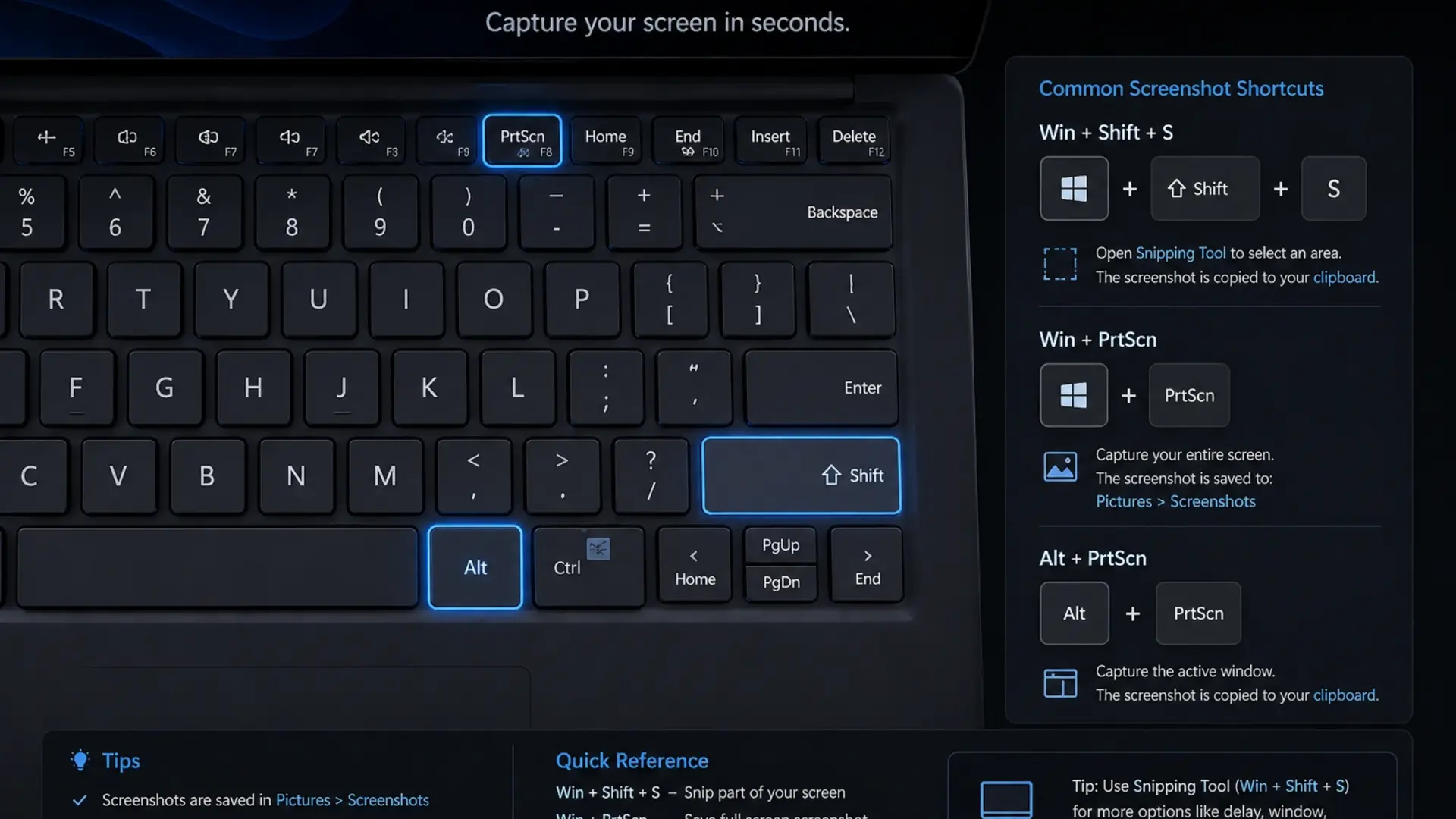
Razer creates the most stylish gaming laptops. The Blade series looks professional enough for offices while packing genuine gaming power. Premium prices reflect premium quality.

Lenovo Legion offers excellent value in the gaming space. Strong performance, good displays, and reasonable prices make Legion laptops popular among UAE gamers.

Browse our gaming laptop collection for current availability and prices.

Best Business Laptop Brands

Professionals need laptops that perform reliably day after day. Quality matters more than flashy features for business use. The following are the types of laptops brands for businesses:

Lenovo ThinkPad remains the benchmark for business laptops. Exceptional keyboards make long typing sessions comfortable. Durability means these laptops survive years of meetings, travel, and daily use. Enterprise security features protect sensitive data.

Dell Latitude and Precision serve business users exceptionally well. Premium build quality, excellent displays, and strong performance handle demanding workloads. Dell’s business support in the UAE provides quick resolution when issues arise.

HP EliteBook combines a premium design with enterprise-grade features. Security, durability, and reliability satisfy IT departments and individual professionals alike.

How to Choose the Right Brand

Finding which laptop is good in quality for your specific needs requires an honest assessment:

  • Define your primary use. Gaming laptops differ dramatically from business machines. Students need different features than creative professionals.
  • Set a realistic budget. Every brand offers good and mediocre options at different prices. The brand name alone does not guarantee quality, the specific model matters more.
  • Prioritise what matters most. Battery life? Display quality? Build materials? Performance? Different laptop brands excel at different things.
  • Consider after-sales support. Warranty service and parts availability in the UAE vary by brand. Lenovo, Dell, and HP maintain a strong local presence.
  • Check real user reviews. Marketing claims often exaggerate. Actual owner experiences reveal how laptops perform over time.

Buy Quality Laptops in the UAE

Tech Point Zone stocks laptops from all major brands with competitive UAE pricing. We deliver free across Dubai, Abu Dhabi, Sharjah, and all Emirates with an official manufacturer’s warranty.

Browse our collections:

Our team helps you match the right brand and model to your actual needs. Contact us for personalised recommendations based on your budget and requirements.

Frequently Asked Questions

Which brand of laptop lasts the longest?

Apple MacBooks and Lenovo ThinkPads consistently outlast competitors. MacBooks typically remain useful for 6-7 years thanks to premium aluminium construction and efficient Apple silicon. ThinkPads match this longevity through military-grade durability testing and robust build materials. 

Is Lenovo better than HP?

Both brands make excellent laptops, but they serve different strengths. Lenovo wins for keyboards, business features, and overall durability. ThinkPads remain unmatched for professional use. HP excels at design aesthetics and offers more stylish options like the Spectre series. For budget laptops, Lenovo’s IdeaPad range typically offers better value than HP’s Pavilion line. 

Which laptop brand offers the best after-sales service in the UAE?

Dell, Lenovo, and HP maintain the strongest service networks across the UAE. Dell offers on-site support for business customers and convenient walk-in service centres in major cities. Lenovo provides reliable warranty service through authorised partners throughout the Emirates. HP operates multiple service centres in Dubai and Abu Dhabi with good turnaround times.

Should I buy a gaming laptop for regular work?

Gaming laptops handle regular work perfectly well but come with trade-offs. The powerful hardware runs office applications, browsing, and creative software without any struggle. However, gaming laptops weigh more, produce more heat, drain batteries faster, and cost more than equivalent productivity laptops. If you genuinely play games regularly, a gaming laptop makes sense. 

Conclusion

No single brand makes the best laptop for everyone. A student needs different features than a software developer or a professional gamer. Focus on your actual requirements, battery life, display quality, portability, performance, and choose the brand that delivers those priorities within your budget.

Tech Point Zone stocks laptops from all good laptop brands at competitive prices with free UAE delivery. Browse our complete laptop collection or contact our team for personalised recommendations. We help you find the right laptop without overspending on features you do not need.

Back to Top
Compare (0)