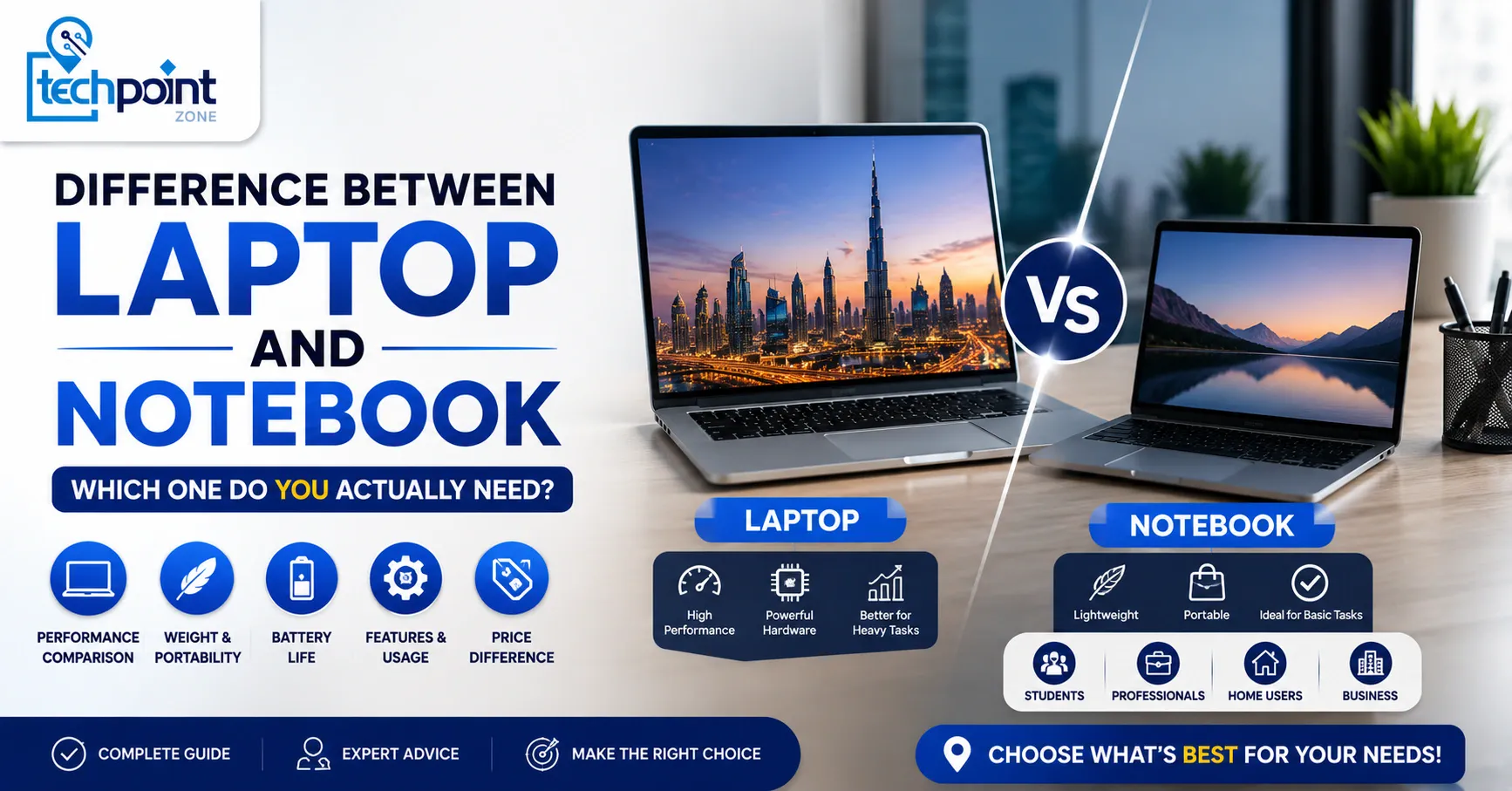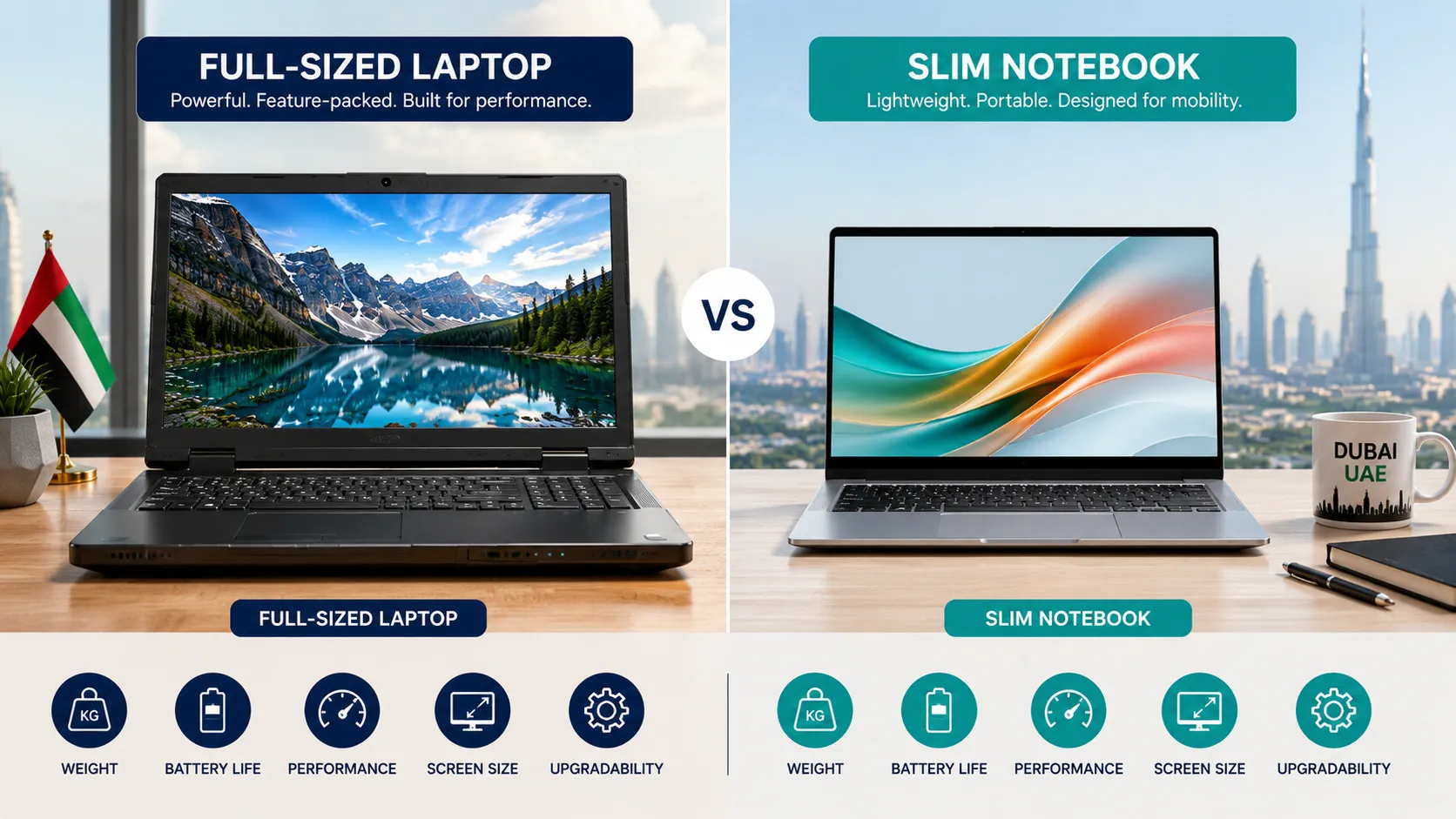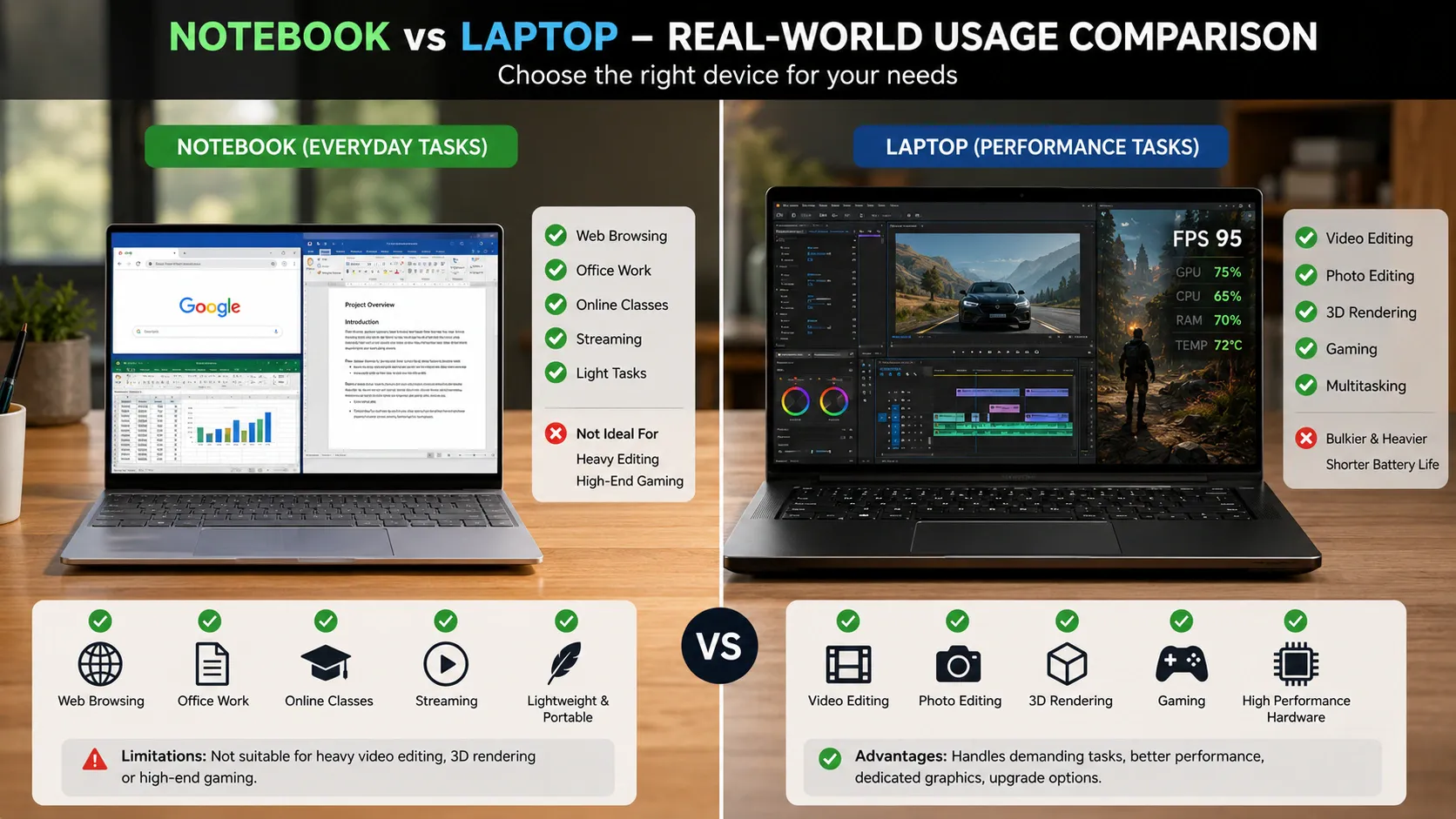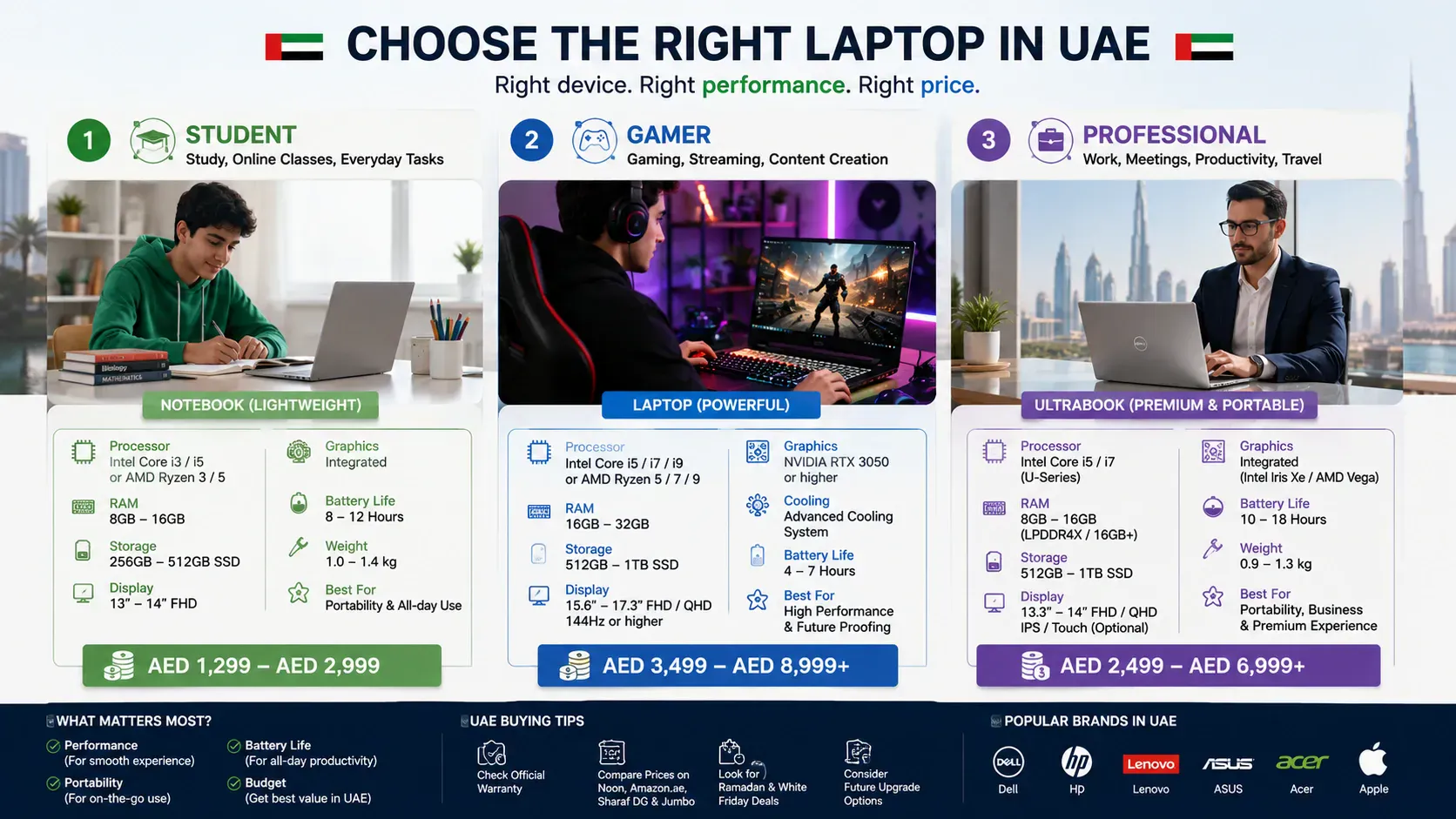
best laptops brands in the world

Best Laptop Brands in the World – Complete Guide for UAE Buyers

Which laptop brand is the best?

Picking a laptop feels overwhelming with so many brands competing for your attention. Apple, Dell, Lenovo, ASUS, HP, each claims to offer the best laptops in the world. But which brands actually deliver on their promises?

This guide ranks the world’s best laptop brands based on quality, reliability, performance, and value. We help UAE buyers cut through marketing noise and find top 10 best laptops in the world that genuinely match their needs and budget. Our team at Tech Point Zone tests every brand we stock before recommending it. 

Top Laptop Brands Ranking by Quality

When it comes to naming the number one laptop brand, Lenovo leads global market share by a comfortable margin. The company ships more laptops worldwide than any competitor, followed closely by HP and Dell. Apple commands a smaller slice of volume but dominates premium revenue thanks to higher prices.

However, market share alone does not tell the whole story. Different best brand of laptop excel in different areas, and the best choice depends on what you actually need.

Apple – Starts from 4,050 – 6,399

Apple makes laptops that combine performance with exceptional build quality. The MacBook Air and MacBook Pro use Apple’s own M-series chips, which deliver impressive performance while sipping power. Battery life on recent MacBooks reaches 15-20 hours,  beyond most Windows alternatives.

We have handled dozens of MacBooks at Tech Point Zone, and the build quality is immediately noticeable the moment you pick one up. The aluminium chassis feels solid in a way that most Windows laptops simply do not match.

MacBooks age remarkably well. Users frequently keep them running smoothly for 6-7 years, longer than typical Windows laptops. The aluminium unibody construction feels premium and resists daily wear.

The catch? You pay a significant premium for Apple quality. MacBooks start higher than comparable Windows machines, and storage upgrades cost considerably more. If you need Windows-specific software for work or gaming, MacBooks may not suit you.

Dell –  Starts from 3,199 – 4,699

Dell builds reliable laptops across every price point and use case. The XPS series represents the best laptop in the world for everything from productivity to creative work. Slim bezels, stunning displays, and solid performance make XPS laptops direct competitors to the MacBook.

Dell Inspiration and Dell Plus units we have stocked at Tech Point Zone are consistently among the first to sell out. UAE professionals and corporate buyers know the brand and trust it.

Business users trust Dell’s Latitude and Precision lines for their durability and enterprise features. Gamers flock to Alienware for raw power and distinctive designs. Budget buyers find good value in the Inspiron range.

Dell offers excellent customer support in the UAE and straightforward warranty service. The brand suits users who want a dependable Windows machine without surprises.

Lenovo

Lenovo dominates business and education markets worldwide. The ThinkPad series, inherited from IBM, remains the gold standard for professional laptops. Military-grade durability, legendary keyboards, and top-notch security features make ThinkPads the first choice for enterprises globally.

The IdeaPad range delivers affordability without sacrificing too much quality. Students and home users appreciate the balance of specs and price. The Yoga series offers premium 2-in-1 convertibles with touchscreens and stylus support.

For pure reliability and long-term value, few brands match Lenovo. ThinkPads routinely last 5-7 years with proper care, making them excellent investments.

ASUS

ASUS pushes innovation harder than most competitors. The brand offers everything from budget basics to cutting-edge gaming machines and ultralight productivity laptops.

The ROG (Republic of Gamers) line competes directly with the world’s best gaming laptop brands. Powerful processors, high-end graphics cards, and advanced cooling systems handle demanding games without breaking a sweat. The Zephyrus series proves gaming laptops can also look sleek and professional.

ZenBook and VivoBook ranges serve everyday users with reliable performance at reasonable prices. ASUS often includes features like OLED displays and innovative designs that competitors reserve for premium tiers.

Build quality varies by model, though. Entry-level ASUS laptops sometimes cut corners, while mid-range and premium options deliver excellent construction.

HP

HP offers something for everyone. The Spectre line delivers premium design, stunning displays, and strong performance – perfect for professionals who want style alongside substance. The Envy series provides similar capabilities at lower prices.

HP is one of our top-selling brands at Tech Point Zone. From students walking in with a AED 2,000 budget to professionals looking for an EliteBook, HP covers more buyer types than any other brand we stock.

Business buyers choose the EliteBook range for its enterprise-grade security and durability. Students and casual users find excellent value in the Pavilion series. Gamers appreciate the Omen line for its capable hardware at competitive prices.

HP scores well for customer service and warranty support in the UAE. The brand maintains a wide service network, making repairs and support straightforward.

Acer

Acer delivers outstanding value, especially for budget-conscious buyers. The brand consistently offers more specs per dirham than premium competitors.

The Swift series competes with ultrabooks from Dell and ASUS at lower prices. Battery life, display quality, and build materials impress, given what you pay. The Aspire range serves students and home users who need reliable basics without premium pricing.

Gamers on a budget love the Nitro series. These laptops pack dedicated graphics cards and gaming displays at prices that undercut MSI and ASUS alternatives. The Predator line steps up for serious gamers who want maximum performance.

Acer laptops sometimes feel less premium than competitors, but the value equation often makes up for it.

Best Laptop Brands for Students


Categories:

Lenovo ThinkBook 16 G8 IAL Intel Core Ultra 7 255H 16GB RAM 512GB SSD 16-Inch WUXGA Business Laptop

Price range: AED 3,499 through AED 5,950
  • Lenovo ThinkBook 16 G8 IAL Laptop
  • Intel Core Ultra 7 255H Processor
  • 16GB DDR5 RAM
  • 512GB PCIe 4.0 NVMe SSD
  • 16-Inch WUXGA IPS Display
  • Intel Arc 140T Integrated Graphics
  • AI PC with Intel AI Boost Technology
  • Backlit Arabic Keyboard
  • Lenovo ThinkBook 16 G8 IAL Best Price in UAE
Categories:

Lenovo ThinkPad E14 Gen 7 Laptop Intel Core Ultra 5 226V 16GB RAM 512GB SSD 14-Inch WUXGA IPS Display

Price range: AED 3,599 through AED 4,150
  • Lenovo ThinkPad E14 Gen 7 Laptop
  • Intel Core Ultra 5 226V Processor
  • 14-Inch WUXGA IPS Anti-Glare Display
  • 16GB LPDDR5X High-Speed RAM
  • 512GB PCIe 4.0 NVMe SSD
  • Intel Arc 130V Graphics
  • AI Boost NPU with Up to 40 TOPS
  • Backlit Keyboard with Fingerprint Reader
  • Lenovo ThinkPad E14 Gen 7 Best Price in UAE
Categories:

Lenovo Yoga 7 2-in-1 Laptop Intel Core Ultra 7 256V 16GB RAM 1TB SSD 14-Inch OLED Touchscreen

Price range: AED 4,350 through AED 4,899
  • Lenovo Yoga 7 2-in-1 Laptop
  • Intel Core Ultra 7 256V Processor
  • 14-Inch WUXGA OLED Touchscreen Display
  • 16GB LPDDR5X High-Speed Memory
  • 1TB PCIe 4.0 NVMe SSD
  • Intel Arc Graphics 140V
  • Copilot+ AI PC with 47 TOPS NPU
  • Wi-Fi 7 and Thunderbolt 4 Connectivity
  • Lenovo Yoga 7 Best Price in UAE
Categories:

Asus Vivobook 15 X1504VA-NJ379 Laptop – Intel Core i7-1355U, 16GB RAM, 512GB SSD, 15.6" FHD Display

Price range: AED 2,205 through AED 3,100

Asus Vivobook 15 X1504VA-NJ379 Laptop

The Asus Vivobook 15 X1504VA-NJ379 is a reliable and stylish laptop designed for professionals, students, and everyday users who need efficient performance and modern features. Powered by the Intel Core i7-1355U processor, combined with 8GB RAM and a 512GB SSD, this laptop delivers smooth multitasking, quick startup times, and responsive performance for daily computing tasks.

Featuring a 15.6-inch Full HD display, the Vivobook 15 provides sharp visuals and vibrant colors, making it suitable for productivity, entertainment, online learning, and content consumption.

University life demands specific laptop qualities: portability for carrying between lectures, battery life for full days on campus, and enough power for research and assignments.

The best laptop companies in the world for students include:

  • Apple MacBook Air tops recommendations for students who can stretch their budget. All-day battery life, featherweight construction, and excellent displays make studying comfortable. The M-series chips handle everything from essay writing to basic video editing.
  • Lenovo IdeaPad offers excellent value for students on tighter budgets. Solid performance, decent battery life, and reasonable prices make these laptops popular choices across universities in the UAE.
  • ASUS VivoBook delivers good specs at competitive prices. Lightweight designs and colourful options appeal to students who want personality alongside performance.
  • Acer Aspire serves budget-conscious students well. Basic but reliable performance handles everyday academic tasks without complaints.

Tech Point Zone stocks student laptops across all these brands with competitive UAE pricing.

Best Gaming Laptop Brands

Serious gaming requires serious hardware. The best gaming laptop brand in the world depends on budget and priorities.

ASUS ROG leads for most gamers. The combination of powerful hardware, innovative cooling, and excellent displays satisfies competitive players and casual gamers alike. The ROG Strix and Zephyrus lines cover everything from portable gaming to desktop-replacement power.

MSI builds gaming laptops with impressive performance and strong cooling systems. The Raider series pushes boundaries with top-tier specs, while the Katana range offers solid mid-range options.

Razer creates the most stylish gaming laptops. The Blade series looks professional enough for offices while packing genuine gaming power. Premium prices reflect premium quality.

Lenovo Legion offers excellent value in the gaming space. Strong performance, good displays, and reasonable prices make Legion laptops popular among UAE gamers.

Browse our gaming laptop collection for current availability and prices.

Best Business Laptop Brands

Professionals need laptops that perform reliably day after day. Quality matters more than flashy features for business use. The following are the types of laptops brands for businesses:

Lenovo ThinkPad remains the benchmark for business laptops. Exceptional keyboards make long typing sessions comfortable. Durability means these laptops survive years of meetings, travel, and daily use. Enterprise security features protect sensitive data.

Dell Latitude and Precision serve business users exceptionally well. Premium build quality, excellent displays, and strong performance handle demanding workloads. Dell’s business support in the UAE provides quick resolution when issues arise.

HP EliteBook combines a premium design with enterprise-grade features. Security, durability, and reliability satisfy IT departments and individual professionals alike.

How to Choose the Right Brand

Finding which laptop is good in quality for your specific needs requires an honest assessment:

  • Define your primary use. Gaming laptops differ dramatically from business machines. Students need different features than creative professionals.
  • Set a realistic budget. Every brand offers good and mediocre options at different prices. The brand name alone does not guarantee quality, the specific model matters more.
  • Prioritise what matters most. Battery life? Display quality? Build materials? Performance? Different laptop brands excel at different things.
  • Consider after-sales support. Warranty service and parts availability in the UAE vary by brand. Lenovo, Dell, and HP maintain a strong local presence.
  • Check real user reviews. Marketing claims often exaggerate. Actual owner experiences reveal how laptops perform over time.

Buy Quality Laptops in the UAE

Tech Point Zone stocks laptops from all major brands with competitive UAE pricing. We deliver free across Dubai, Abu Dhabi, Sharjah, and all Emirates with an official manufacturer’s warranty.

Browse our collections:

Our team helps you match the right brand and model to your actual needs. Contact us for personalised recommendations based on your budget and requirements.

Frequently Asked Questions

Which brand of laptop lasts the longest?

Apple MacBooks and Lenovo ThinkPads consistently outlast competitors. MacBooks typically remain useful for 6-7 years thanks to premium aluminium construction and efficient Apple silicon. ThinkPads match this longevity through military-grade durability testing and robust build materials. 

Is Lenovo better than HP?

Both brands make excellent laptops, but they serve different strengths. Lenovo wins for keyboards, business features, and overall durability. ThinkPads remain unmatched for professional use. HP excels at design aesthetics and offers more stylish options like the Spectre series. For budget laptops, Lenovo’s IdeaPad range typically offers better value than HP’s Pavilion line. 

Which laptop brand offers the best after-sales service in the UAE?

Dell, Lenovo, and HP maintain the strongest service networks across the UAE. Dell offers on-site support for business customers and convenient walk-in service centres in major cities. Lenovo provides reliable warranty service through authorised partners throughout the Emirates. HP operates multiple service centres in Dubai and Abu Dhabi with good turnaround times.

Should I buy a gaming laptop for regular work?

Gaming laptops handle regular work perfectly well but come with trade-offs. The powerful hardware runs office applications, browsing, and creative software without any struggle. However, gaming laptops weigh more, produce more heat, drain batteries faster, and cost more than equivalent productivity laptops. If you genuinely play games regularly, a gaming laptop makes sense. 

Conclusion

After handling thousands of laptops across every major brand at Tech Point Zone, one thing is clear that the best laptop is always the one that fits your specific use case and budget, not the one with the biggest brand name.

No single brand makes the best laptop for everyone. A student needs different features than a software developer or a professional gamer. Focus on your actual requirements, battery life, display quality, portability, performance, and choose the brand that delivers those priorities within your budget.

Tech Point Zone stocks laptops from all good laptop brands at competitive prices with free UAE delivery. Browse our complete laptop collection or contact our team for personalised recommendations. We help you find the right laptop without overspending on features you do not need.

How to Screen Record on HP Laptop

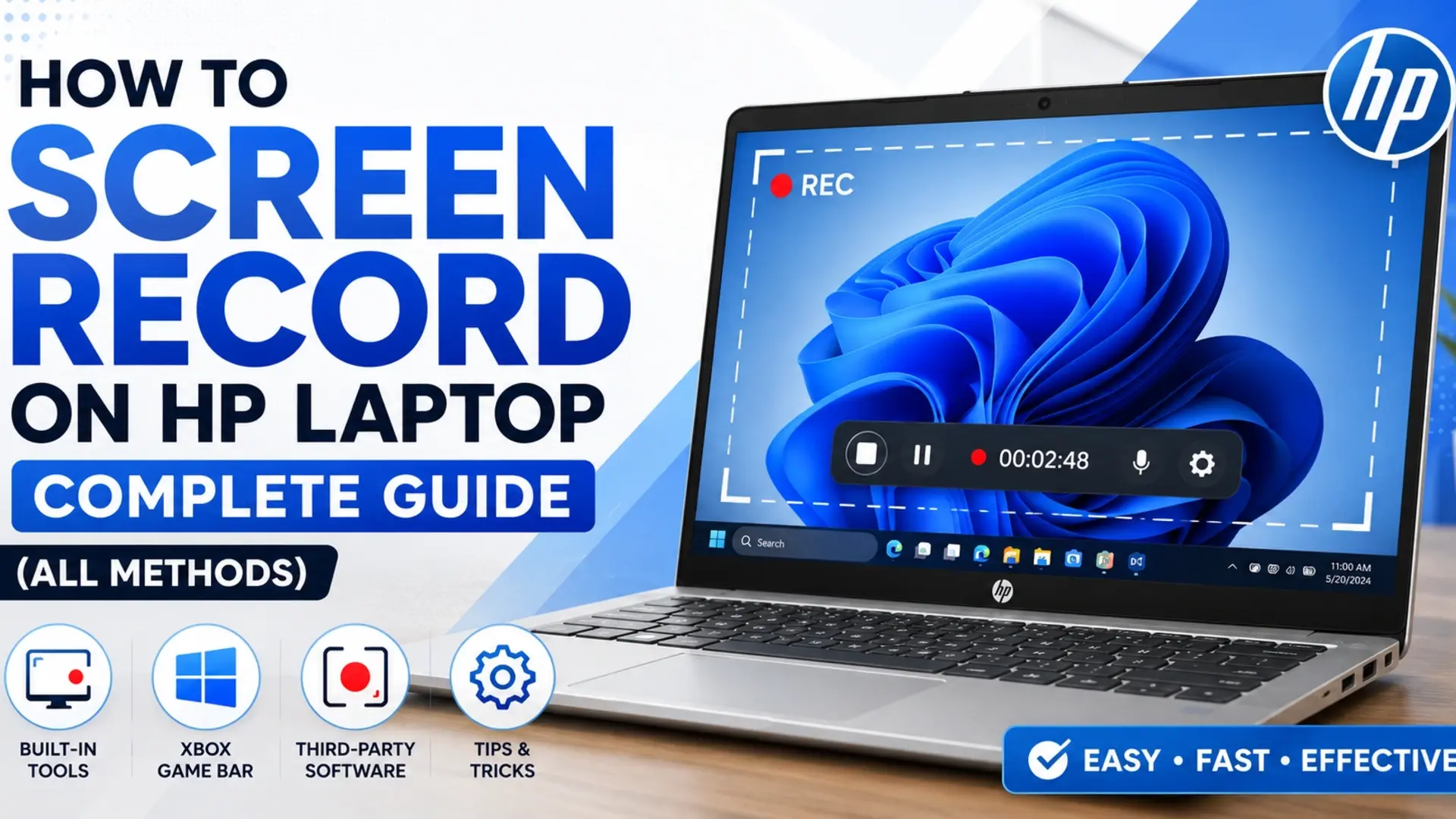
How to Screen Record on HP Laptop – Complete Guide (All Methods)

Screen recording on your HP laptop is something you might need more often than you think. Whether you are making a tutorial for a colleague, saving an online video call, recording a lesson, or capturing gameplay, knowing how to screen record on your HP laptop saves you a lot of time.

The good news? You do not need to install expensive software. HP laptops running Windows 10 or Windows 11 come with built-in tools that work great. And if you need more control, free third-party tools like OBS Studio are just a few clicks away.

In this guide from Tech Point Zone, we cover every method clearly, including how to screen record with sound, with your webcam, and even without the Game Bar. Whether you use an HP Pavilion, HP Spectre, HP Envy, HP 15, or an HP EliteBook, this guide works for all of them.

By the way, if you also want to take a quick screenshot instead of recording, check out this guide on how to take a screenshot on a laptop.

How to Screen Record on HP Laptop

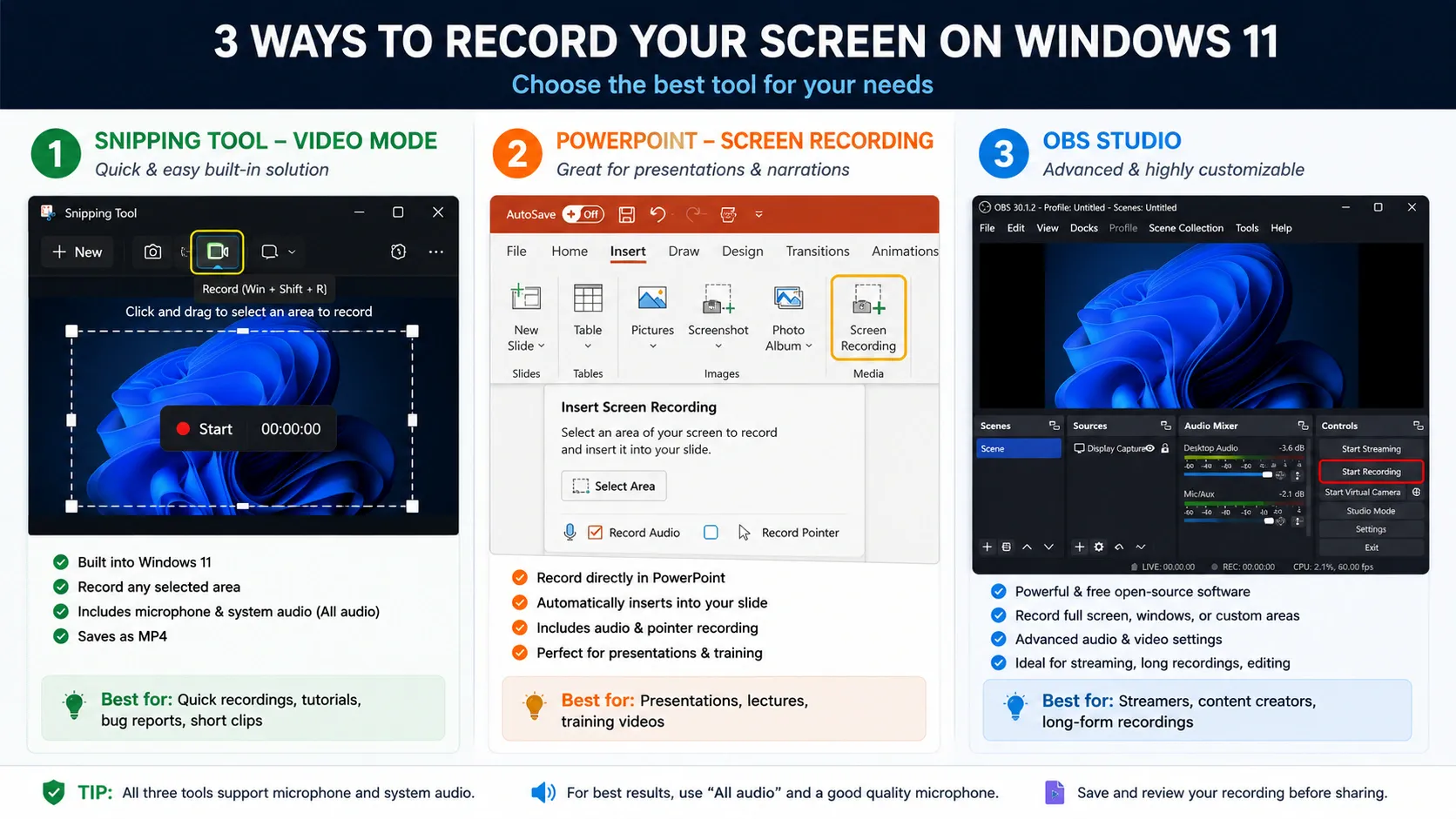
Press Windows + G to open the Xbox Game Bar, then click the record button (the circle icon) or press Windows + Alt + R to start recording. Press the same shortcut again to stop. Your video saves automatically in the Videos > Captures folder. That is the fastest way to screen record on any HP laptop without installing anything.

How to Screen Record on HP Laptop Windows 11

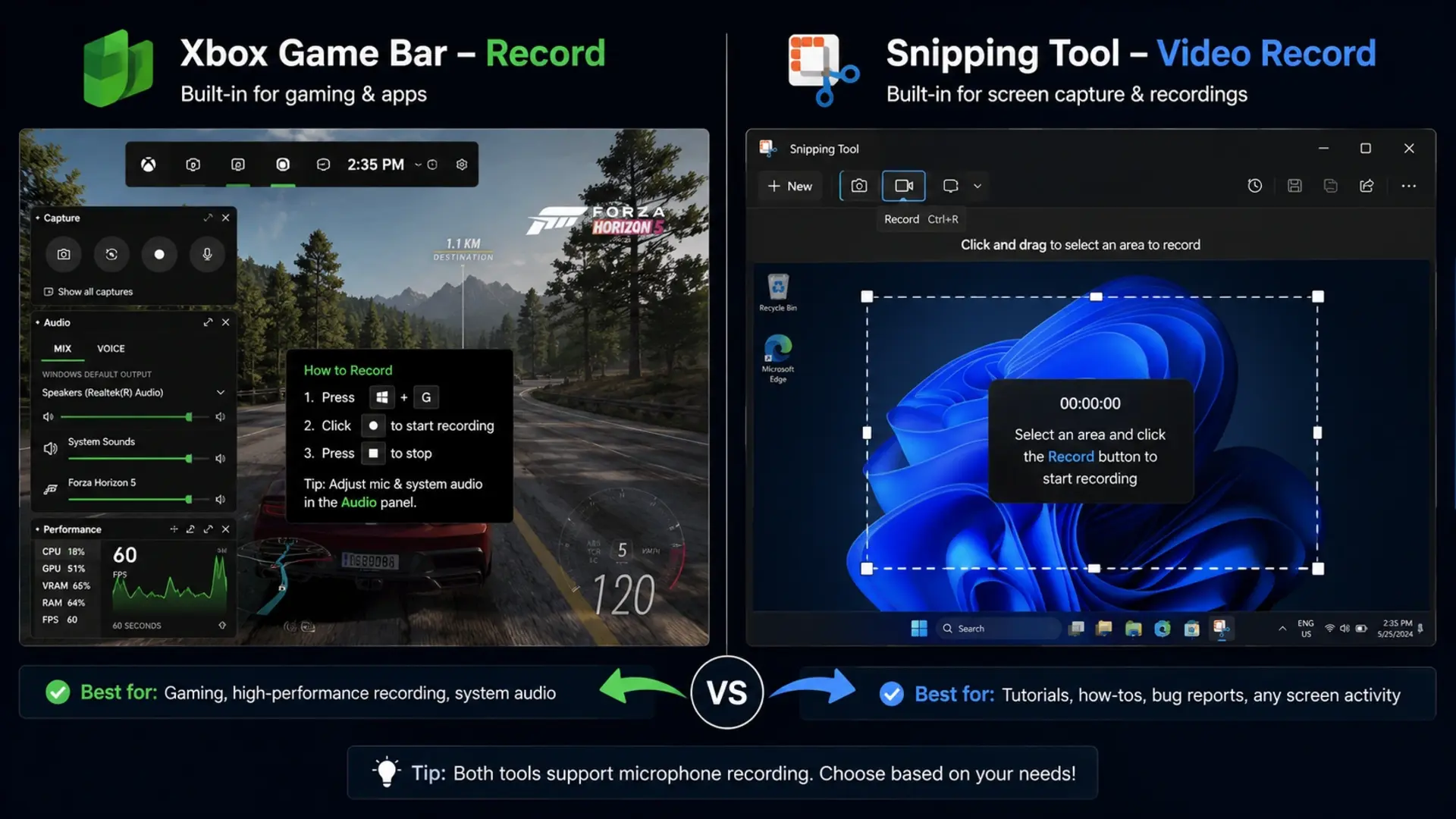
Windows 11 gives you two solid built-in options: Xbox Game Bar and the Snipping Tool. Both work on all HP models running Windows 11, including the HP Pavilion, HP Spectre, and HP Envy series.

Screen Record on HP Laptop Windows 11

Method 1: Using Xbox Game Bar (Recommended)

The Xbox Game Bar is the easiest and most used method for screen recording in HP laptops on Windows 11.

Steps:

  1. Press Windows + G to open the Game Bar overlay.
  2. Click the Capture widget (camera icon) if it does not open automatically.
  3. Click the Start Recording button (circle icon) or press Windows + Alt + R.
  4. A small timer bar appears at the top, your recording has started.
  5. Press Windows + Alt + R again to stop.
  6. Your video saves in C:\Users\YourName\Videos\Captures.

Important note: The Xbox Game Bar does not record the full desktop or File Explorer. It works best when a specific app or browser window is active on screen.

Method 2: Using the Snipping Tool (Windows 11 Only)

Windows 11 updated the Snipping Tool to support video recording, a feature not available in Windows 10.

Steps:

  1. Open the Snipping Tool from the Start menu or press Windows + Shift + S (then switch to video mode manually by opening the app).
  2. Click the video camera icon (Record tab) at the top.
  3. Click New and select the area of the screen you want to record.
  4. Click Start to begin recording.
  5. Click Stop when done.
  6. Save the file to your preferred location.

This method is great when you want to record a specific portion of the screen, not the full display.

How to Screen Record on HP Laptop with Sound

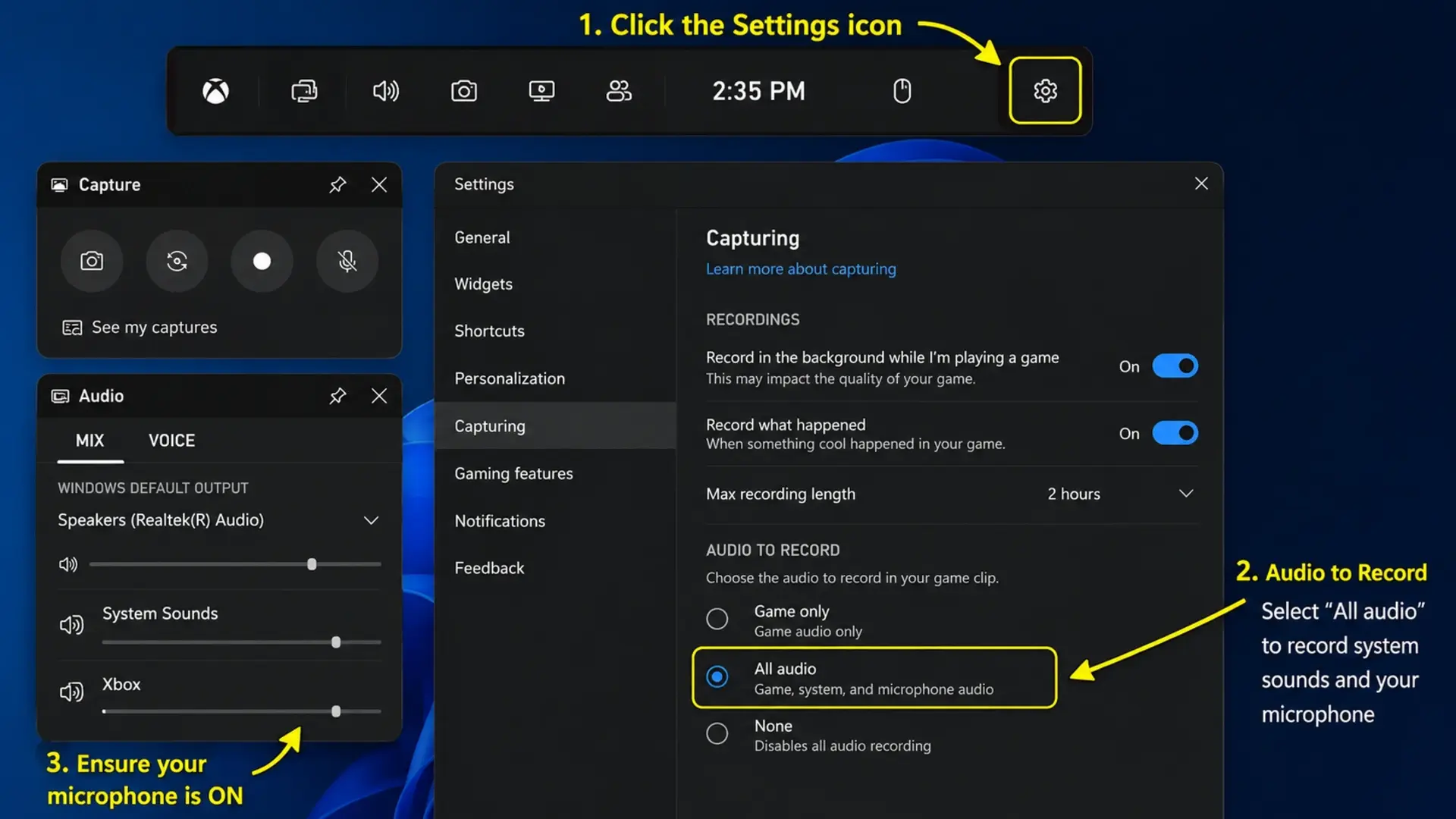
By default, Xbox Game Bar records system audio. But to record your microphone as well, you need to enable it first.

Screen Record on HP Laptop with Sound

Steps to enable microphone + system audio:

  1. Open Game Bar with Windows + G.
  2. Click the Settings gear icon inside the Capture widget.
  3. Under “Audio to record,” select All audio (this captures both your system sounds and microphone).
  4. Start your recording with Windows + Alt + R.

If you want only microphone audio (for example, while narrating a tutorial), select Microphone only in the same settings.

For OBS Studio users (covered below), you can separately control microphone and desktop audio channels, which gives you much more flexibility when recording with sound on your HP laptop.

How to Screen Record on HP Laptop 15

The HP 15 series (HP 15-dy, HP 15s, HP 15-fc) runs Windows 10 or Windows 11 and fully supports all the methods in this guide. There is no special setting needed for the HP 15 specifically.

If your HP 15 is running Windows 10, follow the Xbox Game Bar method above. It works exactly the same way.

If your HP 15 runs Windows 11, you also get the Snipping Tool video recording option as an extra choice.

One thing to keep in mind: older HP 15 models with Intel HD or UHD 620 graphics may occasionally show a “Game Bar not supported” error. In that case, use the Snipping Tool or OBS Studio method instead.

How to Screen Record on HP Laptop with Webcam

Recording your screen and your face at the same time is useful for video tutorials, online presentations, and content creation. The built-in Game Bar does not support webcam overlay natively, but OBS Studio does this perfectly for free.

Using OBS Studio to Record Screen + Webcam

Steps:

  1. Download OBS Studio from obsproject.com and install it.
  2. Open OBS and click the + button under the Sources panel.
  3. Add Display Capture to capture your full screen.
  4. Click + again and add Video Capture Device. Select your HP laptop’s built-in webcam.
  5. Resize the webcam preview and drag it to a corner of the screen.
  6. Click Start Recording in the bottom right.
  7. Click Stop Recording when done.
  8. Your file saves in the Videos folder by default.

OBS is free and works on all HP laptop models, including HP Pavilion, HP Envy, HP Victus, and HP EliteBook.

If you prefer a paid option, Camtasia offers a clean webcam + screen recording experience with built-in editing tools.

How to Screen Record on HP EliteBook

The HP EliteBook series (EliteBook 840, 850, 1040, and newer models) is built for business use. These laptops run Windows 11 Pro or Windows 10 Pro and support all standard screen recording methods.

For HP EliteBook users in professional environments, here are the best options:

For quick recordings: Use Xbox Game Bar (Windows + Alt + R). It is fast, does not require installation, and saves files locally.

For presentations and training videos: Use PowerPoint Screen Recording. Go to Insert > Screen Recording, select your capture area, and record directly into a slide. This is a popular method among business professionals.

For high-quality output: Use OBS Studio or Camtasia for full control over resolution, frame rate, and audio.

HP EliteBook models with Intel Iris Xe or dedicated AMD Radeon graphics run OBS Studio smoothly without performance issues.

If you work in a corporate environment and your IT team has disabled the Game Bar, see the next section for alternatives.

How to Screen Record on HP Laptop Without Game Bar

Some HP laptops have the Xbox Game Bar disabled, either by IT policy, older hardware, or user settings. Here are three ways to screen record without using the Game Bar at all.

How to Screen Record on HP Laptop Without Game Bar

Option 1: Snipping Tool (Windows 11)

As mentioned earlier, the Snipping Tool in Windows 11 records your screen without needing the Game Bar. Open it from the Start menu, switch to the video tab, select your area, and start recording.

Option 2: PowerPoint Screen Recording

If you have Microsoft Office installed, PowerPoint includes a built-in screen recorder.

Steps:

  1. Open any PowerPoint file or create a blank one.
  2. Go to Insert > Screen Recording.
  3. Drag to select the area you want to record.
  4. Click Record.
  5. Press Windows + Shift + Q to stop.
  6. Right-click the video in the slide and choose Save Media As to export it as a video file.

This method works on both Windows 10 and Windows 11 HP laptops.

Option 3: OBS Studio

OBS Studio is a completely free and open-source screen recorder that works independently of the Game Bar. It records the full screen, specific windows, or custom regions, with full audio control. It is one of the best options for screen recording on HP laptops without Game Bar, and it works even on older HP 15 models.

Option 4: VLC Media Player (Hidden Feature)

Most people do not know that VLC can record your screen too.

Steps:

  1. Open VLC and go to Media > Open Capture Device.
  2. Under Capture Mode, select Desktop.
  3. Set the frame rate (15–30 fps works well).
  4. Click Play, then click the arrow next to Play and choose Convert.
  5. Select your output format and click Start.

This is a handy option if you already have VLC installed on your HP laptop and want to avoid installing new software.

Screen Recording in HP Laptop Using OBS Studio (Full Setup)

OBS Studio deserves its own section because it is the most powerful free screen recorder available for HP laptops. It supports 4K recording, custom frame rates, multiple audio tracks, and scene switching.

How to set it up:

  1. Download OBS from obsproject.com.
  2. Run the Auto-Configuration Wizard when you first open it. OBS will detect your hardware and suggest the best settings.
  3. Under Sources, add Display Capture for full-screen recording.
  4. Under Settings > Output, choose your video format (MP4 is the most compatible).
  5. Set your recording path under Settings > Output > Recording Path.
  6. Click Start Recording when ready.

OBS works on all HP laptop models, from the budget HP 15 to the powerful HP OMEN gaming laptop.

How to Screen Record HP Laptop on Windows 10

Windows 10 does not include the Snipping Tool video feature, but the Xbox Game Bar works perfectly.

Steps for Windows 10:

  1. Make sure Game Bar is enabled: Go to Settings > Gaming > Xbox Game Bar and toggle it ON.
  2. Open any app you want to record.
  3. Press Windows + G to open the Game Bar.
  4. Click the Capture panel and hit the record button, or press Windows + Alt + R.
  5. Press Windows + Alt + R to stop.

If the Game Bar does not work on your Windows 10 HP laptop, use OBS Studio or PowerPoint as described above.

How to Choose the Right Screen Recording Method

Not every method works best for every situation. Here is a quick breakdown:

  • For casual recordings (tutorials, quick demos): Xbox Game Bar is enough. It is built-in, fast, and saves files automatically.
  • For recording with your voice: Enable a microphone in Game Bar settings, or use OBS Studio for better audio control.
  • For recording your webcam + screen: Use OBS Studio. It is the only free tool that supports webcam overlay cleanly.
  • For business presentations: Use PowerPoint Screen Recording. It saves directly into your slides, which is useful for creating training materials.
  • For professional-quality videos: Use Camtasia (paid) or OBS Studio (free) for higher resolution, editing features, and multiple output formats.
  • For HP EliteBook users in restricted environments: Use Snipping Tool (Windows 11) or PowerPoint. Both work without needing Game Bar or admin rights.

Tips to Get Better Screen Recordings on HP Laptops

These small steps make a real difference in your recording quality:

  • Close background apps before recording to avoid lag, especially on HP 15 models with entry-level processors.
  • Plug in your charger: Recording video uses more power, and battery-saving modes can reduce frame rate.
  • Use a headset or external mic for cleaner audio when recording your voice.
  • Set your display scaling to 100% if text appears blurry in recordings.
  • Record in MP4 format: It is the most compatible format for sharing and uploading.
  • If your HP laptop’s storage is low, free up space before recording long sessions. You may also want to check out this guide on how to reformat your laptop to start fresh if needed.

Where Do Screen Recordings Save on HP Laptops?

By default, recordings made through Xbox Game Bar save here:

C:\Users\YourName\Videos\Captures

You can change this location in the Game Bar settings. For OBS Studio, you set the save location yourself under Settings > Output > Recording Path. PowerPoint saves the video inside the slide. You need to right-click and export it separately.

If you regularly move files between devices, you might find this guide on how to transfer photos from iPhone to laptop useful for managing your media.

FAQs

What is the shortcut key for screen recording on HP laptop?

Press Windows + Alt + R to start and stop screen recording using the Xbox Game Bar. This shortcut works on all HP laptops running Windows 10 and Windows 11 without needing to open the Game Bar overlay first.

How to screen record on HP laptop without Windows key?

If your Windows key is broken or disabled, use the Snipping Tool (search for it in the Start menu on Windows 11) or OBS Studio, which lets you set your own custom keyboard shortcuts. You can also use PowerPoint’s screen recording feature from the Insert menu. No Windows key needed.

What is the Ctrl key for screen recording?

There is no default Ctrl-based shortcut for screen recording in Windows. The built-in shortcut uses the Windows key (Win + Alt + R). However, in OBS Studio, you can set any custom shortcut you want, including Ctrl combinations, by going to Settings > Hotkeys.

Conclusion

Screen recording on an HP laptop does not have to be complicated. Windows gives you solid built-in tools like Xbox Game Bar and Snipping Tool that work right away, with no downloads needed. For more advanced needs like webcam overlay or full desktop recording, free tools like OBS Studio get the job done.

Whether you own an HP Pavilion, EliteBook, or HP 15, the methods in this guide work across all models. Pick the one that fits your workflow and start recording. At Tech Point Zone, we keep things simple so you can get things done faster.

How to Reformat Laptop

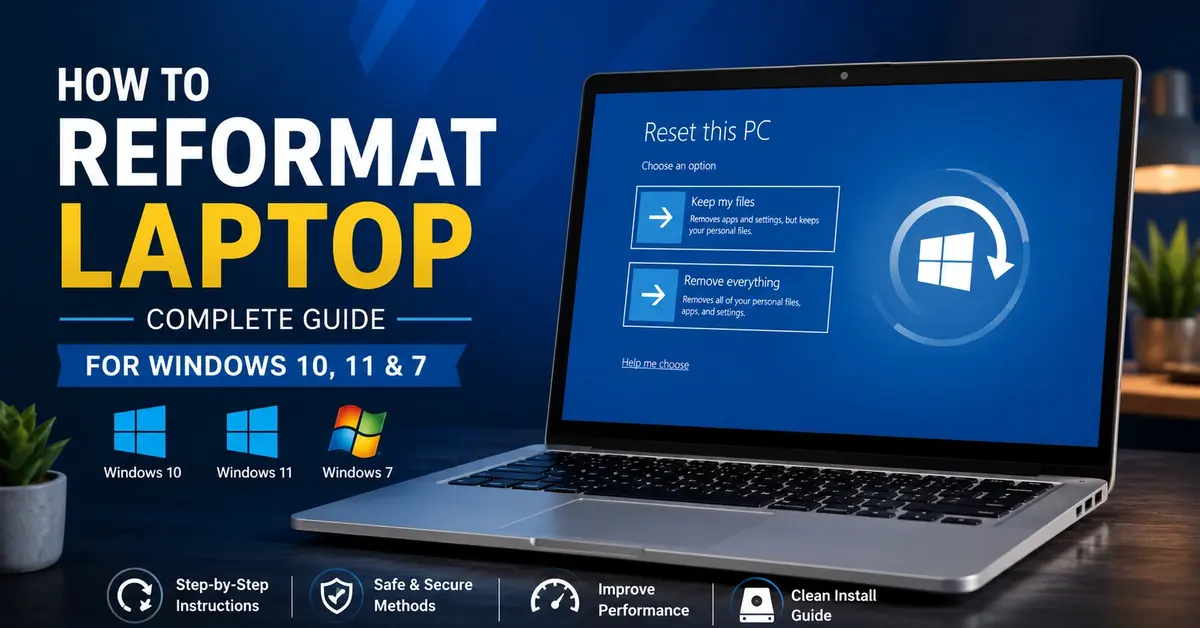
How to Reformat Laptop – Complete Guide for Windows 10, 11 & 7

Sometimes your laptop needs a fresh start. Viruses, software conflicts, slow performance, or preparing to sell your device; these situations call for reformatting. The process wipes your laptop clean and reinstalls Windows, giving you that new laptop feeling again.

This guide walks you through how to reformat laptop for Windows. Whether you can access your desktop normally, have forgotten your password, or need to format from the boot menu, we cover all scenarios with clear, step-by-step instructions.

How to Reformat a Laptop

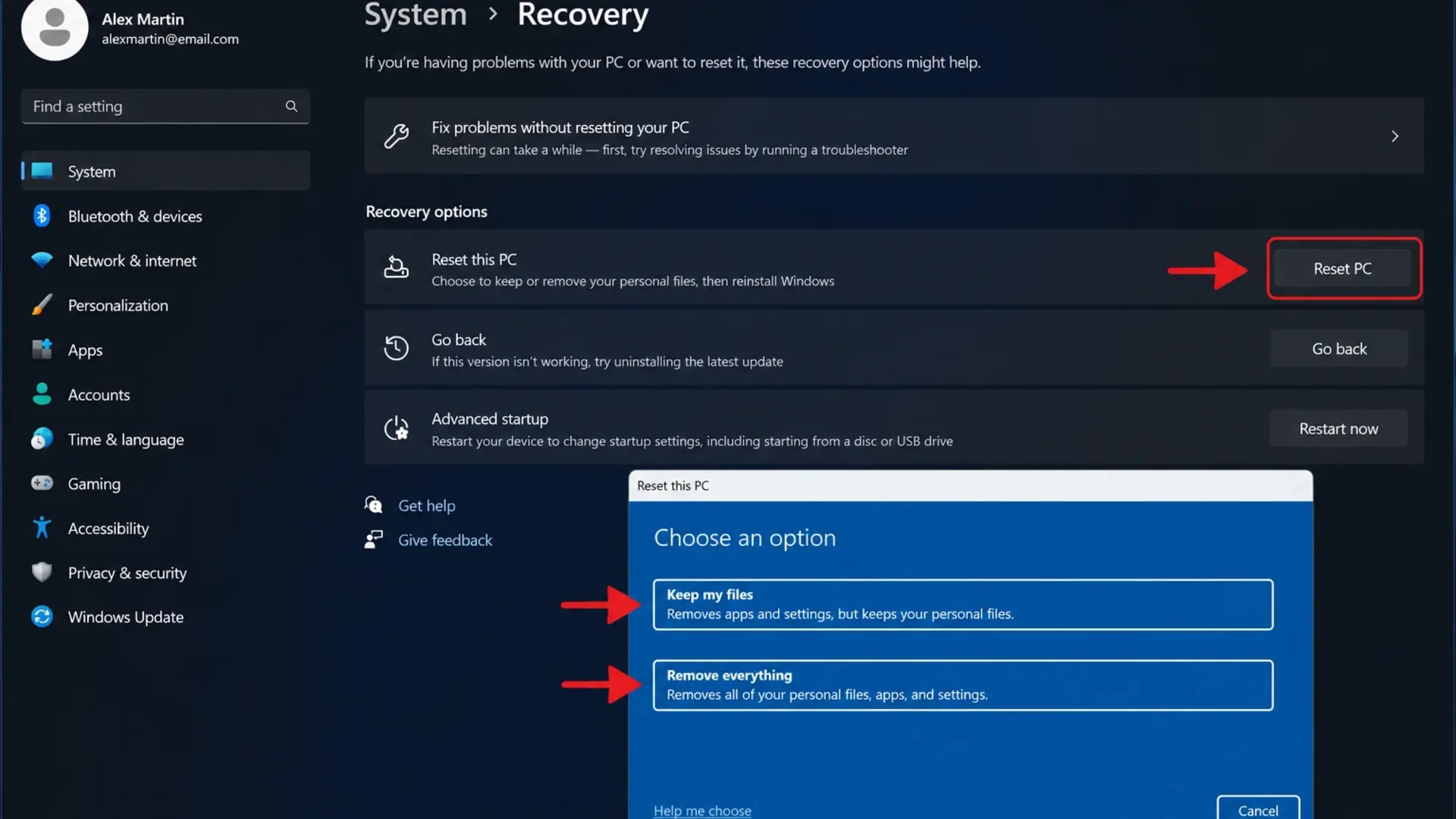
Open Settings > System > Recovery > Reset this PC and choose either “Keep my files” or “Remove everything” to reformat your laptop. Windows handles the entire process automatically, reinstalling the operating system while you wait.

Here’s the quick method for most laptops:

  • Press Windows + I to open Settings
  • Click System > Recovery
  • Find “Reset this PC” and click Reset PC
  • Choose “Keep my files” or “Remove everything.”
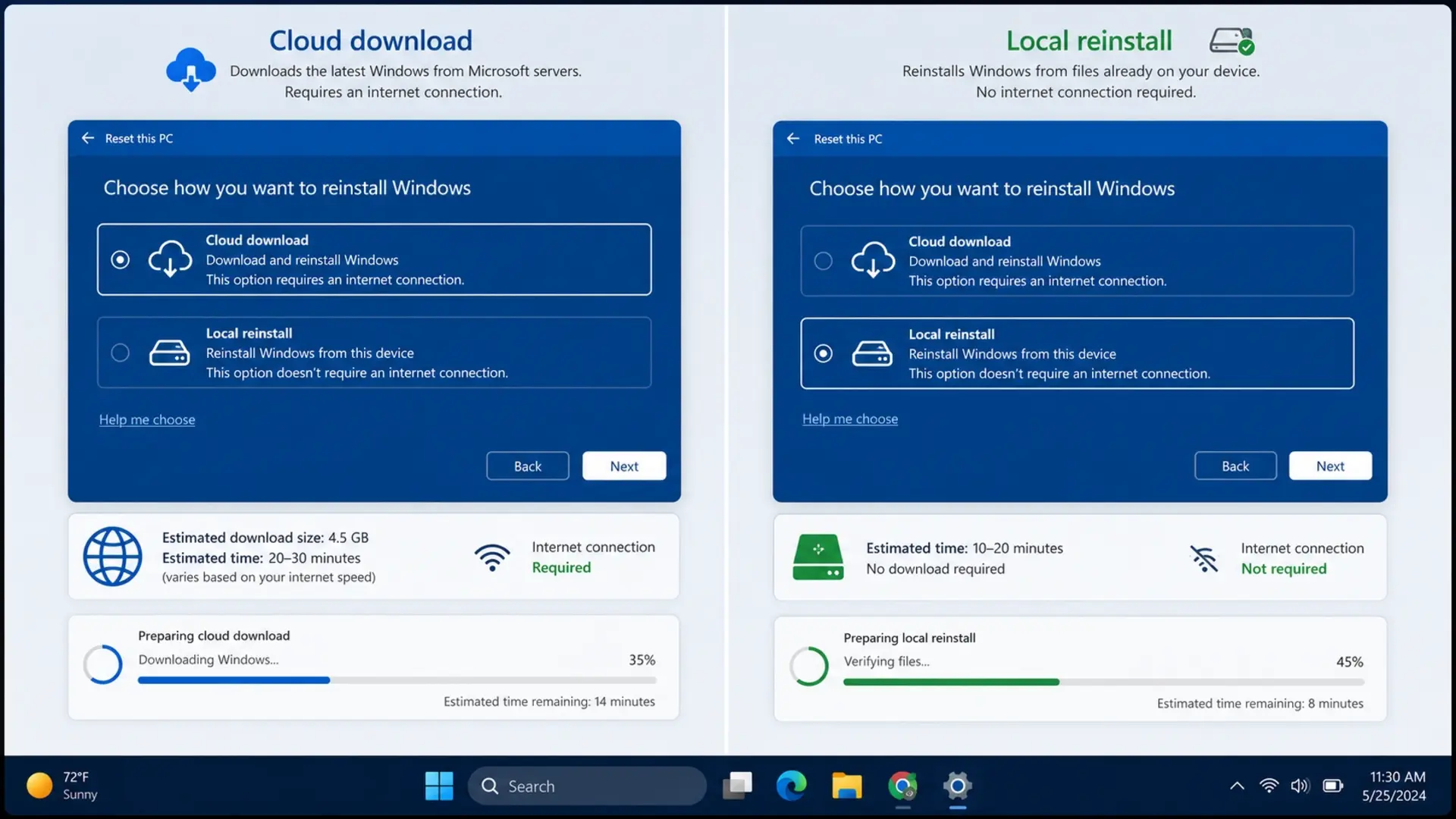
  • Select “Cloud download” or “Local reinstall.”
  • Click Reset and wait for completion

The process takes 30 minutes to 2 hours, depending on your laptop’s speed and the options you choose. Your laptop restarts several times during reformatting; this is normal.

Before reformatting, back up important files to an external drive or cloud storage. Even the “Keep my files” option removes installed applications, so note which programs you’ll need to reinstall.

How to Reformat a Laptop Windows 11

Windows 11 offers streamlined reset options through its modern Settings interface.

How to Reformat a Laptop Windows 11

Reset from Settings

  • Click Start menu
  • Open Settings (gear icon)
  • Select System from the left sidebar
  • Click Recovery
  • Under “Recovery options,” find Reset this PC
  • Click the Reset PC button

Choose your reset type:

  • Keep my files: Removes apps and settings, keeps personal files
  • Remove everything: Complete wipe for selling or major issues

Choosing Reinstall Method

Cloud Download vs Local Reinstall

After selecting the reset type, Windows 11 asks how to reinstall:

  • Cloud download: Downloads fresh Windows from Microsoft (requires Internet, gets the latest version)
  • Local reinstall: Uses existing Windows files (faster, works offline)

Cloud downloads take longer, but ensure you get the cleanest, most up-to-date installation. A local reinstall is faster but uses files already on your laptop.

Additional Options

Click “Change settings” before confirming to access:

  • Clean data – Overwrites the drive, making file recovery difficult (use when selling)
  • Delete files from all drives – Wipes secondary drives too

Click Next, then Reset. Your laptop handles everything automatically.

How to Reformat a Laptop Windows 10

Windows 10 reformatting works similarly to Windows 11, with slight interface differences.

Reset via Settings

  • Press Windows + I to open Settings
  • Click Update & Security
  • Select Recovery from the left menu
  • Under “Reset this PC,” click Get started
  • Choose “Keep my files” or “Remove everything.”
  • Follow on-screen prompts
  • Click Reset to begin

Using Fresh Start Option

Windows 10 includes an additional “Fresh Start” feature:

  • Open Windows Security
  • Click Device performance & health
  • Find the “Fresh start” section
  • Click “Additional info.”
  • Select Get started
  • Follow prompts to reinstall Windows

Fresh start removes manufacturer bloatware while keeping personal files. This works well for new laptops loaded with unnecessary software.

Understanding how long it takes to reformat a laptop helps set expectations. Windows 10 reset typically takes 20 minutes to 1 hour for “Keep my files” and 1-2 hours for “Remove everything.”

How to Format Laptop Windows 7

Windows 7 lacks the modern reset options found in newer versions. You’ll need installation media or access to a recovery partition.

Using Recovery Partition

Most laptops with Windows 7 include a hidden recovery partition:

  • Restart your laptop

Press the recovery key during boot:

  • HP: F11
  • Dell: F8
  • Lenovo: F11
  • ASUS: F9
  • Acer: Alt + F10
  • Select the recovery or factory restore option
  • Follow on-screen instructions
  • Confirm when prompted

Using Windows 7 Installation Disc

If the recovery partition doesn’t work:

  • Insert Windows 7 DVD or USB
  • Restart and boot from the disc
  • Select language preferences
  • Click “Install now.”
  • Accept license terms
  • Choose “Custom (advanced)” installation
  • Select your main drive partition
  • Click “Drive options” then Format
  • Continue with installation

Windows 7 formatting takes 30-60 minutes, depending on your hardware. The laptop restarts multiple times during this process.

How to Reformat a Laptop Without Losing Data

Use Windows “Keep my files” option to reformat while preserving documents, photos, and other personal files stored in your user folders.

What Gets Kept

  • Documents folder contents
  • Pictures, Videos, Music folders
  • Desktop files
  • Downloads folder
  • Browser bookmarks (in most cases)

What Gets Removed

  • All installed applications
  • Custom settings and preferences
  • Desktop applications
  • Drivers (Windows reinstalls basic versions)

Step-by-Step Process

  • Open Settings > System > Recovery
  • Click Reset PC
  • Select “Keep my files.”
  • Choose the reinstall method
  • Review what will be removed
  • Click Reset

Before reformatting, transfer important photos to an external storage device. Learn how to transfer photos from an iPhone to a laptop if you need to back up mobile photos alongside laptop files.

Even with “Keep my files,” create backups of critical documents. The process usually preserves data successfully, but hardware issues during reset could cause unexpected problems.

How to Format a Laptop That Is Locked

Forgotten your password? You can still reformat a locked laptop using recovery mode or installation media.

How to Format a Laptop That Is Locked

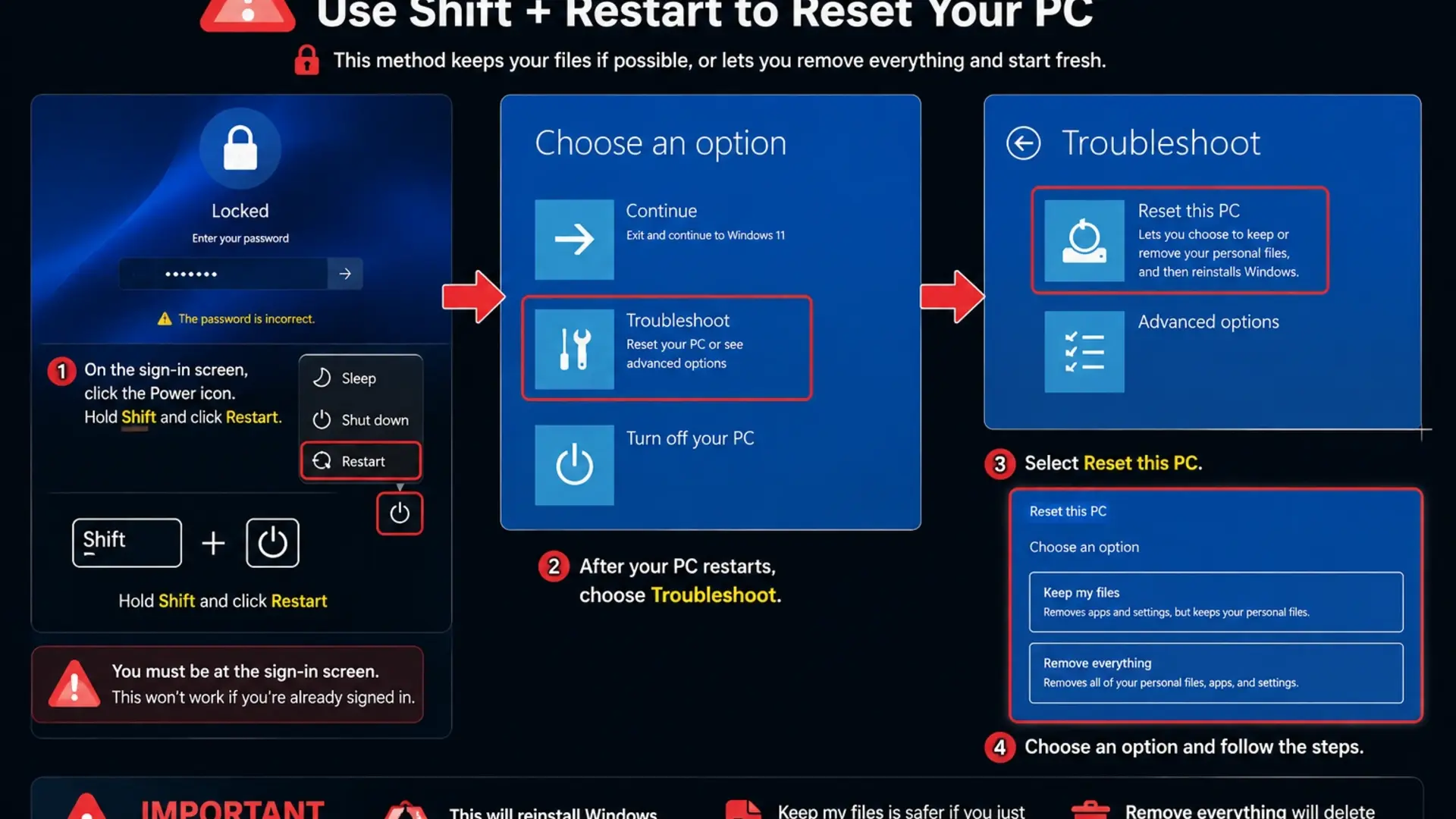
Windows 10/11 Lock Screen Reset

  • On the login screen, click the Power icon
  • Hold the Shift key and click Restart
  • Windows boots to the recovery environment
  • Select Troubleshoot
  • Click Reset this PC
  • Choose “Remove everything.”
  • Follow prompts to complete the reset

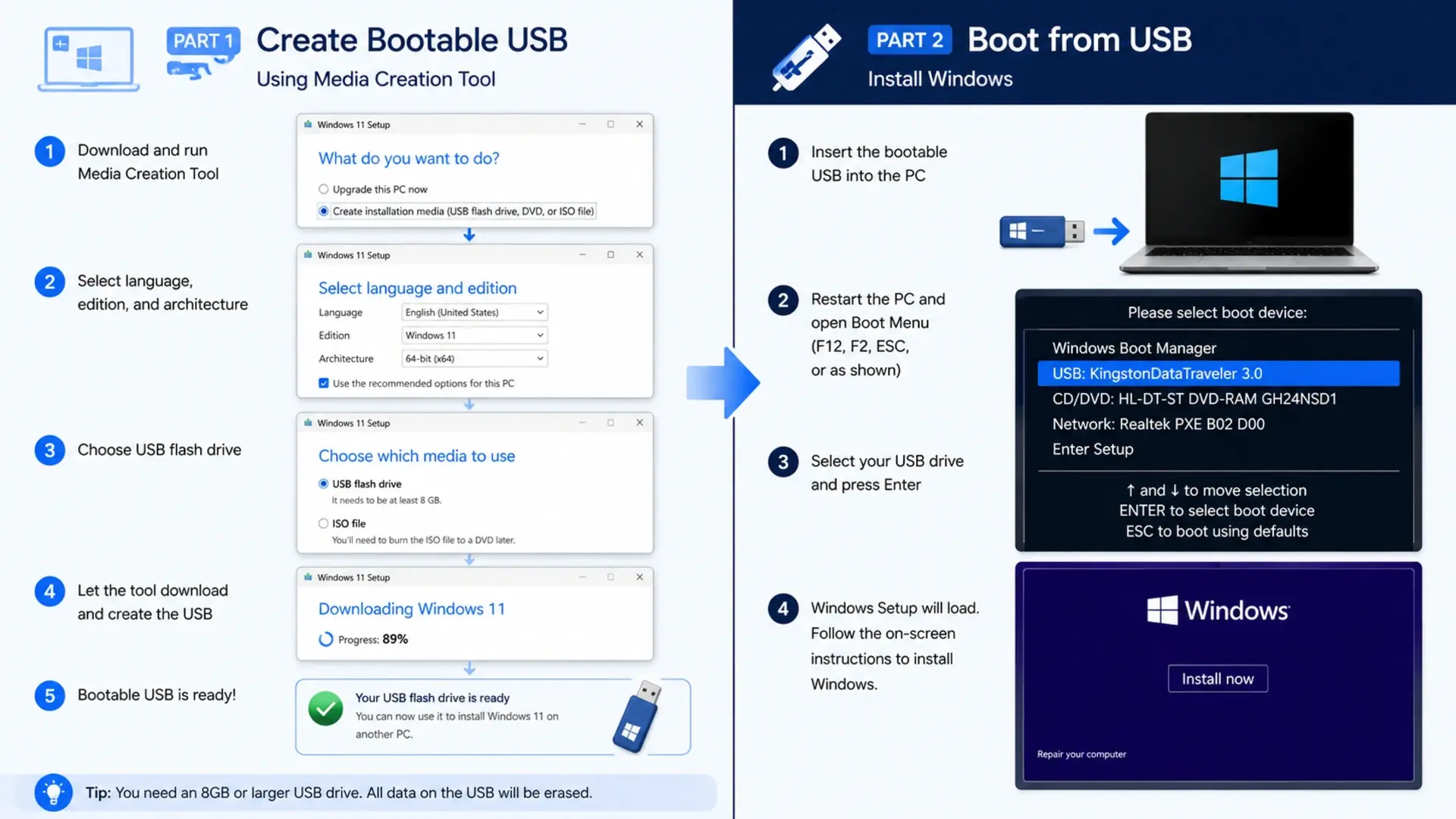
Using the Installation USB

  • Create a Windows installation USB on another computer
  • Insert the USB into the locked laptop
  • Restart and press the boot menu key (F12, F2, or Esc)
  • Select USB drive
  • Choose a language, then click “Install now.”
  • Select “Custom installation.”
  • Delete existing partitions
  • Create a new partition and install Windows

Recovery Key Method

If BitLocker encryption is enabled, you’ll need your recovery key:

  • Find the key at account.microsoft.com/devices/recoverykey
  • Enter the 48-digit recovery key when prompted
  • Proceed with reset

Windows 10 Factory Reset from Boot

When Windows won’t start normally, access recovery options through the boot menu.

Automatic Recovery

If Windows fails to boot three times consecutively, it automatically enters recovery mode:

  • Power on the laptop
  • When the Windows logo appears, hold the power button to force a shutdown
  • Repeat this three times
  • Windows boots to the “Preparing Automatic Repair” screen
  • Click Advanced options
  • Select Troubleshoot > Reset this PC

Manual Boot Recovery

  • Restart laptop
  • Press F11 repeatedly during startup (timing varies by brand)
  • Enter Windows Recovery Environment
  • Select Troubleshoot
  • Click Reset this PC
  • Choose reset options
  • Complete the process

Brand-Specific Boot Keys

Different laptop brands from the best laptop brands in the world use different recovery keys:

BrandRecovery Key
HPF11
DellF8 or Ctrl + F11
LenovoF11 or Novo button
ASUSF9
AcerAlt + F10
MSIF3
Toshiba0 (zero) key

How to Reformat a Laptop Using a Bootable USB

Bootable USB installation offers the cleanest reformat option, especially when Windows is corrupted or you want a completely fresh start.

How to Reformat a Laptop Using a Bootable USB

Creating Bootable USB

On a working computer:

  • Download the Windows Media Creation Tool from Microsoft
  • Insert USB drive (8GB minimum)
  • Run the tool
  • Select “Create installation media.”
  • Choose language, edition, and architecture
  • Select the USB flash drive option
  • Wait for the download and creation to complete

Installing from USB

  • Insert the bootable USB into the target laptop
  • Restart laptop
  • Press boot menu key during startup (F12, F2, Esc, or F10)
  • Select the USB drive from the boot menu
  • Choose language preferences
  • Click “Install now.”
  • Enter product key or click “I don’t have a product key.”
  • Select Windows edition
  • Accept license terms
  • Choose “Custom: Install Windows only.”
  • Select the drive to install on
  • Delete all partitions for a clean install (optional)
  • Click New to create a partition
  • Select the partition and click Next
  • Wait for the installation to complete

This method takes 30-60 minutes and provides the freshest possible Windows installation.

How to Reformat a Laptop Without a CD

Modern laptops rarely include CD drives. These methods work without physical discs.

Built-in Reset Option

Windows 10 and 11 include recovery options requiring no external media:

  • Open Settings > System > Recovery
  • Use the Reset this PC feature
  • Choose Cloud download for fresh Windows files

USB Installation

Create a bootable USB as described above. USB drives are faster than CDs and can be reused for future installations.

Network Boot (Advanced)

Some enterprise laptops support network-based Windows installation:

  • Access BIOS settings (F2 or Del during boot)
  • Enable Network Boot or PXE Boot
  • Configure network installation server (requires IT infrastructure)

For most users, USB installation or built-in reset provides the easiest disc-free reformatting.

How to Reformat a Laptop Without Logging In

Can’t access your account? Several methods let you reformat without signing in.

Shift + Restart Method

  • On the login screen, click the Power button
  • Hold Shift and click Restart
  • Select Troubleshoot > Reset this PC
  • Choose reset options
  • Complete the process

Recovery Environment via Boot

  • Restart laptop
  • Press F11 (or brand-specific key) repeatedly
  • Enter Windows Recovery Environment
  • Select Troubleshoot
  • Click Reset this PC
  • Proceed without signing in

Installation Media

Using a bootable USB or DVD bypasses login requirements entirely:

  • Boot from installation media
  • Perform a clean installation
  • Create a new user account during setup

After reformatting, you’ll need to reconfigure your laptop from scratch. Take screenshots of your current settings before reformatting if you want to remember specific configurations.

How to Reformat an MSI Laptop

MSI laptops include a dedicated recovery system called MSI Recovery.

Using MSI Recovery (F3 Key)

  • Power off the laptop completely
  • Press the power button, then immediately press F3 repeatedly
  • The MSI Recovery menu appears
  • Select “System Recovery”
  • Choose recovery options:
    • Keep my files
    • Remove everything
  • Confirm to start recovery
  • Wait for the process to complete

MSI Burn Recovery

Some MSI laptops allow creating a recovery USB:

  • Open MSI Burn Recovery software (pre-installed)
  • Insert USB drive
  • Create a recovery drive
  • Use this drive for future reformatting

Standard Windows Reset

MSI laptops also support standard Windows reset methods:

  • Settings > System > Recovery > Reset this PC

MSI gaming laptops sometimes take longer to reformat due to larger pre-installed software packages. Expect 1-2 hours for a complete reset.

How to Reformat an HP Laptop

HP provides multiple recovery options through HP Recovery Manager.

HP Recovery Manager

  • Press F11 repeatedly during boot
  • Select Troubleshoot
  • Click Recovery Manager
  • Select System Recovery
  • Follow prompts to restore factory settings

Windows Reset on HP

  • Open Settings
  • Navigate to System > Recovery
  • Click Reset PC
  • Choose your options
  • Complete the reset

HP Cloud Recovery

For newer HP laptops:

  • Download HP Cloud Recovery Tool
  • Create recovery USB
  • Boot from USB
  • Follow recovery prompts

HP laptops typically include a recovery partition. How long it takes to reformat an HP model laptop depends on the installed software, but expect 45 minutes to 2 hours.

How Long to Reformat a Laptop

Reformatting time varies based on several factors, but most laptops complete the process within 30 minutes to 2 hours.

Factors Affecting Duration

  • Reset type: “Keep my files” finishes faster than “Remove everything.”
  • Reinstall method: Local reinstall beats cloud download speed
  • Drive type: SSD reformats much faster than HDD
  • Drive size: Larger drives take longer to wipe
  • Internet speed: Affects the cloud download option

Typical Timeframes

Reset TypeSSDHDD
Keep my files 20-40 min40-60 min
Remove everything 30-60 min1-2 hours
Clean data option 1-2 hours2-4 hours
USB clean install 20-45 min45-90 min

Speed Tips

  • Choose local reinstall when possible
  • Close unnecessary recovery options
  • Ensure laptop stays powered (plug in charger)
  • Select “Just remove my files” if you are not selling the laptop

Frequently Asked Questions

How do I completely format my laptop?

To completely format your laptop, open Settings > System > Recovery > Reset this PC, then select “Remove everything.” Choose “Cloud download” for the freshest Windows installation. Click “Change settings” and enable “Clean data” to overwrite files, making recovery impossible.

Is F11 or F12 a factory reset?

F11 typically opens factory reset or recovery options on most laptops, including HP, Lenovo, and some Dell models. F12 usually opens the boot menu for selecting startup devices, not for factory resetting. However, keys vary by manufacturer – ASUS uses F9, Acer uses Alt + F10, and some Dell models use F8. 

How do I factory reset my laptop using the buttons?

Power off your laptop completely. Press the power button, then immediately start pressing F11 (or your brand’s recovery key) repeatedly. Continue until recovery options appear. Select Troubleshoot > Reset this PC or System Recovery, depending on your interface. Choose “Remove everything” for a complete factory reset. 

How to hard factory reset?

Boot into recovery by pressing F11 during startup or holding Shift while clicking Restart from the login screen. Select Troubleshoot > Reset this PC > Remove everything. Enable the “Clean data” option to overwrite all files thoroughly. Alternatively, boot from Windows installation USB, choose Custom installation, delete all existing partitions, create new ones, and install Windows fresh. 

Need Help with Your Laptop?

Reformatting issues or considering a new laptop? Tech Point Zone offers expert advice and competitive prices on laptops from all major brands. Visit our Bur Dubai showroom for hands-on support.

Tech Point Zone Electronics Trading L.L.C Hana & Maryam Obaid Al Helo Building – Shop no: 8 Al Nahdha St – Bur Dubai – Al Souq Al Kabeer – Dubai
WhatsApp: +971 525696022

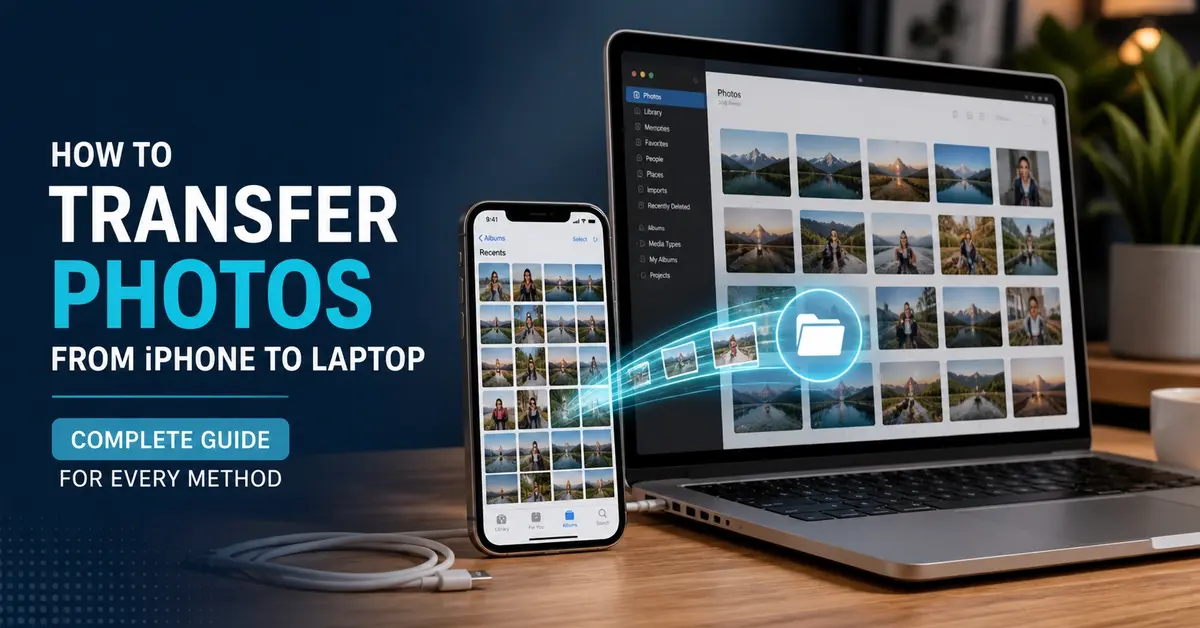
how to transfer photos from iphone to laptop

How to Transfer Photos from iPhone to Laptop – Complete Guide for Every Method

Your iPhone stores thousands of precious memories, but keeping them only on your phone risks losing them forever. Transferring photos to your laptop creates a secure backup, frees up iPhone storage, and lets you edit images on a bigger screen.

This guide covers every method to move photos from your iPhone to any laptop. Whether you use Windows or Mac, prefer cables or wireless transfers, and want to use iTunes or skip it entirely, we’ve got you covered with simple step-by-step instructions.

How to Transfer Photos from iPhone to Laptop

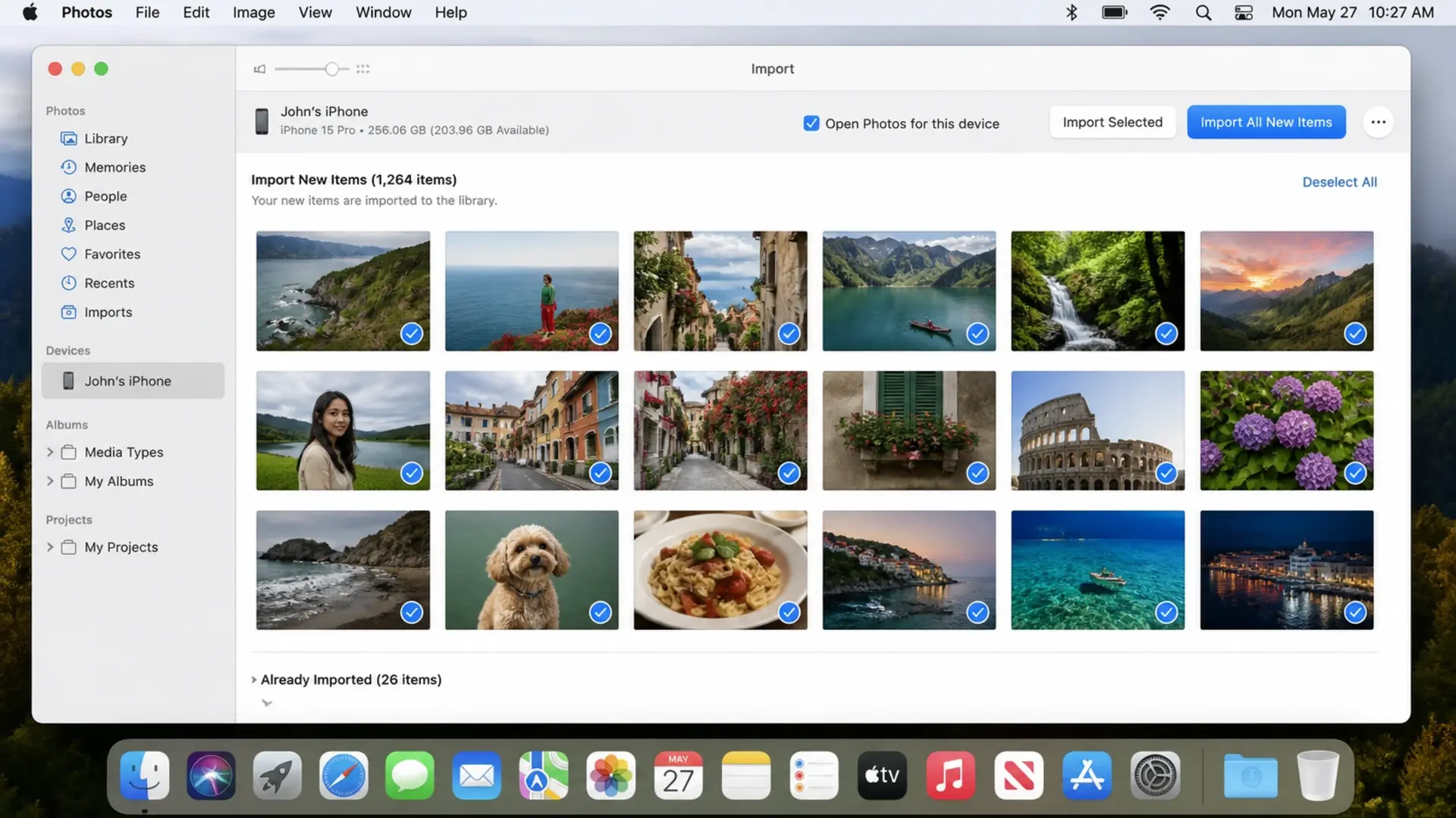
Connect your iPhone to your laptop using a USB cable, then open the Photos app (Windows) or Image Capture (Mac) to import your pictures directly. This method works fastest and requires no Internet connection.

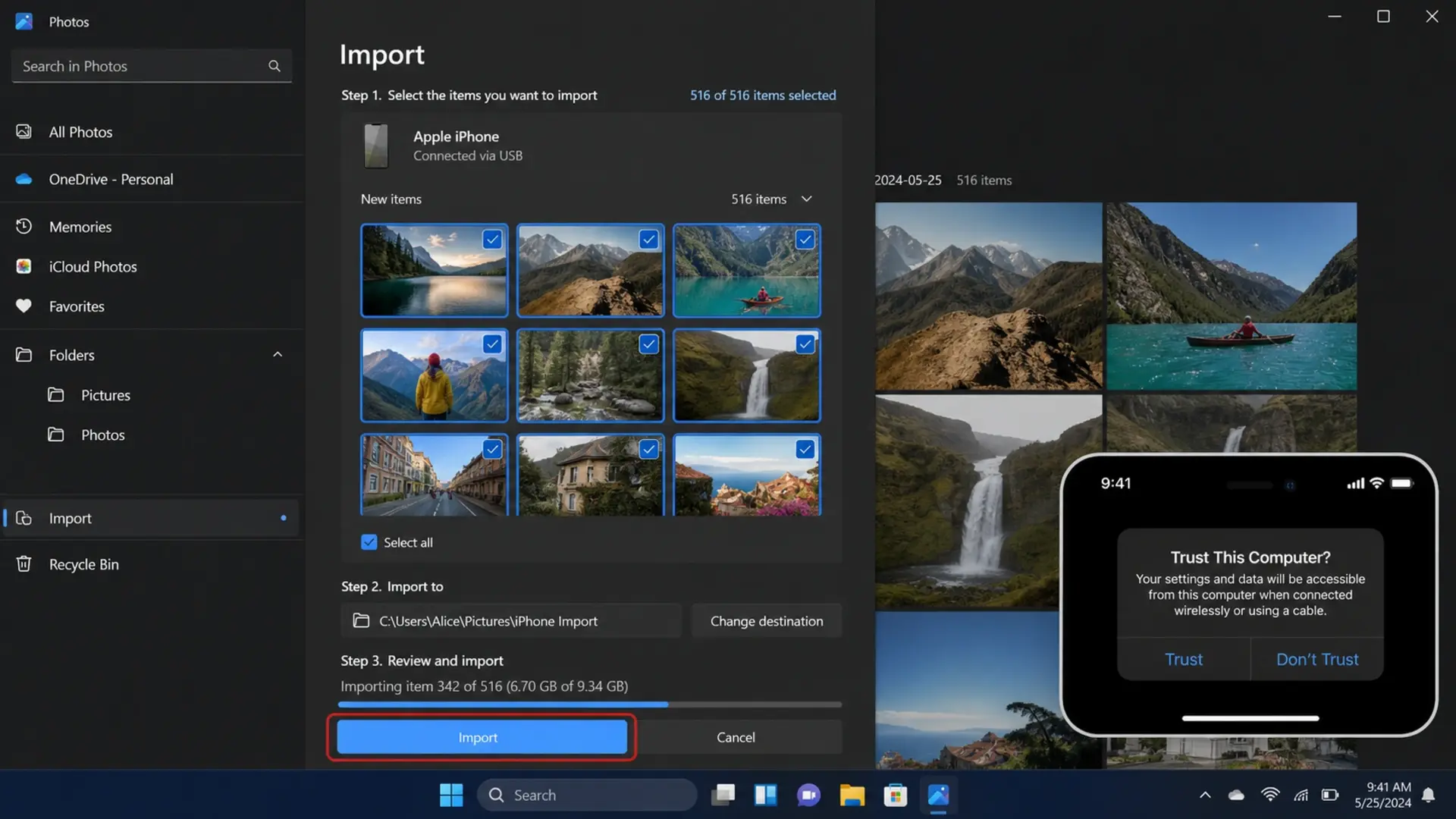
Here’s the Quick Process for Windows:

  • Connect the iPhone to the laptop with a Lightning or USB-C cable
  • Unlock your iPhone and tap “Trust This Computer” when prompted
  • Open the Photos app on Windows
  • Click Import > From a connected device
  • Select the photos you want to transfer
  • Choose where to save them and click Import

For Mac Users:

  • Connect the iPhone using the cable
  • Open Photos app (or Image Capture for more control)
  • Your iPhone appears in the sidebar
  • Select photos and click Import

This direct cable method transfers photos at full resolution without compression. It works even when WiFi is unavailable and handles thousands of photos efficiently.

How to Transfer Photos from iPhone to Laptop via USB

USB transfer remains the most reliable method for quickly moving large photo libraries. Connect your iPhone to your laptop with a cable, then follow these detailed steps.

how to transfer photos from iphone to laptop

Windows USB Transfer

  • Plug your Lightning or USB-C cable into both devices
  • Unlock your iPhone
  • Tap “Trust” on the pop-up asking to trust this computer
  • Enter your iPhone passcode to confirm
  • Open File Explorer on Windows
  • Find “Apple iPhone” under This PC
  • Navigate to Internal Storage > DCIM
  • Open folders to find your photos (named with dates)
  • Copy photos and paste them into your desired folder

Mac USB Transfer

  • Connect the cable between the iPhone and the Mac
  • Open Finder (macOS Catalina or later) or iTunes (older macOS)
  • Select your iPhone from the sidebar
  • Click the Photos tab
  • Check “Sync photos to your device.”
  • Choose which albums to transfer
  • Click Apply
How to Transfer Photos from iPhone to Laptop – Complete Guide for Every Method

USB transfers work without an Internet connection and transfer files at maximum speed. Your laptop’s USB port type affects transfer speed: USB 3.0 ports transfer faster than USB 2.0 ports.

How to Transfer Photos from iPhone to Laptop Wirelessly

Use iCloud Photos to sync images automatically between your iPhone and laptop without any cables. This method keeps your library updated continuously.

Setting Up iCloud Photos on iPhone

  • Open Settings > tap your name at the top
  • Select iCloud > Photos
  • Turn on “Sync this iPhone.”
  • Choose “Download and Keep Originals” for full quality

Accessing iCloud on a Windows Laptop

  • Download iCloud for Windows from the Microsoft Store
  • Sign in with your Apple ID
  • Check the “Photos” option
  • Click “Options” next to Photos
  • Enable “iCloud Photos.”
  • Apply changes

Your photos now sync automatically to the iCloud Photos folder on your laptop. New photos appear without manual transfers.

Using iCloud.com

Don’t want to install software? Access your photos through any browser:

  • Go to iCloud.com
  • Sign in with Apple ID
  • Click Photos
  • Select the images you want
  • Click the download icon

This wireless approach works great when you’re away from your usual laptop or using someone else’s computer temporarily.

How to Transfer Photos from iPhone to Windows 10 Laptop

Windows 10 includes built-in tools that make transferring iPhone photos straightforward.

Using Windows Photos App

  • Connect the iPhone via USB cable
  • Open the Photos app from the Start menu
  • Click the Import button (top right)
  • Select “From a connected device.”
  • Wait for Windows to scan your iPhone
  • Check the photos you want to import
  • Click “Import selected” or “Import all.”

Using the File Explorer Method

  • Connect the iPhone to the Windows 10 laptop
  • Open File Explorer
  • Click “This PC” in the sidebar
  • Double-click “Apple iPhone.”
  • Open “Internal Storage”
  • Open the “DCIM” folder
  • Browse dated folders containing your photos
  • Select, copy, and paste to your preferred location

Windows 10 sometimes fails to properly detect iPhones. If this happens, try a different USB port, restart both devices, or update iTunes drivers.

If your laptop runs slowly during transfers, background processes may be causing the issue. Check our guide on how to fix a laptop battery that drains fast; the same fixes also improve overall system performance.

How to Transfer Photos from iPhone to Laptop Without iCloud

Not everyone wants their photos on Apple’s cloud servers. Several methods let you transfer photos from an iPhone to a laptop without iCloud storage.

Direct USB Cable Transfer

The File Explorer method described above bypasses iCloud completely. Your photos move directly from iPhone to laptop storage without touching any cloud service.

Using Third-Party Apps

Apps like iMazing, AnyTrans, and Dr.Fone offer more control than Apple’s built-in options:

 Transfer Photos from iPhone to Laptop Without iCloud Using Third Party Apps
  • Download and install your chosen app
  • Connect the iPhone via USB
  • Select Photos section
  • Browse and select images
  • Export to your laptop

Email or Messaging Apps

For small batches of photos:

  • Open Photos on iPhone
  • Select images (up to 20-30 at once)
  • Tap the Share button
  • Choose Mail or WhatsApp
  • Send to yourself
  • Download from email or WhatsApp Web on a laptop

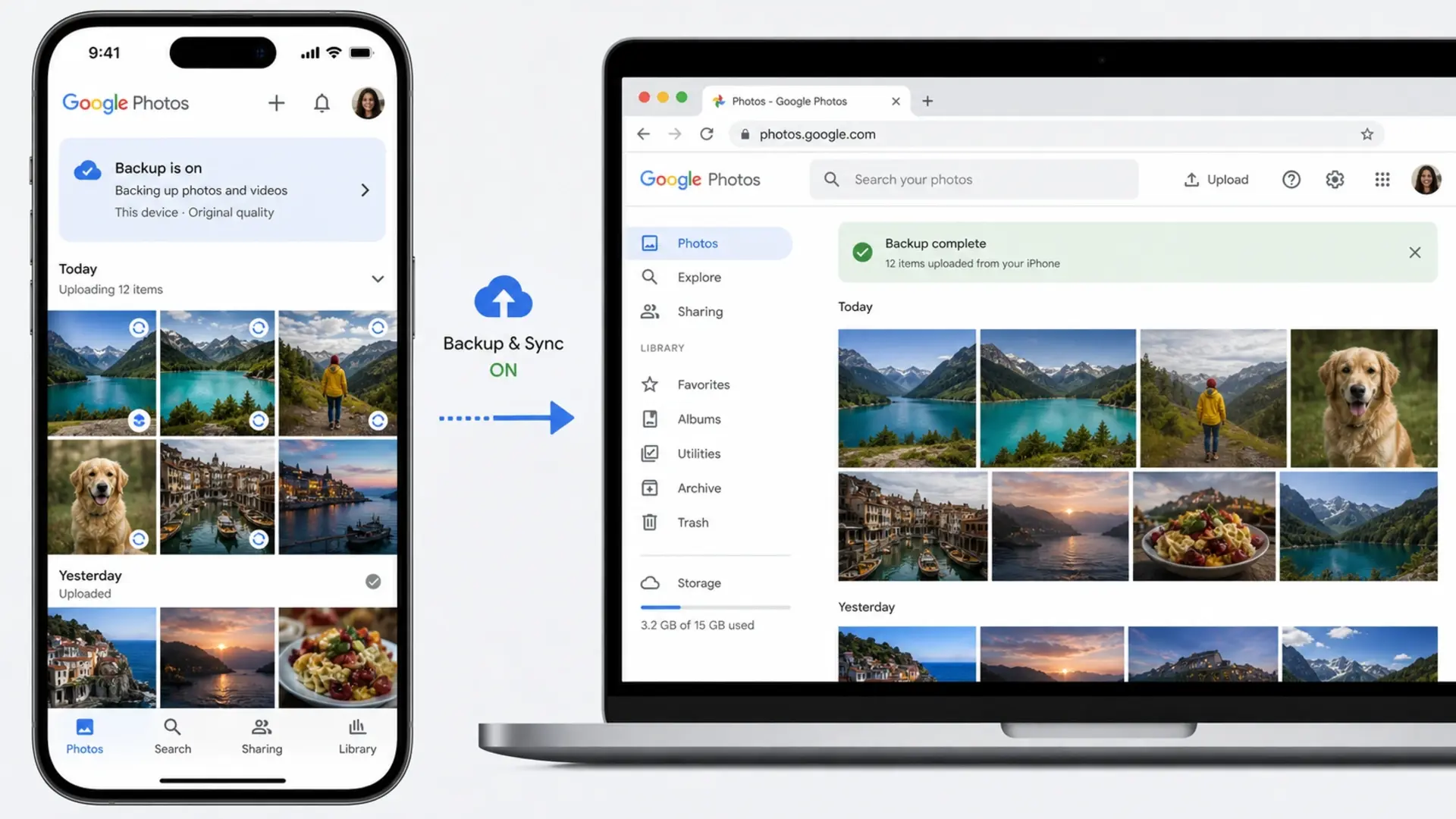
Using Google Photos

How to Transfer Photos from iPhone to Laptop Without iCloud Using Google Photos
  • Install the Google Photos app on iPhone
  • Sign in with a Google account
  • Enable backup
  • On a laptop, visit photos.google.com
  • Download photos from your library

How to Transfer Photos from iPhone to Laptop Using iTunes

iTunes provides another transfer method, though Apple has shifted away from it in recent years.

Transfer Photos via iTunes Sync.

  • Install the latest iTunes on Windows
  • Connect the iPhone with the USB cable
  • Click the device icon when it appears
  • Select Photos in sidebar
  • Check “Sync Photos”
  • Choose a folder to sync from
  • Click Apply

Note that iTunes sync primarily transfers photos TO your iPhone from your laptop. For transferring FROM iPhone to laptop, the Photos app or File Explorer methods work better.

iTunes Backup Method

  • Connect the iPhone to iTunes
  • Click “Back Up Now”
  • Your photos are saved as part of the backup
  • Use third-party tools to extract photos from backup if needed

iTunes backups store photos in an encrypted format, making direct access difficult. This method is better suited to full device backups than to quick photo transfers.

How to Transfer Photos from iPhone to Laptop with Cable

Cable transfers offer the fastest and most reliable way to move large photo libraries.

What Cable Do You Need?

  • iPhone 14 and earlier: Lightning to USB-A or Lightning to USB-C cable
  • iPhone 15 and later: USB-C to USB-C or USB-C to USB-A cable

Use Apple-certified cables for reliable connections. Cheap third-party cables sometimes fail to transfer data, only charging your device instead.

Maximizing Transfer Speed

Transfer speed depends on your cable quality and your laptop’s USB ports. USB 3.0 ports (usually blue inside) transfer much faster than USB 2.0 (black or white inside). USB-C ports generally offer the best speeds.

For transferring thousands of photos, connect to your laptop’s fastest USB port and Close unnecessary applications to ensure smooth transfers.

How to Transfer Photos from iPhone to Mac Laptop

Mac users enjoy seamless integration between iPhone and MacBook thanks to Apple’s ecosystem.

Using AirDrop (Wireless)

  • Enable WiFi and Bluetooth on both devices
  • Open Photos on iPhone
  • Select images to transfer
  • Tap Share > AirDrop
  • Select your Mac from the available devices
  • Accept transfer on Mac
  • Photos save to the Downloads folder

AirDrop works brilliantly for quick transfers of smaller batches. For thousands of photos, cable methods remain faster.

Using Photos App on Mac

  • Connect the iPhone via cable
  • Open the Photos app
  • iPhone appears in the sidebar under Devices
  • Click Import All or select specific photos
  • Import photos to your Mac library

Using Image Capture

Want more control over where photos save?

  • Connect iPhone to Mac
  • Open Image Capture (search in Spotlight)
  • Select your iPhone from Devices
  • Choose the destination folder at the bottom
  • Select photos and click Download

View your transferred photos on a larger display by learning how to connect an external monitor to a laptop for a better editing and viewing experience.

Transfer Photos from iPhone to HP Laptop.

HP laptops run Windows, so standard Windows methods apply. Here’s the specific process for HP users.

HP Photos App Method

  • Connect the iPhone using the USB cable
  • Tap “Trust This Computer” on iPhone
  • Open the Windows Photos app
  • Click Import > From a connected device
  • Select your photos
  • Choose the HP laptop folder as the destination
  • Click Import

HP File Explorer Method

  • Connect the iPhone to the HP laptop
  • Open File Explorer
  • Navigate to This PC > Apple iPhone > Internal Storage > DCIM
  • Copy desired photos
  • Paste to your HP laptop’s Pictures folder or chosen location

HP laptops sometimes need updated Apple drivers for proper iPhone detection. If your HP doesn’t recognize your iPhone, install iTunes, which includes the necessary drivers.

Transfer Photos and Videos from iPhone to Laptop

Video transfer using the same methods as photos, but requires more attention due to larger file sizes.

Tips for Video Transfers

  • Use cable transfers for large video files
  • Ensure sufficient storage space on the laptop
  • Close other applications during transfer
  • Videos in DCIM folders have .MOV or .MP4 extensions

Handling HEVC Videos

iPhones record video in HEVC format by default. Windows might not play these without additional codecs. Either:

  • Install HEVC Video Extensions from the Microsoft Store
  • Change iPhone settings to record in a compatible format (Settings > Camera > Formats > Most Compatible)

Videos consume significant storage. Check how long your laptop battery should last to ensure you have enough power for lengthy transfer sessions.

How to Transfer Photos from iPhone X to Laptop

iPhone X uses the same transfer methods as other iPhones. The only consideration is the Lightning port, which requires Lightning-to-USB cables.

iPhone X Specific Steps

  • Use a Lightning to USB-A or Lightning to USB-C cable
  • Connect to the laptop
  • Trust the computer when prompted
  • Use Photos app, File Explorer, or iCloud

The iPhone X supports wireless transfers via AirDrop (on Mac) or iCloud. All methods described in this guide work identically for iPhone X.

Troubleshooting Common Transfer Problems

iPhone Not Detected

  • Try a different USB cable.
  • Use another USB port.
  • Restart both devices
  • Install or update iTunes on Windows.
  • Check that the iPhone is unlocked during connection.

Transfer Stuck or Slow

  • Close unnecessary applications
  • Disconnect other USB devices.
  • Transfer in smaller batches
  • Check laptop storage space.

Photos Missing After Transfer

  • Check DCIM subfolders: photos spread across multiple dated folders.
  • Ensure you selected all photos during import.
  • Look in the Downloads, Pictures, or iCloud Photos folders.

Trust Popup Not Appearing

  • Disconnect and reconnect the iPhone.
  • Reset Location & Privacy settings on iPhone (Settings > General > Transfer or Reset iPhone > Reset > Reset Location & Privacy)
  • Try a different cable

If your laptop’s fan runs loudly during transfers or heavy processing, it might be overheating. Learn how to stop laptop fan noise for quieter operation.

Frequently Asked Questions

What is the easiest way to transfer photos from an iPhone to a laptop?

The easiest way to transfer photos from an iPhone to a laptop is to connect via USB cable and use the Windows Photos app’s import feature. Plug in your iPhone, open Photos, click Import, and select your images. 

Why can’t I transfer photos from my iPhone to my laptop?

Common reasons include: an untrusted computer connection (tap “Trust” on iPhone when prompted), a faulty USB cable (try Apple-certified cables), outdated drivers (install iTunes on Windows to get Apple drivers), a locked iPhone screen (unlock during transfer), or insufficient laptop storage space. 

Can you AirDrop to a PC?

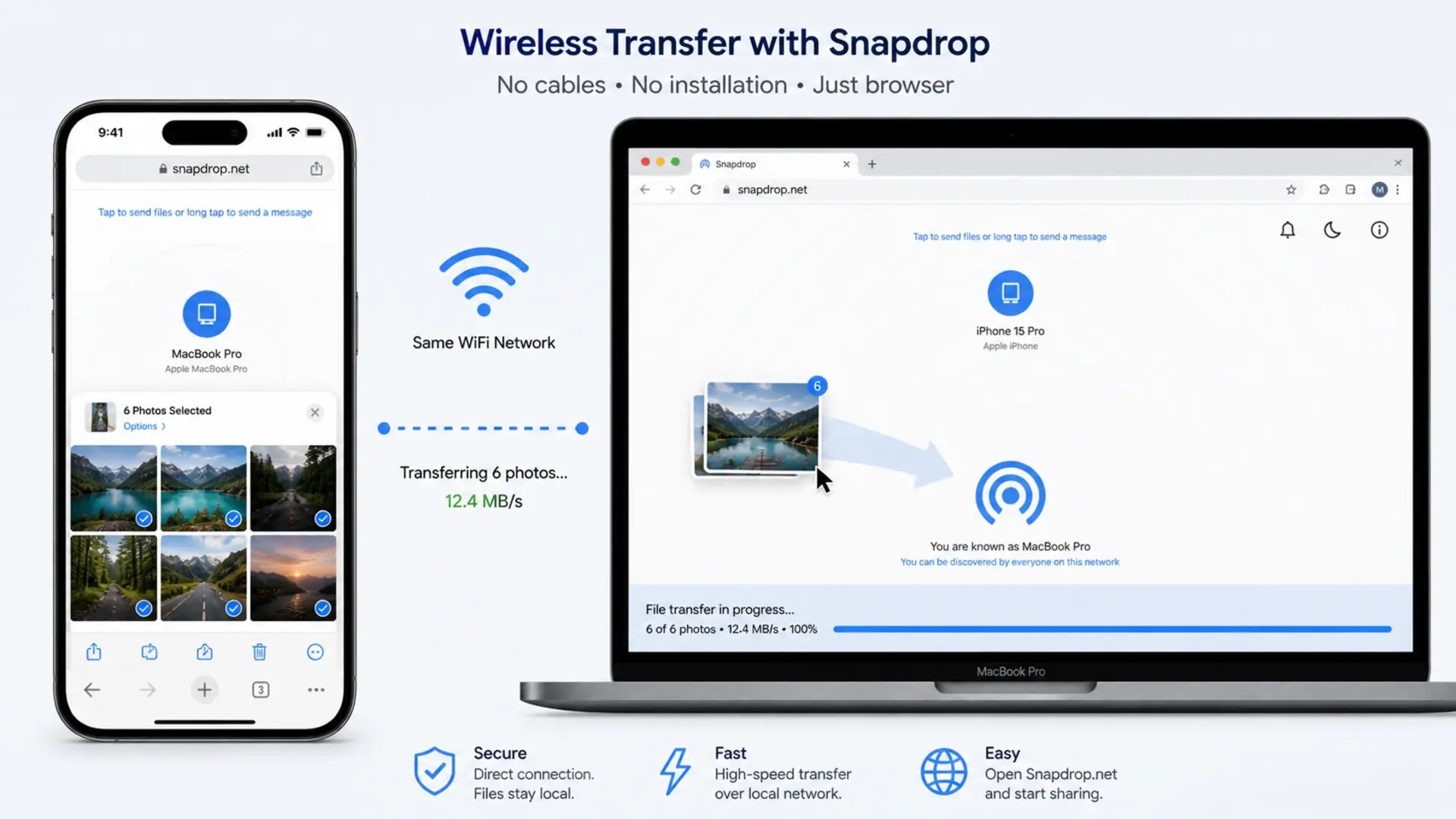
No, AirDrop only works between Apple devices, like iPhones, iPads, and Macs. Windows PCs cannot receive AirDrop transfers. For wireless transfers to Windows laptops, use iCloud Photos, email, cloud services like Google Photos or Dropbox, or apps like Snapdrop that mimic AirDrop functionality through your web browser.

How do I transfer 1000 photos from my phone to my laptop?

For transferring 1000+ photos, use a USB cable connection rather than wireless methods. Connect your iPhone, open File Explorer, navigate to the DCIM folder, select all photos with Ctrl+A, and copy them to your laptop. 

Need Help with Your Laptop?

Tech Point Zone stocks laptops from all major brands with fast USB ports and ample storage for your photo library. Visit our Bur Dubai showroom for expert advice on choosing the right laptop for your needs.

WhatsApp us at +971 525696022 or browse our collection at techpointzone.com.

how to take screenshot in laptop

How to Take Screenshot in Laptop – Complete Guide for All Brands

Taking screenshots saves time when you need to capture information quickly. Whether you’re saving a receipt, sharing an error message with tech support, or keeping a record of important details, knowing how to screenshot on your laptop makes life easier.

This guide covers every screenshot method across Windows and Mac laptops. We’ll walk through brand-specific shortcuts for HP, Dell, Lenovo, and other popular laptop brands sold in the UAE. By the end, you’ll know multiple ways to capture your entire screen, specific windows, or just a selected area.

How to Take Screenshot in Laptop

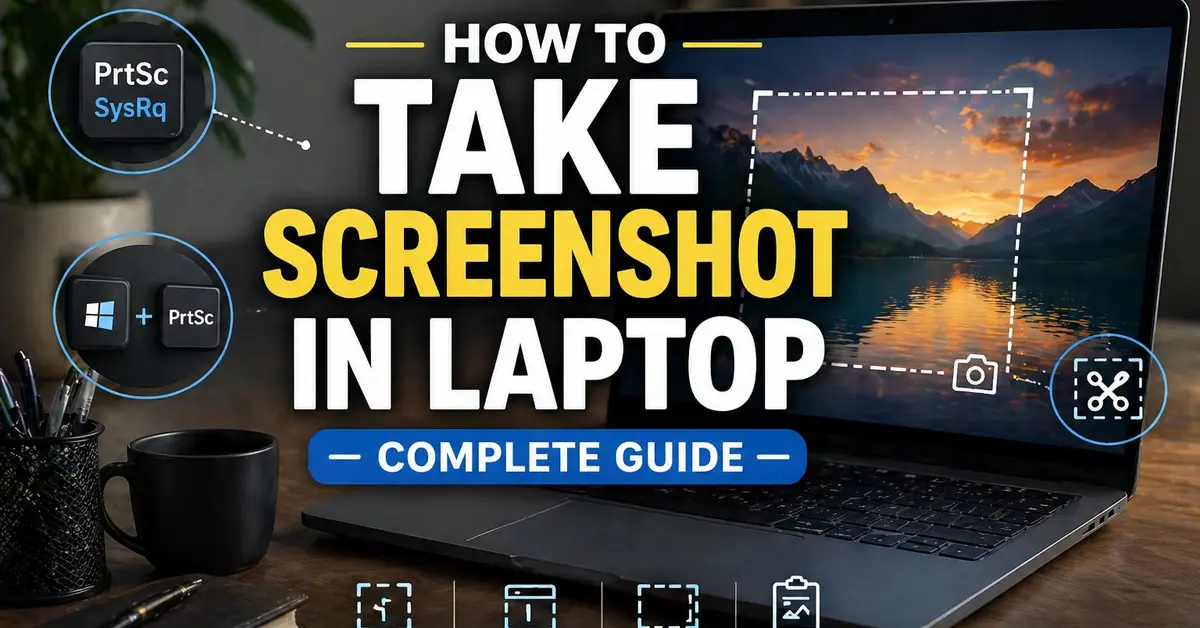
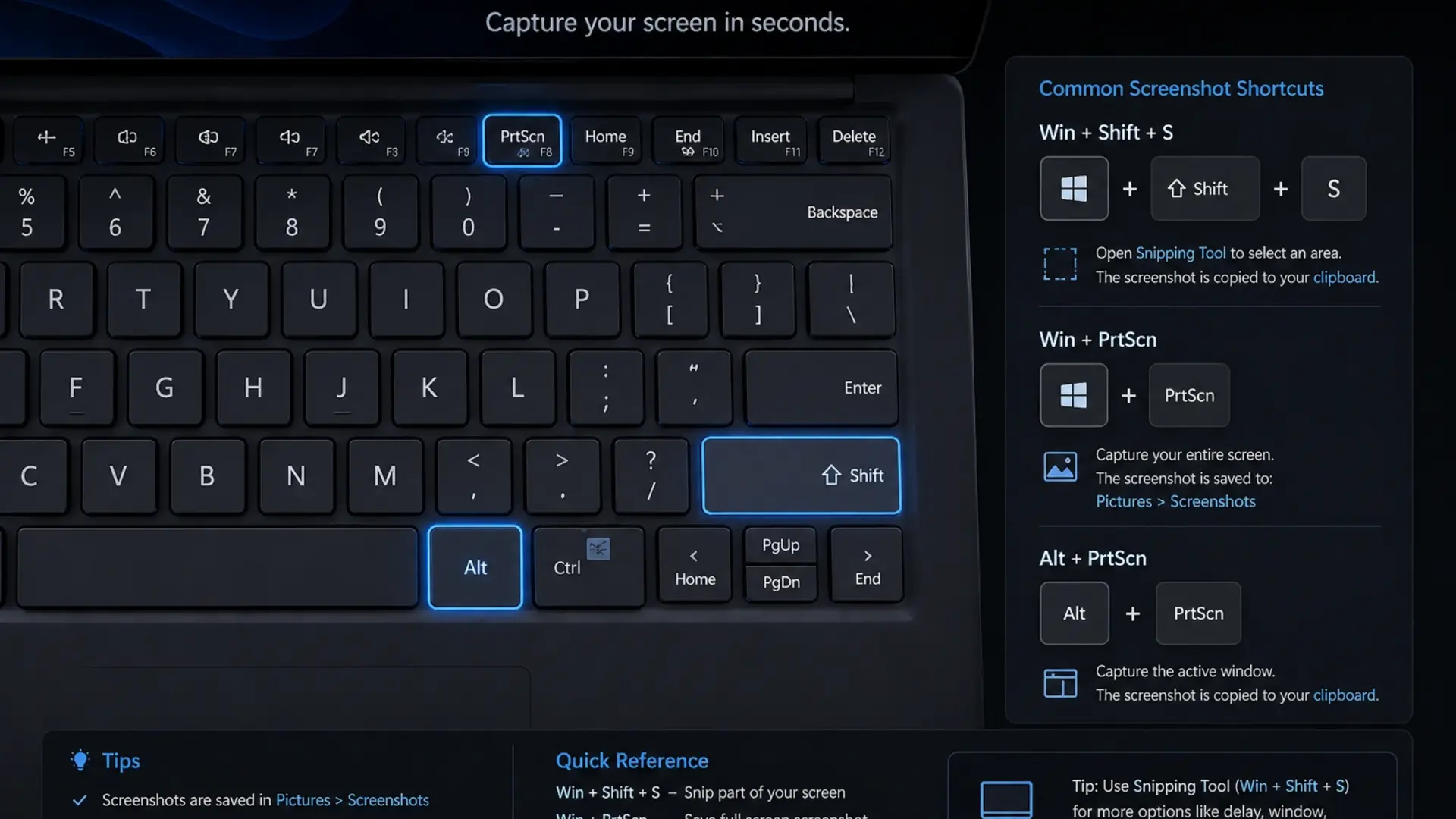
Press the Print Screen (PrtScn) key on your keyboard to take a screenshot of your entire screen instantly. This copies the image to your clipboard, and you can paste it into any application using Ctrl + V.

For a quicker method that saves automatically, press Windows + Print Screen. Your screen dims briefly, and Windows saves the screenshot directly to your Pictures > Screenshots folder. No pasting required.

Here’s a quick reference for the most common screenshot shortcuts:

  • PrtScn – Copies entire screen to clipboard
  • Windows + PrtScn – Saves screenshot automatically
  • Alt + PrtScn – Captures active window only
  • Windows + Shift + S – Opens selection tool for custom area

The Print Screen key location varies between laptops. On most keyboards, you’ll find it in the top row, often abbreviated as PrtScn, PrtSc, or Print. Some compact laptops require pressing the Fn key along with Print Screen to activate the function.

How to Take Screenshot in Laptop Windows 11

Windows 11 uses the Snipping Tool as its default screenshot application, offering more control than basic keyboard shortcuts.

How to Take Screenshot in Laptop – Complete Guide for All Brands

Using Keyboard Shortcuts

  • Windows + Shift + S – Opens Snipping Tool overlay immediately
  • Windows + PrtScn – Captures and saves full screen
  • PrtScn – Copies full screen to clipboard
  • Alt + PrtScn – Captures current window only

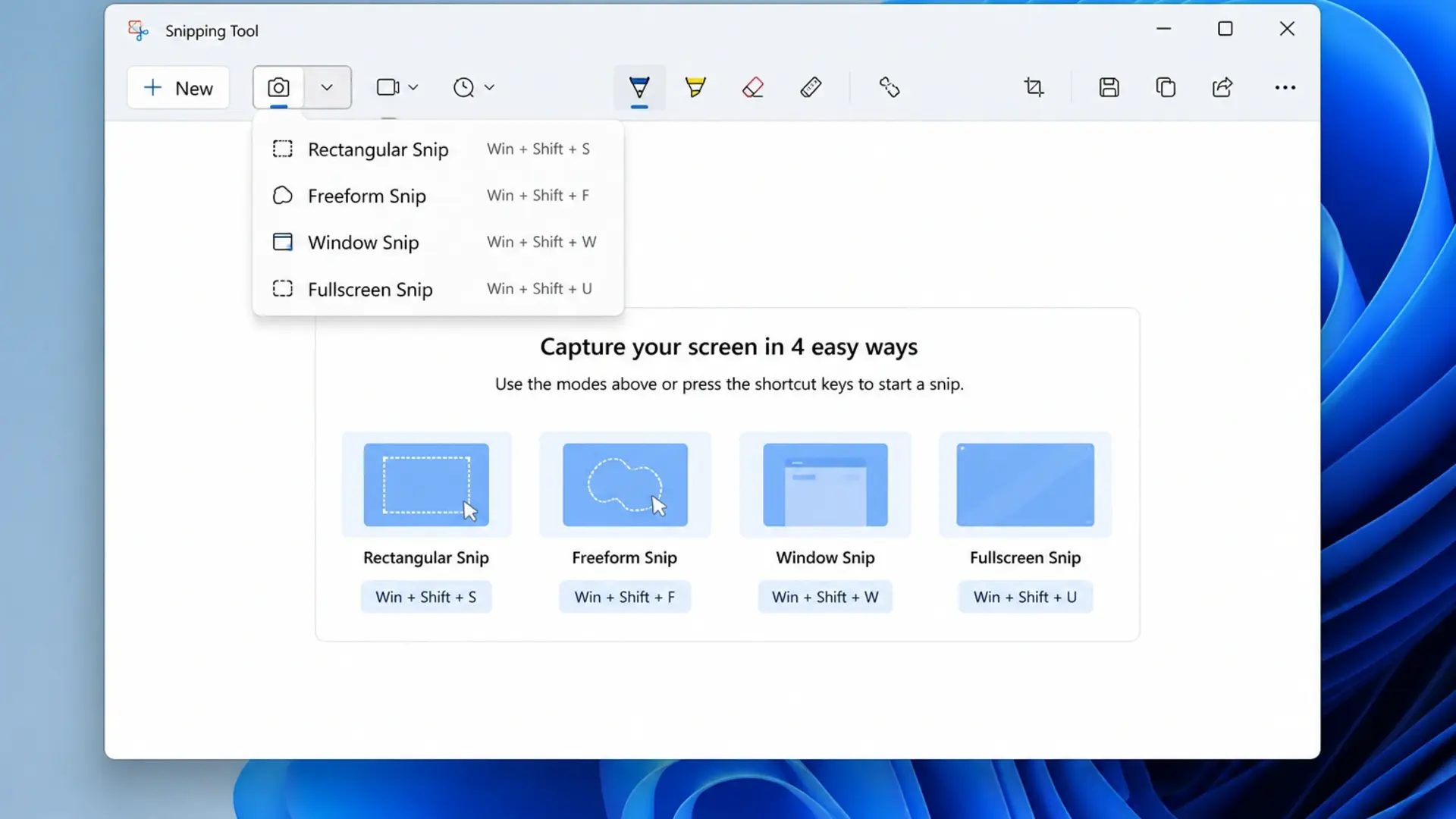
Using Snipping Tool

  • Press the Windows key and type “Snipping Tool.”
  • Click New to start a capture
  • Choose from Rectangle, Window, Full Screen, or Free-form modes
  • Click and drag to select your area
  • Edit with pen, highlighter, or crop tools
  • Save using Ctrl + S
take screenshot using snipping tool

Windows 11 also lets you set Print Screen to open the Snipping Tool directly. Go to Settings > Accessibility > Keyboard and enable “Use the Print Screen key to open screen capture.”

The snipping tool shortcut Windows + Shift + S works fastest for most users. After capturing, a notification appears in the corner . Click it to edit and save your screenshot.

How to Take Screenshot in Laptop Windows 10

Windows 10 offers similar methods with slight interface differences.

Quick Keyboard Methods

  • Windows + Shift + S – Opens Snip & Sketch overlay
  • Windows + PrtScn – Saves a full screenshot automatically
  • PrtScn – Copies screen to clipboard
  • Alt + PrtScn – Captures active window

Using Snip & Sketch

  • Press Windows + Shift + S
    Select capture mode from the toolbar:
  • Rectangular Snip
  • Freeform Snip
  • Window Snip
  • Fullscreen Snip
  • Click and drag to capture
  • Click the notification to open in the editor
  • Save with Ctrl + S

The screenshot shortcut key that Windows 10 users rely on most is Windows + Shift + S because it combines speed with selection flexibility. Your captures are saved to the clipboard first, then you can paste or save them anywhere.

If your laptop runs slowly when taking screenshots, background processes may be causing the issue. Check our guide on how to fix a laptop battery draining fast – the same fixes that improve battery life also boost overall performance.

How to Take Screenshot in Laptop Windows 7

Windows 7 lacks the modern snipping shortcuts but still offers reliable screenshot methods.

Basic Screenshot Methods

  • PrtScn – Captures entire screen to clipboard
  • Alt + PrtScn – Captures active window only
  • Paste into Paint or Word using Ctrl + V
  • Save the file manually

Using Snipping Tool (Windows 7)

  • Click Start menu
  • Type “Snipping Tool” in the search
  • Open the application
  • Click New
  • Select an area to capture
  • Save using File > Save As

Windows 7’s Snipping Tool works well, but requires more steps than newer versions. After capturing, you must manually save each screenshot before taking another.

How to Take Screenshot in Laptop Mac

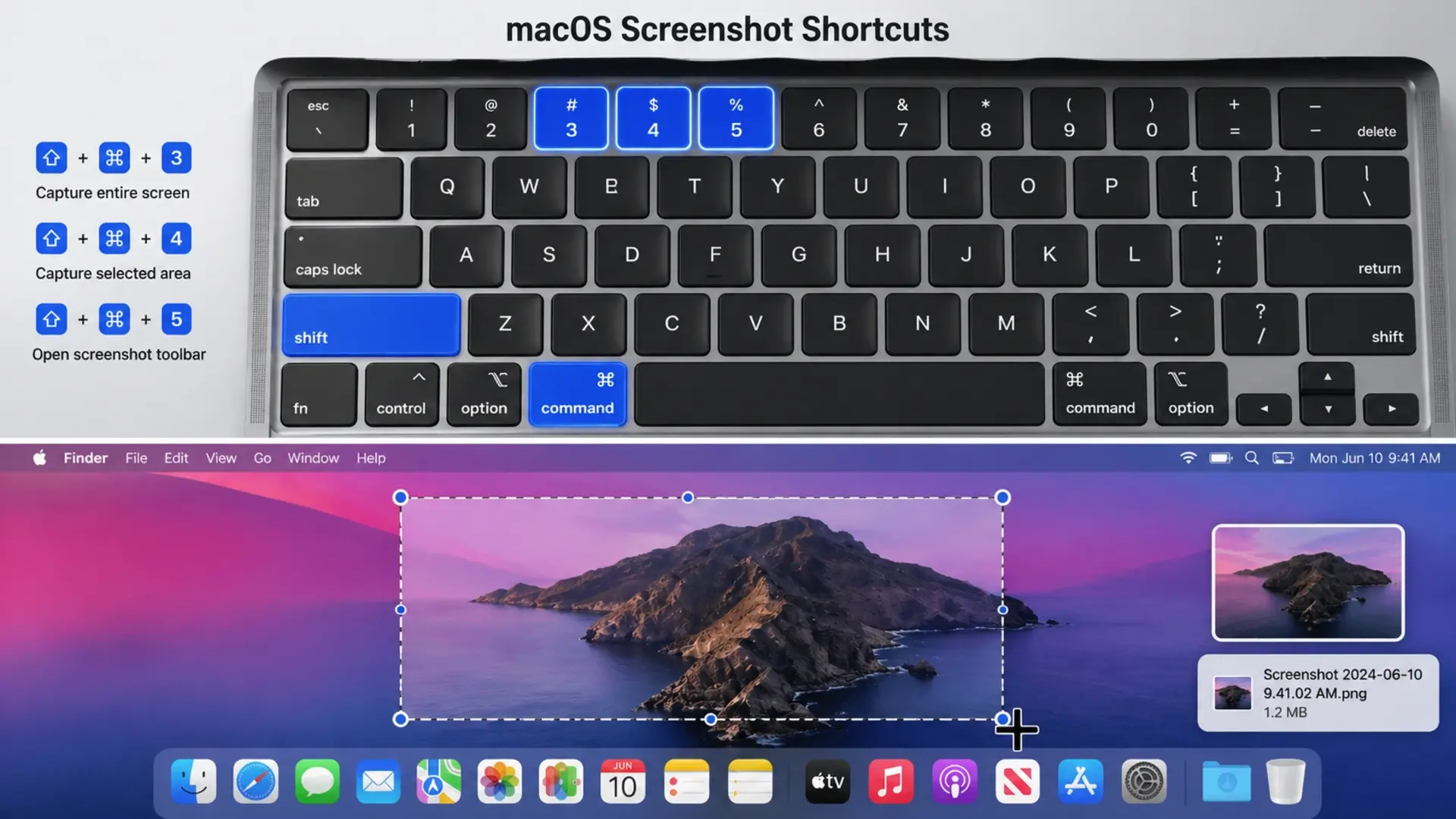
Screenshot in Mac works differently from Windows, using the Command key instead of the Windows key.

How to Take Screenshot in Laptop Mac

Mac Screenshot Shortcuts

  • Command + Shift + 3 – Captures entire screen
  • Command + Shift + 4 – Lets you select an area
  • Command + Shift + 4 + Spacebar – Captures specific window
  • Command + Shift + 5 – Opens screenshot toolbar with all options

Taking Selected Area Screenshots

  • Press Command + Shift + 4
  • Your cursor changes to crosshairs
  • Click and drag to select the area you want
  • Release to capture
  • Screenshot saves to the desktop automatically

Mac screenshots save to your desktop by default. You can change this location by pressing Command + Shift + 5, then clicking Options.

The Windows screenshot shortcut differs significantly from the Mac shortcut. If you switch between the two systems, remember that Command on Mac replaces the Windows key, and that shortcuts use Shift more frequently.

How to Take Screenshot in Laptop HP

HP laptops use standard Windows shortcuts plus some model-specific options.

Standard HP Screenshot Methods

  • PrtScn – Copies full screen (paste with Ctrl + V)
  • Windows + PrtScn – Saves screenshot automatically
  • Windows + Shift + S – Opens snipping tool
  • Fn + PrtScn – Required on some HP models

HP-Specific Tips

Some HP laptops place Print Screen on a shared key. Look for “PrtSc” printed in a different color (usually blue or grey). If so, press Fn + PrtSc together.

On HP Specter and Envy models, the Print Screen key may be located differently due to compact keyboard layouts. Check the top row near the Delete or Insert keys.

HP laptops from the best laptop brands in the world work with all standard Windows screenshot methods, making them easy to use for capturing screen content.

How to Take Screenshot in Laptop Dell

Dell laptops follow Windows conventions with reliable screenshot functionality.

Dell Screenshot Shortcuts

  • PrtScn – Captures entire screen to clipboard
  • Windows + PrtScn – Auto-saves to Screenshots folder
  • Alt + PrtScn – Captures active window only
  • Windows + Shift + S – Opens the selection snipping tool

Dell Function Key Combinations

On Dell Inspiron, XPS, and Latitude models, Print Screen usually works without the Fn key. However, if your screenshot doesn’t capture, try:

  • Fn + PrtScn on compact keyboards
  • Fn + Windows + PrtScn for auto-save

Dell XPS laptops sometimes map Print Screen to a secondary function. Check if “PrtScn” appears below another key label. This indicates you need the Fn key.

How to Take Screenshot in Laptop Lenovo

Lenovo laptops, especially ThinkPads, include additional screenshot options through their Vantage software.

Standard Lenovo Shortcuts

  • PrtScn – Full screen to clipboard
  • Windows + PrtScn – Saves screenshot automatically
  • Fn + PrtScn – Required on many Lenovo models
  • Windows + Shift + S – Opens snipping overlay
  • Fn + Spacebar – ThinkPad specific (some models)

ThinkPad Screenshot Key

Many ThinkPad keyboards include a dedicated screenshot key near the arrow keys. This key has a scissors icon and opens the snipping tool directly when pressed.

Lenovo Vantage software also provides screenshot options. Open Vantage, go to Device Settings, and explore keyboard shortcut customization.

How to Take Screenshot in Laptop with Keyboard

Every laptop keyboard includes screenshot capabilities via the laptop’s screenshot shortcut key.

Universal Keyboard Shortcuts (Windows)

ShortcutFunction
PrtScnCopy full screen to clipboard
Windows + PrtScnSave full screen automatically
Alt + PrtScnCopy active window to clipboard
Windows + Shift + SOpen selection tool
Windows + Alt + PrtScnCapture active window (Game Bar)

Finding Your Print Screen Key

The Print Screen key appears in different locations:

  • Full-size keyboards: Top row, after F12
  • Compact laptops: Shared with another key (use Fn)
  • Some HP/Dell: Near Delete or Insert
  • Gaming laptops: Often in a standard position

If you can’t find Print Screen, press Fn + Windows + Spacebar on some laptops, or use Windows + Shift + S, which works on all laptops.

How to Take Screenshot in Laptop Selected Area

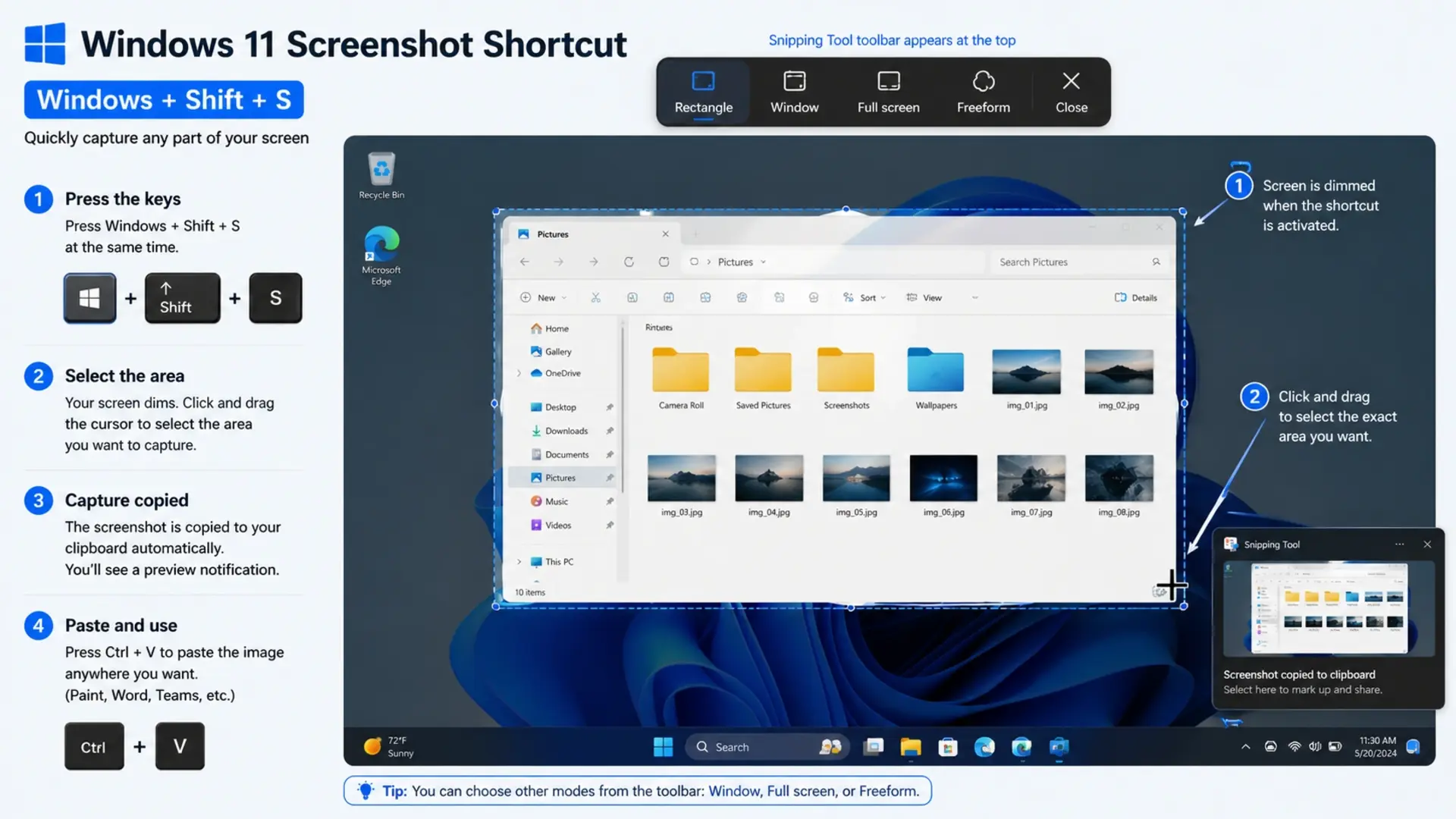
Press Windows + Shift + S to capture only a selected area of your screen. This snipping tool shortcut lets you draw a rectangle around exactly what you want to capture.

How to Take Screenshot in Laptop Selected Area

Step-by-Step Selected Area Capture

  • Press Windows + Shift + S
  • The screen dims, and the toolbar appears at the top
  • Choose Rectangular Snip (first icon)
  • Click and drag to draw a selection box
  • Release the mouse button to capture
  • Click notification to edit or save

Other Selection Options

The toolbar offers four capture modes:

  • Rectangular Snip – Draw a rectangle
  • Freeform Snip – Draw any shape
  • Window Snip – Click a window to capture it
  • Full-screen Snip – Capture everything

Your selected area is automatically copied to the clipboard. Paste it directly into documents, emails, or image editors using Ctrl + V.

Understanding your laptop screen size helps when planning screenshots, especially if you need specific dimensions for presentations or websites.

Where Screenshots Save on Your Laptop

Screenshots save to different locations depending on which method you use:

Windows Save Locations

  • Windows + PrtScn: Pictures > Screenshots folder
  • Snipping Tool/Snip & Sketch: You choose the location when saving
  • PrtScn alone: Clipboard only (paste somewhere first)
  • Windows + Shift + S: Clipboard, then save from the notification

Mac Save Locations

  • All shortcuts: Desktop by default
  • Command + Shift + 5: Choose a custom location in Options

Changing Default Save Location (Windows 11)

  • Open Snipping Tool
  • Click the three-dot menu
  • Select Settings
  • Under “Screenshots,” change the folder path

Frequently Asked Questions

What is the Ctrl key for screenshot on a laptop?

The Ctrl key alone doesn’t take screenshots on Windows laptops. You need the Print Screen (PrtScn) key to capture screenshots. However, Ctrl + V pastes screenshots after you capture them, and Ctrl + S saves screenshots in editing applications. 

What are three ways to take a screenshot on a PC?

The three main ways to take a screenshot on PC are: First, press Print Screen to capture your entire screen to the clipboard. Second, press Windows + Shift + S to open the snipping tool and select a specific area. Third, use the Snipping Tool application for more control over your captures with editing options.

Where is the screenshot key on a laptop?

The screenshot key (Print Screen) sits in the top row of your keyboard, typically after F12 and before Delete or Insert. Look for labels like PrtScn, PrtSc, Print, or a camera icon. On compact laptops, 

Where do Ctrl+Shift+S screenshots go?

Windows + Shift + S screenshots copy to your clipboard first, not a folder. After capturing, a notification appears in the bottom-right corner. Click this notification to open the screenshot in Snipping Tool, then save it wherever you choose using Ctrl + S. 

Need Help with Your Laptop?

Tech Point Zone stocks laptops from HP, Dell, Lenovo, ASUS, and all major brands with reliable keyboard functionality. Visit our Bur Dubai showroom for expert advice on choosing the right laptop for your needs.WhatsApp us at +971 525696022 or browse our collection at techpointzone.com.

How to Fix Laptop Battery Draining Fast

How to Fix Laptop Battery Draining Fast – Complete Solutions for UAE Users

Nothing frustrates laptop users more than watching their battery percentage drop rapidly. You charge your laptop fully, unplug it, and within an hour or two, you’re hunting for a power outlet again. This problem affects laptops across all brands and price ranges.

The good news? Most battery drain issues have straightforward fixes. Whether your laptop suddenly started draining faster or the decline has been gradual, this guide walks you through every proven solution. We’ll cover Windows 10 and Windows 11, as well as brand-specific fixes for Dell and Lenovo laptops.

How to Fix a Laptop Battery Draining Fast

Fix a laptop battery that drains fast by adjusting power settings, reducing screen brightness, closing background apps, and updating your drivers. These four steps solve most battery drain problems within minutes.

Here’s the quick-fix checklist:

  • Switch power mode to “Balanced” or “Best power efficiency.”
  • Lower screen brightness to 50-70%
  • Close unnecessary browser tabs and applications
  • Disable Bluetooth and WiFi when not needed
  • Update Windows and device drivers
  • Check battery health status

If your battery drains quickly despite being relatively new, software issues are usually the cause. Older batteries naturally lose capacity over time. Understanding how long a laptop battery should last helps you determine whether your battery performs normally or needs attention.

Let’s get into detailed fixes for each situation.

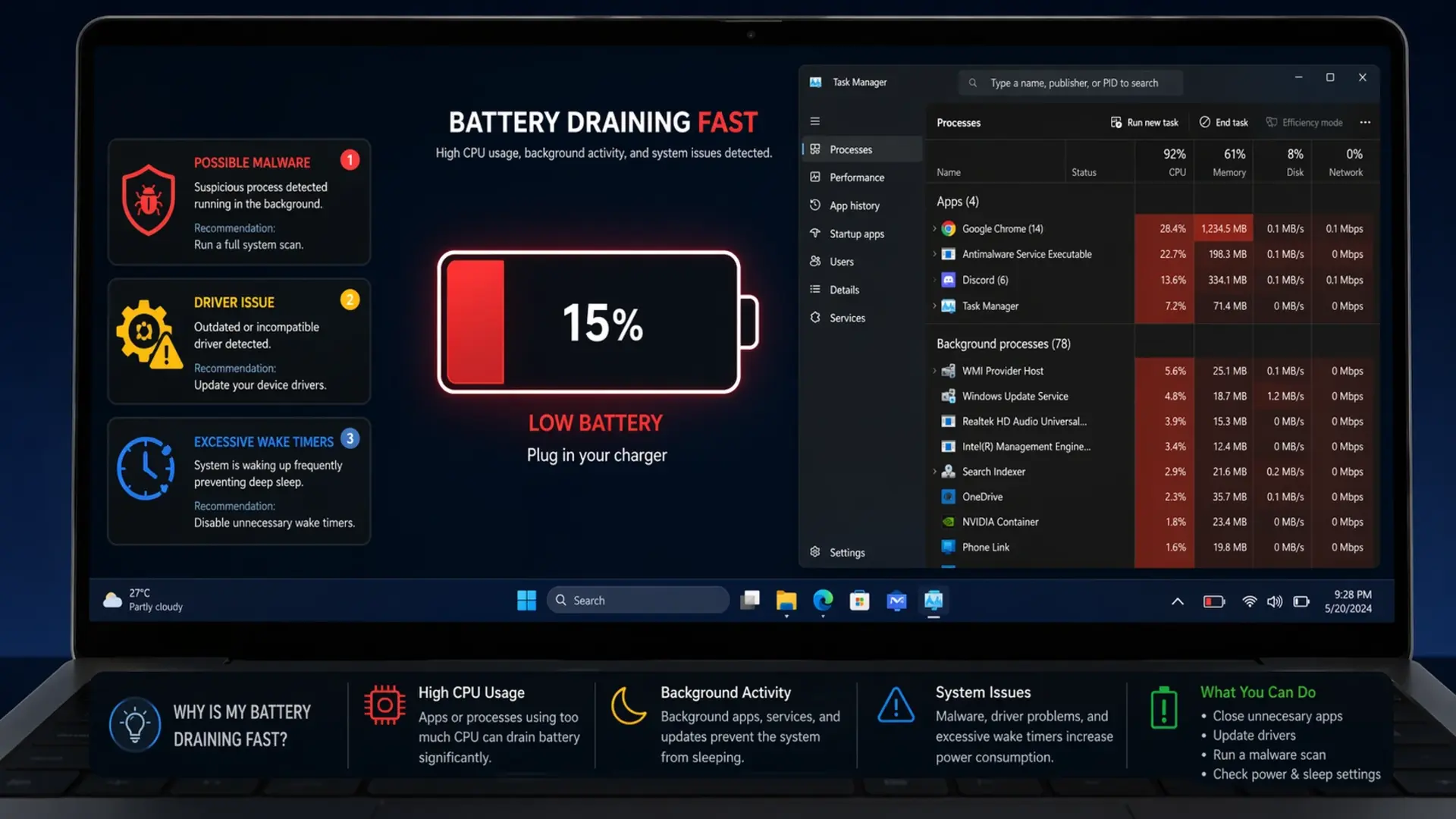
Why Is My Laptop Battery Draining So Fast All of a Sudden?

Sudden battery drain usually results from a recent Windows update, new software installation, or changed settings that increased power consumption without your knowledge.

How to Fix Laptop Battery Draining Fast

Common triggers for sudden battery drain:

  • A recent Windows update changed power settings or installed buggy drivers
  • New application running constantly in the background
  • Malware or unwanted software is consuming resources
  • Driver corruption after system changes
  • Wake timers are preventing proper sleep mode
  • Stuck process using high CPU continuously

To identify the culprit, open Task Manager (Ctrl + Shift + Esc) and check which processes use the most CPU and power. Sort by the “Power usage” column to spot the drain source immediately.

If problems started after a Windows update, the update may have reset your power settings to defaults or installed incompatible drivers. Rolling back recent updates or drivers often resolves sudden drain issues.

How to Fix Laptop Battery Draining Fast in Windows 11

Windows 11 includes improved power management, but incorrect settings still cause rapid drain. Follow these steps to optimize your Windows 11 laptop:

Fix Laptop Battery Draining Fast in Windows 11

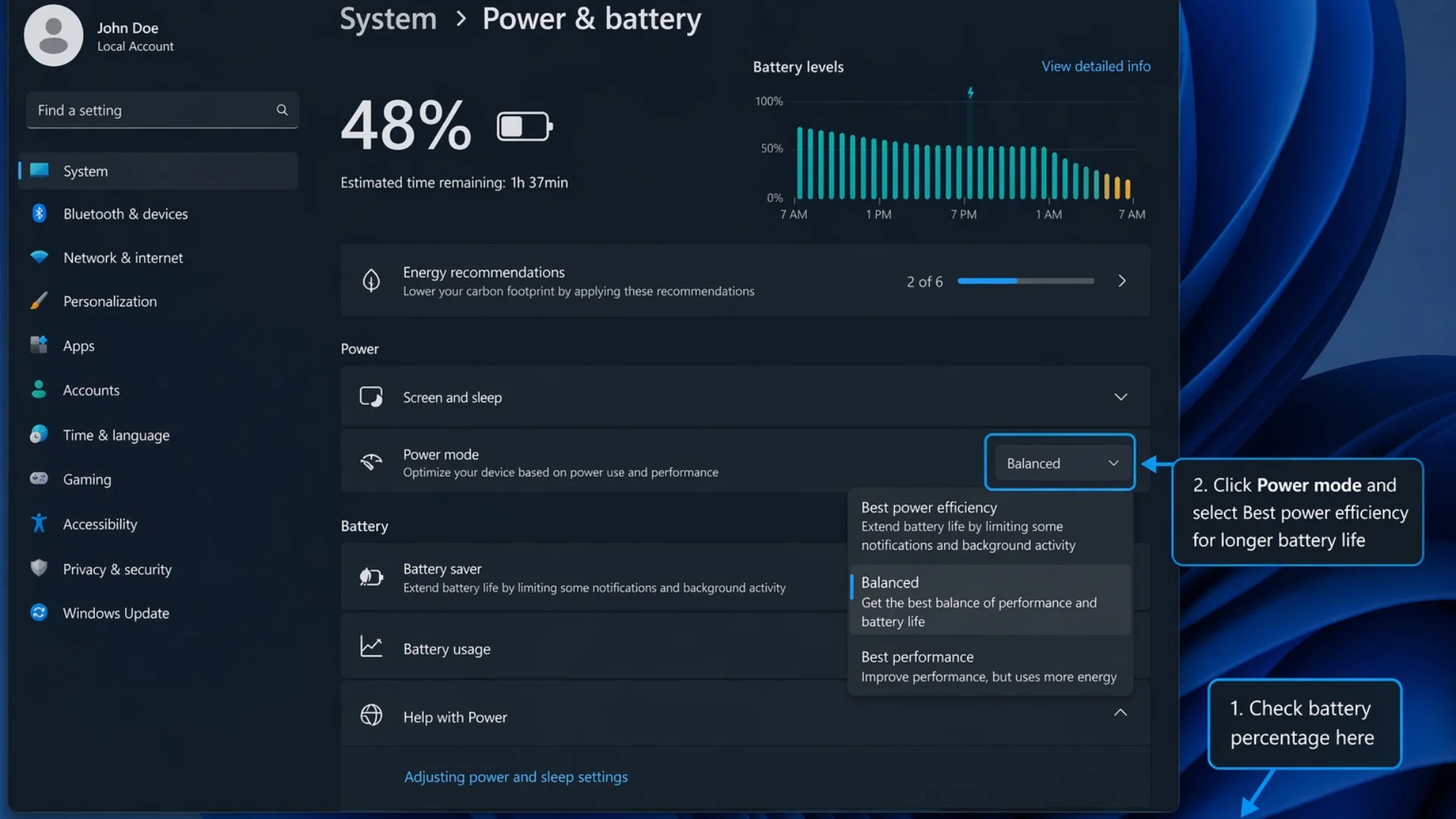
Adjust Power Mode Settings

  • Click the battery icon in your taskbar
  • Move the slider toward “Best power efficiency.”
  • Alternatively, right-click the battery icon and select “Power and sleep settings.”
  • Under “Power mode,” choose “Best power efficiency” or “Balanced.”

Configure Display and Sleep Settings

  • Open Settings > System > Power & battery
  • Set “Screen” to turn off after 3-5 minutes
  • Set “Sleep” to activate after 5-10 minutes
  • Enable “Turn off my screen when I’m not looking at it” if available

Limit Background App Activity

  • Go to Settings > Apps > Installed apps
  • Click the three dots next to each app
  • Select “Advanced options.”
  • Under “Background app permissions,” choose “Never” for non-essential apps

Reduce Processor Power State

  • Open Control Panel > Power Options
  • Click “Change plan settings” next to your active plan
  • Select “Change advanced power settings.”
  • Expand “Processor power management.”
  • Set “Maximum processor state” to 80% on battery
  • Click Apply

Disable Unnecessary Features

  • Turn off keyboard backlight (Fn + relevant key)
  • Disable location services when not needed
  • Turn off transparency effects in Settings > Personalization> Colors
  • Disable animations in Settings > Accessibility > Visual effects

How to Fix Laptop Battery Draining Fast in Windows 10

Windows 10 power settings work slightly differently. Here’s how to optimize them:

Access Battery Settings

  • Click Start > Settings > System > Battery
  • Turn on “Battery saver” automatically at 20%
  • Check “Lower screen brightness while in battery saver.”
  • Click “See which apps are affecting your battery life.”

Adjust Power Plan

  • Open Control Panel > Hardware and Sound > Power Options
  • Select “Balanced” plan (not High Performance)
  • Click “Change plan settings.”
  • Set display off: 3-5 minutes on battery
  • Set sleep: 5-10 minutes on battery
  • Click “Change advanced power settings” for more control

Stop Background Apps

  • Go to Settings > Privacy > Background apps
  • Turn off “Let apps run in the background” entirely
  • Or disable individual apps you don’t need running

Disable Startup Programs

  • Press Ctrl + Shift + Esc to open Task Manager
  • Click the “Startup” tab
  • Right-click unnecessary programs and select “Disable.”
  • Focus on browser extensions, cloud sync, and update checkers

Check for Problematic Updates

  • Open Settings > Update & Security > Windows Update
  • Click “View update history.”
  • Note recent updates
  • If the drain started after a specific update, consider uninstalling it

How to Fix a Laptop Battery Draining Fast: Lenovo

Lenovo laptops include Vantage software with battery-specific features that help manage power consumption effectively.

Use Lenovo Vantage

  • Open Lenovo Vantage (pre-installed on most Lenovo laptops)
  • Go to “Device” > “Power.”
  • Enable “Battery Conservation Mode” to cap charging at 80%
  • Select “Intelligent Cooling” and choose “Battery Saving” mode
  • Run “Battery Gauge Reset” if the battery reports inaccurate percentages

Adjust Lenovo Power Settings

  • In Vantage, select “Power Smart Settings.”
  • Enable “Flip to Boot” only if you use it
  • Disable “Always On USB” to prevent drain when the laptop is off
  • Turn off “Rapid Charge” if you don’t need fast charging

Update Lenovo Drivers

  • Open Lenovo Vantage
  • Go to “System Update”
  • Install all available updates, especially:
    • Power management drivers
    • BIOS updates
    • Chipset drivers

ThinkPad-Specific Fixes

  • Access “Power Manager” in Lenovo Vantage
  • Enable “Adaptive Thermal Management”
  • Set threshold start/stop charging to optimize battery longevity
  • Disable “Wake on LAN” in BIOS if not needed

If your Lenovo laptop drains the battery even when turned off, check the “Always On USB” setting”. This feature keeps USB ports powered continuously and drains the battery overnight. Disabling it in BIOS or Vantage stops this drain immediately.

Fix a Laptop Battery Draining Fast Lenovo & Dell

How to Fix a Laptop Battery Draining Fast on a Dell

Dell laptops use Dell Power Manager and BIOS settings for battery optimization. Here’s how to configure them properly:

Configure Dell Power Manager

  • Open Dell Power Manager (download from Dell if not installed)
  • Go to “Battery Information” to check current health
  • Select “Battery Settings”
  • Choose “Primarily AC Use” if the laptop stays plugged in mostly
  • Or select “Adaptive” for mixed usage patterns

Adjust Thermal Management

  • In Dell Power Manager, go to “Thermal Management.”
  • Select “Optimized” or “Cool” instead of “Ultra Performance.”
  • This reduces the processor speed slightly but extends the battery significantly

Update Dell Drivers

  • Open Dell SupportAssist (pre-installed on Dell laptops)
  • Click “Check for updates.”
  • Install all driver updates, particularly:
    • Intel Management Engine
    • BIOS updates
    • Chipset drivers
    • Dell Power Manager updates

BIOS Power Settings

  • Restart the laptop and press F2 repeatedly to enter BIOS
  • Navigate to “Power Management”
  • Enable the “Block Sleep” feature if the laptop wakes randomly
  • Disable “Wake on LAN” and “Wake on Dell USB-C Dock”
  • Set “Lid Switch” to sleep when closed

Fix Dell Battery Calibration

  • In Dell Power Manager, find “Battery Health.”
  • If showing “Calibration needed,” run the calibration process
  • This takes several hours but fixes inaccurate percentage readings

Dell laptops sometimes drain the battery faster after BIOS updates. If the drain started after a BIOS update, check Dell’s support site for newer versions that may fix the issue.

Why My Laptop Battery Is Draining So Fast Even When Off

A laptop draining battery while completely shut down indicates hardware settings keeping components active or a failing battery that can’t hold a charge.

Common causes of a drain when powered off:

  • Fast Startup enabled: Laptop enters hibernation instead of full shutdown
  • Wake timers active: Scheduled tasks wake the system periodically
  • USB charging enabled: Ports supply power even when the laptop is off
  • Connected devices: USB devices draw power continuously
  • Network wake features: WiFi or LAN card stays partially powered
  • Battery degradation: Old batteries self-discharge faster

Fixes for Drain When Off

Disable Fast Startup:

  • Open Control Panel > Power Options
  • Click “Choose what the power buttons do.”
  • Click “Change settings that are currently unavailable.”
  • Uncheck “Turn on fast startup.”
  • Click Save changes

Disable Wake Timers:

  • Open Control Panel > Power Options
  • Click “Change plan settings” > “Change advanced power settings.”
  • Expand “Sleep” > “Allow wake timers.”
  • Set to “Disable” for both battery and plugged in

Turn Off USB Charging When Off:

  • Enter BIOS (restart and press F2 or Del)
  • Find “USB PowerShare” or “Always On USB”
  • Disable this feature
  • Save and exit BIOS

Disconnect All USB Devices:

  • Remove external drives, mice, and other USB accessories before shutdown
  • Some devices continue drawing power even when the laptop is off

If the battery still drains when off after these fixes, the battery itself may be failing and need replacement.

My Laptop Battery Is Draining Fast Even After a Full Charge

A battery draining rapidly after reaching 100% suggests either incorrect battery calibration, degraded battery health, or power-hungry processes starting immediately.

Check Actual Battery Health

On Windows 10/11, generate a battery report:

  • Open Command Prompt as Administrator
  • Type: powercfg /batteryreport
  • Press Enter
  • Open the generated HTML file from C:\Users[YourName]\battery-report.html
  • Compare “Design Capacity” vs “Full Charge Capacity”

If Full Charge Capacity shows significantly less than Design Capacity (below 70%), your battery has degraded and may need replacement.

Calibrate Your Battery

Calibration fixes inaccurate percentage readings:

  • Charge the laptop to 100%
  • Keep it plugged in for 2 hours after reaching 100%
  • Unplug and use normally until the laptop shuts down from low battery
  • Leave it off for 5 hours
  • Charge back to 100% without interruption

This process resets the battery sensor and often fixes “drain after full charge” issues.

Identify Immediate Power Draw

Some applications start automatically and consume power instantly:

  • Check the Task Manager immediately after unplugging
  • Look for high CPU usage processes
  • Disable unnecessary startup programs
  • Update or uninstall recently added software

When comparing laptops for better battery management, options like Chromebooks vs traditional laptops offer different approaches. Chromebooks typically provide longer battery life due to lighter operating systems.

Quick Fixes for Common Battery Drain Issues

Screen Brightness Draining Battery

Your display consumes more power than any other component.

  • Lower brightness to 50-70% for indoor use
  • Enable auto-brightness if available
  • Use dark mode in apps and Windows
  • Reduce screen timeout to 2-3 minutes

Browser Tabs Killing Battery

Each open tab consumes memory and CPU resources.

  • Close tabs you’re not actively using
  • Use tab suspension extensions
  • Avoid sites with heavy animations or auto-playing videos
  • Switch to a more efficient browser (Edge often beats Chrome for battery)

Background Apps Eating Power

Many apps run invisibly and drain battery.

  • Open Settings > Apps > Installed apps
  • Check “Background apps” permissions
  • Disable background access for non-essential apps
  • Uninstall apps you don’t use

Peripheral Devices Causing Drain

Connected accessories draw power continuously.

  • Disconnect USB drives when not needed
  • Use Bluetooth devices sparingly on battery
  • Remove SD cards when not in use
  • Unplug external monitors and docking stations

WiFi and Bluetooth Draining Battery

Wireless radios consume power constantly while searching for connections.

  • Enable Airplane Mode when working offline
  • Turn off Bluetooth if not using wireless accessories
  • Disable WiFi when not needed
  • Use wired connections when possible

Advanced Battery Drain Fixes

Update All Drivers

Outdated drivers cause inefficient power management.

  • Open Device Manager
  • Right-click each device category
  • Select “Update driver.”
  • Focus on:
    • Display adapters
    • Network adapters
    • Batteries
    • System devices

Reset Power Plans to Default

Corrupted power settings cause unusual drain.

  • Open Command Prompt as Administrator
  • Type: powercfg -restoredefaultschemes
  • Press Enter
  • Restart your laptop
  • Reconfigure your preferred settings

Scan for Malware

Malicious software runs hidden processes that drain the battery.

  • Open Windows Security
  • Run a full system scan
  • Remove any detected threats
  • Consider running Malwarebytes for additional protection

Check for Firmware Updates

BIOS and firmware updates often include power management improvements.

  • Visit your laptop manufacturer’s support website
  • Download and install the latest BIOS
  • Follow the manufacturer’s instructions carefully
  • Restart after installation

Disable Search Indexing

Windows Search constantly indexes files, consuming power.

  • Open Services (search “services” in Start menu)
  • Find “Windows Search”
  • Right-click and select “Properties.”
  • Change Startup type to “Disabled.”
  • Click Stop, then OK

When Battery Replacement Becomes Necessary

When Battery Replacement Becomes Necessary

Consider replacement when:

  • Battery health shows below 60% of design capacity
  • Runtime drops below 50% of the original duration
  • The battery swells or shows physical damage
  • Laptop shuts down randomly despite showing a charge
  • The battery won’t charge past a certain percentage

If your laptop is several years old, you might also consider whether upgrading makes more sense than replacing just the battery. Understanding the differences between used and refurbished laptops helps you evaluate whether a refurbished model might better suit your needs.

Preventing Future Battery Drain Problems

Maintain good battery habits to prevent drain issues:

  • Keep charge between 20-80% when possible
  • Avoid extreme temperatures – UAE heat accelerates battery degradation
  • Update Windows regularly – patches often fix power bugs
  • Clean vents – overheating forces fans to work harder
  • Unplug at 100% – constant full charge stresses battery cells
  • Use sleep mode – shutdown and startup consume more power than waking from sleep

Choosing the right laptop also matters. Some brands from the best laptop brands in the world prioritize battery efficiency more than others. Business-class laptops typically offer better power management than budget consumer models.

Frequently Asked Questions

How do I restore my laptop’s battery health to 100%?

You cannot restore a degraded lithium-ion battery to 100% health; lithium-ion batteries permanently lose capacity through chemical aging. Once Full Charge Capacity drops below Design Capacity, that loss is permanent. However, you can slow future degradation by keeping the charge between 20% and 80%, avoiding heat exposure, using battery-saver modes, and not leaving your laptop plugged in constantly at 100%. 

What kills a laptop battery the fastest?

Heat damages laptop batteries faster than anything else. Using your laptop in the UAE’s summer heat without air conditioning or blocking ventilation accelerates degradation dramatically. Other battery killers include keeping the laptop plugged in at 100% constantly, regularly draining to 0%, running demanding applications that generate heat, leaving the laptop in hot cars, and using incompatible chargers. 

How to make 10% battery last 2 hours?

Making 10% last for 2 hours requires aggressive power-saving. Immediately enable Battery Saver mode, reduce screen brightness to the minimum comfortable level, close all unnecessary applications and browser tabs, enable Airplane Mode to disable all wireless connections, pause cloud syncing and automatic updates, and avoid video playback or heavy tasks. 

How can I reset my laptop battery?

Resetting a laptop battery involves calibrating it to fix inaccurate percentage readings. Charge your laptop to 100% and keep it plugged in for 2 additional hours. Then unplug and use normally until the laptop shuts down completely from low battery. Leave it powered off for 5 hours, then charge to 100% without interruption. 

Fix Your Battery Drain Today

Still struggling with battery drain after trying these fixes? Tech Point Zone offers free battery diagnostics at our Bur Dubai showroom. Our technicians determine whether software adjustments can resolve your problem or if a battery replacement makes more sense.

Contact us at +971 525696022 via WhatsApp or visit techpointzone.com for assistance.

how long should a laptop battery last

How Long Should a Laptop Battery Last – Complete Guide for UAE Users

Laptop battery life matters more than ever. Whether you’re working from a café in Dubai Marina, attending online classes, or traveling across the Emirates, knowing what to expect from your battery helps you plan your day better.

This guide breaks down realistic battery expectations for different laptop types, explains factors that affect battery performance, and shares practical tips to extend your laptop’s runtime.

We’ll cover everything from budget laptops to gaming machines, so you know exactly what “good battery life” means for your specific needs.

How Long Should a Laptop Battery Last?

A good laptop battery should last 4-10 hours per charge for everyday tasks like web browsing, document editing, and video streaming. This range covers most modern laptops under normal usage conditions.

Here’s what to expect based on laptop type:

  • Ultrabooks and premium thin laptops: 10 to 15 hours
  • Standard productivity laptops: 6 to 10 hours
  • Business laptops: 8 to 12 hours
  • Budget laptops: 4 to 7 hours
  • Gaming laptops: 2 to 5 hours for general tasks

These figures assume moderate screen brightness (around 50-70%), typical office applications, and no heavy processing tasks running. Demanding workloads, maximum brightness, or older batteries significantly reduce these numbers.

How Long Should a New Laptop Battery Last?

Laptop batteries typically last 2 to 5 years before needing replacement. During this period, they handle approximately 300 to 1,000 charge cycles. After about 500 cycles, most batteries retain about 80% of their original capacity, which explains why older laptops don’t last as long unplugged as they once did.

When brand new, expect these baseline runtimes:

  • Light tasks (browsing, documents): Close to manufacturer’s rated hours
  • Moderate tasks (video calls, streaming): 70-85% of rated hours
  • Heavy tasks (video editing, gaming): 40-60% of rated hours

You can check your laptop specifications to verify your battery’s Wh (watt-hour) rating. Higher numbers generally mean longer runtime; a 70Wh battery typically outlasts a 45Wh battery in the same laptop design.

How Long Should a HP Laptop Battery Last?

HP laptop battery life varies significantly across its product range. Here’s what each series typically delivers:

  • HP Specter x360: 12 to 15 hours. This premium 2-in-1 offers HP’s best battery performance, designed for professionals who need all-day power without charging.
  • HP EliteBook series: 10 to 14 hours: Business-focused laptops optimized for extended mobile use with efficient components and large batteries.
  • HP Envy series: 8 to 12 hours: Balanced performance and battery life for creators and general users who need solid runtime.
  • HP Pavilion series: 6 to 9 hours: Mainstream laptops offering decent runtime for everyday tasks at accessible prices.
  • HP Victus/Omen gaming: 3 to 6 hours general use, 1 to 2 hours gaming: Gaming hardware prioritizes performance over battery life by design.

The HP OmniBook 3 delivers excellent battery value thanks to its efficient AMD Ryzen AI processor. This makes it particularly suitable for students and professionals in the UAE who need reliable runtime throughout the day.

HP Command Center software lets you switch between performance modes. Choosing “Quiet” or “Cool” mode extends battery life noticeably compared to “Performance” mode.

How Long Should a Lenovo Laptop Battery Last?

Lenovo produces some of the longest-lasting business laptops available. Here’s the breakdown by series:

  • Lenovo ThinkPad X1 Carbon: 12 to 15 hours: The legendary business laptop known for exceptional battery life and reliability across generations.
  • Lenovo ThinkPad T-series: 10 to 14 hours: Workhorse business laptops built for professionals spending long days away from power outlets.
  • Lenovo Yoga series: 8 to 14 hours: Versatile 2-in-1 convertibles offering good battery life with flexible form factors.
  • Lenovo IdeaPad series: 6 to 10 hours: Consumer laptops providing reasonable runtime for everyday home and student use.
  • Lenovo Legion gaming: 3 to 6 hours productivity, 1 to 2 hours gaming: Gaming performance comes at the cost of battery runtime.

Lenovo Vantage software includes a “Conservation Mode” that caps charging at 80% to extend overall battery lifespan. This proves useful if you primarily use your laptop plugged in at a desk.

When comparing the best laptop brands in the world, Lenovo’s ThinkPad line consistently ranks among the top for battery longevity and overall reliability.

Dell Laptop Battery Life Hours

Dell laptop battery life hours depend heavily on the product line and specific configuration:

  • Dell XPS series: 10-15 hours. Premium ultrabooks with excellent efficiency. Recent XPS models with LCD screens achieved impressive results in testing, with some reaching nearly 27 hours under light conditions.
  • Dell Latitude series: 8 to 14 hours: Business laptops designed for mobile professionals who spend extended periods away from outlets.
  • Dell Inspiron series: 6-10 hours. Mainstream laptops offer solid battery life for home users and students.
  • Dell Vostro series: 7 to 10 hours: Small business laptops balancing everyday performance with reasonable runtime.
  • Dell G-series/Alienware: 3 to 7 hours general tasks, less while gaming: Gaming-focused hardware draws significant power even during light use.

How Long Should a Gaming Laptop Battery Last?

The overall battery lifespan in gaming laptops tends toward the shorter end, typically 1.5 to 3 years, due to higher heat generation and more aggressive charge cycles during gaming sessions.

Realistic expectations for gaming laptop batteries:

  • Web browsing and documents: 3 to 6 hours
  • Video streaming: 4 to 8 hours
  • Light gaming (older or simple games): 1 to 3 hours
  • Demanding AAA games at high settings: 45 minutes to 1.5 hours

These shorter runtimes reflect hardware reality. A discrete GPU alone can draw 80 to 150 watts under full load, more power than an entire ultrabook consumes during normal use. Gaming laptops prioritize performance over efficiency by design.

Modern gaming laptops include “hybrid mode” or “Optimus” technology that switches to integrated graphics for light tasks. This dramatically improves battery life when you’re not gaming. NVIDIA’s Advanced Optimus handles switching automatically without requiring restarts.

How Long Should a Laptop Battery Last Per Charge?

Runtime per charge varies dramatically based on what you’re doing. Here’s a realistic breakdown:

Light Use (Web Browsing, Documents, Email)

  • Ultrabooks: 10 to 15 hours
  • Standard laptops: 6 to 10 hours
  • Gaming laptops: 4 to 6 hours
  • Budget laptops: 5 to 8 hours

Moderate Use (Multiple Apps, Video Calls, Streaming)

  • Ultrabooks: 6 to 10 hours
  • Standard laptops: 4 to 7 hours
  • Gaming laptops: 2 to 4 hours
  • Budget laptops: 3 to 5 hours

Heavy Use (Video Editing, Development, Gaming)

  • Ultrabooks: 3 to 5 hours
  • Standard laptops: 2 to 4 hours
  • Gaming laptops: 1 to 2 hours
  • Budget laptops: 1 to 3 hours

Screen brightness affects these numbers significantly. Running at 100% brightness versus 50% can reduce runtime by 30% or more. Dimming your screen while working indoors is the easiest way to extend battery life instantly.

Understanding 60Wh Battery Life Laptop Performance

Battery capacity measured in watt-hours (Wh) indicates how much energy your battery stores. Understanding this helps compare laptops accurately.

With a 60Wh battery, expect approximately:

  • 6 to 8 hours at low power draw (basic tasks, efficient processor)
  • 4 to 5 hours at moderate power draw (productivity work)
  • 2 to 3 hours at higher power draw (demanding applications)
  • 1 to 1.5 hours at maximum power draw (gaming or rendering)

Common Battery Capacities and Typical Runtimes

Battery Size Light UseModerate UseHeavy Use
40-50Wh 5-7 hours3-5 hours1.5-3 hours
55-65Wh  6-9 hours4-6 hours2-4 hours
70-80Wh  8-12 hours5-8 hours3-5 hours
90-100Wh  10-15 hours7-10 hours4-6 hours

However, battery capacity alone doesn’t determine runtime. A highly efficient laptop with a 50Wh battery might outlast a power-hungry machine with a 70Wh battery. Processor efficiency, screen technology, and software optimization all play crucial roles.

Why Your Laptop Battery Doesn’t Last as Long as Expected

Several factors cause batteries to underperform their rated specifications:

1. Screen Brightness and Display Settings

Your display consumes the most power of any single component. Running at maximum brightness reduces battery life by 25-40% compared to moderate levels. OLED screens, while beautiful, often consume more power than LCD panels when displaying light-coloured content.

2. Background Applications

Apps running invisibly drain battery continuously. Web browsers with dozens of tabs, cloud sync services, and automatic updates consume power even when you’re not actively using them. Check Task Manager (Windows) or Activity Monitor (Mac) to identify resource-hungry programs.

Wireless Connections

3. WiFi, Bluetooth, and cellular connections draw power constantly while active. After changing your Etisalat WiFi password or updating network settings, your connection runs efficiently. But if you’re working completely offline, turning off wireless radios can noticeably extend battery life.

4. Battery Age and Degradation

Batteries lose capacity naturally over time. After 300 to 500 charge cycles, expect roughly 80% of the original capacity remaining. A three-year-old battery that once delivered 8 hours might now manage only 5 to 6 hours. This decline accelerates as the battery ages further.

5. Heat Exposure

Heat damages batteries faster than almost anything else. Using your laptop in the UAE’s summer heat without air conditioning significantly accelerates degradation. Keeping your laptop cool extends both daily runtime and the overall lifespan of its battery.

6. Power-Hungry Hardware

Dedicated graphics cards, high-performance processors, and fast NVMe storage consume more power than their efficient counterparts. A laptop with RTX graphics and an Intel H-series processor will always drain faster than one with integrated graphics and a U-series chip.

Tips to Extend Your Laptop Battery Life

Maximize your battery runtime with these practical adjustments:

Adjust Power Settings

  • Switch to “Balanced” or “Power Saver” mode
  • Set the screen to dim after 2 to 3 minutes of inactivity
  • Enable sleep mode after 5 to 10 minutes
  • Reduce maximum processor state to 80% in advanced power options

Manage Display Brightness

  • Lower screen brightness to 50-70% indoors
  • Enable auto-brightness if available
  • Use dark mode in applications and the operating system
  • Turn off keyboard backlighting when not needed

Control Background Activity

  • Close unused browser tabs
  • Disable automatic email sync for non-essential accounts
  • Turn off cloud storage auto-sync on battery
  • Review and limit startup programs

Optimize Hardware Usage

  • Disconnect USB devices when not in use
  • Disable Bluetooth when not connecting devices
  • Use integrated graphics for light tasks when possible
  • Eject external drives and optical discs

Maintain Long-Term Battery Health

  • Avoid regularly draining below 20%
  • Don’t keep the laptop constantly plugged at 100%
  • Store at 40-60% charge if unused for weeks
  • Keep the laptop cool and ensure proper ventilation

When to Replace Your Laptop Battery

Consider battery replacement when you notice:

  • Runtime drops below 50% of the original capacity
  • The battery shows physical swelling or damage
  • Laptop shuts down unexpectedly despite showing charge remaining
  • Battery health reports display “Replace Soon” warnings
  • Charging takes significantly longer than before

Most laptop batteries last 2 to 4 years before replacement becomes necessary. Heavy users might see noticeable degradation within 18 months, while light users can sometimes stretch battery life to 5 years with proper care.

Choosing a Laptop with Good Battery Life

When shopping for a new laptop, prioritize these factors for maximum battery performance:

  • Battery capacity (Wh): Look for 60Wh or higher for all-day use. Budget options with 40-50Wh work for shorter sessions.
  • Processor efficiency: Intel U-series, AMD Ryzen (non-H) processors, and Apple M-series chips offer the best battery efficiency.
  • Display resolution: 1080p screens consume less power than 4K panels while still looking sharp on 13-15-inch laptops.
  • Integrated vs dedicated graphics: Skip the dedicated GPU unless you genuinely need it for gaming or creative work.

Tech Point Zone stocks laptops with excellent battery performance across all categories. Our team tests real-world runtime and recommends based on actual usage patterns, not inflated manufacturer claims.

Visit our showroom in Bur Dubai or browse online at techpointzone.com. We offer free delivery across the UAE on orders above AED 1,000, an official manufacturer warranty, and expert advice on finding the right laptop for your battery requirements.

Frequently Asked Questions

How many hours should a laptop battery last in a day?

A laptop battery should last 6 to 10 hours per day for typical use including web browsing, documents, email, and video streaming. Ultrabooks and business laptops often achieve 8 to 15 hours, making them suitable for full workdays without charging. 

Why is my laptop battery only lasting 2 hours?

A battery lasting only 2 hours suggests either very heavy usage, degraded battery health, or inefficient settings. 

Why is my laptop running out of battery so fast?

Fast battery drain typically results from multiple factors working together. Common causes include too many background applications consuming resources, maximum screen brightness, outdated drivers causing inefficiency, malware or problematic software, unnecessary wireless connections staying active, or an aging battery with reduced capacity. 

Is 4 hours of battery life good for a laptop?

Four hours of battery life is acceptable for gaming laptops and budget machines, but falls short of average for modern productivity laptops. Current mainstream laptops typically deliver 6 to 10 hours, while ultrabooks achieve 10 to 15 hours under normal conditions. 

Find Laptops with Excellent Battery Life

Need a laptop that lasts all day? Tech Point Zone stocks models from HP, Dell, Lenovo, ASUS, and Acer with proven battery performance. Our team helps customers choose based on real-world runtime needs, not just manufacturer claims.

Visit our showroom in Bur Dubai or browse online. We offer free delivery across the UAE on orders above AED 1,000 and an official manufacturer’s warranty on all products.

WhatsApp us at +971 525696022 for personalized recommendations.

how to connect external monitor to laptop

How to Connect External Monitor to Laptop – Complete Setup Guide

Adding an external monitor to your laptop transforms how you work. You get more screen space for multitasking, better visibility for detailed work, and a proper desk setup that reduces neck strain. Whether you’re coding, designing, gaming, or want a bigger display, connecting a monitor takes only minutes.

This guide covers every method for connecting your laptop to a monitor, including with cables, adapters, or wirelessly. We’ll walk through Windows 10 and Windows 11, and even help you connect a laptop with a broken screen to an external display.

Understanding Laptop to Monitor Connector Types

Before you start, check what ports your laptop and monitor have. The laptop to monitor connector you need depends on these ports.

HDMI remains the most common connection type. Most laptops made after 2010 include an HDMI port, and nearly all monitors accept HDMI input. HDMI carries both video and audio through a single cable.

USB-C ports are common on newer laptops, especially ultrabooks and MacBooks. If your USB-C port supports DisplayPort Alternate Mode or Thunderbolt, it can output video to monitors. You’ll need either a USB-C to HDMI adapter or a USB-C to DisplayPort cable.

DisplayPort offers higher refresh rates than HDMI, making it popular among gamers and programmers who need crisp text. Some laptops include mini-DisplayPort instead of full-size.

VGA is an older analog standard still found on some business laptops and older monitors. It only carries video, not audio.

Check both your laptop and monitor ports. If they don’t match, you’ll need an adapter. Common adapters include USB-C to HDMI, mini-DisplayPort to HDMI, and VGA to HDMI.

How to Connect External Monitor to Laptop with HDMI

  • Turn off your laptop to prevent display detection issues
  • Plug one end of the HDMI cable into your laptop’s HDMI port
  • Connect the other end to your monitor’s HDMI input
  • Turn on your monitor first
  • Select the correct HDMI input using the monitor’s menu buttons
  • Power on your laptop
  • Wait for Windows to automatically detect the external monitor

If nothing appears on screen:

  • Press Windows key + P on your keyboard
  • Select “Extend” to use both screens independently
  • Or select “Duplicate” to show the same content on both

The same basic process works for DisplayPort, USB-C, and other connections.

How to Connect External Monitor to Laptop Windows 11

Windows 11 handles external monitors smoothly. After connecting your cable:

  • Right-click anywhere on your desktop
  • Select “Display settings.”
  • View all detected monitors as numbered rectangles
  • Click “Detect” if your monitor doesn’t appear automatically
  • Drag the monitor rectangles to match their physical desk position
  • Scroll down to find “Multiple displays.”
  • Choose your preferred setup from the dropdown:
  • “Extend these displays” – independent screens
  • “Duplicate these displays” – mirror your laptop screen
  • “Show only on 2” – turns off laptop display entirely
  • Click the monitor you want to configure
  • Adjust resolution, scaling, and orientation as needed
  • Click “Apply” to save changes

Quick shortcut: Press Windows + P at any time to switch between display configurations without opening settings.

How to Connect an External Monitor to a Laptop Windows 10

Windows 10 works similarly to Windows 11 with minor interface differences:

  • Connect your monitor cable and turn on both devices
  • Right-click the desktop
  • Choose “Display settings.”
  • View your connected monitors as numbered boxes
  • Click “Detect” if your monitor isn’t showing
  • Under “Multiple displays,” select your preferred mode:
  • “Extend desktop to this display” – larger workspace across both screens
  • “Duplicate desktop on 1 and 2” – identical content on both
  • Click the monitor you want as primary
  • Check “Make this my main display.”
  • Click “Apply” to confirm

Quick shortcut: Use Windows + P to switch between display modes.

How to Connect Monitor to Laptop Shortcut

Keyboard shortcuts save time when managing external displays:

  • Windows + P: Opens the Project panel instantly
  • Use the arrow keys to select between options
  • Press Enter to confirm your choice
  • Windows + Shift + Left Arrow: Moves the active window to the left monitor
  • Windows + Shift + Right Arrow: Moves the active window to the right monitor
  • Windows + Home: Minimizes all windows except the active one

Function key combinations by brand:

  • Dell: Fn + F4
  • Lenovo: Fn + F7
  • HP: Fn + F8
  • ASUS: Fn + F8
  • Acer: Fn + F5

Look for the key with a monitor icon on your keyboard for your specific model.

How to Connect External Monitor to Laptop Without an HDMI Port

Not every laptop includes HDMI. Here’s how to connect your monitor without it:

USB-C Connection

  • Check if your laptop’s USB-C port supports video output
  • Buy a USB-C to HDMI adapter or cable (AED 50-150)
  • Plug the USB-C end into your laptop
  • Connect the HDMI end to your monitor
  • Follow standard display setup steps

For more versatility, use a USB-C docking station:

  • Connect the docking station to the laptop via USB-C
  • Plug the monitor into the dock’s HDMI or DisplayPort
  • Dock adds multiple ports through a single connection
  • Ideal for people who regularly connect/disconnect their laptops

VGA Connection

  • Connect the VGA cable between the laptop’s VGA port and the monitor
  • Note: VGA only carries video, not audio
  • Connect separate speakers or a 3.5mm audio cable for sound
  • If the monitor lacks a VGA input, use a VGA to HDMI converter

DisplayPort Connection

  • Use a DisplayPort cable for a direct connection
  • Or use a mini-DisplayPort adapter if the laptop has a smaller port
  • DisplayPort supports up to 240Hz refresh rates
  • Ideal for gaming monitors

How to Connect External Monitor to Laptop Wirelessly

Wireless connections eliminate cable clutter. You can connect your laptop to a TV or monitor wirelessly using built-in Windows features.

Using Miracast on Windows

  • Ensure your TV or monitor supports Miracast
  • Press Windows + K to open the Connect panel
  • Wait for Windows to scan for wireless displays
  • Select your TV or monitor from the list
  • Follow on-screen prompts to complete the connection
  • Choose display mode (Extend, Duplicate, etc.)

If your TV doesn’t appear:

  • Check that the TV is in screen mirroring mode
  • Look for settings labeled Miracast, Screen Mirroring, or Wireless Display
  • Restart both devices and try again

Using a Wireless Display Adapter

  • Plug the Miracast adapter into the monitor’s HDMI port
  • Connect the adapter’s USB cable for power
  • Press Windows + K on the laptop
  • Select the adapter from the device list
  • Follow pairing instructions

Note: Wireless connections have a slight lag, which is fine for presentations but not ideal for gaming.

How to Connect a Dell Laptop to a Monitor

Dell laptops support standard connection methods, but Dell also offers additional software tools. After connecting your cable, Dell Display Manager lets you arrange windows and create custom layouts across multiple screens.

Most Dell laptops include HDMI ports. Newer XPS models use USB-C or Thunderbolt instead. Check your specific model’s ports before buying cables.

For Dell docking stations, connect the docking station cable to your laptop. The dock automatically handles all monitor connections. Dell docks work best with Dell laptops, but generally support other brands too.

If your Dell laptop gets warm while driving an external monitor, ensure it is properly ventilated. Check our guide on how to stop laptop fan noise for tips on keeping your system cool during demanding tasks.

How to Connect External Monitor to Laptop in Ubuntu

  • Connect your cable, and Ubuntu should recognize the display within seconds.
  • To configure settings, click Activities in the top-left corner and search for “Displays.” The Display settings panel shows all connected monitors.
  • Drag monitors to arrange their positions. Click a monitor to select it, then adjust resolution, refresh rate, and scaling. Choose “Join Displays” to extend your desktop, or “Mirror” to duplicate your screen.

If Ubuntu doesn’t detect your monitor, open a terminal and type “xrandr” to see all connected outputs. This command shows which ports Ubuntu recognizes and their current status.

For persistent detection issues, updating your graphics drivers often helps. Use the “Additional Drivers” tool in Ubuntu to install proprietary NVIDIA or AMD drivers if available for your hardware.

How to Connect External Monitor to Laptop with Broken Screen

  • Turn off your laptop completely. Connect the monitor cable to your laptop and monitor. Turn on the monitor first, then power on your laptop.

Many laptops automatically detect and output to an external monitor when the internal display fails. If your external monitor stays blank, press Windows + P, then press the Down arrow key twice, then Enter. This selects “Second screen only” mode even though you can’t see the menu.

  • Alternatively, press the function key combination for external displays. This varies by brand – common combinations include Fn + F4, Fn + F7, or Fn + F8. Look for a key with a monitor icon.
  • If nothing works, try closing the laptop lid after booting. Some laptops switch to external output when the lid closes. You can change power settings later to keep the laptop running with the lid closed.
  • For severely damaged laptops where even blind keyboard commands fail, consider connecting an external keyboard and mouse. Boot with the external monitor connected and use Tab, Enter, and arrow keys to navigate login screens without seeing them.

Troubleshooting External Monitor Connection Issues

Display detection issues frustrate many users. Here’s how to fix common problems.

1. Check Physical Connections First

Unplug the cable from both ends, then reconnect it firmly. Connectors sometimes feel secure but sit slightly loose. Try a different cable if available. Cables fail more often than you’d expect.

Ensure your monitor is set to the correct input source. Press the monitor’s menu button and manually select the input you’re using.

2. Update Graphics Drivers

Outdated drivers cause many detection problems. Open Device Manager, expand “Display adapters,” right-click your graphics card, and select “Update driver.” Choose “Search automatically for drivers.”

For better results, download drivers directly from your GPU manufacturer’s website, NVIDIA, AMD, or Intel, depending on your hardware.

3. Force Display Detection

Open Display Settings and click “Detect.” Windows scans for connected monitors and often finds displays that didn’t appear automatically.

Press Windows + P, then select “Extend” or “Duplicate,” even if no monitor shows. Sometimes this forces Windows to output a signal.

4. Resolution Compatibility Issues

Your laptop might send a resolution that the monitor can’t display. Try booting in Safe Mode, which uses a basic resolution. If the monitor works in Safe Mode, adjust resolution settings in normal Windows.

Lower the resolution temporarily to test if that’s the issue. Some older monitors struggle to display 4K signals even when the cable supports them.

Frequently Asked Questions

How do I get my laptop to recognize my external monitor?

Connect your cable securely and ensure the monitor is powered on with the correct input selected. Open Display Settings by right-clicking your desktop and selecting “Display settings.” Click the “Detect” button to force Windows to scan for connected displays.

How to manually connect a monitor to a laptop?

Turn off both devices before connecting. Plug your video cable (HDMI, USB-C, DisplayPort, or VGA) into your laptop’s video output port and your monitor’s input port. If ports don’t match, use an appropriate adapter. Power on your monitor first and select the correct input source using the monitor’s physical buttons. Turn on your laptop. Open Display Settings through right-clicking the desktop, then configure how you want to use both screens: extend, duplicate, or use only the external monitor.

Why won’t my laptop connect to a monitor via HDMI?

Several issues cause HDMI connection failures. First, check that the cable sits firmly in both ports, and reseat connections at both ends. Verify your monitor is set to the correct HDMI input using its menu buttons. Try a different HDMI cable, as they frequently fail. Update your graphics drivers through Device Manager or your GPU manufacturer’s website. 

What cables connect a monitor to a laptop?

HDMI cables work with most laptops and monitors and carry both video and audio. USB-C cables connect modern laptops to monitors if your USB-C port supports video output (DisplayPort Alt Mode or Thunderbolt). DisplayPort cables offer high refresh rates for gaming monitors. VGA cables work with older equipment but carry only video without audio.

Why can’t my laptop detect my monitor?

Detection failures typically stem from physical connection issues, driver problems, or incorrect settings. Start by checking cable connections. Unplug and firmly reconnect both ends. Ensure the monitor is powered on and set to the correct input source. Update graphics drivers from your manufacturer’s website rather than relying on Windows Update. In Display Settings, click “Detect” to force Windows to scan for displays. 

Get the Right Laptop for Your Setup

A proper laptop with an external monitor setup significantly boosts productivity. If your current laptop struggles with external displays, lacks the right ports, or runs too hot under dual-monitor workloads, consider upgrading.

Tech Point Zone stocks laptops from leading brands, including Dell, HP, ASUS, and Lenovo, all with modern connectivity options perfect for multi-monitor setups. Our business laptops come equipped with USB-C, HDMI, and Thunderbolt ports for seamless connections to external displays.

Visit our Bur Dubai showroom or browse online with free delivery across the UAE on orders above AED 1,000. WhatsApp us at +971 525696022 for recommendations on laptops that work perfectly with your existing monitors.

how to stop laptop fan noise

How to Stop Laptop Fan Noise – Complete Guide for UAE Users

That loud whirring sound from your laptop can drive anyone crazy. Whether you’re working from home in Dubai, attending online classes, or gaming late at night, a noisy laptop fan breaks your focus and raises concerns about your device.

The good news is that most laptop fan noise problems have simple fixes you can do yourself. This guide covers everything from quick software tweaks to hands-on cleaning methods that actually work.

Why Is My Laptop Fan So Loud?

When the processor or graphics card heats up, the fan spins faster to push out hot air. This creates noise, and sometimes that noise becomes a problem.

Several things cause excessive fan noise:

  • Dust buildup inside your laptop blocks airflow, forcing the fan to work harder.
  • Too many programs running at once overload your processor and generate extra heat.
  • Poor ventilation from using your laptop on soft surfaces like beds or couches traps heat inside.
  • Old thermal paste between the processor and heatsink loses effectiveness over time.
  • Sometimes the fan itself wears out and needs to be replaced.

Many users in the UAE notice louder fans during the summer months. Higher room temperatures mean your laptop’s cooling system works overtime to maintain safe operating temperatures.

Quick Fixes You Can Try Right Now

  • Place your laptop on a hard, flat surface. Desks and tables allow proper airflow underneath your device. Soft surfaces block vents and trap heat, making fans spin louder. A laptop cooling pad can help significantly in warm environments.
  • Close programs you don’t need. Open Task Manager on Windows (press Ctrl + Shift + Esc) and check which applications consume the most CPU power. End tasks that use a lot of resources but aren’t essential. Browser tabs, especially those playing videos, often consume more power than you’d expect.
  • Check your power settings. Windows laptops often default to high-performance mode when plugged in, which generates more heat. Your fan might run louder while charging because the laptop automatically switches to performance mode and runs the processor at higher speeds.

How to Stop Fan Noise in Laptop Windows 11

  • Right-click the battery icon on your taskbar, then select “Power and sleep settings.”
  • Change the Power Mode from “Best performance” to “Balanced” or “Best power efficiency.”

This reduces processor speed during light tasks and lowers heat output.

For more control;

  • Open Control Panel, go to Hardware and Sound, then Power Options.
  • Click “Change plan settings” next to your active plan, then “Change advanced power settings.”
  • Find “Processor power management” and set the maximum processor state to 80% or 90%.

Your laptop will run slightly slower but much cooler and quieter.

Update your drivers regularly. Outdated graphics drivers and chipset software can cause your laptop to work inefficiently. Visit your manufacturer’s website or use Windows Update to get the latest versions.

How to Stop Your HP Laptop Fan From Making Noise

HP laptops include the HP Command Centre software, which directly controls thermal profiles. Open the app and switch from “Performance” to “Comfort” or “Quiet” mode. This tells your laptop to prioritise low noise over maximum speed.

HP Smart Sense, available on Spectre and Envy models, automatically reduces fan noise when you’re watching videos or listening to music. The software detects media playback and adjusts cooling accordingly.

If your HP laptop fan runs loudly even during light use, run HP PC Hardware Diagnostics. Press Esc during startup, then F2 to access the diagnostics menu. Run the fan test to check for hardware problems.

How to Stop Laptop Fan Noise: Dell

Dell laptops use Dell Power Manager to control thermal settings. Open the application and look for the Thermal Management tab. Switch from “Ultra Performance” to “Quiet” or “Cool” mode.

Some Dell models allow BIOS-level fan control. Restart your laptop and press F2 during boot to enter BIOS setup. Navigate to Power Management or Thermal Management and adjust fan behaviour. Choose “Quiet” if available.

Dell SupportAssist can also automatically diagnose fan problems. The software runs hardware tests and identifies failing components before they cause bigger issues.

How to Stop Laptop Fan Noise Mac

  • Open Activity Monitor (search in Spotlight with Command + Space).
  • Click the CPU tab and sort by CPU usage.
  • Quit applications are consuming high resources. Safari with many tabs, Chrome, and video editing software often cause spikes in fan noise.
  • Reset the SMC (System Management Controller) on Intel Macs to fix fan control issues.
  • Shut down your Mac completely. Hold Shift + Control + Option, then press and hold the power button for 10 seconds.
  • Release all keys and turn your Mac back on normally.

For Apple Silicon Macs (M1, M2, M3):

  • Restart your MacBook. The newer chips manage thermals differently and rarely cause persistent fan issues unless something’s genuinely wrong.
  • Keep your Mac updated. Apple regularly releases software updates that improve thermal management and fan behaviour.

Cleaning Your Laptop Fan

Dust accumulation remains the most common cause of loud fans. Cleaning restores proper airflow and can make a dramatic difference.

Turn off your laptop and unplug it completely. Use compressed air to blow dust from the vents. Hold the can upright and use short bursts at an angle – never spray directly into the laptop. Work around all vents, including the exhaust where hot air exits.

For deeper cleaning, you may need to open your laptop’s bottom panel. Check your manufacturer’s service manual for instructions specific to your model. Use a soft brush to gently clean fan blades and remove stubborn dust from heatsink fins.

If your laptop is over two years old, consider replacing the thermal paste. This requires removing the cooling system, cleaning old paste from the processor, and applying fresh thermal compound. Many repair shops in Dubai offer this service at an affordable price if you’re not comfortable doing it yourself.

What If Your Laptop Fan Makes a Grinding Noise?

A grinding or rattling sound indicates a different problem than normal fan noise. This usually means the fan bearings are wearing out or something is physically obstructing the fan blades.

First, check for loose screws inside your laptop. A screw that came loose can contact spinning fan blades and create grinding sounds. Cables that shifted out of position can also rub against the fan.

Inspect the fan blades for damage. Bent or cracked blades cause noise and reduce cooling efficiency. If you spot physical damage, the fan needs to be replaced.

Worn bearings cannot be repaired. When fan bearings fail, the entire fan assembly needs to be replaced. This is a common repair that Tech Point Zone can help you with. We stock replacement parts for most laptop brands and offer repair guidance.

When to Seek Professional Help

Some fan problems require expert attention. Seek professional repair if cleaning doesn’t reduce noise after thorough dust removal, your laptop overheats even with the fan running at full speed, you hear persistent grinding or clicking sounds, or the fan stops working entirely.

Continuing to use a laptop with cooling problems risks permanent damage to the processor and other components. Heat kills electronics faster than almost anything else.

Tech Point Zone stocks laptops from major brands, including HP, Dell, ASUS, and Lenovo. If your current laptop has persistent fan issues that repairs can’t fix, upgrading to a newer model with better cooling might be the smarter long-term choice.

Frequently Asked Questions

How do I stop my laptop from sounding like a jet engine?

Start by placing your laptop on a hard surface and closing unnecessary programs. Clean the vents with compressed air to remove dust buildup. Change your power settings to Balanced mode instead of High Performance. If the noise continues, your fan may need cleaning internally or replacement.

How do I turn off the laptop fan sound?

You cannot completely turn off your laptop’s fan without risking serious overheating damage. However, you can reduce fan noise by lowering power settings, closing resource-intensive applications, cleaning vents of dust, and using your laptop in cooler environments. Some manufacturer software, like HP Command Centre, offers “Quiet” modes that minimise fan activity.

Is it okay to use a laptop with a noisy fan?

Normal fan noise during heavy tasks like gaming or video editing is fine. Your cooling system is doing its job. However, constant loud noise during light tasks, grinding sounds, or clicking indicate problems that need attention. Ignoring these warning signs can lead to overheating, component damage, and a shorter laptop lifespan.

Why is my laptop fan always running?

Constant fan activity usually means your laptop runs hotter than it should. Common causes include dust blocking vents, too many background programs consuming CPU power, malware infections, outdated drivers, or degraded thermal paste. Check Task Manager for suspicious processes and clean your laptop’s vents as the first steps.

Conclusion

Laptop fan noise doesn’t have to ruin your work or gaming sessions. Most problems come down to dust buildup, too many programs running, or incorrect power settings – all fixable within minutes.

Regular maintenance prevents future problems. Clean your vents every few months, use a hard surface, and keep your software updated. Your laptop will run quieter and last longer.

Still struggling with a noisy laptop? Sometimes older machines with worn cooling systems cost more to fix than they’re worth. Browse our collection of quiet, efficient laptops at Tech Point Zone, we stock models from HP, Dell, ASUS, and Lenovo with advanced cooling designed for UAE weather. Free delivery across Dubai and all Emirates on orders above AED 1,000.

How to Connect Your Laptop to Your TV Wirelessly or With HDMI

How to Connect Your Laptop to Your TV Wirelessly or With HDMI

Want to watch your laptop screen on a bigger display? Connecting your laptop to your TV opens up a world of possibilities. Stream Netflix on your living room TV. Give presentations without squinting at a small screen. Play games on a display that does justice to the graphics.

This guide covers every method to connect your laptop to your TV, both wired and wireless. Whether you have a TCL, Hisense, Samsung, LG, or any other smart TV in the UAE, you will find step-by-step instructions here.

Why Connect Your Laptop to Your TV?

Your TV offers a larger screen than any laptop. A 55-inch display beats a 15-inch screen for movie nights, photo slideshows, video calls with family abroad, or working from home with more screen space.

Common reasons people connect laptops to TVs include:

  • Streaming content is not available on TV apps
  • Watching downloaded movies and videos
  • Sharing photos with family gatherings
  • Giving presentations at home or the office
  • Using the TV as a second monitor for work
  • Playing PC games on a bigger screen

Let us explore both HDMI and wireless methods so you can choose what works best for your setup.

How to Connect a Laptop to a TV With HDMI

HDMI remains the simplest and most reliable connection method. One cable carries both video and audio. No apps needed. No WiFi required. Just plug and play.

What You Need

  • HDMI cable (any length works, but shorter cables perform better)
  • Laptop with an HDMI port
  • TV with HDMI input

Step-by-Step Instructions

  • Step 1: Locate the HDMI port on your laptop. Most laptops have the port on the left or right side. It looks like a thin trapezoid shape.
  • Step 2: Find an available HDMI port on your TV. TVs typically have 2-4 HDMI ports on the back or side. Note which port number you use (HDMI 1, HDMI 2, etc.).
  • Step 3: Connect one end of the HDMI cable to your laptop and the other end to your TV.
  • Step 4: Turn on your TV and use the remote to select the correct HDMI input. Press the Source or Input button and choose the matching HDMI port.
  • Step 5: Your laptop screen should appear on the TV. If it does not appear automatically, press Windows key + P on your laptop and select Duplicate or Extend.

Display Mode Options

When you press Windows key + P, you see four options:

  • PC screen only: TV shows nothing, laptop works normally
  • Duplicate: Both screens show the same content.
  • Extend: TV becomes a second monitor, and you can drag windows between screens.
  • Second screen only: Laptop screen turns off, only the TV displays

Choose Duplicate for movies and presentations. Choose Extend for productivity and multitasking.

Also read: How to Know My Laptop Screen Size

Which HDMI Cable Should You Buy?

Not all HDMI cables perform equally. For best results:

  • Standard HDMI: Supports 1080p, fine for most uses
  • High-Speed HDMI: Supports 4K at 30Hz, good for 4K TVs
  • Premium High-Speed HDMI: Supports 4K at 60Hz with HDR
  • Ultra High-Speed HDMI: Supports 8K, future-proof option

For most users in the UAE, a High-Speed HDMI cable costing AED 30-50 works perfectly. Tech Point Zone stocks quality HDMI cables alongside our laptop range.

What If My Laptop Doesn’t Have an HDMI Port?

Many modern ultrabooks skip the full-size HDMI port to stay slim. If your laptop lacks an HDMI port, you have several options.

USB-C to HDMI Adapter

Most laptops with USB-C ports support video output. A simple USB-C-to-HDMI adapter solves the problem. Plug the adapter into your laptop, then connect an HDMI cable from the adapter to your TV.

This works with Dell XPS, HP Spectre, ASUS ZenBook, MacBook, and most other modern laptops.

Mini HDMI or Micro HDMI

Some laptops have smaller HDMI variants. Check your laptop’s ports carefully. You may need a Mini HDMI-to-HDMI or Micro HDMI-to-HDMI cable.

DisplayPort to HDMI

Older business laptops often have DisplayPort instead of HDMI. A DisplayPort-to-HDMI adapter or cable lets these laptops connect to TVs easily.

VGA to HDMI (Older Laptops)

Very old laptops may only have VGA ports. VGA-to-HDMI adapters exist but require external power and do not carry audio. You would need separate speakers or an audio cable.

How to Connect a Laptop to a TV Wirelessly

Wireless connections eliminate cable clutter. Walk around with your laptop while content plays on the TV—no tripping over wires.

Several wireless technologies exist. The right choice depends on your laptop and TV brands.

How to Connect a Laptop to a TV Wirelessly in Windows 11

Windows 11 includes built-in Miracast wireless display support. Most smart TVs manufactured after 2015 support Miracast.

  • Step 1: Ensure your TV supports wireless display. Look in TV settings for Screen Mirroring, Miracast, or Wireless Display options. Enable this feature.
  • Step 2: Connect both your laptop and TV to the same WiFi network.
  • Step 3: On your laptop, press Windows key + K to open the Cast panel.
  • Step 4: Your TV should appear in the list of available devices. Click on your TV name.
  • Step 5: Your TV may display a PIN code. Enter this PIN on your laptop if prompted.
  • Step 6: Once connected, your laptop screen appears on the TV. A toolbar appears at the top of your laptop screen with connection options.
  • Step 7: To change display mode, press Windows key + P and select Duplicate or Extend.

How to Connect a Laptop to a TV Wirelessly in Windows 10

The Windows 10 process closely mirrors Windows 11.

  • Step 1: Turn on your TV and enable Screen Mirroring in TV settings.
  • Step 2: On your laptop, click the Action Centre icon (speech bubble) in the bottom-right corner of the taskbar.
  • Step 3: Click Connect. Windows searches for wireless displays.
  • Step 4: Select your TV from the list.
  • Step 5: Accept the connection on your TV if prompted.
  • Step 6: Your laptop screen now displays on the TV.

Alternatively, go to Settings > System > Display > Connect to a wireless display.

How to Connect a Laptop to a TCL TV Wirelessly

TCL TVs come in different operating systems, including Roku TV, Android TV, and Google TV. Each works slightly differently.

TCL Roku TV

  • Step 1: Press the Home button on your TCL Roku remote.
  • Step 2: Navigate to Settings > System > Screen Mirroring.
  • Step 3: Set Screen Mirroring Mode to Always Allow or Prompt.
  • Step 4: On your Windows laptop, press Windows key + K.
  • Step 5: Select your TCL Roku TV from the available devices.
  • Step 6: If set to Prompt, accept the connection on your TV.

TCL Android TV or Google TV

  • Step 1: Ensure your laptop and TV are connected to the same Wi-Fi network.
  • Step 2: On your TCL TV, the Chromecast feature activates automatically when connected to WiFi.
  • Step 3: Open the Google Chrome browser on your laptop.
  • Step 4: Click the three-dot menu in the top-right corner.
  • Step 5: Select Cast from the dropdown menu.
  • Step 6: Choose your TCL TV from the list.
  • Step 7: Select the Cast tab, Cast desktop, or Cast file depending on what you want to share.

Also read: How to Check Laptop Specifications

How to Connect My Laptop to My Hisense TV Wirelessly

Hisense TVs feature Anyview Cast for wireless screen mirroring from Windows laptops.

  • Step 1: Connect your laptop and Hisense TV to the same WiFi network.
  • Step 2: On your Hisense TV remote, press the Input button.
  • Step 3: Select Anyview Cast from the input options.
  • Step 4: Your TV displays a waiting screen for device connection.
  • Step 5: On your Windows laptop, press Windows key + P.
  • Step 6: Click Connect to a wireless display at the bottom.
  • Step 7: Select your Hisense TV from the available devices.
  • Step 8: Your laptop screen immediately mirrors to the TV.

If Anyview Cast does not appear, check Settings on your Hisense TV and look for Screen Mirroring or Wireless Display options.

Using Chromecast to Connect Laptop to TV

If your TV does not support built-in wireless display, a Chromecast device adds this capability. Chromecast plugs into your TV’s HDMI port and connects to your WiFi.

  • Step 1: Plug Chromecast into an HDMI port on your TV.
  • Step 2: Power the Chromecast using the included USB cable.
  • Step 3: Set up Chromecast using the Google Home app on your phone.
  • Step 4: On your laptop, open Google Chrome.
  • Step 5: Click the three-dot menu and select Cast.
  • Step 6: Choose your Chromecast device.
  • Step 7: Select what to cast: a browser tab, your entire desktop, or a specific file.

This method works with any laptop running the Chrome browser, including Windows, Mac, and Chromebooks.

Microsoft Wireless Display Adapter

If your TV lacks Miracast support, Microsoft’s Wireless Display Adapter adds this feature. The adapter plugs into your TV’s HDMI and USB ports.

  • Step 1: Connect the adapter’s HDMI plug to your TV’s HDMI port.
  • Step 2: Connect the adapter’s USB plug to your TV’s USB port for power.
  • Step 3: Switch your TV to the correct HDMI input.
  • Step 4: On your Windows laptop, press Windows key + K.
  • Step 5: Select Microsoft Wireless Display Adapter from the device list.
  • Step 6: Your laptop screen appears on the TV.

This adapter works reliably with Windows 10 and Windows 11 laptops.

HDMI vs Wireless: Which is Better?

Both methods have advantages. Choose based on your priorities.

When to Use HDMI

  • You want the most reliable connection
  • You need zero lag for gaming
  • Your WiFi network runs slowly
  • You plan to watch DRM-protected content (Netflix, Prime Video)
  • You do not mind cables

When to Use Wireless

  • You want a clean, cable-free setup
  • You need to move around with your laptop
  • You present frequently and want convenience
  • Your laptop lacks an HDMI port
  • You connect occasionally rather than permanently

For gaming and DRM-protected streaming services, HDMI performs better. Some streaming apps block wireless mirroring due to copyright protection. Netflix and Amazon Prime Video may show black screens when cast wirelessly.

For presentations, photo slideshows, YouTube, and general browsing, wireless works perfectly.

Troubleshooting Common Problems

TV Not Detecting Laptop (HDMI)

  • Try a different HDMI port on the TV
  • Test with a different HDMI cable
  • Press Windows key + P and select Duplicate
  • Restart both the laptop and the TV
  • Update graphics drivers on your laptop

TV Not Appearing in Wireless Device List

  • Confirm both devices connect to the same WiFi network
  • Enable Screen Mirroring in TV settings
  • Restart both devices
  • Disable VPN on your laptop
  • Check if your laptop supports Miracast (press Windows key + K to verify)

Wireless Connection Keeps Dropping

  • Move the laptop closer to the TV
  • Reduce interference from other devices
  • Switch to the 5GHz WiFi band if available
  • Update TV firmware and laptop drivers
  • Use HDMI for a stable connection

No Sound on TV

  • Check TV volume and mute settings
  • Right-click the speaker icon on your laptop taskbar
  • Select Sound Settings > Output
  • Choose your TV as the audio output device

Picture Quality Looks Poor

  • Check display resolution settings
  • Right-click desktop > Display Settings
  • Select the correct resolution for your TV (usually 1920×1080 or 3840×2160)

Best Laptops for TV Connectivity

Looking for a laptop that connects seamlessly to your TV? At Tech Point Zone, we stock laptops with full HDMI ports, USB-C video output, and Miracast support.

Popular choices include HP Pavilion, Dell Inspiron, ASUS Vivobook, and Lenovo IdeaPad series. All support both wired and wireless TV connections out of the box.

Browse our laptop collection to find the perfect device for your needs. We deliver across Dubai, Abu Dhabi, Sharjah, and all Emirates with free shipping on qualifying orders.

Frequently Asked Questions

How to mirror a laptop to a TV wirelessly over an HDMI?

HDMI requires a physical cable. It cannot work wirelessly on its own. However, wireless HDMI transmitters exist. These devices wirelessly transmit HDMI signals from your laptop to a receiver connected to your TV. They cost more than regular cables but eliminate wire clutter while maintaining HDMI quality.

Can I connect my laptop to my TV with an HDMI cable?

Yes, absolutely. HDMI remains the most common and reliable method. Connect an HDMI cable between your laptop and TV, select the correct input on your TV, and your laptop screen appears. If your laptop lacks a full HDMI port, use a USB-C to HDMI adapter.

Is it better to use HDMI or wireless?

HDMI offers better reliability, zero lag, and full compatibility with streaming services. Wireless provides convenience and cleaner aesthetics. For gaming, watching Netflix, or permanent setups, use HDMI. For presentations, occasional use, or when your laptop lacks an HDMI port, go wireless.

How to connect a laptop to a TV without HDMI?

You have several options. Use wireless screen mirroring through Miracast (Windows key + K). Cast through Chrome browser to Chromecast. Use a USB-C-to-HDMI adapter if your laptop has a USB-C port. Connect a Microsoft Wireless Display Adapter to add wireless capability to any TV.

What if my laptop doesn’t have an HDMI port?

Most modern laptops without HDMI have USB-C ports that support video output. Buy a USB-C to HDMI adapter (around AED 50-100) and use a regular HDMI cable. Alternatively, use wireless methods such as Miracast or Chromecast via the Chrome browser.

Why won’t my laptop connect to the TV wirelessly?

Several factors cause wireless connection failures. Both devices must connect to the same WiFi network. Your TV must have Screen Mirroring enabled in settings. Your laptop must support Miracast (most Windows 8.1 and newer laptops do). VPNs can block the connection. Try restarting both devices and checking these settings.

Conclusion

Connecting your laptop to your TV transforms your viewing experience. Whether you choose HDMI for reliability or wireless for convenience, both methods work well with modern laptops and smart TVs available in the UAE.

HDMI remains the simplest option; one cable handles everything. For wireless connections, Windows 10 and 11 make it easy with built-in Miracast support. Just press Windows key + K and select your TV.

TCL, Hisense, Samsung, LG, and other smart TV brands all support screen mirroring. Enable the feature in your TV settings, connect both devices to the same WiFi network, and start casting within seconds.

Having trouble with your current laptop’s connectivity? Tech Point Zone stocks laptops from HP, Dell, ASUS, and Lenovo with full HDMI ports and wireless display support. Browse our collection online and enjoy free delivery across Dubai, Abu Dhabi, Sharjah, and all Emirates.

Back to Top
Compare (0)