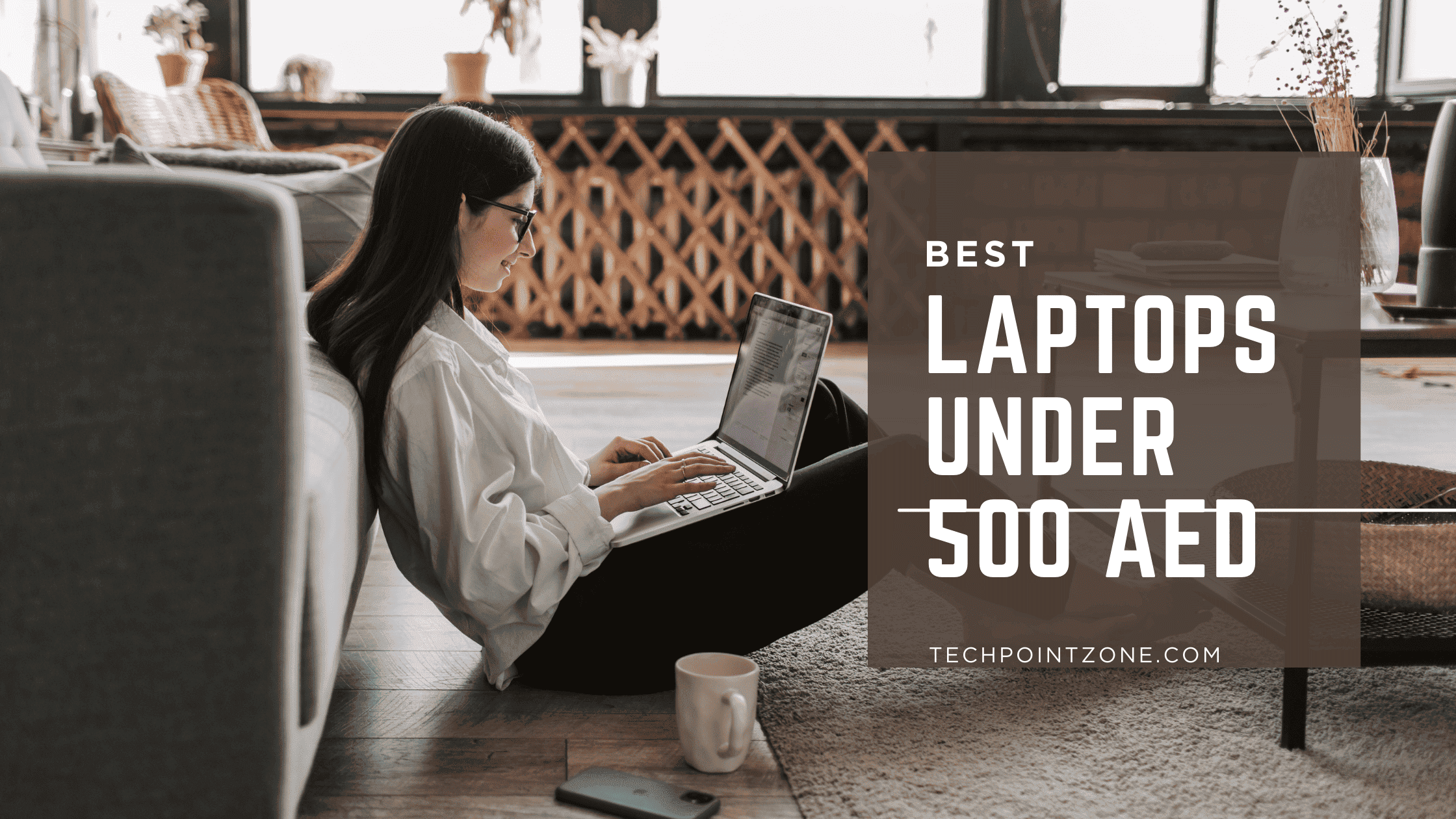
Best Laptops Under 500 AED

Best Laptops Under 500 AED in UAE – A Complete Buying Guide (2026)

Need a laptop but working with a tight budget? Good news, as you can find solid laptops under 500 AED in Dubai and across the UAE. These cheap-rate laptops work well for students, home users, and anyone who needs a basic computer for everyday tasks.

In this guide, we cover everything you need to know before buying a laptop below 500 AED. We share the best options, what specs to expect, and where to find genuine deals.

Are Laptops Cheap in the UAE?

Yes, laptops in the UAE offer great value compared to many other countries. Dubai has a competitive electronics market with many sellers fighting for your business. This keeps prices low.

For budget buyers, the UAE market offers two main options:

  1. New budget laptops – Basic Chromebooks and entry-level Windows laptops
  2. Refurbished business laptops – Previously used HP, Dell, and Lenovo machines at steep discounts

Both options give you reliable performance at a low laptop price. The key is knowing what to look for and where to shop.

What is a Good Laptop for Under 500 AED?

At this price point, refurbished business laptops offer the best value. These machines originally cost 3,000-5,000 AED when new. Companies like HP, Dell, and Lenovo built them for corporate use, so they last longer than consumer models.

Here are the top-rated budget laptops under 500 AED with good performance:

HP EliteBook 840 G1/G3

Price: 350-450 AED

This 14-inch laptop handles office work without any issues. The Intel Core i5 processor and 8GB RAM let you run multiple browser tabs, Word documents, and spreadsheets at the same time.

Best for: Office workers and students who type a lot

Dell Latitude E7440/E7470

Price: 400-499 AED

Dell built this laptop for business professionals. The thin design makes it easy to carry, and the 256GB SSD gives you fast boot times. Many models come with backlit keyboards – helpful for working at night.

Best for: People who travel or work from different locations

Lenovo ThinkPad T440/T450

Price: 380-499 AED

ThinkPads have a reputation for lasting years. The keyboard feels excellent for typing long documents. Most models support RAM and storage upgrades, so you can improve performance later.

Best for: Students writing assignments and research papers

Lenovo Chromebook / Dell Chromebook 11

Price: 125-300 AED

Chromebooks run Chrome OS instead of Windows. They start up in seconds and work great for browsing, YouTube, Google Docs, and online classes. These laptops under 500 AED in Dubai suit students who do most of their work online.

Best for: Students using Google Classroom or web-based tools

HP ProBook 430/450

Price: 350-499 AED

HP designed these for small business use. You get a solid build, decent battery life, and reliable performance for basic tasks. The 15.6-inch screen models work well if you prefer a larger display.

Best for: Home users and small business owners

What Specifications to Expect from a Laptop Under 500 AED

Before buying, know what specs work at this price range. Here is what you should look for:

Processor (CPU)

Expect Intel Core i3, Core i5, or AMD equivalent processors. For smooth performance, aim for at least a 4th-generation Intel Core i5. Avoid Celeron processors unless you only browse the web.

RAM (Memory)

Get at least 4GB RAM. Ideally, look for 8GB. This lets you run multiple programs without slowdowns. Many refurbished laptops come with 8GB already installed.

Storage

You will find two types:

  • HDD (Hard Drive): 500GB storage, but slower speed
  • SSD (Solid State Drive): 128-256GB storage, but much faster

We recommend SSD models. Your laptop will start faster and feel more responsive.

Screen Size

Most budget laptops come in 13.3-inch, 14-inch, or 15.6-inch screens. Pick based on your needs – smaller screens for portability, larger screens for easier reading.

Battery Life

Refurbished laptops may have worn batteries. Check if the seller tests battery health. Most models give you 3-5 hours of use, which works for home or office use, with charging available.

Are There Any Good Student Laptops for Under 500 AED?

Absolutely. Students can find excellent options at this price. Here are the best laptops under 500 dirhams for basic use in school or university:

For taking notes and writing:

  • Lenovo ThinkPad T440 (great keyboard)
  • HP EliteBook 840 (lightweight and portable)

For online classes and video calls:

  • Dell Latitude E7440 (good webcam and microphone)
  • Any laptop with 8GB RAM for smooth video streaming

For research and browsing:

  • Chromebooks (fast, simple, and affordable)
  • Dell Latitude 3340 (compact and reliable)

For presentations:

  • HP ProBook 450 (HDMI output for connecting to projectors)

Most refurbished business laptops handle Microsoft Office, Zoom, Google Meet, and web browsing without problems. They also run educational software used in UAE schools.

Can You Get Touchscreen Laptops Under 500 AED?

Yes, but options are limited. Some refurbished 2-in-1 laptops fall into this price range:

  • Lenovo ThinkPad Yoga 11e – 400-499 AED
  • HP EliteBook x360 – Sometimes available under 500 AED
  • Dell Latitude 3340 Touch – 450-499 AED

Touchscreen laptops under 500 AED are usually refurbished. Check that the touch function works properly before buying.

New Laptop vs Refurbished: Which Should You Buy?

This decision matters when shopping for laptops under 500 AED. Here is an honest comparison:

New Laptops Under 500 AED

Pros:

  • Fresh battery and components
  • Full manufacturer warranty
  • Latest software pre-installed

Cons:

  • Very basic specs (Celeron processor, 4GB RAM)
  • Slower performance for multitasking
  • Mostly Chromebooks at this price

Refurbished Laptops Under 500 AED

Pros:

  • Better specs (Core i5, 8GB RAM, SSD)
  • Business-grade build quality
  • More powerful for the same money

Cons:

  • Older design and heavier weight
  • The battery may have reduced capacity
  • Shorter warranty (3-12 months typically)

Our recommendation: If you need Windows and decent performance, go with refurbished. If you mainly use web apps and want a new device, consider a Chromebook.

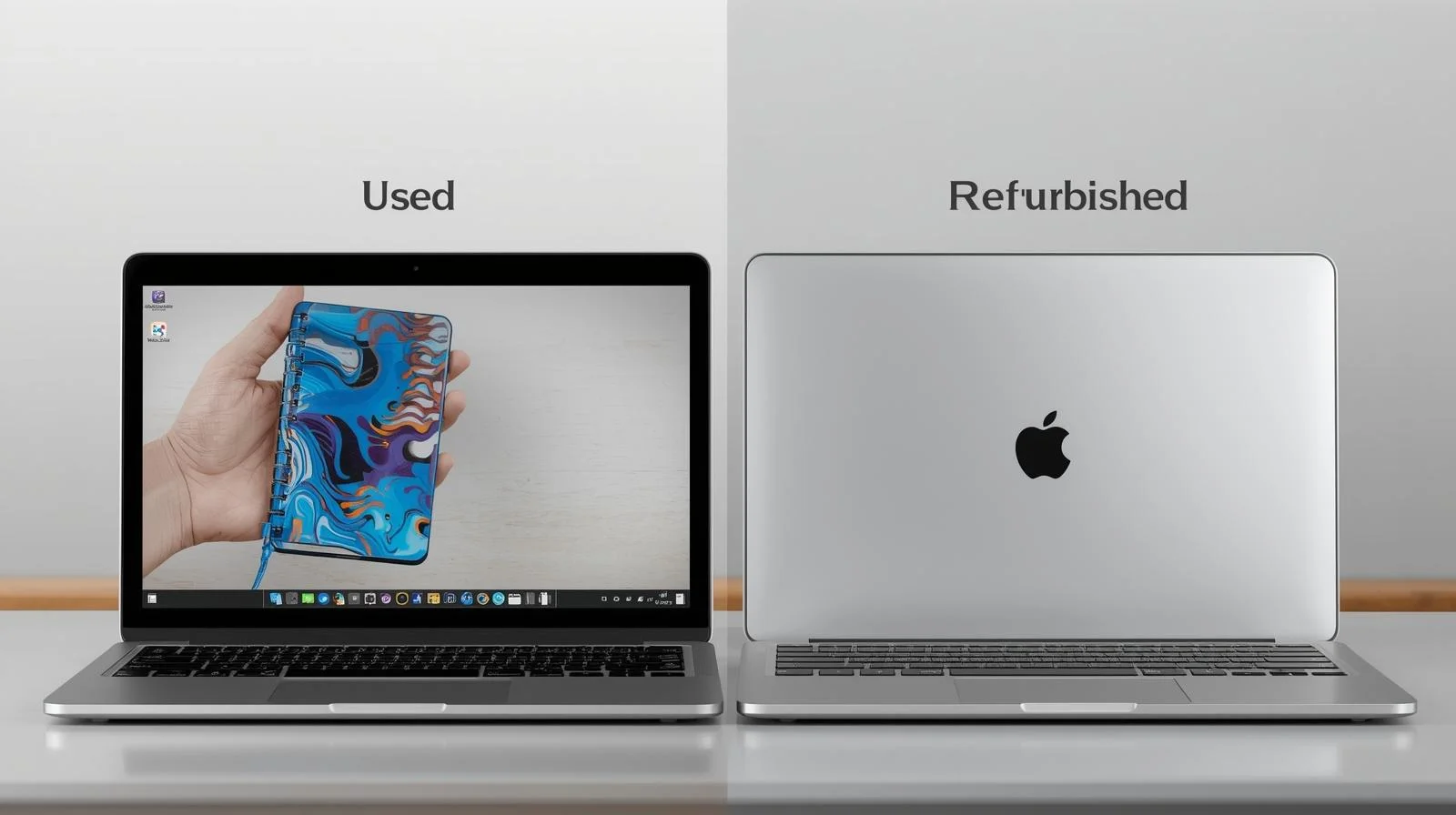
Want to understand this better? Read our detailed guide on the difference between used and refurbished laptops.

What to Check Before Buying Refurbished Laptops

  1. Warranty – Get at least 3 months coverage
  2. Return policy – 7-14 days minimum
  3. Battery test – Ask about battery health percentage
  4. Physical condition – Minor scratches are okay, but avoid cracked screens or broken keyboards

Tips for Getting the Best Deal

Follow these tips to find the best laptops under 500 AED available in the UAE:

1. Compare prices across sellers. The same laptop model can vary by 50-100 AED between shops. Take time to check multiple sources.

2. Look for bundle deals. Some sellers include a free mouse, bag, or extra RAM upgrade. These add value to your purchase.

3. Ask about upgrades. Many shops offer RAM or SSD upgrades at a low cost. A 4GB to 8GB RAM upgrade makes a big difference.

4. Check for sales Dubai Shopping Festival, White Friday, and back-to-school seasons bring extra discounts.

5. Buy from certified sellers. At Tech Point Zone, we test every refurbished laptop and provide a genuine warranty. This protects your purchase.

What Can You Actually Do with a Laptop Under 500 AED?

These laptops handle everyday tasks without issues:

Works well:

  • Microsoft Word, Excel, PowerPoint
  • Web browsing (Chrome, Firefox)
  • Email and social media
  • YouTube and Netflix streaming
  • Zoom and Google Meet video calls
  • Basic photo editing
  • Online learning platforms

Works but may be slow:

  • Multiple browser tabs (20+)
  • Large spreadsheets
  • Light photo editing in Photoshop

Not recommended:

  • Video editing
  • Gaming (except very basic games)
  • 3D modeling or CAD software
  • Running virtual machines

Know your needs before buying. For basic use, these laptops do the job well.

Frequently Asked Questions

Do cheap laptops last long?

Refurbished business laptops often last 3-5 more years with proper care. New budget laptops vary in quality. Stick to known brands.

Q: Can I upgrade a laptop under 500 AED later?

Most refurbished HP, Dell, and Lenovo models allow RAM and storage upgrades. Chromebooks usually cannot be upgraded.

Q: Is it safe to buy refurbished laptops online?

Yes, when you buy from trusted sellers like Tech Point Zone. We provide warranty and proper testing on all units.

Q: Do these laptops come with Windows?

Refurbished Windows laptops come with genuine Windows 10 or 11. Chromebooks run Chrome OS (cannot install Windows).

Final Thoughts

Finding a good laptop under 500 AED in the UAE is possible. Refurbished business laptops from HP, Dell, and Lenovo give you the best performance at this price. New Chromebooks work well for students who use web-based tools.

At Tech Point Zone, we help buyers find high-quality laptops that fit their budgets. 

Need help choosing? WhatsApp us or visit our Dubai store. Our team will guide you to the right laptop for your needs and budget.


Best Laptop for Office Work

3 Best Laptops for Office Work in Dubai – Affordable and reliable

You need a laptop that is speedy, reliable, and convenient to carry in Dubai, where there is a lot of work to do. This guide will help you find the best laptop for office work if you mostly use spreadsheets, make presentations, make video calls, and use web apps. It will show you affordable models that won’t slow you down.

Here are three laptops that provide the best mix of performance, battery life, and price. I tell you who each model is suited for and provide you short recommendations on how to buy the proper one for your everyday work.

1. ASUS Zenbook 14 UX3405CA — The all-rounder for performance

a laptop with a logo on the screen

If you’re looking for a laptop that blends speed, portability, and premium design, the ASUS Zenbook 14 UX3405CA is hard to beat. It’s built with busy professionals in mind who need a reliable machine that doesn’t weigh them down.

Key Features & Benefits

  • Powerful Processor: Equipped with the Intel Core Ultra 7 255H and an integrated AI Boost NPU, this laptop handles demanding tasks like online meetings with background blur, AI-enhanced image editing, or multitasking across dozens of tabs. In real use, it means fewer slowdowns during presentations or data crunching.

  • Stunning OLED Touch Display: The 14-inch WQXGA+ OLED screen (2880 × 1800) delivers sharp text and vivid visuals. For professionals who stare at spreadsheets and documents all day, OLED’s deep blacks and reduced blue light can make a big difference for eye comfort. The touch feature adds extra convenience for quick navigation.

  • High-Speed Storage & Memory: With 16GB LPDDR5x RAM and a 1TB PCIe 4.0 SSD, you’ll never feel cramped. You can keep multiple projects, files, and large presentations accessible without worrying about storage or lag.

  • Ultra-Portable Design: Weighing just 1.3 kg and with a slim aluminum build, the Zenbook 14 slips easily into a work bag. Professionals who move between the office, meetings, and home will find it effortless to carry.

  • Battery Life & Efficiency: Thanks to modern architecture, it balances high performance with power efficiency, so you don’t need to stay near an outlet during long meetings.

Best For: Professionals who need a lightweight laptop that looks premium, runs fast, and offers one of the best displays in its category.

Asus ZenBook 14 Availabale at Discount

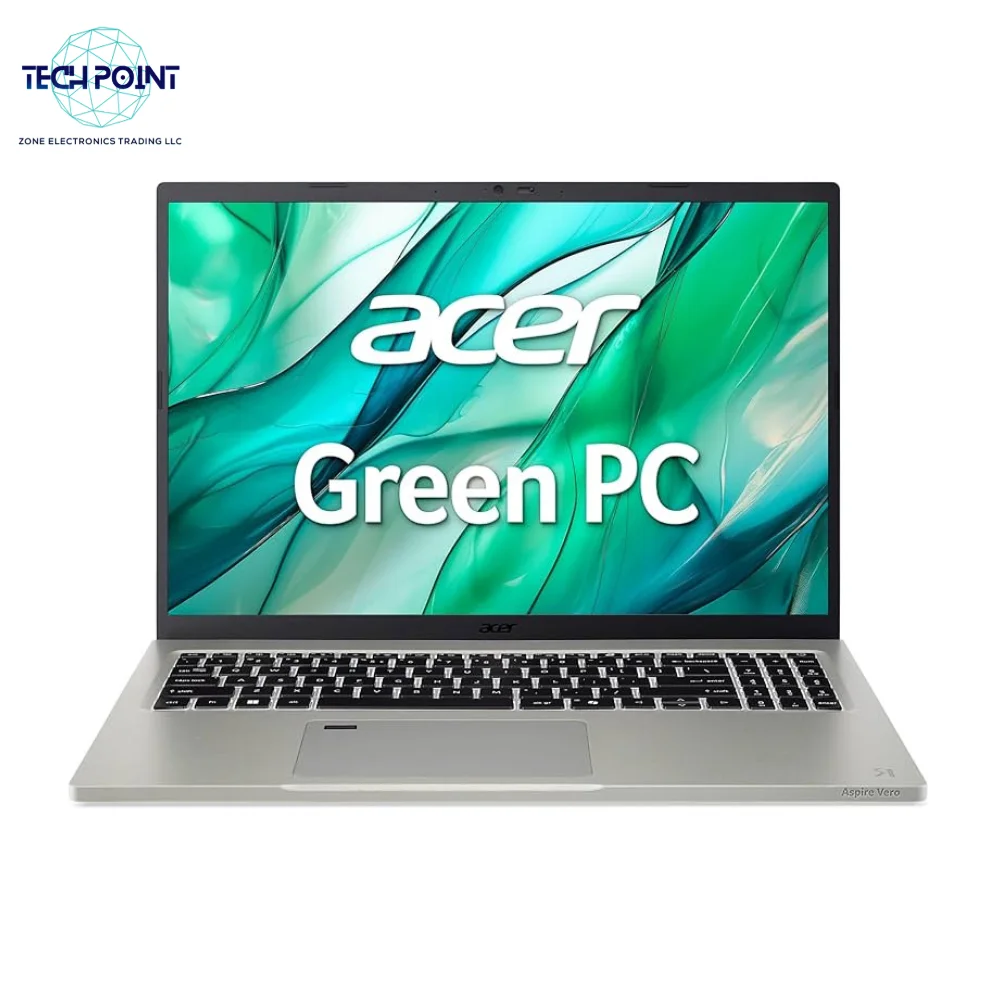
2. Acer Aspire Vero 16 — The sustainable powerhouse

Acer Aspire Vero 16

The Acer Aspire Vero 16 is more than just another office laptop. It’s a combination of performance, big-screen productivity, and eco-friendly design — perfect for professionals or companies that value sustainability.

Key Features & Benefits

  • Eco-Friendly Design: Made from post-consumer recycled plastic, the Vero 16 sets itself apart with sustainability at its core. Even the packaging is 100% recyclable. If your business prioritizes eco-conscious purchasing, this is a laptop that aligns with your values.

  • Large & Sharp Display: The 16-inch WQXGA (2560 × 1600) IPS screen is a dream for multitaskers. Whether you’re reviewing long spreadsheets, running two documents side by side, or editing presentations, the extra screen space makes it easier and more comfortable to work.

  • Long Battery Life: With up to 18.5 hours of battery, you can work for almost two full days on a single charge. That’s a huge advantage for traveling professionals or those who move between co-working spaces.

  • Strong Performance: Powered by an Intel Core Ultra 7 155U and 16GB LPDDR5x RAM, this laptop is built to handle office suites, cloud apps, and light creative workloads smoothly.

  • Storage: Comes with a 512GB PCIe Gen4 SSD, offering quick boot times and fast access to files. While not as large as the Zenbook’s 1TB, it’s plenty for most office users relying on cloud storage.

Best For: Office professionals who want a reliable work machine with a large screen and long battery — plus the bonus of an eco-friendly build.

Acer Aspire Vero 16 Availabale at Discount

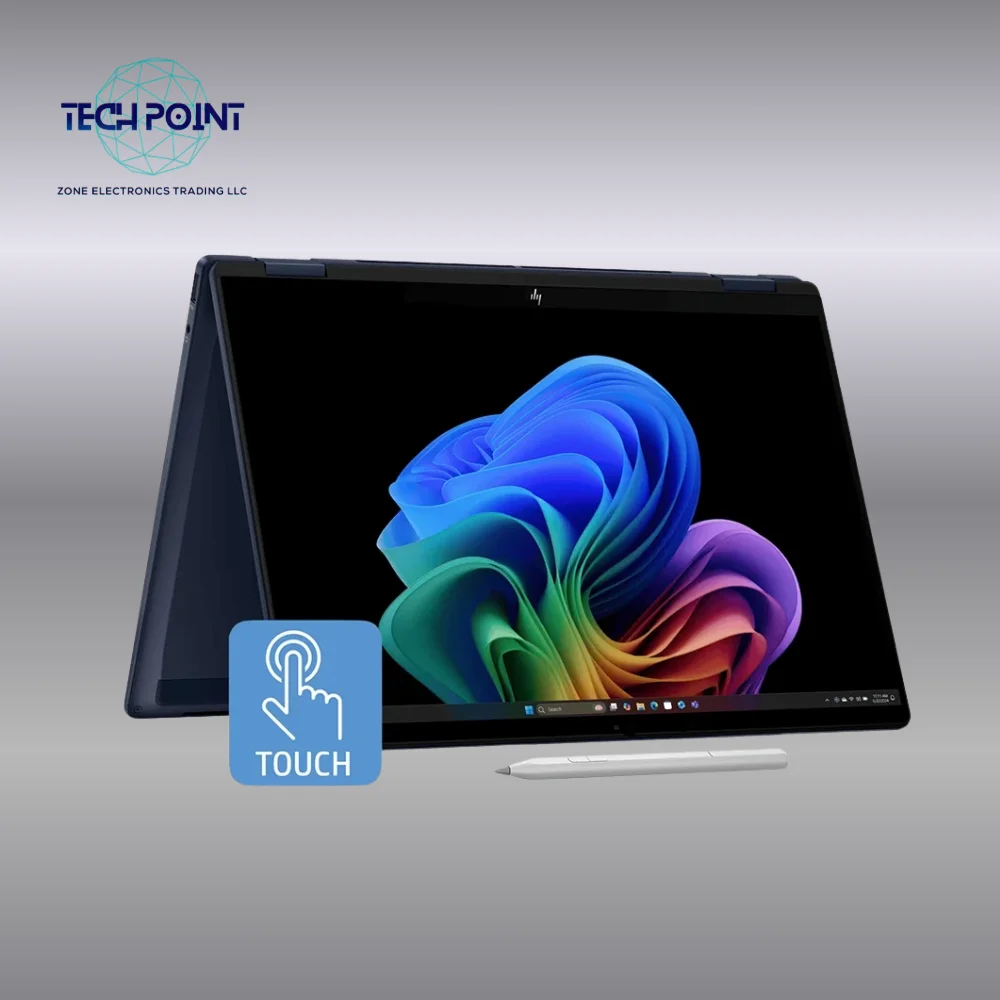
3. HP OmniBook X Flip 14 — The versatile innovator

Best Laptop for Office work in Dubai

The HP OmniBook X Flip 14 is designed for professionals who value flexibility and adaptability in their workflow. Whether you’re pitching to clients, collaborating with teammates, or working solo, its convertible design lets it switch roles instantly.

Key Features & Benefits

  • 2-in-1 Flip Design: The 360° hinge allows you to use it as a traditional laptop, tablet, or in tent mode for presentations. This flexibility is especially useful for consultants, sales professionals, and creatives.

  • Next-Gen AI (NGAI) Ready: Optimized for AI-powered applications, the OmniBook X Flip is prepared for future office tools that rely on real-time AI performance — making it a future-proof investment.

  • Strong Everyday Performance: With an Intel Core Ultra 7 256V, 16GB RAM, and a 512GB SSD, it runs productivity apps, presentations, and multitasking without hiccups.

  • Multi-Touch 2.2K Display: The high-resolution touch display offers vibrant visuals and smooth responsiveness, perfect for note-taking, sketching ideas, or delivering polished presentations.

  • Lightweight & Professional Build: Despite being a convertible laptop, it remains sleek and portable, easy to carry between offices or client meetings.

Best For: Dynamic professionals who want a laptop that adapts to multiple roles — office work, client presentations, and light creative use.

HP OmniBook X Flip 14 Availabale at Discount

At-a-glance comparison

FeatureASUS Zenbook 14Acer Aspire Vero 16HP OmniBook X Flip 14
ProcessorIntel Core Ultra 7 255HIntel Core Ultra 7 155UIntel Core Ultra 7 256V
RAM16GB LPDDR5x16GB LPDDR5x16GB LPDDR5x
Storage1TB PCIe 4.0 SSD512GB PCIe Gen4 NVMe SSD512GB SSD
Display14″ WQXGA+ OLED16″ WQXGA IPS14″ 2.2K Multi-touch
Unique featureOLED touch, ultra-lightSustainable PCR build, long battery2-in-1 flip, NGAI-ready
Ideal forMobile pros who value screen qualityHeavy multitaskers who want battery & screen spacePresenters & flexible workflows

How to choose the best laptop for office work (quick buyer’s checklist)

Use this checklist before buying:

  1. Battery life — Aim for 8+ hours for a full workday without frequent charging.

  2. Display size & quality — 14″ is great for portability; 15–16″ for multitasking. OLED helps reduce eye strain.

  3. CPU & RAM — For smooth multitasking choose a modern Core Ultra with 16GB RAM.

  4. Storage — SSD (NVMe) for fast boot and file transfers; 512GB is minimum for many, 1TB if you handle large files.

  5. Keyboard & webcam — Comfortable keys and a decent webcam (720p+) matter for remote meetings.

  6. Ports — At least 1 USB-A, 1 USB-C, HDMI or DisplayPort for external monitors.

  7. Weight — If you commute, keep weight under ~1.6–1.7 kg for daily comfort.

Quick FAQs (answers users search for)

Q — Which is the single best laptop for office work?
A — There’s no one-size-fits-all. For portability and display quality pick the ASUS Zenbook 14. For long battery life and large screen choose the Acer Aspire Vero 16. For versatility go with the HP OmniBook X Flip 14.

Q — Do I need 16GB RAM for office tasks?
A — Yes. 16GB is recommended if you keep many browser tabs and apps open. 8GB can be limiting.

Q — Is OLED necessary?
A — Not necessary, but OLED gives better contrast and can reduce eye fatigue for long hours.

Q — Where to buy in Dubai / UAE?
A — You can compare prices and buy through Tech Point Zone product pages linked above for UAE availability and local warranties.

Q — Should I choose 512GB or 1TB storage?
A — If you work mostly with documents and cloud files, 512GB is fine. If you handle large local files (design, videos) go for 1TB.

Final verdict

Choose the ASUS Zenbook 14 if you want a light, high-quality display and good performance all around. The Acer Aspire Vero 16 is the best choice if you want a big screen and a long battery life. Pick the HP OmniBook X Flip 14 if you need to be able to switch between tablet and presentation mode.

All three are good, cheap options for the best laptop for work in Dubai. Click on the model links to see the costs and warranty options on Tech Point Zone. Then choose the one that works best for your daily routine.

Want to buy something or see a direct pricing comparison for Dubai? Look at each product page above or tell me what characteristics are most important to you, and I’ll suggest the best setup for you.

Lenovo Flex 5 Sim Card Guide 2025

Lenovo Flex 5 SIM Card Guide 2025: Which Models Support It?

The Lenovo Flex 5 series is the most versatile laptop on the market today. It can easily switch from a regular laptop to a dynamic tablet. This freedom makes people want to be really mobile, which means being able to connect to the internet from anyplace without being tied to Wi-Fi networks. This makes many owners ask a basic question: how can I put in a SIM card to unlock this “always-on” cellular service?
The goal is clear, but the answer is complicated and depends on the exact model of Lenovo Flex 5 in question. A lot of people think that all Flex 5 laptops can connect to cellular networks, which is a big source of confusion. This is mostly because a few specialized models are heavily advertised. This whole guide will clear up any doubt. It gives a thorough, expert-level look at which Flex 5 models can use a SIM card, how to put it in and set it up on compatible devices, and a thorough look at strong, useful alternatives for most models that don’t have this feature built in. This study will be the best resource for all Lenovo IdeaPad Flex 5 owners who want to be able to connect to the internet on the road.

The Critical Question: Does Your Lenovo Flex 5 Have a SIM Card Slot?

The most direct answer to this common query is that most standard Lenovo IdeaPad Flex 5 models do not have a SIM card slot or the necessary internal hardware for cellular data. A review of the official product specification sheets for numerous IdeaPad Flex 5 generations and configurations consistently shows the entries for “WWAN” (Wireless Wide Area Network) and “SIM Card” as “None” or “No support”.

This fact is the primary source of user frustration. An owner may see information online about a “Flex 5” with cellular capabilities and search their own device for a SIM slot, only to find none. The discrepancy arises from a crucial distinction in Lenovo’s product branding.

Introducing the Exception: The "Lenovo Flex 5G"

https://www.qualcomm.com/snapdragon/laptops-and-tabletsThe Lenovo Flex 5G (for example, model 14Q8CX05) is a special model that was designed from the ground up to connect to cellular networks. Cell phone companies like Verizon commonly show off this model in ads, although it is very different from the standard “IdeaPad Flex 5” laptops that you can buy at most stores. The Qualcomm Snapdragon CPU is at the heart of the Flex 5G. It also contains a built-in 5G WWAN module and a Nano-SIM card slot on the back of the chassis. The widespread misconception is caused by the fact that this particular model exists. Users sensibly but wrongly think that its features apply to all Flex 5 products.

Why Most Flex 5 Models Lack a SIM Slot: Understanding WWAN

Lenovo Flex 5 Sim Card issue

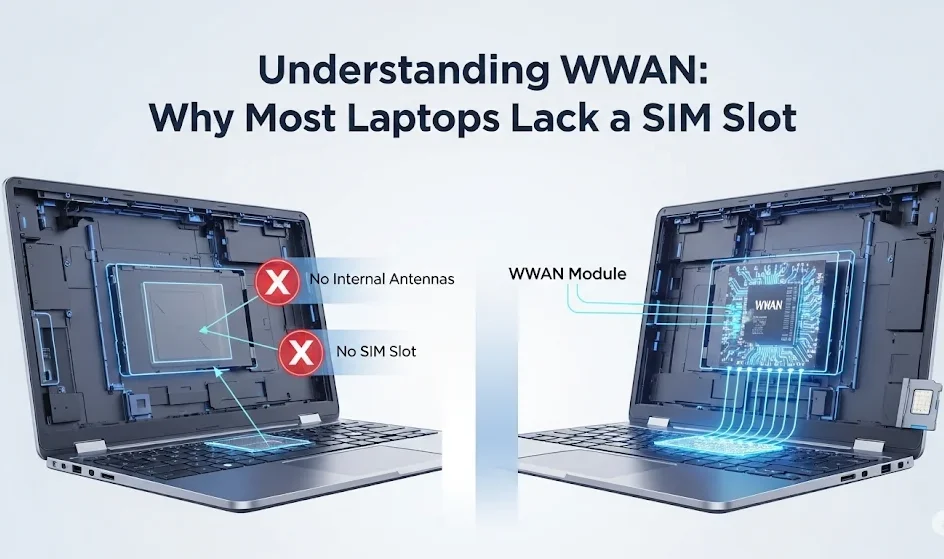
WWAN, or Wireless Wide Area Network, is the term for a laptop’s capacity to connect to a cellular network. Most consumer laptops, including the IdeaPad Flex 5 series, don’t have this functionality. Most of the time, it’s an optional improvement that you have to choose and set up when you buy it.

When you order a laptop with the WWAN option, the maker sends you a number of important parts:

1. A WWAN modem card is a little piece of hardware that goes into the laptop and handles the cellular signal.

2. Internal antennae that are built into the laptop’s case to send and receive signals.

3. A SIM card slot that connects to the motherboard and can be either a tray or a push-pull mechanism.

A laptop can’t connect to a cellular network without these parts being installed at the factory, even if a SIM card could somehow be put in.

Can You Add a SIM Card Slot Later?

A obvious next inquiry for someone who is more tech-savvy is if they can install a WWAN card after they buy it. The answer is a clear negative for most laptops that don’t come with WWAN support from the manufacturer. This is because of how the hardware is designed.

This isn’t as easy as installing more RAM or a new SSD. Manufacturers put a lot of work into designing and building the laptop chassis such that WWAN upgrades after the purchase are either not possible or very difficult. 11 The metal parts of a normal laptop’s palmrest and bottom shell work like a Faraday cage, preventing the cellular signals that are needed for a solid connection.

To fix this, laptops with the WWAN option have a separate physical chassis. They have specific plastic or composite “windows” in the metal case that let radio frequencies through. This lets the internal antennas talk to cell towers. The interior layout also has specific mounting places for the WWAN card, and most importantly, the antenna cables are already routed through the chassis and display assembly during production.

A regular IdeaPad Flex 5 doesn’t have these antenna cables, the signal windows in the case, or the connectors on the motherboard that you need. Because of this missing physical infrastructure, trying to install a WWAN card in such a device would fail, wasting time and money.

How to Identify Your Flex 5 Model and Its Cellular Capabilities

To move forward, it is essential to determine with certainty whether a specific Lenovo Flex 5 has cellular capabilities. This can be accomplished through a physical inspection and by cross-referencing the exact model number with official specifications.

Flex 5 Lenovo sim card

Method 1: The Physical Inspection

A close look at the laptop’s ports can immediately show you what it can do.

• Standard Ports: Most IdeaPad Flex 5 come with a number of ports, such as USB Type-A, USB Type-C, an HDMI output, and a 3.5mm headphone/microphone combo connector.

• The Card Reader: Most Flex 5 versions come with a 4-in-1 card reader that can read full-sized SD cards (SD, SDHC, SDXC, MMC) or microSD cards. It’s important to remember that this is not a SIM card slot. A SIM card is much smaller and won’t fit right in an SD card slot.

• The SIM Slot: On the few models that support it, the SIM card slot will look like a little tray with a hole next to it for ejection. The tray on the Lenovo Flex 5G is on the back of the tablet. It may be on the side of some other Lenovo laptops that support WWAN, often between other ports. The laptop doesn’t have a physical SIM slot if you can’t see a tray like this.

Method 2: Finding Your Exact Model Number

The best way to be sure is to look at the laptop’s full model number. You can find this on a sticker on the bottom of the device, in the original box, or by going to Start > Settings > System > About in Windows. Under “Device specifications,” you’ll find the model name (for example, “IdeaPad Flex 5 14IAU7”).

Key Table: Lenovo Flex 5 Series SIM Card Compatibility Reference

The following table consolidates data from numerous official Lenovo Product Specifications Reference (PSREF) documents to provide a clear, at-a-glance compatibility guide. This resource performs the complex task of research and data interpretation, offering a definitive answer for most models in the Flex 5 family.

Model Series / Name

Example Model Numbers

WWAN / SIM Card Support

Notes

Lenovo Flex 5G

14Q8CX05, 82AK

Yes (Nano-SIM / eSIM)

This model has built-in 5G WWAN. The physical Nano-SIM slot is located on the rear side of the device.

IdeaPad Flex 5i (Gen 8)

14IRU8, 82Y0

Optional

WWAN is an optional feature that must be configured at the time of purchase. The vast majority of retail units will not have this feature.

IdeaPad Flex 5 (Gen 7)

14IAU7, 82R7

No Support

Official specification sheets explicitly state “WWAN: No support” for this model series.

IdeaPad Flex 5 (AMD)

15ALC05

No Support

Specification sheets for AMD-based models confirm that no WWAN option is available.

IdeaPad Flex 5 (Intel)

14ITL05, 15IIL05, 82HS

No Support

Multiple Intel-based generations explicitly list “WWAN: None” and “SIM Card: None” in their technical specifications.

IdeaPad Flex 5 Chromebook

14IAU7, 13IML05

No Support

There is no mention of WWAN or SIM card support in the official specifications for Chromebook versions of the Flex 5.

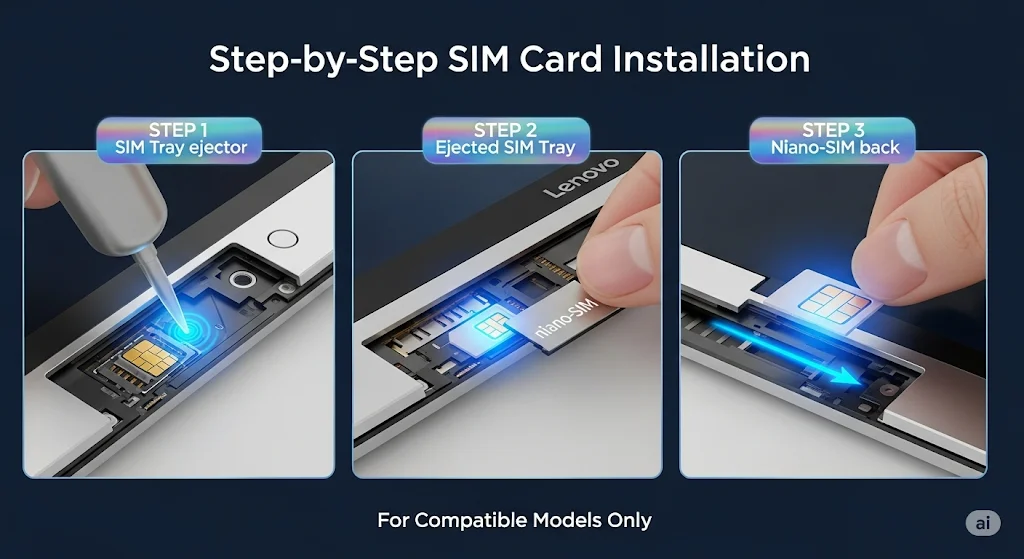
Step-by-Step SIM Card Installation (For Compatible Models Only)

For the small percentage of users whose device is confirmed to have WWAN capabilities, the process of inserting a SIM card and establishing a connection is straightforward.

Lenovo Flex 5 SIM Card Guide 2025: Which Models Support It?

Essential Pre-Installation Checklist

• A suitable Nano-SIM card: This is the smallest physical SIM card size and must be bought from a cellular operator that has an active data plan.
• The SIM ejector tool is a little metal tool that usually comes with the laptop. You can use a straightened paper clip instead if you lose it. 
• Important: Before putting in or taking out the SIM card, the laptop must be turned off entirely. If you try this while the gadget is on, you could permanently harm the SIM card or the laptop’s reader mechanism.
• Expert Tip: You should definitely not use multi-fit or “punch-out” style SIM cards, which break off a smaller SIM from a larger card. These can have sharp edges that can make it hard to attach sometimes or get stuck in the SIM tray. Also, don’t use SIM card adapters because they can hurt the fragile pins within the reader.

Step-by-Step Insertion Process

1. Turn off: Completely turn off the Lenovo Flex 5G. Don’t put your computer to sleep or hibernate.
2. Find the Tray: Look for the Nano-SIM card tray. This is on the back of the Flex 5G.
3. Eject the tray: Put the tip of the ejector tool into the little hole next to the outline of the tray. Push firmly and straight in until the tray pops out.
4. Put the SIM in the right place: Carefully put the Nano-SIM card into the tray’s notch. A notched corner is often there to make sure the right way up. Some generic Lenovo manuals say to put the SIM in with the contacts facing up 23 times, however the model-specific guidance from Verizon for the Flex 5G says to put the SIM in with the gold contacts facing down. The instructions that are particular to the model should be seen as the most dependable source.
 Put the tray back in: Line it up with the slot and carefully put it back into the laptop until it is totally flush with the chassis.

Step-by-Step Insertion Process

1. Turn off: Completely turn off the Lenovo Flex 5G. Don’t put your computer to sleep or hibernate.
2. Find the Tray: Look for the Nano-SIM card tray. This is on the back of the Flex 5G.
3. Eject the tray: Put the tip of the ejector tool into the little hole next to the outline of the tray. Push firmly and straight in until the tray pops out.
4. Put the SIM in the right place: Carefully put the Nano-SIM card into the tray’s notch. A notched corner is often there to make sure the right way up. Some generic Lenovo manuals say to put the SIM in with the contacts facing up 23 times, however the model-specific guidance from Verizon for the Flex 5G says to put the SIM in with the gold contacts facing down. The instructions that are particular to the model should be seen as the most dependable source.
 Put the tray back in: Line it up with the slot and carefully put it back into the laptop until it is totally flush with the chassis.

First-Time Cellular Setup in Windows 11

After the hardware is set up, the operating system needs to be set up to connect.

1. Turn on the laptop: If you put in a new SIM card, Windows should instantly find it.
2. To go to Network Settings, click the Network icon in the system tray, which is the space by the clock in the bottom-right corner of the taskbar. A panel will pop up with quick settings for Bluetooth, Wi-Fi, and other things.
3. Manage Cellular Connection: There should be a “Cellular” quick setting. To manage cellular connections, click the arrow (>) next to it. 
4. Connect: If the “Let Windows keep me connected” option is turned on, the device should automatically connect to the cellular network when Wi-Fi isn’t available. If not, click “Connect” after choosing the carrier’s network name. 
5. APN Settings (If Necessary): The Access Point Name (APN) is the address that the device uses to get on the carrier’s network. Most of the time, this is set up automatically. If the device says it’s connected but can’t get online, you might need to set the APN by hand. Go to Settings > Network & Internet > Cellular > Mobile operator settings > Add APN. You may get the necessary APN information (such the profile name and APN address) from the support website of your cellular provider.

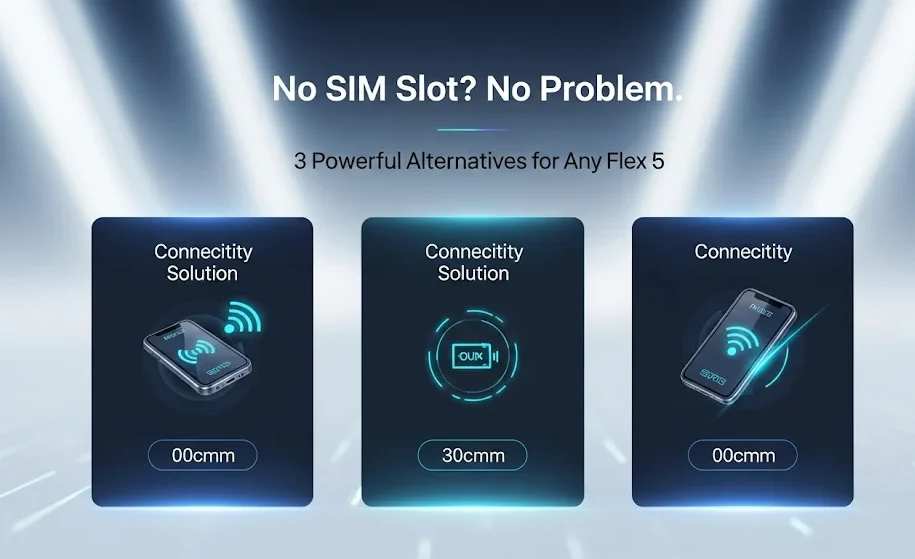
No SIM Slot? No Problem. 3 Powerful Alternatives for Any Flex 5

Flex 5 sim solutions

For the vast majority of IdeaPad Flex 5 owners, the absence of a SIM slot is not a dead end. Several powerful, reliable, and readily available alternatives can provide the desired mobile connectivity.

Option 1: USB Tethering - Turn Your Phone into a Lightning-Fast Modem

USB tethering is an excellent method that uses a USB cable to share a smartphone’s cellular data connection with the laptop. It is often faster and more stable than a Wi-Fi hotspot and consumes less of the phone’s battery.

Step-by-Step for Android

  1. Connect the Android phone to the Lenovo Flex 5 using a compatible USB cable.
  2. On the phone, open the Settings app.
  3. Navigate to Network & internet > Hotspot & tethering. The exact path may vary slightly by manufacturer.
  4. Toggle the switch for USB tethering to the “On” position.

The Flex 5 will automatically detect the connection and treat it as a wired network, often displaying an “Ethernet” icon in the taskbar.

Step-by-Step for iPhone

  1. On the iPhone, open the Settings app.
  2. Navigate to Personal Hotspot (or Cellular > Personal Hotspot).
  3. Toggle the switch for Allow Others to Join to the “On” position.
  4. Connect the iPhone to the Flex 5 using a USB-to-Lightning or USB-C cable.
  5. Essential Driver Information: If the connection does not establish automatically, it is almost certainly because the necessary network drivers are missing from Windows. To resolve this, the user must install the latest version of iTunes from the Microsoft Store or Apple’s website. The iTunes application contains the required drivers that allow Windows to recognize and use an iPhone’s tethered network connection. This is a critical and often-overlooked step.

Option 2: USB 4G/5G Modems - Dedicated Cellular Connectivity

A USB cellular modem, also known as a dongle, is a self-contained device that plugs into a USB port on the laptop. It houses its own SIM card slot and cellular radio, effectively adding WWAN capability externally.

  • Advantages: This method does not drain the smartphone’s battery. Some advanced models feature ports for external antennas, which can significantly improve signal reception in fringe areas. Setup is typically plug-and-play.
  • Disadvantages: It is an additional piece of hardware to purchase and carry.
  • How to Choose: When shopping for a USB modem, it is more important to understand features than to focus on a single model, as availability changes rapidly. Key considerations include:
  • Carrier Compatibility: Ensure the modem is “unlocked” or specifically designed for the intended cellular provider.
  • Technology: Choose between 4G LTE and 5G models based on budget and the availability of 5G service in the areas of use.
  • Form Factor: Options range from simple USB sticks to portable hotspots that include a built-in battery and can create their own Wi-Fi network to connect multiple devices.
  • General Setup Process:
    1. Insert an activated SIM card into the USB modem.
    2. Plug the modem into an available USB port on the Flex 5.
    3. Windows will typically detect the new hardware and install the necessary drivers automatically. If it fails, the drivers can be downloaded from the modem manufacturer’s website.
    4. The connection can then be managed through the “Cellular” or “Wi-Fi” settings in Windows, depending on the modem’s design.

Option 3: Mobile Wi-Fi Hotspot - The Quick Wireless Solution

This is the most widely known method. It involves turning a smartphone into a portable Wi-Fi router that the Lenovo Flex 5 can connect to.

  • How to Use: The feature is enabled within the smartphone’s settings, usually under a name like “Mobile Hotspot,” “Personal Hotspot,” or “Tethering”. Once activated, the phone will broadcast a new Wi-Fi network. The Flex 5 can then connect to this network by selecting its name from the list of available Wi-Fi networks and entering the provided password.
  • Primary Downside: This method is convenient but consumes the smartphone’s battery much more rapidly than USB tethering, as it requires both the cellular and Wi-Fi radios to be active simultaneously.

Expert Troubleshooting: Solving Common Cellular Connection Issues

Even with the correct hardware and setup, connection problems can arise. The following steps address the most common issues.

Problem: The "Cellular" option is missing or greyed out in Windows Settings.

• Solution 1 (Most Likely for IdeaPad Flex 5): The laptop does not have a built-in WWAN modem. This is how most Flex 5 models should work. One of the options in Part 4 is the best way to solve the problem.
• Solution 2 (for models with WWAN): You can turn off the WWAN adapter in Device Manager. To check, right-click the Start button, choose Device Manager, and then click the plus sign next to the Network adapters category. Find a device with a name that sounds like “Fibocom,” “Quectel,” or “Mobile Broadband.” It is turned off if it has a little down arrow. Click on it with the right mouse button and choose “Enable device.”
• Solution 3 (for models with WWAN): The driver could be broken or missing. In Device Manager, right-click the WWAN adapter and choose “Update driver.” If it doesn’t work, go to the Lenovo Support website, type in the laptop’s serial number, and download and install the most recent WWAN driver for that model.

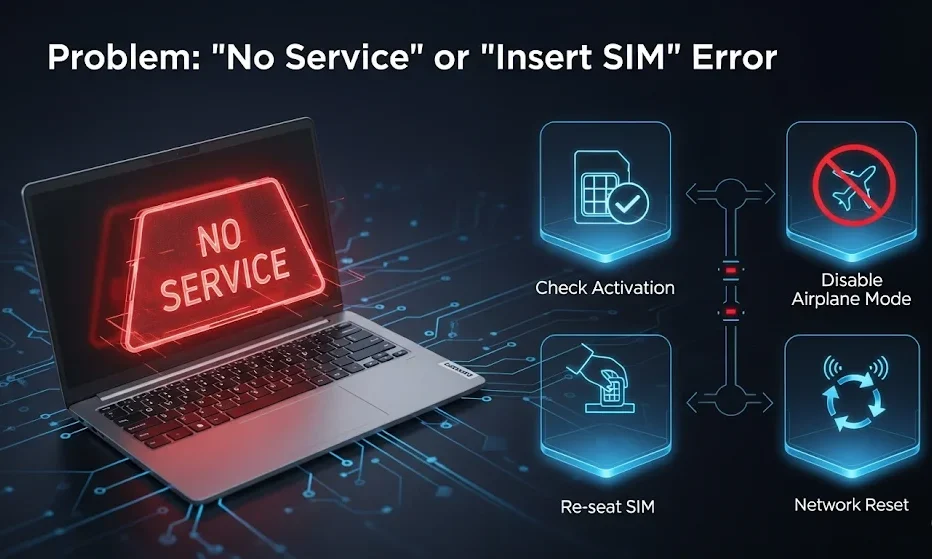
Problem: A SIM card is inserted correctly, but Windows shows "No Service" or "Insert SIM."

• Solution 1: The SIM card might not be turned on. Call the cell phone company to make sure that the SIM’s data plan is still active.
• Solution 2: You may have turned on Airplane Mode. To switch off “Airplane mode,” click the Network icon in the taskbar.
• Solution 3: The SIM card might not be in the right place. Turn off the device completely, take out the SIM tray, and carefully put the SIM card and tray back in.
• Solution 4: A thorough Network Reset can fix software problems that won’t go away. Go to options > Network & Internet > Advanced network options > Network reset. Please be aware that this will uninstall and reinstall all network adapters, and you will need to input your saved Wi-Fi passwords again.

Problem: The laptop shows it is connected to the cellular network, but there is no internet access.

Lenovo flex 5 sim card problem solved

• Solution 1: The most common reason is wrong APN settings. As explained in Part 3, go to the APN settings in Windows and type in the correct information that your cellular provider gives you.
• Solution 2: Reset the TCP/IP stack on the PC. To run the command $netsh int ip reset, right-click the Start button and choose Terminal (Admin) or Command Prompt (Admin). After that, restart the computer.
• Solution 3: Let go of the IP address and get a new one. In the same command terminal for administrators, type $ipconfig /release and then $ipconfig /renew.
• Solution 4: The problem could be with DNS resolution. Set up the DNS servers for the cellular adapter by hand. Go to Network & Internet settings, select the adapter properties, and change the DNS servers to a public provider like Google’s (8.8.8.8 and 8.8.4.4) or Cloudflare’s (1.1.1.1).

Conclusion: Achieve True Portability with Your Lenovo Flex 5

To get cellular connectivity on a Lenovo Flex 5, you need to know that this feature is not available on all models. Most IdeaPad Flex 5 devices sold in regular stores do not have the internal WWAN hardware or SIM card port needed for a direct cellular connection. Only the specific Lenovo Flex 5G model and some configurations that were selected with the WWAN option at the time of purchase have this feature.
But this hardware reality doesn’t stop us from becoming truly mobile. There are a lot of effective and easy-to-use solutions for every Flex 5 owner. You may turn any Flex 5 laptop into a “always-on” computer by using USB tethering or a mobile Wi-Fi hotspot on a current smartphone, or by using a separate USB cellular modem. Users may break free from the limits of Wi-Fi and unlock the full, flexible potential of their Lenovo Flex 5 by understanding the difference between models and using these useful alternatives. They can then enjoy the freedom of a secure internet connection, anywhere, anytime.

Laptop slow Solution in UAE

Why Your Laptop is Slow in UAE & How to Speed It Up: A Comprehensive Guide

The Frustration of a Slow Laptop in the UAE

A slow laptop is something that everyone hates since it makes it hard to get things done and makes free time less fun. There are many things that might cause performance problems all around the world, but the UAE’s particular environment and digital ecosystem make these problems more worse. The UAE has a very hot environment and a very well-connected digital infrastructure, which puts different kinds of stress on laptops. This tutorial gives people of the Emirates a complete, concrete plan for diagnosing, fixing, and avoiding slow laptops. People may make their computers to work faster and more responsively again by figuring out what’s causing the problems and putting in place specific solutions.

Understanding Why Your Laptop is Slow – The Core Culprits

A laptop’s performance depends on how well its internal parts work together with the software it runs and the surroundings it is used in. If this balance is upset, there is a noticeable slowing. This part goes into detail about the main reasons why a laptop is running slowly, dividing them into hardware, software, and user/environmental factors, with a focus on how things are different in the UAE.

Hardware-Related Bottlenecks:

RAM Shortage: When Your Laptop Gasps for Memory

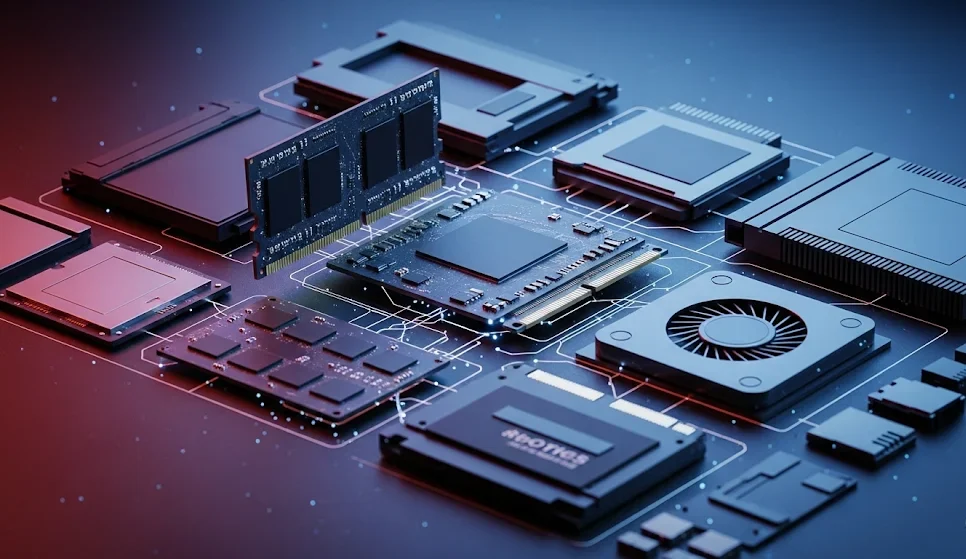
Random Access Memory (RAM) is the short-term memory of a laptop. It is a key factor in how rapidly the system can access and process data. If a laptop doesn’t have enough RAM, it has to use the slower hard drive as interim storage. This is called paging or swapping. This heavy use of the hard drive makes things run much slower, with apps taking longer to load and the computer as a whole becoming unresponsive.
Modern apps, demanding video games, and even webpages with plenty of photos, videos, and ads all use a lot of RAM. Because of this change in software and web content, even things that are “normal” for most people, such having twenty or more browser tabs open, can use up terabytes of RAM. This trend shows that even computers that are only a few years old and have 4GB or 8GB of RAM may suddenly seem old because they need more memory. So, boosting RAM is a very effective and often required way to make your PC more responsive and make it easier to multitask. Most people only need 8GB of RAM, but for applications that require a lot of processing power, such video editing, intense gaming, or heavy multitasking, 16GB or more is becoming more common.

HDD vs SSD Performance Gap

Laptop slow Solution in UAE

The type and condition of a laptop’s storage disk have a big effect on how fast and well it works. Hard Disk Drives (HDDs) are mechanical devices that store data on platters that spin. Files on hard drives can get fragmented over time, which means that parts of a file are spread out across different parts of the disk. This fragmentation makes it take longer for the processor to get all the pieces, which slows down reading and writing. Also, an HDD that is almost full, with only 10–20% of its capacity free, has a big drop in performance since the system has a hard time managing and allocating storage.
Solid State Drives (SSDs), on the other hand, use flash memory to store data, thus they don’t need any moving parts. Because of this basic difference, SSDs can boot up more faster, open applications right away, and move files quickly. SSDs are also more durable, use less power, and make less heat than HDDs. Switching to SSDs is a big step forward in how data is accessible, and it immediately fixes the problems with HDDs that cause delays. For any laptop that still has an HDD, upgrading to an SSD is usually the best way to boost performance. It can change the whole computing experience and make the device feel like a completely new system.

Overheating Crisis: UAE's Climate as Performance Enemy

When laptops are in use, they naturally get hot. If this heat isn’t properly released, the parts within can overheat. The device automatically lowers its performance, a process called “throttling,” when temperatures climb over safe levels to avoid harm. This thermal throttling might cause your computer to slow down a lot, crash a lot, or even destroy the hardware permanently.
The climate in the United Arab Emirates makes it very hard for laptops to work. The location gets very hot, with internal regions reaching almost 50°C and significant humidity. This very hot weather, along with the fact that dust and sand storms happen a lot, makes overheating problems much worse. Dust builds up within the laptop, blocking vents and accumulating on heat sinks. This stops air from flowing and makes cooling fans work less well. Also, thermal paste, which is important for moving heat from the CPU and GPU to the cooler, dries up faster in warmer weather, making it less efficient.
The harsh climate in the UAE speeds up the building of dust and the breakdown of thermal paste, which makes cooling less effective, which leads to overheating, which in turn leads to performance throttling or hardware damage. People who live in the UAE should not only clean their vents regularly and replace their thermal paste on time, but they should also use external cooling solutions like cooling pads. These are not just good ideas, they are necessary steps to keep the laptop running well and make it last longer.

Hardware Aging: When Components Can't Keep Up

While the widespread belief that computer hardware simply “wears out” and becomes slower over time is largely incorrect (with the exception of hard drives, whose failure typically results in crashes rather than just slowdowns), the ability of older hardware to run modern software efficiently does deteriorate. Laptops, particularly those older than five years, may struggle to keep up with the rising demands of modern apps due to obsolete processors, graphics cards, or other components.
The physical characteristics of laptops, which are regularly jostled, along with continuous thermal stress, can cause component degradation over time. In the UAE, persistently high temperatures and environmental conditions can hasten the point at which hardware becomes insufficient or encounters modest, non-crashing degradations that add to overall slow performance. This means that in the UAE, the actual lifespan of a laptop in terms of ideal performance may be lower, making the decision to update (rather than relying exclusively on maintenance) more urgent than in warmer climates.

Software Related Drag:

Malware and Viruses: Hidden Performance Killers

Viruses, spyware, adware, and ransomware are all types of malicious software that can seriously affect the performance and security of a laptop. These bad programs usually run in the background without you knowing, using a lot of CPU and memory. This hidden use of resources makes things noticeably slower, crashes the system often, and causes pop-ups that you don’t want.
Some types of malware, including botnets, can turn a laptop into a “zombie” computer that a remote attacker controls. This is more than just interfering with local processing. These hacked computers send out network traffic that isn’t allowed, which might slow down the user’s internet speed and bandwidth a lot. This shows that malware is a double threat: it not only uses up local computing resources, but it also slows down the network, making it seem like the internet is slow even when the Internet Service Provider is providing excellent speeds. This makes it even more important to have strong antivirus and anti-malware software that is updated regularly and to follow safe browsing practices. It also means that any operation to fix network problems should include a full malware scan.

Too Many Startup and Background Programs

Laptop slow Solution in UAE

One reason laptops operate slowly is that they have too many programs set to start up automatically when the computer starts up or run in the background without the user knowing. When you turn on a laptop, a lot of programs and services start up on their own, using up important system resources like CPU and RAM. These can be things like system tray apps, different services, and third-party processes that you don’t need right away to use your computer.
A single background process might not seem to have much of an effect on its own. But when you have “too many” of these apps, the effect is cumulative, meaning that several tiny resource drains add up to a big drop in performance. People routinely install apps and then forget about what they are doing in the background. This shows how important it is to keep up with “digital hygiene,” which means regularly controlling startup items and background operations. It’s not a one-time repair; it’s a continuing effort. This is an important step to take to keep things running well and avoid having to take more serious steps.

Outdated Operating System, Drivers, and Software

Using an old operating system (OS), device drivers, or programs on your laptop can make it run slowly. Older versions of software may not have important optimizations, have security holes that haven’t been fixed, or have bugs or compatibility issues that can all slow down the system.
Many people think of updates as just new features or security fixes, but they are really important for performance. They often repair bugs, make the system more stable, and make important performance improvements that make software less likely to crash and make the whole system more stable. Many users forget to install these updates, which directly causes speed to drop. This discovery shows that there is a direct cause-and-effect relationship between staying up-to-date and performing at your best. This makes regular updates a crucial yet often simple area for improvement. Using automatic update features, when they are available, makes sure that the system always gets the advantages of these continuing improvements.

Browser Overload: Tabs, Extensions, and Cache

Web browsers are commonly the most utilized programs on a laptop, and they can take a lot of system resources. Having too many open browser tabs can use up a lot of memory and CPU resources, which can make things slow down. Browser extensions and add-ons can bring extra features, but having too many of them installed can potentially slow down your computer by using up resources. Additionally, a full browser cache and cookies can make your computer run slowly and have trouble loading pages.
For many people, the browser is like a “mini-operating system,” and the resources it uses affect how well the laptop works as a whole. This problem gets worse because modern websites have so much rich material, like big pictures, movies, and ads. This is true even when the internet connection is fast. The fact that most people keep a lot of tabs open uses a lot of RAM. Fixing problems that are specific to a browser makes it feel much faster, especially since the UAE has a lot of internet users and relies on online services. So, it’s very important to manage browser use with the same amount of discipline that you use for system-level tasks.

Bloatware and Unnecessary Visual Effects

Many laptops come with programs already installed that are not needed and take up important hard drive space and system resources, even if they are never used. These programs are typically called “bloatware.” These programs can run in the background and have an effect on performance without you knowing it.
Also, operating systems’ aesthetic elements, such fancy visual effects, animations, and transparency (like Windows Aero or several macOS visual effects), use up CPU and GPU resources. These elements make the user interface better, but they can also make things seem slow, especially on older or less powerful computers. These things are a “hidden” waste on resources because consumers may not intentionally install bloatware or realize how much efficiency they lose by adding visual flare. So, to improve performance, you need to do more than just add useful features. You also need to deliberately remove or disable superfluous ones, which lets people speed up their computers without spending more money.

User Habits and Environmental Factors:

Power Settings: Performance vs. Battery Life

Laptops typically offer various power modes designed to balance performance with battery life. Power-saving modes, while effective at conserving battery, intentionally reduce the laptop’s processing power and overall performance. This deliberate throttling can make the laptop feel significantly slower.  

Setting the power mode to “High Performance” or “Balanced” ensures that the laptop maximizes its available system resources, especially when connected to a power source. This represents a direct trade-off controlled by the user. Many users may not realize that their chosen power setting is a significant factor in their laptop’s speed. Educating users about these settings allows them to consciously prioritize their needs – whether it’s extended battery life or maximum performance – providing an immediate and free performance adjustment.  

Laptop slow Solution in UAE

Lack of Regular Reboots and Maintenance

When you don’t restart your computer often, temporary files, memory caches, and processes that aren’t responding can stay on the system and grow. Over time, this buildup makes the system less responsive and slower overall. A true restart, as opposed to just closing the lid or using the “shut down” option (which in newer operating systems might not entirely clear memory), clears these temporary states, freeing up RAM and renewing system resources.
Not doing normal maintenance tasks like cleaning the disk, upgrading drivers, and cleaning the computer itself can also make small problems worse over time. People often think that a computer “wears out” and slows down over time because of this lack of care. This shows that basic, consistent behaviors, like doing a good restart, are important for keeping performance up and stopping small problems from becoming big ones.

Internet Connection (Perceived Slowness): High Speeds vs. Latency in the UAE

The United Arab Emirates has among of the fastest internet connections in the world. In 2024, the average broadband speed was 235.72 Mbps and the average mobile internet speed was 269.41 Mbps. Even if these bandwidth numbers are excellent, people may still think their laptops are slow when they are doing things online. Network latency is often to blame for this seeming inconsistency.
Latency is the time it takes for data to be sent, measured in milliseconds (ms). When latency is high (usually above 100ms), there is a noticeable lag, which shows up as slow browser loading, choppy video streaming, and actions in online games that take longer than they should. Latency is affected by a number of things, such as the distance data has to travel to servers (especially when using Virtual Private Networks (VPNs) to connect to servers in other countries), the type of transmission medium (for example, fiber optic cables have lower latency than older copper cables or wireless connections), the speed of network routers, and delays in storage on the server side.
High bandwidth gives data a “larger pipe” to go through, but high latency means that it takes longer for data to start moving or get a response. This difference is especially important for interactive jobs like video conferencing, online gaming, and screen sharing, where low latency is necessary for a smooth experience. For people in the UAE, fixing “slow internet” on their laptop should involve more than just checking the bandwidth. They also need to know about latency, especially if they use VPNs often or connect to servers that are far away. This makes it harder to figure out why the laptop seems slow, even though it’s not because of its internal processing capacity. However, it has a big effect on the user’s online experience.

Table 1: Common Laptop Slowness Symptoms & Their Likely Causes

Symptom

Likely Cause(s)

Relevant Solution Area

Long boot times

Too many startup programs, Hard drive issues (HDD), Insufficient RAM, Bloatware

Managing Startup/Background Programs, SSD Upgrade, RAM Upgrade, Freeing Disk Space

Applications opening slowly

Insufficient RAM, Hard drive issues (HDD), Too many background programs, Malware, Aging hardware

RAM Upgrade, SSD Upgrade, Managing Background Programs, Combating Malware, Considering Professional Help

Frequent crashes/freezes

Malware, Overheating, Insufficient RAM, Hardware failure

Combating Malware, Physical Cleaning, RAM Upgrade, Considering Professional Help

Web pages loading slowly

Browser overload (tabs, extensions, cache), Malware, Internet latency

Optimizing Web Browser, Combating Malware, Internet Connection Optimization

Fan constantly loud/hot

Overheating (dust, degraded thermal paste), Heavy usage

Physical Cleaning, Using Cooling Pad, Adjusting Power Settings, Limiting Multitasking

Low disk space warnings

Full hard drive, Temporary files, Unnecessary programs, Bloatware

Freeing Up Disk Space, Uninstalling Programs, SSD Upgrade

General unresponsiveness

Insufficient RAM, Too many background programs, Malware, Outdated OS/drivers, Power settings

RAM Upgrade, Managing Background Programs, Combating Malware, Keeping Everything Updated, Adjusting Power Settings

Actionable Solutions to Speed Up Your Laptop – A Step-by-Step Guide

Once you know what might be causing your laptop to run slowly, you can utilize specific remedies to make it run much better. This part gives you useful, step-by-step instructions on how to make changes to your software or update your hardware, taking into account the resources available in the UAE.

Laptop slow Solution in UAE

Immediate Software Fixes:

The Power of a Proper Restart

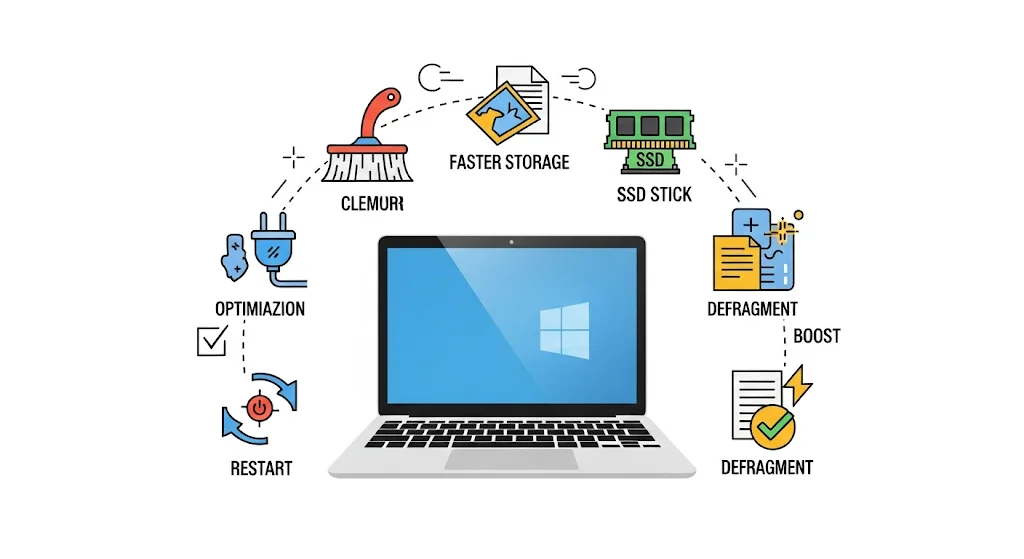
A thorough restart is a simple but frequently ignored way to greatly improve the performance of a laptop. This action clears off temporary files, frees up RAM, stops background programs that aren’t responding, and refreshes system resources. A “proper restart” is different from just closing the laptop lid or clicking the power button to turn it off because modern operating systems may not entirely clear memory or processes in these situations. A proper restart makes the system’s volatile memory and background states reset completely. This simple, free step frequently leads to quick, significant improvements and should be the first thing you do if you think your computer is slowing down.

Steps:

• For Windows, click the Start Menu, then “Power,” and then “Restart.”
• For macOS, click the Apple logo in the top left corner and then “Restart.”

  Let the laptop restart completely before you start using it again.

Managing Startup Programs and Background Processes

When unnecessary apps start up automatically or operate quietly in the background, they use up CPU and RAM, which slows down the system. Disabling or controlling these apps properly can make boot times and overall responsiveness much better. This method gives users fine-grained control over how resources are used, so they may customize their system to meet their immediate needs instead of letting all installed software use resources without regard. This gives customers the power to greatly increase performance without having to uninstall apps they might use from time to time.

 Steps (for Windows):

Task Manager: To open Task Manager, press Ctrl + Shift + Esc. Go to the “Startup” page and turn off any programs that have a “High startup impact” that you don’t need. Also, check the “Processes” tab for apps that are using a lot of CPU or memory and click “End Task” for any programs that don’t need to be running.

• Settings App: Open “Settings,” go to “Apps,” and then choose “Startup.” Turn off any apps on this list that you don’t require.

System Configuration (msconfig): For advanced users, press Win + R, input msconfig, then hit Enter. Click on the “Services” tab, check the box next to “Hide all Microsoft services,” and then click on “Disable all” for third-party services. Make the modifications and then restart the computer.

Permissions for Background Apps (Windows 11):
Go to “Settings,” then “Apps,” and finally “Apps & features.” Find the app you want, click the “three dots” button next to its name, and then choose “Advanced options.” Choose “Never” from the selection box under “Background app permissions.” You can use the Group Policy Editor (gpedit.msc) to turn off the “Let Windows apps run in the background” policy for all users on the system by going to Computer Configuration\Administrative Templates\Windows Components\App Privacy.

Steps (for macOS):

Activity Monitor: Press Command + Spacebar and type “Activity Monitor.” To find apps or processes that use a lot of resources, look at the “CPU” and “Memory” tabs and click the “X” button to close them.
Login Items & Extensions: Click on “System Settings,” then “General,” and finally “Login Items & Extensions.” Look over the list of programs that start up when you log in and turn off any that you don’t need.

Optimizing Your Web Browser

Web browsers, being a primary interface for many users, can significantly impact overall laptop performance if not optimized. Addressing browser-specific issues provides a quick win for perceived speed, especially given the UAE’s high internet penetration and reliance on online services.  

Steps:

  • Close Unnecessary Tabs: An excessive number of open tabs consumes significant memory and CPU resources. Close tabs that are not actively being used.  
  • Clear Browser Cache and Cookies: Regularly clearing the browser’s cache and cookies frees up space and can resolve various loading issues.  
  • Remove Unused Extensions/Add-ons: Browser extensions and add-ons consume resources. Review installed extensions and disable or remove any that are no longer needed or used.  
  • Keep Your Browser Updated: Regularly updating the web browser ensures access to the latest performance improvements, security patches, and bug fixes.  
  • Enable Hardware Acceleration (Chrome/Edge): In browsers like Chrome or Edge, enabling hardware acceleration (found in Settings → System) can offload some processing tasks to the GPU, potentially improving performance.  

Adjusting Power Settings and Visual Effects

These settings represent a deliberate trade-off by the operating system, balancing battery life and aesthetics against raw performance. By adjusting them, users can effectively unlock performance that was intentionally suppressed, providing a quick, free, and often overlooked way to get more out of existing hardware.

Steps:

  • Power Settings (Windows): Open “Control Panel,” select “Power Options,” and choose “High Performance” or “Balanced” instead of “Power Saver”. In Windows 11, navigate to “Settings” -> “System” -> “Power & battery,” and under “Power Mode,” select “Best Performance” for both “Plugged in” and “On battery” settings. This is particularly important when the laptop is plugged in.  
  • Visual Effects (Windows): Go to “System Properties,” then “Advanced,” and click “Performance Settings.” Choose “Adjust for best performance” to disable unnecessary visual effects and animations.  
  • Visual Effects (macOS): Open “System Settings,” then “Desktop & Dock.” Disable options such as “Animate opening applications” and “Automatically hide and show the Dock.” For the “Minimize windows using” option, change the effect from “Genie effect” to “Scale effect”.  

Deep Software Cleaning & Security:

Laptop slow Solution in UAE

Freeing Up Disk Space: Disk Cleanup and Uninstalling Programs

A hard drive that is almost full, especially for HDDs, might slow down performance a lot. So, it’s important to regularly free up disk space to keep the system running quickly. You might think of this procedure as “digital decluttering” because using a computer for a long time leads to the buildup of files and programs that aren’t needed.

Steps:

Disk Cleanup (Windows):  look for “Disk Cleanup” in the taskbar. Choose the drive (typically C:), then pick the kinds of things you want to get rid of, like temporary files, downloaded application files, files in the Recycle Bin, and Windows update files.

Storage Sense (Windows): Windows 10 and 11 come with “Storage Sense,” which can automatically free up space on your drive by getting rid of things you don’t need, like temporary files and objects in the Recycle Bin.
Uninstall Unnecessary Programs: Get rid of software that you don’t use anymore, including bloatware or obsolete apps. You can do this by going to “Settings” and then “Apps” (Windows) or “Control Panel” and then “Programs and Features.”
Clear Downloads/Temp Folders: Go to the “Downloads” folder and delete old files that you don’t require. Press Windows + R on Windows, type %tmp%, and delete all the files in this temporary folder. Always remember to empty the Trash (macOS) or Recycle Bin (Windows) after you’re done to permanently free up space.
Clean up junk on macOS: Use Apple’s built-in “Storage Management” (available under Apple Menu > About This Mac > Storage Settings) to get tips on how to make the most of your storage space. You might also look into third-party tools like CleanMyMac to get rid of all the garbage on your computer, including cache and system logs.

Combating Malware: Scanning and Removal Strategies

Malware slows down laptops a lot by taking up resources, making them unstable, and sometimes putting data at risk. For a system to be healthy and run quickly, it needs to be scanned and cleaned regularly. The fact that there are free programs that work well makes it hard to believe that antivirus software is always needed or that it always slows down a PC. This makes security a key part of performance.

Steps:

  • Disconnect from Internet: Before attempting removal, disconnect the laptop from the internet to prevent the malware from communicating with its source or spreading further.  
  • Enter Safe Mode: Booting the computer in Safe Mode loads only a minimal set of drivers and services, which can prevent most types of malware from running and interfering with the removal process.  
  • Run Antivirus/Anti-Malware Scan: Use reliable and up-to-date antivirus or anti-malware software to perform a thorough system scan.  
    • Free Tool Recommendations (as of 2025): Microsoft Defender Antivirus (built-in for Windows), Avast One Basic , AVG AntiVirus Free , Bitdefender Antivirus Free , and Avira Free Security. Malwarebytes is highly recommended for its protection and removal capabilities.  
  • Manually Uninstall Suspicious Programs: Review the list of installed programs in Control Panel or Settings and uninstall any with unfamiliar names or publishers.  
  • Clear Browser Homepage/Cache: Malware can hijack browser settings. Reset browser settings to default and clear the cache to remove any potentially infected files.  

System Restore (Windows): As a last resort, if malware persists, use the System Restore feature to revert the operating system to a previous, uninfected state.

Keeping Everything Updated: OS, Drivers, and Applications

One of the most important things you can do to keep your laptop running well is to keep the operating system, device drivers, and installed apps up to date. These upgrades solve important bugs, make the system more secure, make it more stable, and speed it up. It’s not a good idea to think of software upgrades as something you can “set it and forget it.” Updates aren’t only about adding new features; they’re also a way to repair bugs and improve speed all the time.

Steps:

  • Operating System (Windows/macOS):
  • Windows: Navigate to “Settings” -> “Windows Update” and click “Check for updates.” Install all available updates, including any optional ones.
  • macOS: Click the Apple menu -> “System Settings” -> “General” -> “Software Update”.
  • Device Drivers: On Windows, open “Device Manager” to check for any devices with warning symbols. Right-click on such devices and select “Update driver,” choosing to search automatically for updated drivers. Alternatively, visit the hardware manufacturer’s website to download the latest drivers for specific devices.  
    •  

Disk Defragmentation (for HDDs) and SSD TRIM Optimization

Depending on the type of storage drive in a laptop, the way to optimize the disk is very different. Using the wrong strategy can not work or perhaps make things worse.
Disk Defragmentation (for HDDs only): Defragmentation is good for traditional hard disk drives (HDDs). This technique puts together file fragments that are spread out on the disk into blocks that are next to each other. This speeds up access to data and makes the drive work better overall. You should defragment your hard drive every now and then, especially if you use it a lot. The best time to do this is while the computer is not in use.

Steps (Windows): Type “Defragment and Optimize Drives” into the Windows search box. Choose the HDD and then click “Optimize.”
SSD TRIM Optimization (only for SSDs): Because SSDs use flash memory instead of hard drives, they don’t get fragmented in the same manner that HDDs do. So, defragmentation is not needed and could even shorten the life of an SSD. The TRIM command, on the other hand, helps SSDs. The TRIM command tells the SSD which data blocks are no longer valid and can be deleted. This technique keeps the drive’s writing speed up and makes it last longer. Most of the time, modern versions of Windows execute TRIM in the background once a week.
o Checking TRIM (Windows): To check if TRIM is on, right-click on the SSD in File Explorer, choose “Properties,” go to the “Tools” tab, and then click “Optimize.” If “Scheduled optimization” is set to “On,” it means that TRIM is on.
This difference in maintenance based on storage technology is very important. Using HDD defragmentation logic on an SSD is not only pointless, it could also be dangerous. To use the right optimization approach, users need to know what kind of drive they have (HDD or SSD). This will save time and protect SSDs from damage.

Hardware Enhancements & Maintenance:

Laptop slow Solution in UAE

RAM Upgrade: Boosting Multitasking and Responsiveness

Adding more RAM to a laptop is one of the best ways to make it work better, especially for multitasking and running demanding programs. More RAM lets the laptop run more programs at once, which makes switching between tasks easier, launching programs faster, and browsing the web faster. This improvement makes the system depend less on slower virtual memory, which is when the hard drive is utilized as a temporary overflow for RAM.

Check Compatibility: Before you buy new RAM, you need to know the laptop’s current RAM specs (such as total capacity, speed, and type) and the maximum amount of RAM it can support. You may usually find this information in the laptop’s handbook, on the manufacturer’s website, or by using system tools. You can see how much RAM you have right now by going to the Performance tab in Task Manager on Windows. You can also see how much RAM you can get by typing wmic memphysical get Max Capacity, Memory Devices in Command Prompt. “About This Mac” shows RAM information for macOS. When you buy new RAM, make sure it has the right form factor (SO-DIMM for laptops), type (DDR3, DDR4, DDR5), and speed (measured in MHz or MT/s). It is possible to install RAM with a greater speed than the laptop can take, but it will only work at the highest speed that the motherboard can handle.
How to Install: To install the RAM physically, you need to find and open the RAM compartment (which is usually covered by a removable hatch), carefully release the clips that hold the old modules, insert the new modules at a 45° angle, make sure they are properly seated, and then gently push them down until the clips lock into place. Finally, the laptop is put back together.
The quantity of “active” data a laptop can handle is directly related to the amount of RAM it has. A direct solution to make the system better at multitasking and running demanding apps without using slower storage is to upgrade it. If your laptop slows down mostly when you’re multitasking or using certain demanding programs, upgrading the RAM is a great way to fix the problem. It’s typically cheaper than buying a new laptop if the other parts are still good.

SSD Upgrade: The Ultimate Speed Boost

Most people think that switching from a regular hard disk drive (HDD) to a solid state drive (SSD) is the best way to improve the performance of a whole system. This upgrade makes boot times, application launches, and file transfers all happen in a flash. SSDs are faster than traditional hard drives, but they also let you do more things at once, use less power and generate less heat, and last longer because they don’t have any moving components. Compared to the minutes it can take for HDDs to boot up or load apps, SSDs are immediate, which is a big change in how quickly they respond.
Check for compatibility: Finding out what type of drive and connection protocol the laptop has right now is very important. SATA (for 2.5-inch SSDs), mSATA, and PCIe/NVMe (for M.2 form factors) are all common protocols. Most older laptops have 2.5-inch disks, while more and more contemporary laptops include M.2 NVMe SSDs. SSD makers offer online tools that can help make sure everything works together.
Installation: The upgrade process usually means copying the data from the old hard drive to the new SSD. Using data transfer software and an external USB enclosure to connect the new SSD to the laptop is a common way to do this. The old drive is taken out of the laptop and the new SSD is put in its place after the data has been cloned. This upgrade changes the way the laptop works in a big way, making it feel “like a brand new system.”

Physical Cleaning: Fans, Vents, and Thermal Paste (Emphasize UAE Climate)

Dust accumulation and the degradation of thermal paste are primary contributors to laptop overheating, a problem significantly exacerbated by the UAE’s dusty and hot climate. Regular physical maintenance is crucial to prevent performance throttling and extend the lifespan of hardware components. The intense UAE climate elevates physical cleaning from a “best practice” to a “critical necessity”. The accelerated degradation of thermal paste and faster dust accumulation mean these maintenance tasks require more frequent and diligent attention than in milder climates.

Steps:

  • Clean Vents and Fans: Regularly use compressed air to dislodge and blow out dust from the laptop’s vents and fan blades. This can often be done without opening the laptop.  
  • Replace Thermal Paste: Over time, the thermal paste, which facilitates heat transfer from the CPU and GPU to the cooler, dries out and loses its effectiveness, leading to higher component temperatures. Replacing thermal paste, typically every 2-3 years or when temperatures consistently rise, significantly improves cooling efficiency. This is a delicate procedure often best performed by professionals to avoid damaging internal components.  
  • Use a Cooling Pad: A laptop cooling pad provides additional airflow to the device’s underside, helping to reduce heat buildup, particularly during long usage sessions or in hot environments. Several models are readily available in the UAE.  

Ensure Proper Ventilation: Always use the laptop on a hard, flat surface to ensure unobstructed airflow through its vents. Avoid placing it on soft surfaces like beds or couches, which can block ventilation. Maintaining a clean and uncluttered workspace also promotes better airflow around the device.  

Considering Professional Help: When to Call the Experts (List Local Services in UAE)

Users can fix a lot of problems with their laptops, but some hardware changes that are more complicated, like replacing thermal paste or fixing the motherboard, or software problems that keep happening may need the help of a professional. If you’re still having performance problems after trying basic repairs, if upgrading your hardware seems too hard, or if you think a component might be broken, you should think about getting professional help. Because the UAE has a strong and competitive market for IT assistance, expert aid is easy to find and typically comes with extra services.

When to Seek Professional Help:

  • Persistent performance issues despite user-level troubleshooting.
  • Suspected hardware component failure (e.g., hard drive, motherboard, RAM).
  • Complex hardware upgrades (e.g., thermal paste replacement, internal fan replacement).
  • Severe malware infections that cannot be removed by standard antivirus software.
  • Physical damage to the laptop.
Laptop repair services in Dubai

Local Services in UAE:

The UAE boasts a comprehensive network of professional laptop repair and IT support services across its major cities:

  • Dubai:
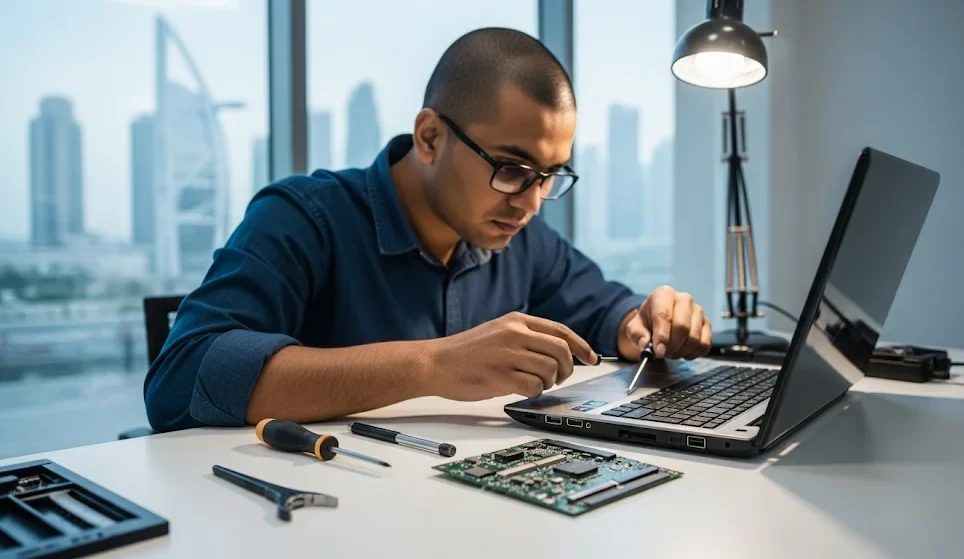
    • Tech Point Zone offers a wide range of laptop repair services in Dubai, including screen replacement, battery replacement, motherboard repair, thermal paste application, and RAM/SSD upgrades.

    • On-site repair service available

    • Genuine parts with warranty

    • Fast turnaround and expert diagnostics

      Perfect for resolving performance issues, hardware faults, or system upgrades — all handled with care and precision.

    • Laptop Repair Dubai: Offers a wide range of services including screen, battery, motherboard, and thermal paste replacement, as well as RAM/SSD upgrades. Provides on-site support and guaranteed genuine parts.  
    • F2 Technology: Specializes in laptop thermal paste replacement, addressing overheating and performance issues. Offers free pickup and diagnosis, quick repairs, and a 90-day warranty.  
    • Urban Clap: Known for laptop fan replacement services, addressing noisy, unresponsive, or slow fans. Provides thorough diagnosis, authentic components, and a warranty.  
    • Prabhat Mac Care: Offers expert and affordable repair services for Apple devices and general laptops, including fan repair.  
    • 800 IT GUYS: Provides quick, reliable on-site IT technical support services for laptops, MacBooks, and various other devices.  
    • DG Help: The tech arm of Sharaf DG, offering comprehensive after-sales support including mobile and IT repairs, data recovery, and quick repairs at select centers.  
  • Abu Dhabi:
    • ScorpionFix: Provides comprehensive laptop repair services for major manufacturers, including screen and battery replacement, hardware repair, system service, and data recovery. Emphasizes certified technicians, premium components, and short turnaround times.  
    • GVC (Green Valley Computers): Offers professional computer, MacBook, and laptop repair services, specializing in screen, battery, keyboard, and motherboard repairs, as well as water damage and fan issues.  
    • DG Help: Also has service centers in Abu Dhabi Mall and Al Ain Mall, providing similar comprehensive tech support.  
  • Sharjah:
    • F2 Technology: Extends its thermal paste replacement and general repair services to Sharjah.  
    • DG Help: Operates drop-off points and service centers in Sharjah, including Mega Mall and City Center Al Zahia.  
    • Easycare: Provides laptop repair services for all major brands, emphasizing modern technology, genuine spare parts, and certified technicians. Offers fair repair estimates and warranty services.  
  • Other Emirates (Ajman, Fujairah, Ras Al Khaimah, Umm Al Quwain):
    • F2 Technology: Offers its services across these Emirates, often with free pickup and drop-off.  
    • Easycare: Has service locations in Ras al Khaimah and Fujairah.  

The extensive availability of local professional support options in the UAE significantly reduces the barrier to seeking expert assistance for complex issues. This means individuals do not necessarily have to resort to purchasing a new laptop if a repair or upgrade is feasible and cost-effective.

  • Abu Dhabi:
    • ScorpionFix: Provides comprehensive laptop repair services for major manufacturers, including screen and battery replacement, hardware repair, system service, and data recovery. Emphasizes certified technicians, premium components, and short turnaround times.  
    • GVC (Green Valley Computers): Offers professional computer, MacBook, and laptop repair services, specializing in screen, battery, keyboard, and motherboard repairs, as well as water damage and fan issues.  

DG Help: Also has service centers in Abu Dhabi Mall and Al Ain Mall, providing similar comprehensive tech support.

  • Sharjah:
    • F2 Technology: Extends its thermal paste replacement and general repair services to Sharjah.  
    • DG Help: Operates drop-off points and service centers in Sharjah, including Mega Mall and City Center Al Zahia.  
    • Easycare: Provides laptop repair services for all major brands, emphasizing modern technology, genuine spare parts, and certified technicians. Offers fair repair estimates and warranty services.  
  • Other Emirates (Ajman, Fujairah, Ras Al Khaimah, Umm Al Quwain):
      • F2 Technology: Offers its services across these Emirates, often with free pickup and drop-off.  
      • Easycare: Has service locations in Ras al Khaimah and Fujairah.  

Table 2: Recommended RAM for Different Usage Scenarios

Usage Scenario

Recommended RAM (Minimum)

Impact on Performance

Basic computing/web browsing

8GB

Sufficient for light tasks and general web use.

Multitasking/Productivity

16GB

Enables smooth transitions between multiple applications and efficient work.

Gaming/Content Creation

16GB – 32GB

Optimal for demanding games, video editing, graphic design, and CAD software, reducing lag and enhancing visuals.

Heavy Professional Work/Virtualization

32GB+

Provides high-end performance for resource-intensive applications and virtual machines.

Table 3: Comparison: HDD vs. SSD Benefits

Feature/Benefit

HDD Performance

SSD Performance

Boot Time

Slow, often minutes

Lightning-fast, seconds

Application Launch

Laggy, noticeable delay

Instantaneous, rapid

File Transfer Speed

Slower, susceptible to fragmentation

Rapid, seamless

Multitasking

Struggles, decreased performance

Enhanced, seamless transitions

Durability

Fragile, susceptible to physical damage

Robust, no moving parts, resistant to drops/vibrations

Power Consumption

Higher, due to mechanical components

Lower, more energy-efficient

Heat Generation

More, due to mechanical operation

Less, runs cooler


Table 4: Laptop Maintenance Checklist & Frequency

Maintenance Task

Recommended Frequency

Proper Restart

Daily

Close Unnecessary Tabs/Apps

Daily

Empty Recycle Bin/Trash

Weekly

Run Disk Cleanup (Windows) / Clear System Junk (macOS)

Weekly / Monthly

Update OS, Drivers, & Applications

Weekly / Monthly

Manage Startup/Background Programs

Weekly / Monthly

Scan for Malware

Weekly / Monthly

Clean Vents with Compressed Air

Monthly / Quarterly (more often in dusty environments)

Check Power Settings

Monthly / As Needed

Physical Cleaning (Keyboard, Screen, Ports)

Monthly

Defragment HDD (if applicable)

Monthly (for HDDs only)

Replace Thermal Paste

Annually / Bi-annually / As Needed (professionally)

Calibrate Battery

Every few months

Preventing Future Slowdowns – Best Practices for Longevity in the UAE

Maintaining laptop performance and extending its lifespan requires a proactive approach that integrates regular maintenance, smart user habits, and specific considerations for the unique environmental challenges of the UAE.

Regular Maintenance Checklist

Keeping up with a regular maintenance routine is the best way to stop performance problems and hardware issues. This includes taking care of both hardware and software. A regular maintenance schedule immediately addresses the cumulative effect of negligence, where many tiny problems pile up to big performance issues. A laptop that is well cared for is naturally quick and dependable.


Important Things to Do:
• Every day or week, do the following: restart your computer properly, remove any applications and browser tabs that you don’t need, empty the Recycle Bin/Trash, check your antivirus status for alerts, and erase temporary files.
• Once a month, clean up your drive thoroughly, run a full malware scan, check your disk space to make sure you have at least 10–20% free space, and look over the apps you have installed to delete any that you don’t use.
• Every three to six months: Use compressed air to deep clean the inside parts and get rid of dust. Check for bloatware that is already loaded and update the BIOS and firmware settings.
• Once a year or as needed, think about hiring a professional to clean, especially the parts that are hard to reach inside. If the temperature keeps going up, or every two to three years, replace the thermal paste. When the battery’s capacity drops a lot, it’s time to replace it.

Smart User Habits for Optimal Performance

Aside from regular maintenance, how you use your laptop every day has a big impact on how fast it is and how long it lasts. When used consistently, these behaviors operate as a constant lever for performance, allowing users to keep their pace without having to constantly fix technical issues.

Key Habits:

  • Mindful Multitasking: Limit the number of resource-heavy programs running simultaneously to prevent system overload.  
  • Browser Discipline: Cultivate habits of closing unneeded browser tabs, regularly clearing the browser cache and cookies, and managing extensions by disabling or removing those not actively used.  
  • Software Hygiene: Regularly uninstall programs that are no longer used and actively manage startup applications to prevent them from consuming resources unnecessarily.  
  • Timely Updates: Do not defer critical operating system, driver, and application updates. These updates often contain crucial bug fixes and performance optimizations.  
  • Conscious Downloading: Be aware of the bandwidth consumption of large downloads, especially when using slower internet connections or public hotspots, as they can significantly impact overall browsing speed.  
  • Data Backup: Regularly back up critical data to external drives or cloud storage services. This practice not only safeguards important files but also reduces anxiety in case of unexpected system issues or hardware failures.  

Protecting Your Laptop from the UAE Environment

The UAE’s harsh climate, which is marked by intense heat, high humidity, dust, and sandstorms, presents special and expedited risks to laptop electronics. Therefore, proactive environmental protection is essential for preserving functionality and increasing the lifespan of devices. One of the main tactics for lifespan is this adaptation to environmental constraints.

Specific Measures:

  • Optimal Placement: Operate the laptop in cool, well-ventilated spaces. Avoid direct sunlight, proximity to heaters, or placing it in hot areas of a room.  
  • Surface Awareness: Always use the laptop on a hard, flat surface to ensure proper airflow through its vents. Avoid placing it on soft surfaces like beds or couches, which can block ventilation and trap heat.  
  • Cooling Accessories: Invest in a laptop cooling pad, especially for demanding use (e.g., gaming, video editing) or during the summer months when ambient temperatures are highest.  
  • Dust Management: Due to frequent dust storms, regular cleaning of vents and internal components with compressed air is even more critical than in milder climates.  
  • Temperature Extremes: Avoid leaving the laptop in vehicles, where internal temperatures can soar or plummet to damaging levels. If moving the laptop from an extremely cold to a warm environment, allow it to adapt to room temperature before powering it on to prevent condensation and component stress.  

Battery Care in Heat: High heat negatively impacts battery life and can shorten its overall lifespan. Follow smart charging habits, aiming to keep the charge between 20% and 80%, using original chargers, and avoiding charging in extreme temperatures.  

Conclusion: A Faster Laptop, A Better Experience

A laptop’s performance is affected by a lot of things, including its hardware, software, and the way the user uses it. The UAE’s unique environmental circumstances add a lot of extra stress. Insufficient RAM, old or fragmented storage (particularly HDDs), and the constant fear of overheating, which is made worse by the UAE’s extreme heat and dust, are some of the main hardware problems. Malware, too many startup and background programs, old operating systems and drivers, and overloaded browsers all make performance worse on the software side. User habits, including not restarting and maintaining their computers often and using the wrong power settings, make the experience even slower. Network latency can make the UAE’s fast internet speeds seem slow, which can make online interactions seem slow.
This analysis, on the other hand, shows that people may apply a full set of actionable remedies provided they understand these precise causes. There are several ways to make big changes, from quick fixes like restarting your computer and carefully managing background activities and browser tabs to more thorough cleaning methods like clearing up disk space and strong virus protection. Also, smart hardware upgrades, especially RAM and SSD upgrades, can make a big difference in speed. In the UAE, proactive physical cleaning, replacing thermal paste, and using cooling accessories are not just optional maintenance; they are necessary steps to deal with the harsh climate. The skilled repair services that are easy to find and compete with each other in the Emirates are also a great resource for fixing complicated problems. Often, it’s better to repair or improve than to replace right away.
In the end, you can have a laptop that is speedier and more responsive. Users may greatly improve their device’s performance and make it last longer by following a regular maintenance schedule, developing smart user habits, and changing their care routines to meet the unique needs of the UAE’s environment. This all-encompassing strategy gives people back their time for work and play, turning a frustratingly slow computer experience into one that is smooth, effective, and fun.

Gaming Laptops UAE Guide 2025

Best Gaming Laptops Under AED 5000 in UAE: Expert Reviews & Buying Guide

Understanding Your AED 5000 Gaming Budget: Performance Expectations

The constantly changing gaming market in the United Arab Emirates makes it hard for fans to find a gaming laptop that works well and doesn’t cost more than AED 5000. There are a lot of high-end versions on the market, such the Razer Blade 16 for AED 10,899, the MSI Titan 18 HX for AED 24,999, and the ASUS ROG Strix SCAR 18 for AED 25,999. But if you have a limited budget, you need to do a lot of research to find real value. The fact that these far more expensive solutions are so common shows how important it is for budget-conscious customers to have a targeted guidance. This circumstance shows that there is an obvious lack of easily accessible, targeted information. This makes a specialized, budget-focused resource not only beneficial but also necessary for customers who are trying to make sense of this predicament. This article’s goal is to close that gap by showing that great gaming experiences are available for AED 5000 or less.

This article serves as your ultimate guide to discovering top gaming laptops in the UAE that deliver exceptional performance for your investment. It will slice through the noise and provide you with a thoroughly researched suggestion. This will go deeply into crucial specifics, showcase top models with thorough evaluations, outline key considerations before making a purchase, and provide distinctive perspectives on the local market, including essential warranty and service details that are often overlooked in typical evaluations. The aim is to provide readers with the insights necessary for making a knowledgeable purchase, which directly addresses the demand for unique, top-notch content that builds credibility and offers genuine value.

Realistic Expectations for Gaming Laptops under 5000 AED

With a price of AED 5000, gamers in the UAE may expect to obtain good Full HD (1920x1080p) gaming experiences. It could be hard to get the newest AAA games to run at “Ultra” settings, but these laptops are more than capable of running them at medium to high graphical settings with steady frame rates, usually above 60 FPS. Players should expect substantially faster frame rates in competitive esports games, which gives them a big edge.
The performance-per-dirham value proposition for budget gaming laptops in the UAE has gotten a lot better in this price range. This is clear from the fact that NVIDIA RTX 4050, RTX 4060, and even entry-level RTX 5050 GPUs are becoming more and more available for AED 5000 or less. This change in the market shows that “budget” gaming laptops are getting better very quickly. Manufacturers can now offer better performance at lower prices than in prior generations thanks to the addition of newer, more efficient GPU architectures like NVIDIA’s Ada Lovelace, which powers the RTX 40-series. Because of this competition, gamers can now expect more than just basic “entry-level” gaming. They can aspire for great 1080p experiences with modern technologies like DLSS and ray tracing, which used to be only available on computers that cost a lot more. This change completely changes what “best performance” means within the given budget.

Gaming Laptops UAE essential components info

Benchmarks for Key Components in this Price Range

  • Graphics Processing Units (GPUs): The main goals for this budget are NVIDIA’s RTX 3050 (4GB/6GB), RTX 4050 (6GB), and, in certain rare situations, RTX 4060 (8GB) or the new RTX 5050 (8GB). The RTX 5050 is a newer model, however it has showed an 11% performance boost over the RTX 4050 in Geekbench. It has 8GB of VRAM and uses AI-powered capabilities like DLSS and Multi Frame Generation to boost performance instead of a huge improvement in raw hardware.
  • Central Processing Units (CPUs): The most common choices are Intel Core i5 (12th, 13th, or 14th Generation, such as i5-12450H, i5-13420H, i5-13500HX, i7-13620H, or i7-14650Hx) or AMD Ryzen 5/7 (7000 series, such as Ryzen 5 7535HS, Ryzen 7 7735HS, or Ryzen 7 7840HS). These processors have enough power for gaming and smooth multitasking, however some games use more CPU power than others.
  • Random Access Memory (RAM): For modern gaming and multitasking, 16GB is the minimum, however DDR5 is better. Some budget devices may have 8GB, but this can rapidly become a problem for demanding games, so you should think about upgrading right away. For the best performance, it’s also important to have dual-channel RAM.
  • Storage: An NVMe Solid State Drive (SSD) is a must-have for fast boot times and loading games quickly. 512GB NVMe SSDs are ubiquitous, but 1TB options are becoming more frequent and are still affordable. They provide you a lot more capacity for your growing gaming library. A number of models also have SSD slots that are easy to update.
  • Display: You should expect Full HD (1920×1080) displays with high refresh rates of 120Hz, 144Hz, or 165Hz that are 15.6 inches or 16.1 inches wide. These faster refresh rates are very important for a smooth and responsive gaming experience, especially in fast-paced games.

Essential Specifications: What Truly Matters for Performance

Best Gaming Laptops Under AED 5000 in UAE: Expert Reviews & Buying Guide

CPU Comparison: Intel Core i5/i7 vs AMD Ryzen 5/7

The CPU is the most important part of a gaming laptop since it keeps things from becoming stuck, which can slow down even the best GPU. Intel Core i5 (12th, 13th, or 14th Gen, such as i5-12450H, i5-13420H, i5-13500HX, i7-13620H, i7-14650Hx) and AMD Ryzen 5/7 (7000 series, including Ryzen 5 7535HS, Ryzen 7 7735HS, and Ryzen 7 7840HS) are the most prevalent choices under the AED 5000 budget. Even while higher-end i7 and Ryzen 7 models have more cores and threads, a well-matched i5 or Ryzen 5 from a recent generation will be powerful enough for most gaming situations, especially since certain games use more CPU than GPU. At this price point, the choice between Intel and AMD usually boils down to which models are available and how the laptop is set up as a whole, rather than one manufacturer clearly being better than the other.

GPU Performance Analysis: RTX 3050 vs RTX 4050 vs RTX 4060 vs RTX 5050

The GPU is without a doubt the most important part for gaming performance. The capabilities of the device directly affect the frame rates and visual fidelity.
RTX 3050 (4GB/6GB): This is still a good option for a budget that can play games at 1080p with medium to high settings. For example, the HP Victus 15 with an RTX 3050 ran CS:GO at 191 frames per second and Guardians of the Galaxy at 61 frames per second at 1080p High. Some setups now come with 6GB of VRAM, which is a good increase for newer games.
RTX 4050 (6GB): This is the best performance you can get for less than AED 5000 right now. It has much better ray tracing capabilities and supports NVIDIA’s DLSS 3 technology, which can use AI upscaling to greatly increase frame rates. When settings are tuned, laptops with this GPU may get 60 or more frames per second in many recent games at 1080p.
RTX 4060 (8GB): The MSI Katana 15 costs about AED 3670 ($999 USD), the ASUS TUF Gaming F15 costs AED 4,299, while the Lenovo Legion Slim 5 costs AED 4,599. This GPU gives you the best raw performance for the money, making frame rates even smoother and making sure it will work with future games.
RTX 5050 (8GB): A new choice, as shown by the MSI Katana 15, which costs AED 4,799. Its raw performance boost over the RTX 4050 is small (11% on Geekbench), but its 8GB VRAM and improved AI features like DLSS and Multi Frame Generation are great for long-lasting performance and better visuals.
Total Graphics Power (TGP) is a very important characteristic that has a big effect on how well games run in the real world, even for the same GPU models. For the same GPU model, a higher TGP usually means better performance in the real world since it lets the chip use more power and keep higher clock speeds. For example, an RTX 4050 that runs at 140 watts in one laptop would usually work far better than an RTX 4050 that runs at 95 watts in another laptop, only because of the difference in power. This is an important point to keep in mind if you want to get the most out of your money. A laptop with a higher TGP GPU that costs a little more can be a far better deal than one with the same GPU name but a lower TGP. For anyone who want to know what a gaming laptop can really do beyond its listed GPU type, this difference is really important.

Memory & Storage Requirements: 16GB RAM and NVMe SSD Standards

For gaming in the modern style and doing a lot of things at once, 16GB of RAM, preferably DDR5, is the best amount. Some inexpensive models may still come with 8GB, but this can rapidly become a problem for demanding games. You should think about upgrading to 16GB right away, making sure that the system is set up for dual-channel performance.
To get lightning-fast startup speeds, fast program loading, and fast gaming load screens, you need an NVMe SSD. 512GB NVMe SSDs are prevalent, but 1TB alternatives are becoming more common within the AED 5000 price. These drives give a lot more space for the growing size of modern game library. It’s important to note that many of the recommended models have SSD slots that are easy to upgrade, which gives you a lot of options for future growth.

Display Quality: Refresh Rates, Brightness, and Color Accuracy

Budget gaming laptops usually have refresh rates of 120Hz, 144Hz, or 165Hz, which makes games smooth and fluid. This is especially helpful for games where every frame counts. For this price range, Full HD (1920×1080) is still the best resolution for balancing performance and picture quality.
Most inexpensive laptops have displays that are between 250 and 350 nits bright. 300 nits or more is usually fine for indoor use, but games can look dreary at lower brightness levels, especially in bright places. Many inexpensive laptops don’t have very good sRGB coverage, which means that colors look washed out. This is because they don’t have very good color accuracy. Some HP Victus, Dell G15, and MSI Katana machines show this.
But some models go against this overall tendency by having remarkably good display quality for the price. Some ASUS TUF A15 models, for example, are said to have 100% sRGB coverage, which makes the visuals look more colorful and immersive. The Acer Nitro V 15 (ANV15-51) also covers 97% of the sRGB gamut and has a maximum brightness of 341 nits, which means it is “creator-ready” with the right settings. This difference shows that display quality is often a trade-off in budget gaming laptops. However, smart consumers can find models that have great color accuracy and brightness, but they need to do a lot of research on each model. This deeper awareness gives consumers the power to put display quality first without going over their budget.

Top 6 Gaming Laptops Under AED 5000: Detailed Reviews

The UAE market offers several compelling gaming laptops that strike an excellent balance between performance and affordability, fitting comfortably within the AED 5000 budget. The following comparative overview highlights key specifications and considerations for the leading contenders.

Table: Comparative Overview of Recommended Gaming Laptops Under AED 5000 (Approximate Prices)

Best Gaming Laptops Under AED 5000 in UAE: Expert Reviews & Buying Guide

1. MSI Katana 15

MSI Katana 15 UAE

The MSI Katana 15 is a solid candidate for performance in the AED 5000 price range, especially with its RTX 4060 or new RTX 5050 configurations. The model with an Intel Core i7-13620H processor and an NVIDIA RTX 4060 GPU (8GB GDDR6) costs about AED 5574 and runs 1080p games smoothly, with frame rates of 113 FPS in Shadow of the Tomb Raider and 96 FPS in Grand Theft Auto V. You can get a newer setup with an Intel Core i7-14650Hx and an RTX 5050 8GB GPU for AED 6499. The RTX 5050 doesn’t have a huge boost in raw hardware performance over the RTX 4050, but it does include 8GB of VRAM and AI-powered features like DLSS and Multi Frame Generation that make it faster.
The Katana 15 usually has 16GB of DDR5-5200 RAM and a 512GB or 1TB NVMe SSD. It also has two M.2 SSD slots for future upgrades. Its 15.6-inch Full HD screen has a refresh rate of 144Hz, which makes the images look smooth. However, the average brightness of 248 nits and “IPS-level” panel quality can make it look a little washed out compared to higher-end displays. The cooling system works well to keep things cool, even when they’re under a lot of stress. It has six copper heat pipes and two fans, and it uses Cooler Boost 5 Technology to do this. The laptop’s battery life is usually short, and its design, while strong, is not very interesting. The keyboard has 4-zone RGB illumination and a key travel of 1.7mm, which is nice, but you can’t always customize each key.

2. Lenovo LOQ 15

Best Gaming Laptops Under AED 5000 in UAE: Expert Reviews & Buying Guide

The Lenovo LOQ 15 series is a great choice for gaming on a budget because it has a good price-to-performance ratio. The least expensive setup has an AMD Ryzen 7 7840HS processor and an NVIDIA GeForce RTX 4050 GPU (95 watts). It costs about AED 3480 ($949 USD). This model lets you play games in 1080p with good frame rates, such Borderlands 3 (91 FPS) and Shadow of the Tomb Raider (124 FPS). You may get other versions, including the ones with an Intel Core i5-12450HX and RTX 2050 4GB, for as little as AED 2,299. You may get a stronger one with an Intel Core i7-13650HX and RTX 4060 8GB for about AED 4099.
The LOQ 15 usually has a 15.6-inch Full HD screen with a brightness of 350 nits and refresh rates of 120Hz or 144Hz. It also has an anti-glare coating. Lenovo’s AI-tuned thermal control helps the laptop’s cooling system by keeping the keyboard temperature around 43°C during intensive use and the fan noise at a reasonable 48.5 dBA. This technology helps keep high frame rates without a lot of heat throttling. The build is mostly plastic, yet it feels strong and doesn’t bend much. The screen can open all the way to 180 degrees. Most of the time, they come with 16GB or 24GB of DDR5 RAM and 512GB or 1TB NVMe SSDs. Both types of RAM and SSDs can be upgraded. Some versions, on the other hand, may just have single-channel RAM, which can slow things down. Also, the battery life isn’t very long when you’re playing games a lot. Port distribution is a small problem because there is just one USB-C port that doesn’t support Thunderbolt.

3. HP Victus 16

HP Victus Gaming Laptop16-r1017nia UAE

The HP Victus 16 is a gaming laptop that doesn’t cost a lot of money but still works really well for the price. The price for a setup with an AMD Ryzen 7 7840HS processor and an NVIDIA GeForce RTX 4050 Laptop GPU is about AED 3774. People like this model because it plays games really well, especially at 1080p, where it can get 60 FPS in hard games by changing settings.
The Victus 16 has a 16.1-inch Full HD screen with a 165Hz refresh rate, a 7ms reaction time, and 300 nits of brightness. Some models offer 100% sRGB color accuracy. Some reviews, on the other hand, say that the screen can look washed out and not very colorful, which is something that happens a lot in inexpensive laptops. The laptop has a better “Tempest” cooling system with dynamic AI power optimization. This helps keep the CPU cores steady and the GPU around 60°C under load, even when the laptop is doing a lot of work. This device is usually quieter than a lot of other gaming laptops. The build quality is strong, and the keyboard doesn’t flex much. However, the plastic around the hinge is a little less strong. The battery life is better than normal for a gaming laptop, lasting up to 9 hours and 15 minutes of regular use and charging quickly. It comes with a full-size keyboard with RGB backlighting in one zone, however the power button’s location can be annoying.

4. Asus TUF A15

Asus TUF F15 Gaming Laptop 2021 model UAE

People who want to save money often choose the ASUS TUF Gaming A15 since it has good parts at a low price. The price of models with an AMD Ryzen 7 7735HS processor and an NVIDIA GeForce RTX 4050 Laptop GPU is about AED 3390. This setup gives you about 10% higher performance than comparable laptops in its class. You can also find a lot of versions with an RTX 3050. Prices range from AED 2,349 to AED 3930, depending on the setup and the store. The RTX 3050 models can run modern games decently on medium to high settings. Some users have even reported getting 40–50 FPS in tough games like Cyberpunk 2077.
The TUF Gaming A15 has a strong aluminum body that meets military requirements (MIL-STD-810H). The 15.6-inch Full HD screen usually has a refresh rate of 144Hz, and some models have great 100% sRGB color coverage, which makes the pictures look very bright. But the display’s peak brightness could not be as high as that of more expensive models. Some gaming laptops have batteries that last a long time, with some models having batteries that are up to 90Wh and can charge quickly, allowing for longer use without being plugged in. The cooling system contains two fans and several heat pipes, however some people have said that the vents aren’t designed well enough to keep heat from building up during long sessions if the system isn’t raised or used with a cooling pad. The laptop is easy to upgrade because it has slots for RAM and storage that the user can access and a USB 4.0 port for quick connections.

5. Dell G15

Dell G15 5530 Gaming Laptop front view

The Dell G15 is a powerful and cheap gaming laptop that is often praised for how well it works for the price. The base model, which has an AMD Ryzen 5 7640HS processor and an NVIDIA GeForce RTX 3050 graphics card, is meant for Full HD gaming and costs about AED 2936 ($800 USD). You can also get an Intel Core i5-12500H with an RTX 3050 for AED 2714. For instance, the Dell G15 5520 got a single-core score of 1,659 and a multi-core score of 8,342 in benchmark tests, beating the Lenovo IdeaPad Gaming 3. The Dell G15-5530 with the RTX 3050 6GB model and a TGP of 95W has a clear edge in games like Assassin’s Creed Valhalla and GTA V.
The Dell G15 usually has a 15.6-inch screen that can refresh at 120Hz or 165Hz. The 165Hz variant has good contrast and a balanced distribution of brightness. But certain display settings may not cover the full sRGB range, which can make colors less bright. The laptop is rather heavy and thick. It has a plastic body and ports on the back. The cooling system works well, even though it’s big. It keeps the CPU and GPU temperatures well below 80 degrees Celsius even when the computer is working hard, and the fan noise isn’t too loud. The G15 has two RAM slots and one M.2 slot for storage. It can hold up to 32GB of DDR5 memory and 2TB of storage with an NVMe PCIe Gen4 x4 SSD. The battery life isn’t very good, especially when you’re playing games.

6. Acer Nitro V 15

Acer Nitro V 15 ANV15-51-789J Gaming Laptop UAE

The Acer Nitro V 15 is an affordable and portable gaming laptop that is good for people who don’t play a lot of demanding AAA games or who don’t have a lot of money. You can get a configuration with an Intel Core i5-13420H processor and a 6GB NVIDIA GeForce RTX 3050 for about AED 3317. You can also get an RTX 4050 version for about AED 3399. The price for a device with an AMD Ryzen 5 7535HS and RTX 2050 is above AED 3000. The RTX 3050 (6GB) can keep 50 FPS in Cyberpunk 2077 at 1080p with low ray tracing and high texture quality. It can also keep above 60 FPS in titles like Borderlands 3 and Far Cry 6.
The Nitro V 15 has a Full HD IPS display that is 15.6 inches wide and refreshes at 144Hz. Some versions of the Nitro V 15 (ANV15-41) have very good color accuracy, spanning 97% of the sRGB gamut and achieving a peak brightness of 341 nits. This is a big plus for a budget laptop. The design is thinner and less flashy than the typical gaming look of the Nitro 5, which makes it easier to carry. It has two fans and an exhaust system, but its cooling system isn’t as good as the Acer Nitro 5’s. The fans are next to each other and there are less heatsink fin regions, which could make the CPU run hotter when it’s under a lot of load. It usually keeps good temperatures while gaming, though. The battery life is good for a cheap gaming laptop, lasting up to 9 hours and 48 minutes in ordinary use. However, it lowers a lot when gaming. The laptop has a lot of connectors and two SSD bays, which makes it easy to upgrade.

Crucial Buying Considerations for the UAE Market

Thermal Management: Keeping Your Cool Under Pressure

Gaming laptops, especially those in the budget range, need good thermal management because if they don’t get enough cooling, their performance can drop, which is called thermal throttling. This happens when the CPU or GPU slows down its clock speed to keep from getting too hot, which directly affects frame rates and the smoothness of the game as a whole. Because they are small, laptops typically have trouble staying cool, and if the manufacturer doesn’t apply the thermal paste properly, it can make these problems worse.
To deal with heat, manufacturers use a variety of cooling methods. For example, HP’s Victus 16 has an improved “Tempest” cooling system with dynamic AI power adjustment that keeps components at stable temperatures and handles heat well during heavy use. The MSI Katana 15 uses “Cooler Boost 5 Technology,” which includes multiple copper heat pipes and two fans, to keep performance and stability high. AI-tuned heat regulation helps Lenovo’s LOQ series keep high frame rates while keeping fan noise down. The Nitro V 15 from Acer has two fans, but its heatsink design isn’t as strong as the Nitro 5’s. This can cause the CPU to go hotter during long loads, but the total temps are still bearable. People also like the Dell G15 machines because they keep the CPU and GPU cool, keeping them both well below 80 degrees Celsius.
Even with powerful cooling systems, budget gaming laptops can get very hot and noisy when you play games for a long time. This is something that buyers should know. You can take practical actions to make your laptop run cooler, such raising it up to let more air flow, using a separate cooling pad, or, for more expert users, thinking about changing the thermal paste. These steps can help keep the device running well and make it last longer.

Battery Life vs Gaming Performance

When looking for a gaming laptop, especially on a budget, battery life is usually the first thing to go. These machines are built to function, yet their strong parts need a lot of energy. Users should therefore not be unrealistic in their expectations; gaming will significantly drain the battery more quickly than ordinary productivity tasks or web browsing.
As an example, the HP Victus 15’s battery life drops significantly when gaming, but it still manages to last nearly 6.5 hours when tested with streaming video. The Acer Nitro V 15 has a similar battery life, but it’s only good for around an hour of gaming. The ASUS TUF A15’s 90Wh battery gives it remarkable endurance for a budget gaming laptop, allowing for multiple hours of playtime without an external power source. In contrast, MSI Katana 15 and Dell G15 usually have shorter battery lives.
Since many gaming laptops reduce their power draw and, by extension, performance when operating on batteries to preserve power, it is nearly always advised to have the laptop plugged in for best gaming performance. A more advantageous balance is offered by models such as the HP Victus 16 or specific ASUS TUF A15 configurations for those who emphasize portability and unplugged usage for non-gaming duties.

Build Quality & Design: Durability, Portability, and Aesthetics

Budget gaming laptops sometimes have plastic cases to keep costs down. This can make them feel less premium than more expensive models. But this doesn’t always mean that it won’t last long. Many versions, such as the ASUS TUF Gaming A15, meet military-grade criteria for ruggedness, which means that even though they are made of plastic, they are still very strong. People say that the Lenovo LOQ 15 is strong and doesn’t bend much, even though it is made of plastic. Some HP Victus 15 devices, on the other hand, have been said to feel a little flimsy and have a display that wobbles.
The weight and ease of carrying differ. The HP Victus 16 weighs 5.14 lbs (2.34 kg), which is less than certain competitors like the Acer Nitro 16 but more than the ASUS TUF A15. The Lenovo LOQ 15 weighs about 2.4 kg. It’s not very light, but the weight is evenly spread out.
Design aesthetics in this price range are usually more subtle than in flashier, more expensive gaming machines. For example, the HP Victus 16 has a clean, understated style that works well in professional or academic contexts and doesn’t have too much RGB lighting. For gamers, keyboards are quite important. The number of zones for RGB backlighting (usually 4 instead of per-key), the amount of key travel, and the existence of a number pad are all different. Some keyboards could feel soft or constricted, while others give quick, responsive feedback. Some touchpads are big yet have mushy or uneven buttons, which can also be a problem.
Most connectors are good, including several USB-A ports, HDMI, and Ethernet ports. However, some cheap models may not support Thunderbolt on their USB-C ports. Most webcams have a resolution of 720p, which might be disappointing because they often make fuzzy images. This means you might need to buy an extra webcam for streaming or video conversations.

Upgradeability: Future-Proofing Your Investment

One of the best things about budget gaming laptops is that you can replace the parts. This lets you get more usage out of your investment without having to buy a whole new system. Most of the best models in the AED 5000 price range have slots for both RAM and storage that users may access.
Many laptops come with 16GB of RAM, but they typically include a second empty slot or can accept higher capacities, so you can upgrade to 32GB or even 64GB of DDR5 memory. This is especially helpful for devices that come with 8GB of single-channel RAM. Upgrading to 16GB of dual-channel RAM can make a big difference in performance.
Most inexpensive gaming laptops also have NVMe SSD slots, and many of them either have an empty M.2 slot or support larger drives (up to 1TB or 2TB), so users can add more storage for their increasing game library or other material. This versatility means that a 512GB SSD can be a good first buy because it is less expensive, and you can always add more storage later if you need it.

Gaming Laptop Warranty & Service Guide - UAE

Grasping warranty policies and local service options is essential for any electronics purchase, particularly when it comes to gaming laptops. Leading brands in the UAE provide standard manufacturer warranties, generally lasting from 1 to 3 years, which cover defects in materials and workmanship. This limited warranty typically includes certain components such as the battery or accessories, but for a reduced duration.

Extended Warranty Options

Numerous manufacturers provide extended warranty plans, frequently referred to as Care Packs or Acer Care Plus, MSI Care, which can extend the standard warranty period, occasionally reaching up to 5 years. These extended plans frequently offer more thorough hardware support. Furthermore, Accidental Damage Protection (ADP) serves as a beneficial enhancement that safeguards laptops against unexpected events such as spills, drops, or electrical surges, encompassing hardware repairs and replacements, including damaged screens.

It is advisable to acquire these extended services alongside the product or shortly after the purchase, typically within a timeframe of 90 to 180 days.

Brand Specific Warranty Options

ASUS:

ASUS provides a 2-year International Warranty that includes complimentary service and spare parts. Products may be registered on the ASUS One Portal to monitor warranty status. ASUS service centers provide repair services for a range of models, including the TUF and ROG series, with pickup request services available.

MSI:

MSI offers an extensive service through MSI Care, which includes a complimentary 3-month extended warranty upon product registration and the completion of a questionnaire. MSI laptops generally come with an international limited warranty, with service available through authorized providers.

Lenovo:

All new Lenovo hardware products include a standard basic warranty, which can be extended for up to five years with Warranty Upgrades. Accidental Damage Protection typically needs to be acquired within the initial 90 days. Lenovo service centers provide repairs and health checkups across Dubai, Abu Dhabi, and Al Ain.

HP:

Products are accompanied by a Standard Manufacturer’s Warranty (1-3 years) and may be extended through HP Care Packs. Accidental Damage Protection is available as well. HP offers a website for checking product warranties and provides assistance via HP Support Assistant, with local service available through call centers or authorized service providers.

Acer:

Provides a standard warranty, generally 1 year for notebooks and 2 years for gaming/Predator laptops. Acer Care Plus offers the possibility to extend your warranty for up to 5 years, providing choices for either “Carry-in” or “On-site” service.

Dell:

Offers a hardware warranty that ranges from 90 days to 5 years, with options for renewals and extensions. Dell provides support for international warranty transfers for products relocated to a different country, featuring 24/7 English assistance for ProSupport and Premium Support tiers.

Why Choose Tech Point Zone for Your Gaming Laptop Purchase

When purchasing your gaming laptop, you don’t need to limit yourself to traditional retail chains. Tech Point Zone offers a comprehensive solution that combines the best of manufacturer warranties with specialized expertise:

Complete Warranty Coverage:

  • Full manufacturer warranty included with every gaming laptop purchase
  • Direct warranty registration assistance to ensure your coverage is active from day one
  • Guidance on extended warranty options and when to purchase them for maximum benefit

Specialized Gaming Laptop Expertise:

  • Dedicated specialist team with deep knowledge of gaming laptop brands and models
  • Expert advice on warranty terms, coverage limitations, and claim procedures
  • Pre-purchase consultation to help you understand warranty implications for your specific needs

Comprehensive Service Support:

  • Streamlined warranty claim process with direct manufacturer liaison
  • Technical support that understands gaming laptop requirements
  • Post-purchase support to maximize your warranty benefits

Additional Value-Added Services:

  • Product registration assistance for all major brands (ASUS, MSI, Lenovo, HP, Acer, Dell)
  • Warranty status monitoring and renewal reminders
  • Expert guidance on Accidental Damage Protection timing and necessity

Important Reminders:

Consumers should always retain their invoice or proof of purchase for any warranty claims and register their product to enjoy complete services and benefits. With Tech Point Zone, you get not just the product and warranty, but also the peace of mind that comes with expert support throughout your gaming laptop ownership journey.

Choose Tech Point Zone – where gaming laptop purchases come with manufacturer warranty protection and specialist expertise, all in one convenient location.

Final Recommendations: Maximize Gaming Value Under AED 5000

Finding a high-performance gaming laptop in the UAE for less than AED 5000 is not easy because there are so many high-end models on the market, but it is possible. This study shows that smart shoppers may get an efficient laptop that can handle Full HD gaming at medium to high settings and even greater frame rates for competitive esports games.
The significant improvement in the performance-per-dirham value is a key takeaway. Gamers may now enjoy more than just basic entry-level performance thanks to the growing availability of NVIDIA RTX 4050, RTX 4060, and the new RTX 5050 GPUs in this price range. These newest graphics cards, especially when paired with AI-powered technologies like DLSS, greatly improve the quality of the graphics and the number of frames per second, making modern gaming easier to get into.
Also, if you examine deeper than just the surface-level specs, you can see important differences that show genuine value. For example, the Total Graphics Power (TGP) of a GPU has a big effect on how well it works in the real world. A greater TGP for the same GPU model means that the frame rates will stay higher for longer. Also, budget laptops often have to make do with lower-quality displays, but some models, like certain ASUS TUF A15 and Acer Nitro V 15 configurations, show that it is possible to get displays with bright colors and high sRGB coverage in this price range, which makes for a more immersive visual experience.
When looking for a new phone in the UAE, customers should look for devices with at least 512GB of NVMe SSD storage and 16GB of DDR5 RAM (ideally in a dual-channel configuration). For larger game libraries, 1TB of storage is best. It’s a good long-term benefit because you can quickly add more RAM and storage. The laptop’s thermal management system is also quite important. Good cooling is necessary for long-term performance and to keep the laptop from throttling. Finally, it’s important to know the local warranty policies and where to find authorized service facilities for companies like ASUS, MSI, Lenovo, HP, Acer, and Dell. This will provide you peace of mind and help you get help in the future.
By paying attention to these important features, learning about the differences in GPU TGP and display quality, and taking advantage of the low prices in the UAE market, shoppers can confidently choose a gaming laptop that gives them the best gaming experience without going over their AED 5000 budget. If you think about these things before you buy, you’ll be sure to have a fun and authoritative gaming experience.

Top Laptop Brands in Dubai and UAE 2025 (1)

Top Laptop Brands in UAE: Ranked by Performance and Price

Choosing the right laptop brand in the UAE can feel overwhelming — with dozens of options and a wide range of features, how do you know which one offers the best value? Whether you’re a student looking for a good laptop for online classes, a gamer chasing high-performance specs, or a professional needing a reliable business laptop, the demand for quality devices has never been higher in the Emirates.

To simplify your search, we’ve carefully ranked the top laptop brands in UAE based on three key factors: real-world performance, pricing in the UAE market, and suitability for different use cases. From powerful workstations to budget-friendly laptops for students, this guide gives you an honest and updated view of the best laptop brands in UAE — so you can make an informed decision without guesswork.

After evaluating performance, reliability, affordability, and local support, here’s our expert-ranked list of the top laptop brands in UAE. Whether you’re buying for gaming, school, business, or general use — these brands offer the best value for your budget and needs in 2025.

Ranked List – Best Laptop Brands in UAE (2025)

After evaluating performance, reliability, affordability, and local support, here’s our expert-ranked list of the top laptop brands in UAE. Whether you’re buying for gaming, school, business, or general use — these brands offer the best value for your budget and needs in 2025.

1. HP – Best Overall Versatility

Why HP leads the list? HP offers one of the most complete laptop portfolios for UAE buyers — from everyday machines to high-end gaming and business-grade options.

  • Popular Series: Pavilion, Envy, Victus, and Omen
  • Best For: Students, working professionals, hybrid users
  • UAE Relevance: Competitive HP laptop price in UAE, reliable availability across Dubai and other Emirates, strong warranty & support.

Why it wins here? HP simply gets the UAE market. You’ll find a genuinely useful HP for almost anyone: the reliable Pavilion for students (common on UAE campuses), the sleek Envy for professionals needing style and power in Dubai offices, and the Victus/Omen for gamers wanting solid performance without insane prices. No brand covers so many bases well.

Key for UAE: HP prices are usually competitive locally, stock is reliable, and their warranty/service network across the Emirates is one of the strongest. If you need one laptop to do everything reasonably well, HP is the safe, smart bet.

2. Dell – Best for Business & Professionals

Why choose Dell?

  • Dell builds laptops that last. If you need serious reliability for demanding work (think crunching data, design, coding, or heavy multitasking) or a premium machine like the stunning XPS, Dell excels. Their Latitude series is a staple in UAE offices for good reason.

  • Key for UAE: Dell’s service presence in the UAE is excellent, especially in business hubs like Dubai and Abu Dhabi. Finding specific configurations or upgrades is often easier than with other brands. You pay a bit more, but for critical work, the build quality and support peace of mind are worth it.

In our list, It is Ranked No#2 Due to Dell’s business-grade durability and UAE-wide service network are unmatched for reliability. You pay slightly more, but get machines that survive daily grind in Dubai offices.

3. Lenovo – Best for Students & Budget Users

Why Lenovo ranks high? Known for affordability and user comfort, Lenovo offers great laptops for students, casual users, and home-office workers.

  • Lenovo consistently offers the best value-for-money laptops, especially for everyday tasks. The IdeaPad Slim series, for example, gives you excellent battery life and enough power for studies, browsing, and streaming at prices that won’t break the bank – crucial for students or budget-conscious families.

  • Key for UAE: You’ll find Lenovo models readily available at good prices across UAE retailers. They focus on practical durability (think surviving backpack life) and long battery life – perfect for students moving between classes or cafes. The ThinkPad line remains a solid, if less flashy, business option too.

Models like Lenovo IdeaPad Slim 3 offer excellent multitasking and battery support at great prices — ideal for everyday productivity.

It is Ranked No#3 because Lenovo wins on dirham-for-dirham value. Battery life and toughness (like spill-resistant keyboards) make IdeaPads ideal for UAE student life – without budget panic.

4. Asus – Best for Gaming & Innovation

What makes Asus stand out? If you’re after raw power, cool design, or value-for-money gaming laptops, Asus is a top-tier pick in the UAE market.

  • Popular Series: ROG (Republic of Gamers), TUF, ZenBook, Vivobook
  • Best For: Gamers, creators, tech-savvy professionals
  • Why UAE buyers love it: TUF and ROG Zephyrus models bring high refresh rates and cooling at great gaming laptop deals

Want serious power for gaming or creative work without totally maxing your credit card? Asus is your brand. Their ROG (Republic of Gamers) and TUF lines deliver incredible performance (high refresh rates, powerful GPUs, great cooling) often at better prices than competitors. They also push innovation hard with stunning OLED screens and unique designs (like the ZenBook Duo).

Key for UAE: Asus offers fantastic “bang for your dirham” in the gaming and high-performance segment. They have strong availability for gamers in the UAE. If top specs or innovative features are your priority, Asus is hard to beat.

Why #4? Asus beats pricier rivals by packing high refresh rates, OLED screens, and serious GPU power into attainable UAE price points. Gamers get the most frames per AED.

5. Apple – Best for Creatives & Ecosystem Integration

Why Apple stays premium? Apple’s MacBook lineup offers unmatched synergy, quality, and performance for creative professionals.

  • Popular Models: MacBook Air (M1/M2), MacBook Pro (M3)
  • Best For: Designers, business users, developers
  • UAE Value: Apple MacBook price in UAE may be slightly higher, but Tech Point Zone offers exclusive bundles with added value (e.g., warranty, free migration)

If you live in Apple’s world (iPhone, iPad), or work heavily in creative fields (video, music, design), the MacBook Air or Pro is still unmatched. The M-series chips are incredibly efficient, battery life is stellar, and the macOS experience is seamless for Apple users. Build quality is premium.

Key for UAE: MacBooks are an investment (prices are higher here). Crucially: Ensure you buy from an authorized UAE retailer (like Tech Point Zone) for a valid warranty and support at UAE Apple service centers. The ecosystem integration is superb, but only if you’re committed to it.

Many Apple fans may wonder why we’ve ranked Apple at Number 5 in our ‘Top Laptop Brands 2025’ list.

MacBooks excel for designers/developers if you’re Apple-committed. Ranked here due to niche appeal and premium UAE pricing – worth it only for this specific user.

6. Acer – Best for Affordability

Need a laptop now and dirhams are tight? Acer is your best friend. Models like the Aspire 3 or Aspire Lite deliver genuinely usable performance (SSD, decent RAM) for basic tasks, online classes, and browsing at the lowest entry points.

Acer owns the “under AED 2000” segment. It’s here because when budget is non-negotiable (students, secondary devices), Acer delivers usable performance without scams.

What’s Acer good at? Acer provides highly affordable laptops with solid hardware — perfect for students and casual users in the UAE.

  • Popular Models: Aspire 3, Aspire Lite, Nitro 5 (gaming)
  • Best For: Budget-conscious buyers, light gamers
  • Why it works in UAE: You’ll find cheap laptops in UAE from Acer that still perform smoothly, making it ideal for bulk buyers and students

Acer’s Aspire Lite AL16 is a top contender under AED 2000 — offering balance, portability, and performance.

7. MSI – Best for Gaming Powerhouses

MSI is built for performance. These laptops are optimized for gamers, content creators, and power users who don’t want to compromise.

  • Popular Series: Katana, Stealth, Titan
  • Best For: Hardcore gamers, video editors, engineers
  • In UAE? Slightly more premium, but offers some of the best RTX-powered laptops for the money

MSI models shine in cooling, GPU strength, and high-refresh displays — if gaming or video editing is your focus, MSI delivers big.

If you demand absolute maximum performance for hardcore gaming, high-end video editing, or engineering software, and budget is secondary, MSI builds beasts. Their focus is raw power, superior cooling (vital for UAE heat!), and top-tier graphics.

Key for UAE: MSI sits at the premium end. You’ll find them at specialist retailers. They’re less common for general use, but for gamers or pros who need desktop-level power in a laptop and are willing to pay for it, MSI delivers uncompromising performance.

Why Ranked #7? MSI is for elite gamers who prioritize raw power over cost or portability. Ranked last for most UAE buyers – but #1 if you need max fps and thermal headroom in our climate.

What Makes a Laptop Brand “Top” in 2025?

When we talk about the best laptop brands in the UAE, it’s not just about popularity — it’s about real-world value. Our laptop brands ranking is based on what actually matters to UAE buyers in 2025: durability, support, performance, and price.

Here are the core factors we used to evaluate and rank the top laptop brands:

1. Build Quality & Reliability

A good laptop should last for years, not months. We’ve prioritized brands known for strong chassis design, long battery life, and minimal hardware issues over time.

2. Price-to-Performance Ratio

It’s not about the cheapest — it’s about getting the most power and features for your dirham. Brands that offer better specs at competitive prices in the UAE scored higher.

3. Local Support in UAE

Brands with authorized service centers, warranty partners, and easy-to-reach support in Dubai and other Emirates were given priority in our rankings.

4. Innovation & Features

We looked at brands pushing the boundaries with touchscreens, OLED displays, AI performance boosts, and smart thermals. Innovation matters, especially in 2025.

5. After-Sales & Warranty Coverage

From extended warranties to responsive customer service, after-sales support is crucial — especially when investing in a premium machine.

Which Laptop Brand Should You Choose in UAE?

With so many options available, choosing the right brand can feel overwhelming. That’s why we’ve broken it down based on who you are and what you need, so you can confidently pick from the top laptop brands in UAE that actually suit your purpose.

Here’s a quick guide based on real-life needs and the good laptop brands that deliver in the UAE market:

For Students

Looking for portability, battery life, and affordability? These brands are ideal:

  • Lenovo – Best for value (IdeaPad Slim, V15 series)
  • HP – Reliable and student-friendly (Pavilion, Envy)
  • Acer – Budget-first with solid specs (Aspire Lite)

💡 Tip: If you’re a university student juggling assignments and video calls, go for 8GB+ RAM and SSD storage. You can find great student laptops under AED 2000 at Tech Point Zone.

For Business & Office Use

Need professional performance and long-term durability? Choose:

  • Dell – Business-class durability and thermal control (Latitude, XPS)
  • HP – Ideal for hybrid work setups (ProBook, Envy)
  • Apple – For professionals in design, coding, or writing (MacBook Air/Pro)

💡 Tip: Go for Intel Core i5 or higher with a crisp display. Dell’s Latitude and HP Envy series are among the top laptop brands in UAE for business professionals.

For Gaming Enthusiasts

Want to play AAA titles or stream content smoothly?

  • Asus – Powerful, reliable, and designed for gamers (TUF, ROG Strix)
  • MSI – Performance beasts with cooling tech (Katana, Stealth series)
  • Dell – For budget gaming and balanced builds (G15 series)

💡 Tip: Always choose laptops with dedicated GPUs like RTX 3050 and above, and at least 144Hz refresh rate displays for smoother gameplay.

For Content Creators

Working in design, editing, or music production? These are your best bets:

  • Apple – Seamless performance with MacBook Pro and Final Cut/Logic integration
  • Asus – ZenBook Duo and ProArt series are built for creators
  • Dell – XPS and Inspiron models offer stunning color-accurate displays

💡 Tip: Choose 16GB RAM or more and color-accurate displays (IPS or OLED). Apple and Asus are good laptop brands that never disappoint creatives.

Still Not Sure? Follow This Quick Decision Guide:

Your Need

Go With

Budget-friendly & student use

Lenovo, Acer

Office or work tasks

HP, Dell

Portability & long battery

HP, Apple

High-end gaming

Asus, MSI

Video/photo editing

Apple, Dell, Asus

Business-class reliability

Dell, HP

Where to Buy the Best Laptop Brands in UAE?

If you’re looking to buy laptop online in UAE, it’s important to choose a store that offers more than just a checkout button. At Tech Point Zone, we go beyond the basics — giving you unmatched service, honest pricing, and complete peace of mind.

As a trusted UAE-based laptop store, Tech Point Zone provides:

  • In-store guidance from real tech experts in Dubai
  • Live online support to help you choose the right laptop brand or model
  • Genuine UAE warranty on every laptop sold
  • 14-day hassle-free return policy — no stress, no delays

Whether you’re buying an HP Pavilion for university, a Dell XPS for office work, or an ASUS TUF for gaming — our team ensures you get the right product with the right specs at the right price.

Most generic electronics stores might offer variety, but they often lack local knowledge, genuine stock updates, or detailed post-sale support. At Tech Point Zone, we combine expertise, UAE-specific availability, and transparent pricing — so you’re not left guessing.

And yes, you can comfortably buy laptop online in UAE through our secure website, with fast delivery across all Emirates including Abu Dhabi, Sharjah, Ajman, and Fujairah.


Top Laptop Brands Ranked Smartly

When it comes to choosing among the top laptop brands, there’s no one-size-fits-all answer. The best laptop brand is simply the one that meets your needs, fits your budget, and supports your goals — whether you’re a student, gamer, remote worker, or creative professional.

At Tech Point Zone, we make that decision easier by offering a complete range of laptops from all the leading brands — including HP, Dell, Lenovo, Asus, Apple, Acer, and MSI — all in one place.

Whether you prefer shopping in-store for hands-on guidance or browsing from home to buy laptop online in UAE, we’ve built a seamless experience that prioritizes authenticity, affordability, and local support.

👉 Explore all top laptop brands now at Tech Point Zone and feel free to contact our support team for expert help choosing the right laptop tailored to your needs.

Affordable Laptops in UAE 2025

Best Affordable Laptops in UAE for Everyday Use [2026 Guide]

Looking for a reliable laptop that won’t break the bank? Whether you’re a student, a remote worker, or someone who just needs a dependable machine for everyday tasks, finding the right affordable laptop in the UAE can feel overwhelming with so many models, specs, and prices on the market.

But don’t worry — we’ve done the research for you.

Quick Picks – Best Affordable Laptops in UAE (2025)

If you’re short on time, here are our top-recommended laptops for daily use in 2025:

  • Acer Aspire Lite AL16-52P-53RA

  • Dell Inspiron 2-in-1 (2024)

  • HP Envy x360 14-es1013dx

  • Lenovo V15 G3 IAP

  • HP Victus 15-fa0033dx

Scroll down to see detailed specs, pros & cons, and buying advice for each pick.

What Makes a Laptop Truly “Affordable” and “Great”?

Before diving into detailed reviews, let’s clarify what we really mean by an affordable or great laptop — because it’s not just about picking the cheapest option.
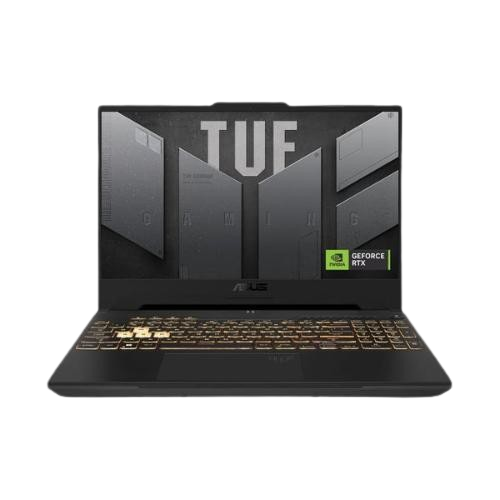
In the UAE, affordable laptops typically fall in the range of AED 1,500 to AED 3,000. Within this bracket, many users assume they’ll have to sacrifice quality — but that’s not always true. The key is knowing what features actually matter for everyday use.

Here’s what makes a laptop good or great for daily tasks like studying, emailing, video calls, browsing, or light office work:

Essential Specs You Should Look For:

  • Processor (CPU): Intel Core i3 or i5, AMD Ryzen 3 or 5 – avoid Celeron if possible.

  • RAM: Minimum 8GB for smooth multitasking (4GB can slow you down quickly).

  • Storage: 256GB SSD is a sweet spot. SSD makes the laptop much faster than old HDDs.

  • Display: A Full HD (1920×1080) screen offers better clarity, especially if you’re spending hours on the device.

  • Battery Life: Look for at least 6–8 hours for portability.

  • Weight: If you’re carrying it around often, under 2kg is ideal.

These core elements help define whether a budget laptop is just cheap — or truly one of the best affordable laptops for your needs.

💡 Pro Tip:

An affordable laptop doesn’t mean a compromise. Many good affordable laptops today come packed with features like backlit keyboards, Type-C ports, and even fingerprint sensors — you just need to know where to look.

Up next, we’ll explore detailed reviews of the best models for students, office users, casual browsers, and more.

Specs, Pros and Cons of Our Top Picks For Best Budget Laptops in UAE

1. Acer Aspire Lite AL16-52P-53RA – Affordable Power & Portability

acer aspire lite

If you’re searching for a good affordable laptop in UAE that balances performance with portability, the Acer Aspire Lite AL16 is a standout choice in 2025.

Key Specifications:

  • Display: 16″ Full HD+ IPS (1920 x 1200) with 16:10 aspect ratio – great for multitasking and media viewing

  • Processor: 13th Gen Intel Core i5-1334U – 10 cores, 12 threads for powerful multitasking

  • RAM: 8GB DDR5 – enough for school, work, and light editing

  • Storage: 512GB SSD – fast boot time and ample space for documents & apps

  • Graphics: Integrated Intel UHD – perfect for everyday graphics and streaming

  • Weight: Just 1.7kg – light enough to carry between home, office, or campus

  • Ports: USB-C, USB-A, HDMI – full connectivity for modern users

  • OS: Windows 11 – up-to-date features, security, and interface

Why It’s a Great Budget Laptop:

  • Spacious 16″ display in a compact build — perfect for users who want more screen real estate
  • Excellent processing power for under AED 2000
  • Ideal for students, remote workers, and home office setups
  • A dependable device that doesn’t compromise on speed, display quality, or storage

Exclusive Tech Point Zone Offer:

  • Regular Price: AED 2,399
    Our Offer: Just AED 1,689 – Save over 700 Dirhams!

    Buy with confidence from Tech Point Zone – enjoy:

    • 14-day hassle-free return policy

    • UAE-wide delivery

    • Full manufacturer warranty

    • In-store pickup & online support

    👉 Buy Acer Aspire Lite AL16 Now at Tech Point Zone and experience top-tier specs at one of the best prices in UAE!

2. Dell Inspiron 2-in-1 (2024) – Flexibility Meets Performance in One Sleek Package

Dell-Inspiron 2 in 1 (2024)

If you’re looking for a great affordable laptop that adapts to your lifestyle — from work to entertainment — the Dell Inspiron 2-in-1 Convertible is one of the best choices available in the UAE for 2025.

Exclusive Tech Point Zone Offer:

  • Processor: Intel Core 7-150U – optimized for multitasking, smooth navigation, and efficient workflow

  • Display: 14” FHD+ touchscreen (1920×1200) with 360° hinge – switch between laptop, tablet, tent, and stand modes

  • Memory & Storage: 16GB DDR5 RAM + 1TB SSD – ultra-fast performance with generous storage capacity

  • Operating System: Windows 11 Home – modern UI and built-in productivity features

  • Graphics: Integrated Intel Graphics – perfect for everyday visuals, media, and light creative use

  • Webcam & Audio: FHD camera with dual mics and AI noise cancellation – excellent for video calls and virtual meetings

  • Battery: Dell ExpressCharge – 0 to 80% in just 60 minutes

  • Design: Lightweight Ice Blue finish with a premium look and feel

  • Pen Support: Compatible with Dell Active Pen PN5122W (sold separately)

Why It’s a Great 2-in-1 Laptop:

  • Versatile for work, entertainment, and creativity

  • Strong multitasking with 16GB RAM — rare at this price

  • 1TB SSD ensures you never run out of space

  • Ideal for students, professionals, and hybrid users who want flexibility in a laptop-tablet combo

Limited-Time Deal at Tech Point Zone:

Regular Price: AED 4,019
Now Only: AED 2,749 — Save 1,270 Dirhams!

Why Buy From Tech Point Zone?

  • Genuine international version with full warranty

  • 14-day hassle-free returns

  • UAE-wide delivery + in-store pickup available

  • Personalized support from laptop specialists

👉 Buy Dell Inspiron 2-in-1 Now at Tech Point Zone and upgrade your productivity with one of the best 2-in-1 laptops in UAE.

3. HP Envy x360 14-es1013dx – Elegant 2-in-1 for Daily Use & More

HP Envy x360

Looking for a good affordable laptop in UAE that combines elegance, touch capability, and practical performance? The HP Envy x360 14-es1013dx delivers just that — all packed in a stylish, convertible aluminum body.

Key Specifications:

  • Display: 14″ Full HD IPS edge-to-edge touchscreen – vibrant visuals and responsive touch

  • Processor: 13th Gen Intel Core 5 120U – 10 cores, up to 5.0 GHz Turbo Boost for snappy performance

  • RAM: 8GB DDR4 – ideal for multitasking, content consumption, and office tasks

  • Storage: 512GB PCIe Gen 4 NVMe SSD – fast boot and transfer speeds

  • Graphics: Integrated Intel Graphics – handles streaming, light editing, and productivity apps with ease

  • Design: Sleek 2-in-1 convertible design with premium Silver aluminum finish

  • Operating System: Windows 11 Home – secure, smooth, and modern

Why It’s a Great Choice:

  • Stylish and durable aluminum chassis — looks and feels premium

  • 2-in-1 flexibility with touchscreen – perfect for note-taking, design, or entertainment

  • Lightweight, fast, and built for modern everyday use

  • Great for students, professionals, and remote workers needing a reliable all-in-one solution

Special Price at Tech Point Zone:

Regular Price: AED 2,829
Discounted Price: AED 1,989 — Save 840 Dirhams

Why Buy from Tech Point Zone?

  • Trusted local seller with genuine HP products

  • 14-day hassle-free return

  • Free UAE-wide delivery

  • Dedicated customer support online & in-store

👉 Buy HP Envy x360 14 Now from Tech Point Zone and enjoy one of the best affordable convertible laptops in UAE with unbeatable value.

4. Lenovo V15 G3 IAP – Core i7 Power for Productivity on a Budget

Lenovo V15 G3

Need a high-performance laptop for office work or multitasking without breaking the bank? The Lenovo V15 G3 IAP offers powerful specs and a professional design at one of the best laptop prices in UAE — making it an ideal pick for business users and productivity seekers.

Key Specifications:

  • Processor: 12th Gen Intel Core i7-1255U – 10-core architecture for smooth, responsive performance

  • RAM: 16GB DDR4 – handle multiple tabs, spreadsheets, and programs with ease

  • Storage: 512GB SSD – fast file access and reliable storage for your daily needs

  • Display: 15.6” Full HD anti-glare screen – clear, comfortable viewing experience

  • Graphics: Intel Iris Xe – suitable for presentations, design previews, and video playback

  • OS: Free DOS – lets you install your preferred operating system

  • Design: Sleek Grey body – professional, lightweight, and work-ready

Why It’s a Smart Business Laptop:

  • Core i7 performance at a budget-friendly price

  • Comes with 16GB RAM — a rare offering in this price bracket

  • Ideal for freelancers, professionals, and students in IT or business studies

  • Full-sized screen and comfortable keyboard for long hours of work

Limited Offer at Tech Point Zone:

Original Price: AED 2,849
Now Only: AED 1,999 — Save 850 Dirhams

Why Buy from Tech Point Zone?

  • 100% genuine Lenovo laptops with full warranty support

  • Free UAE-wide shipping + 14-day easy returns

  • Local customer service for post-sale support

  • Competitive pricing with no hidden fees

👉 Buy Lenovo V15 G3 Now from Tech Point Zone and enjoy high-end specs for a fraction of the cost — one of the best budget Core i7 laptops in UAE.

5. HP Victus 15-fa0033dx – Affordable Gaming Power with RTX Graphics

Hp victus 15 affordable Laptop in UAE

Looking for a budget gaming laptop in UAE that doesn’t cut corners on performance? The HP Victus 15-fa0033dx delivers everything from high-refresh gameplay to modern design — all without the typical premium price tag.

Key Specifications:

  • Display: 15.6″ Full HD IPS with 144Hz refresh rate – ultra-smooth visuals for gaming and content

  • Processor: Intel Core i5-12450H (8 cores, up to 4.4GHz) – responsive power for multitasking and gaming

  • Graphics: NVIDIA GeForce RTX 3050 (4GB GDDR6) – real-time ray tracing and dedicated GPU performance

  • RAM: 8GB DDR4 – handles daily apps and multitasking

  • Storage: 512GB SSD – faster game loading and quicker app access

  • OS: Windows 11 Home pre-installed

  • Design: Performance Blue finish – stylish yet gamer-ready

Why It’s Great for Gaming on a Budget:

  • 144Hz refresh rate gives you a competitive edge in FPS and esports games

  • RTX 3050 GPU allows for AAA gaming at 1080p with realistic effects

  • Slim and stylish for students, creators, and gamers who want a versatile device

  • One of the best affordable laptops in UAE with true gaming capabilities

Tech Point Zone Deal:

Original Price: AED 3,409
Discounted Price: AED 2,398 — Save 1,011 Dirhams

Why Buy from Tech Point Zone?

  • Genuine HP laptops with full local warranty

  • Free UAE-wide delivery + easy 14-day return policy

  • Expert support for gaming setups & upgrades

  • Available in-store and online

👉 Buy HP Victus 15 Now at Tech Point Zone and enjoy true gaming performance at a price that makes sense.

Who Are These Affordable Laptops Ideal For?

Not every user needs an expensive, high-performance machine. That’s why budget laptops are such a smart choice for so many people in the UAE — especially in 2025, where even lower-priced models come with solid specs and dependable performance.

Here are the types of users who will benefit most from these good affordable laptops:

Students

Whether you’re in school, college, or university, a budget laptop can handle online classes, assignments, research, and even light design or coding work. You don’t need a premium ultrabook — just something fast, portable, and battery-efficient.

💡 Look for: Lightweight design, long battery life, FHD screen, and at least 8GB RAM.

Remote Workers & Freelancers

For emails, Zoom calls, spreadsheets, and daily productivity, a well-priced laptop is often all you need. Many great laptops under AED 3,000 easily support Microsoft Office, Google Workspace, and basic multitasking without lag.

💡 Look for: SSD storage, comfortable keyboard, webcam with mic, reliable battery.

Families & Casual Users

For home use — browsing, streaming, paying bills, and helping kids with homework — you’ll want something simple, secure, and easy to maintain. Many good laptops in this range are perfect for shared family use.

💡 Look for: Durable build, user-friendly interface, decent speakers, HD screen.

Seniors & First-Time Users

First-time laptop users in the UAE don’t need anything fancy. Affordable models with clean interfaces (like Windows 11 or ChromeOS), a sturdy design, and simple navigation are ideal for learning and communication.
💡 Look for: Clear display, large touchpad, minimal startup apps.

What to Consider When Buying an Affordable Laptop in UAE

Choosing a budget-friendly laptop doesn’t mean compromising on quality — it just means making smart decisions based on your actual needs. Before you purchase, here are a few key factors to help you get the best value for your money in the UAE market:

Performance That Matches Your Use-Case

Don’t just chase specs. Think about how you’ll use the laptop daily.

  • For Students & Office Users: A Core i3 or Ryzen 3 CPU with 8GB RAM and a 256GB SSD is more than enough for assignments, browsing, and video conferencing.

  • For Light Multitasking & Streaming: A Core i5 or Ryzen 5 gives more headroom without breaking the bank.

  • Avoid outdated CPUs like Intel Celeron or AMD A-series — they may be cheap but struggle with even basic tasks in 2025.

Quick Tip: Always prioritize SSD over HDD — it drastically speeds up your system.

Portability, Build, and Battery Life

A great laptop for daily use should be both comfortable to carry and durable enough for regular handling.

  • Under 2kg is ideal if you’re moving around campus or office.

  • Look for FHD screens with anti-glare features for eye comfort.

  • Battery life of 6–8 hours ensures you’re not always reaching for the charger.

Always Buy with Local Warranty & Support

When buying a laptop in the UAE, after-sales support matters just as much as specs.

  • Choose models with 1-year local warranty (minimum) and the option to extend.

  • Confirm authorized service center availability for your brand.

  • Tech Point Zone offers UAE-wide service support, and you’ll find our after-purchase guidance helpful whether you buy online or in-store.

Why Buy Laptops in UAE from Tech Point Zone?

We know the UAE laptop market inside-out — and more importantly, we understand what buyers truly want: transparency, reliability, and local support.

Here’s why thousands trust Tech Point Zone when looking for good affordable laptops and great daily-use devices:

UAE-Wide Delivery & Easy Shopping Experience

You can order online from anywhere in the Emirates — whether you’re in Dubai, Abu Dhabi, Sharjah, or Ajman — and get fast, free delivery on most laptop orders. No hidden fees. No surprises at checkout.

Prefer seeing the device in person? Our physical store in Dubai welcomes walk-in buyers with live demos and personalized help.

14-Day Hassle-Free Returns & Full Warranty Support

We offer a 14-day return window, so you can buy with confidence. Plus, all laptops sold by us come with manufacturer warranty and optional add-ons for extended coverage.

Have questions or issues later? Our dedicated UAE-based support team is just a message or call away — no need to chase overseas sellers.

Expert Recommendations That Actually Help

Not sure which model suits you best? Our team doesn’t push the most expensive options — we guide you based on your real needs and budget.

Whether you’re buying your first student laptop or upgrading your work device, Tech Point Zone ensures you get the right laptop at the right price, backed by the service you deserve.

Comparison Table of Affordable Laptops in UAE 2025

ModelBest ForRAM / StorageKey FeaturePrice (AED)
Acer Aspire Lite AL16Everyday use, students8GB / 512GB SSDLightweight, budget-friendly1,689 (TPZ Offer)
Dell Inspiron 2-in-1 (2024)Students, professionals16GB / 1TB SSD2-in-1 convertible with ExpressCharge2,749 (TPZ Offer)
HP Envy x360 14-es1013dxCreative users, multitasking8GB / 512GB SSDSleek convertible design1,989 (TPZ Offer)
Lenovo V15 G3 i7Business users, IT students16GB / 512GB SSDCore i7 at budget price1,999 (TPZ Offer)
HP Victus 15-fa0033dxGaming, design, creators8GB / 512GB SSDBudget-friendly RTX gaming2,398 (TPZ Offer)

Finding the best affordable laptop in UAE doesn’t have to be overwhelming. Whether you’re a student, remote worker, or casual user, options like the Acer Aspire Lite or Lenovo IdeaPad Slim 3 offer solid performance at a great price. At Tech Point Zone, we make it easier with honest pricing, UAE-wide delivery, and expert guidance.

👉 Still unsure? Explore our full range of best laptops in UAE online or visit our Dubai store to get the best laptop for your needs — without overspending.

Dell vs HP in UAE 2025

Dell vs HP Laptops in UAE: Which One Should You Buy?

Dell VS HP Laptops

When it comes to buying a laptop in the UAE, Dell and HP are two of the most trusted and top-performing brands available. Whether you’re a student, a professional, or a gamer, you’ll likely come across both names while researching your next laptop purchase.

In Dubai and across the UAE, the demand for laptops continues to surge in 2025, driven by hybrid work environments, expanding online education, and a booming gaming scene. So, if you’re wondering which brand fits your needs and budget better — this detailed Dell vs HP comparison is for you.

Let’s explore which one offers better value, performance, and design in the UAE market this year.

Performance Comparison

Dell Performance Highlights

  • Dell’s XPS series, like the Dell XPS 13 (Intel Core Ultra 7), is known for top-tier processing speed and efficient multitasking.
  • Dell G-series and Alienware models are optimized for gaming and heavy workloads, often coming with RTX graphics and higher refresh rate screens.
  • Dell often uses premium cooling solutions, especially in their G and XPS series, for sustained performance under load.

HP Performance Highlights

  • HP’s Spectre x360 with Intel Core i7 delivers excellent day-to-day performance with bonus portability.

  • The HP Victus 16 with RTX GPU is great for gamers and creators.

  • HP laptops also now support AMD Ryzen 7000 series and Snapdragon X Elite processors, especially in Envy and Pavilion models.

Real-World Benchmark Notes

    • In benchmark testing, the Dell XPS 13 slightly outperformed the HP Spectre x360 in video rendering and heavy multitasking.

    • HP laptops, especially Spectre and Envy, often win in battery efficiency tests, making them ideal for students and remote professionals.

    Verdict:
    Choose Dell for raw power and performance (especially in gaming and creative work). Choose HP for efficient performance, portability, and longer battery life.

Design and Build Quality

  • Design is more than just looks — it’s about build quality, durability, and usability.

Dell Design Features

  • Dell’s XPS series and Latitude lineup offer a sleek, minimalist design with an aluminum unibody chassis.
  • Most Dell laptops feature InfinityEdge displays for nearly borderless visuals.
  • Dell XPS 15 is considered one of the most professional-looking ultrabooks in the market.
  •  

HP Design Features

  • HP’s Spectre series is known for its 360° hinge, making it highly flexible for creators.
  • Models like HP Spectre x360 16 come with OLED displays, offering vivid color reproduction — perfect for designers and editors.
  • HP laptops tend to have a more premium feel in mid-range devices compared to Dell’s similarly priced offerings.
  •  

Price Comparison in Dubai

When it comes to laptops in Dubai price ranges, both Dell and HP offer options across all budgets. However, depending on the features and models, pricing can vary significantly.

HP Laptops in Dubai Price

Here are some best HP models and their typical price ranges in Dubai:

  • HP Pavilion X360 – AED 2,899 to AED 3,799

  • HP Victus 15 Gaming Laptop – AED 3,699 to AED 4,599

  • HP Envy x360 – AED 2899 to AED 3999 ( available at Discounted Price on Tech Point Zone)

HP laptops are often seen as budget-friendly, offering more features at lower price points.

Dell Laptops in Dubai Price

Here are a few Dell models and their average prices:

  • Dell Inspiron 14 – AED 2,499 to AED 3,099

  • Dell G15 RTX 4050 – AED 4,099 to AED 5,999

  • Dell XPS 17 – AED 7,999 to AED 9,999

Dell’s premium models tend to be more expensive but often justify the price with build and performance.

Price Comparison Table

ModelBrandSpecs OverviewPrice Range (AED)
Dell Inspiron 14Delli5, 8GB, 512GB SSD2,499 – 3,099
HP Pavilion X360HPi5, Touchscreen, 8GB RAM2,899 – 3,799
Dell G15 RTX 4050Delli7, 16GB, RTX 40504,099 – 5,999
HP Victus 15HPRyzen 7, RTX 30503,699 – 4,599

Get all the Best Laptops at discounted Price on Tech Point Zone!

Case-Based Recommendation

For Students

Students need lightweight, reliable, and budget-friendly options.

Recommended Models:

  • HP Envy X360 – Great for presentations and note-taking with its touch + 360° flexibility.

  • Dell Inspiron 14 – Lightweight with decent power for assignments and Zoom classes.

Looking for “which laptop is better for students in UAE?” — both are great, but HP may offer better value at entry-level.

For Business Professionals

Business users need robust, secure, and high-performance laptops with longer battery life.

Recommended Models:

  • Dell Latitude 7430 – Enterprise-ready, secure, and portable.

  • HP EliteBook 840 G10 – Highly secure, modern, and excellent for multitasking.

HP EliteBooks are widely used in UAE offices for their security features and long battery life.

For Gamers & Content Creators

Power users need dedicated GPUs, high-refresh-rate displays, and strong cooling systems.

Recommended Models:

  • Dell G15 RTX 4060 – Perfect for 1080p gaming and video editing.

  • HP Victus 16 with RTX – Excellent budget gaming laptop with great thermals.

“Best Dell gaming laptops in Dubai”? Start with the Dell G-series. For HP, the Victus line is top value.

Tech Point Zone Recommendations

Here are our top 3 Dell and HP laptops based on what we’ve seen trending in 2025:

Top Dell Picks

Here are our top Dell and HP laptops based on what we’ve seen trending in 2025:

1. Dell G15 RTX 4060

A gamer’s delight — runs AAA titles smoothly, solid thermal design.

Dell G15 5530 Gaming Laptop

Dell G15 RTX 4060

Buy Now At Amazing Discount from Tech Point Zone

2. Dell Inspiron 14

Affordable, reliable, and great for students and light users.

Dell Inspiron 14 (5000 Series)

Dell Inspiron

Buy Now At Amazing Discount from Tech Point Zone

Top HP Picks

1. HP Spectre x360 (Intel Core i7/ Ultra 7)

A beautiful 2-in-1 with premium feel and OLED screen — great for creatives.

HP Spectre X 360

HP Spectre X360

Buy Now At Amazing Discount from Tech Point Zone

2. HP Victus 15

Budget gaming laptop with RTX graphics — great value in the UAE market.

HP Victus 15-fa1114nia Gaming Laptop

HP Victus 15

Buy Now At Amazing Discount from Tech Point Zone

3. HP Envy x360

Powerful enough for creative work, light enough for everyday use.

HP Envy x360 14-es1013dx 2-in-1 Laptop

HP Envy X360

Buy Now At Amazing Discount from Tech Point Zone

Conclusion: Which One Should You Buy in UAE?

To sum it all up:

  • Students – Go with HP Envy X360 or Dell Inspiron 14 for lightweight and budget-friendly options.

  • Professionals – Choose Dell Latitude for durability or HP EliteBook for security and portability.

  • Gamers & Creators – Dell’s G-series and HP’s Victus line are both excellent, depending on your preference for design and thermals.

Final Verdict:

  • Choose Dell for: performance-first machines, premium design, and professional use.

  • Choose HP for: better price-to-feature ratio, stylish 2-in-1 designs, and efficient multitasking.

Ready to Buy?

Back to Top
Compare (0)