Chromebook vs Laptop

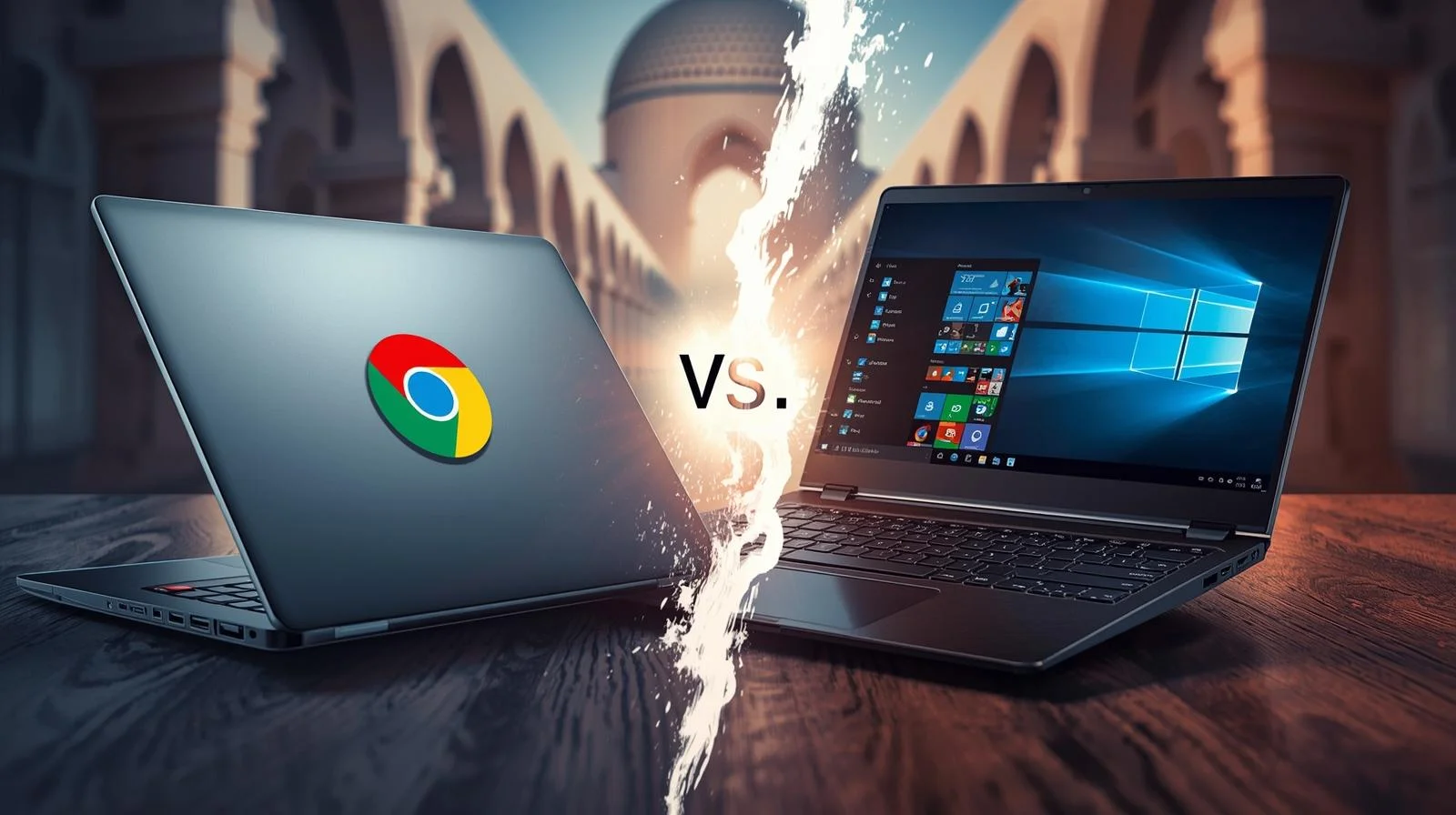
Chromebook vs Laptop: Which One Should You Buy in UAE?

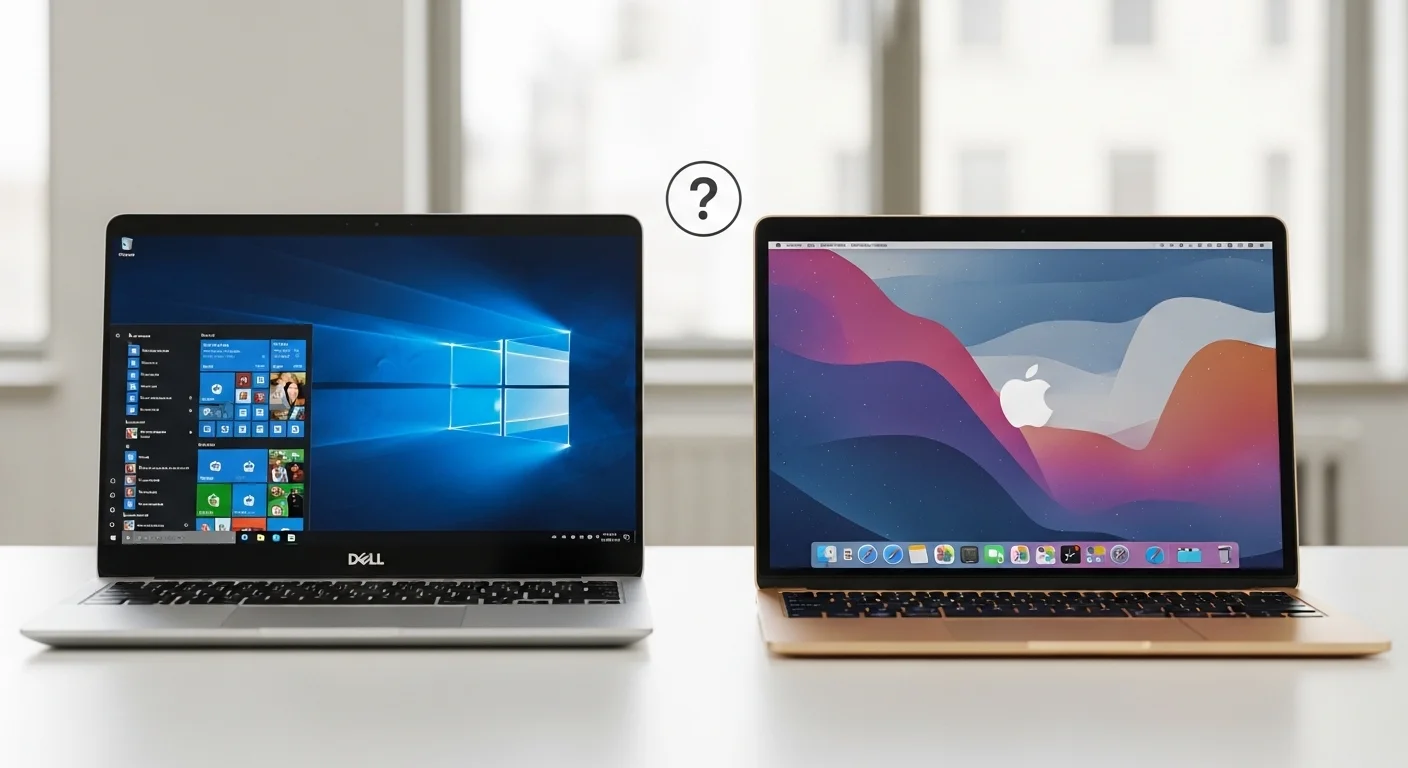
Buying a new computer feels confusing when you see Chromebooks sitting next to regular laptops. Both look similar. Both have keyboards and screens. But they work very differently.

This guide breaks down the real differences between Chromebooks and laptops. Whether you need a device for your child’s school, office work, or personal use in Dubai, Abu Dhabi, or anywhere in the UAE, you will find your answer here.

What is a Chromebook?

A Chromebook runs on Chrome OS, an operating system built by Google. Think of it as a laptop designed around the Chrome browser. Everything happens online, your files are saved to Google Drive, apps run through the browser, and updates happen automatically.

Google launched Chromebooks in 2011. Since then, they have become popular in schools worldwide. The UAE education sector now uses them in many institutions for classroom learning.

Chromebooks boot up in seconds, rarely get viruses, and cost less than traditional laptops. But they come with trade-offs that matter depending on your needs.

What is a Traditional Laptop?

A traditional laptop runs Windows (from Microsoft) or macOS (from Apple). These operating systems support thousands of desktop applications, including Microsoft Office, Adobe Photoshop, and professional video editing software.

Laptops store files locally on built-in hard drives or SSDs. They work perfectly without the internet. You can install any programme you need, play demanding games, and handle heavy tasks like 3D rendering or software development.

At Tech Point Zone, we stock laptops from HP, Dell, ASUS, Lenovo, and Acer. Each brand offers different strengths depending on your requirements.

Chromebook vs Laptop: Pros and Cons

Benefits of Chromebook

Lower Price Point

Most Chromebooks cost between AED 800 and AED 2,500. You get a functional computer without spending much. This makes them attractive for families buying devices for multiple children.

Excellent Battery Life

Chromebooks typically last 10 to 14 hours on a single charge. Chrome OS uses fewer resources than Windows, so the battery drains more slowly. Students can use them throughout the school day without having to carry chargers.

Fast Startup

Press the power button, and your Chromebook opens in under 10 seconds. No waiting for updates. No loading screens. Just open and start working.

Built-in security

Chrome OS updates automatically in the background. Each tab and app runs in a separate “sandbox,” which prevents viruses from spreading. You do not need antivirus software.

Simple to Use

If you know how to use the Chrome browser, you know how to use a Chromebook. The interface stays clean and straightforward. Children and older adults find it easy to navigate.

Lightweight Design

Most Chromebooks weigh under 1.5kg. They slip into backpacks easily and do not strain shoulders during daily commutes across Dubai or Sharjah.

Limitations of Chromebook

Limited Software Compatibility

You cannot install traditional Windows programmes. No desktop Microsoft Office (only web version), no Adobe Premiere Pro, no AutoCAD. If your work requires specific software, a Chromebook will not work.

Internet Dependency

Chromebooks perform best when connected to WiFi. Yes, Google Docs works offline now, but many features still require an internet connection. In areas with unreliable connections, this becomes frustrating.

Low Storage Capacity

Most Chromebooks offer only 32-64GB of internal storage. Google expects you to save everything to Google Drive. If you prefer keeping files locally, you will run out of space quickly.

Basic Hardware

To keep costs down, manufacturers use entry-level processors and minimal RAM. Heavy multitasking with many browser tabs can slow things down.

No Serious Gaming

Forget playing AAA titles. Chromebooks lack dedicated graphics cards and the processing power needed for modern games. Cloud gaming services like GeForce Now work, but you need a fast internet connection.

Expiration Date

Every Chromebook has an Auto Update Expiration (AUE) date. After this date (typically 8-10 years from release), Google stops providing security updates. Check this before buying.

Benefits of a Laptop (Windows)

Full Software Support

Install any programme designed for Windows. Microsoft Office desktop version, Adobe Creative Suite, professional engineering software, accounting programmes, everything works.

Powerful Hardware Options

Laptops come with Intel Core i5, i7, or i9 processors or AMD Ryzen chips. You can get 16GB, 32GB, or even 64GB of RAM. Dedicated graphics cards handle video editing and gaming.

Large Local Storage

Most laptops include SSDs ranging from 512GB to 1 TB. Some models offer 2TB. Your files stay on your device and are accessible anytime, even without an internet connection.

Works Offline Completely

Download your files, install your programmes, and work anywhere. No WiFi needed. This matters when travelling or working in locations with poor connectivity.

Gaming Capability

Gaming laptops from ASUS, Acer, and HP run the latest titles at high settings. Dedicated NVIDIA or AMD graphics cards make this possible.

Professional Use

Engineers, architects, video editors, software developers, and graphic designers need Windows or macOS laptops. Their tools do not exist on Chrome OS.

Limitations of a Laptop

Higher Cost

A decent Windows laptop starts around AED 2,000 in the UAE. High-performance models cost AED 5,000 to AED 15,000 or more.

Heavier Weight

Powerful components mean more weight. Gaming laptops often weigh 2.5kg or more. Even ultrabooks weigh around 1.3-1.5kg.

Shorter Battery Life

Windows demands more power. Expect 5 to 8 hours from most laptops. Gaming under load drains batteries in 1 to 2 hours.

Virus Vulnerability

Windows remains the most targeted operating system. You need antivirus software and must stay careful about downloads and email attachments.

Slower Boot Times

Windows laptops take 15 to 60 seconds to start, depending on hardware and installed programmes.

More Maintenance

You manage updates, run antivirus scans, clear temporary files, and troubleshoot issues yourself. Chrome OS handles most of this automatically.

Chromebook vs Laptop for Students

The right choice depends on the student’s age and academic level.

For Primary and Middle School Students

Chromebooks win here. Young students primarily need devices for Google Classroom, research, writing assignments, and educational apps. Chromebooks handle all of this perfectly.

Schools across the UAE prefer Chromebooks because they are affordable, secure, and easy for IT departments to manage. Teachers can monitor student activity through Google Admin Console. Parents can set up parental controls.

The durability matters too. Kids drop things. A damaged AED 1,200 Chromebook hurts less than a broken AED 4,000 laptop.

For High School Students

High schoolers face tougher coursework. Many still manage fine with Chromebooks for essays, presentations, and online research. Google Docs, Sheets, and Slides cover most needs.

However, students taking computer science, graphic design, or media courses may need Windows laptops. Software such as Visual Studio Code, Adobe Illustrator, or video editing tools requires sufficient computing power.

Check your child’s school requirements before buying. Some courses specify specific software that runs only on Windows or macOS.

For University and College Students

University demands more from your device. Engineering students need MATLAB and SolidWorks. Architecture students use AutoCAD and Revit. Business students want full Excel functionality. Media students edit video in Premiere Pro.

None of these programmes runs natively on Chromebooks. University students should invest in a Windows laptop (or MacBook for creative fields).

At Tech Point Zone, we recommend the HP 15 series or the Dell Inspiron range for university students. They offer balanced performance at reasonable prices.

Chromebook vs Laptop for Kids

Parents buying a first computer for children should consider several factors.

  • Age matters. Children under 12 rarely need powerful laptops. They browse educational websites, watch videos, play simple games, and complete homework. A Chromebook handles everything they do.
  • Safety first. Chromebooks offer excellent parental controls through Family Link. You set screen time limits, approve apps, and see activity reports. The closed ecosystem prevents children from accidentally installing malware.
  • Durability counts. Kids are not gentle with electronics. Many Chromebooks built for education undergo military-grade durability testing (MIL-STD-810H). They survive drops, spills, and rough handling better than budget laptops.
  • Cost-effectiveness. If your child loses or damages a Chromebook, replacement costs less than replacing a laptop. This peace of mind matters when handing expensive technology to young children.

For teenagers who game or need specific software, a Windows laptop makes more sense. But for younger children, a Chromebook provides everything they need without the risks.

HP Chromebook vs HP Laptop

HP makes both Chromebooks and Windows laptops. Here is how they compare:

  • The HP Chromebook 14 runs Chrome OS, offers 10+ hours of battery, and costs around AED 1,500 to AED 2,000. Great for students and casual users who work mainly online.
  • The HP 15 Laptop runs Windows 11, provides full software support, and costs AED 1,800 to AED 3,500 depending on configuration. Better for professionals and users needing desktop applications.

Both come with HP’s build quality and warranty support. The choice depends on what you need the computer to do.

Tech Point Zone stocks both options. Our team helps you choose based on your actual requirements.

Lenovo Chromebook vs Lenovo Laptop

Lenovo offers excellent options in both categories.

  • The Lenovo IdeaPad Duet Chromebook works as both a tablet and a laptop. Affordable, portable, and perfect for light users. Runs about AED 1,200 to AED 1,800.
  • Lenovo ThinkPad series delivers enterprise-grade Windows laptops. Built for professionals who need reliability, security, and performance. Prices start around AED 3,500.

Lenovo Chromebooks suit students and home users. Lenovo ThinkPads serve business professionals who cannot compromise on performance.

Dell Chromebook vs Dell Laptop

Dell dominates the business laptop market and offers solid Chromebooks for education.

  • Dell Chromebook 3100 targets schools with rugged construction and affordable pricing. Handles everyday student tasks reliably.
  • Dell Inspiron and XPS series run Windows with various performance levels: the XPS 13 and XPS 14 rank among the best ultrabooks available.

If you work in an office or need powerful performance, Dell’s Windows laptops outperform their Chromebooks significantly.

Samsung Chromebook vs Samsung Laptop

Samsung produces some of the most stylish Chromebooks available.

  • The Samsung Galaxy Chromebook offers a premium design with an AMOLED display. Looks beautiful and works great for users committed to the Google ecosystem.
  • Samsung Galaxy Book series runs Windows and competes with premium ultrabooks. Excellent displays and solid performance.

Samsung Chromebooks suit users who want attractive designs for light computing. Their Windows laptops serve professionals needing more capability.

Chromebook Plus vs Regular Laptop

In 2023, Google introduced Chromebook Plus, a certification for premium Chromebooks with better specs.

Chromebook Plus devices include:

  • Minimum 8GB RAM
  • At least 128GB of storage
  • Full HD IPS display
  • Intel Core or AMD Ryzen processors
  • AI features built in

These cost more (AED 1,800 to AED 3,500) but perform better than basic Chromebooks. They handle multitasking smoothly and feel less limited.

However, even the Chromebook Plus cannot run Windows software. A mid-range Windows laptop at a similar price (like the ASUS Vivobook 15 or HP 15) offers more versatility.

Chromebook vs Tablet vs Laptop

Some buyers consider tablets as alternatives. Here is how all three compare:

  • Tablets (iPad, Samsung Galaxy Tab) excel at media consumption. Great for watching videos, reading, casual games, and light browsing. Limited productivity without keyboard accessories.
  • Chromebooks work better for typing and schoolwork. A built-in keyboard, a larger screen, and proper file management make homework easier than on tablets.
  • Laptops handle everything. Work, gaming, creativity, and professional tasks. Most versatile option, but heaviest and most expensive.

For children under 8, tablets often work well. For students 8 and older, Chromebooks make sense. For professionals and serious users, laptops remain essential.

Notebook vs Chromebook vs Laptop: Clearing the Confusion

People often confuse these terms. Let us clarify:

  • A notebook is just another word for a laptop. They mean the same thing: a portable computer running Windows, macOS, or Linux.
  • Chromebook is a specific type of laptop that runs Chrome OS instead of Windows.
  • A laptop generally refers to any portable computer. Technically, a Chromebook is a laptop, but when people say “laptop,” they usually mean Windows or macOS machines.

So when comparing, think of it as Chrome OS devices versus Windows/macOS devices.

Which Brands Make the Best Chromebooks?

Several manufacturers produce quality Chromebooks available in the UAE:

  • HP offers reliable Chromebooks with good build quality. Popular choices include the HP Chromebook 14 and the HP Chromebook x360 (2-in-1).
  • Lenovo provides both affordable and premium options. The IdeaPad Duet and IdeaPad Flex work well for different budgets.
  • ASUS makes durable Chromebooks popular in schools. The ASUS Chromebook Flip series offers solid value.
  • Acer delivers budget-friendly Chromebooks. The Acer Chromebook 314 provides decent specs at a low price.
  • Samsung creates premium Chromebooks with beautiful displays: a higher price but excellent quality.

At Tech Point Zone, we help you find the right Chromebook from trusted brands with local warranty support.

Are Chromebooks and Laptops the Same?

No, they are not the same. While Chromebooks look like laptops and function as portable computers, they run different operating systems and serve different purposes.

A laptop (Windows/macOS) stores everything locally and runs traditional desktop software. A Chromebook runs Chrome OS, relies heavily on cloud storage, and uses web-based applications.

Think of Chromebooks as laptops optimised for online work. They sacrifice offline capability and software compatibility for simplicity, security, and affordability.

Are Chromebooks as Good as Laptops?

It depends on what you need.

For browsing, email, Google Docs, YouTube, Netflix, and basic school work, Chromebooks perform excellently. They boot faster, last longer on a charge, and are more secure than budget Windows laptops.

For professional software, gaming, video editing, programming, or offline work. Laptops outperform Chromebooks significantly. The software support alone makes laptops essential for many users.

A Chromebook at AED 1,500 often beats a Windows laptop at the same price for basic tasks. But a Chromebook at any price cannot match what a Windows laptop offers for demanding work.

What Are the Disadvantages of a Chromebook?

Chromebooks come with notable limitations:

  • Software restrictions. You cannot install Adobe Photoshop, Microsoft Office desktop version, AutoCAD, or most professional programmes. Only web apps and Android apps work.
  • Internet dependency. While offline mode exists, Chromebooks work best with a constant internet connection. Slow or no WiFi significantly limits functionality.
  • Limited storage. Most Chromebooks offer just 32-128GB. You must rely on Google Drive for additional space, which requires internet access.
  • Gaming limitations. No dedicated graphics cards. Only browser games, Android games, and cloud gaming services work. Forget AAA titles.
  • Update expiration. Chromebooks receive updates for a limited time. After the AUE date, security patches stop, making older devices risky to use.
  • Printer compatibility issues. Some older printers do not work properly with Chromebooks. You may need specific cloud-compatible printers.

Why Are Chromebooks So Cheap?

Several factors keep Chromebook prices low:

  • Minimal hardware requirements. Chrome OS runs smoothly on basic processors and 4GB RAM. Manufacturers do not need expensive components.
  • Low storage needs. With cloud storage handling most files, 32GB or 64GB internal storage suffices. SSDs cost money, so less storage means lower prices.
  • No Windows license. Microsoft charges manufacturers for Windows licenses. Chrome OS comes free from Google, reducing costs.
  • Simplified design. Chromebooks skip DVD drives, high-end graphics cards, and other expensive components. This strips down production costs.
  • Education market focus. Schools buy thousands of devices. Manufacturers design Chromebooks to hit low price points for bulk purchases.

The result: functional computers starting under AED 1,000. You trade power and versatility for affordability.

Can I Use a Chromebook as a Laptop?

Yes, you can use a Chromebook for many tasks you would do on a laptop. It has a keyboard, trackpad, screen, and runs applications. For everyday computing — email, browsing, documents, video calls, streaming — Chromebooks work perfectly.

However, if your “laptop” work includes installing Windows programmes, serious gaming, video editing, or professional software, then no. A Chromebook cannot replace that functionality.

Think of Chromebooks as laptops with boundaries. Within those boundaries, they perform excellently. Beyond them, they simply cannot help.

Chromebook vs Laptop: Which Should You Buy?

Buy a Chromebook if you:

  • Need an affordable device for basic tasks
  • Primarily work online with Google Workspace
  • Want long battery life for all-day use
  • Need a safe, simple device for children
  • Do not require specialised software
  • Have reliable WiFi at home, school, or office
  • Prefer minimal maintenance and automatic updates

Buy a Laptop if you:

  • Need specific Windows or macOS software
  • Work with large files stored locally
  • Play video games
  • Edit photos, videos, or audio professionally
  • Study engineering, architecture, or design
  • Work offline frequently
  • Need powerful hardware for demanding tasks
  • Want a computer that lasts many years

Where to Buy Chromebooks and Laptops in the UAE

Tech Point Zone offers both Chromebooks and Windows laptops from top brands. We stock HP, Dell, ASUS, Lenovo, and Acer devices at competitive prices.

Our team understands the UAE market. We help students find affordable devices for school. We guide professionals toward laptops that meet their workload requirements. We advise parents on safe, durable computers for their children.

Every device comes with local warranty support. We deliver across Dubai, Abu Dhabi, Sharjah, Ajman, and all Emirates. Free delivery on qualifying orders.

Visit Tech Point Zone online or contact us to discuss your needs. We will recommend the right device without pushing unnecessary upgrades.

Frequently Asked Questions

Can I install Microsoft Office on a Chromebook?

You cannot install the full desktop version of Microsoft Office. However, you can use Office Online through your browser or download Office mobile apps from the Google Play Store. These versions handle basic document editing but lack some advanced features found in desktop versions.

Do Chromebooks work without internet?

Chromebooks work offline for limited tasks. Google Docs, Sheets, and Slides function offline if you enable this feature beforehand. Some Android apps also work without an internet connection. However, many features require connectivity, and the experience feels more restricted than on Windows laptops.

How long do Chromebooks last?

Chromebooks receive software updates for about 8 to 10 years from the original release date. After the Auto Update Expiration (AUE) date, Google stops providing security updates. The hardware can last longer, but running outdated software creates security risks.

Are Chromebooks good for working from home?

Chromebooks work well for jobs involving email, video conferencing, spreadsheets, and document creation through cloud-based tools. If your employer uses Google Workspace, Chromebooks are a perfect fit. However, if your job requires Windows-specific software, you need a traditional laptop.

Can I play games on a Chromebook?

You can play browser-based games, Android games from the Google Play Store, and stream games through services like NVIDIA GeForce NOW or Xbox Cloud Gaming. You cannot play traditional PC games that require a Windows installation. For serious gaming, buy a Windows laptop.

Is a Chromebook better than a tablet for students?

For students who type regularly, yes. Chromebooks have built-in keyboards, larger screens, and better file management than tablets. They handle schoolwork more efficiently. Tablets suit younger children who primarily watch videos and play educational apps.

Which is better for coding: Chromebook or laptop?

Laptops running Windows or macOS provide better coding environments. Most IDEs, compilers, and development tools work natively on these systems. Chromebooks now support Linux apps, enabling basic coding, but professionals prefer traditional laptops for software development.

Do Chromebooks get viruses?

Chromebooks rarely get viruses. Chrome OS uses sandboxing to isolate each app and tab, preventing malware from spreading. Automatic updates patch security vulnerabilities quickly. While not completely immune, Chromebooks face far fewer threats than Windows laptops.

Final Thoughts

The Chromebook vs laptop debate has no universal winner. Your decision depends entirely on how you use your computer.

Students handling basic coursework, families needing affordable devices, and users working primarily online should consider Chromebooks. They offer excellent value with minimal hassle.

Professionals, gamers, creative workers, and anyone who needs specialized software should invest in Windows laptops. The additional cost brings capabilities that Chromebooks cannot match.

At Tech Point Zone, we stock both options. Browse our collection of Chromebooks and laptops, or reach out to our team for personalised recommendations. We deliver across the UAE with full warranty support.

How to Know My Laptop Screen Size

How to Know My Laptop Screen Size -Complete Guide for UAE Users

Need to buy a laptop bag, screen protector, or download the right wallpaper? You first need to know your laptop screen size. The good news? You don’t always need a measuring tape to figure this out.

This guide shows you multiple ways to check your laptop screen size, whether you use Windows 10, Windows 11, or any brand like Dell, Lenovo, or HP. We cover everything from quick settings checks to finding your screen size in pixels for perfect wallpapers.

How Laptop Screen Size Is Measured

Laptop screens are always measured diagonally, from one corner to the opposite corner. The measurement only includes the actual display area, not the plastic frame (bezel) around it.

Screen sizes are expressed in inches. Standard laptop screen sizes include 11.6 inch, 13.3 inch, 14 inch, 15.6 inch, and 17.3 inch. The 15.6-inch size remains the most popular globally, offering a good balance between viewing comfort and portability.

When someone asks how many inches their laptop is, they want this diagonal measurement. A 15.6-inch laptop doesn’t mean the width is 15.6 inches. It means the diagonal distance across the screen measures 15.6 inches.

How to Know My Laptop Screen Size Without Measuring

The easiest way to find your screen size doesn’t require any measuring. Here are several methods that work for any laptop brand.

1. Check Your Laptop Model Name

Many laptops include the screen size right in their name. If your laptop is called “HP Pavilion 15″ or “Dell Inspiron 14”, those numbers (15 and 14) usually indicate the screen size in inches. Look at the sticker on your laptop, the original box, or your purchase receipt.

2. Use System Information (Windows)

This method works on both Windows 10 and Windows 11:

  1. Press Windows key + R on your keyboard
  2. Type msinfo32 and press Enter
  3. Look for “System Model” in the list
  4. Search this model name on Google with “screen size”

For example, if your system model shows “Dell XPS 13 9310”, search for “Dell XPS 13 9310 screen size” and you’ll get the exact specifications.

3. Check the Bottom of Your Laptop

Turn your laptop upside down. Most manufacturers place a sticker with the model number, serial number, and sometimes the screen size directly on the bottom panel. This information helps when you need to look up specifications later.

How to Check Laptop Screen Size in Windows 11

Windows 11 doesn’t directly show your physical screen size in inches through settings. However, you can find your display resolution and model information, which help identify your screen.

  1. Right-click on your desktop
  2. Select “Display settings.”
  3. Scroll down to “Scale and layout.”
  4. Note your “Display resolution” (like 1920 x 1080)
  5. Click on “Advanced display” for more details

The Advanced display section shows your monitor model name. Search this model online to find the exact screen size. You can also see whether you have an internal laptop display or an external monitor connected.

For the fastest method, use the search bar on your taskbar. Type “About your PC” and open the result. Your device specifications page shows your system model, which you can search online for complete screen specifications.

How to Know My Laptop Screen Size Windows 10

Windows 10 offers similar options to Windows 11:

  1. Click Start and open Settings
  2. Go to System > Display
  3. Click “Advanced display settings.”
  4. View your display resolution and connected display name

The display name often includes model information. Copy this and search online with “specifications” or “screen size” to find your exact measurements.

Another Windows 10 method uses the DirectX Diagnostic Tool:

  1. Press Windows key + R
  2. Type dxdiag and press Enter
  3. Click the “Display” tab
  4. Look for monitor information

This tool shows your current display mode (resolution) and sometimes the monitor model, helping you identify your screen specifications.

How to Know My Laptop Screen Size in Pixels

Screen size in inches and screen size in pixels are two different things. Physical size tells you how big the display is. Pixel resolution tells you how many dots make up the image, affecting sharpness and clarity.

To check your screen resolution in pixels:

Windows 11:

  1. Right-click desktop > Display settings
  2. Look under “Display resolution.”
  3. Your resolution appears as width x height (e.g., 1920 x 1080)

Windows 10:

  1. Settings > System > Display
  2. Find “Display resolution.”
  3. Note the pixel dimensions

Standard laptop screen resolutions include:

  • HD: 1366 x 768 pixels
  • Full HD (FHD): 1920 x 1080 pixels
  • QHD: 2560 x 1440 pixels
  • 4K UHD: 3840 x 2160 pixels

The most common laptop resolution today is 1920 x 1080 (Full HD), which works well on screens between 13 and 17 inches.

How to Know My Laptop Screen Size for Wallpaper

Finding the right wallpaper for your laptop requires knowing your screen resolution, not the physical size of your laptop. A wallpaper that matches your resolution will display perfectly without stretching or cropping.

Here’s how to choose the correct wallpaper:

  1. Check your screen resolution using the methods above
  2. Download wallpapers that match your exact resolution
  3. If your screen is 1920 x 1080, download wallpapers at 1920 x 1080 or higher

For best results:

  • 1366 x 768 screens: Download HD wallpapers
  • 1920 x 1080 screens: Download Full HD or 1080p wallpapers
  • 2560 x 1440 screens: Download QHD or 2K wallpapers
  • 3840 x 2160 screens: Download 4K wallpapers

If you download a wallpaper larger than your resolution, Windows will scale it down without losing quality. Downloading smaller wallpapers causes stretching and blurriness. Always go equal or higher, never lower.

To set your wallpaper correctly in Windows: Right-click the desktop > Personalize > Background > Browse and select your image. Under “Choose a fit”, select “Fill” for best results.

How to Know My Laptop Screen Size – Dell

Dell makes finding your screen size straightforward through several methods.

Method 1: Check the Model Name: Dell laptop names often include screen size. The Dell XPS 13 has a 13-inch screen, the Dell Inspiron 15 has a 15-inch screen, and so on.

Method 2: Use Dell SupportAssist: If you have Dell SupportAssist installed:

  1. Open the application
  2. Your laptop model appears on the main screen
  3. The specifications include screen size

Method 3: Dell Support Website

  1. Go to dell.com/support
  2. Enter your Service Tag (found on the bottom of your laptop)
  3. Click on “Specifications”
  4. Find “Display” in the list

Method 4: System Settings

  1. Press the Windows key and type “Settings”
  2. Open Settings > System > About
  3. Note your device name/model
  4. Search this model on Dell’s website

Dell clearly lists screen diagonal size, resolution, panel type, and other display specifications on their support pages. This method gives you the most accurate information.

How to Know My Laptop Screen Size – Lenovo

Lenovo laptops follow a similar pattern for determining screen size.

Method 1: Model Number Lenovo often includes screen hints in model names. The ThinkPad T14 typically has a 14-inch screen. The IdeaPad 3 15 has a 15-inch screen.

Method 2: Lenovo Vantage. If Lenovo Vantage is installed on your laptop:

  1. Open Lenovo Vantage
  2. Go to Device > Device Settings
  3. View your system specifications, including display size

Method 3: Lenovo Support Website

  1. Visit support.lenovo.com
  2. Enter your serial number or model name
  3. Click “Documentation” then “Specifications.”
  4. Find display information

Method 4: Windows System Information

  1. Press Windows + R
  2. Type msinfo32
  3. Find “System Model”
  4. Search this on Lenovo’s website

Lenovo’s specifications pages list screen size, resolution, brightness (nits), panel type (IPS, OLED, TN), and refresh rate. This helps when comparing different laptop options.

How to Check Display Size From Settings

Both Windows 10 and Windows 11 let you access display information through Settings, though neither directly shows the physical screen size in inches.

Quick method for any Windows laptop:

  1. Press Windows + I to open Settings
  2. Click System
  3. Click Display
  4. Click Advanced display (Windows 11) or Advanced display settings (Windows 10)

This screen shows:

  • Display resolution in pixels
  • Refresh rate (60Hz, 120Hz, etc.)
  • Active signal resolution
  • Connected display name or model

The display name or model information can be searched online to find your exact screen size. Many displays include the size in their model code. For example, a display model containing “156” likely means 15.6 inches.

Standard Laptop Screen Sizes Explained

Understanding common screen sizes helps you quickly identify what you have:

Screen SizeBest ForWeight Impact
11.6″Basic browsing, students on the goVery light (under 1.5kg)
13.3″Portability, frequent travelersLight (1.2-1.5kg)
14″Balance of size and portabilityMedium (1.5-2kg)
15.6″Home/office use, everyday tasksHeavier (2-2.5kg)
17.3″Gaming, video editing, desktop replacementHeavy (2.5-3.5kg)

The 14-inch and 15.6-inch sizes account for most laptop sales. They work well for general tasks while remaining reasonably portable. Gaming laptops typically use 15.6-inch to 17.3-inch screens to provide immersive experiences.

Physical Measurement Method

If other methods don’t work, you can always measure your screen directly.

What you need:

  • Measuring tape or ruler
  • Straight edge (optional)

Steps:

  1. Close your laptop and open it back to viewing position
  2. Place your measuring tape at the bottom-left corner of the screen (not the bezel)
  3. Extend diagonally to the top-right corner
  4. Read the measurement

If your tape measures in centimetres, convert to inches by dividing by 2.54. For example, 39.6 cm ÷ 2.54 = 15.6 inches.

Common measurements:

  • 29.5 cm = 11.6 inches
  • 33.8 cm = 13.3 inches
  • 35.6 cm = 14 inches
  • 39.6 cm = 15.6 inches
  • 43.9 cm = 17.3 inches

Remember: measure only the visible screen area, not the plastic frame surrounding it.

Why Screen Size Matters

Knowing your laptop screen size helps in several situations:

Buying accessories: Laptop bags, sleeves, and cases list compatible screen sizes. A bag designed for 15-inch laptops won’t fit a 17-inch machine properly. Screen protectors and privacy filters also require exact size matching.

Replacing your screen: If your display cracks or fails, you need the exact screen size and resolution to order the correct replacement panel.

Choosing wallpapers: As discussed earlier, matching your screen resolution ensures sharp, clear backgrounds.

Comparing laptops: When shopping for a new laptop, understanding screen sizes helps you compare options at Tech Point Zone and find the one that suits your needs.

Ergonomics: Larger screens can reduce eye strain during long work sessions, while smaller screens offer better portability for commuting.

Frequently Asked Questions

What is the standard laptop screen size?

The most common laptop screen size is 15.6 inches, followed by 14 inches. These sizes offer a good balance between comfortable viewing and reasonable portability. Budget laptops often come in 15.6-inch variants, while ultrabooks typically use 13.3-inch to 14-inch displays. 

How do I know my screen size without a ruler?

You can find your laptop screen size without any measuring tools. Press Windows + R, type msinfo32, and check your system model. Search this model online to find specifications. Alternatively, check the sticker on the bottom of your laptop or look at your purchase receipt. 

Does screen resolution tell me my screen size?

No, screen resolution and screen size are different measurements. Resolution (e.g., 1920 x 1080 pixels) tells you how many dots make up the image, which affects sharpness. Screen size (e.g., 15.6 inches) refers to the physical diagonal measurement. Two laptops can have identical resolution but different screen sizes. 

Can I change the size of my laptop screen?

No, you cannot change the physical screen size of your laptop. The screen is built into the laptop chassis, and replacing it with a different size would require major modifications. However, you can adjust your display resolution, scaling, and text size in Windows Settings > Display. If you need a larger viewing area, consider connecting an external monitor. 

What screen size is best for everyday use?

For most people in the UAE, a 14-inch to 15.6-inch screen works best for everyday tasks. The 14-inch size balances portability with comfortable viewing for documents, browsing, and videos. The 15.6-inch size provides more screen space for multitasking and split-screen work. Students often prefer 13.3-inch to 14-inch laptops for carrying between classes, while home users typically choose 15.6-inch models. 

Find Your Perfect Laptop at Tech Point Zone

Now that you know how to check your laptop screen size, you might realise it’s time for an upgrade. Whether you need a portable 13-inch student laptop or a powerful 17-inch gaming machine, Tech Point Zone has options for every need and budget.

Browse our collection of Dell laptops, Lenovo laptops, and ASUS laptops with free delivery across the UAE. Which screen size suits you? Contact our team for personalised recommendations based on how you plan to use your laptop.

How to Check Laptop Specifications

How to Check Laptop Specifications – Complete Guide for UAE Users

Knowing your laptop specifications helps you make smart decisions. You need these details when buying new software, upgrading parts, selling your device, or troubleshooting problems. Many people in the UAE buy refurbished laptops or used laptops and want to verify that the actual specs match what the seller promised.

This guide shows you every method for checking your laptop’s specs. Whether you own a Dell, HP, ASUS, or Lenovo laptop, these steps work for all Windows devices.

Why Check Your Laptop Specifications?

Before we get into the methods, here’s why checking specs matters:

  • You need to verify software compatibility before installing new programs or games.
  • Tech support asks for these details when fixing problems.
  • Buyers want accurate information when you sell your laptop.
  • Upgrading RAM or storage requires knowing your current configuration first.

Check Laptop Specifications Using Windows Settings

The Settings app gives you quick access to basic specs. This method works perfectly on Windows 10 and Windows 11.

Press Windows + I to open Settings. Click on System, then scroll down and select About. You see your processor model, installed RAM, system type (32-bit or 64-bit), and Windows version right away.

This page shows device specifications, including your processor name, installed memory, and device ID. It also displays Windows specifications, such as your edition, version, and OS build number.

The fastest shortcut to check laptop specs is Windows + Pause/Break. This combination opens the System Properties window directly, showing processor, RAM, and system type instantly. However, many modern laptops no longer include the Pause/Break key on their keyboards. If your laptop lacks this key, use the Settings method instead.

How to Check the Complete Specs of a Laptop Using System Information

When you need detailed information about every component, System Information provides everything. This tool shows hardware resources, components, and software environment details that the Settings app does not display.

Press Windows + R to open the Run dialog. Type msinfo32 and press Enter. The System Information window opens with a complete overview.

Under System Summary, you find:

  • System manufacturer and model
  • Processor name, speed, and cores
  • BIOS version and mode
  • Total physical memory (RAM)
  • Available memory
  • Virtual memory details

Click Components in the left panel to explore specific hardware components. Select Display to view your graphics card information, including the name, adapter RAM, and driver version. Check Storage for hard drive or SSD details. Browse the Network for your wireless adapter specifications.

You can export this information by clicking File, then Export. Save it as a text file to share with tech support or keep for your records.

How to Check Laptop Specifications Using CMD

Command Prompt offers a powerful way to view specs, especially useful for advanced users and IT professionals. You can check laptop specifications using a simple command in the Command Prompt.

Click the Start menu and type cmd. Right-click Command Prompt and select Run as administrator. Type systeminfo and press Enter.

Wait a few seconds while the System gathers information. The output displays:

  • Host name and OS configuration
  • Windows version and build
  • System manufacturer and model
  • Processor type and speed
  • Total physical memory
  • Network card details
  • BIOS version
  • Original install date

For specific information, use the findstr command. For example, type systeminfo | findstr /C: “Total Physical Memory” to see only your RAM amount.

Another useful CMD command is wmic csproduct get name, which shows your exact laptop model number. Type wmic bios get serialnumber to find your laptop’s serial number.

Check Laptop Specs with DirectX Diagnostic Tool

Gamers and video editors benefit from the DirectX Diagnostic Tool. It focuses on display and sound specifications critical for multimedia applications.

Press Windows + R, type dxdiag, and press Enter. Click Yes if Windows asks whether to check driver signatures.

The System tab shows the operating system, processor, memory, and DirectX version. Click the Display tab to view detailed graphics card information, including chip type, memory, and the current display mode. The Sound tab reveals audio hardware details.

This tool helps verify whether your gaming laptop meets the requirements for specific games.

Use Task Manager for Real-Time Specs

Task Manager displays live performance data alongside your hardware specifications.

Press Ctrl + Shift + Esc to open Task Manager directly. Click the Performance tab. Select different components on the left panel to view details.

Under CPU, you see the processor model, base speed, cores, threads, and real-time usage graphs. The Memory section displays total RAM, speed, used slots, and form factor. GPU displays graphics card name, memory, driver version, and temperature. Disk reveals your storage type (SSD or HDD), capacity, and read/write speeds.

This method proves especially useful when monitoring system performance during demanding tasks.

How to Check HP Laptop Specifications

HP laptops include the HP Support Assistant app pre-installed. This tool makes checking specifications straightforward.

Open the Start menu and search for HP Support Assistant. Launch the application, then click My devices or Specifications. The app displays your complete system configuration, including processor, memory, storage, and graphics.

Alternatively, HP provides online specification lookup. Visit the HP support website and enter your product number or serial number. The website shows your original configuration and available drivers.

To find your HP product number, flip your laptop over and look for a sticker near the battery compartment. The product number typically appears as something like “15-dy2xxx” or a similar format.

How to Check Dell Laptop Specifications

Dell laptops come with Dell SupportAssist pre-installed on most models.

Open SupportAssist from the Start menu. Your laptop model and specifications appear on the main screen. Click System Configuration for detailed hardware information.

Dell also offers the BIOS method. Restart your laptop and tap F2 repeatedly when the Dell logo appears. The BIOS screen displays processor, memory, storage, and system information without loading Windows.

For online lookup, visit Dell’s support website and enter your Service Tag. Find this tag on a sticker at the bottom of your laptop. Dell’s website shows original specifications, warranty status, and available drivers.

How to Check ASUS Laptop Specs

ASUS provides the MyASUS app on most of its laptops.

Search for MyASUS in the Start menu and open the application. Navigate to the System Information or Device Information section. The app displays your complete specifications, including model number, processor, RAM, storage, and graphics.

ASUS also labels model information on the laptop itself. Check the bottom panel for a sticker showing the model number. The format typically looks like “X515EA” or “ROG Strix G15” followed by specific variant codes.

ASUS gaming laptops, such as those in the ROG series, often include Armoury Crate software with detailed hardware monitoring features.

How to Check Battery Specifications in a Laptop

Battery health matters significantly for laptop performance and resale value. Windows includes a hidden battery report tool.

Open Command Prompt as administrator. Type powercfg /batteryreport and press Enter. Windows generates an HTML report saved to your user folder (typically C:\Users\YourName\battery-report.html).

Open this file in your web browser. The report shows:

  • Installed battery details (design capacity, full charge capacity)
  • Recent usage history
  • Battery capacity history over time
  • Current estimated battery life

Compare the “Design Capacity” with “Full Charge Capacity” to understand your battery’s health. A significant difference indicates battery wear. If the full charge capacity drops below 80% of the design capacity, consider replacing the battery.

On Dell, HP, and Lenovo laptops, manufacturer apps such as SupportAssist, HP Support Assistant, or Lenovo Vantage also display battery health information.

Use Third-Party Software for Detailed Specs

Free tools provide even more detailed information than Windows built-in options.

  • CPU-Z focuses on processor, motherboard, memory, and graphics specifications. It shows the exact CPU model, codename, cache levels, and real-time frequency. Download it from the official CPUID website.
  • Speccy offers a clean interface showing everything in one place. It displays CPU, RAM, motherboard, graphics, storage, operating system, and audio details. The tool also displays component temperatures in real time.
  • HWiNFO provides the most comprehensive hardware analysis. It monitors temperatures, voltages, and fan speeds and includes benchmarking features. Professional technicians prefer this tool for detailed diagnostics.

Download these tools only from official websites to avoid malware. They work well when verifying specs of used laptops before purchase.

Check Specs on Different Windows Versions

How to Check Laptop Specifications in Windows 10

All methods described above work in Windows 10. The Settings app path is Settings > System > About. System Information (msinfo32) and Command Prompt methods remain identical.

How to Check Specs in Windows 11

Windows 11 uses the same tools with slight visual differences. Navigate to Settings > System > About for basic specs. The System Information tool and Command Prompt commands work the same way.

Windows 11 adds a shortcut to the About page in Settings. Right-click the Start button, then select System to open the About page directly.

Quick Reference: Shortcut Methods Summary

MethodShortcutWhat it Shows
System PropertiesWindows + Pause/BreakCPU, RAM, System Type
SettingsWindows + I, then System > AboutBasic Specs
System InformationWindows + R, type msinfo32Complete Hardware Details
DirectX ToolWindows + R, type dxdiagGraphics and Sound
Task ManagerCtrl + Shift + EscLive Performance Data
CMDWindows + R, type cmd, then systeminfoFull System Report

What Specifications Should You Check?

When buying or selling laptops in UAE, focus on these key specifications:

  • Processor (CPU): Look for Intel Core i5 or i7, or AMD Ryzen 5 or 7 for good performance. Check the generation number – higher means newer. A 12th Gen Intel Core i5 outperforms an 8th Gen Core i7.
  • RAM: 8GB serves basic tasks. 16GB handles multitasking and light creative work. 32GB suits professional workloads and gaming.
  • Storage: SSDs load faster than HDDs. Check capacity (256GB, 512GB, 1TB) and type (SATA SSD vs NVMe SSD).
  • Graphics: Integrated graphics handle office work. Dedicated GPUs from NVIDIA or AMD support gaming and creative applications.
  • Display: Note screen size, resolution, and panel type. IPS panels offer better colour accuracy than TN panels.

Frequently Asked Questions

What is the fastest shortcut key to check laptop specs?

Press Windows + Pause/Break together. This instantly opens System Properties showing your processor, RAM, and system type. If your laptop keyboard lacks the Pause/Break key, press Windows + I to open Settings, then navigate to System and About.

How do I know the full specs of my laptop?

Open System Information by pressing Windows + R, typing msinfo32, and pressing Enter. This tool displays complete hardware details including processor, RAM, BIOS version, motherboard, graphics card, network adapters, and storage devices. You can also export this information to a text file for future reference.

Can I check laptop specs without turning it on?

Check the sticker on the bottom of your laptop for basic information like model number and sometimes processor type. Visit the manufacturer’s website and enter the model number to see full original specifications. This method helps when buying used laptops in UAE.

Which free software best shows laptop specs?

Speccy provides the easiest interface with temperature monitoring. CPU-Z shows detailed processor and memory information. HWiNFO offers professional-level diagnostics. Download these tools from official websites only to ensure safety.

How do I check if my laptop can run a specific game or software?

First, note the software’s minimum and recommended requirements. Then check your laptop specs using any method above. Compare your processor, RAM, graphics card, and storage against the requirements. For gaming, graphics card specifications matter most.

Conclusion

Checking laptop specifications takes just a few clicks using Windows built-in tools. The Settings app handles basic queries, while System Information provides complete details. Command Prompt suits users comfortable with text commands. Third-party tools like Speccy and CPU-Z add extra features like temperature monitoring.

These methods work across all laptop brands including Dell, HP, ASUS, Lenovo, and Acer. Whether you use Windows 10 or Windows 11, the core tools remain the same.

At Tech Point Zone, we provide complete specifications for every laptop we sell. Browse our laptop collection with transparent specs, competitive prices, and free delivery across UAE. Need help choosing the right laptop for your needs? Our team guides you through specifications to match your requirements and budget.

Are Laptops cheaper in Dubai

Are Laptops Cheaper in Dubai? Average Laptop Price in Dubai (2026)

If you’ve heard that laptops are cheaper in Dubai, you’re not alone. The idea makes sense at first glance because the UAE has 5% VAT, and big retailers run frequent promotions. In many cases, Dubai can beat the UK and EU on final price, where VAT often sits around 20% (or close to it).

Still, “cheaper” depends on what you compare, and how you buy. In early 2026, laptop prices rose globally by about 10% to 30%, pushed up by parts constraints, shipping costs, and strong demand for newer “AI-ready” hardware. That price pressure shows up in Dubai too.

This guide breaks down average laptop prices in Dubai in 2026 (in AED with rough USD ranges), what specs you can expect at each budget, real model price examples across countries, and how to shop in Dubai without getting stuck with a bad warranty or a gray-market unit.

Average laptop price in Dubai (2026) and what you get at each budget

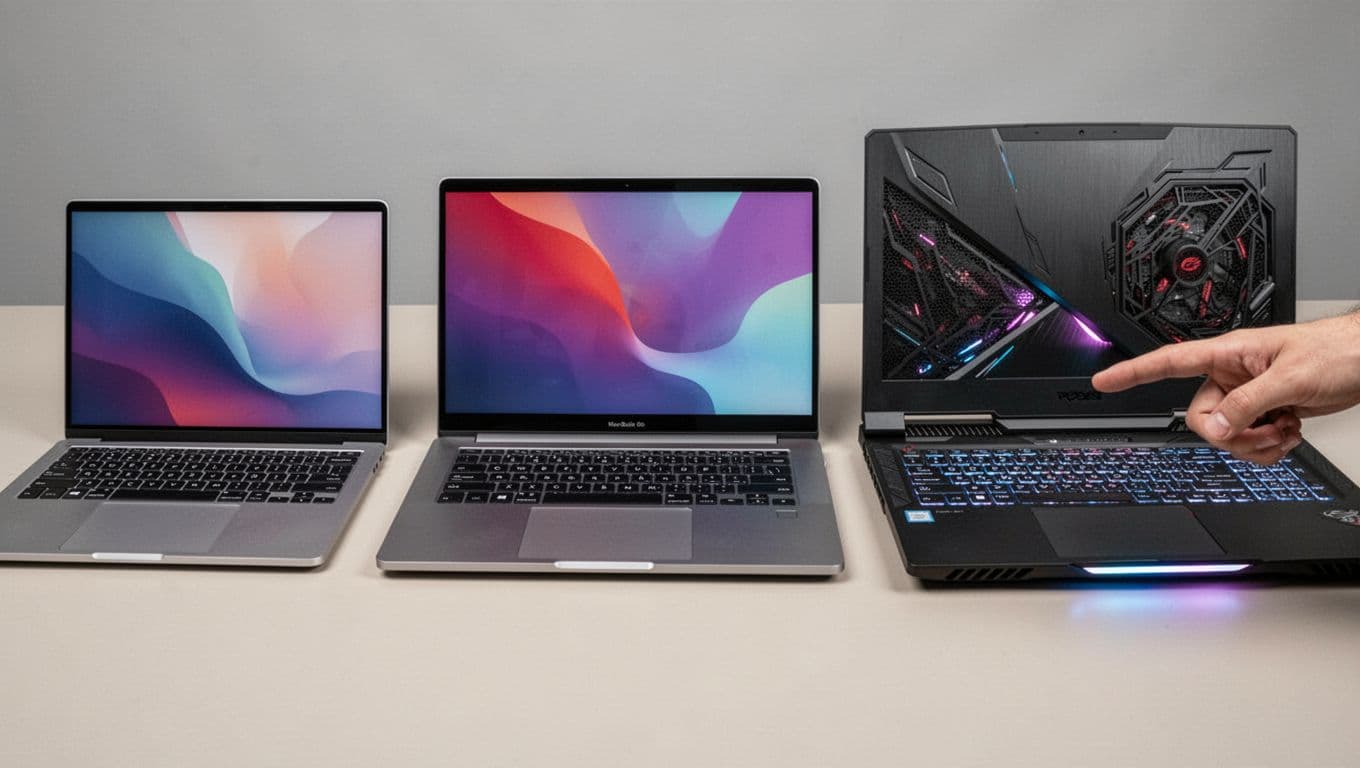
Close-up of four laptops side by side on a neutral table: slim budget, mid-range office, premium thin-bezel, and gaming model with vents and lights, screens off or abstract, hand pointing to gaming laptop. Photorealistic product photography with sharp focus on details and soft shadows. Four common laptop “tiers” side by side, from budget to gaming, created with AI.
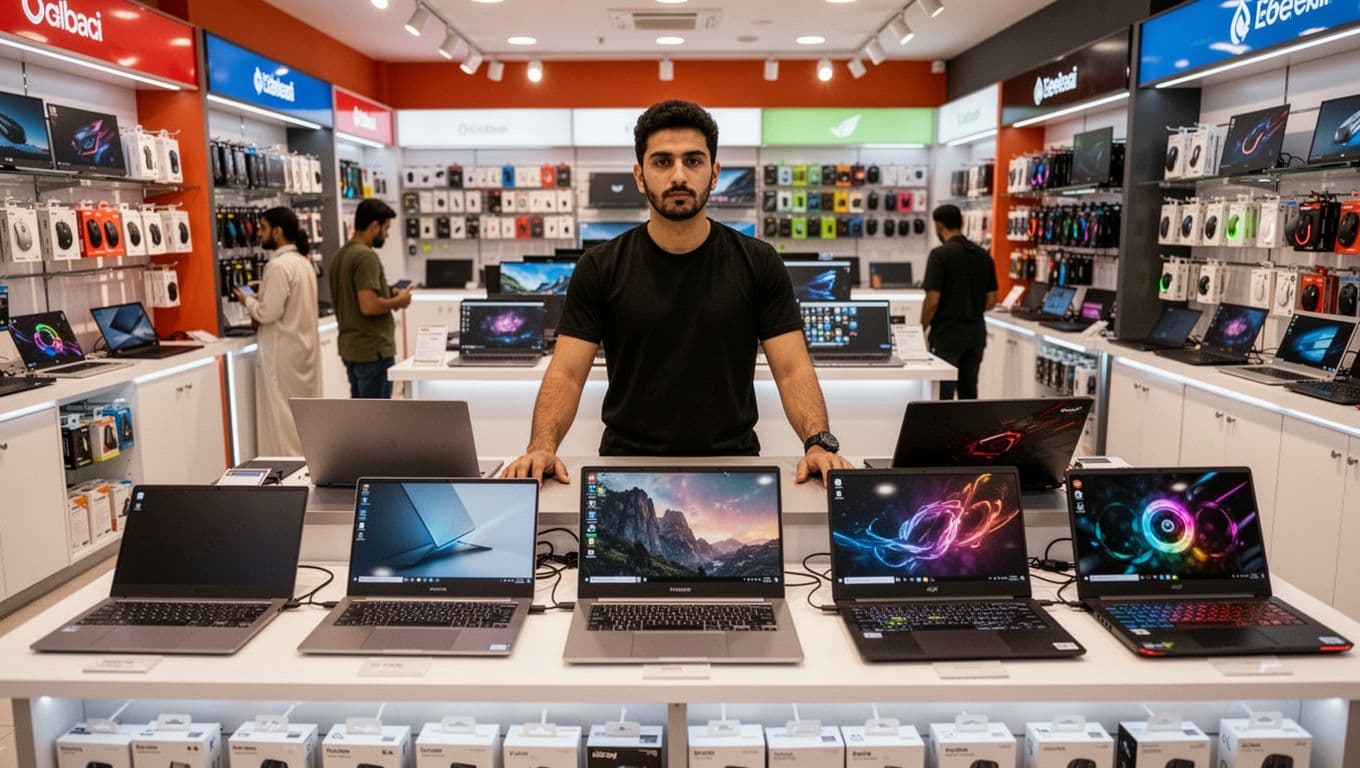
In February 2026, Dubai’s laptop market looks wide on the surface, but the “sweet spot” is easy to spot. Mid-range laptops often land around AED 3,000 to 5,000, which is where you start getting 16GB RAM and a comfortable daily experience.

Currency conversion changes daily, so it’s better to think in ranges. Using the common peg (about 1 USD ≈ 3.67 AED), these are the bands most shoppers actually see across major stores and Dubai’s electronics hubs.

Here’s a quick way to frame the market before you start comparing models online:

Price band (Dubai, AED)Rough USD rangeBest forWhat you should expect
1,500 to 2,500410 to 680School, basic work8GB RAM, 256 to 512GB SSD, integrated graphics
3,000 to 5,000820 to 1,360Office, study, light creative16GB RAM common, 512GB to 1TB SSD, better screens
5,500 to 8,5001,500 to 2,320Coding, editing, premium builds16 to 32GB RAM, OLED or high-quality panels, strong battery
5,000 to 9,000+1,360 to 2,450+Gaming, heavy GPU workRTX-class GPU, 144Hz+ screen, thicker cooling

The takeaway is simple: Dubai has plenty of cheap laptops, but the models people want most (fast CPU, 16GB RAM, good screen) tend to cluster in that AED 3,000 to 5,000 range. If you’re shopping under AED 2,500, focus more on specs than brand names, because a fancy logo won’t fix a slow setup.

If you’re hunting for local budget picks, this guide on top affordable laptops in UAE 2025 is a useful starting point, especially for the AED 1,500 to 3,000 range.

Typical price bands in AED: budget, mid-range, premium, and gaming

Think of laptop pricing like apartment sizes. You can live in any of them, but comfort changes fast once you add roommates (apps), storage (files), and “views” (screen quality).

  • Budget (AED 1,500 to 2,500): Expect Intel Core i3 or entry Core i5, or Ryzen 3 to Ryzen 5, 8GB RAM, 256 to 512GB SSD, and a 14 to 15.6-inch HD or FHD screen with integrated graphics.
  • Mid-range (AED 3,000 to 5,000): Look for Core i5 to i7 (or Ryzen 5 to 7), 16GB RAM, 512GB to 1TB SSD, and a Full HD screen. Some units include entry GPUs like NVIDIA MX-series.
  • Premium (AED 5,500 to 8,500): You’re paying for build quality and screens. Expect Core i7/Ultra (or Apple M-series), 16 to 32GB RAM, 1TB SSD, and a 14 to 16-inch OLED or Retina-class panel.
  • Gaming (AED 5,000 to 9,000+): Aim for Ryzen 7 or Intel i7 plus 16 to 32GB RAM, 1TB SSD, a 15.6 to 17.3-inch 144Hz+ screen, and an NVIDIA RTX 3050 and up (often 4060-class in this bracket).

Why prices jumped in 2026, and which laptops got hit the most

Dubai didn’t escape the 2026 price wave. Across many markets, laptops moved up 10% to 30% compared to prior-year norms. Several forces stacked together.

First, parts availability stayed uneven, especially for memory and certain mid-range components. When RAM and SSD prices rise, mid-range laptops feel it fast because brands compete tightly there. Next, shipping and logistics costs stayed higher than many buyers expected, and retailers priced that risk in.

Demand also shifted. More buyers now want machines that handle heavier multitasking and newer “AI” features. As a result, buyers are skipping 8GB systems more often, which pushes demand toward pricier configs.

In practice, big mainstream lines from Dell, HP, Lenovo, and ASUS saw sharper bumps in some categories. Gaming laptops often climbed more than basic models because GPUs and cooling designs carry higher costs, and demand stays strong.

If you want a stable price, watch mainstream mid-range models. If you want the steepest discount, target last-year gaming stock right before new GPU releases.

Are laptops actually cheaper in Dubai than the USA, UK, Europe, and India?

A bustling electronics market in Dubai features various laptops on foreground display tables, including budget slim laptops, mid-range models with open screens, premium ultrabooks, and gaming laptops with RGB lights. One salesperson stands behind the counter with two hands visible on the table, two shoppers browse in the background, under vibrant indoor lighting and modern shelves stocked with accessories. Dubai’s electronics shopping scene, from budget to gaming counters, created with AI.
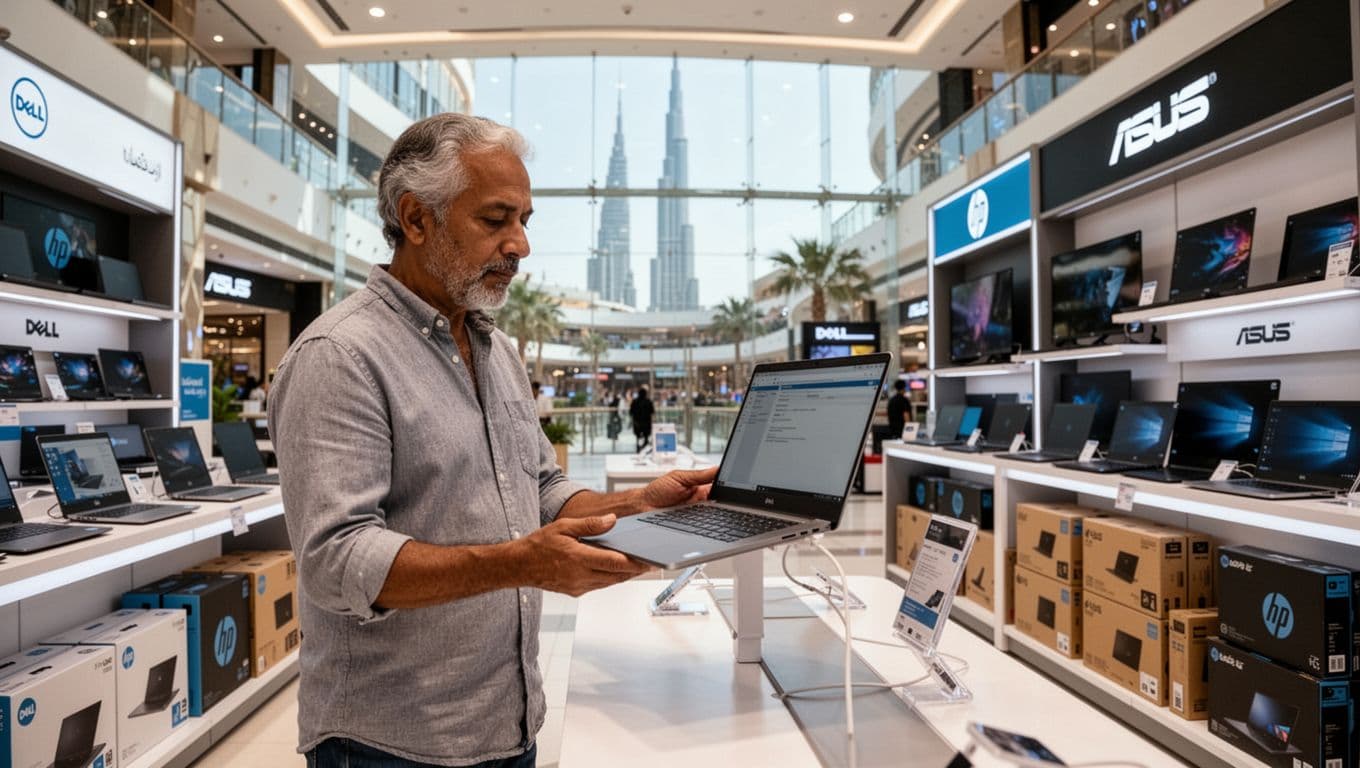
Here’s the rule that fits most real purchases: Dubai often beats the UK and EU on “out-the-door” price, it can be competitive with India on certain premium models (especially during sales), but the USA often wins on base price, especially if you buy direct from major brands.

Why? The US market gets aggressive pricing from manufacturers and giant retail chains. Dubai has lower VAT, but the sticker price can still be higher on the same model. Meanwhile, India can have higher import costs on electronics, which can push premium models up.

The important part is your final cost, not the tag you saw in a photo. Add VAT, possible import duty pass-through, payment fees, and the value of a local warranty. A “cheaper” laptop stops being cheap if it’s hard to service in your home country.

Real-world price comparisons for popular models (Dubai vs other countries)

Prices change weekly and depend on exact specs (RAM, storage, screen, GPU). Still, these early 2026 ranges show the pattern clearly when you compare like-for-like configurations.

Model (typical config)Dubai (USD)USA (USD)UK (USD)Europe (USD)India (USD)
MacBook Air M4 (13-inch, 16GB, 512GB)1,400 to 1,6001,200 to 1,3001,350 to 1,5001,400 to 1,5501,500 to 1,700
Dell XPS mid-range (14-inch, i7, 16GB, 1TB)1,500 to 1,8001,300 to 1,5001,450 to 1,6501,500 to 1,7001,700 to 2,000
ASUS ROG gaming (RTX 4060-class and up)1,800 to 2,500+1,600 to 2,2001,700 to 2,3001,800 to 2,4002,000 to 2,700
Acer Swift Go (i5-class, 8GB, 512GB)550 to 700450 to 600500 to 650550 to 700650 to 800

What this usually means in real life:

  • If you’re comparing Dubai to the USA, Dubai often looks higher, unless you hit a strong local promotion.
  • Against the UK and parts of Europe, Dubai can look similar or better once you consider VAT.
  • Compared with India, Dubai can look competitive on certain premium units, but it’s not a guaranteed win.

For gamers shopping a strict budget, it helps to study what you can get under a hard ceiling. This roundup of best gaming laptops under 5000 AED UAE can help you sanity-check deals, especially on RTX 4050 and 4060-class listings.

The hidden math: VAT, import duties, currency, and warranty value

Dubai’s VAT is simple: 5%. That’s one reason people expect lower prices. However, the total can creep up because of import costs in the supply chain. On many electronics imports, customs duty can be 0% to 5%, and retailers may price in extra logistics and tariff pressure. As a result, the “all-in” burden can feel closer to about 10% in some cases (even when VAT itself is only 5%).

Now compare that with the UK and much of Europe, where VAT commonly sits near 20%. That gap can be huge on a premium laptop. A $1,500 laptop can carry hundreds in VAT, depending on the country.

Currency also matters. The UAE dirham is pegged to the USD, so Dubai pricing can feel more predictable than markets where the currency swings hard month to month. That stability helps shoppers compare deals without chasing exchange-rate noise.

Finally, don’t ignore warranty value. If you buy a laptop meant for another region, service can be painful. On an expensive laptop, paying a bit more for an official local unit can be the smarter “cheap” choice.

How to get the best laptop deal in Dubai without getting burned

A middle-aged shopper in casual clothes holds and examines a laptop on display in a modern Dubai mall electronics store, with branded shelves of Dell, HP, and ASUS laptops and a Burj Khalifa silhouette visible through glass windows. Checking a laptop in a Dubai retail store, the kind of place where warranty terms are usually clearer, created with AI.
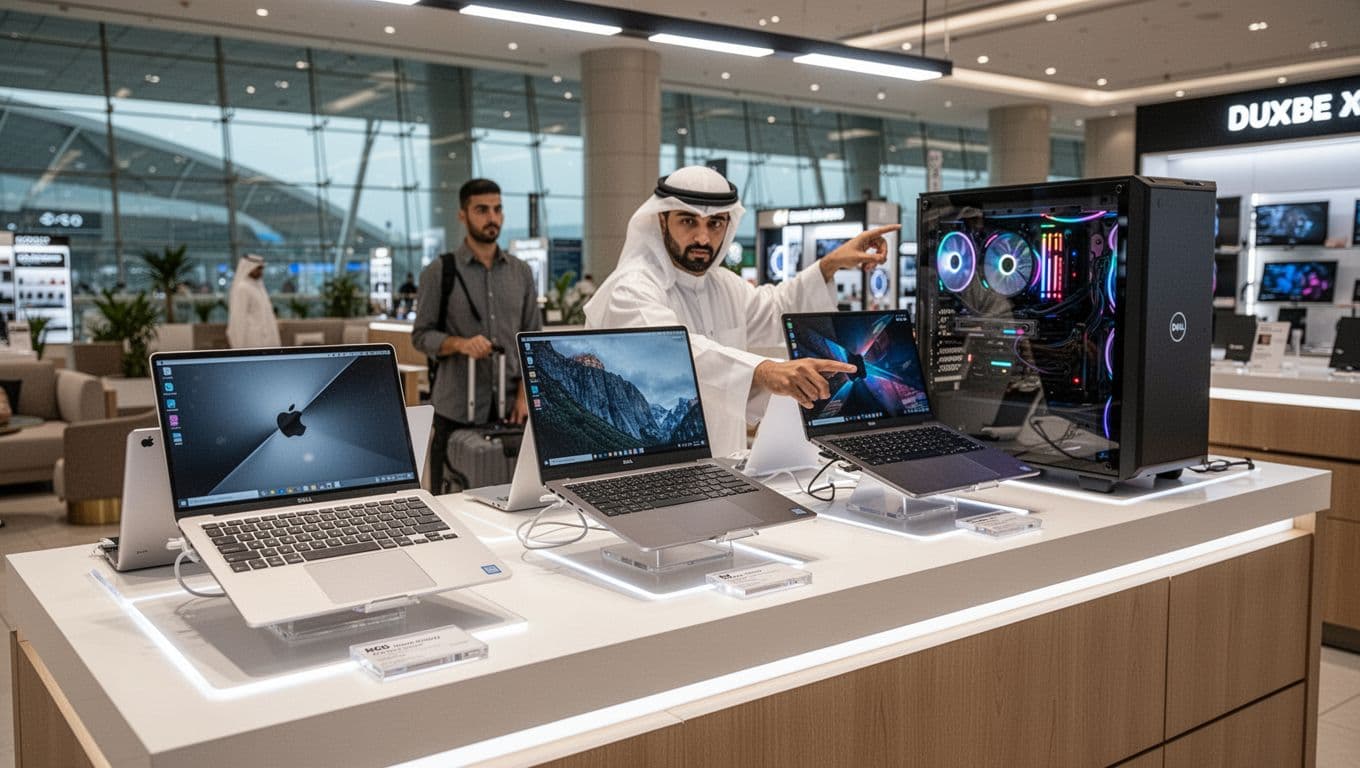
Dubai is a great place to shop if you treat it like a checklist, not a treasure hunt. The best deal isn’t always the lowest number. It’s the best mix of price, warranty, and “exactly what’s inside.”

Start by comparing the same model across at least two channels, usually one online and one in-store. Online listings can be cheaper, but stores sometimes bundle extras (bag, mouse, or extended warranty) that beat the online total.

Next, decide what matters more: lowest price, or lowest risk. If you’re buying a premium laptop for work, risk costs more than VAT. If you’re buying a student laptop, you can be more price-driven, as long as it’s a new unit with clear return terms.

Touch models are another common trap. They’re great for notes and creative work, but they can cost more and reflect more glare. If you’re unsure, read this guide on touch screen laptops UAE pros cons before you pay extra for a feature you might not use.

Best places to buy in Dubai in 2026, and what each is best for

Airport duty-free shop counter in Dubai showcasing MacBook, Dell XPS, and gaming laptops under bright lights, with one relaxed traveler pointing at a laptop in a luxury lounge background, clean photorealistic composition. Airport duty-free laptop shopping, which can work well for travelers if warranty terms match your needs, created with AI.
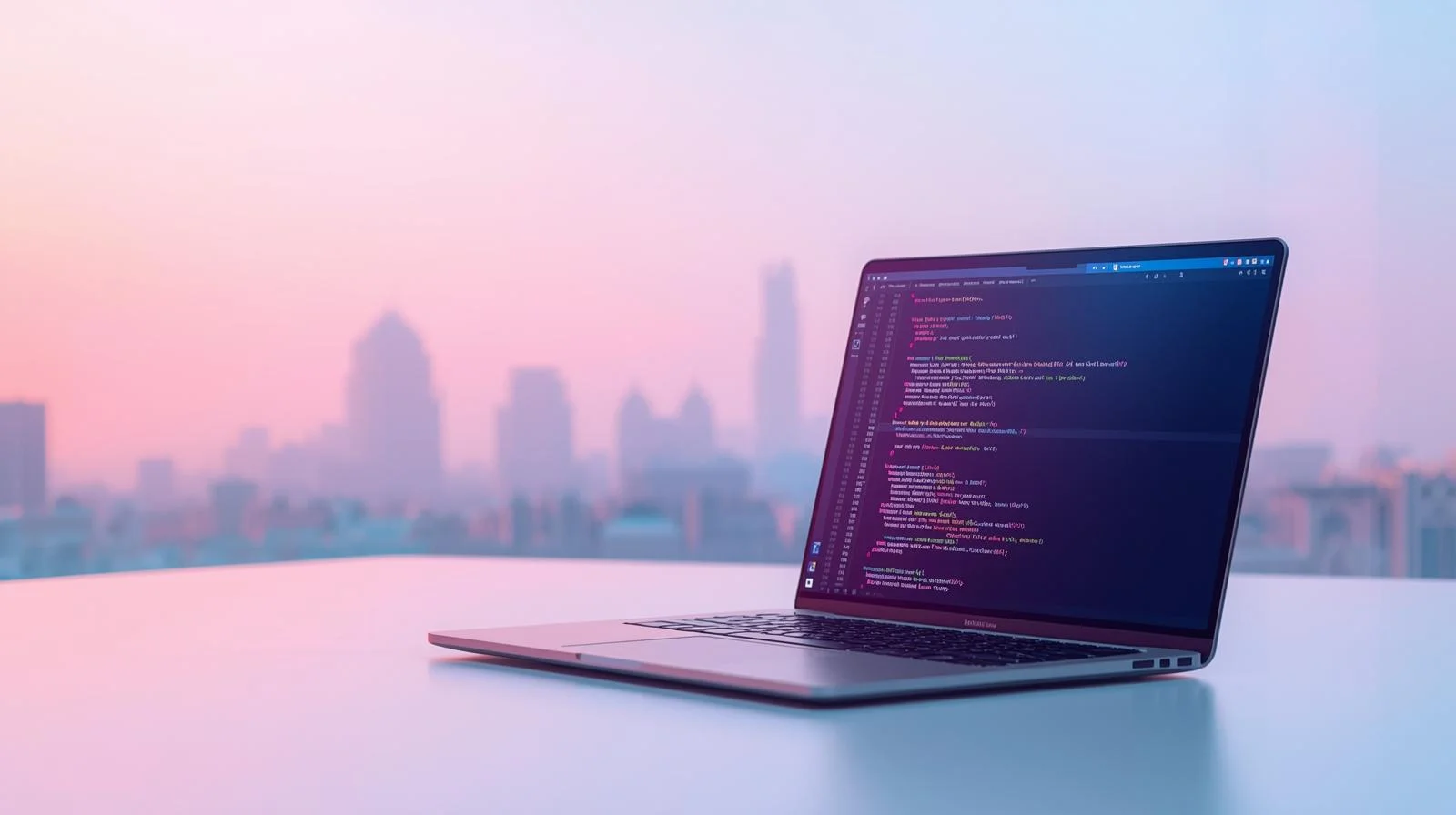
Dubai has three main buying routes, and each fits a different type of shopper.

Computer Plaza (Deira) is popular for competitive Windows pricing and a wide spread of gaming stock. Bargaining is more normal there than in malls, and you might squeeze out 5% to 10%. Still, you must check warranty terms and seller status carefully.

Major malls (such as stores inside Dubai Mall or Mall of the Emirates) usually give you a safer experience for official units. Brand stores and big retailers tend to be clearer on returns, and you’re less likely to get a region-mismatch surprise.

Online platforms like Amazon.ae, Noon, and Sharaf DG make price comparisons easy. Delivery is convenient, and return policies can be better than small shops, but always confirm the exact model number and seller type (official vs marketplace).

Finally, airport duty-free can be a solid option for travelers, especially for Apple devices. Just confirm the model variant, and don’t assume global warranty coverage without checking.

A quick checklist before you pay: region, keyboard, charger, and returns

Before you hand over your card, slow down for two minutes. Most “bad deals” happen because buyers skip small details.

  • Confirm the exact CPU and GPU model, not just “Core i7” or “RTX.” The suffix matters.
  • Verify RAM and SSD size, and whether RAM is upgradeable on that model.
  • Check the screen type and refresh rate (IPS vs OLED, 60Hz vs 144Hz+), because listings can be vague.
  • Look at the keyboard layout (US vs UK, and whether Arabic legends are included).
  • Make sure the charger wattage and plug type match your needs, especially for gaming laptops.
  • Ask about warranty coverage in your home country (local-only warranty can change the math).
  • Read the return window and restocking rules, and keep the invoice.
  • Prefer an authorized seller for premium laptops, even if it costs slightly more.

If a price looks too good, assume there’s a reason. It could be refurbished stock, a gray-market import, or a different spec than the headline suggests.

Conclusion

Dubai laptop shopping in 2026 can save you money, but only in the right comparison. In most cases, Dubai is a better deal than the UK and EU because VAT is lower. It can also be competitive with India on some models, especially during promotions. However, the USA often wins on base price, so Dubai doesn’t automatically come out cheaper.

The smart move is to compare the total cost: VAT, any import-cost markup, travel costs, and the real value of a local warranty and returns. If you share the laptop you want (CPU, RAM, storage, and screen), it’s easy to build a quick side-by-side price plan before you buy.

Best Laptop for programming

Best Laptop for Programming – Complete Buying Guide for UAE Coders

Finding the best laptop for programming makes your coding life easier. A slow machine wastes your time. A good one lets you write code, run tests, and build projects without frustration.

This guide helps UAE developers, students, and professionals pick the best laptop for coding. We cover specs, brands, and real options at every budget. Whether you build websites, develop apps, or work with Python, you will find useful information here.

Tech Point Zone stocks laptops built for programmers. We deliver across Dubai, Abu Dhabi, and all of the UAE, with local warranty support.

What Makes a Good Programming Laptop?

Programming demands specific hardware. Your laptop needs to handle IDEs, multiple browser tabs, local servers, and testing tools all running together. Here is what matters most:

Processor (CPU)

The processor runs your code and compiles projects. For programming, clock speed matters more than core count for most tasks.

Minimum: Intel Core i5 12th Gen or AMD Ryzen 5 5000 series. These handle web development, Python scripts, and basic app development.

Recommended: Intel Core i7 or AMD Ryzen 7. These processors fly through larger projects and multitasking.

Best: Intel Core Ultra 9 or AMD Ryzen 9. Choose these for machine learning, game development, or compiling massive codebases.

RAM (Memory)

RAM determines how many applications you can run together. Programmers typically have their IDE, browser with many tabs, terminal, and testing tools open at once.

Minimum: 8GB works for beginners learning Python or basic web development. You will feel the limits quickly.

Recommended: 16GB suits most developers. Visual Studio Code, Android Studio, and Docker containers run smoothly.

Best: 32GB or higher for professional work with virtual machines, large databases, or AI development.

Storage

SSDs load your IDE and projects fast. Never buy a laptop with only a hard drive for coding.

Minimum: 256GB SSD handles basic projects and a few development environments.

Recommended: 512GB SSD gives room for multiple projects, databases, and tools.

Best: 1TB SSD or higher for game developers, data scientists, and anyone working with large files.

Display

You stare at code for hours. A good display reduces eye strain and shows more code at once.

Minimum: 14-inch Full HD (1920 x 1080). Suitable for students and portable coding.

Recommended: 15.6-inch Full HD or higher. Most developers prefer this size.

Best: 16-inch QHD or 4K display. Ideal for professionals who need screen space.

Best Laptop Brands for Programmers

Different brands serve different programmer needs. Here are the top choices for UAE developers:

Dell

Dell builds some of the finest laptops for programming. The Dell XPS series stands out for its premium build quality, stunning displays, and strong Windows performance.

The Dell XPS 13 and XPS 14 run Linux exceptionally well. Dell even offers Developer Edition models with Ubuntu pre-installed. For C# and .NET developers, full-stack engineers, and anyone using Visual Studio, Dell XPS laptops deliver outstanding results.

Dell laptops also offer good port selection and reliable customer support in the UAE.

Acer

Acer provides affordable programming laptops without sacrificing essential features. The Acer Swift series gives you portability and decent performance at lower prices.

The Acer Aspire 5 remains a popular choice among programming students. It offers good specs, upgradeable components, and reliable performance for the price. The Acer Nitro V series works well for developers who also want gaming capabilities.

Acer laptops suit beginners, students, and budget-conscious developers.

Lenovo

Lenovo ThinkPad laptops dominate the professional programming space. They offer legendary keyboards, military-grade durability, and excellent Linux support.

The ThinkPad T-series and P-series run coding workloads smoothly. Many system administrators and backend developers choose ThinkPads for their reliability.

HP

HP makes solid business laptops that handle programming tasks well. The HP EliteBook and HP Spectre x360 lines offer good build quality and performance.

Best Affordable Programming Laptops in the UAE

Not everyone needs a premium machine. These options work well for students and beginners:

Under AED 2,500

At this price, look for laptops with an Intel Core i5 or AMD Ryzen 5 processor and 8GB of RAM. The Acer Aspire 5 and ASUS Vivobook offer good value.

These laptops handle Python, JavaScript, basic web development, and learning projects. Upgrade the RAM later if needed.

AED 2,500 – 5,000

This range offers the best value for most programmers. You get 16GB RAM, better processors, and larger SSDs.

The Acer Swift Go 14 and Dell Inspiron 16 Plus sit in this range. They handle Android Studio, React Native, and more demanding development work.

AED 5,000+

Premium laptops like the Dell XPS 13, Dell XPS 14, and Lenovo ThinkPad T16 live here. You get top-tier performance, excellent displays, and build quality that lasts years.

Professional developers, software engineers, and data scientists benefit most from this category.

13 Inch Laptop for Coding

A 13-inch laptop offers maximum portability. You can code at coffee shops, carry it to meetings, and travel easily.

The Dell XPS 13 represents the gold standard for compact coding laptops. It packs a powerful processor and stunning display into a tiny frame. With up to 32GB RAM and fast SSD storage, the XPS 13 handles Visual Studio Code, Docker, and most development tasks without slowdowns.

The 13-inch size works well for:

  • Web developers who travel frequently
  • Students carrying laptops between classes
  • Frontend developers who use external monitors at their desks

However, 13-inch screens feel cramped when viewing multiple code panels. Consider a larger display if you work on complex projects without external monitors.

2-in-1 Laptop for Coding

Convertible laptops flip between laptop and tablet modes. Some programmers appreciate this flexibility for note-taking, sketching interfaces, or reading documentation.

The HP Spectre x360 14 and Lenovo Yoga series offer good 2-in-1 options for developers. They include touchscreens and stylus support while maintaining strong performance.

However, traditional laptops generally offer better keyboards and thermals for coding. Choose a 2-in-1 only if you specifically need the tablet functionality.

Best Battery Life Laptop for Programming

Long battery life matters when you code away from power outlets. Here is what to expect:

Dell XPS series: The Snapdragon-powered XPS 13 reaches over 20 hours. Intel versions last 10-12 hours.

MacBook alternatives: The Dell XPS 14 and Lenovo ThinkPad T16 offer 8-10 hours under normal coding workloads.

Gaming laptops: Expect 3-5 hours of battery life under load. These machines prioritise performance over battery life.

For all-day coding without charging, the Dell XPS 13 with a Snapdragon processor leads the pack. The Intel Lunar Lake version also delivers excellent battery life while running Windows applications natively.

Best Windows Laptop for Programming

Windows remains the most versatile operating system for developers. It runs .NET frameworks natively, supports most enterprise software, and offers Windows Subsystem for Linux (WSL) for Unix tools.

The Dell XPS 14 stands as our top Windows choice for programmers. It delivers:

  • Intel Core Ultra 7 processor for fast compilation
  • Up to 64GB RAM for heavy multitasking
  • Optional RTX 4050 GPU for machine learning
  • Stunning 3.2K OLED display for sharp code rendering
  • Thunderbolt 4 ports for external monitors

The Dell XPS line also supports Linux well. You can dual-boot or run WSL without issues. For UAE developers working with Microsoft technologies, enterprise software, or cross-platform development, the Dell XPS 14 offers the complete package.

Tech Point Zone stocks Dell XPS laptops with a full UAE warranty and free delivery across the Emirates.

Programming Laptop for Different Developer Types

Different programming work needs different hardware. Here is a breakdown:

Web Developers

Web development runs well on most modern laptops. An Intel Core i5, 16GB RAM, and 256GB SSD handle HTML, CSS, JavaScript, React, Vue, and Angular projects smoothly.

The Dell XPS 13 or Acer Swift series work perfectly for frontend and full-stack web developers.

Mobile App Developers

Android Studio demands more resources. You need at least 16GB of RAM and a fast processor to run the emulator without lag.

iOS development requires a Mac. However, cross-platform frameworks like React Native and Flutter run on Windows and Linux machines.

Python Developers and Data Scientists

Basic Python scripting runs on any laptop. However, data science work with Pandas, NumPy, and machine learning libraries benefits from 32GB RAM and a dedicated GPU.

The Dell XPS 15 or ASUS ProArt P16 handles data science workloads well.

Game Developers

Game development needs serious hardware. Unity and Unreal Engine require dedicated graphics cards, 32GB RAM, and fast processors.

Gaming laptops like the ASUS ROG series or Racer Blade offer the power you need.

Acer Laptop for Programming

Acer offers solid value across its laptop range. Here are the best Acer options for coders:

Acer Swift Series

The Acer Swift 3 and Swift Go 14 deliver portable coding machines at reasonable prices. They feature:

  • Intel Core i7 or AMD Ryzen 7 processors
  • Up to 16GB RAM
  • Fast SSD storage
  • 14-inch displays with good colour accuracy
  • All-metal construction
  • Long battery life (up to 18 hours claimed)

The Swift series suits web developers, students, and anyone who needs portability without premium pricing.

Acer Aspire 5

The Acer Aspire 5 remains a budget favourite. It offers:

  • Mid-range Intel or AMD processors
  • 8GB RAM (upgradeable)
  • 512GB SSD
  • 15.6-inch Full HD display
  • Good port selection

Programming students and beginners find excellent value here. The Aspire 5 handles Python, JavaScript, and basic development tasks at an affordable price.

Acer Nitro V 15

Developers who also game appreciate the Acer Nitro V 15. It combines:

  • Intel Core i7 processor
  • NVIDIA RTX graphics
  • 16GB RAM
  • 15.6-inch 144Hz display
  • Gaming keyboard with good travel

The Nitro handles demanding IDEs and game engines while doubling as an entertainment machine.

Why Choose Dell XPS for Programming?

The Dell XPS series deserves special attention for programmers. Here is why many developers choose XPS laptops:

Build Quality

Dell uses premium materials throughout the XPS range. CNC-machined aluminium and carbon fibre create laptops that feel solid and last years.

Display Excellence

XPS displays rank among the best available. The InfinityEdge bezels maximise screen space. OLED options deliver perfect blacks and vibrant colours, making code easier to read.

Linux Support

Dell officially supports Ubuntu on XPS laptops. The Developer Edition comes with Ubuntu pre-installed and fully configured. Even Windows models run Linux distributions smoothly.

Performance

XPS laptops pack powerful hardware into thin frames. The cooling systems maintain consistent performance during long coding sessions.

Developer Focus

Dell designed the XPS line with developers in mind. Features like:

  • Multiple Thunderbolt 4 ports for external monitors
  • Fast SSD storage
  • Upgradeable RAM on some models
  • Excellent keyboards for long typing sessions

All these make the XPS series ideal for professional programming work.

Tech Point Zone offers Dell XPS 13, XPS 14, and XPS 15 models with a UAE warranty and free delivery.

Which Laptop Brand Is Best for Programmers?

No single brand fits everyone. Your best choice depends on your specific needs:

  • Choose Dell for premium Windows development, .NET work, Linux support, and professional environments. The XPS series offers the best combination of performance, display quality, and build.
  • Choose Acer for budget-friendly options that still deliver solid performance. Students and beginners get excellent value from Swift and Aspire models.
  • Choose Lenovo for legendary keyboards, durability, and enterprise environments. ThinkPads dominate system administration and backend development.
  • Choose HP for versatile business laptops with good support. The Spectre and EliteBook lines serve developers well.

For most UAE developers, the Dell XPS 13 or XPS 14 offers the best overall experience. They balance performance, portability, display quality, and build in one premium package—Tech Point Zone stocks Dell XPS models with local warranty support.

How Good of a Laptop Do You Need for Coding?

Many beginners worry they need expensive hardware. The truth is simpler.

Basic programming like HTML, CSS, JavaScript, and Python runs on nearly any modern laptop. An Intel Core i3 or AMD Ryzen 3 with 8GB RAM handles learning and small projects.

Professional development benefits from better hardware. An Intel Core i5 or higher with 16GB RAM provides smooth performance for most development work.

Heavy workloads, such as machine learning, game development, and large-scale applications, require powerful machines. Intel Core i7/i9, 32GB+ RAM, and dedicated graphics make these tasks manageable.

Start with what you can afford. You can always upgrade later or add external monitors and storage. A capable mid-range laptop serves most developers well for years.

Can Python Run on Any Laptop?

Yes, Python runs on virtually any laptop made in the last decade.

Python itself requires minimal resources. The interpreter uses little RAM and CPU power. Basic scripts and learning projects run smoothly on budget hardware.

However, what you do with Python matters. Web scraping with simple scripts? Any laptop works. Training neural networks with TensorFlow? You need serious hardware.

Here is a breakdown:

  • Any laptop handles: Python basics, learning, simple scripts, web development with Flask or Django, automation tasks.
  • Mid-range laptops handle: Data analysis with Pandas, web scraping at scale, API development, most Django and FastAPI projects.
  • Powerful laptops needed: machine learning with scikit-learn, deep learning with TensorFlow or PyTorch, large-scale dataset processing, and computer vision projects.

For most Python programming in the UAE, a laptop with 8-16GB RAM and an Intel Core i5 or AMD Ryzen 5 provides a smooth experience.

Is Core i5 Good for Programming?

Yes, Intel Core i5 handles most programming tasks well.

Modern Core i5 processors (12th generation and newer) offer excellent performance. They include multiple cores, good clock speeds, and efficient architecture. Visual Studio Code, PyCharm, Android Studio, and most IDEs run smoothly.

The Intel Core i5 suits:

  • Web development (React, Vue, Angular, Node.js)
  • Python development (Django, Flask, data analysis)
  • Mobile app development (React Native, Flutter)
  • Basic machine learning projects
  • Database work and API development

Consider Core i7 or higher when you need:

  • Faster code compilation for large projects
  • Multiple virtual machines
  • Professional game development
  • Heavy machine learning workloads
  • Large-scale data processing

For most UAE developers and students, Core i5 provides excellent value. Pair it with 16GB of RAM and a fast SSD for a capable coding machine.

Where to Buy Programming Laptops in the UAE

Tech Point Zone offers a range of laptops for programmers across the UAE. We stock Dell, ASUS, Acer, HP, and Lenovo models with competitive pricing.

Every purchase includes:

  • Official UAE warranty
  • Free delivery across Dubai, Abu Dhabi, Sharjah, and all Emirates
  • Expert advice on choosing the right specs
  • After-sales support

Browse our collection of the best laptops for students or explore our Dell laptop range for programming options.

FAQs

Do I need a dedicated graphics card for programming?

Most programming tasks do not need a dedicated GPU. Integrated graphics handle web development, and Python and Java work perfectly with most IDEs.

You need a dedicated GPU for game development (Unity, Unreal Engine), machine learning with CUDA, 3D rendering, and video editing, as well as coding.

Should I buy a gaming laptop for programming?

Gaming laptops work well for programming. They offer powerful processors, ample RAM, and good displays. However, they tend to be heavier, have shorter battery life, and run hotter than business laptops.

If you want both gaming and coding, a gaming laptop makes sense. For pure development work, business laptops like the Dell XPS offer better value.

How long should a programming laptop last?

A good programming laptop lasts 4-6 years with proper care. Choose specifications slightly above your current needs to stay productive longer.

Buying with upgradeability in mind helps too. Some laptops allow RAM and SSD upgrades, extending their useful life.

Is 8GB RAM enough for programming?

8GB of RAM is enough for beginners and basic development. You can run Visual Studio Code, a browser, and a terminal without major issues.

However, 16GB provides a much smoother experience. Android Studio, Docker, multiple browser tabs, and modern IDEs benefit from extra memory. We recommend 16GB as the minimum for serious development work.

Which is better for programming: Windows or Linux?

Both work well. Windows offers broader software compatibility, better for .NET and enterprise development. Linux provides native Unix tools that are better suited for server-side development and DevOps.

Many developers use both. The Dell XPS series supports both operating systems excellently, letting you choose or dual-boot.

Dell xps 13 vs macbook air

Dell XPS 13 vs MacBook Air – Complete Comparison Guide for UAE Buyers

Choosing between the Dell XPS 13 and MacBook Air ranks among the toughest laptop decisions you can make. Both machines deliver premium-quality, stunning designs and excellent performance in compact packages.

This comparison breaks down all the key differences between these ultrabooks. We cover specifications, battery life, display quality, software compatibility, and value for money. By the end, you will know exactly which laptop fits your needs.

Quick Comparison: Dell XPS 13 vs MacBook Air

FeatureMacBook Air M4
ProcessorApple M4 (10-core)
RAMUp to 32GB unified
StorageUp to 2TB SSD
Display13.6-inch Liquid Retina
Battery LifeUp to 18 hours
Weight1.24kg (2.7 lbs)
Ports2x Thunderbolt 4, MagSafe, 3.5mm jack
OSmacOS

Design and Build Quality

Dell XPS 13 Design

The Dell XPS 13 features a stunning aluminium chassis that looks and feels premium. The InfinityEdge display creates an almost borderless screen with incredibly thin bezels. This design makes the 13.4-inch display fit into a remarkably compact body.

Dell offers the XPS 13 in multiple colours, including Platinum Silver and Graphite. The laptop measures just 14.8mm thick and weighs approximately 1.21kg, making it extremely portable for daily commuting across Dubai, Abu Dhabi, or anywhere in the UAE.

The keyboard uses a zero-lattice design with tightly packed keys. Some users love this modern aesthetic, while others prefer traditional key spacing. The haptic touchpad blends seamlessly into the palm rest, creating a unified glass surface.

MacBook Air Design

Apple’s MacBook Air maintains its iconic aluminium unibody construction. The M4 version continues the flat, slab-like design introduced with the M2 model. Build quality remains exceptional, as expected from Apple products.

The MacBook Air is slightly thinner at 11.3mm, compared to the XPS 13’s 14.8mm. Both laptops weigh nearly identical amounts, so portability comes down to personal preference rather than significant weight differences.

Apple offers four colour options: Midnight, Starlight, Space Grey, and Silver. The traditional keyboard layout with physical function keys appeals to users who prefer conventional designs.

Dell XPS 13 Weight vs MacBook Air

Both laptops weigh approximately the same at around 1.21-1.24kg. The Dell XPS 13 actually edges out slightly lighter in most configurations. Either machine slips easily into a backpack without adding noticeable weight.

Display Comparison

Dell XPS 13 Display Options

Dell provides multiple display configurations for the XPS 13. The base model features a 13.4-inch FHD+ (1920×1200) IPS panel. Mid-range options include a higher resolution display with improved brightness.

The flagship configuration offers a stunning 3K (2880×1800) OLED touchscreen. This panel delivers perfect blacks, vibrant colours, and excellent HDR performance. Content creators and media enthusiasts appreciate the superior contrast ratios OLED technology provides.

The 16:10 aspect ratio provides more vertical screen space than traditional 16:9 displays. This ratio benefits productivity tasks, document editing, and web browsing.

MacBook Air Display

The MacBook Air uses Apple’s Liquid Retina display technology. The 13.6-inch panel runs at 2560×1664 resolution with 500 nits of brightness. Colours appear accurate and vibrant, though the panel uses IPS rather than OLED technology.

Apple’s display looks excellent for everyday use. However, it lacks the deep blacks and infinite contrast that OLED screens provide. The MacBook Air also misses touchscreen functionality entirely.

Display Winner

The Dell XPS 13 wins the display comparison when configured with the OLED panel. The touchscreen capability adds versatility for note-taking and creative work. Budget-conscious buyers should note that OLED configurations cost significantly more than the base model.

Performance: Intel/Snapdragon vs Apple Silicon

Dell xps 13 vs macbook air

Dell XPS 13 Performance

The latest Dell XPS 13 offers two processor options: Intel Core Ultra (Lunar Lake) and Qualcomm Snapdragon X Elite. Both deliver impressive performance for everyday tasks.

The Intel Core Ultra 7 256V version provides excellent multi-core performance and complete compatibility with all Windows applications. The Snapdragon X Elite variant offers exceptional battery efficiency and strong performance, though some Windows applications require emulation.

In benchmark tests, the Dell XPS 13 with Snapdragon X Elite achieves impressive scores. Cinebench R23 multi-core results show competitive performance against Apple’s M-series chips. Real-world tasks like document editing, web browsing, and video streaming run smoothly on either processor option.

MacBook Air M4 Performance

Apple’s M4 chip delivers outstanding performance per watt. The 10-core CPU handles demanding tasks efficiently while maintaining excellent battery life. The integrated GPU performs well for light creative work and casual gaming.

The MacBook Air runs silently because it uses passive cooling without fans. Under sustained heavy loads, the processor may throttle slightly to manage heat. For typical productivity tasks, users rarely notice any performance limitations.

M2 MacBook Air vs Dell XPS 13

The Dell XPS 13 vs MacBook Air M2 comparison shows Apple’s chip excelling in single-core tasks and power efficiency. The M2 MacBook Air delivers snappy performance for everyday computing. However, the latest XPS 13 with Lunar Lake or Snapdragon processors now matches or exceeds the M2 in many benchmarks.

Mac M1 vs Dell XPS

Comparing the Mac M1 vs Dell XPS reveals that older Intel-based XPS models struggled against Apple Silicon efficiency. However, current XPS 13 versions with Snapdragon X Elite now compete directly with Apple’s chips in both performance and battery life.

Battery Life

Dell XPS 13 Battery Performance

The Dell XPS 13 delivers remarkable battery life with its latest processors. The Snapdragon X Elite version lasted over 20 hours in Tom’s Guide testing, making it one of the longest-lasting consumer laptops ever tested.

The Intel Lunar Lake model achieves approximately 17-18 hours of real-world use. Even the OLED display version, which consumes more power, manages around 8-9 hours of continuous use.

Dell’s battery performance represents a significant improvement over previous generations. Users can confidently leave their chargers at home for full workdays.

MacBook Air Battery Performance

Dell xps 13 vs macbook air

Apple advertises up to 18 hours of battery life for the M4 MacBook Air. Real-world testing confirms approximately 14-15 hours of mixed use, which remains impressive for an ultrabook.

The MacBook Air’s ARM-based processor excels at power efficiency. Users consistently achieve all-day battery life without concerns about finding power outlets.

Battery Life Winner

The Dell XPS 13 with Snapdragon X Elite wins the battery comparison with its class-leading 20+ hour endurance. The Intel version and MacBook Air deliver similar performance, both providing excellent all-day battery life.

Software Compatibility and Operating System

Windows 11 Advantages

The Dell XPS 13 runs Windows 11, offering complete compatibility with enterprise software, business applications, and professional tools. Engineering software, accounting packages, and industry-specific applications typically run natively on Windows.

Windows provides superior flexibility for gaming. Access to Steam, Epic Games Store, and other platforms opens a vast library of titles. While the XPS 13 lacks a dedicated graphics processor, it handles casual gaming and older titles adequately.

For UAE businesses using Microsoft 365, SharePoint, or other Microsoft services, Windows integration remains seamless. IT departments often prefer Windows devices for easier management and policy enforcement.

macOS Considerations

The MacBook Air runs macOS, which offers a clean, intuitive interface. Apple’s ecosystem integration appeals to users with iPhones, iPads, and other Apple devices. Features like AirDrop, Handoff, and Universal Control work flawlessly.

However, macOS presents limitations for certain professional software. AutoCAD works on Mac, but many engineering applications require Windows. Revit, the industry-standard BIM software, runs exclusively on Windows.

Some Windows applications run on Mac through emulation or virtualisation software like Parallels. This adds cost and complexity while potentially reducing performance.

Software Compatibility Winner

Windows wins for software compatibility. The Dell XPS 13 runs virtually any Windows application natively. Users needing specific professional software should verify Mac compatibility before purchasing a MacBook Air.

Price Comparison in the UAE

Dell XPS 13 Pricing

The Dell XPS 13 starts at approximately AED 4,400 for base configurations in the UAE. Mid-range models with better processors and displays typically cost AED 5,500-7,000. The top-spec OLED versions reach AED 8,500 or higher.

Dell frequently offers promotions and discounts through authorised retailers. Tech Point Zone stocks Dell XPS 13 models at competitive prices with local warranty support.

MacBook Air Pricing

The MacBook Air M4 starts at approximately AED 4,600 in the UAE. Upgraded configurations with more storage and RAM push prices toward AED 6,000-8,000.

Apple products rarely receive significant discounts. The starting price remains relatively fixed across authorised retailers.

Value Analysis

The Dell XPS 13 offers better value at most price points. The base configuration includes comparable specifications to the MacBook Air at a lower starting price. The OLED display option provides capabilities no MacBook Air can match.

Ports and Connectivity

Dell XPS 13 Ports

The Dell XPS 13 includes only two Thunderbolt 4 USB-C ports. This minimalist approach requires adapters or docking stations for connecting external peripherals. Dell includes a USB-C-to-USB-A adapter in the box.

Wi-Fi 7 and Bluetooth 5.4 provide cutting-edge wireless connectivity. The laptop supports fast charging, reaching 80% battery in approximately one hour.

MacBook Air Ports

The MacBook Air features two Thunderbolt 4 USB-C ports, a MagSafe charging port, and a 3.5mm headphone jack. The MagSafe connector leaves both USB-C ports free for accessories, providing a practical advantage.

Wi-Fi 6E and Bluetooth 5.3 handle wireless connections reliably. MagSafe’s magnetic attachment also protects the laptop if someone trips over the charging cable.

Ports Winner

The MacBook Air wins the port comparison thanks to MagSafe charging and the headphone jack. The Dell XPS 13 sacrifices one USB-C port for charging, limiting connectivity options.

Why Choose Dell XPS 13

The Dell XPS 13 makes sense for buyers who need Windows compatibility. Professional software, gaming access, and enterprise integration all favour Windows.

The OLED display option delivers superior visual quality for content consumption and creative work. Battery life now matches or exceeds MacBook Air performance with the latest processor options.

UAE buyers benefit from local Dell service centres and warranty support across the Emirates. Tech Point Zone offers competitive pricing on Dell XPS 13 models with a full manufacturer’s warranty.

Students pursuing engineering degrees should consider the Dell XPS 13 for software compatibility. Check out our guide to the best laptops for engineering students for detailed recommendations.

Why Choose MacBook Air

The MacBook Air appeals to users already invested in Apple’s ecosystem. Seamless integration with iPhones, iPads, and other Apple devices creates a unified experience.

Creative professionals using Final Cut Pro, Logic Pro, or other Apple-exclusive software benefit from native macOS support. The fanless design ensures completely silent operation.

However, Tech Point Zone currently focuses on Windows laptops and does not stock MacBook models. UAE customers seeking MacBooks should visit the Apple Store or authorised Apple resellers.

Which Should You Buy?

Choose Dell XPS 13 If:

You need Windows software compatibility for work or study. Professional applications, accounting software, and engineering tools typically require Windows.

You want the best battery life available. The Snapdragon X Elite version delivers class-leading endurance of 20+ hours.

You prefer OLED display technology. The stunning 3K touchscreen offers visuals no MacBook Air can match.

You value flexibility and customisation. Windows provides more control over system settings and software choices.

Choose MacBook Air If:

You already own multiple Apple devices and want seamless ecosystem integration.

You use Apple-exclusive software, such as Final Cut Pro or Logic Pro, professionally.

You prioritise silent operation with the fanless cooling design.

You prefer the traditional keyboard layout over Dell’s zero-lattice design.

Budget Alternatives

Not everyone needs a premium ultrabook. Budget-conscious buyers can find excellent laptops at lower price points.

Check out our budget laptop guide under 500 AED for affordable options that handle basic computing tasks effectively.

Consider refurbished laptops for premium specifications at reduced prices. Learn the difference between used and refurbished laptops before making purchasing decisions.

Buy Dell XPS 13 at Tech Point Zone

Tech Point Zone stocks Dell XPS 13 models at competitive prices in the UAE. Every laptop includes a full manufacturer’s warranty valid in the UAE. Free delivery is available to Dubai, Abu Dhabi, Sharjah, and all emirates for qualifying orders.

Our team helps customers choose the right configuration for their needs. Contact us for current stock availability and pricing on Dell XPS 13 models.

Frequently Asked Questions

Is the Dell XPS 13 better than the MacBook Air?

Both excel in different areas. The Dell XPS 13 offers better Windows compatibility, superior OLED display options, and longer battery life with Snapdragon processors. The MacBook Air provides better Apple ecosystem integration and completely silent operation.

Which lasts longer: the Dell XPS 13 or the MacBook Air?

The Dell XPS 13 with Snapdragon X Elite processor lasts over 20 hours, exceeding MacBook Air’s approximately 15-18 hours. The Intel Lunar Lake version matches MacBook Air’s battery performance.

Can I run Windows software on a MacBook Air?

Some Windows software runs through emulation or virtualisation software like Parallels. However, this adds cost and complexity. Many professional applications work better on native Windows.

Is the Dell XPS 13 good for students?

Yes. The lightweight design, excellent battery life, and Windows compatibility make it ideal for students. Engineering and architecture students particularly benefit from access to Windows software.

Does the Dell XPS 13 have a touchscreen?

Yes. The OLED display configurations include touchscreen functionality. Base IPS models may not include touch capability depending on configuration.

Which is lighter, the Dell XPS 13 or the MacBook Air?

Both weigh approximately the same at around 1.21-1.24kg. The Dell XPS 13 is marginally lighter in most configurations.

Can I game on a Dell XPS 13?

The Dell XPS 13 handles casual gaming and older titles adequately. It lacks dedicated graphics, so demanding modern games won’t run well. For serious gaming, consider laptops with discrete GPUs.

Where can I buy a Dell XPS 13 in the UAE?

Tech Point Zone stocks Dell XPS 13 models with local warranty and free delivery across the UAE. Contact our team for current availability and pricing.

Conclusion

The Dell XPS 13 vs MacBook Air comparison comes down to your specific needs and software requirements. Both laptops deliver premium build quality, excellent performance, and all-day battery life in ultraportable packages.

The Dell XPS 13 stands out as the better choice for most UAE buyers. Its Windows compatibility opens doors to professional software, engineering applications, and gaming options that macOS cannot match. The stunning OLED display option surpasses anything Apple offers in the MacBook Air lineup. And with the Snapdragon X Elite processor, battery life now exceeds even Apple’s legendary efficiency.

For students, professionals, and everyday users who need reliable Windows performance, the Dell XPS 13 delivers exceptional value. The compact design makes it easy to travel across Dubai, Abu Dhabi, or anywhere your work takes you.

Tech Point Zone stocks Dell XPS 13 models at competitive prices with full UAE warranty coverage. Free delivery is available to all emirates on qualifying orders. Browse our collection online or contact our team for personalised recommendations based on your needs and budget.

Ready to upgrade your laptop? Visit Tech Point Zone today and experience the Dell XPS 13 difference.

Etisalat wifi password

How to Change Etisalat WiFi Password in Laptop: Complete Guide for UAE Users

Your Etisalat WiFi password keeps your home network safe from unwanted users. Changing it regularly protects your internet connection and personal data. This guide shows you exactly how to change Etisalat WiFi password using your laptop in just a few minutes.

Whether you just got a new router or suspect someone knows your password, changing it takes less than 5 minutes once you know the steps.

Why You Should Change Your Etisalat WiFi Password

Several signs tell you it’s time to update your password:

Your internet runs slower than usual even when few devices connect. You notice unknown devices on your network. You shared the password with guests who no longer need access. You’ve had the same password for over 6 months. Someone might have seen you type the password.

A strong password stops others from using your internet without permission. It also protects your personal information from hackers who target unsecured networks.

What You Need Before Starting

Before you change WiFi password Etisalat, make sure you have:

A laptop or computer connected to your Etisalat WiFi network. Your router’s IP address (usually 192.168.1.1). The admin username and password for your router. A new password ready (at least 8 characters with letters, numbers, and symbols).

You must stay connected to the network throughout this process. If you disconnect, you cannot access the router settings.

How Do I Change My Etisalat WiFi Password?

Follow these simple steps to change your password through any web browser on your laptop:

Step 1: Open Your Web Browser

Launch Chrome, Firefox, Safari, or any browser you prefer. Make sure your laptop connects to the Etisalat WiFi network you want to change.

Step 2: Enter the Router IP Address

Type 192.168.1.1 in the address bar and press Enter. This opens the router login page.

If this address doesn’t work, try 192.168.0.1 instead. Some D-Link routers from Etisalat use this alternate address.

Step 3: Log In to the Router

The login page asks for a username and password. Enter your admin credentials and click Login.

Step 4: Find WiFi Settings

After logging in, look for the WiFi or Wireless section. Different router models use different menu layouts, but you’ll usually find it under WiFi, Wireless Settings, or WLAN.

Step 5: Change the Password

Find the Wireless Password or Pre-Shared Key field. Delete the old password and type your new one. Make sure it contains at least 8 characters.

Step 6: Save Your Changes

Click Apply or Save to confirm the new password. Your router may restart automatically.

Step 7: Reconnect Your Devices

All your devices will disconnect from the network. Connect each device again using the new password.

What Is the Admin Password for Etisalat Router?

The admin password lets you access router settings. Etisalat uses routers from several manufacturers, so the default login details vary by model.

For most Etisalat routers, the default username and password are both “admin” in lowercase. Some routers have different defaults based on the manufacturer.

Here are common default credentials for Etisalat routers:

Huawei routers typically use admin/admin or user/user. D-Link routers use admin/admin. TP-Link routers also use admin/admin. Some newer routers have unique passwords printed on a sticker on the back of the device.

If “admin” doesn’t work, check the sticker on your router. Etisalat prints the default login details there. The password often contains 10 characters with capital letters and numbers.

What Is Etisalat’s Username and Password?

Etisalat routers come with factory-set login credentials. You need these to access the router settings page and change your WiFi password.

The standard Etisalat username is “admin” and the standard password is also “admin”. However, this varies depending on your router brand and model.

If you changed these details before and forgot them, you have two options. You can call Etisalat customer service at 101 for help. Alternatively, you can reset your router to factory settings, which restores the default credentials.

To reset your router, find the small reset button on the back. Press and hold it with a pin or paperclip for 10-15 seconds. The router lights will flash, indicating the reset completed. You can then log in with the default username and password.

How to Change Etisalat WiFi Password for Different Router Models

Huawei Router

  1. Open a browser and go to 192.168.1.1
  2. Enter admin for both username and password
  3. Click on WiFi in the main menu
  4. Select General and then Wi-Fi Name (SSID)
  5. Find the Wireless Password field
  6. Enter your new password
  7. Click Apply to save

D-Link Router (Including DIR-850L)

  1. Open a browser and type 192.168.0.1
  2. Enter admin as username and password
  3. Click Setup on the main page
  4. Select Wireless Settings
  5. Choose Manual Wireless Connection Setup
  6. Enter your new password in the security key field
  7. Click Save Settings

TP-Link Router

  1. Go to 192.168.1.1 in your browser
  2. Log in with admin/admin
  3. Click on Wireless from the left menu
  4. Select Wireless Security
  5. Find the PSK Password field
  6. Type your new password
  7. Click Save

How to Change Etisalat WiFi Password Using Mobile

The same process works on mobile phones. Open your phone’s browser while connected to the Etisalat network. Type 192.168.1.1 in the address bar. Log in with the admin credentials and follow the same steps as on a laptop.

You can also call Etisalat customer service at 101. A representative will verify your identity and guide you through the password change process over the phone.

Troubleshooting Common Problems

Cannot Access 192.168.1.1

Make sure your laptop connects to the Etisalat WiFi network, not mobile data. Check if the Ethernet cable connects properly if you use a wired connection. Try a different browser or clear your browser cache.

Wrong Username or Password

Double-check that you type “admin” in lowercase. Look at the sticker on your router for custom credentials. Reset the router if you previously changed the login details and forgot them.

Page Keeps Redirecting After Login

Try using Mozilla Firefox instead of Chrome. Clear your browser cookies. Restart your router and try again.

Devices Won’t Connect After Password Change

Forget the old network on each device before connecting. Make sure you enter the new password exactly as you set it. Restart your devices if they still won’t connect.

Tips for Creating a Strong WiFi Password

Use at least 12 characters for better security. Mix uppercase letters, lowercase letters, numbers, and symbols. Avoid personal information like names, birthdays, or addresses. Don’t use common words or easy sequences like “12345678”. Write down your password and keep it somewhere safe.

Example of a strong password: Etis@lat2025Wifi!

When to Change Your WiFi Password

Change your Etisalat WiFi password in these situations:

After sharing it with visitors or repair technicians. Every 3-6 months as a security habit. When you notice slower internet speeds. After removing any device from your network. If you see unknown devices connected to your network.

Best Laptops for Home and Office Use in UAE

Looking for a reliable laptop for your home or office? Tech Point Zone offers a wide range of laptops from top brands like HP, Dell, Lenovo, and ASUS.

If you want to save money, check out the difference between used and refurbished laptops before making your purchase. You might find great deals on refurbished laptops in Dubai that work perfectly for everyday tasks.

Once you set up your new laptop, you’ll want to connect your wireless accessories. Learn how to connect AirPods to laptop for a complete wireless experience.

Tech Point Zone delivers across the UAE with free shipping on orders above AED 1,000. Every laptop comes with official warranty and 14-day returns.

Frequently Asked Questions

Can I change my Etisalat WiFi password from my phone?

Yes, open any browser on your phone, go to 192.168.1.1, and follow the same steps as you would on a laptop.

What happens if I forget my new WiFi password?

You’ll need to reset your router to factory settings by pressing the reset button for 10-15 seconds. This restores the default password printed on the router sticker.

Do I need to change the password on all devices after updating it?

Yes, every device that connects to your WiFi must use the new password. You’ll need to update the saved network settings on each phone, tablet, and laptop.

How often should I change my Etisalat WiFi password?

Change it every 3-6 months for good security. Also change it whenever you share it with someone who no longer needs access.

Can I use the same password for 2.4 GHz and 5 GHz networks?

Yes, you can set the same password for both frequency bands, or use different passwords for each.

What should I do if I cannot access router settings at all?

Call Etisalat customer service at 101. They can help troubleshoot the issue or reset your router settings remotely.

Why does my internet slow down after changing the password?

This usually happens if too many devices try to reconnect at once. Restart your router and reconnect devices one at a time.

Conclusion

Changing your Etisalat WiFi password keeps your network safe and gives you control over who uses your internet. The process takes just a few minutes from any laptop or mobile device. Remember to save your new password somewhere safe and update all your connected devices.

Difference between used and refurbished laptops

Difference Between Used and Refurbished Laptops: Which One Should You Buy?

Buying a laptop on a budget? You’ve probably seen both “used” and “refurbished” options. Many people think these terms mean the same thing. They don’t. The difference between refurbished and second hand laptops matters a lot when spending your hard-earned money.

A refurbished laptop goes through professional testing, repairs, and cleaning before resale. A used laptop sells exactly as the previous owner left it. This simple distinction affects everything from performance to how long your laptop will last.

What Is a Used Laptop?

A used laptop is any previously owned device sold without professional restoration. The seller might be an individual, an online marketplace, or a second-hand electronics shop. The laptop arrives in whatever condition the previous owner left it.

Pros of Buying a Used Laptop

  • Lowest Price Available. Used laptops cost less than refurbished or new options. You might find a high-spec laptop for a fraction of its original price.
  • Wider Selection. Individual sellers list all kinds of models, including rare configurations you might not find elsewhere.
  • Negotiable Pricing. Private sellers often accept lower offers, especially if they need quick cash.
  • Good for Basic Tasks. If you only need a laptop for web browsing and documents, a used device might work fine.

Cons of Buying a Used Laptop

  • No Quality Guarantee. The laptop might have hidden problems like overheating, failing hard drives, or degraded batteries.
  • No Warranty. Most used laptops come with zero protection. If it breaks tomorrow, you pay for repairs.
  • Unknown History. You don’t know if the laptop was dropped, exposed to water, or poorly maintained.
  • Outdated Software. Used laptops often come with pirated software or outdated operating systems that create security risks.
  • Worn Components. Battery life suffers with age. Keys might stick. The screen could have dead pixels.
  • No Customer Support. If problems arise, you have nobody to call for help.

What Is a Refurbished Laptop?

A refurbished laptop is a pre-owned device that professionals have inspected, repaired, and restored to proper working condition. These laptops come from various sources including customer returns, corporate leases, and display units.

The refurbishment process includes hardware testing, component replacement when needed, deep cleaning, software installation, and quality certification. Only laptops that pass all tests get approved for resale.

Pros of Buying a Refurbished Laptop

  • Tested and Certified. Every component gets checked to ensure proper function before sale.
  • Warranty Protection. Most refurbished laptops include 90 days to 12 months of warranty coverage.
  • Replaced Parts. Faulty components get swapped with working parts, sometimes brand new ones.
  • Fresh Software. Refurbished laptops come with genuine operating systems and clean hard drives.
  • Significant Savings. You save 30-70% compared to buying the same model new.
  • Better Environmental Choice. Buying refurbished extends laptop lifespans and reduces electronic waste.
  • Professional Support. Reputable sellers offer customer service if you encounter issues.

Cons of Buying a Refurbished Laptop

  • Shorter Warranty Than New. Refurbished warranties typically last 90-365 days, while new laptops often have one-year coverage.
  • Possible Cosmetic Imperfections. Minor scratches or scuffs might exist on the exterior.
  • Limited Model Availability. You might not find the exact configuration you want.
  • Older Hardware. Refurbished stock often includes previous-generation models.
  • Battery May Not Be New. While tested for functionality, the battery might not hold charge as long as a brand-new unit.

Is It Good to Buy Refurbished Laptop?

Yes, buying a refurbished laptop makes good financial sense for most people. Refurbished laptops offer excellent value because you get a tested, repaired device at 30-50% less than the new price.

These laptops come from returns, cancelled orders, or corporate lease trade-ins. Trained technicians inspect every component, fix any problems, and clean the device thoroughly. Most come with a warranty ranging from 90 days to one year, giving you protection if something goes wrong.

Are refurbished laptops okay to buy? Yes. When you purchase from a trusted seller, you get a device that works like new without the new price tag. Many buyers report their refurbished laptops lasting 3-5 years with proper care.

The key is buying from reputable sources. Manufacturer-certified refurbished programs from Dell, HP, Lenovo, and Apple offer the highest quality. These companies use genuine parts and follow strict testing procedures before reselling.

Difference Between Refurbished and Second Hand Laptop

The core difference lies in what happens to the laptop before you buy it.

A second hand or used laptop passes directly from one owner to another. Nobody checks if the keyboard works properly, if the battery holds charge, or if the hard drive might fail next week. You rely entirely on the seller’s honesty about the laptop’s condition.

A refurbished laptop undergoes a complete restoration process. Technicians run diagnostic tests on every component. They replace faulty parts with working ones. They install fresh software and wipe all previous data. The laptop gets cleaned inside and out before receiving a quality certification.

This refurbished and used difference creates a major gap in reliability. Used laptops carry more risk because you don’t know what problems hide beneath the surface. Refurbished laptops come with quality assurance that used devices simply cannot match.

Used vs Refurbished Laptops Gaming

For gaming, refurbished laptops win hands down. Gaming demands reliable performance from graphics cards, processors, and cooling systems. A used gaming laptop might have thermal paste that dried out, fans clogged with dust, or a GPU pushed to its limits by the previous owner.

Refurbished gaming laptops receive special attention during restoration. Technicians check thermal performance, clean cooling systems, and verify that high-demand components work correctly under load. You get gaming-ready hardware at 30-60% off retail prices.

Many refurbished gaming laptops come with powerful specs like dedicated Nvidia GPUs, high-refresh displays, and fast processors. These same features would cost significantly more in a brand-new laptop. For gamers on a budget, refurbished offers the best balance of performance and price.

Key Differences Between Used and Refurbished Laptops

Quality and Condition

Refurbished laptops meet specific quality standards before sale. Technicians grade them based on cosmetic condition: Grade A looks nearly new, while Grade C shows more visible wear. Regardless of grade, all refurbished laptops function properly.

Used laptops vary wildly in quality. Some work perfectly. Others have serious issues the seller didn’t mention or didn’t know about. You take a gamble with every used purchase.

Warranty and Support

Refurbished laptops typically include 90-365 days of warranty protection. Some sellers offer extended warranty options for additional peace of mind.

Used laptops rarely come with any warranty. The seller might allow returns within a few days, but this doesn’t compare to real warranty coverage.

Price Comparison

Used laptops cost the least. Refurbished laptops cost more than used but less than new. The price difference reflects the value you receive.

A used laptop might save you AED 200-500 compared to refurbished. But if it needs AED 800 in repairs after a month, you actually lost money.

Reliability and Performance

Which is better, a refurbished or used laptop? Refurbished wins on reliability because every component gets tested and verified. You know the laptop works before you buy it.

Is refurbished better than used? Yes, for most buyers. The professional testing and repair process means fewer surprises after purchase. Used laptops might work great or might fail quickly. You won’t know until you use them.

Longevity and Lifespan

A well-maintained refurbished laptop can last 3-5 years or more. The restoration process addresses issues that could shorten lifespan.

Used laptop lifespan depends entirely on previous care. A well-maintained used laptop might last years. A poorly treated one might fail within months.

Software and Security

Refurbished laptops come with genuine, licensed software. Technicians wipe all previous data and install fresh operating systems.

Used laptops often have outdated or pirated software. Previous owner data might still exist on the hard drive. This creates both legal and security concerns.

Environmental Impact

Both options reduce electronic waste by giving laptops a second life. However, refurbished laptops typically remain functional longer, keeping them out of landfills for more years.

How to Choose Between Used and Refurbished

Consider Your Budget

If money is extremely tight, a used laptop might be your only option. Just understand the risks involved and inspect the device carefully before buying.

If you can spend a bit more, refurbished offers much better value. The warranty and quality assurance easily justify the extra cost.

Think About Your Needs

For basic tasks like web browsing and document editing, a used laptop might work fine. You don’t need peak performance for everyday activities.

For work, school, gaming, or creative tasks, choose refurbished. You need reliable performance, and used laptops can’t guarantee that.

Assess Your Risk Tolerance

Comfortable with uncertainty and able to fix problems yourself? Used laptops become more viable.

Prefer peace of mind and protected purchases? Refurbished is the clear choice.

Check Availability

Sometimes the exact model you want only exists as a used option. In those cases, inspect carefully and negotiate price to account for risk.

Where to Buy in the UAE

For refurbished laptops, buy from manufacturer-certified programmes or trusted retailers. Tech Point Zone offers quality laptops with warranty protection and UAE-wide delivery.

For used laptops, exercise caution. Meet sellers in person when possible. Test the laptop thoroughly before paying. Check for return policies.

If you want great value without the risks of used devices, explore refurbished laptops in Dubai from trusted sellers. You can also find excellent budget laptops under 500 AED for basic needs.

Once you get your laptop, you might want to set up wireless accessories. Check our guide on how to connect AirPods to laptop for seamless audio.

Tips for Buying Either Option

For Refurbished Laptops:

Buy from certified sellers or manufacturer programmes. Check the warranty length and what it covers. Understand the cosmetic grade before purchasing. Verify the specifications match your needs. Read customer reviews about the seller.

For Used Laptops:

Inspect the laptop in person if possible. Test all ports, keyboard, trackpad, and screen. Check battery health and expected runtime. Run diagnostic software to check for problems. Verify the operating system is genuine. Negotiate price based on any issues found.

Frequently Asked Questions

Can refurbished laptops perform like new?

Yes, properly refurbished laptops perform identically to new units with the same specifications. The restoration process ensures all components work correctly.

How long do refurbished laptops last?

With proper care, refurbished laptops typically last 3-5 years. Lifespan depends more on the original hardware quality and how you maintain it than on it being refurbished.

Are used laptops safe to buy?

Used laptops can be safe if you inspect carefully and buy from trustworthy sellers. However, they carry more risk than refurbished options.

Should students buy refurbished or used laptops?

Students benefit most from refurbished laptops. The warranty protection and reliable performance matter when you depend on your laptop for coursework and deadlines.

Can I upgrade a refurbished laptop later?

Many refurbished laptops allow RAM and storage upgrades. Check the specific model’s upgrade options before buying.

What happens if my refurbished laptop breaks during warranty?

Contact the seller for repair or replacement. Warranty terms vary, so read the coverage details before purchasing.

Conclusion

The difference between used and refurbished laptops comes down to testing, repairs, and guarantees. Used laptops offer the lowest price but highest risk. Refurbished laptops cost more but deliver tested performance with warranty protection.

For most buyers in the UAE, refurbished laptops provide the best value. You save significant money compared to new while avoiding the gamble that comes with used devices. Choose refurbished when reliability matters, and only consider used if budget constraints leave no other option.

How to connect AirPods with Laptop Easily

How to Connect AirPods to a Laptop: Complete Guide for Windows and Mac

AirPods work brilliantly with iPhones, but did you know they also connect to laptops? Whether you own an HP, Dell, Lenovo, or MacBook, you can pair your AirPods in just a few minutes. This guide shows you exactly how to connect AirPods to a laptop using Bluetooth, fix common problems, and switch between devices smoothly.

Before You Start

Make sure your AirPods have at least 20% battery. Place them inside the charging case and check the LED light. A green light means fully charged. An amber light means they need more charge.

Your laptop must have Bluetooth. Most modern laptops come with built-in Bluetooth. If your laptop lacks this feature, you can buy a USB Bluetooth adapter for around AED 50-100 from any electronics store in the UAE.

How to Connect AirPods to Laptop Windows 10

Windows 10 makes it simple to pair AirPods through the Bluetooth settings. Follow these steps:

  1. Click the Start menu and open Settings
  2. Select Devices, then choose Bluetooth & other devices
  3. Turn on Bluetooth if it shows as off
  4. Click Add Bluetooth or other device at the top
  5. Select Bluetooth from the pop-up window
  6. Put your AirPods in the case and open the lid
  7. Press and hold the setup button on the back of the case until the LED flashes white
  8. Select your AirPods from the device list
  9. Click Done when the connection completes

Your AirPods now work with your Windows 10 laptop. You can listen to music, watch videos, and join online meetings.

How to Connect AirPods to a Laptop Windows 11

Windows 11 uses a slightly different menu layout. Here’s how to pair:

  1. Press Windows + I to open Settings
  2. Click Bluetooth & devices on the left side
  3. Make sure the Bluetooth toggle shows On
  4. Click Add device at the top of the screen
  5. Choose Bluetooth from the options
  6. Open your AirPods case with the earbuds inside
  7. Hold the setup button until the white light flashes
  8. Pick your AirPods from the available devices
  9. Wait for the “Your device is ready” message

The pairing takes about 30 seconds. After this, your AirPods connect automatically whenever you open the case near your laptop.

How to Connect AirPods to a MacBook

MacBooks and AirPods are part of the Apple ecosystem, so the connection happens almost instantly. If you already use your AirPods with an iPhone that’s signed in with the same Apple ID, your Mac detects them automatically.

For automatic connection:

  1. Put your AirPods in your ears
  2. Click the Control Centre icon in the menu bar
  3. Click Bluetooth
  4. Select your AirPods from the list

For manual pairing:

  1. Open System Settings from the Apple menu
  2. Click Bluetooth and make sure it shows On
  3. Place both AirPods in the case and open the lid
  4. Press and hold the setup button until the light flashes white
  5. Click Connect next to your AirPods in the Nearby Devices list

Your Mac remembers the pairing, so you only do this once.

How to Connect AirPods to HP Laptop

HP laptops run Windows, so the process follows the standard Windows steps. However, some HP models need extra attention to Bluetooth drivers.

Steps for HP laptops:

  1. Open Settings and go to Bluetooth & devices
  2. Enable Bluetooth
  3. Click Add device and select Bluetooth
  4. Open your AirPods case
  5. Press the setup button until the LED blinks white
  6. Choose your AirPods from the list

If your AirPods fail to appear, update your Bluetooth drivers through HP Support Assistant or the HP website. Outdated drivers are the main cause of connection failures on HP laptops.

How to Connect AirPods to Laptop Dell

Dell laptops follow the same Windows pairing process. The main difference lies in troubleshooting, as Dell uses specific Bluetooth chipsets.

Quick steps for Dell:

  1. Go to Settings > Bluetooth & devices
  2. Turn Bluetooth on
  3. Press Add device > Bluetooth
  4. Open your AirPods case near the laptop
  5. Hold the setup button until the white light flashes
  6. Select your AirPods and click Connect

Sometimes, Dell laptops require you to disable Swift Pair for a successful connection. Go to Bluetooth settings, scroll down, and turn off “Show notifications to connect using Swift Pair”.

How to Connect AirPods to Laptop If There Is No Button

The newer AirPods 4 and AirPods Pro 3 models no longer have a physical setup button. Apple replaced it with a touch-sensitive area on the front of the case.

To put AirPods 4 or AirPods Pro 3 in pairing mode, open the case with the earbuds inside and double-tap the front of the case just below the LED light. Keep tapping until the status light flashes white. This shows your AirPods entered pairing mode and appear on your laptop’s Bluetooth list.

For older models like AirPods 1, 2, 3, and AirPods Pro 1 or 2, the setup button sits on the back of the case. Press and hold it for about 5 seconds until the white light flashes.

How to Connect AirPods to Laptop When Connected to Phone

AirPods can remember multiple devices, but they connect to only one at a time. When your AirPods stay connected to your phone, they might not show up on your laptop’s Bluetooth list.

The solution involves disconnecting from your phone first. Go to your phone’s Bluetooth settings and tap Disconnect next to your AirPods. Do not remove or forget the device. Just disconnect it temporarily.

Now your laptop can find the AirPods. After connecting to the laptop, your phone still remembers the pairing. You can switch back anytime by going to your phone’s Bluetooth settings and tapping Connect.

Windows laptops do not support automatic device switching like Apple devices do. You must manually select which device to use each time.

Why Are My AirPods Not Showing Up on Bluetooth on My Laptop?

Several factors can cause AirPods to remain hidden from your laptop’s Bluetooth search. The most common issues include:

Your AirPods connect to another device. Bluetooth on nearby phones, tablets, or other laptops might grab the connection before your laptop does. Turn off Bluetooth on other devices before pairing.

The case lid stays closed. AirPods only enter discovery mode with the case open. Keep the lid open throughout the pairing process.

A low battery blocks the connection. AirPods with very low charge struggle to broadcast their signal. Charge them for at least 15 minutes before trying again.

Your laptop’s Bluetooth is turned off or has problems. Check if Bluetooth actually shows as enabled. Some laptops have a physical switch or function key that controls Bluetooth.

How Do You Put AirPods in Pairing Mode?

Putting AirPods in pairing mode differs based on your model:

For AirPods 1, 2, or 3 and AirPods Pro 1 or 2, place the earbuds in the case, open the lid, and press the small round button on the back of the case. Hold it for about 5 seconds until the LED inside the case flashes white.

For AirPods 4 and AirPods Pro 3, open the case with earbuds inside, then double-tap the front of the case below the light. The LED flashes white when pairing mode activates.

For AirPods Max, press and hold the noise control button on the right earcup for about 5 seconds until the status light flashes white.

The flashing white light indicates that your AirPods are waiting to connect to a new device.

Why Is My AirPod Not Being Detected?

When your laptop cannot find your AirPods at all, try these fixes:

Reset your AirPods by holding the setup button for 15 seconds until the light turns amber, then flashes white. This clears previous connections and gives you a fresh start.

Restart your laptop’s Bluetooth. Turn it off, wait 30 seconds, then turn it back on. This clears temporary glitches in the Bluetooth system.

Move closer to your laptop. Bluetooth works best within 1-2 metres. Walls, metal objects, and other wireless devices can block the signal.

Update your Bluetooth drivers. Open Device Manager, find Bluetooth, right-click your adapter, and select Update driver. Windows automatically searches for the latest version.

Check for Windows updates. Sometimes Bluetooth fixes come through system updates. Go to Settings > Windows Update and install any pending updates.

Why Are My AirPods Not Connecting to My Laptop HP?

HP laptop users often face specific connection problems due to Bluetooth driver issues and power management settings.

First, update your Bluetooth drivers. Visit the HP Support website, enter your laptop model, and download the latest Bluetooth driver. Install it and restart your computer.

Second, turn off Bluetooth power management. Open Device Manager, expand Bluetooth, right-click your Bluetooth adapter, select Properties, go to Power Management, and uncheck “Allow the computer to turn off this device to save power”.

Third, remove and re-pair your AirPods. Go to Bluetooth settings, find your AirPods, click Remove device, then pair them again from scratch.

Fourth, run the Bluetooth troubleshooter. Go to Settings > System > Troubleshoot > Other troubleshooters and run the Bluetooth troubleshooter. Windows attempts to automatically fix common problems.

If problems persist, check whether another nearby device is already connected to your AirPods. Your iPhone or iPad might grab the connection before your HP laptop.

How to Connect AirPods to Laptop If They Are Not Working

When standard pairing fails, try these advanced fixes:

Forget the device and pair again. In Bluetooth settings, click Remove device next to your AirPods. Then pair them as a new device.

Try one AirPod at a time. Leave one AirPod in the case and attempt to connect just one. This helps identify if a single AirPod has problems.

Update AirPods firmware. Connect your AirPods to an iPhone, then go to Settings > General > About > AirPods to check for updates. Firmware updates happen automatically when AirPods stay connected to an iPhone.

Restart the Bluetooth Support Service. Press Windows + R, type services.msc, find Bluetooth Support Service, right-click it, and select Restart.

Check your sound output settings. Sometimes AirPods connect, but sound plays through laptop speakers. Right-click the speaker icon in your taskbar, select Sound settings, and choose your AirPods as the output device.

Features You Lose on Windows

AirPods work well on Windows laptops, but some Apple-specific features do not transfer:

Automatic device switching only works between Apple devices. You must manually connect to each device.

Spatial Audio and Adaptive EQ require iOS or macOS. Windows uses standard Bluetooth audio codecs.

Battery status is not displayed by default in Windows. Third-party apps can add this feature.

Siri commands do not work on Windows. You can use Cortana or other voice assistants instead.

Automatic ear detection may not pause your music when you remove an AirPod.

Despite these limitations, AirPods deliver excellent sound quality for music, videos, and calls on Windows laptops.

Tips for Better Connection

Keep your laptop’s Bluetooth drivers up to date. Check for updates monthly.

Charge your AirPods regularly. A low battery weakens the Bluetooth signal.

Reduce wireless interference. Move away from routers, microwaves, and other Bluetooth devices during pairing.

Close the AirPods case when not in use. This saves battery and prevents accidental connections.

Restart your laptop if connections become unstable. A fresh boot clears many Bluetooth issues.

Best Laptops for AirPods in UAE

Looking for a laptop that pairs smoothly with your AirPods? Tech Point Zone offers a wide range of laptops from HP, Dell, Lenovo, and ASUS with reliable Bluetooth connectivity.

If you need a budget laptop under 500 AED, Tech Point Zone stocks affordable options perfect for basic tasks and wireless audio.

For those considering pre-owned devices, understanding the difference between used and refurbished laptops helps you make a smart choice. You can also explore refurbished laptops in Dubai for quality devices at lower prices.

Once you get your new laptop, you might want to change your Etisalat WiFi password for better security.

Tech Point Zone delivers across the UAE with free shipping on orders above AED 1,000. Every laptop comes with an official warranty and a 14-day return policy.

Frequently Asked Questions

Can I use AirPods with any laptop?

Yes, any laptop with Bluetooth 4.0 or later supports AirPods. If your laptop lacks built-in Bluetooth, buy a USB Bluetooth adapter.

Do AirPods work with Windows 11?

Yes. Windows 11 fully supports AirPods through standard Bluetooth pairing. The connection process takes less than a minute.

Why do my AirPods keep disconnecting from my laptop?

This usually happens due to a low battery, outdated drivers, or power management settings. Turn off the option that lets your computer turn off Bluetooth to save power.

Can I use AirPods microphone on my laptop?

Yes, but the microphone quality drops compared to using them with Apple devices. Windows uses the Hands-Free audio profile for calls, which reduces overall sound quality.

How do I switch AirPods between my phone and laptop?

Disconnect from one device first, then connect to the other through Bluetooth settings. Unlike Apple devices, Windows laptops do not support automatic switching.

Do I need to reset AirPods every time I switch devices?

No. AirPods remember multiple devices. Just disconnect from one and connect to another without resetting.

Conclusion

Connecting AirPods to your laptop takes just a few steps once you know the process. Whether you use Windows 10, Windows 11, or a MacBook, the pairing works through standard Bluetooth. If problems arise, the troubleshooting tips above solve most issues quickly. Enjoy wireless audio on your laptop today.

Refurbished laptops in dubai

Refurbished Laptops in Dubai: Your Complete Buying Guide for 2026

Thinking about buying a refurbished laptop in Dubai? You’re not alone. Thousands of people across the UAE are switching to refurbished devices over brand-new ones. These laptops cost less, perform reliably, and help reduce electronic waste.

This guide covers everything you need to know before you buy refurbished laptops in Dubai. We’ll explain what refurbished really means, where to find the best deals, and how to avoid common mistakes.

What Are Refurbished Laptops?

A refurbished laptop is a device that was returned to the seller or manufacturer. The company then repairs, cleans, and tests it before selling it again at a lower price.

Factory-refurbished laptops in the UAE go through a strict quality control process. Technicians check every component, replace faulty parts, install new software, and ensure the device functions like new. Most reputable sellers also wipe all previous data and install a fresh operating system.

Refurbished vs. Used Laptops: What’s the Difference?

Many buyers confuse these two terms, but the difference is significant:

  • Used laptops come directly from previous owners. The seller usually does not repair or test them. You buy them “as is” with no guarantee that they work properly.
  • Refurbished laptops go through professional testing and repairs. Certified technicians fix any problems, clean the device inside and out, and verify its performance. Crucially, most refurbished laptops come with a warranty.

If you want peace of mind, refurbished laptops offer a much safer choice than used ones.

Why Buy Refurbished Laptops in Dubai?

Dubai’s tech market offers excellent options for refurbished devices. Here is why many buyers prefer them:

Save Up to 70% on Your Purchase

The biggest reason people buy refurbished is the price. You can save 30% to 70% compared to new models. A laptop that costs AED 4,000 brand new might sell for just AED 1,500 as a refurbished unit.

Get Better Specs for Your Budget

With the money you save, you can afford a premium device. Instead of buying a basic entry-level laptop, you might get a high-end refurbished model with more RAM, a faster processor, or a better graphics card.

Warranty Protection Included

Top-rated refurbished sellers in Dubai provide warranty coverage. Most offer protection ranging from 3 to 12 months, with some even providing extended warranty options for extra security.

Help the Environment

Buying refurbished reduces electronic waste. Instead of throwing away working devices, refurbishment gives them a second life. The UAE’s refurbished laptop market helps keep thousands of devices out of landfills every year.

Refurbished Laptops in Dubai Under 500 AED

Budget buyers often search for affordable laptops. The good news is that you can find working laptops under 500 AED if you know where to look.

What Can You Get for Under 500 AED?

At this price point, expect older business-class laptops from brands like Dell, HP, and Lenovo. These models originally cost AED 3,000 to AED 5,000 when they were new. Typical specs include:

  • Intel Core i3 or i5 processor (3rd to 6th generation)
  • 4GB to 8GB RAM
  • 128GB to 256GB SSD or 500GB HDD
  • 14-inch to 15.6-inch display
  • Windows 10 installed

Best Models Under 500 AED

Some popular choices in this price range include:

  • Dell Latitude E5440: Approx. AED 250-350
  • HP EliteBook 840 G3: Approx. AED 400-500
  • Lenovo ThinkPad T430: Approx. AED 150-250
  • HP ProBook 640 G1: Approx. AED 275-350

These laptops handle basic tasks such as web browsing, email, document editing, and video calls without issues. However, if you need something for gaming or video editing, check our guide on budget laptops under 500 AED for more options.

Best Refurbished Laptops in Dubai by Brand

Different brands offer different strengths. Here is what to expect from the major players:

Dell Refurbished Laptops

Dell Latitude and Precision series rank among the best refurbished laptops available. These business-grade machines are built to last and are easy to upgrade.

Popular models: Dell Latitude 5490, Latitude 7470, Precision 5530
Price range: AED 400 to AED 2,500

HP Refurbished Laptops

The HP EliteBook and ProBook series deliver solid performance and build quality. Since many UAE businesses use these models, there is plenty of refurbished stock available.

Popular models: HP EliteBook 840 G5, ProBook 650 G4, EliteBook Folio 9480m
Price range: AED 350 to AED 2,000

Lenovo Refurbished Laptops

Lenovo ThinkPads are the gold standard for business use. Their keyboards are exceptional, and they are famous for surviving rough handling.

Popular models: Lenovo ThinkPad T480, ThinkPad X1 Carbon, ThinkPad E470
Price range: AED 400 to AED 2,500

Apple Refurbished MacBooks

MacBooks hold their value better than Windows laptops. A refurbished MacBook Air or Pro costs significantly less than new but delivers the premium Apple experience.

Popular models: MacBook Air 2020 M1, MacBook Pro 2019, MacBook Air 2017
Price range: AED 1,500 to AED 5,000

How to Check a Refurbished Laptop Before Buying

Never buy a refurbished laptop without inspecting it first. Follow these steps to avoid bad deals:

1. Check the Physical Condition

Look for scratches, dents, and cracks. Minor cosmetic wear is normal, but avoid laptops with damaged hinges or broken ports. Open and close the lid several times to ensure the hinges are tight.

2. Test the Screen

Display problems can be expensive to fix. Check for dead pixels by opening a white image. Test for backlight bleeding by viewing a black image in a dark room. Adjust brightness from 0% to 100% to ensure there is no flickering.

3. Examine Keyboard and Trackpad

Press every key to ensure it registers. Type a paragraph to feel the key response. Test the trackpad with gestures like scrolling and multi-finger taps.

4. Verify Battery Health

Ask the seller about the battery health percentage. On Windows, run the command powercfg /batteryreport to see detailed info. On a MacBook, hold Option and click the battery icon. Aim for devices with at least 80% health.

5. Run Performance Tests

Open several programs at once to test multitasking. Listen for loud fans or excessive heat. Don’t forget to test the WiFi connection and all USB ports.

6. Confirm the Warranty

Always get warranty details in writing. Know exactly what is covered and the process for claiming it if something goes wrong.

Red Flags to Avoid

Watch out for these warning signs when shopping:

  • No warranty offered: Reliable sellers always stand behind their products.
  • Price too good to be true: Extremely cheap laptops often have hidden internal problems.
  • Seller avoids questions: Good sellers happily answer queries about specs and history.
  • No return policy: Avoid sellers who refuse returns or exchange.
  • Generic images: Always ask for real photos of the actual device you are buying.

Tips for Getting the Best Deal

Compare Prices

Don’t buy from the first shop. Check prices at 3 to 5 different sellers. Online price comparison takes just minutes and can save hundreds of dirhams.

Ask About Upgrades

Some sellers can upgrade RAM or storage for a small fee. A laptop with an SSD performs significantly better than one with an old HDD.

Time Your Purchase

Look for deals during the Dubai Shopping Festival, White Friday, or back-to-school season. Sellers also offer discounts at the end of the month to clear old stock.

Negotiate

Physical shops in Dubai often expect negotiation. Start by offering 20% less than the asking price. Even online sellers may match competitor prices if you ask.

Caring for Your Refurbished Laptop

Make your device last longer with proper care:

  • Keep it clean: Dust clogs vents and causes overheating. Clean the screen and keyboard weekly.
  • Protect the battery: Don’t leave it plugged in 24/7. Avoid extreme heat.
  • Update software: Keep Windows and drivers updated for security and speed.
  • Use Antivirus: Run regular scans using Windows Defender or third-party software.

When to Choose New Instead of Refurbished

Refurbished laptops are great for most, but sometimes a new device is better:

  • You need the absolute latest features (like WiFi 7 or AI processors).
  • Your work requires specific software that demands cutting-edge hardware.
  • You want a long-term manufacturer warranty (3+ years).
  • You plan to keep the laptop for 5+ years without upgrades.

At Tech Point Zone, we sell brand new laptops from top brands like ASUS, Dell, HP, and Lenovo. Our prices compete with the best in Dubai, and every laptop comes with an official UAE warranty. If a new laptop fits your needs better, check our shop page for current deals.

Setting Up Your New Refurbished Laptop

Connect to WiFi

Get online first. If you face connectivity issues, our guide on how to change Etisalat WiFi password on laptop can help you troubleshoot your home network.

Create Your User Account

Set up a secure Microsoft or local account. Use a strong password and enable Windows Hello for fingerprint or face login if available.

Connect Accessories

Pair your mouse, keyboard, or headphones. Need help? Check our guide on connecting AirPods to a laptop for easy steps.

Back Up Data

Immediately set up automatic backups via cloud storage or an external drive to protect your files.

Frequently Asked Questions

Are refurbished laptops reliable?
Yes, provided you buy from trusted sellers. Factory-refurbished units undergo strict testing.

How long do they last?
A well-maintained refurbished laptop can last 3 to 5 years. Business models like ThinkPads often last even longer.

Can I return a refurbished laptop?
Most reputable sellers offer a 7 to 14-day return policy. Always check this before buying.

Is it safe to buy online in the UAE?
Yes, if you choose established sellers with verified reviews. Use secure payment methods.

Should I buy refurbished for gaming?
For serious gaming, new laptops are better as they have the latest graphics cards. Refurbished is fine for casual or older games.

Final Thoughts

Refurbished laptops in Dubai offer excellent value for budget-conscious buyers. You get reliable devices at prices that won’t empty your wallet. The key lies in buying from trusted sellers, carefully checking the device, and understanding what you are getting.

For those who prefer new laptops with a full manufacturer’s warranty, Tech Point Zone offers competitive prices on the latest models. We provide free delivery across the UAE on orders above AED 1,000, 14-day returns, and expert support.

Whatever you choose, take your time, do your research, and buy with confidence.

Back to Top
Compare (0)