
Taking screenshots saves time when you need to capture information quickly. Whether you’re saving a receipt, sharing an error message with tech support, or keeping a record of important details, knowing how to screenshot on your laptop makes life easier.
This guide covers every screenshot method across Windows and Mac laptops. We’ll walk through brand-specific shortcuts for HP, Dell, Lenovo, and other popular laptop brands sold in the UAE. By the end, you’ll know multiple ways to capture your entire screen, specific windows, or just a selected area.
How to Take Screenshot in Laptop
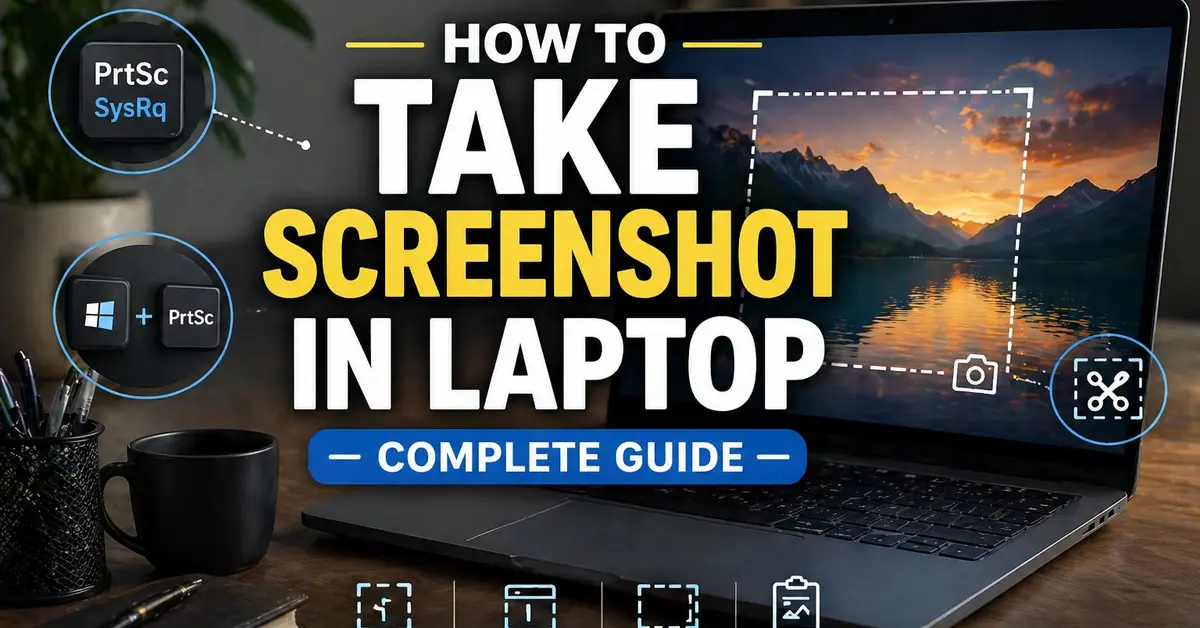
Press the Print Screen (PrtScn) key on your keyboard to take a screenshot of your entire screen instantly. This copies the image to your clipboard, and you can paste it into any application using Ctrl + V.
For a quicker method that saves automatically, press Windows + Print Screen. Your screen dims briefly, and Windows saves the screenshot directly to your Pictures > Screenshots folder. No pasting required.
Here’s a quick reference for the most common screenshot shortcuts:
- PrtScn – Copies entire screen to clipboard
- Windows + PrtScn – Saves screenshot automatically
- Alt + PrtScn – Captures active window only
- Windows + Shift + S – Opens selection tool for custom area
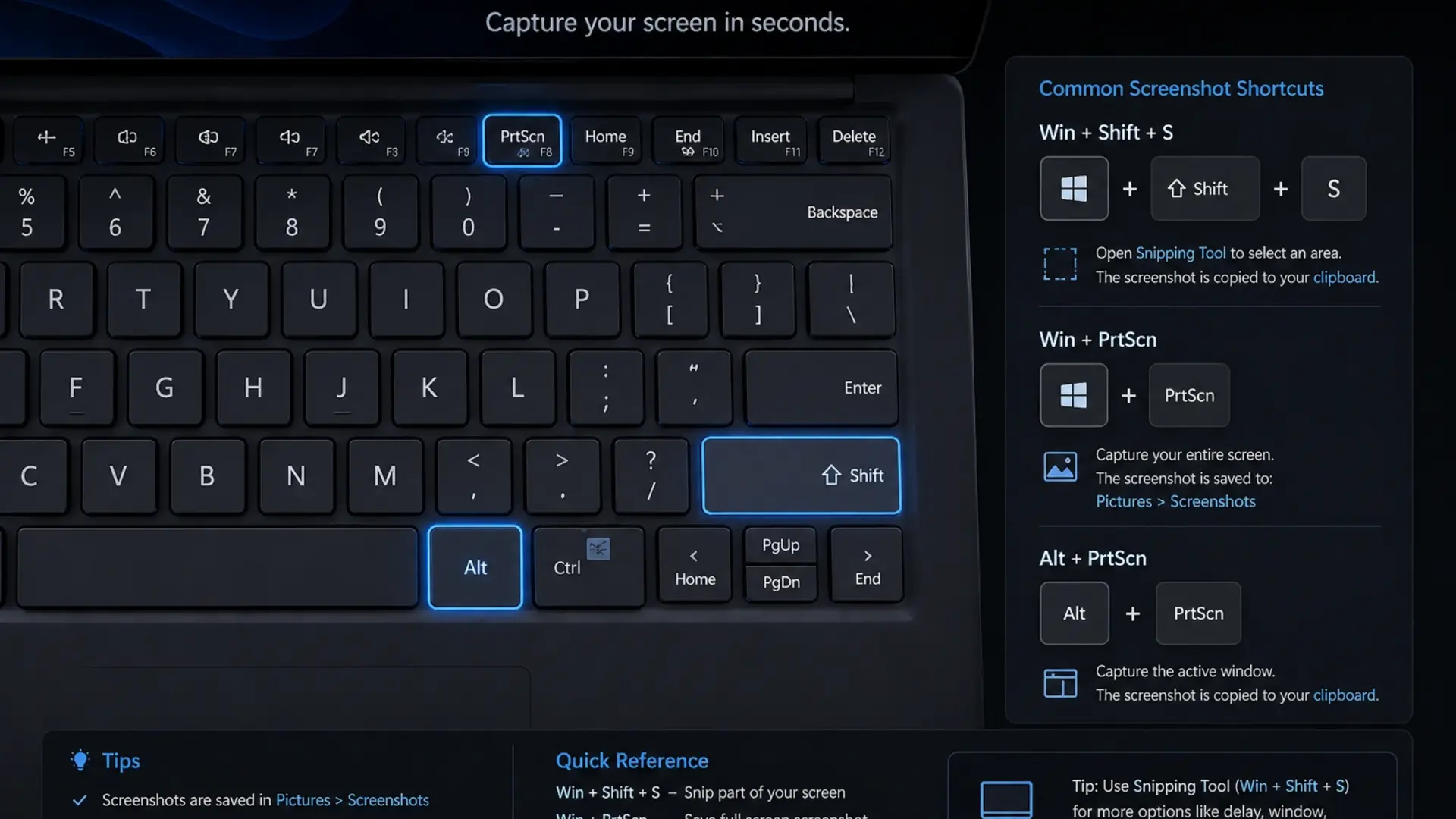
The Print Screen key location varies between laptops. On most keyboards, you’ll find it in the top row, often abbreviated as PrtScn, PrtSc, or Print. Some compact laptops require pressing the Fn key along with Print Screen to activate the function.
How to Take Screenshot in Laptop Windows 11
Windows 11 uses the Snipping Tool as its default screenshot application, offering more control than basic keyboard shortcuts.
Using Keyboard Shortcuts
- Windows + Shift + S – Opens Snipping Tool overlay immediately
- Windows + PrtScn – Captures and saves full screen
- PrtScn – Copies full screen to clipboard
- Alt + PrtScn – Captures current window only
Using Snipping Tool
- Press the Windows key and type “Snipping Tool.”
- Click New to start a capture
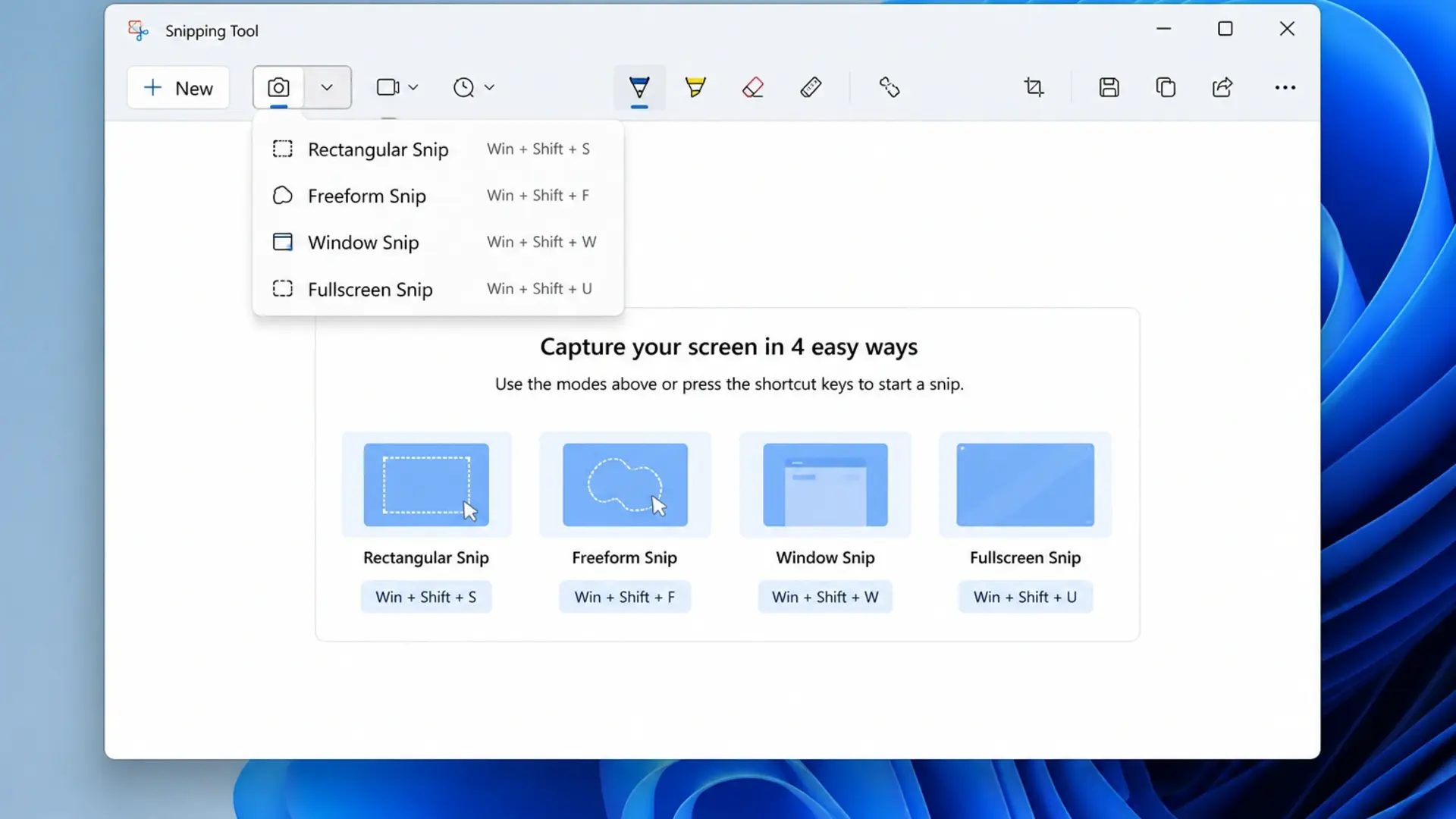
- Choose from Rectangle, Window, Full Screen, or Free-form modes
- Click and drag to select your area
- Edit with pen, highlighter, or crop tools
- Save using Ctrl + S
Windows 11 also lets you set Print Screen to open the Snipping Tool directly. Go to Settings > Accessibility > Keyboard and enable “Use the Print Screen key to open screen capture.”
The snipping tool shortcut Windows + Shift + S works fastest for most users. After capturing, a notification appears in the corner . Click it to edit and save your screenshot.
How to Take Screenshot in Laptop Windows 10
Windows 10 offers similar methods with slight interface differences.
Quick Keyboard Methods
- Windows + Shift + S – Opens Snip & Sketch overlay
- Windows + PrtScn – Saves a full screenshot automatically
- PrtScn – Copies screen to clipboard
- Alt + PrtScn – Captures active window
Using Snip & Sketch
- Press Windows + Shift + S
Select capture mode from the toolbar: - Rectangular Snip
- Freeform Snip
- Window Snip
- Fullscreen Snip
- Click and drag to capture
- Click the notification to open in the editor
- Save with Ctrl + S
The screenshot shortcut key that Windows 10 users rely on most is Windows + Shift + S because it combines speed with selection flexibility. Your captures are saved to the clipboard first, then you can paste or save them anywhere.
If your laptop runs slowly when taking screenshots, background processes may be causing the issue. Check our guide on how to fix a laptop battery draining fast – the same fixes that improve battery life also boost overall performance.
How to Take Screenshot in Laptop Windows 7
Windows 7 lacks the modern snipping shortcuts but still offers reliable screenshot methods.
Basic Screenshot Methods
- PrtScn – Captures entire screen to clipboard
- Alt + PrtScn – Captures active window only
- Paste into Paint or Word using Ctrl + V
- Save the file manually
Using Snipping Tool (Windows 7)
- Click Start menu
- Type “Snipping Tool” in the search
- Open the application
- Click New
- Select an area to capture
- Save using File > Save As
Windows 7’s Snipping Tool works well, but requires more steps than newer versions. After capturing, you must manually save each screenshot before taking another.
How to Take Screenshot in Laptop Mac
Screenshot in Mac works differently from Windows, using the Command key instead of the Windows key.
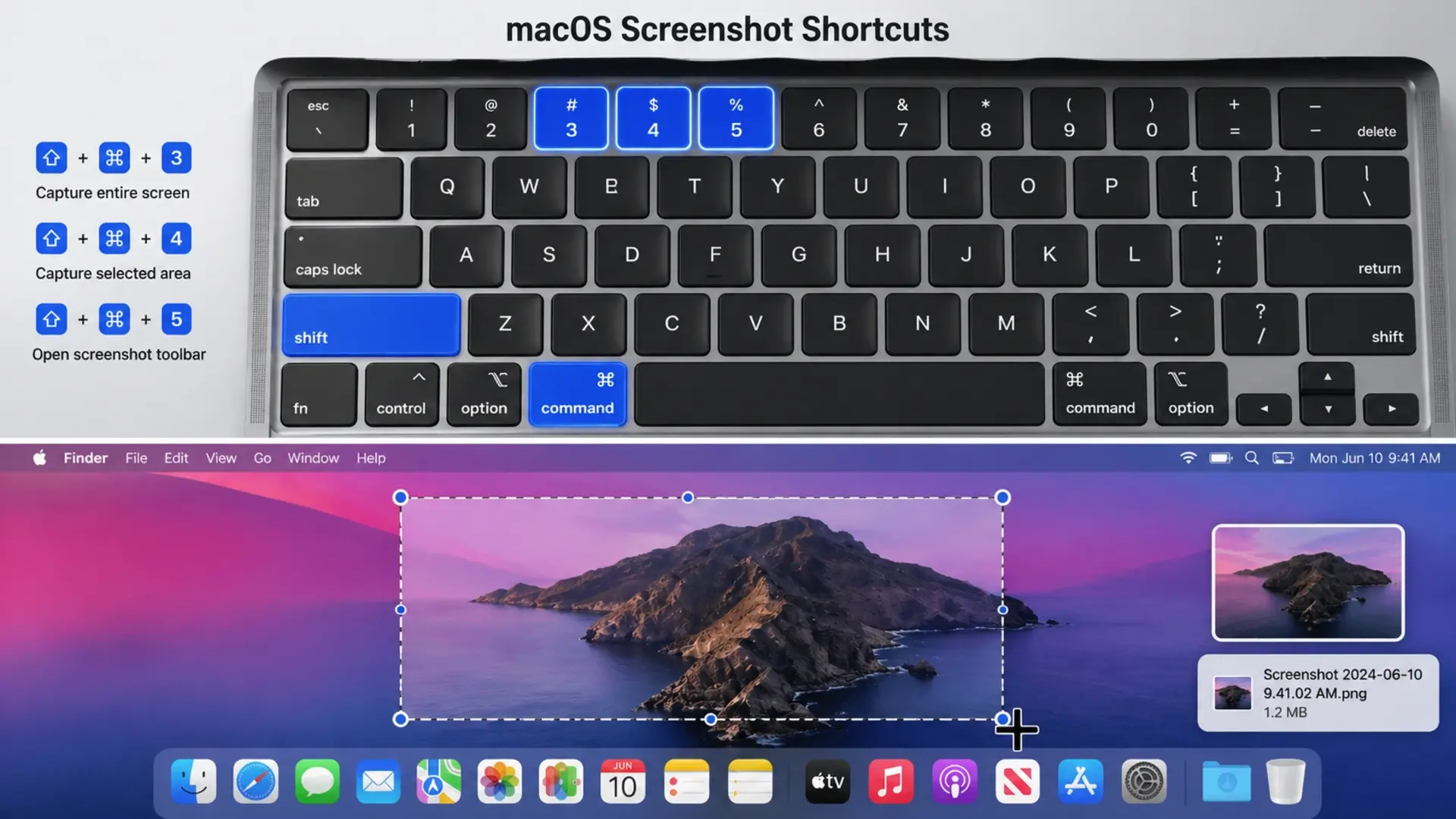
Mac Screenshot Shortcuts
- Command + Shift + 3 – Captures entire screen
- Command + Shift + 4 – Lets you select an area
- Command + Shift + 4 + Spacebar – Captures specific window
- Command + Shift + 5 – Opens screenshot toolbar with all options
Taking Selected Area Screenshots
- Press Command + Shift + 4
- Your cursor changes to crosshairs
- Click and drag to select the area you want
- Release to capture
- Screenshot saves to the desktop automatically
Mac screenshots save to your desktop by default. You can change this location by pressing Command + Shift + 5, then clicking Options.
The Windows screenshot shortcut differs significantly from the Mac shortcut. If you switch between the two systems, remember that Command on Mac replaces the Windows key, and that shortcuts use Shift more frequently.
How to Take Screenshot in Laptop HP
HP laptops use standard Windows shortcuts plus some model-specific options.
Standard HP Screenshot Methods
- PrtScn – Copies full screen (paste with Ctrl + V)
- Windows + PrtScn – Saves screenshot automatically
- Windows + Shift + S – Opens snipping tool
- Fn + PrtScn – Required on some HP models
HP-Specific Tips
Some HP laptops place Print Screen on a shared key. Look for “PrtSc” printed in a different color (usually blue or grey). If so, press Fn + PrtSc together.
On HP Specter and Envy models, the Print Screen key may be located differently due to compact keyboard layouts. Check the top row near the Delete or Insert keys.
HP laptops from the best laptop brands in the world work with all standard Windows screenshot methods, making them easy to use for capturing screen content.
Need video instead of a still image? Here’s how to screen record on an HP laptop.
How to Take Screenshot in Laptop Dell
Dell laptops follow Windows conventions with reliable screenshot functionality.
Dell Screenshot Shortcuts
- PrtScn – Captures entire screen to clipboard
- Windows + PrtScn – Auto-saves to Screenshots folder
- Alt + PrtScn – Captures active window only
- Windows + Shift + S – Opens the selection snipping tool
Dell Function Key Combinations
On Dell Inspiron, XPS, and Latitude models, Print Screen usually works without the Fn key. However, if your screenshot doesn’t capture, try:
- Fn + PrtScn on compact keyboards
- Fn + Windows + PrtScn for auto-save
Dell XPS laptops sometimes map Print Screen to a secondary function. Check if “PrtScn” appears below another key label. This indicates you need the Fn key.
How to Take Screenshot in Laptop Lenovo
Lenovo laptops, especially ThinkPads, include additional screenshot options through their Vantage software.
Standard Lenovo Shortcuts
- PrtScn – Full screen to clipboard
- Windows + PrtScn – Saves screenshot automatically
- Fn + PrtScn – Required on many Lenovo models
- Windows + Shift + S – Opens snipping overlay
- Fn + Spacebar – ThinkPad specific (some models)
ThinkPad Screenshot Key
Many ThinkPad keyboards include a dedicated screenshot key near the arrow keys. This key has a scissors icon and opens the snipping tool directly when pressed.
Lenovo Vantage software also provides screenshot options. Open Vantage, go to Device Settings, and explore keyboard shortcut customization.
How to Take Screenshot in Laptop with Keyboard
Every laptop keyboard includes screenshot capabilities via the laptop’s screenshot shortcut key.
Universal Keyboard Shortcuts (Windows)
| Shortcut | Function |
| PrtScn | Copy full screen to clipboard |
| Windows + PrtScn | Save full screen automatically |
| Alt + PrtScn | Copy active window to clipboard |
| Windows + Shift + S | Open selection tool |
| Windows + Alt + PrtScn | Capture active window (Game Bar) |
Finding Your Print Screen Key
The Print Screen key appears in different locations:
- Full-size keyboards: Top row, after F12
- Compact laptops: Shared with another key (use Fn)
- Some HP/Dell: Near Delete or Insert
- Gaming laptops: Often in a standard position
If you can’t find Print Screen, press Fn + Windows + Spacebar on some laptops, or use Windows + Shift + S, which works on all laptops.
How to Take Screenshot in Laptop Selected Area
Press Windows + Shift + S to capture only a selected area of your screen. This snipping tool shortcut lets you draw a rectangle around exactly what you want to capture.
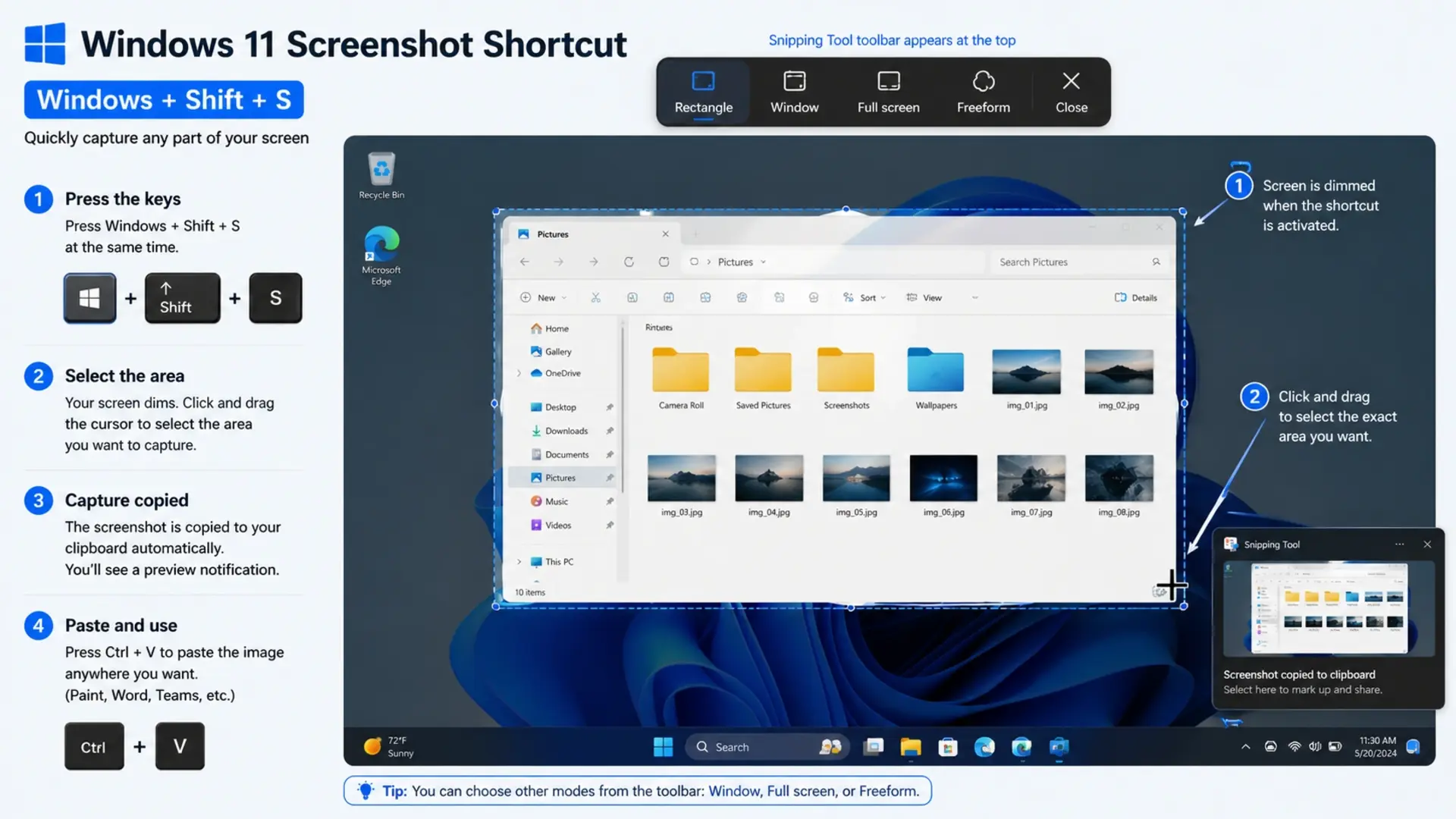
Step-by-Step Selected Area Capture
- Press Windows + Shift + S
- The screen dims, and the toolbar appears at the top
- Choose Rectangular Snip (first icon)
- Click and drag to draw a selection box
- Release the mouse button to capture
- Click notification to edit or save
Other Selection Options
The toolbar offers four capture modes:
- Rectangular Snip – Draw a rectangle
- Freeform Snip – Draw any shape
- Window Snip – Click a window to capture it
- Full-screen Snip – Capture everything
Your selected area is automatically copied to the clipboard. Paste it directly into documents, emails, or image editors using Ctrl + V.
Understanding your laptop screen size helps when planning screenshots, especially if you need specific dimensions for presentations or websites.
Where Screenshots Save on Your Laptop
Screenshots save to different locations depending on which method you use:
Windows Save Locations
- Windows + PrtScn: Pictures > Screenshots folder
- Snipping Tool/Snip & Sketch: You choose the location when saving
- PrtScn alone: Clipboard only (paste somewhere first)
- Windows + Shift + S: Clipboard, then save from the notification
Mac Save Locations
- All shortcuts: Desktop by default
- Command + Shift + 5: Choose a custom location in Options
Changing Default Save Location (Windows 11)
- Open Snipping Tool
- Click the three-dot menu
- Select Settings
- Under “Screenshots,” change the folder path
Frequently Asked Questions
What is the Ctrl key for screenshot on a laptop?
The Ctrl key alone doesn’t take screenshots on Windows laptops. You need the Print Screen (PrtScn) key to capture screenshots. However, Ctrl + V pastes screenshots after you capture them, and Ctrl + S saves screenshots in editing applications.
What are three ways to take a screenshot on a PC?
The three main ways to take a screenshot on PC are: First, press Print Screen to capture your entire screen to the clipboard. Second, press Windows + Shift + S to open the snipping tool and select a specific area. Third, use the Snipping Tool application for more control over your captures with editing options.
Where is the screenshot key on a laptop?
The screenshot key (Print Screen) sits in the top row of your keyboard, typically after F12 and before Delete or Insert. Look for labels like PrtScn, PrtSc, Print, or a camera icon. On compact laptops,
Where do Ctrl+Shift+S screenshots go?
Windows + Shift + S screenshots copy to your clipboard first, not a folder. After capturing, a notification appears in the bottom-right corner. Click this notification to open the screenshot in Snipping Tool, then save it wherever you choose using Ctrl + S.
Need Help with Your Laptop?
Tech Point Zone stocks laptops from HP, Dell, Lenovo, ASUS, and all major brands with reliable keyboard functionality. Visit our Bur Dubai showroom for expert advice on choosing the right laptop for your needs.WhatsApp us at +971 525696022 or browse our collection at techpointzone.com.
More guides: connect a laptop to an external monitor and transfer photos from iPhone to laptop.